> ## Documentation Index
> Fetch the complete documentation index at: https://help.kajabi.com/llms.txt
> Use this file to discover all available pages before exploring further.
# Update billing details
> Update a payment method and billing address for a Kajabi subscription.
Keep your **billing** information up to date to ensure uninterrupted access to your Kajabi account. You can update your payment method and billing address from the Subscription & Billing page in your account settings.
## Update a payment method
1. Go to Settings > **Subscription & Billing**.
2. Click on the **[Billing](https://app.kajabi.com/admin/settings/subscriptions?tab=billing)** tab.
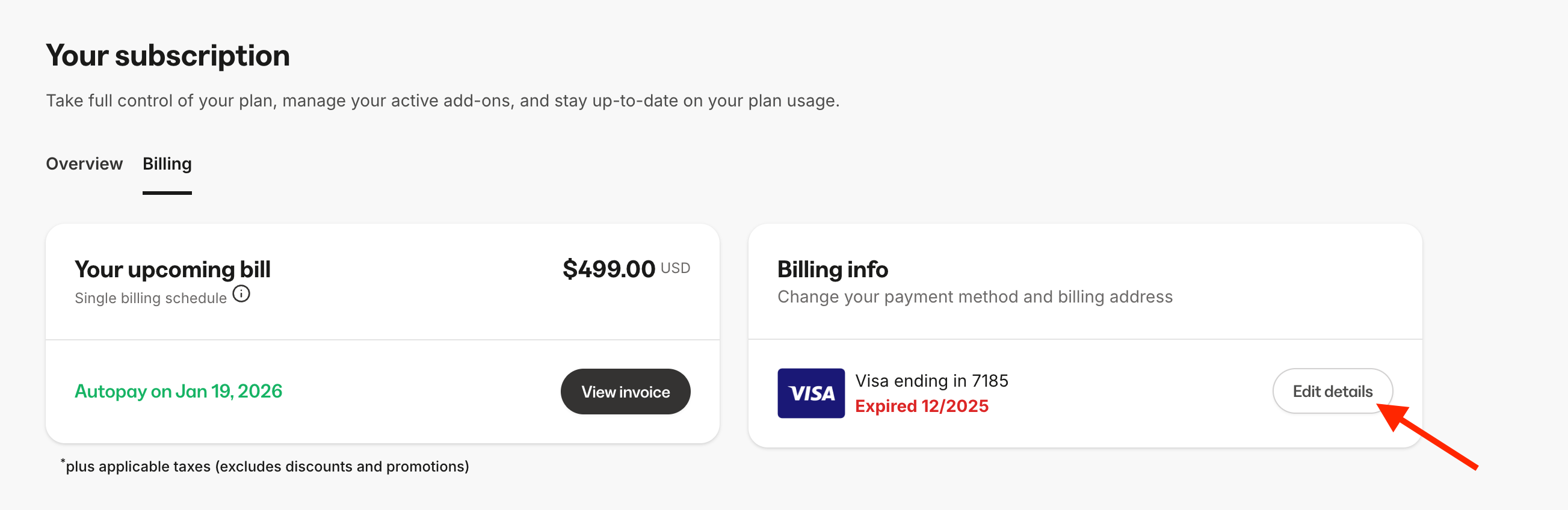
3. Under Billing info, click **Edit details**.
4. Click the 3 dots next to your current payment method > **Edit payment method**.
5. Enter your card details.
6. Click **Save changes**.
 **Note:**
* Kajabi only accepts payment by debit or credit card.
* If you have an active Kajabi subscription or are trialing, you must have at least one payment method.
* If you cancel your account and wish to remove your payment method, you can [contact our support team](/articles/resources/support/how-to-contact-kajabi-support).
## Update a billing address
1. Go to Settings > **Subscription & Billing**.
2. Click on the **[Billing](https://app.kajabi.com/admin/settings/subscriptions?tab=billing)** tab.
3. Under Billing info, click **Edit details**.
4. Click **Edit business address**.
5. Update your billing address. You can also update your tax type and number ([learn how taxes work](/articles/account-settings/billing/kajabi-subscription-tax-faqs)).
**Note:**
* Kajabi only accepts payment by debit or credit card.
* If you have an active Kajabi subscription or are trialing, you must have at least one payment method.
* If you cancel your account and wish to remove your payment method, you can [contact our support team](/articles/resources/support/how-to-contact-kajabi-support).
## Update a billing address
1. Go to Settings > **Subscription & Billing**.
2. Click on the **[Billing](https://app.kajabi.com/admin/settings/subscriptions?tab=billing)** tab.
3. Under Billing info, click **Edit details**.
4. Click **Edit business address**.
5. Update your billing address. You can also update your tax type and number ([learn how taxes work](/articles/account-settings/billing/kajabi-subscription-tax-faqs)).