> ## Documentation Index
> Fetch the complete documentation index at: https://help.kajabi.com/llms.txt
> Use this file to discover all available pages before exploring further.
# Change a site language
> Configure Language Settings to automatically translate auto-generated text on a Kajabi site.
Kajabi supports multiple languages for auto-generated text across your site, such as checkout forms, customer settings, and success messages. Content in custom text blocks must be translated manually.
## Set your language settings
Configure your Language Settings to auto-translate the automated text on your site.
With Kajabi, you can change your Language Settings to:
* Danish
* German
* English
* Spanish
* Finnish
* French
* Hungarian
* Italian
* Japanese
* Dutch
* Norwegian
* Polish
* Portuguese
* Russian
* Swedish
* Turkish
### Auto-translate automated text
1. Open the **Settings** tab from the Dashboard.
2. Click **Site Details**.
3. Select your preferred language from the **Language** dropdown menu.
4. Click **Save** to keep your changes.
Keep in mind, the [custom text blocks](/articles/website/pages/how-to-add-a-text-block-to-your-page) on your site pages are not automated text and will not auto-translate after you change your site Language Settings.
With your custom text blocks, you can enter various translations on your page(s).
Change your custom text blocks by entering your message in the language of your choice.
**Tip:** If you want to use multiple languages on your site, use Kajabi's unlimited **landing pages** to create pages for each language needed.
## Automatic translations
Changing your Language Settings will automatically translate the automated text throughout your site.
**Looking to update the customizable text on your Course Product (e.g., the course completion message)?**
Build your Course Product to fit your language and brand by customizing your Product template. [Learn more](/articles/products/courses/course-templates)
**Tip:** System-generated emails can be translated from the **Email Templates** section under your **Settings** tab. Learn to [edit the automated emails sent by your site](/articles/account-settings/notifications/edit-automated-email-notifications).
### Updating Language Settings for a site will translate
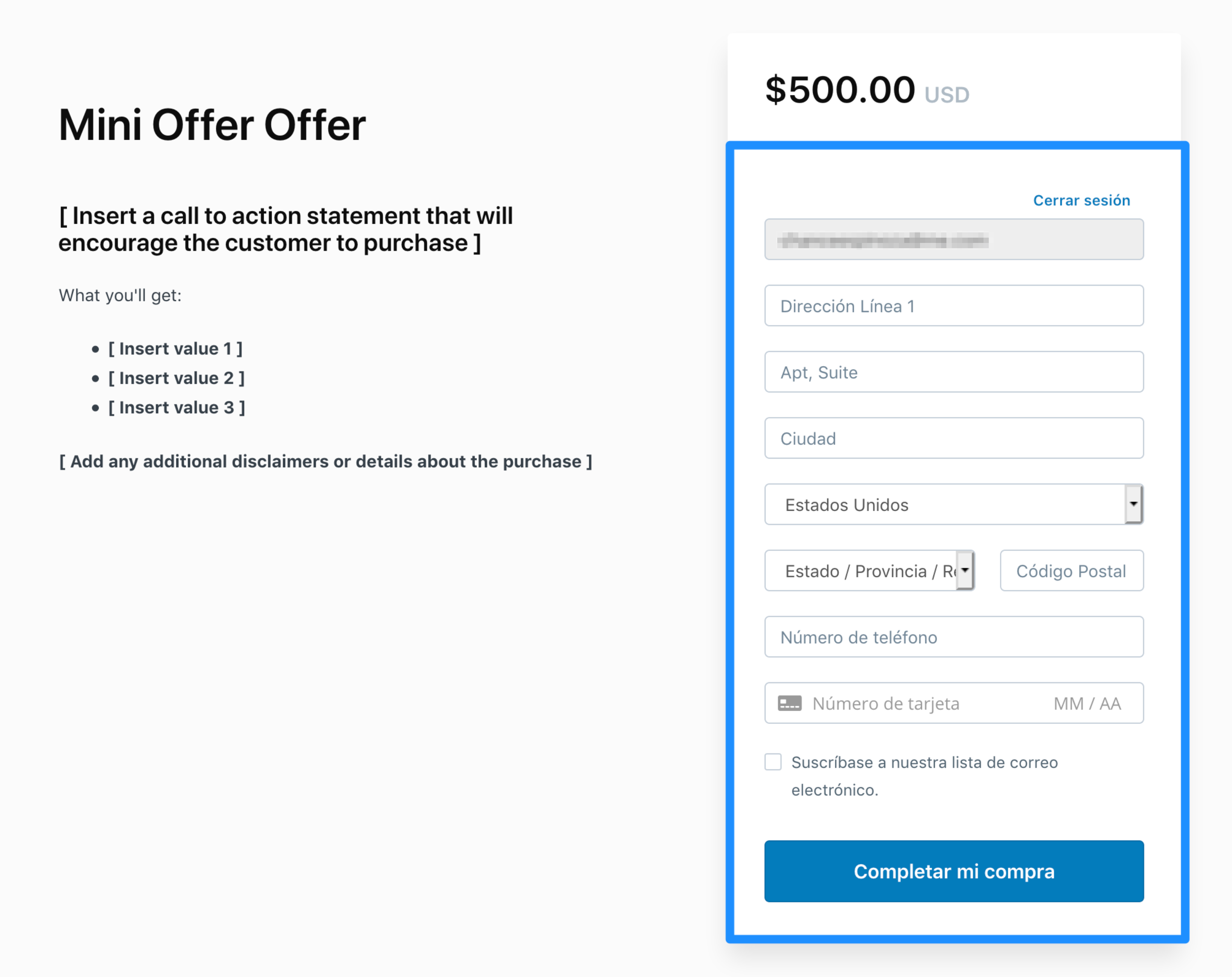
#### Checkout settings
Checkout settings refers to any text in a Checkout Page that is directly related to Checkout. In other words, the form text in the Checkout Page:
 #### Customer settings
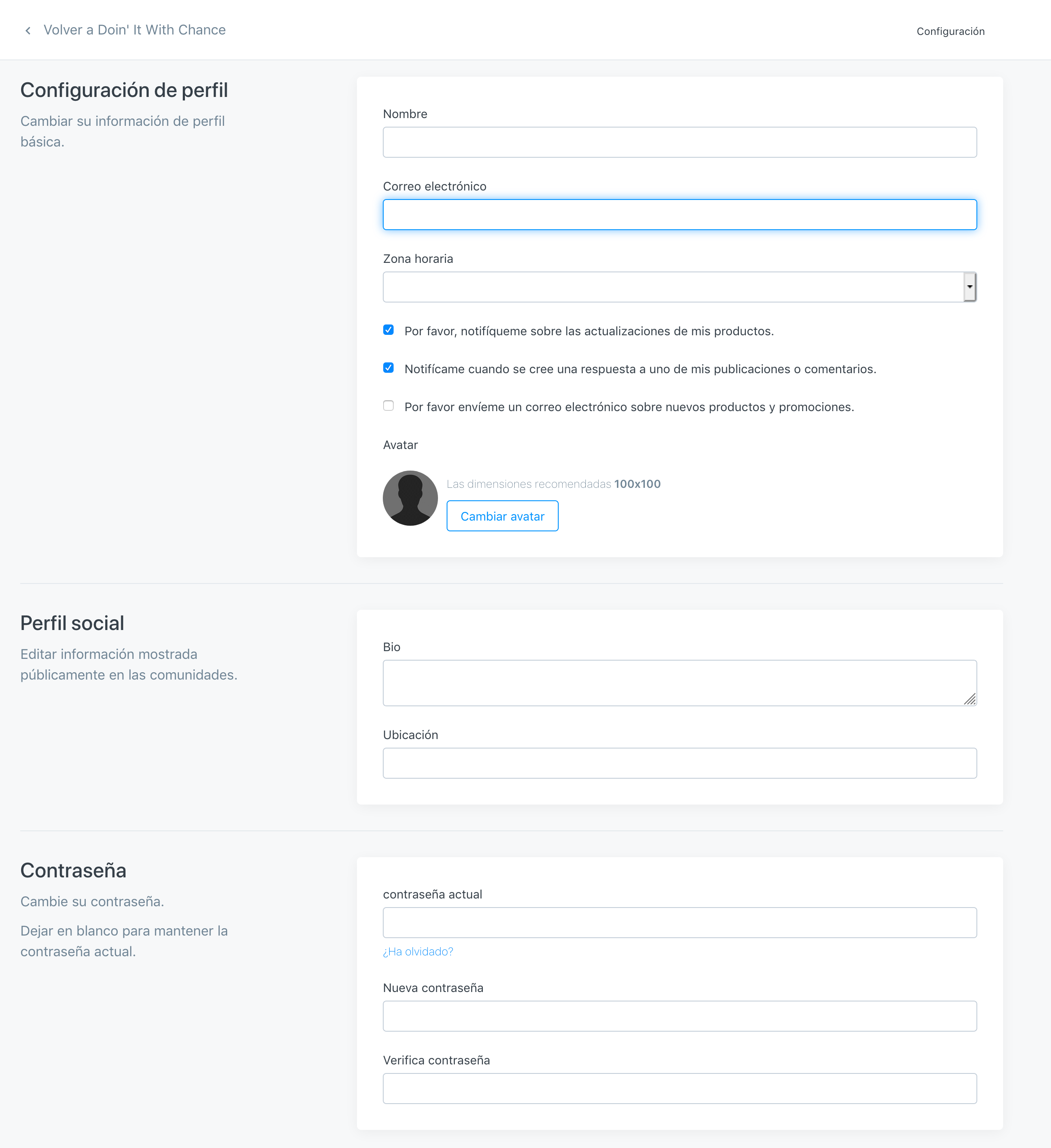
This refers to the Settings in your user's own account. They get here by clicking the Avatar that lives in the top right corner of the page:
#### Customer settings
This refers to the Settings in your user's own account. They get here by clicking the Avatar that lives in the top right corner of the page:
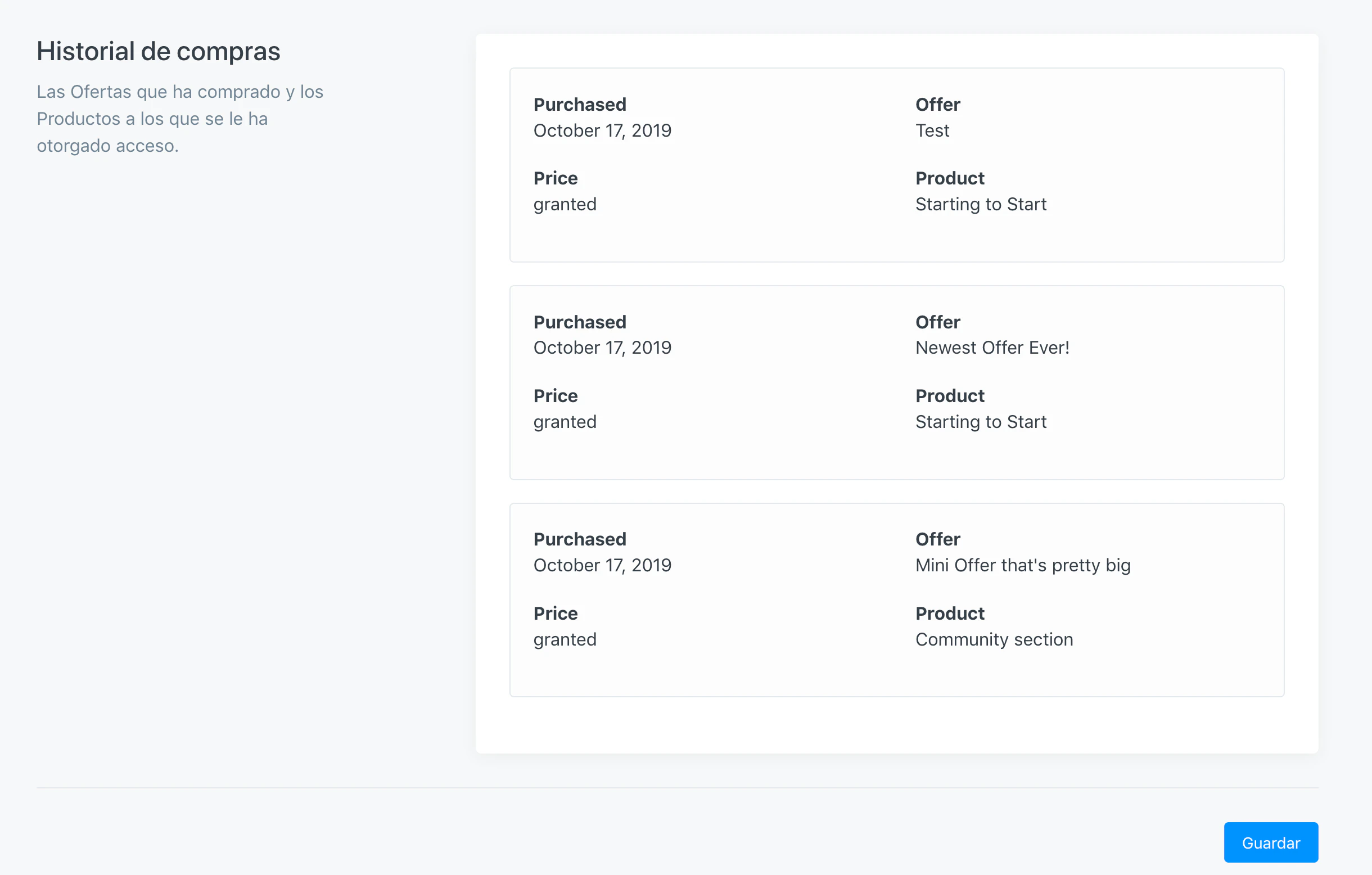
 Language like "Purchased, Granted, Offer, and Product" aren't currently translated, but all other fields and directions are:
 #### Success/Alert messages
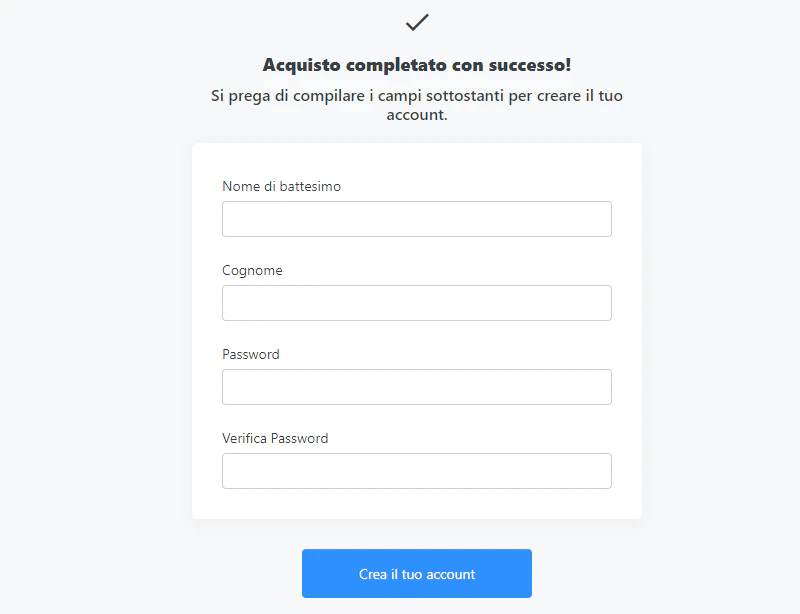
These are popup messages that appear after a successful purchase:
#### Success/Alert messages
These are popup messages that appear after a successful purchase: