> ## Documentation Index
> Fetch the complete documentation index at: https://help.kajabi.com/llms.txt
> Use this file to discover all available pages before exploring further.
# Manage Kajabi sites
> Add a single Kajabi website or configure multiple sites within an account.
A **site** is a branded hub where all your Kajabi content lives — Website Pages, Blog, Product library (e.g., Courses, Community), Checkout Pages, and customer login.
Each Kajabi plan comes with at least 1 site. Depending on your plan, you may be able to have multiple sites within your account. You can also [add additional sites](/articles/account-settings/billing/manage-your-subscription), regardless of your plan.
Each site is independent of each other. In part, this means that your Products, Pages, Contacts, and Settings are not shared between sites.
**Note:** Your plan usage is shared among all sites in your account.\
\
Sites cannot be moved to different Kajabi accounts.\
\
Multiple sites within one account are not meant to be created for other people or businesses you do not own.
## Add a site
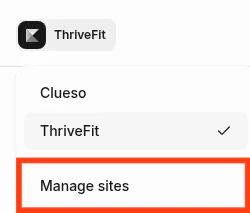
1. From the Dashboard, click the **site name** in the top-left.
2. Select [**Manage sites**](https://app.kajabi.com/admin/sites).
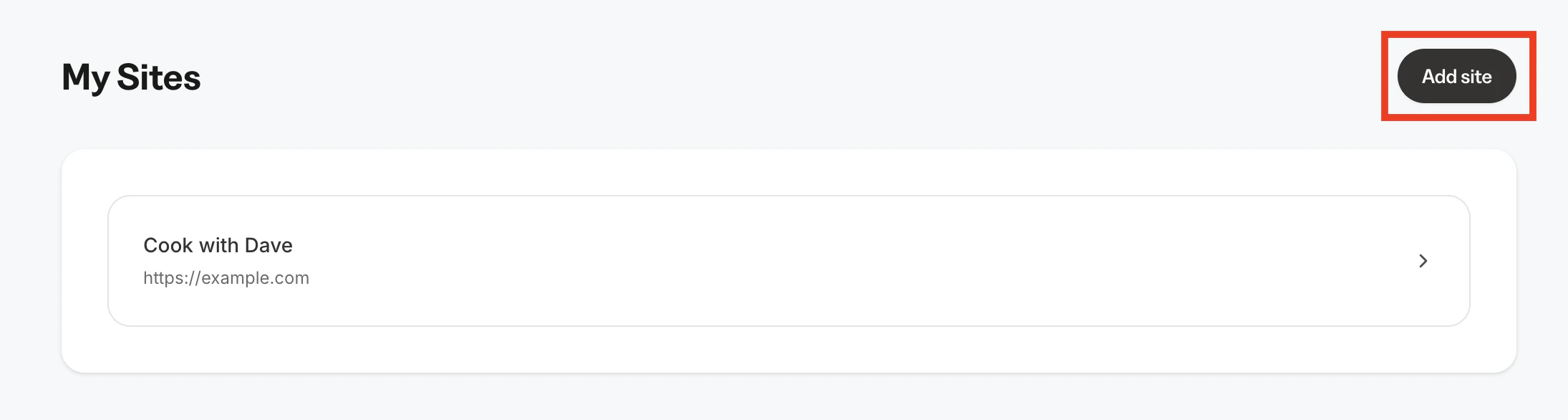
 3. Click **Add site**.
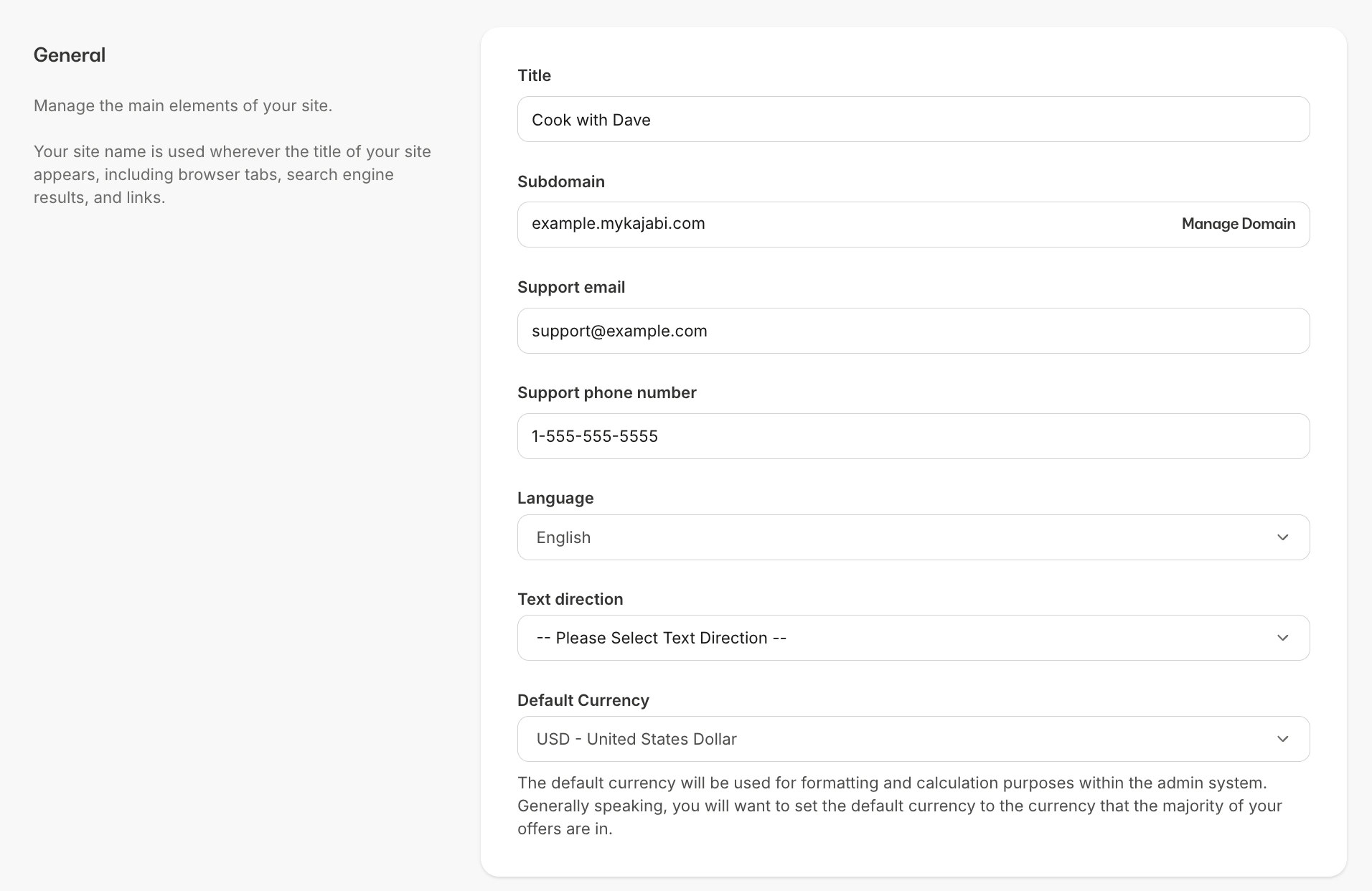
 4. Enter site details, including:
* **Title** (Site name)
* **Support email**
* **Support phone number**
* **Language -** English is default
* **Text direction** - Left-to-right is default
4. Click **Save** to add the site.
## Edit site details
There are several sections of site details you may edit: [General,](/articles/account-settings/my-kajabi/sites-explained#general-details) [Homepage](/articles/account-settings/my-kajabi/sites-explained#homepage), [Instructor](/articles/account-settings/my-kajabi/sites-explained#instructor), [Page scripts](/articles/account-settings/my-kajabi/sites-explained#page-scripts), [SEO and social sharing](/articles/account-settings/my-kajabi/sites-explained#seo-and-social-sharing), and [Kajabi branding](/articles/account-settings/my-kajabi/sites-explained#kajabi-branding).
### General details
1. From the Dashboard, go to **Settings**.
2. Under **Site settings**, click [**Site details**](https://app.kajabi.com/admin/last_site/edit/site-details).
3. Under **General**, you can edit any initially entered details as needed, as well as the site **Subdomain,** and the **Default Currency**.
4. Enter site details, including:
* **Title** (Site name)
* **Support email**
* **Support phone number**
* **Language -** English is default
* **Text direction** - Left-to-right is default
4. Click **Save** to add the site.
## Edit site details
There are several sections of site details you may edit: [General,](/articles/account-settings/my-kajabi/sites-explained#general-details) [Homepage](/articles/account-settings/my-kajabi/sites-explained#homepage), [Instructor](/articles/account-settings/my-kajabi/sites-explained#instructor), [Page scripts](/articles/account-settings/my-kajabi/sites-explained#page-scripts), [SEO and social sharing](/articles/account-settings/my-kajabi/sites-explained#seo-and-social-sharing), and [Kajabi branding](/articles/account-settings/my-kajabi/sites-explained#kajabi-branding).
### General details
1. From the Dashboard, go to **Settings**.
2. Under **Site settings**, click [**Site details**](https://app.kajabi.com/admin/last_site/edit/site-details).
3. Under **General**, you can edit any initially entered details as needed, as well as the site **Subdomain,** and the **Default Currency**.
 ### Homepage
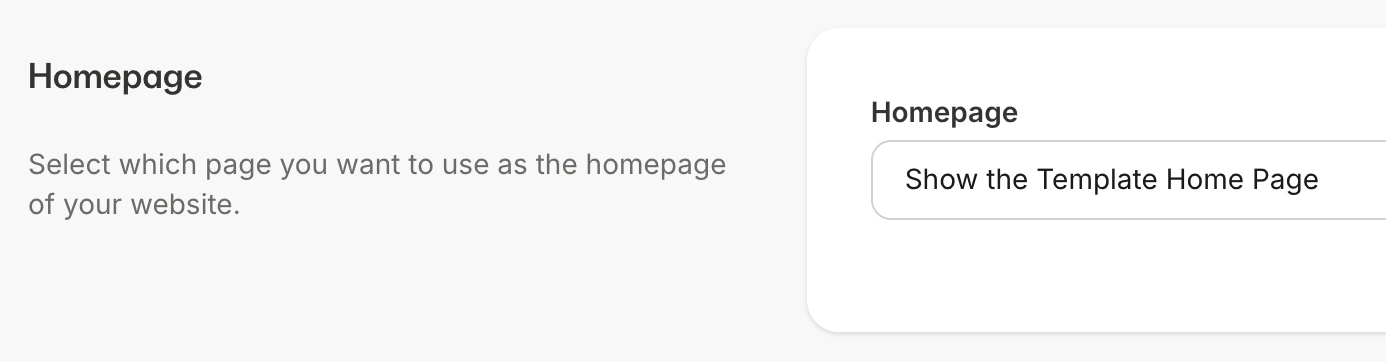
1. Under Homepage, select one of the following options:
* Show the Store
* Show the Library - Users are prompted to sign in
* Show a Newsletter - Choose from any of your created Newsletters
* Show a Landing Page - Choose from pages listed under Website > Landing Pages
* Show the Template Home Page - Shows the Home page in Website > Website Pages
### Homepage
1. Under Homepage, select one of the following options:
* Show the Store
* Show the Library - Users are prompted to sign in
* Show a Newsletter - Choose from any of your created Newsletters
* Show a Landing Page - Choose from pages listed under Website > Landing Pages
* Show the Template Home Page - Shows the Home page in Website > Website Pages
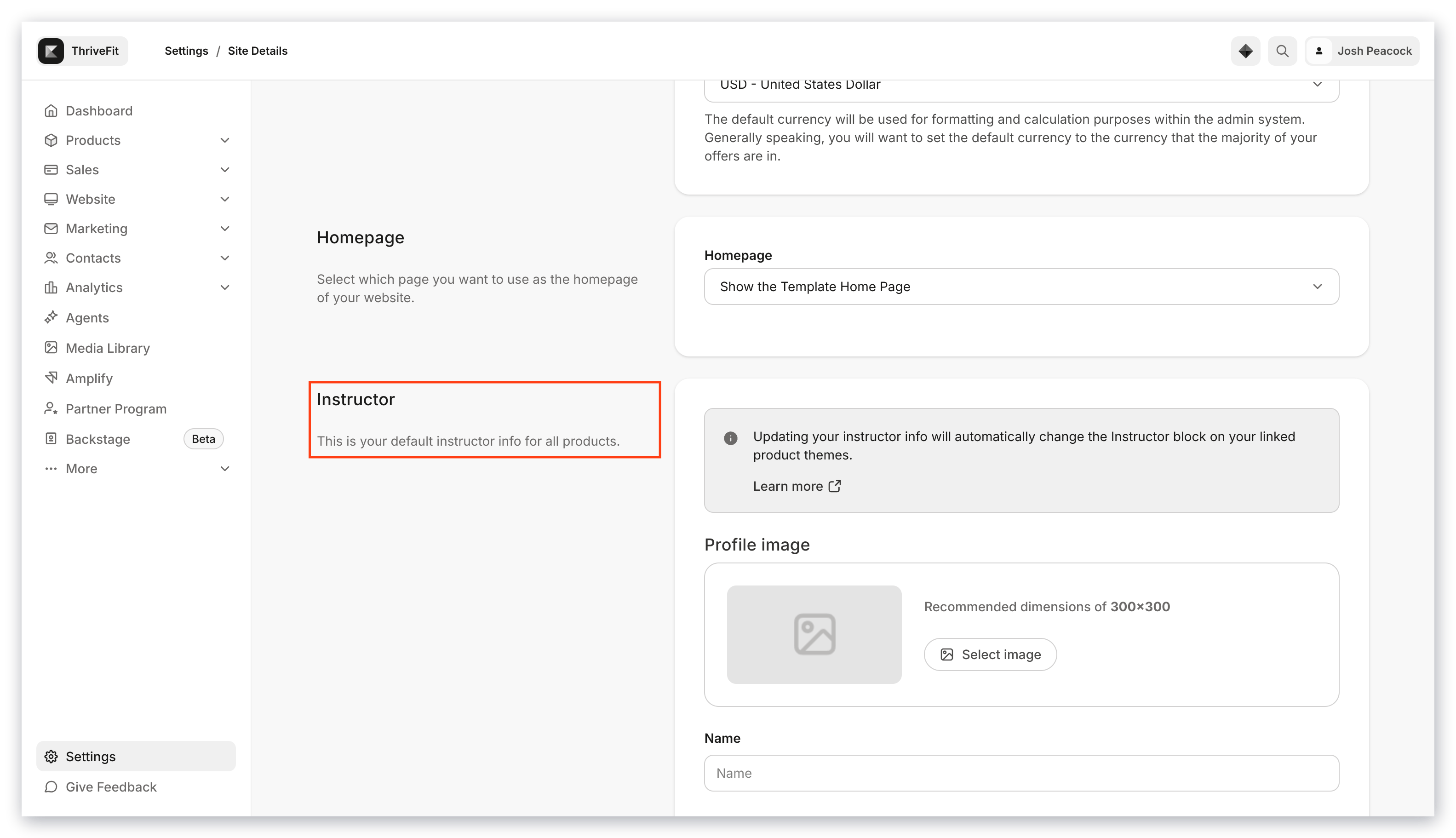
 ### Instructor
Add information for the default instructor for all of your products.
1. Enter the instructor's **Name**, **Title**, and a short **Bio**.
**Note:** This information will only be displayed for courses with Premier, Prosper, or Creative installed if linked to your Instructor Bio Site settings.
2. You can customize the Instructor block on **Course templates**.\
[Learn how to add or update instructor information](/articles/products/courses/how-to-add-and-update-your-instructor-information).
### Instructor
Add information for the default instructor for all of your products.
1. Enter the instructor's **Name**, **Title**, and a short **Bio**.
**Note:** This information will only be displayed for courses with Premier, Prosper, or Creative installed if linked to your Instructor Bio Site settings.
2. You can customize the Instructor block on **Course templates**.\
[Learn how to add or update instructor information](/articles/products/courses/how-to-add-and-update-your-instructor-information).
 ### Page scripts
Code you enter in the **Header Page Scripts** field is placed in the `` section of every page on your site. This includes products, lessons, and pages. For example, you can add a [cookie disclaimer banner](/articles/website/pages/cookies-and-cookie-disclaimers).
**Note:** Adding code in Header Page Scripts will not affect Checkout pages.\
[Learn how to add custom tracking code to your checkout pages](/articles/sales/checkout/how-to-add-a-javascript-tracking-code-to-your-checkout-pages).
**Warning:** Introducing custom code to your site can open you up to vulnerabilities and potential malware attacks. We recommend using vulnerability tools like [VirusTotal](https://www.virustotal.com/gui/home/url) or [Snyk](https://snyk.io/) to scan any custom code that you intend to use.\
\
You can also apply certain [best practices](/articles/website/domains/code-based-customizations) to help reduce potential impact.
### SEO and social sharing
The **SEO and social sharing** section applies to the following system pages under **Website > Website Pages**:
* 404
* Announcements
* Blog
* Blog Post
* Blog Search
* Home
* Library
* Login
* Member Directory
* Store
* Thank You
The page **Title** and page **Description** may be discovered by search engines. The Title also shows in browser tabs. If you leave the Title blank, the system will use the name of the page instead.
Social networks (e.g., Facebook, X) may show your **social image** when your **Site URL** is shared.
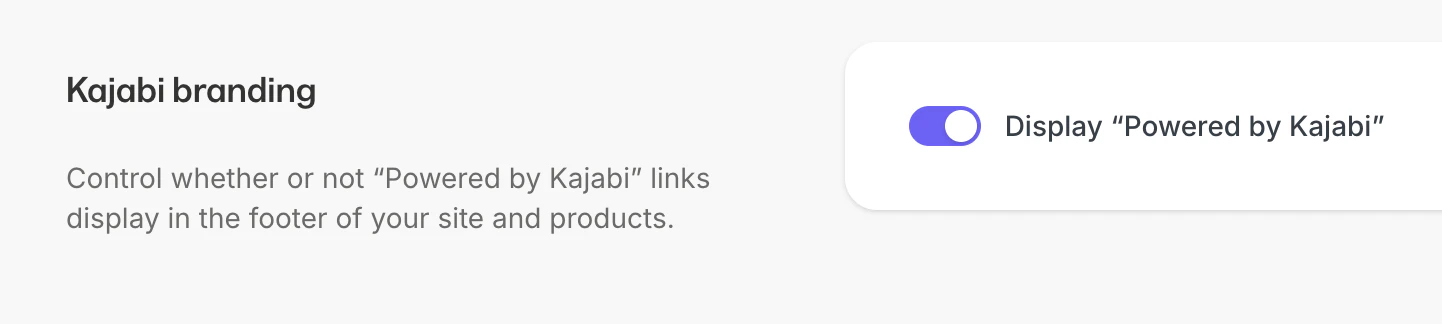
### Kajabi branding
By default, your website will show a link to the Kajabi website ([https://kajabi.com](https://kajabi.com)) and the message "Powered by Kajabi" in your site's footer.
Depending on your plan, you may toggle this off.
### Page scripts
Code you enter in the **Header Page Scripts** field is placed in the `` section of every page on your site. This includes products, lessons, and pages. For example, you can add a [cookie disclaimer banner](/articles/website/pages/cookies-and-cookie-disclaimers).
**Note:** Adding code in Header Page Scripts will not affect Checkout pages.\
[Learn how to add custom tracking code to your checkout pages](/articles/sales/checkout/how-to-add-a-javascript-tracking-code-to-your-checkout-pages).
**Warning:** Introducing custom code to your site can open you up to vulnerabilities and potential malware attacks. We recommend using vulnerability tools like [VirusTotal](https://www.virustotal.com/gui/home/url) or [Snyk](https://snyk.io/) to scan any custom code that you intend to use.\
\
You can also apply certain [best practices](/articles/website/domains/code-based-customizations) to help reduce potential impact.
### SEO and social sharing
The **SEO and social sharing** section applies to the following system pages under **Website > Website Pages**:
* 404
* Announcements
* Blog
* Blog Post
* Blog Search
* Home
* Library
* Login
* Member Directory
* Store
* Thank You
The page **Title** and page **Description** may be discovered by search engines. The Title also shows in browser tabs. If you leave the Title blank, the system will use the name of the page instead.
Social networks (e.g., Facebook, X) may show your **social image** when your **Site URL** is shared.
### Kajabi branding
By default, your website will show a link to the Kajabi website ([https://kajabi.com](https://kajabi.com)) and the message "Powered by Kajabi" in your site's footer.
Depending on your plan, you may toggle this off.
 After making any changes to your **Site details**, click **Save** to apply your changes.
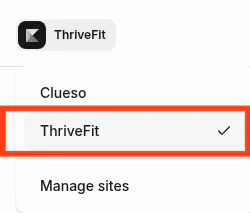
## Switch to another site
To switch the site you are working on to another on your account:
1. From the Dashboard, click the **site name** in the top-left.
2. Then, select the site you wish to switch to.
After making any changes to your **Site details**, click **Save** to apply your changes.
## Switch to another site
To switch the site you are working on to another on your account:
1. From the Dashboard, click the **site name** in the top-left.
2. Then, select the site you wish to switch to.
 ## Delete a site
1. From the Dashboard, go to **Settings**.
2. Under **Site settings**, click [**Site details**](https://app.kajabi.com/admin/last_site/edit/site-details).
3. Scroll down to the bottom of the page, and click **Delete Site**.
## Delete a site
1. From the Dashboard, go to **Settings**.
2. Under **Site settings**, click [**Site details**](https://app.kajabi.com/admin/last_site/edit/site-details).
3. Scroll down to the bottom of the page, and click **Delete Site**.
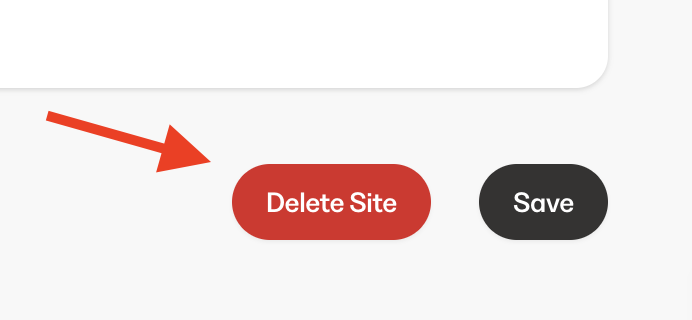 3. Type in your site name and click **Delete site**.
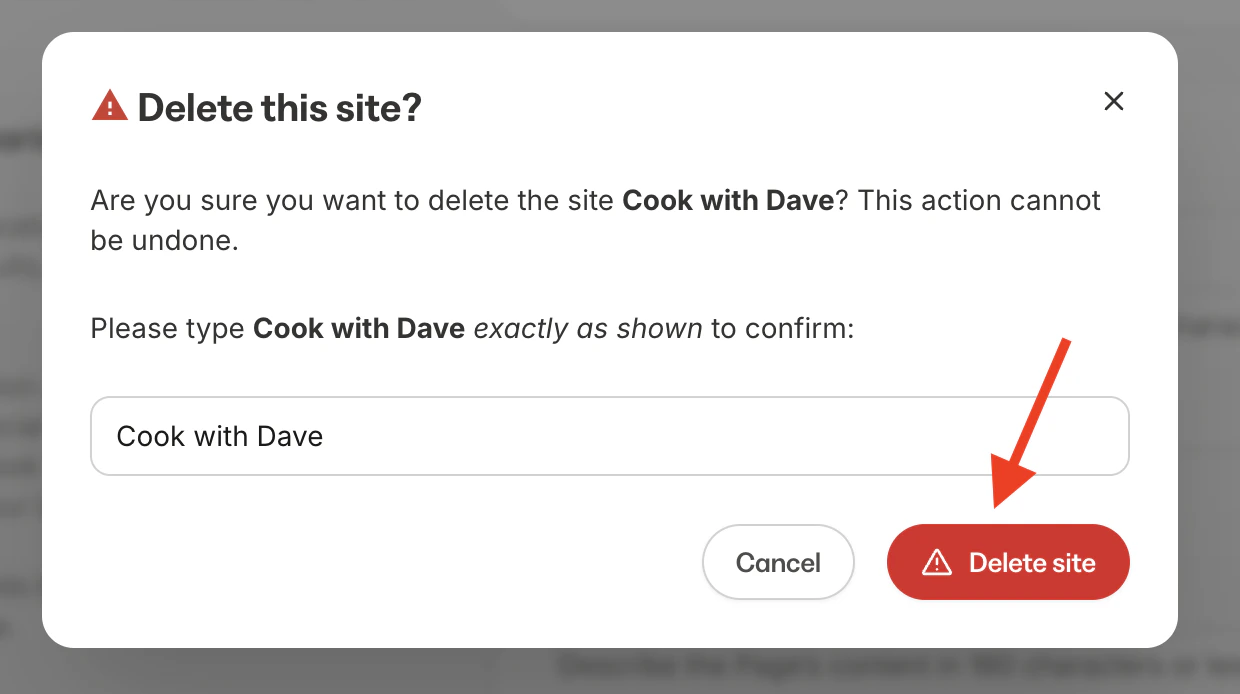 **Warning:** Deleting a site cannot be undone. All of the content within a deleted site will also be deleted and cannot be retrieved. This includes all of your site's products, offers, website and landing pages, email campaigns, contacts, and more. Customers who've purchased your products will no longer be able to access them. Please be sure to confirm the deletion of your site.