> ## Documentation Index
> Fetch the complete documentation index at: https://help.kajabi.com/llms.txt
> Use this file to discover all available pages before exploring further.
# Custom email domain requirements
> Strict DMARC is required for all custom email domains to protect deliverability and security.
Kajabi requires **Strict DMARC** (Domain-based Message Authentication, Reporting, and Conformance) for all custom email domains to protect deliverability and security.
## Why this matters
DMARC works hand-in-hand with SPF (Sender Policy Framework) and DKIM (Domain Keys Identified Mail) to prevent bad actors from spoofing your email address.
Moving to a Strict DMARC policy:
* **Protects your brand reputation** from phishing and impersonation attempts.
* **Keeps your messages out of spam folders** and safely in subscribers' inboxes.
* **Future-proofs your email deliverability** as major providers adopt stricter standards.
Email providers such as **T-Online.de** have made Strict DMARC mandatory, and **Google, Microsoft, and Yahoo** have tightened their policies to require stricter authentication. By adopting this, you'll stay ahead of industry changes and ensure your Kajabi emails continue to reach your audience.
[Learn more about Google's sending requirements](/articles/account-settings/notifications/googles-new-email-sending-requirements-and-what-they-mean-for-you).
**Warning:** Do not inadvertently delete your custom email domain. If you decide to remove your custom email domain, your marketing emails will be sent from the shared Kajabi email domain again. Your custom domain information will be deleted and cannot be recovered, meaning you will need to complete the setup process from the beginning if you choose to reconnect your custom email domain. Any links in emails you've already sent from this domain will no longer work after removal.
## What you need to do
The steps you take depend on whether **Kajabi** or your **DNS provider** manages the DNS for your custom email domain.
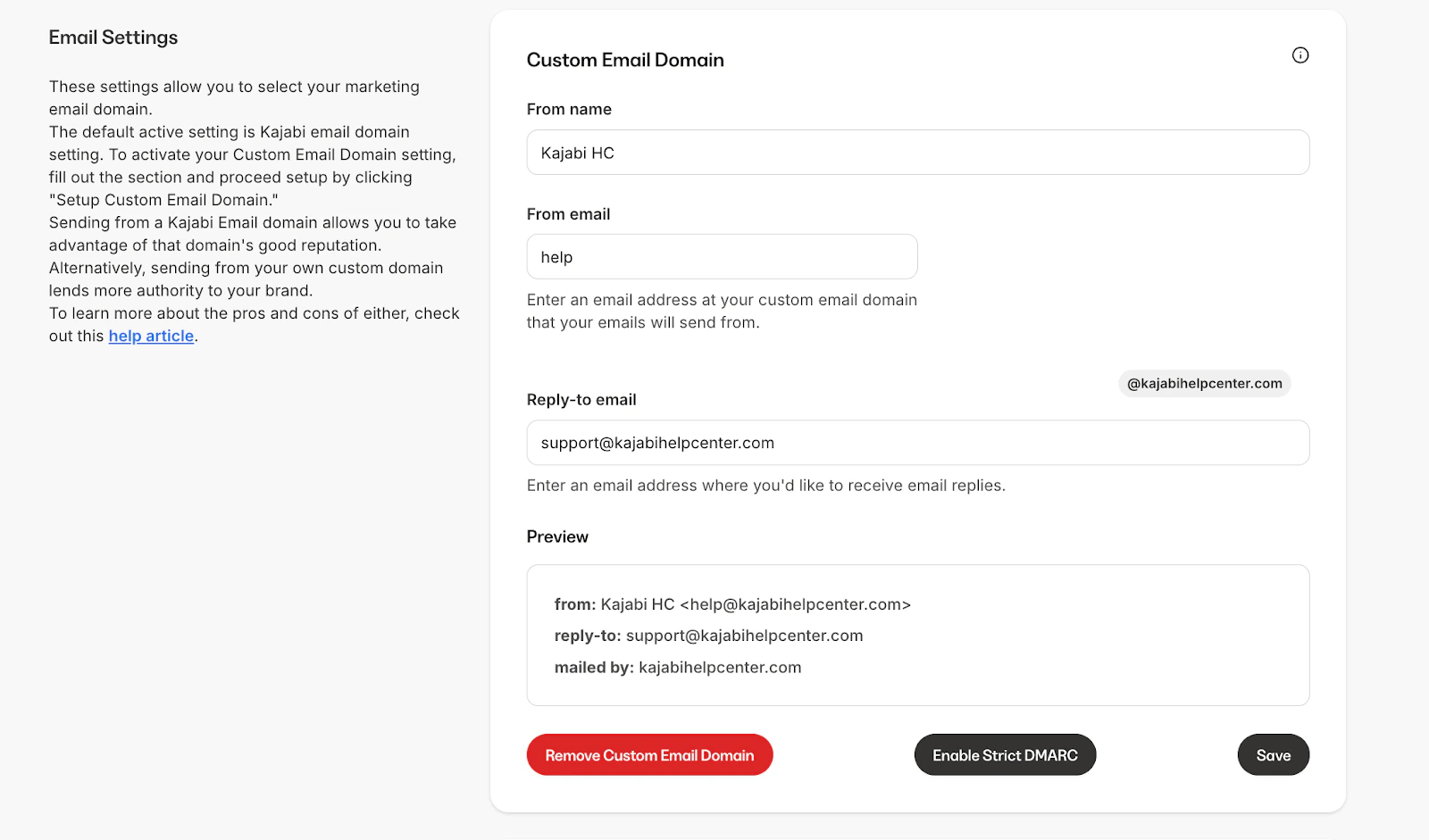
You can confirm by navigating to: **Kajabi → Settings → Marketing Settings → Email Settings**
If you manage your own DNS provider, you will see an **Enable Strict DMARC** button.
**Note:** Even if your custom email domain isn't managed through Kajabi (DNS), you still need to add the required DNS records, enable strict DMARC, and the domain must include the 'kjbm' subdomain as part of your setup. This ensures your domain stays secure and that your emails continue to deliver reliably.
### Custom email domains managed by Kajabi
No action is required from your side.
For Kajabi-managed DNS, your custom email domain is automatically updated. You will see `kjbm` added to the beginning of your domain (for example, `username@kjbm.yourdomain.com`).
This change took effect on **February 9, 2026**.
### Custom email domains managed by your DNS provider
If you manage your own DNS, follow these steps to stay compliant and maintain high deliverability:
1. Go to **Kajabi → Settings → Marketing Settings → Email Settings** and click **Enable Strict DMARC** to view your DMARC record information:
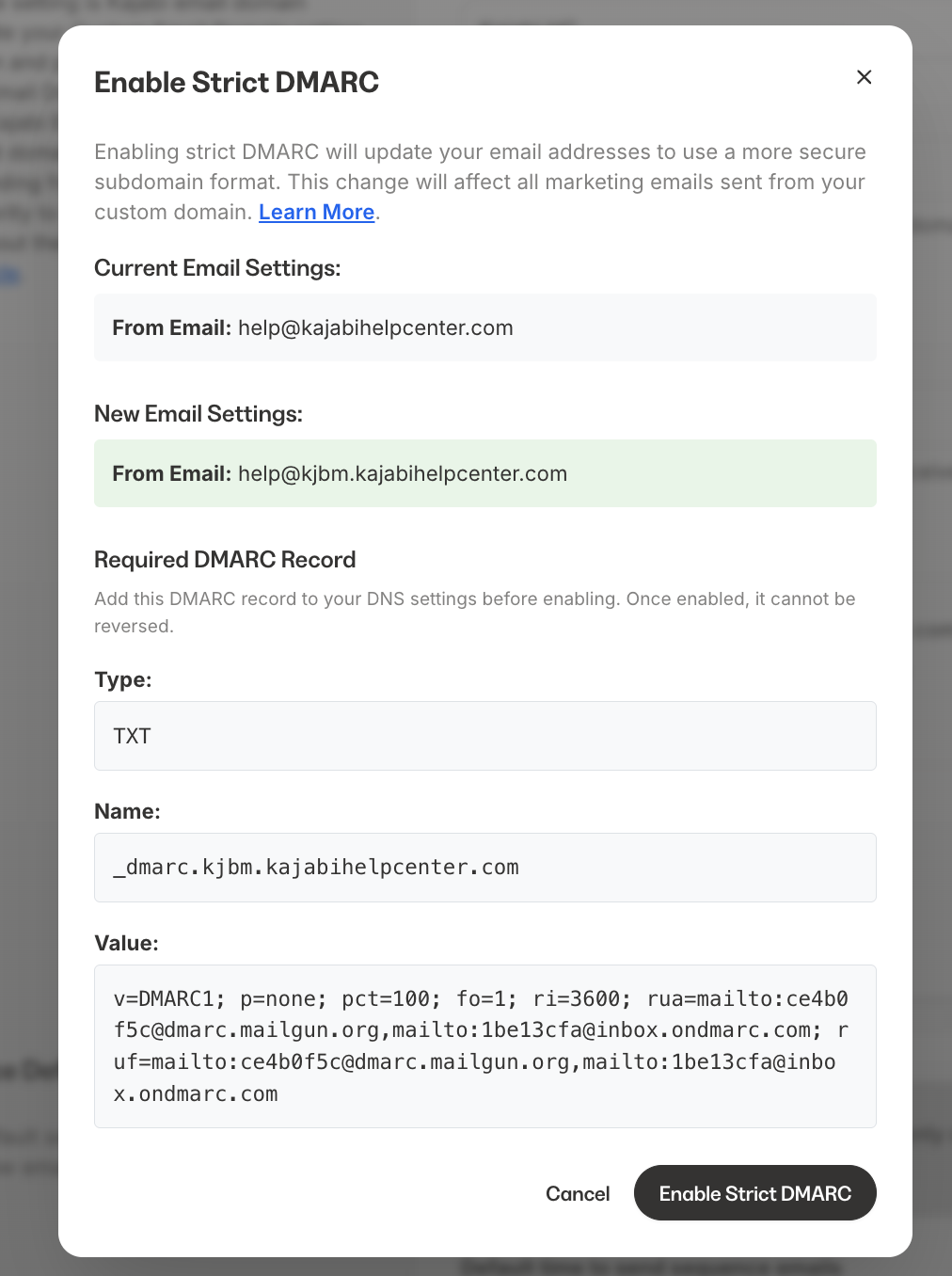 2. Go to your DNS provider and add the required DMARC information. Follow the instructions in this guide: [Add a DMARC Record to Your DNS](/articles/account-settings/notifications/how-to-add-a-dmarc-record-to-your-dns).
3. Wait for DNS propagation. This process typically takes **5 minutes**, but it can take up to **48 hours**.
4. Return to Kajabi and select **Enable Strict DMARC** to confirm that your DNS has propagated.
5. Once propagated, Kajabi will display **Strict DMARC Enabled**.
## What happens if you don't update
If these steps are not completed by **April 30, 2026**:
* You will still be able to send email through Kajabi.
* However, your **Custom Email Domain will be disabled**.
* Your emails will be sent from Kajabi's shared sending pool instead (for example, `username@x.kajabimail.net`).
2. Go to your DNS provider and add the required DMARC information. Follow the instructions in this guide: [Add a DMARC Record to Your DNS](/articles/account-settings/notifications/how-to-add-a-dmarc-record-to-your-dns).
3. Wait for DNS propagation. This process typically takes **5 minutes**, but it can take up to **48 hours**.
4. Return to Kajabi and select **Enable Strict DMARC** to confirm that your DNS has propagated.
5. Once propagated, Kajabi will display **Strict DMARC Enabled**.
## What happens if you don't update
If these steps are not completed by **April 30, 2026**:
* You will still be able to send email through Kajabi.
* However, your **Custom Email Domain will be disabled**.
* Your emails will be sent from Kajabi's shared sending pool instead (for example, `username@x.kajabimail.net`).