> ## Documentation Index
> Fetch the complete documentation index at: https://help.kajabi.com/llms.txt
> Use this file to discover all available pages before exploring further.
# Add a DMARC record to DNS
> Configure a DMARC record in DNS to increase email deliverability and security.
A **DMARC** (Domain-based Message Authentication, Reporting, and Conformance) record helps prevent email spoofing and improves deliverability. Adding this record to DNS ensures your emails are authenticated and trusted by recipient mail servers.
## General instructions
The process of adding a DMARC record varies depending on your DNS provider, but the general setup is the same. For a specific DNS provider, please find your DNS provider in the next section.
Add the following record to your DNS settings:
| Field | Value |
| ---------------------- | ---------------------------------------------------------------------------------------------------------------------------------------------------------------------------------------------- |
| **Type** | TXT |
| **Name** | `_dmarc.kjbm` |
| **Content (or Value)** | `"v=DMARC1; p=none; pct=100; fo=1; ri=3600; rua=mailto:ce4b0f5c@dmarc.mailgun.org,mailto:1be13cfa@inbox.ondmarc.com; ruf=mailto:ce4b0f5c@dmarc.mailgun.org,mailto:1be13cfa@inbox.ondmarc.com"` |
**Important:**
Be sure to include all special characters, including quotation marks, apostrophes, and spaces. Copying and pasting the full value exactly as shown is recommended.
## GoDaddy
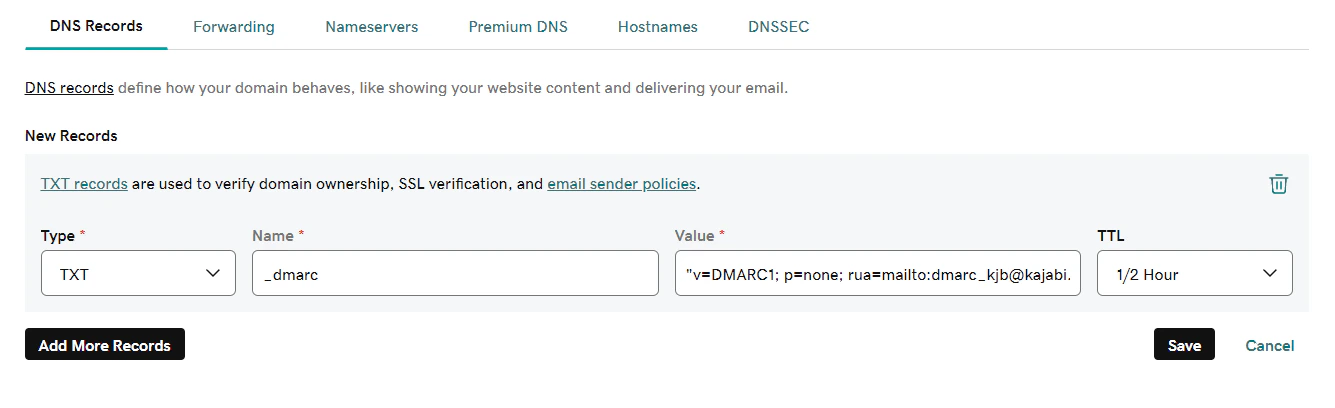
To add a DMARC record in GoDaddy:
1. In your GoDaddy DNS Records, click **Add** and select **TXT** from the Type dropdown.
2. Enter `_dmarc.kjbm` into the **Name** field.
3. Paste the full value into the **Value** field.
4. Keep the default **TTL**.
5. Click **Add record**.
 ## Cloudflare
To add a DMARC record in Cloudflare:
1. Log into your Cloudflare dashboard and select your active domain.
2. Go to the **DNS** tab.
3. Click **+ Add Record** and select **TXT** as the type.
4. Enter `_dmarc.kjbm` into the **Name** field.
5. Paste the full value into the **Content** field.
6. Keep the default **TTL**.
7. Click **Save**.
## Bluehost
To add a DMARC record in Bluehost:
1. In your Bluehost **DNS Manager**, scroll to the **TXT** section and click **Add Record**.
2. Enter `_dmarc.kjbm` into the **Name** field.
3. Paste the full value into the **TXT Value** field.
4. Select **4 Hours** in the **TTL** field.
5. Click **Save**.
## Namecheap
To add a DMARC record in Namecheap:
1. In your Namecheap **Advanced DNS** settings, locate your **Host Records**.
2. Click **+ Add New Record** and select **TXT Record** from the dropdown.
3. Enter `_dmarc.kjbm` into the **Host** field.
4. Paste the full value into the **Value** field.
5. Keep the **TTL** set to **Automatic**.
6. Click **Save All Changes**.
## SiteGround
To add a DMARC record in SiteGround:
1. In your SiteGround Site Tools, navigate to **Domain** > **DNS Zone Editor**.
2. Click **Create New Record** and select **TXT** as the type.
3. Enter `_dmarc.kjbm` into the **Name** field.
4. Paste the full value into the **Value** field.
5. Click **Create**.
## Cloudflare
To add a DMARC record in Cloudflare:
1. Log into your Cloudflare dashboard and select your active domain.
2. Go to the **DNS** tab.
3. Click **+ Add Record** and select **TXT** as the type.
4. Enter `_dmarc.kjbm` into the **Name** field.
5. Paste the full value into the **Content** field.
6. Keep the default **TTL**.
7. Click **Save**.
## Bluehost
To add a DMARC record in Bluehost:
1. In your Bluehost **DNS Manager**, scroll to the **TXT** section and click **Add Record**.
2. Enter `_dmarc.kjbm` into the **Name** field.
3. Paste the full value into the **TXT Value** field.
4. Select **4 Hours** in the **TTL** field.
5. Click **Save**.
## Namecheap
To add a DMARC record in Namecheap:
1. In your Namecheap **Advanced DNS** settings, locate your **Host Records**.
2. Click **+ Add New Record** and select **TXT Record** from the dropdown.
3. Enter `_dmarc.kjbm` into the **Host** field.
4. Paste the full value into the **Value** field.
5. Keep the **TTL** set to **Automatic**.
6. Click **Save All Changes**.
## SiteGround
To add a DMARC record in SiteGround:
1. In your SiteGround Site Tools, navigate to **Domain** > **DNS Zone Editor**.
2. Click **Create New Record** and select **TXT** as the type.
3. Enter `_dmarc.kjbm` into the **Name** field.
4. Paste the full value into the **Value** field.
5. Click **Create**.