> ## Documentation Index
> Fetch the complete documentation index at: https://help.kajabi.com/llms.txt
> Use this file to discover all available pages before exploring further.
# Account users
> Add, edit, and manage account users to help run your Kajabi site.
You can add account users (also known as extra admin users) to help you manage your Kajabi site. This guide shows you how to add, edit, or suspend an account user quickly and securely.
## Add an account user
1. Go to **Settings** > **Manage Users**.
2. Click **New User**.
3. Fill in the user's details: **First name**, **Last name**, **Email**, **Phone number** (optional), **Time zone**, and **Password**.
4. Select a role.
5. Choose which sites and communities they should have access to.
6. Click **Save**.
The user will receive an email to verify their account. After verifying their account, they will need to enter the password you set for them and create a new password.
**Notes:**
* **Note:** Account users log in at the[ Kajabi login page](https://id.kajabi.com/u/login). They are managed under **Settings** > **Manage Users**, not under **Contacts**.
* If you receive an error that the **email address has already been taken**, it means that their email is already associated with another Kajabi account. Many email providers allow you to add a "+" and any word or number to the email (e.g., [example+kajabi@example.com](mailto:example+kajabi@example.com)), including Gmail, [Outlook.com](http://Outlook.com), and Yahoo. In this case, your account user will still receive email notifications at their original email. However, if their email provider doesn't support this, you will need to enter a different email address.
## Verify an account user
When you create an account user, they receive a "Confirmation instructions" email from Kajabi. They must verify their account before logging in. Unverified users will see an error when attempting to sign in.
**Important:** The verification link expires after 24 hours.
If a user needs a new confirmation email:
1. Click **Didn't receive confirmation instructions?** on the login page.
2. Enter the email address in the **Email** field.
3. Click **Resend confirmation instructions**.
**Important:** The verification link expires after 24 hours.
## Edit an account user
1. Go to **Settings** > **Manage Users**.
2. Click the **Edit** icon next to the user.
3. Update the relevant details and click **Save**.
**Important:** When changing or updating an account user's email, they will receive a new "Confirmation instructions" email and must verify their account again.
Any changes to their email will not display on the Account Users page until the new email address is verified.
## Reset a password for an account user
1. From **Manage Users**, click **Edit** next to the user.
2. Click **Reset password**, then confirm.
The user will receive a password reset email from Kajabi. Account users can also reset their own password at any time from the login page.
**Note:** Account users can also reset their password at any time on the Kajabi login page.
## Suspend an account user
1. Go to Settings >[ Manage Users](https://app.kajabi.com/admin/settings/users).
2. Click the **Edit** link next to one of your account users.
3. Scroll down and click **Suspend User**.
4. Click **Suspend user**.
5. To unsuspend them, click **Unsuspend User**.
**Notes:**
* On the account user edit page, there is not an option to delete a user.
* Suspended account users do not count against your plan limit.
* If a suspended user attempts to log in to Kajabi, they may see an error "invalid email or password" even though there is not an issue with their email or password.
## Account user roles
There are 4 roles that can be assigned to an account user:
* Owner (also known as, "sub-owners")
* Administrator
* Assistant
* Support Specialist
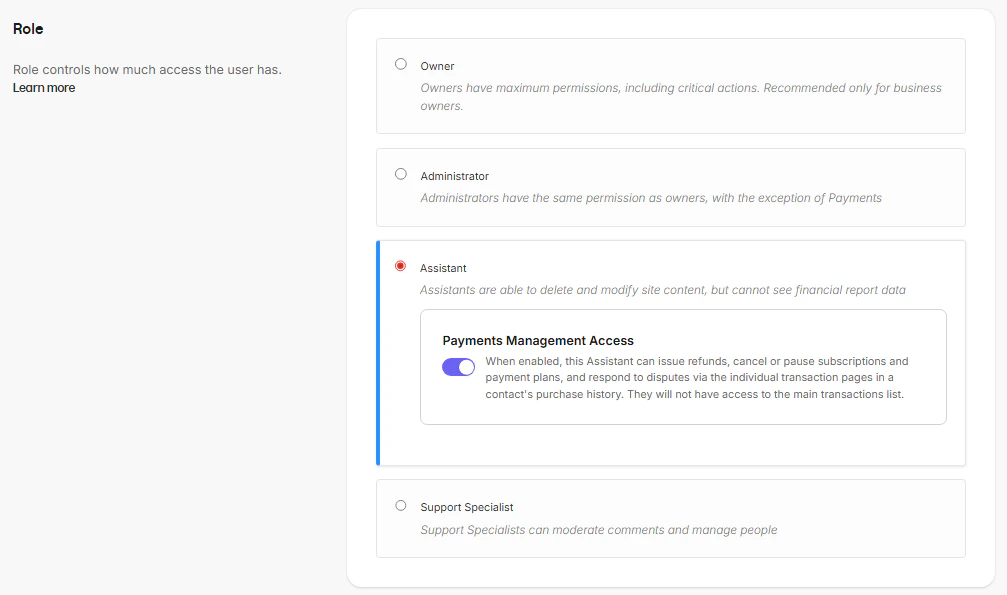 Each role carries a different level of access. Your plan determines how many admin users you can have. This count includes the Account Owner plus any users assigned the Owner or Administrator role.
**Warning:** If you see a banner prompting you to update one or more account users, click the ⚠️ icon next to the user and assign a new role. Choose **Assistant** to lower their permissions or **Administrator** to raise them.
### Owner
**Owners** have maximum permissions, including critical actions. Recommended only for business owners.
### Administrator
Administrators have the same access as Owners, with one exception: they cannot connect payment processors. If an Administrator attempts to connect Kajabi Payments, Stripe, or PayPal, they'll be prompted to contact the Account Owner.
**Note:** Administrators have access to every site associated with the account, including all notifications, comments, and settings across all sites.
### Assistant
Assistants can create and modify site content but cannot access the **Settings, Sales** or **Analytics** menus.
Assistants retain access to individual transaction pages but cannot perform payment management actions by default and will be prompted to contact an administrator.
To enable payment management for an Assistant, an Owner or Administrator can turn on the **Payment Management Access** sub-permission in that user's settings.
This will allow the Assistant to perform individual payment management actions, including:
* Issuing refunds
* Cancelling or pausing subscriptions or payment plans
* Editing billing amounts or dates
* Uploading dispute evidence
* Retrying failed payments.
* Create manual transactions for affiliate users.
**Note:** Assistants can still view customer product progress reports by going to a specific **Product** > **More Actions** > **View Progress**, even without Analytics access.
### Support Specialist
**Support Specialists** have limited access to moderate comments and manage the Contact list for the site(s) the Account Owner gives them permission to access.
## Plan limits
The following user limits are in place for Kajabi's current plans:
* Kickstarter: 2
* Basic: 2
* Growth: 11
* Pro: 26
The limits above include the owner of the Kajabi account. For example, on the Basic plan, an account owner can add 1 additional user with the Administrator role.
Additional users are available for purchase (see [Increase a feature limit](https://help.kajabi.com/articles/account-settings/billing/manage-your-subscription#increase-a-feature-limit)).
**Notes:**
* **For Kajabi's current plans:** Unlimited account users can be assigned the Assistant and Support Specialist roles. Only account users with the Owner or Administrator role count against plan limits.
* **For legacy plans:** All account users (regardless of role) count against plan limits.
## Account user role permissions
| Feature | Support Specialist | Assistant | Administrator | Owner |
| ------------------------------------------------------ | :----------------: | :-----------------: | :-----------: | :---: |
| Website | | ✅ | ✅ | ✅ |
| Design | | ✅ | ✅ | ✅ |
| Pages | | ✅ | ✅ | ✅ |
| Blog | | ✅ | ✅ | ✅ |
| Analytics | | | ✅ | ✅ |
| Products | | ✅ | ✅ | ✅ |
| Courses > Manage Comments | ✅ | ✅ | ✅ | ✅ |
| Payouts | | | ✅ | ✅ |
| Offers | | ✅ | ✅ | ✅ |
| Payments | | | ✅ | ✅ |
| Payment Management (refunds,
Each role carries a different level of access. Your plan determines how many admin users you can have. This count includes the Account Owner plus any users assigned the Owner or Administrator role.
**Warning:** If you see a banner prompting you to update one or more account users, click the ⚠️ icon next to the user and assign a new role. Choose **Assistant** to lower their permissions or **Administrator** to raise them.
### Owner
**Owners** have maximum permissions, including critical actions. Recommended only for business owners.
### Administrator
Administrators have the same access as Owners, with one exception: they cannot connect payment processors. If an Administrator attempts to connect Kajabi Payments, Stripe, or PayPal, they'll be prompted to contact the Account Owner.
**Note:** Administrators have access to every site associated with the account, including all notifications, comments, and settings across all sites.
### Assistant
Assistants can create and modify site content but cannot access the **Settings, Sales** or **Analytics** menus.
Assistants retain access to individual transaction pages but cannot perform payment management actions by default and will be prompted to contact an administrator.
To enable payment management for an Assistant, an Owner or Administrator can turn on the **Payment Management Access** sub-permission in that user's settings.
This will allow the Assistant to perform individual payment management actions, including:
* Issuing refunds
* Cancelling or pausing subscriptions or payment plans
* Editing billing amounts or dates
* Uploading dispute evidence
* Retrying failed payments.
* Create manual transactions for affiliate users.
**Note:** Assistants can still view customer product progress reports by going to a specific **Product** > **More Actions** > **View Progress**, even without Analytics access.
### Support Specialist
**Support Specialists** have limited access to moderate comments and manage the Contact list for the site(s) the Account Owner gives them permission to access.
## Plan limits
The following user limits are in place for Kajabi's current plans:
* Kickstarter: 2
* Basic: 2
* Growth: 11
* Pro: 26
The limits above include the owner of the Kajabi account. For example, on the Basic plan, an account owner can add 1 additional user with the Administrator role.
Additional users are available for purchase (see [Increase a feature limit](https://help.kajabi.com/articles/account-settings/billing/manage-your-subscription#increase-a-feature-limit)).
**Notes:**
* **For Kajabi's current plans:** Unlimited account users can be assigned the Assistant and Support Specialist roles. Only account users with the Owner or Administrator role count against plan limits.
* **For legacy plans:** All account users (regardless of role) count against plan limits.
## Account user role permissions
| Feature | Support Specialist | Assistant | Administrator | Owner |
| ------------------------------------------------------ | :----------------: | :-----------------: | :-----------: | :---: |
| Website | | ✅ | ✅ | ✅ |
| Design | | ✅ | ✅ | ✅ |
| Pages | | ✅ | ✅ | ✅ |
| Blog | | ✅ | ✅ | ✅ |
| Analytics | | | ✅ | ✅ |
| Products | | ✅ | ✅ | ✅ |
| Courses > Manage Comments | ✅ | ✅ | ✅ | ✅ |
| Payouts | | | ✅ | ✅ |
| Offers | | ✅ | ✅ | ✅ |
| Payments | | | ✅ | ✅ |
| Payment Management (refunds,
cancellations, etc.) | | ✅
(if enabled) | | |
| Payments Setup | | | | ✅ |
| Sales Tax Setup | | | | ✅ |
| Sales Tax Management | ✅ | ✅ | ✅ | ✅ |
| Coupons | | ✅ | ✅ | ✅ |
| Marketing | | ✅ | ✅ | ✅ |
| Funnels | | ✅ | ✅ | ✅ |
| Email Campaigns | | ✅ | ✅ | ✅ |
| Automations | | ✅ | ✅ | ✅ |
| Events | | ✅ | ✅ | ✅ |
| Forms | | ✅ | ✅ | ✅ |
| Contacts | ✅ | ✅ | ✅ | ✅ |
| Contacts > Bulk Export | | ✅ | ✅ | ✅ |
| Contacts > Bulk Unsubscribe | | | ✅ | ✅ |
| Contacts > Bulk Delete | | | ✅ | ✅ |
| Contacts > Individual Unsubscribe | ✅ | ✅ | ✅ | ✅ |
| Contacts > Individual Delete | ✅ | ✅ | ✅ | ✅ |
| Assessments | | ✅ | ✅ | ✅ |
| Affiliates | | ✅ | ✅ | ✅ |
| All Kajabi Sites (My Sites) | | | ✅ | ✅ |
| Kajabi University | ✅ | ✅ | ✅ | ✅ |
| Site Settings | | | ✅ | ✅ |
| Account Settings | ✅ | ✅ | ✅ | ✅ |
| Account Details | ✅ | ✅ | ✅ | ✅ |
| API Credentials (in Account Details) | | | ✅ | ✅ |
| Billing | | | ✅ | ✅ |
| Password | ✅ | ✅ | ✅ | ✅ |
| Contact Info | ✅ | ✅ | ✅ | ✅ |
| Notifications and Privacy | ✅ | ✅ | ✅ | ✅ |
| Users | | | ✅ | ✅ |
| Partner Dashboard | ✅ | ✅ | ✅ | ✅ |
**Note:** Custom account user roles are not available. The ✅ (if enabled) for Assistant Payment Management reflects a sub-permission that is disabled by default and must be turned on by an Owner or Administrator.
## FAQs
### Can I delete an account user?
No. Deletion is not available for account users. You can suspend a user to remove their access. Suspended users do not count against your plan limit.
### Can an Administrator connect a payment processor?
No. Only the Account Owner can connect Kajabi Payments, Stripe, or PayPal under **Payment Integrations**.
### How do I give an Assistant access to payment management actions?
Go to **Settings** > **Manage Users**, click **Edit** next to the Assistant, and enable the **Payment Management Access** sub-permission.