> ## Documentation Index
> Fetch the complete documentation index at: https://help.kajabi.com/llms.txt
> Use this file to discover all available pages before exploring further.
# Set Location & Language preferences in Amplify
> Tell Amplify where your audience lives and what languages they speak, and set the same preferences for the partners you want to reach.
**Beta:** Amplify is currently in beta. Features and availability may change as it continues to improve.
**Location & Language preferences** tell Amplify where an audience is based and what languages it speaks. Publishers use them to attract Advertisers who want to reach a specific place or language group. Advertisers use them to find Publishers whose audience fits a campaign.
There are two sets to fill in: one describing your own audience, and one describing the partners you want to work with. Both are optional. Every profile starts set to **All**, which means no restriction, so leaving them alone keeps you visible to every expert on the network.
## Before you begin
* You need an Amplify Publisher or Advertiser profile. See [Set up Amplify](/articles/amplify/set-up-an-amplify-profile).
* **My audience type** must contain text before Amplify will save the Audience tab, even if a location is the only thing you changed.
* Location & Language is rolling out gradually, so these sections may not appear on your profile yet.
## Set Location & Language for My audience
This describes your own audience: where it lives and what it speaks. Advertisers see it when they weigh up sending you a promotion request.
1. From the Dashboard, click **Amplify**.
2. Go to **Settings > Audience**.
3. Find **Location & Language** beneath the **My audience type** field and click it to expand.
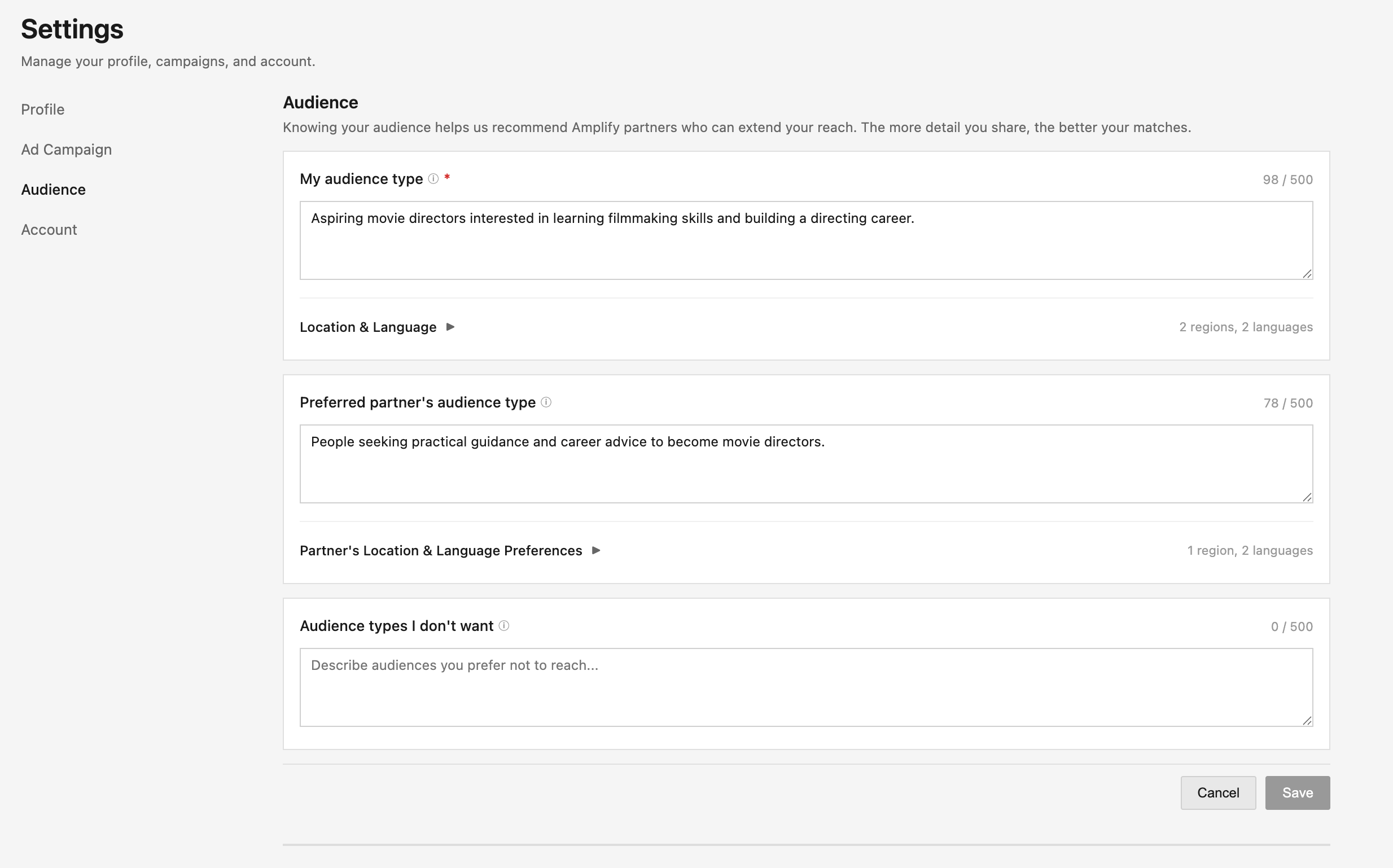 Collapsed, the section summarizes what is set — for example, 2 regions, 2 languages, or **All** when nothing is set yet. Expanded, it shows a **Location** list above a **Language** list.
### Add a Location
A **Location** is one region, optionally narrowed to specific countries, and narrowed once more to specific states when the United States is one of those countries. Add one row per region.
Collapsed, the section summarizes what is set — for example, 2 regions, 2 languages, or **All** when nothing is set yet. Expanded, it shows a **Location** list above a **Language** list.
### Add a Location
A **Location** is one region, optionally narrowed to specific countries, and narrowed once more to specific states when the United States is one of those countries. Add one row per region.
 1. Click **Add location**.
2. Choose a **Region**. Amplify covers six: North America, Latin America & Caribbean, Europe, Middle East, Africa, and Asia Pacific.
3. Optionally, select **Countries** to narrow the region. The list offers only countries inside the region you chose. Leaving it empty covers the whole region.
4. If you select **United States**, a **States** field appears. Optionally, select states to narrow further. Leaving it empty covers every state.
5. Click **Save Location**.
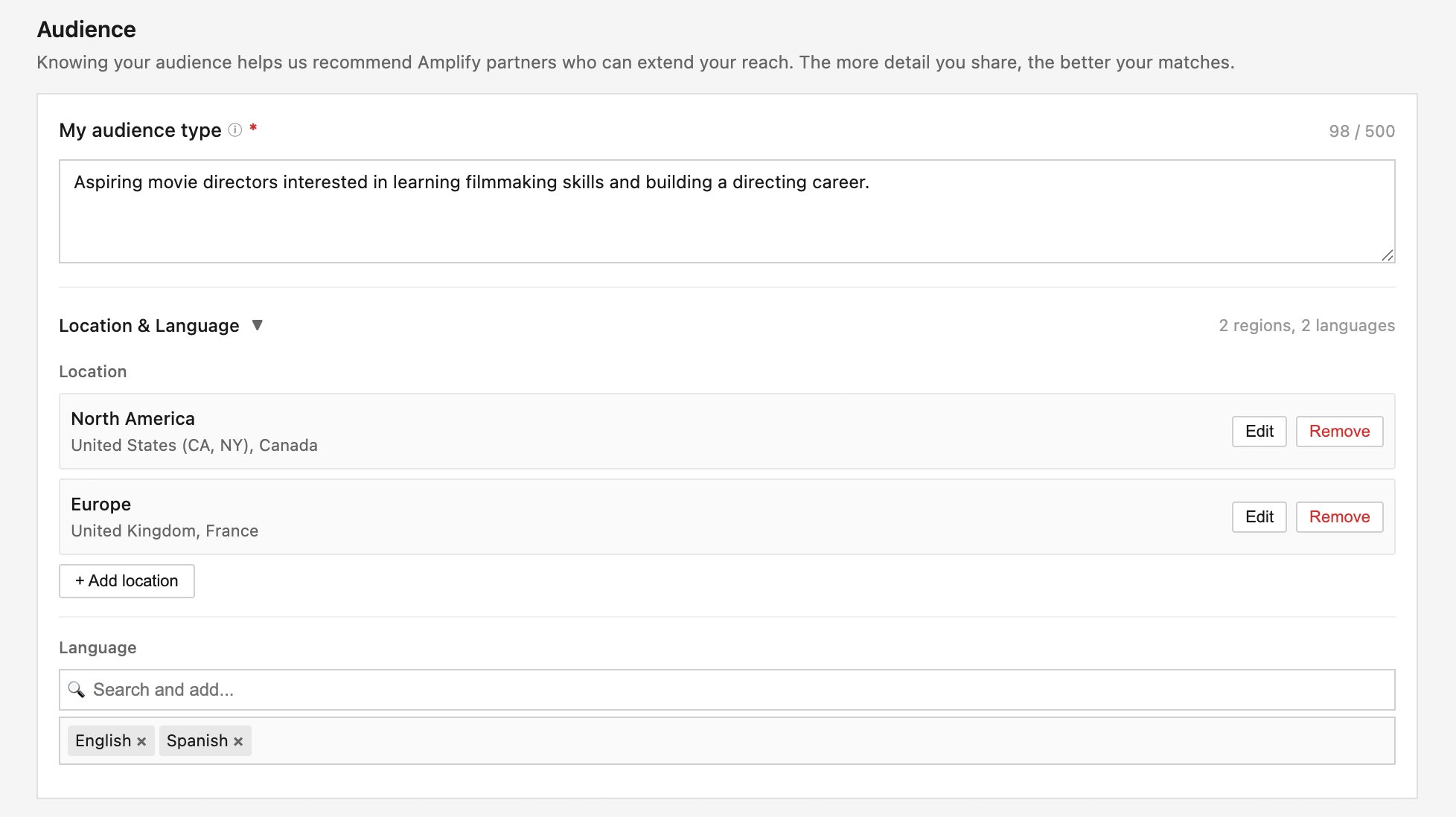
Each saved row reads back as the region plus whatever you narrowed it to, for example North America: United States (CA, NY), Canada. A region with no countries selected shows the region name on its own.
To change a row, click **Edit** beside it. To delete one, click **Remove**.
**Note:** You can add only one row per region. A region already in your list is hidden from the **Region** dropdown, and once all six regions are in the list, **Add location** is no longer available.
### Add languages
1. Click the **Select languages** field.
2. Type to search, then click a language to add it. Each language you add appears as a tag.
3. To remove a language, click the **×** on its tag.
There is no limit on how many languages you can add.
### Save the changes
Click **Save** at the bottom of the Audience tab. Nothing is stored until you do, and **Save** stays unavailable until something on the tab has changed.
## Set Partner's Location & Language Preferences
This describes the partners you want to reach rather than your own audience — the places and languages you want a partner's audience to have.
1. Go to **Settings > Audience**.
2. Find **Partner's Location & Language Preferences** beneath the **Preferred partner's audience type** field and click it to expand.
3. Add locations and languages the same way as in **Set Location & Language for My audience** above.
4. Click **Save**.
The two sets are independent, so you can fill in one and leave the other set to **All**. The third field on the tab, **Audience types I don't want**, has no Location & Language section — you can state the places and languages you want, but you cannot exclude one.
## How other experts see location and language
Your preferences appear to another expert when they open your profile from **Search & Request Advertisers** or **Search & Request Publishers**.
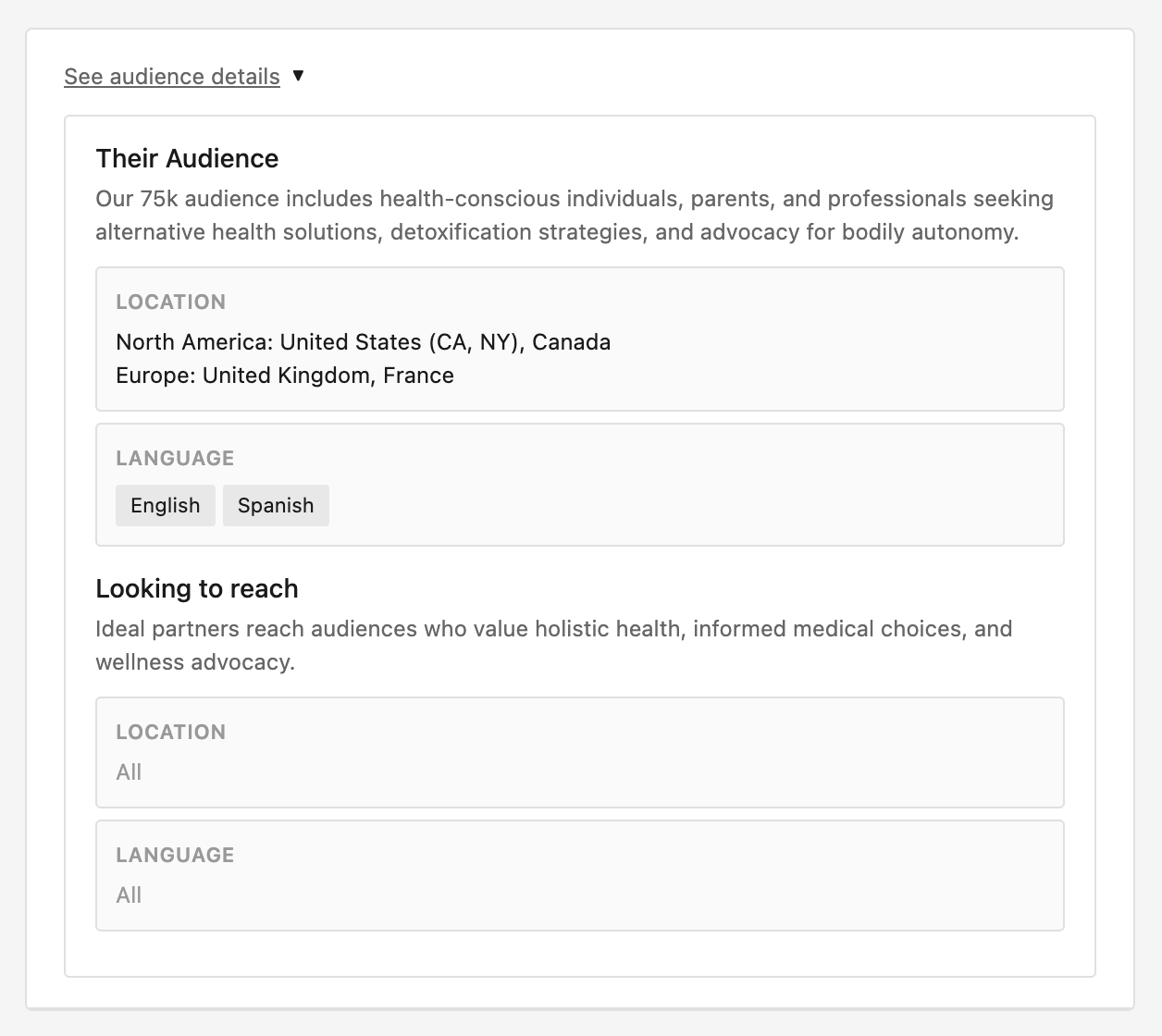
1. The expert clicks **See audience details** on your profile.
2. The panel expands to show **Their Audience**, carrying your own audience's **location** and **language**, and **Looking to reach**, carrying your partner preferences.
Anything you left unset reads **All** in muted text, which tells the other expert you have no restriction rather than leaving them to guess.
1. Click **Add location**.
2. Choose a **Region**. Amplify covers six: North America, Latin America & Caribbean, Europe, Middle East, Africa, and Asia Pacific.
3. Optionally, select **Countries** to narrow the region. The list offers only countries inside the region you chose. Leaving it empty covers the whole region.
4. If you select **United States**, a **States** field appears. Optionally, select states to narrow further. Leaving it empty covers every state.
5. Click **Save Location**.
Each saved row reads back as the region plus whatever you narrowed it to, for example North America: United States (CA, NY), Canada. A region with no countries selected shows the region name on its own.
To change a row, click **Edit** beside it. To delete one, click **Remove**.
**Note:** You can add only one row per region. A region already in your list is hidden from the **Region** dropdown, and once all six regions are in the list, **Add location** is no longer available.
### Add languages
1. Click the **Select languages** field.
2. Type to search, then click a language to add it. Each language you add appears as a tag.
3. To remove a language, click the **×** on its tag.
There is no limit on how many languages you can add.
### Save the changes
Click **Save** at the bottom of the Audience tab. Nothing is stored until you do, and **Save** stays unavailable until something on the tab has changed.
## Set Partner's Location & Language Preferences
This describes the partners you want to reach rather than your own audience — the places and languages you want a partner's audience to have.
1. Go to **Settings > Audience**.
2. Find **Partner's Location & Language Preferences** beneath the **Preferred partner's audience type** field and click it to expand.
3. Add locations and languages the same way as in **Set Location & Language for My audience** above.
4. Click **Save**.
The two sets are independent, so you can fill in one and leave the other set to **All**. The third field on the tab, **Audience types I don't want**, has no Location & Language section — you can state the places and languages you want, but you cannot exclude one.
## How other experts see location and language
Your preferences appear to another expert when they open your profile from **Search & Request Advertisers** or **Search & Request Publishers**.
1. The expert clicks **See audience details** on your profile.
2. The panel expands to show **Their Audience**, carrying your own audience's **location** and **language**, and **Looking to reach**, carrying your partner preferences.
Anything you left unset reads **All** in muted text, which tells the other expert you have no restriction rather than leaving them to guess.
 ## How location and language affect search results
Once Location & Language is on for your account, the search box on **Search & Request Advertisers** and **Search & Request Publishers** reads **Search by name, bio, audience type, location & language preferences**, and both become searchable.
* Searches match on region, country, and language **names**, not codes. Search for `English`, not `en`.
* Matching is partial and ignores capitalization, so `north` finds North America, and `United` finds both United Kingdom and United States.
* Type at least two characters before location and language are searched.
Matching works by overlap rather than exact wording. An expert who narrowed to California still appears in a search for United States, because California sits inside it. An expert who narrowed to Norway does not appear in a search for Sweden.
**Note:** A profile left set to **All** is skipped in location and language searches rather than matching all of them. Filling these preferences in is what makes you findable this way, and leaving them alone never hides you from a name, bio, or audience-type search.
## FAQs
### Do I have to set location and language?
No. Every profile starts set to **All**, meaning no restriction, and staying there is a valid choice. Fill them in when your audience genuinely is concentrated in a place or a language and you want that to be the reason a partner finds you.
### Why is Save unavailable after I add a location?
**My audience type** has to contain text before Amplify will save the Audience tab. If **Save** stays greyed out after you add a location, fill in that field first. **Save** is also unavailable when nothing on the tab has changed.
### Can I select states for a country other than the United States?
No. The **States** field appears only when the United States is among your selected countries, and it lists US states only. For every other country, the country itself is the most specific level available.
### Does setting a location hide me from experts elsewhere?
Only in location and language searches, and only for terms that don't overlap what you set. You stay visible in name, bio, and audience-type searches, in the directory, and in recommended pairings.
### What happens to my selections when I change a region on a row?
Changing the **Region** clears the countries and states on that row, because those lists are specific to the region. Removing the United States from a row's countries clears that row's states for the same reason. Languages sit separately from locations and are never affected.
## How location and language affect search results
Once Location & Language is on for your account, the search box on **Search & Request Advertisers** and **Search & Request Publishers** reads **Search by name, bio, audience type, location & language preferences**, and both become searchable.
* Searches match on region, country, and language **names**, not codes. Search for `English`, not `en`.
* Matching is partial and ignores capitalization, so `north` finds North America, and `United` finds both United Kingdom and United States.
* Type at least two characters before location and language are searched.
Matching works by overlap rather than exact wording. An expert who narrowed to California still appears in a search for United States, because California sits inside it. An expert who narrowed to Norway does not appear in a search for Sweden.
**Note:** A profile left set to **All** is skipped in location and language searches rather than matching all of them. Filling these preferences in is what makes you findable this way, and leaving them alone never hides you from a name, bio, or audience-type search.
## FAQs
### Do I have to set location and language?
No. Every profile starts set to **All**, meaning no restriction, and staying there is a valid choice. Fill them in when your audience genuinely is concentrated in a place or a language and you want that to be the reason a partner finds you.
### Why is Save unavailable after I add a location?
**My audience type** has to contain text before Amplify will save the Audience tab. If **Save** stays greyed out after you add a location, fill in that field first. **Save** is also unavailable when nothing on the tab has changed.
### Can I select states for a country other than the United States?
No. The **States** field appears only when the United States is among your selected countries, and it lists US states only. For every other country, the country itself is the most specific level available.
### Does setting a location hide me from experts elsewhere?
Only in location and language searches, and only for terms that don't overlap what you set. You stay visible in name, bio, and audience-type searches, in the directory, and in recommended pairings.
### What happens to my selections when I change a region on a row?
Changing the **Region** clears the countries and states on that row, because those lists are specific to the region. Removing the United States from a row's countries clears that row's states for the same reason. Languages sit separately from locations and are never affected.