> ## Documentation Index
> Fetch the complete documentation index at: https://help.kajabi.com/llms.txt
> Use this file to discover all available pages before exploring further.
# Report: Gross revenue
> Track total gross revenue generated over time including all paid purchases.
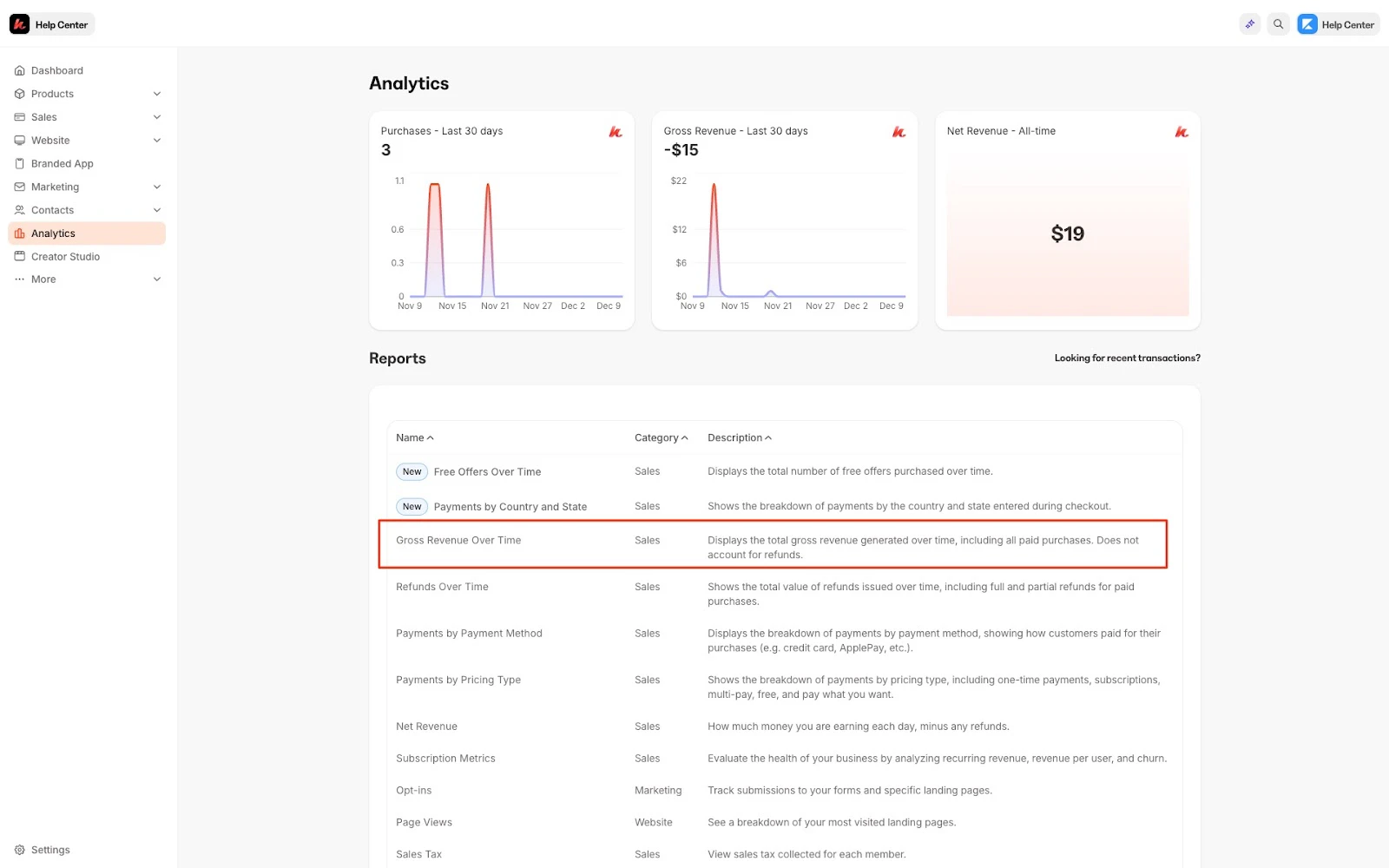
**Gross Revenue Over Time** is the total gross revenue generated over time, including all paid purchases. It does not account for refunds.
## View gross revenue over time
To access your gross revenue over time report:
1. Open the **Analytics** tab from your Dashboard
2. Click **Gross Revenue Over Time**
 ## Understand the Gross Revenue Over Time report
### Line graph
View your gross revenue over time.
Hover over your line graph for more detailed information about your gross revenue:
## Understand the Gross Revenue Over Time report
### Line graph
View your gross revenue over time.
Hover over your line graph for more detailed information about your gross revenue:
### Timeframe
Choose the timeframe of the data set you would like to view from the top dropdown. Select from our presets or choose a custom date range:
### Using filters
Using the filter bar on the top of the page, you can alter your entire data set by currency and offer:
## Export the Gross Revenue Over Time report
Export your Gross Revenue to share, file, and record your refunds.
### Export Gross Revenue Over Time
1. Open the **Analytics** tab from your Dashboard
2. Click **Gross Revenue Over Time**
3. Located toward the top of the page, click **Export**
Access your exported report from your downloaded files on your hard drive.
**Note:**
Exporting this report will notify the owner of the Kajabi account if the owner has selected to receive notifications data is exported from their account. [Learn to update email notification settings.](/articles/account-settings/notifications/update-email-notifications)
## Exported data
The following data is exported with the Gross Revenue Over Time report:
* Day
* Quantity
* Amount
* Currency