> ## Documentation Index
> Fetch the complete documentation index at: https://help.kajabi.com/llms.txt
> Use this file to discover all available pages before exploring further.
# Report: Orders over time
Track order volume, total order value, average order value, and average items per order over time.
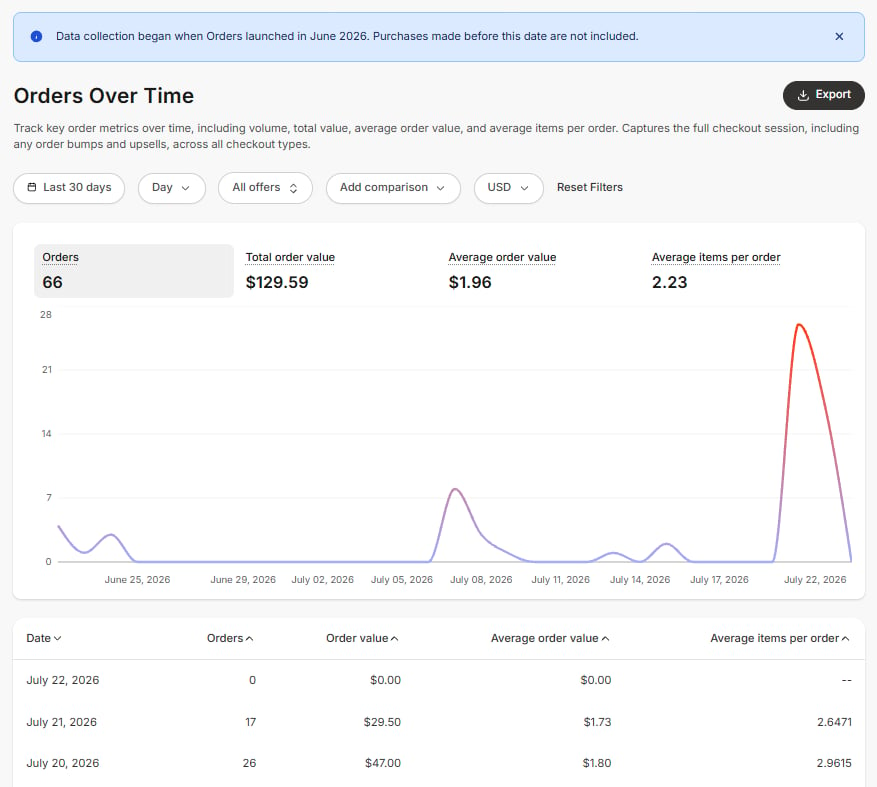
The **Orders Over Time** report shows key order metrics across a selected timeframe. It captures the full checkout, including order bumps and upsells across all checkout types, giving you a complete picture of new order activity beyond individual transactions.
This feature is currently in closed beta. If enabled for your account and you run into any issues, contact [payments.support@kajabi.com](mailto:payments.support@kajabi.com).
This report is most useful for:
* Tracking order volume and revenue trends over time
* Monitoring average order value to measure the impact of order bumps and upsells
* Understanding how many items customers are purchasing per checkout session
## **Metrics**
The report is organized into four tabs. Selecting a tab updates both the chart and the summary total displayed at the top. The same four metrics also appear as columns in the table.
* **Orders:** The total number of orders placed in the selected period.
* **Total order value:** The total committed value across all orders within the selected time period.
For **payment plans**, this includes all future installments, not just the amount charged at the time of purchase.
For **subscriptions**, only the initial charge and any setup fee are included; recurring renewals are not counted.
For example, a \$100/month payment plan with 12 installments counts as \$1,200 in total order value, while a \$50/month subscription counts as \$50 (or \$50 plus the setup fee, if applicable).
* **Average order value (AOV):** Total order value divided by the number of orders in the selected period. **Average items per order:** The average number of items purchased per order, including the primary offer, order bumps, and upsells from the same checkout session.
 ## **How order value is calculated by pricing type**
The amounts in this report are based on **committed value**: the total amount a customer agreed to pay at checkout. This is not always the same as what was charged on the day of purchase, and it works differently depending on pricing type.
* **One-time payment**: The amount charged at checkout. Committed value equals amount collected.
* **Payment plan**: The full plan total across all installments. The entire contract value is counted at the time of the order, even though payments are collected over time.
* **Subscription**: The initial charge only, plus any setup fee. Future renewal payments are not counted, because renewals are the customer's continuing choice rather than a fixed obligation agreed to at checkout
Because of this, **Total order value** should be read as the total value customers committed to in new orders during the period, not as cash collected during that period.
Subscription renewal payments do not appear in this report in any period: not in the period of the original order, and not in later periods when renewals are billed. The Orders Over Time report tracks new order and commitment activity. To track recurring subscription revenue over time, use the subscription and monthly recurring revenue from subscriptions reports in Analytics.
## **Data table**
The table below the chart provides a period-by-period breakdown of all four metrics. Every column is sortable.
* **Date:** The time period (day, week, month, or year) depending on the interval selected
* **Orders:** The number of orders in that period
* **Order value:** The total committed order value for that period
* **Average order value:** Order value divided by orders for that period
* **Average items per order:** The average number of items per order for that period
## **How to use this report**
You can customize the data displayed in the report using several controls.
* **Date range:** Filter by a period or specific start and end date
* **Group by:** Choose how data is grouped within the selected range (Day, Week, Month, or Year). If left on the default option, the interval is chosen automatically based on the length of the date range.
* **Offer selection:** Filter to one or more specific offers. An order is included if it contains the selected offer(s).
* **Currency:** The report is single-currency. Only orders placed in the selected currency are counted; orders in other currencies are excluded. Defaults to your site's default currency.
* **Comparison:** Select **Previous period** to overlay the equivalent prior period on the chart as a dashed line.
## **Export information**
Exporting the **Orders Over Time** report generates a CSV that is emailed to you; it is not downloaded directly in the browser. The export reflects all currently applied filters and includes:
* Date (label matches your Group by setting: Day, Week, Month, or Year)
* Quantity (number of orders)
* Order value
* Order value currency
* Average order value
* Average order value currency
* Average items per order
Exporting this report will notify the owner of the Kajabi account if the owner has selected to receive notifications when data is exported from their account.[ Learn to update email notification settings.](https://claude.ai/articles/account-settings/notifications/update-email-notifications)
## **FAQs**
### **Do subscription renewals show up in this report?**
No, only the initial subscription charge and any setup fee (if applicable) is counted as committed value at the time of the order. To track recurring subscription revenue over time, use the subscription and m[onthly recurring revenue from subscriptions](https://app.kajabi.com/admin/sites/93984/reports/monthly_recurring_revenue_from_subscriptions) reports in Analytics.
### **Why is my total order value higher than the money I actually collected this period?**
Payment plans count their full installment total at the time of the order, so committed value runs ahead of collected cash. For example, a 12-month plan at \$100/month shows as \$1,200 in the period the order was placed, even though only \$100 was collected on that day.
### **Why are orders in another currency not showing?**
The report is single-currency. Use the **Currency** filter to switch to a different currency and see orders placed in that currency.
### **How does this report differ from Cart orders over time?**
The[ Cart Orders Over Time](https://claude.ai/articles/analytics/report-cart-orders-over-time) report captures cart-based orders only. The Orders Over Time report captures all order types across all checkout flows, including subscriptions, payment plans, order bumps, and cart purchases. Orders Over Time also uses committed value (including future installments on payment plans), while Cart Orders Over Time reflects the amount charged.
## **How order value is calculated by pricing type**
The amounts in this report are based on **committed value**: the total amount a customer agreed to pay at checkout. This is not always the same as what was charged on the day of purchase, and it works differently depending on pricing type.
* **One-time payment**: The amount charged at checkout. Committed value equals amount collected.
* **Payment plan**: The full plan total across all installments. The entire contract value is counted at the time of the order, even though payments are collected over time.
* **Subscription**: The initial charge only, plus any setup fee. Future renewal payments are not counted, because renewals are the customer's continuing choice rather than a fixed obligation agreed to at checkout
Because of this, **Total order value** should be read as the total value customers committed to in new orders during the period, not as cash collected during that period.
Subscription renewal payments do not appear in this report in any period: not in the period of the original order, and not in later periods when renewals are billed. The Orders Over Time report tracks new order and commitment activity. To track recurring subscription revenue over time, use the subscription and monthly recurring revenue from subscriptions reports in Analytics.
## **Data table**
The table below the chart provides a period-by-period breakdown of all four metrics. Every column is sortable.
* **Date:** The time period (day, week, month, or year) depending on the interval selected
* **Orders:** The number of orders in that period
* **Order value:** The total committed order value for that period
* **Average order value:** Order value divided by orders for that period
* **Average items per order:** The average number of items per order for that period
## **How to use this report**
You can customize the data displayed in the report using several controls.
* **Date range:** Filter by a period or specific start and end date
* **Group by:** Choose how data is grouped within the selected range (Day, Week, Month, or Year). If left on the default option, the interval is chosen automatically based on the length of the date range.
* **Offer selection:** Filter to one or more specific offers. An order is included if it contains the selected offer(s).
* **Currency:** The report is single-currency. Only orders placed in the selected currency are counted; orders in other currencies are excluded. Defaults to your site's default currency.
* **Comparison:** Select **Previous period** to overlay the equivalent prior period on the chart as a dashed line.
## **Export information**
Exporting the **Orders Over Time** report generates a CSV that is emailed to you; it is not downloaded directly in the browser. The export reflects all currently applied filters and includes:
* Date (label matches your Group by setting: Day, Week, Month, or Year)
* Quantity (number of orders)
* Order value
* Order value currency
* Average order value
* Average order value currency
* Average items per order
Exporting this report will notify the owner of the Kajabi account if the owner has selected to receive notifications when data is exported from their account.[ Learn to update email notification settings.](https://claude.ai/articles/account-settings/notifications/update-email-notifications)
## **FAQs**
### **Do subscription renewals show up in this report?**
No, only the initial subscription charge and any setup fee (if applicable) is counted as committed value at the time of the order. To track recurring subscription revenue over time, use the subscription and m[onthly recurring revenue from subscriptions](https://app.kajabi.com/admin/sites/93984/reports/monthly_recurring_revenue_from_subscriptions) reports in Analytics.
### **Why is my total order value higher than the money I actually collected this period?**
Payment plans count their full installment total at the time of the order, so committed value runs ahead of collected cash. For example, a 12-month plan at \$100/month shows as \$1,200 in the period the order was placed, even though only \$100 was collected on that day.
### **Why are orders in another currency not showing?**
The report is single-currency. Use the **Currency** filter to switch to a different currency and see orders placed in that currency.
### **How does this report differ from Cart orders over time?**
The[ Cart Orders Over Time](https://claude.ai/articles/analytics/report-cart-orders-over-time) report captures cart-based orders only. The Orders Over Time report captures all order types across all checkout flows, including subscriptions, payment plans, order bumps, and cart purchases. Orders Over Time also uses committed value (including future installments on payment plans), while Cart Orders Over Time reflects the amount charged.