> ## Documentation Index
> Fetch the complete documentation index at: https://help.kajabi.com/llms.txt
> Use this file to discover all available pages before exploring further.
# Report: Payments by country and state
> Track payments by geographic location entered during checkout.
**Payments by Country and State** is the report of payments by the country and state entered during checkout.
## View the Payments by Country and State report
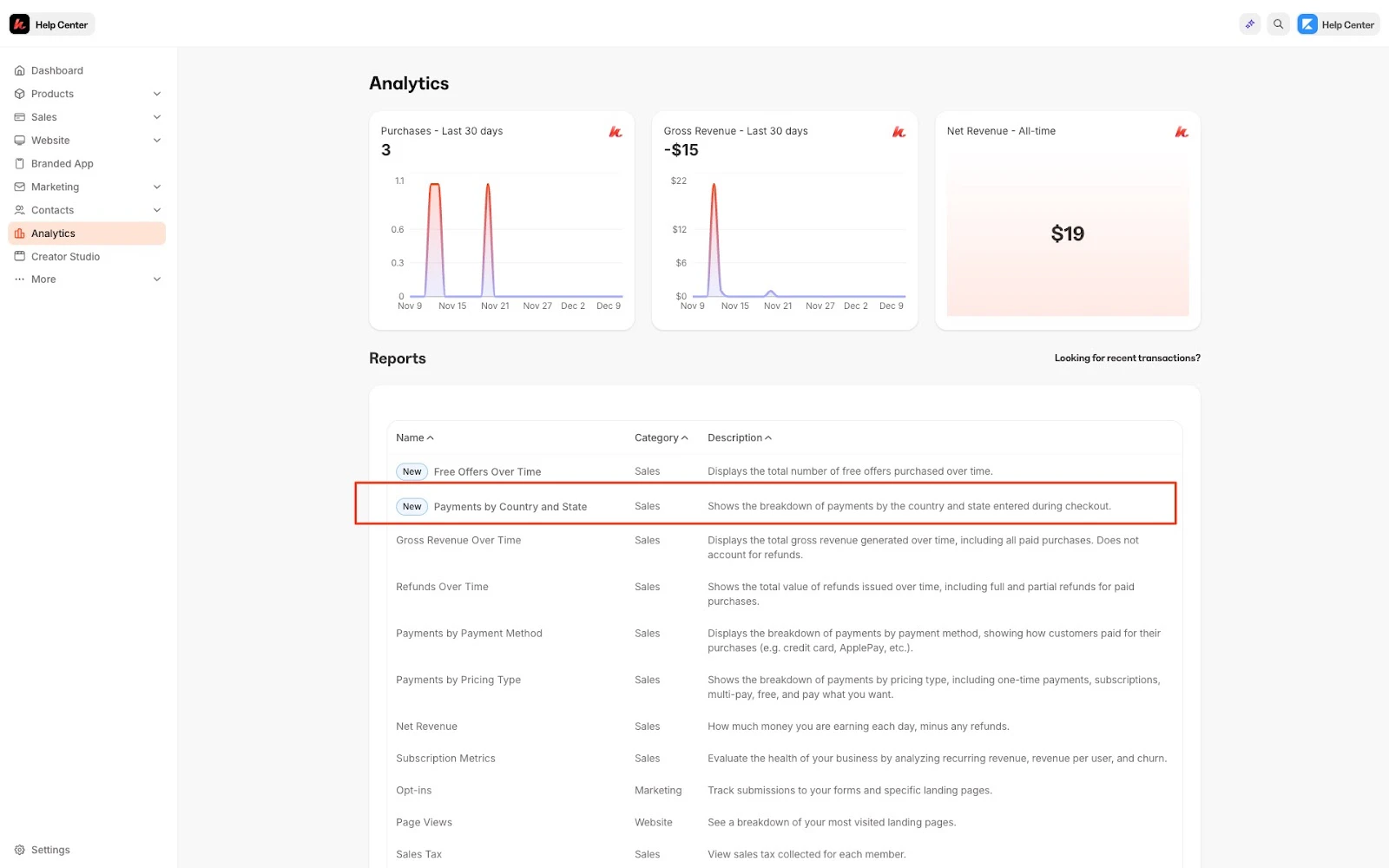
To access your Payments by country and state report:
1. Open the **Analytics** tab from your Dashboard
2. Click **Payments by Country and State**
 ## Understand the Payments by Country and State report
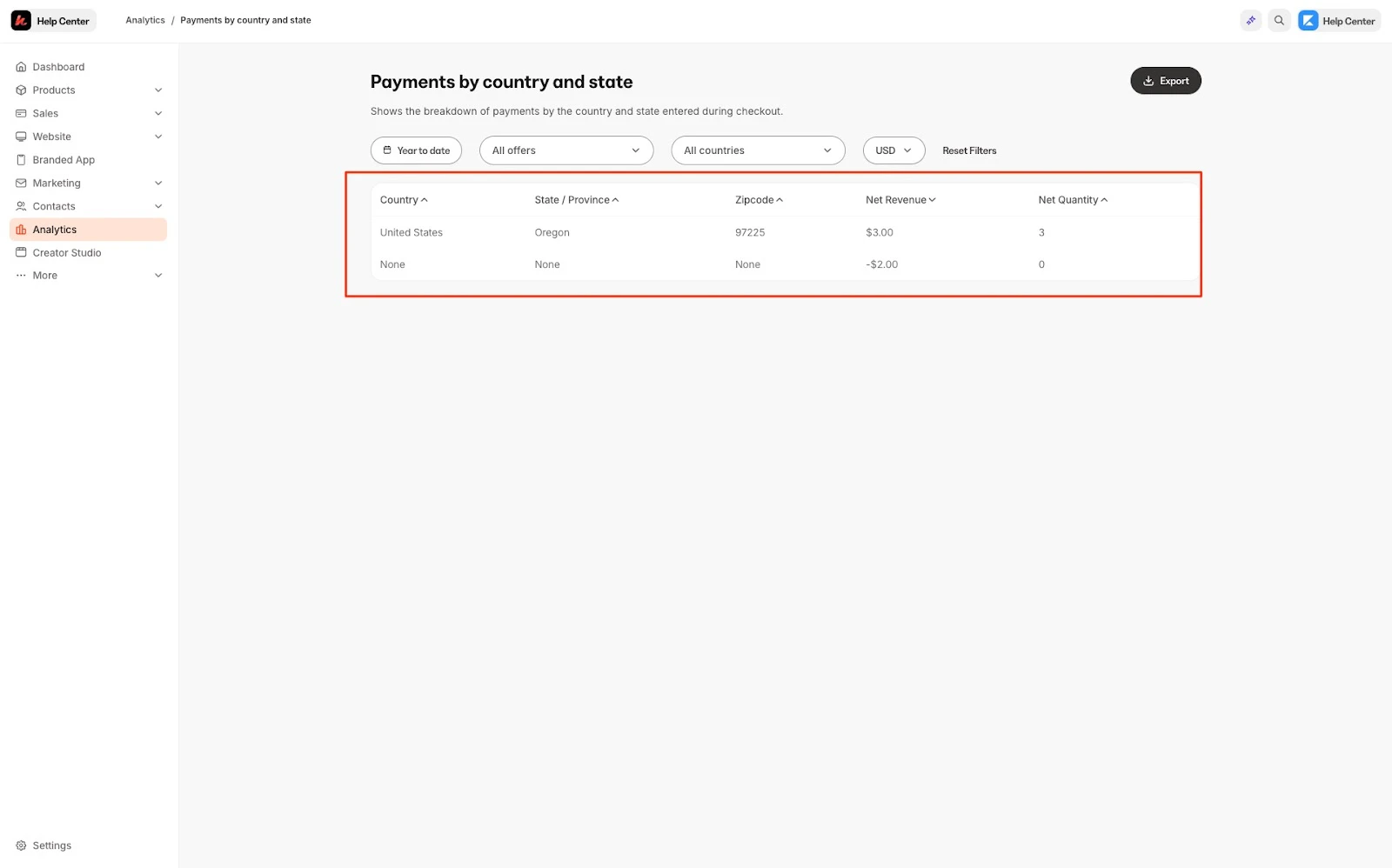
In this report, you can view payments by country and state/province, the zip code purchased from, the net revenue, and the net quantity purchased:
## Understand the Payments by Country and State report
In this report, you can view payments by country and state/province, the zip code purchased from, the net revenue, and the net quantity purchased:
 **Note:**
Payment by Country and State data will not be collected unless the Collect Address Form Field is enabled on your checkout page. You can learn how to set up address collection upon checkout [customize your checkout fields](/articles/sales/offers/how-to-customize-your-checkout-fields).
### Using filters
Using the filter bar on the top of the page, you can alter your entire data set by currency, date, and offer:
**Note:**
Payment by Country and State data will not be collected unless the Collect Address Form Field is enabled on your checkout page. You can learn how to set up address collection upon checkout [customize your checkout fields](/articles/sales/offers/how-to-customize-your-checkout-fields).
### Using filters
Using the filter bar on the top of the page, you can alter your entire data set by currency, date, and offer:
## Export the Payments by Country and State report
Export your Payments by country and state to share, file, and record Payments by Country and State report.
### Export Payments by Country and State
1. Open the **Analytics** tab from your Dashboard
2. Click **Payments by Country and State**
3. Located toward the top of the page, click **Export**
Access your exported report from the downloaded files on your hard drive.
**Note:**
Exporting this report will notify the owner of the Kajabi account if the owner has selected to receive notifications data is exported from their account. [Learn to update email notification settings.](/articles/account-settings/notifications/update-email-notifications)
## Exported data
The following data is exported with the Payments by Country and State report:
* Country
* State
* Zipcode/Province
* Net Revenue Amount
* Net Revenue Currency
* Net Quantity
**Note:**
The Payments by Country and State report exported data is helpful for tax reporting purposes.