> ## Documentation Index
> Fetch the complete documentation index at: https://help.kajabi.com/llms.txt
> Use this file to discover all available pages before exploring further.
# Connect Crazy Egg to Kajabi
> Integrate Crazy Egg heat map analytics with your Kajabi site to track visitor behavior.
**Crazy Egg** is a subscription-based analytics platform that tracks and optimizes website visitor behavior through the use of heat map reports and A/B tests. Connect Crazy Egg to your Kajabi site to visualize how visitors interact with your pages.
## Create a snapshot
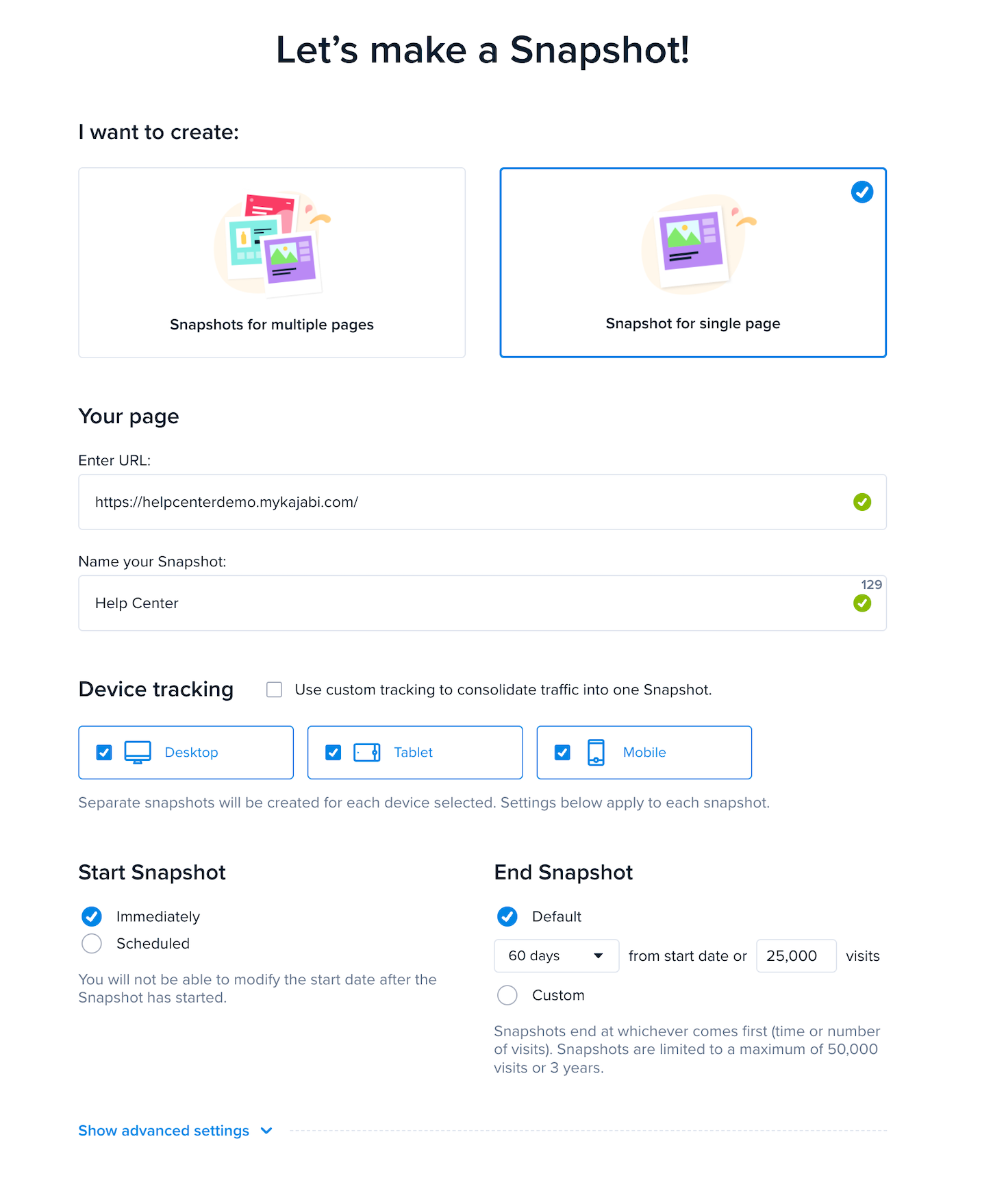
To connect Crazy Egg to Kajabi, first you will need to create a Snapshot for your Kajabi website in Crazy Egg. [Learn how to create a Crazy Egg Snapshot](https://support.crazyegg.com/hc/en-us/articles/360055835653-How-to-Create-Your-First-Snapshot).
 ## Install the Crazy Egg tracking code on Kajabi
After your snapshot has been created, go to the [Crazy Egg manual install page](https://core.crazyegg.com/install/manually) and **copy** the Crazy Egg script to your computer's clipboard:
## Install the Crazy Egg tracking code on Kajabi
After your snapshot has been created, go to the [Crazy Egg manual install page](https://core.crazyegg.com/install/manually) and **copy** the Crazy Egg script to your computer's clipboard:
Next, you will add the Crazy Egg script to Kajabi:
* Go to **Settings**.
* Then, select **Site Details**.
* Scroll down to **Page Scripts**. Page Scripts is where you will paste the Crazy Egg script.
* After pasting the script, remember to click **Save** to keep your changes:
## Check your Crazy Egg installation
Finally, you will want to ensure the Crazy Egg tracking script was installed correctly.
After pasting the code, give it some time to fully install. This can take up to 24 hours. After allowing your setup to fully install, test your installation on Crazy Egg.
To test:
* Click on the **Action** button for that snapshot.
* Then, **Check Installation**.
* Crazy Egg will then test the installation and display the results:
To learn how to manually check your tracking script installation more in-depth, [visit Crazy Egg's Support Guide](https://support.crazyegg.com/hc/en-us/articles/360054296114-Manually-Check-your-Tracking-Script-Installation).