> ## Documentation Index
> Fetch the complete documentation index at: https://help.kajabi.com/llms.txt
> Use this file to discover all available pages before exploring further.
# Use Kajabi with Segment
> Connect Segment to your Kajabi site to collect and send customer data to analytics tools.
**Segment** is an API that allows you to collect customer data and send it to hundreds of tools for analytics, marketing, and data warehousing. [Learn more about Segment](https://segment.com/product/?utm_campaign=650073498\&utm_source=adwords\&utm_medium=paid-search\&utm_content=291636242809\&utm_term=segment\&adgroupid=58068309985\&gclid=Cj0KCQiA8f_eBRDcARIsAEKwRGfRPxlIprCPkDVNXa5Yoa8TL_bO5hWPz-eCtrcmylQWJ5CgyAWyajEaAmUHEALw_wcB).
**Note:**
A Segment Project (Legacy Source) should be made for each Kajabi Site.
In Kajabi, Segment can be used to track data on the following actions for logged in customers:
* Viewed Blog
* Viewed Blog Post
* Viewed Categories
* Viewed Category
* Viewed Landing Page
* Viewed Lesson
* Viewed Product
* Viewed Sales Page
## Set up the native Segment integration in Kajabi
To set up the native Segment integration in Kajabi, you'll need to complete the following steps:
* First, head into the **Settings** tab from your dashboard.
* Then, click into **Third-Party Integrations**.
* Toggle **On** the **Segment** integration.
After enabling your Segment integration you will be prompted to enter your Segment **API Key**.
This can be found under the **Settings** for the Project you're setting up.
## Get your Segment API key
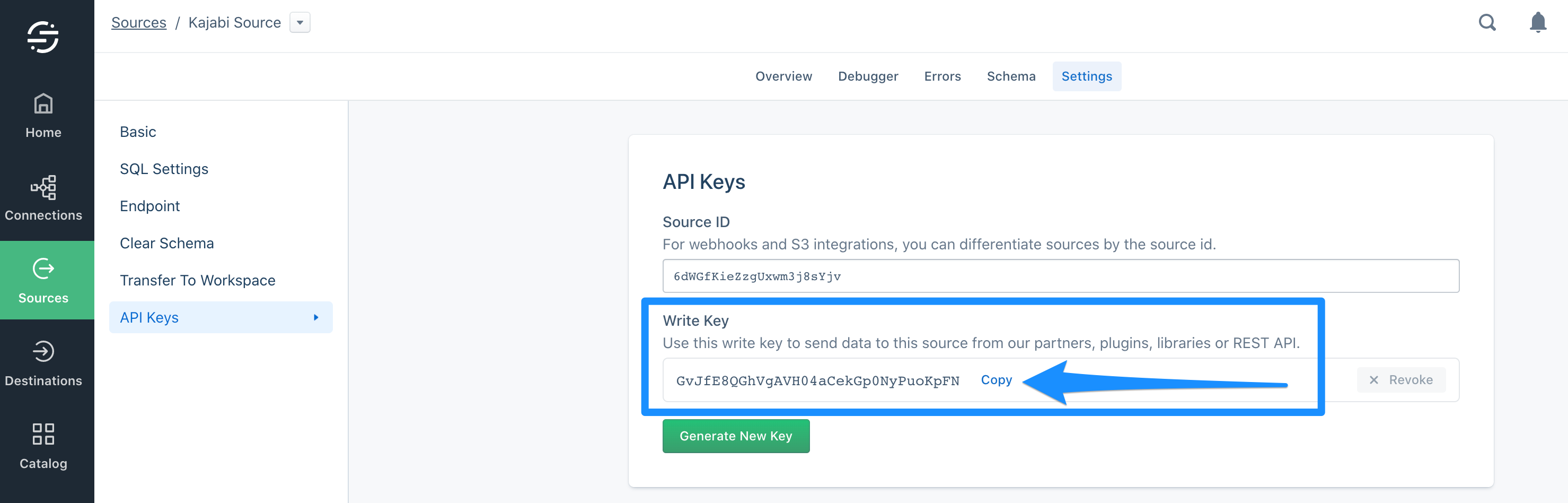
To get your API key:
* Click the **Sources** tab.
* Select your **Source**.
* Click the **Settings** tab.
* Then, click the **API Keys** tab.
* Click **Copy** next to the **Write Key** field.
 * With your Key copied, head back into your Kajabi Integrations page and paste the key into the **API Key** field and click **Save** at the top.
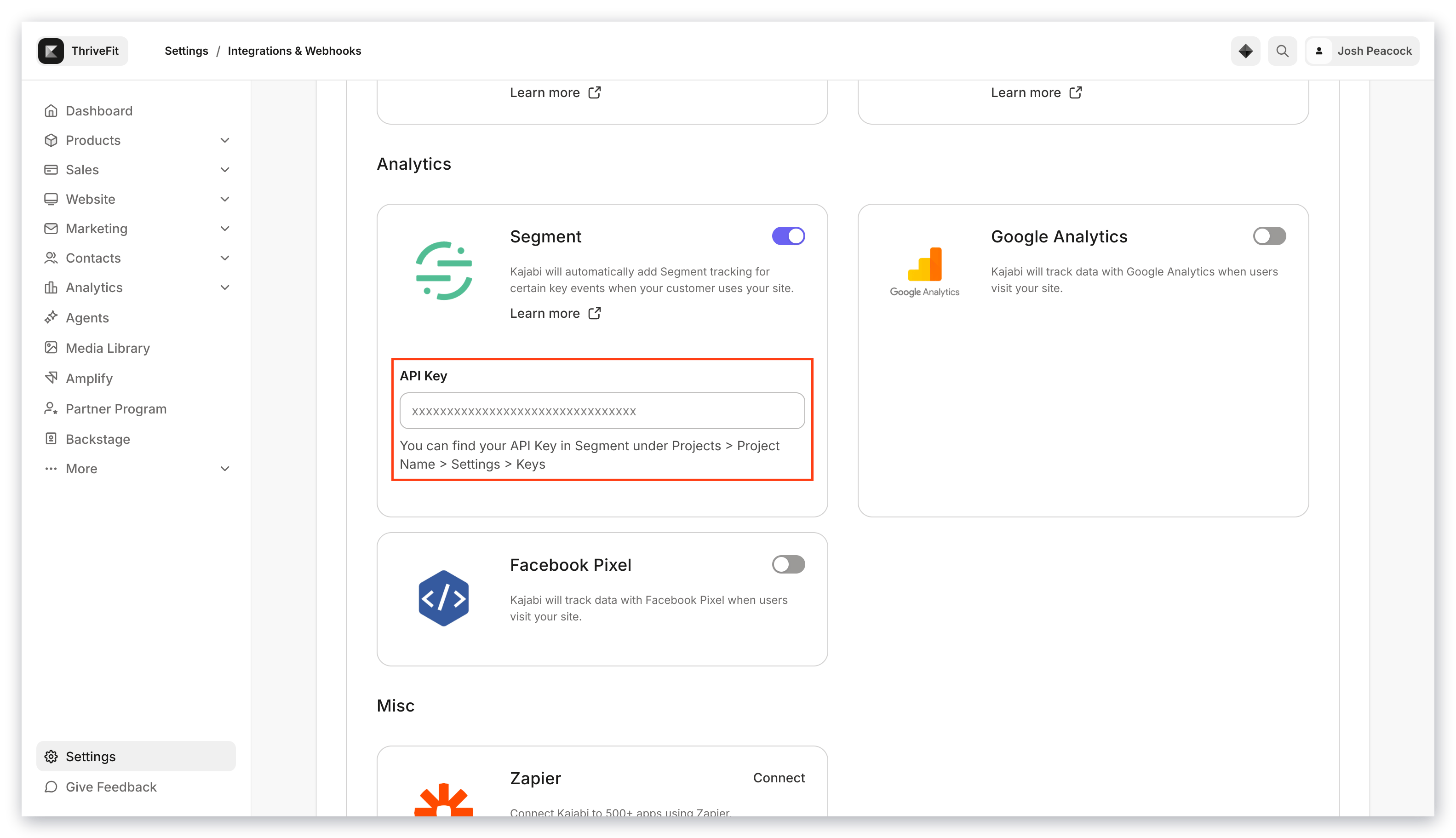 You will receive confirmation that your integrations were successfully updated, and you'll be ready to start using Segment.