> ## Documentation Index
> Fetch the complete documentation index at: https://help.kajabi.com/llms.txt
> Use this file to discover all available pages before exploring further.
# Use Creator.io chat records to improve site FAQs
> Review chatbot conversations to build relevant FAQs for your site.
[**Creator.io**](http://creator.io/) offers a customizable chatbot that is simple to set up and custom-tailored to your business on Kajabi. Creator.io is not built into the Kajabi platform but has a simple-to-use API connection to quickly import your course content and help you gather leads, support your customer questions, and engage your students.
[Learn more about Creator.io](https://creator.io/#faq).
## What are FAQs?
FAQs are Frequently Asked Questions that can help you proactively provide answers for leads and existing customers alike. By providing relevant FAQs, you can help reduce the number of support questions you receive and provide a better user experience to your site's visitors.
## Use your chat records
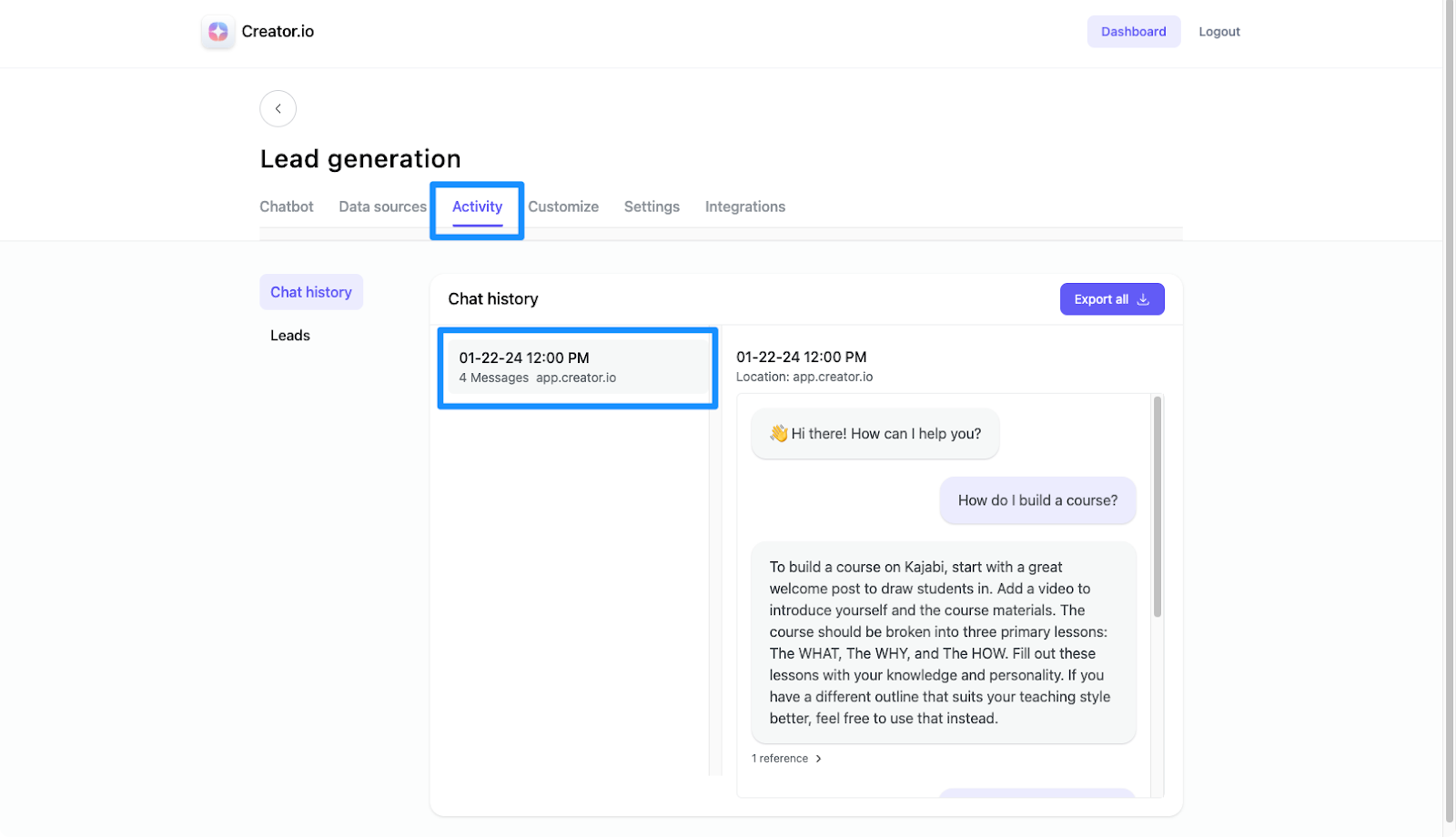
Creator.io saves a chat record of all conversations with customers and visitors. By reviewing these records, you can see which questions are most commonly asked. These questions are a great starting point for creating your website's FAQs.
[Learn more about the resources you can upload to your chatbot](./what-resources-should-i-upload-to-creatorio)
### Configure your chatbot
To configure your chatbot:
* Log into your Creator.io account (or create an account if you haven't already)
* Click **+ Create new** from your Creator.io Dashboard
* Select your chatbot template. [Learn more](./3-things-to-consider-when-setting-up-your-creatorio-chatbot)
* Complete the prompts to share key information about yourself and your business or click **skip for now** if you do not want to share
* Customize your chatbot by editing the Chatbot name and selecting your chatbot colors
* Train your chatbot by selecting your Kajabi courses, adding URLs, and uploading files
**Note:** Integrate Creator.io with your Kajabi site after creating your first chatbot. After integrating Creator.io and Kajabi, Creator.io will be able to pull information from your Kajabi courses to train your chatbot.
### Access your chat records
**To access your chat records:**
* [Log into your Creator.io account](https://app.creator.io/login?form=1)
* Open your desired chatbot
* Click **Activity**
* Select your desired chat history to review the conversation: