> ## Documentation Index
> Fetch the complete documentation index at: https://help.kajabi.com/llms.txt
> Use this file to discover all available pages before exploring further.
# Use Drip with Kajabi
> Connect Kajabi Forms to Drip to send opt-ins directly to your Drip account.
**Drip** is an ecommerce CRM designed for building personal and profitable relationships with your customers at scale. Connect your Kajabi Forms to Drip to send opt-ins directly to your Drip account.
## Activate your Drip integration
### Activate Drip integration
* Open the **Settings** tab from your Dashboard.
* Open **Third Party Integrations**.
* Click the toggle to blue to enable the **Drip** integration:
## Configure the Drip integration
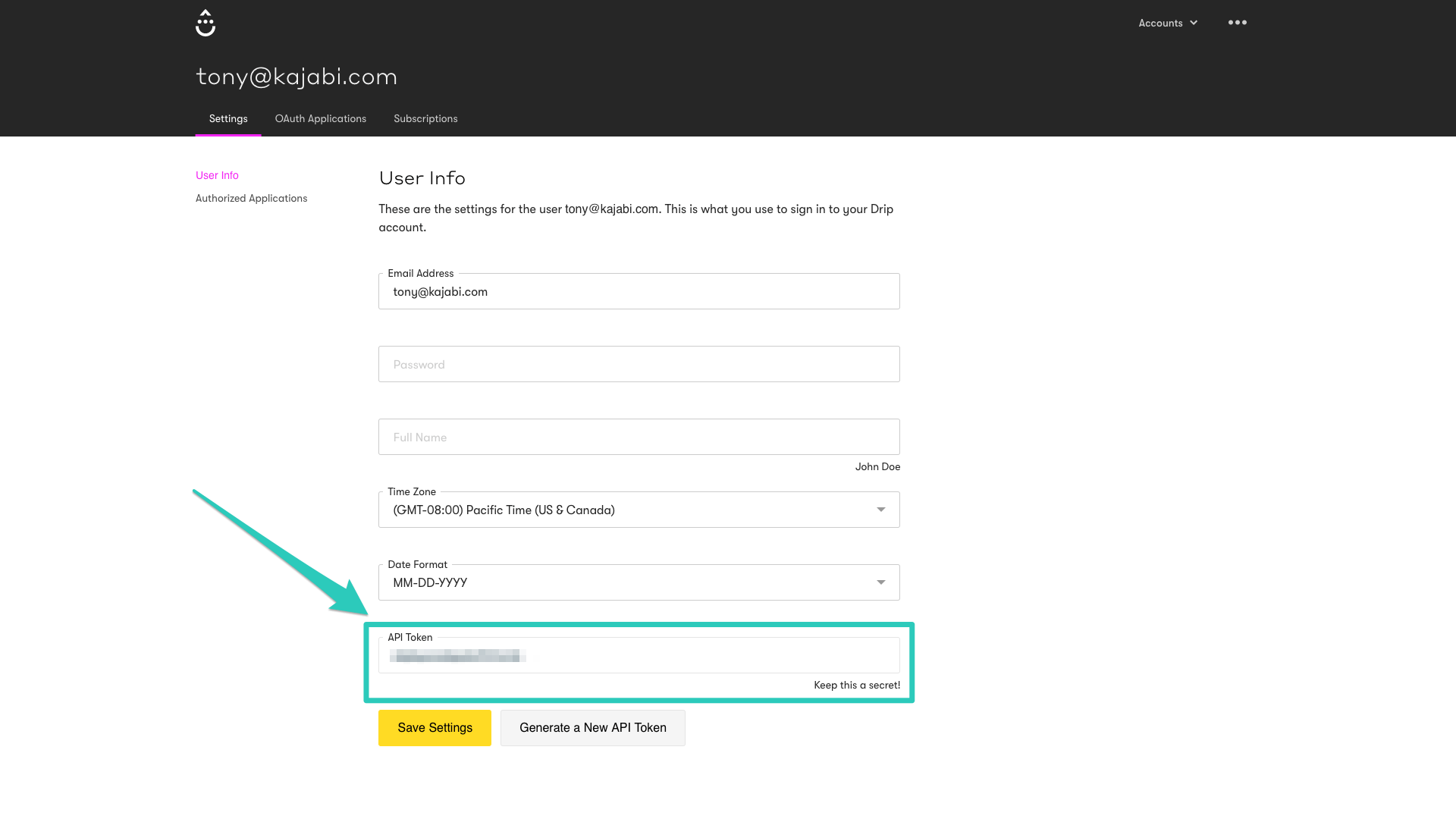
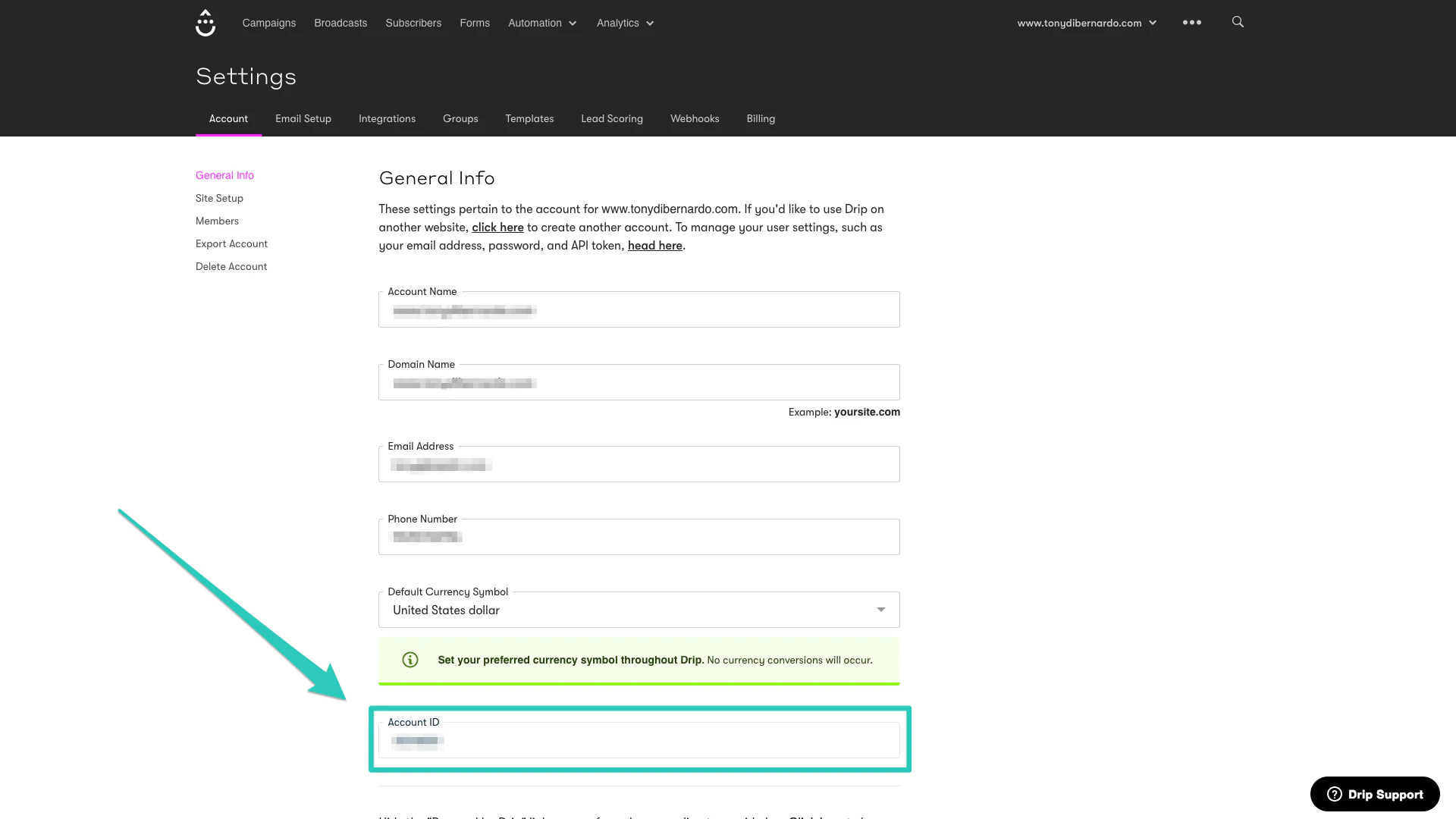
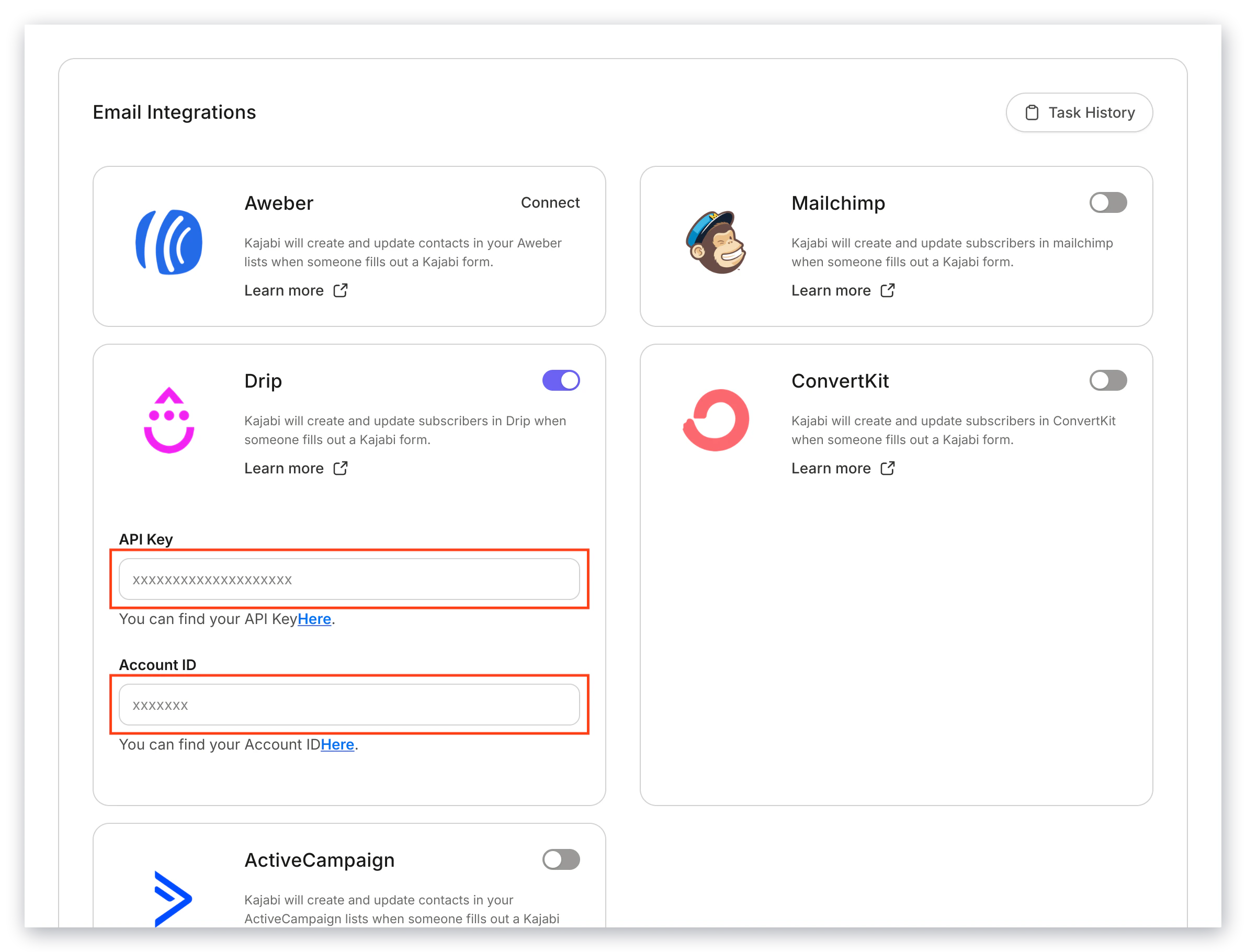
The first step to configuring the integration is to add your **API** and **Account ID**.
* [Click this link to find your API Key](https://www.getdrip.com/user/edit).
 * [Click this link to find your Account ID](https://www.getdrip.com/settings/general).
 * Next, add both entries to the **Integration Settings**.
 ## Connect Drip to a Form
Once your configuration is complete, the last step is to associate the Drip integration to a **Form**.
This will send opt-ins to your list in **Drip**.
The same will apply if the form is used anywhere within your site or if it's embedded.
### Connect Drip to a Form
* Open the **Marketing** tab from your Dashboard.
* Click **Forms**.
* Select the Form you want to integrate Drip with.
* In the After Submission section, select **Send the contact to a third-party email provider**.
* Then, click **Save** to keep and apply your changes:
## Connect Drip to a Form
Once your configuration is complete, the last step is to associate the Drip integration to a **Form**.
This will send opt-ins to your list in **Drip**.
The same will apply if the form is used anywhere within your site or if it's embedded.
### Connect Drip to a Form
* Open the **Marketing** tab from your Dashboard.
* Click **Forms**.
* Select the Form you want to integrate Drip with.
* In the After Submission section, select **Send the contact to a third-party email provider**.
* Then, click **Save** to keep and apply your changes:
**Note:** You can also add tags. This gives you the ability to send your opt-ins to a specific list within Drip.