> ## Documentation Index
> Fetch the complete documentation index at: https://help.kajabi.com/llms.txt
> Use this file to discover all available pages before exploring further.
# Create and customize Assessments
> Create standardized tests, questionnaires, and surveys.
**Note:**
If you're looking to test your members inside of a Course, we recommend [building Quizzes in place of Assessments](../../products/courses/course-quizzes) to utilize the latest features.
Use Assessments to create engaging exam or questionnaire experiences for your customers and site visitors without the need to create a Product or Offer.
With Assessments, you can:
* Assess your customers' understanding of your content
* Survey site visitors to learn more about their experience and background
* Craft questionnaires to design tailored content for your customers and site visitors
## Create an Assessment
1. Open the **Contacts** tab from the Dashboard.
2. Select **Assessments**.
3. Click **Get started** if this will be your very first Assessment. If not, click **+ New Assessment**.
4. Add a **Title** and **Description**, and choose whether you want to use automatic grading and the value of the passing grade (optional).
[Learn how to share your Assessment with your customers and site visitors](../../contacts/create-manage-and-share-assessments/how-to-share-an-assessment).
## Customize Assessments
**Note:**
Your Assessment will adopt the appearance of the Product or Page Template it is added to. For example, if the Primary Color of your Product Page is set to yellow, and you add an Assessment to your Product, the color of your Assessment's button will be shown as yellow when previewing your Product page. If your Assessment is not added to a Page or Product, the Assessment color scheme will default to Kajabi Blue.
### Assessment details
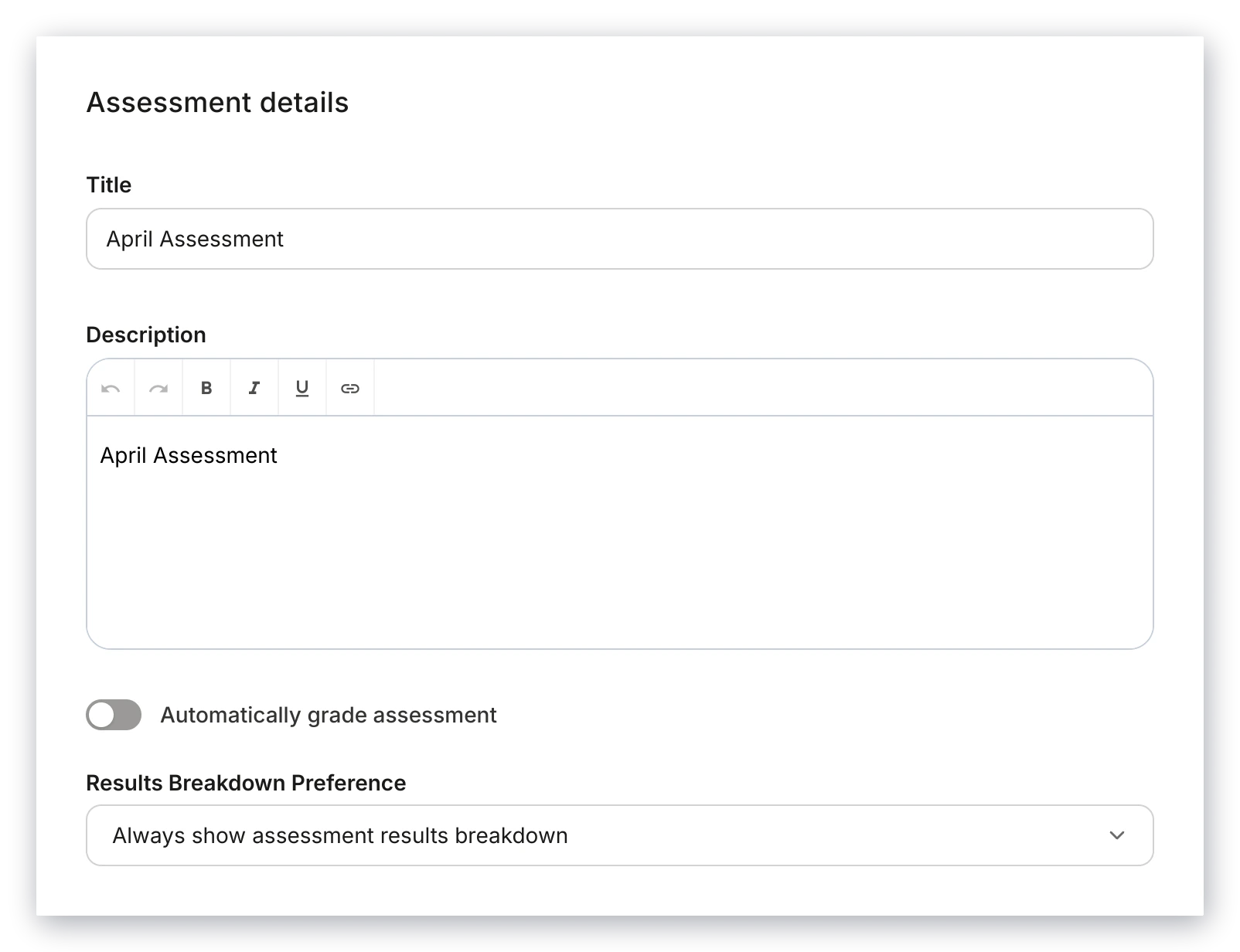
Within an Assessment's details, you may:
1. Edit the Assessment **Title**.
2. Add a **Description**.
3. Enable or Disable the option to **Automatically grade assessment**. [Learn how to view and grade Assessment results](../../contacts/create-manage-and-share-assessments/view-and-grade-assessment-results).
4. Configure the **Results Breakdown Preference** to choose to display or hide your Assessment taker's results upon completion:
 ### Language
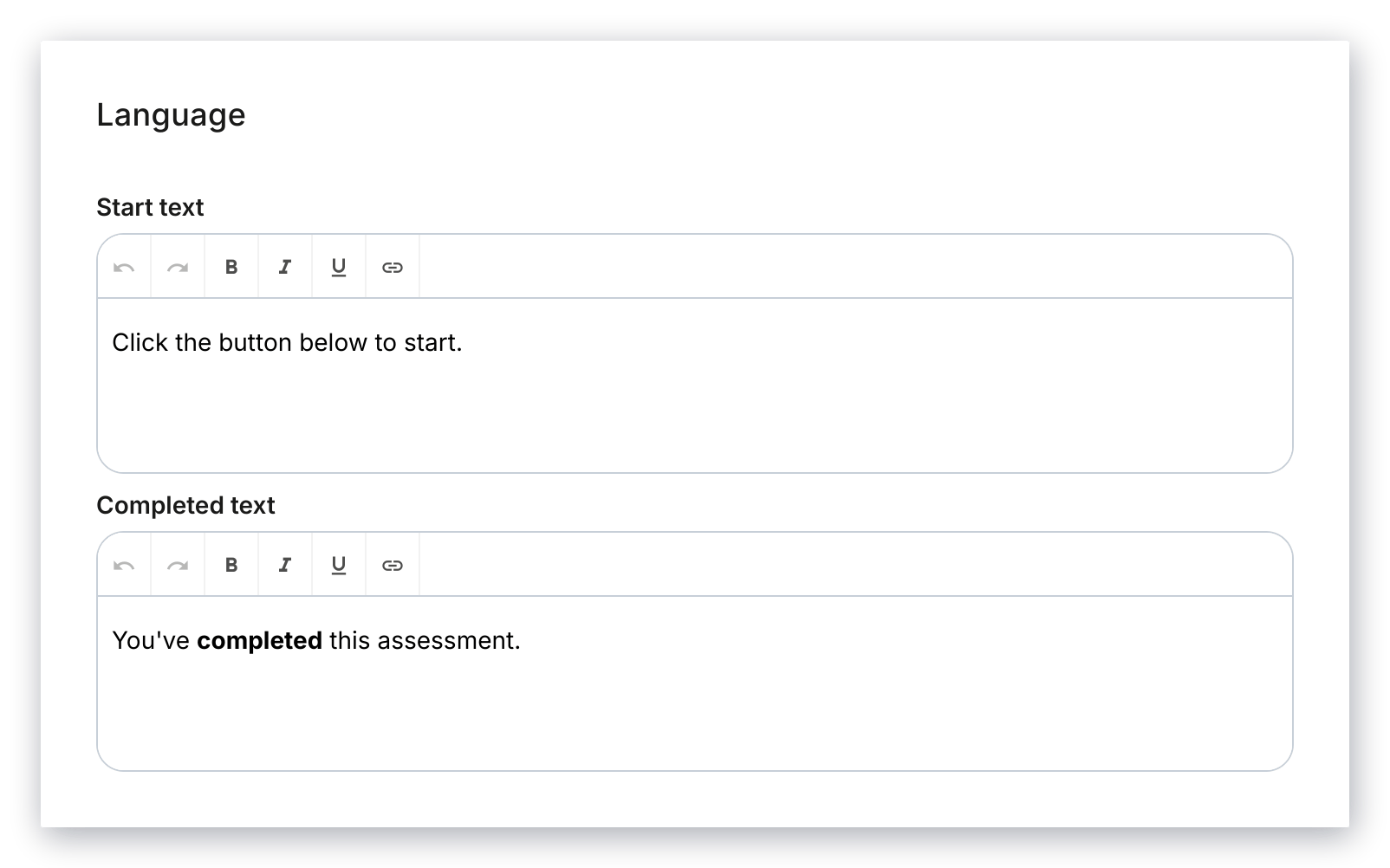
Change the text displayed to your users when they interact with the Assessment:
* Start text
* Passed text
* Failed text
Customize the text to bold, italicize, underline, and/or hyperlink your text:
### Language
Change the text displayed to your users when they interact with the Assessment:
* Start text
* Passed text
* Failed text
Customize the text to bold, italicize, underline, and/or hyperlink your text:
 ### Automations
Navigate to the bottom of the Assessment editor to add Automations. Automations can be used after an Assessment is completed (the "When" trigger) for a variety of actions:
* Grant an offer
* Revoke an offer
* Subscribe to an email sequence
* Unsubscribe from an email sequence
* Register to an event
* Deregister from an event
* Add a tag
* Remove a tag
* Send an email (considered a [Transactional email](../../marketing/email-campaigns/what-are-marketing-and-transactional-emails))
* Send a single-use coupon
Read the [Automations Overview](../../marketing/automations/automations-overview) to learn more about Automations on Kajabi.
## After submission settings
### Set up notification settings to
* Send a completion email with a results link to the contact when they complete the Assessment
* Send a completion email with a results link to your team anytime a contact completes the Assessment
### Set up after submission settings
1. From the Dashboard, open the **Contacts** tab.
2. Select **Assessments**.
3. Click the Title of the Assessment you wish to edit.
4. Navigate to the **After Submission** card on the right.
5. Check the box(es) next to your desired notification settings:
### Automations
Navigate to the bottom of the Assessment editor to add Automations. Automations can be used after an Assessment is completed (the "When" trigger) for a variety of actions:
* Grant an offer
* Revoke an offer
* Subscribe to an email sequence
* Unsubscribe from an email sequence
* Register to an event
* Deregister from an event
* Add a tag
* Remove a tag
* Send an email (considered a [Transactional email](../../marketing/email-campaigns/what-are-marketing-and-transactional-emails))
* Send a single-use coupon
Read the [Automations Overview](../../marketing/automations/automations-overview) to learn more about Automations on Kajabi.
## After submission settings
### Set up notification settings to
* Send a completion email with a results link to the contact when they complete the Assessment
* Send a completion email with a results link to your team anytime a contact completes the Assessment
### Set up after submission settings
1. From the Dashboard, open the **Contacts** tab.
2. Select **Assessments**.
3. Click the Title of the Assessment you wish to edit.
4. Navigate to the **After Submission** card on the right.
5. Check the box(es) next to your desired notification settings:
## Share an Assessment
Share your Assessments to quiz or survey your contacts by adding Assessments to:
* [Pages](../../website/pages/how-to-add-an-assessment-block)
* [Products](../../contacts/create-manage-and-share-assessments/how-to-add-an-assessment-to-your-course-product)
[Learn more about sharing Assessments](../../contacts/create-manage-and-share-assessments/how-to-share-an-assessment).
**Note:**
Assessments can only be attached to one Course Lesson. Once there, the assessment will take on the same template coloring of that product. If you are not seeing your Assessment appear when attempting to attach your Assessment, you may first need to create a new Assessment or duplicate an existing Assessment to use in a separate Course Lesson.
See [Duplicate an Assessment](../../contacts/create-manage-and-share-assessments/how-to-duplicate-your-assessment) for details.
## View assessment responses
To view the results of your Assessment:
1. Open the **Contacts** tab from the Dashboard.
2. Select **Assessments**.
3. Click the **Title** of the Assessment you wish to view.
4. Select the **View Results** tab.
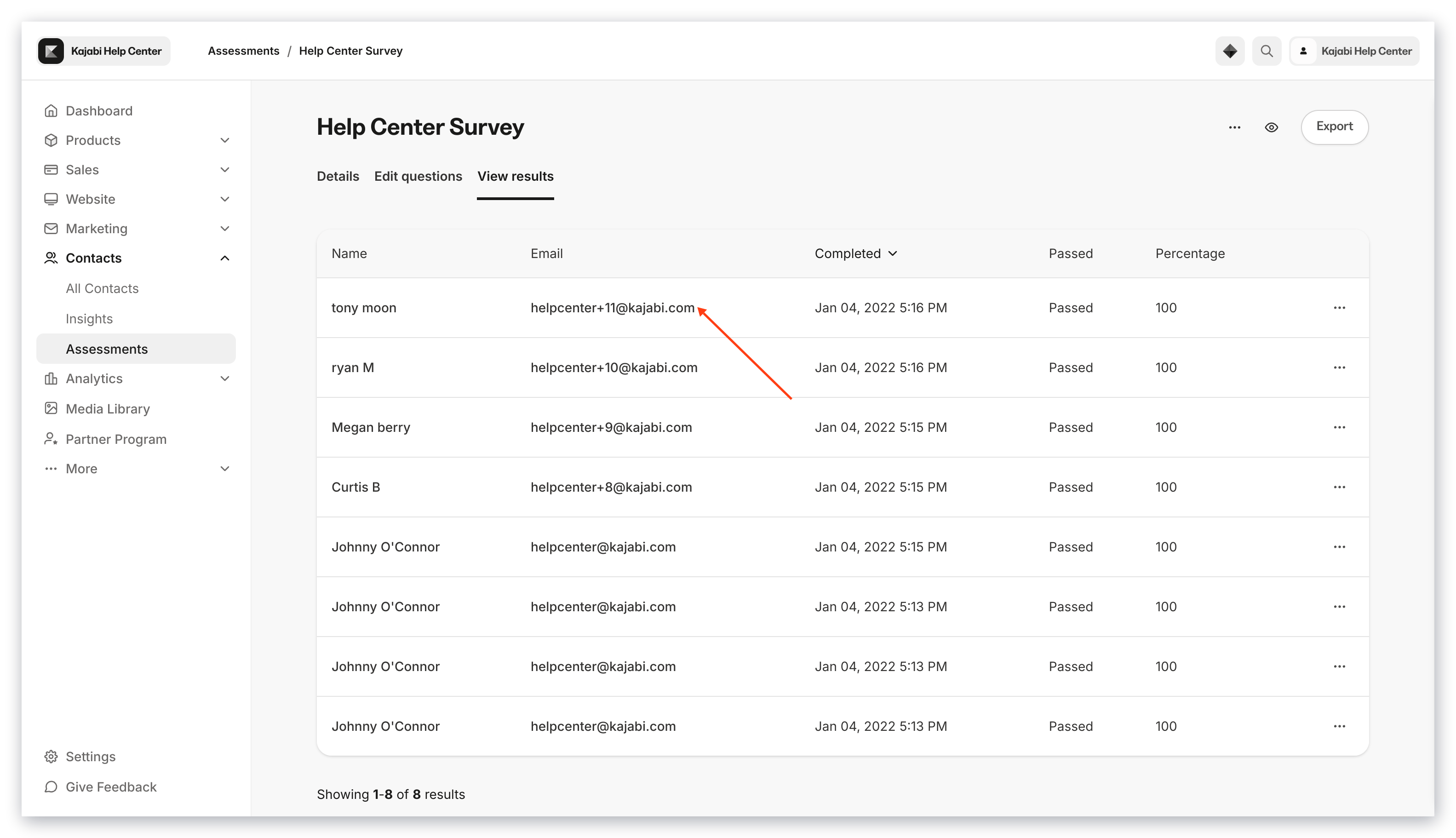
5. View each contact's responses by clicking their email or by [exporting the Assessment Results](../../contacts/create-manage-and-share-assessments/view-and-grade-assessment-results#export):