> ## Documentation Index
> Fetch the complete documentation index at: https://help.kajabi.com/llms.txt
> Use this file to discover all available pages before exploring further.
# Send Assessment results to Google Sheets
> Send results to an external source like Google Sheets using Zapier.
**Note:**
Sending an Assessment to Google Sheets with Zapier does not require a paid Google or Zapier account.
## Test an Assessment
**Note:**
Be sure to enable [automatic grading](../../contacts/create-manage-and-share-assessments/create-and-customize-assessments#h_32f6706b-f7a5-48b9-aa9b-bc145daacdcf) for your Assessment to generate results.
To send Assessment results to an external source like Google Sheets, you first need to create an Assessment and enter test data for [Zapier](https://zapier.com/) to collect.
To create test data:
1. Open the **Contacts** tab from the **Dashboard**.
2. Select **Assessments.**
3. Click the **ellipsis** **…** to the right of the **Assessment** you wish to test.
4. Select the **Preview** icon.
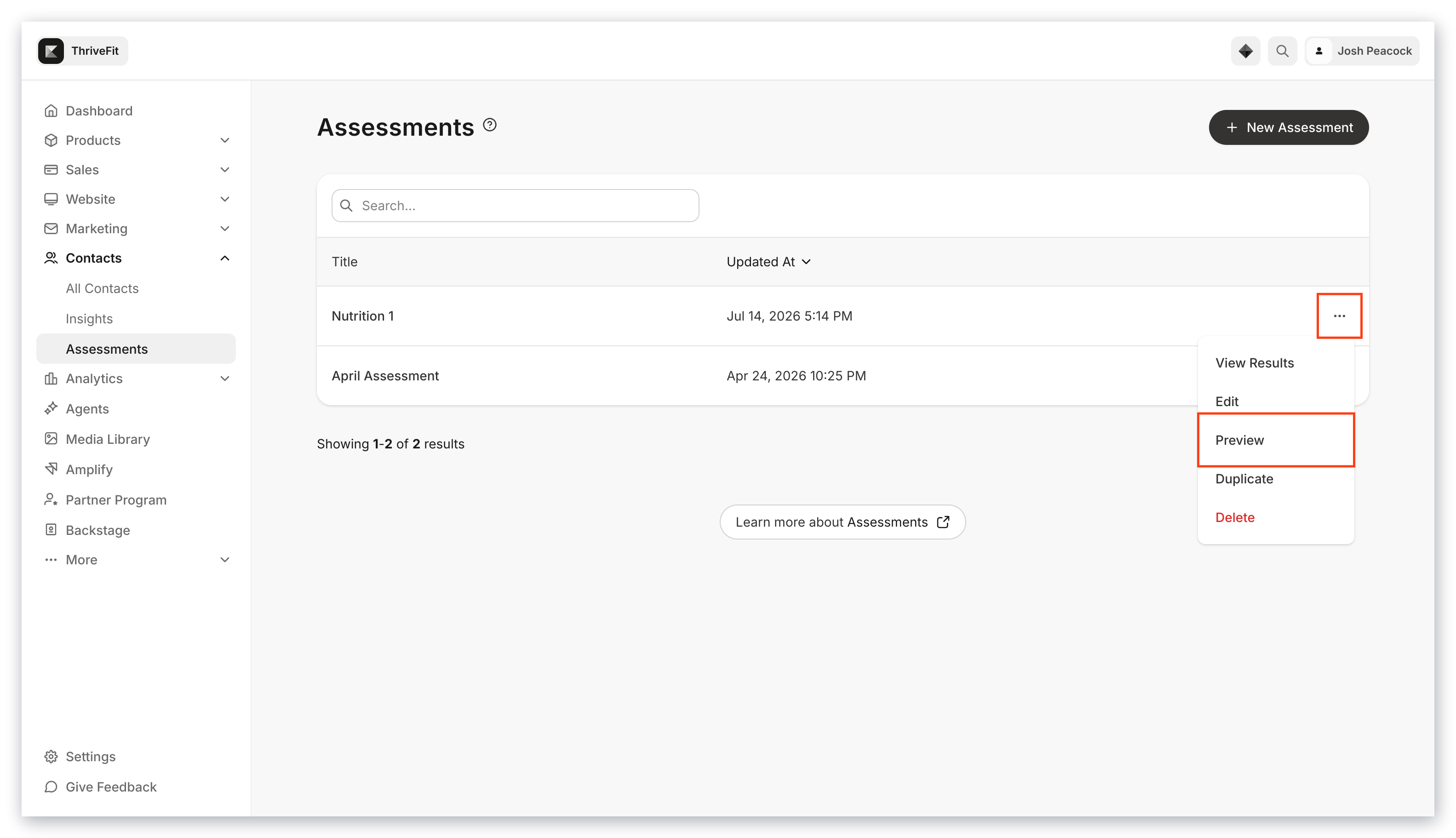 5. In Preview mode, complete and submit your Assessment. Your completed Assessment will create results for Zapier to collect when creating your Zap.
## Create a Zap
Now that you have created test data, create your Zap using [Zapier](https://zapier.com/home).
### Create the Trigger
1. In your **Zapier account**, click [Make a Zap.](https://help.zapier.com/hc/en-us/articles/22234847450893-Zaps-quick-start-guide)
2. Choose **Kajabi** as your trigger app.
3. Select **Assessment Completed** as your Trigger.
4. Click **Continue.**
5. Then, select your **Kajabi** **account**.
5. In Preview mode, complete and submit your Assessment. Your completed Assessment will create results for Zapier to collect when creating your Zap.
## Create a Zap
Now that you have created test data, create your Zap using [Zapier](https://zapier.com/home).
### Create the Trigger
1. In your **Zapier account**, click [Make a Zap.](https://help.zapier.com/hc/en-us/articles/22234847450893-Zaps-quick-start-guide)
2. Choose **Kajabi** as your trigger app.
3. Select **Assessment Completed** as your Trigger.
4. Click **Continue.**
5. Then, select your **Kajabi** **account**.
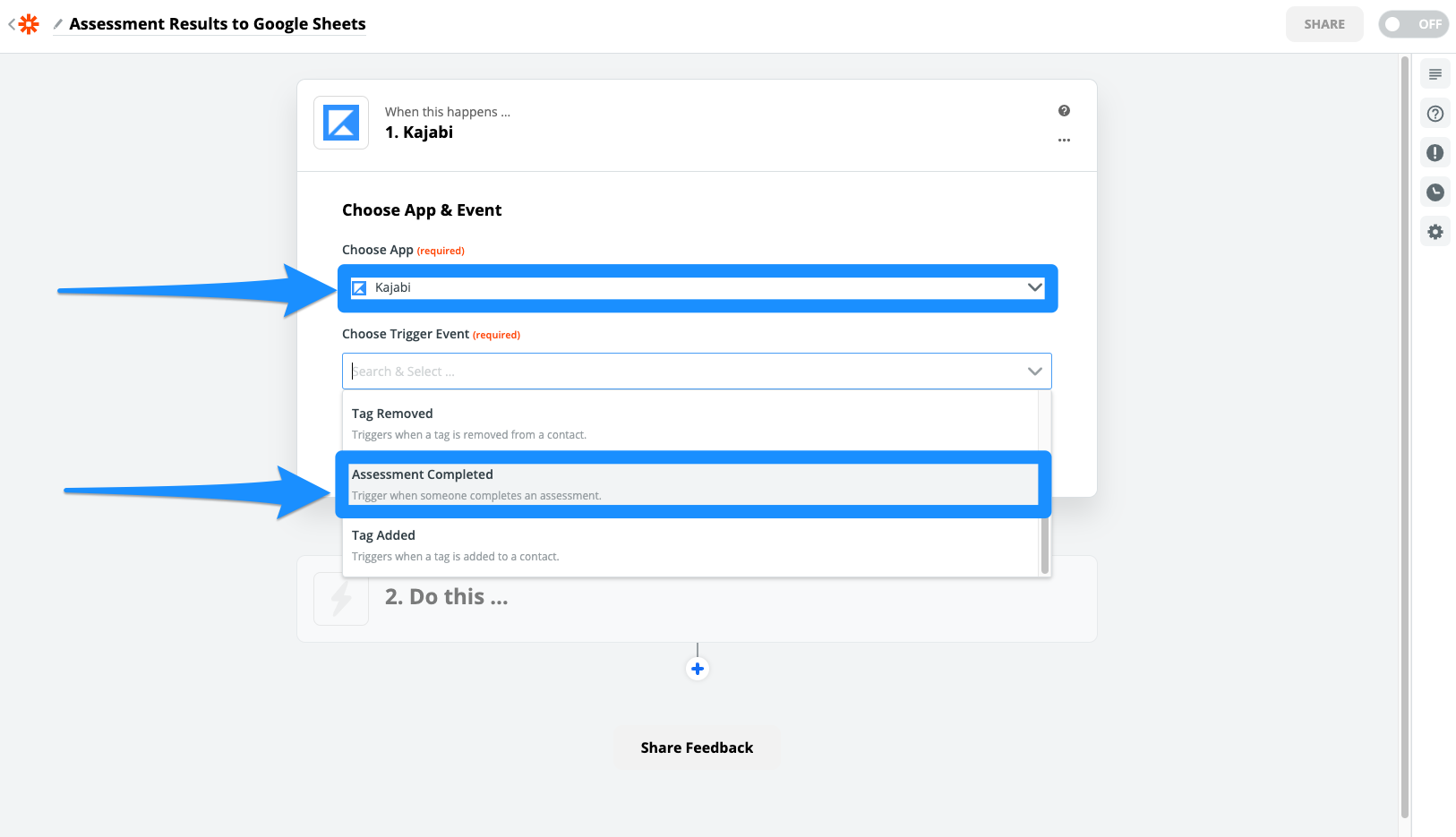 See [Use Zapier with Kajabi](../../api-integrations/zapier/use-zapier-with-kajabi#h_52bfa2e9-d7e8-4198-8649-f5d77b870574) to connect your Kajabi Account.
6. After connecting your Account, click **Continue**.
7. Select your Site **Name** and Assessment **Title**.
8. Click **Continue**.
9. Then, click **Test trigger** to find data:
See [Use Zapier with Kajabi](../../api-integrations/zapier/use-zapier-with-kajabi#h_52bfa2e9-d7e8-4198-8649-f5d77b870574) to connect your Kajabi Account.
6. After connecting your Account, click **Continue**.
7. Select your Site **Name** and Assessment **Title**.
8. Click **Continue**.
9. Then, click **Test trigger** to find data:
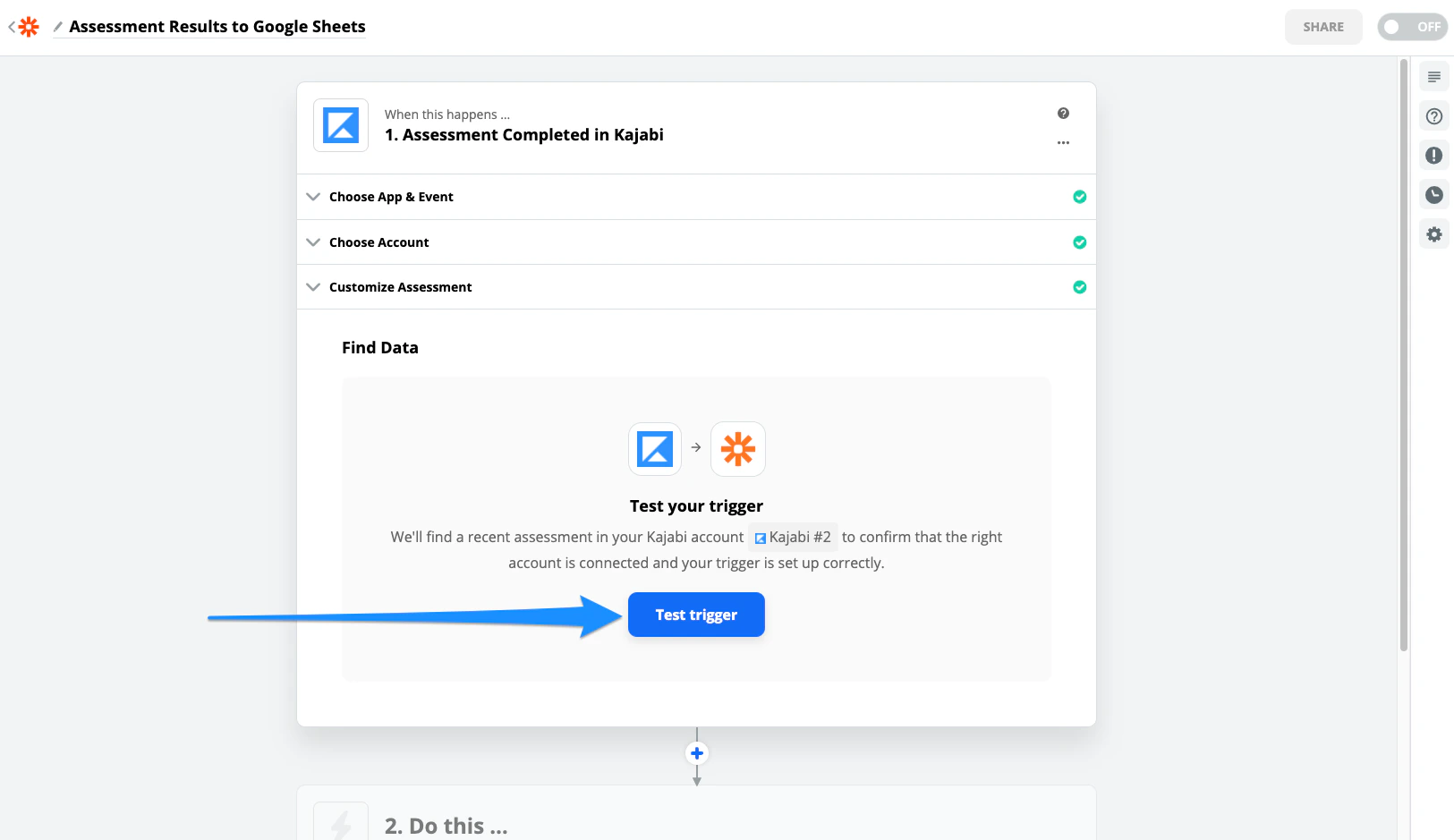 Zapier will test the Trigger by pulling the data created previously.
10. Click **Continue** after Zapier locates data from your Assessment test:
Zapier will test the Trigger by pulling the data created previously.
10. Click **Continue** after Zapier locates data from your Assessment test:
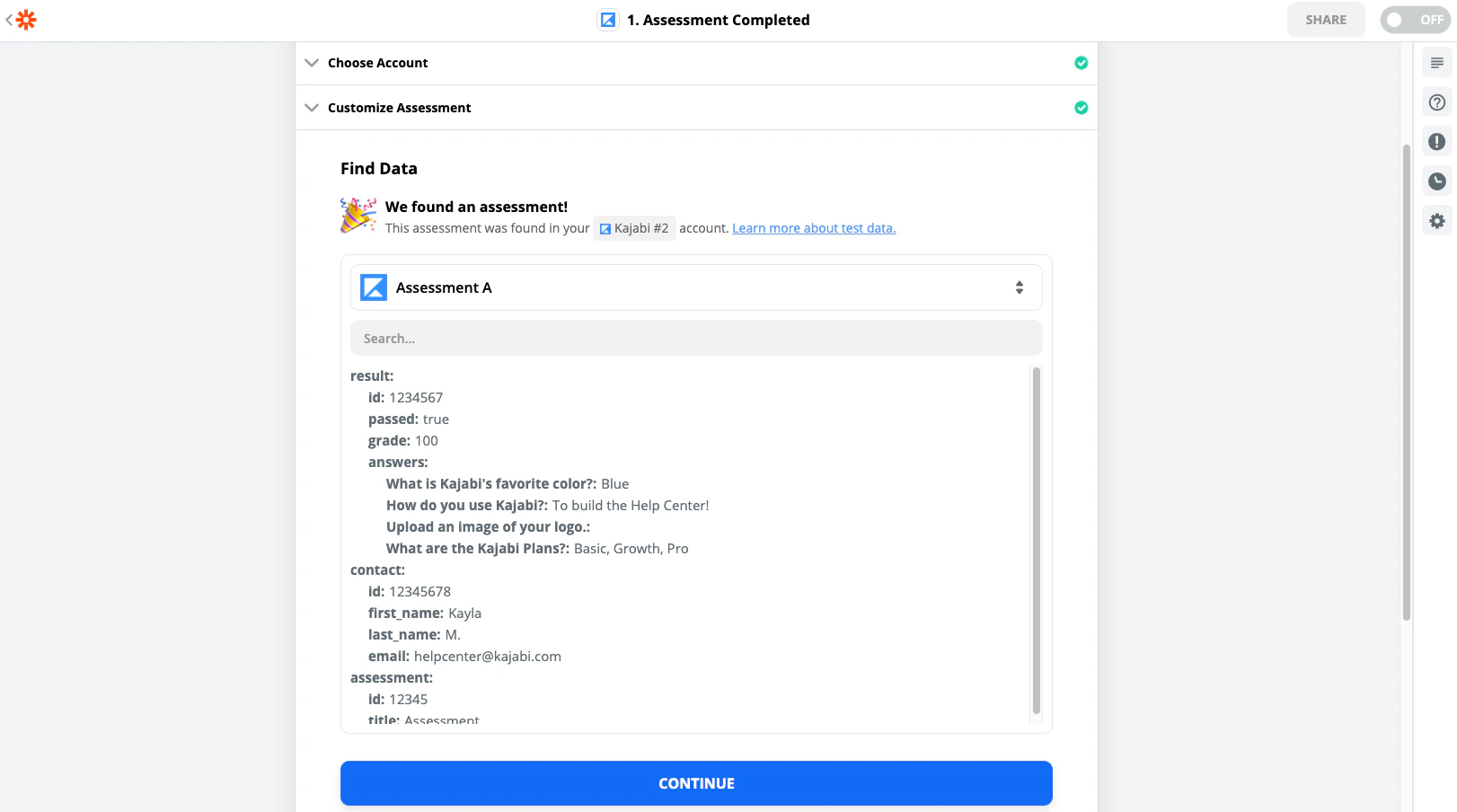 If you receive an error message, learn how to [troubleshoot Zapier](../../api-integrations/zapier/troubleshooting-zapier).
## Set up the Action
Before setting up the Action, create your **Google Sheet**. Learn how to work with [Google Sheets in Zapier](https://zapier.com/help/create/format/work-with-google-sheets-in-zaps).
In this example, we'll send the **Customer Name**, **Email**, and Test Grade to a Google Sheet document named **Assessment Results**.
1. Choose **Google Sheets** as your **Action App**.
2. Select **Create Spreadsheet Row**.
3. Then, click **Continue**:
If you receive an error message, learn how to [troubleshoot Zapier](../../api-integrations/zapier/troubleshooting-zapier).
## Set up the Action
Before setting up the Action, create your **Google Sheet**. Learn how to work with [Google Sheets in Zapier](https://zapier.com/help/create/format/work-with-google-sheets-in-zaps).
In this example, we'll send the **Customer Name**, **Email**, and Test Grade to a Google Sheet document named **Assessment Results**.
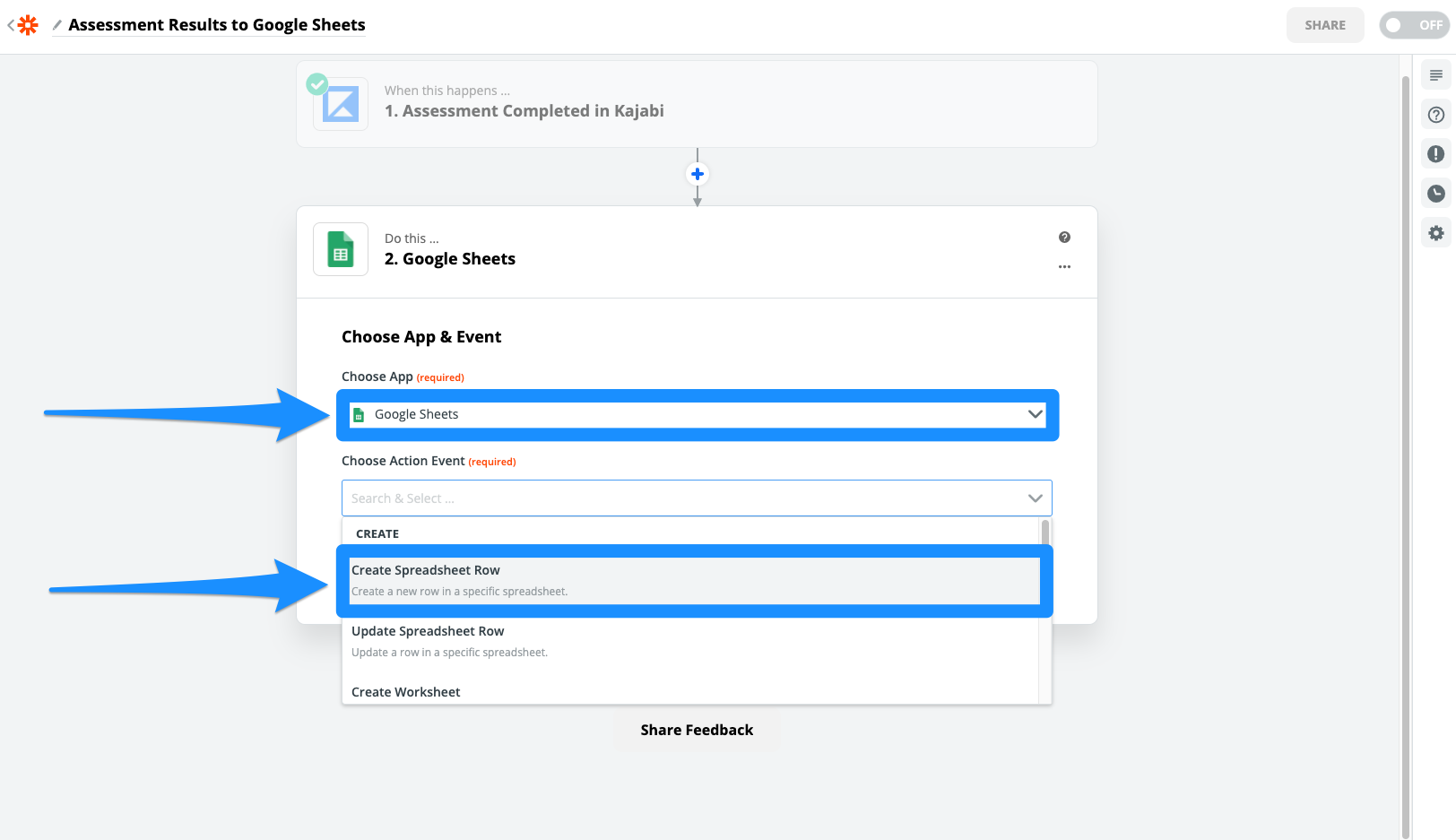
1. Choose **Google Sheets** as your **Action App**.
2. Select **Create Spreadsheet Row**.
3. Then, click **Continue**:
 4. Connect your Google Account and click **Continue**.
5. Skip the **Drive** field.
6. Select the Google Sheet title in the **Spreadsheet** field.
7. Select the **Worksheet** from the dropdown. If you have not changed the worksheet name in your Google Sheet, it will be **Sheet1**.
8. After selecting the Spreadsheet and Worksheet, Zapier will pull the header titles you created in your Google Sheet. Proceed by matching each header title to the appropriate Kajabi data:
4. Connect your Google Account and click **Continue**.
5. Skip the **Drive** field.
6. Select the Google Sheet title in the **Spreadsheet** field.
7. Select the **Worksheet** from the dropdown. If you have not changed the worksheet name in your Google Sheet, it will be **Sheet1**.
8. After selecting the Spreadsheet and Worksheet, Zapier will pull the header titles you created in your Google Sheet. Proceed by matching each header title to the appropriate Kajabi data:
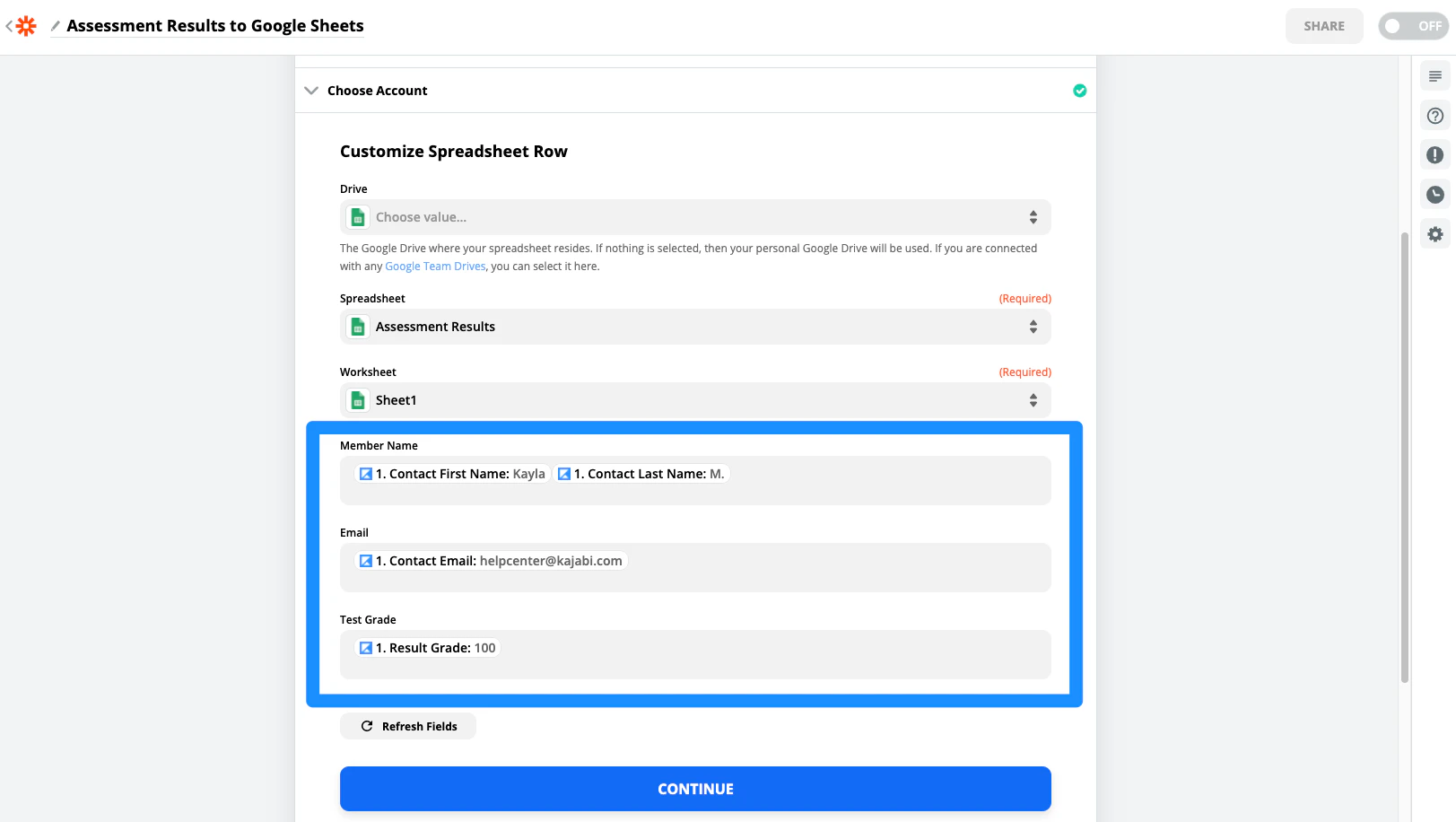 9. Click **Continue**.
10. Test your Zap by clicking **Test & Continue**.
11. Testing your Zap will send the sample data to your Google Sheet. Check your Google Sheet to ensure your Zap has been set up correctly.
## Turn on the Zap
After checking your Google Sheet, give your Zap a name and turn it on to begin sending Assessment results to your Google Sheet.
9. Click **Continue**.
10. Test your Zap by clicking **Test & Continue**.
11. Testing your Zap will send the sample data to your Google Sheet. Check your Google Sheet to ensure your Zap has been set up correctly.
## Turn on the Zap
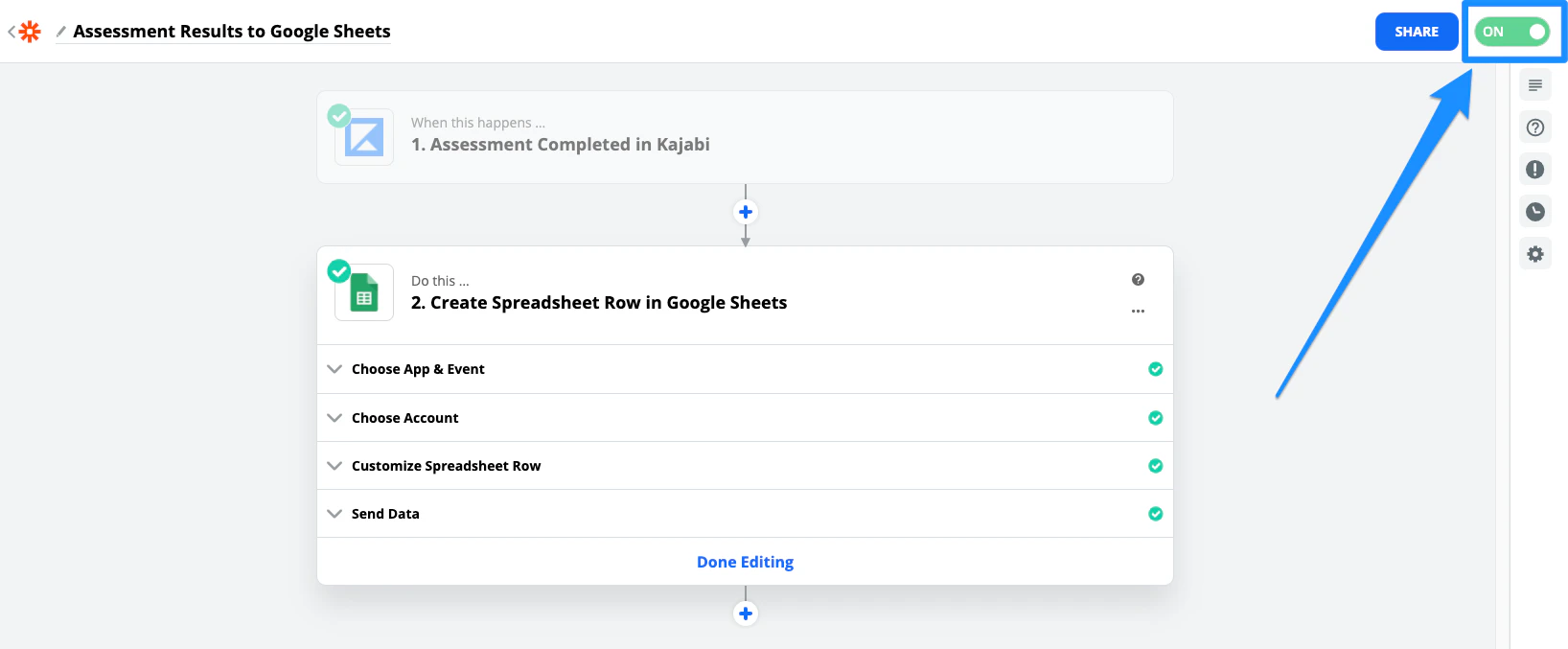
After checking your Google Sheet, give your Zap a name and turn it on to begin sending Assessment results to your Google Sheet.
 **Note:**
Assessments inside of **Courses** have been sunset. This feature may still appear in older accounts. [Quizzes](../../products/courses/course-quizzes) are available inside of Courses and **Offers'** advanced functionality. Assessments can still be added to **Web Pages**.
**Note:**
Assessments inside of **Courses** have been sunset. This feature may still appear in older accounts. [Quizzes](../../products/courses/course-quizzes) are available inside of Courses and **Offers'** advanced functionality. Assessments can still be added to **Web Pages**.