> ## Documentation Index
> Fetch the complete documentation index at: https://help.kajabi.com/llms.txt
> Use this file to discover all available pages before exploring further.
# View and grade Assessment results
> View, grade, and export Assessment results from completed submissions.
## Automatic vs. manual grading
If your Assessment consists of multiple-choice or multiple-selection questions, you have the option to have these questions automatically graded when a user completes the Assessment.
[Learn how to enable automatic grading in an Assessment.](../../contacts/create-manage-and-share-assessments/create-and-customize-assessments#h_32f6706b-f7a5-48b9-aa9b-bc145daacdcf)
**Tip:**
When using automatic grading, send an email to your Assessment submitter with a link to the results of their completed, graded assessment using [After Submission Settings](../../contacts/create-manage-and-share-assessments/create-and-customize-assessments).
For paragraph or file upload Assessment questions, you can view and export the results of a completed Assessment to see the details of each question response.
**Tip:**
If you include more than one question type in your auto-graded Assessment, only the multiple-choice and multiple-selection questions will be automatically graded. Paragraph and file upload questions won't be auto-graded or included in the total percentage completed.
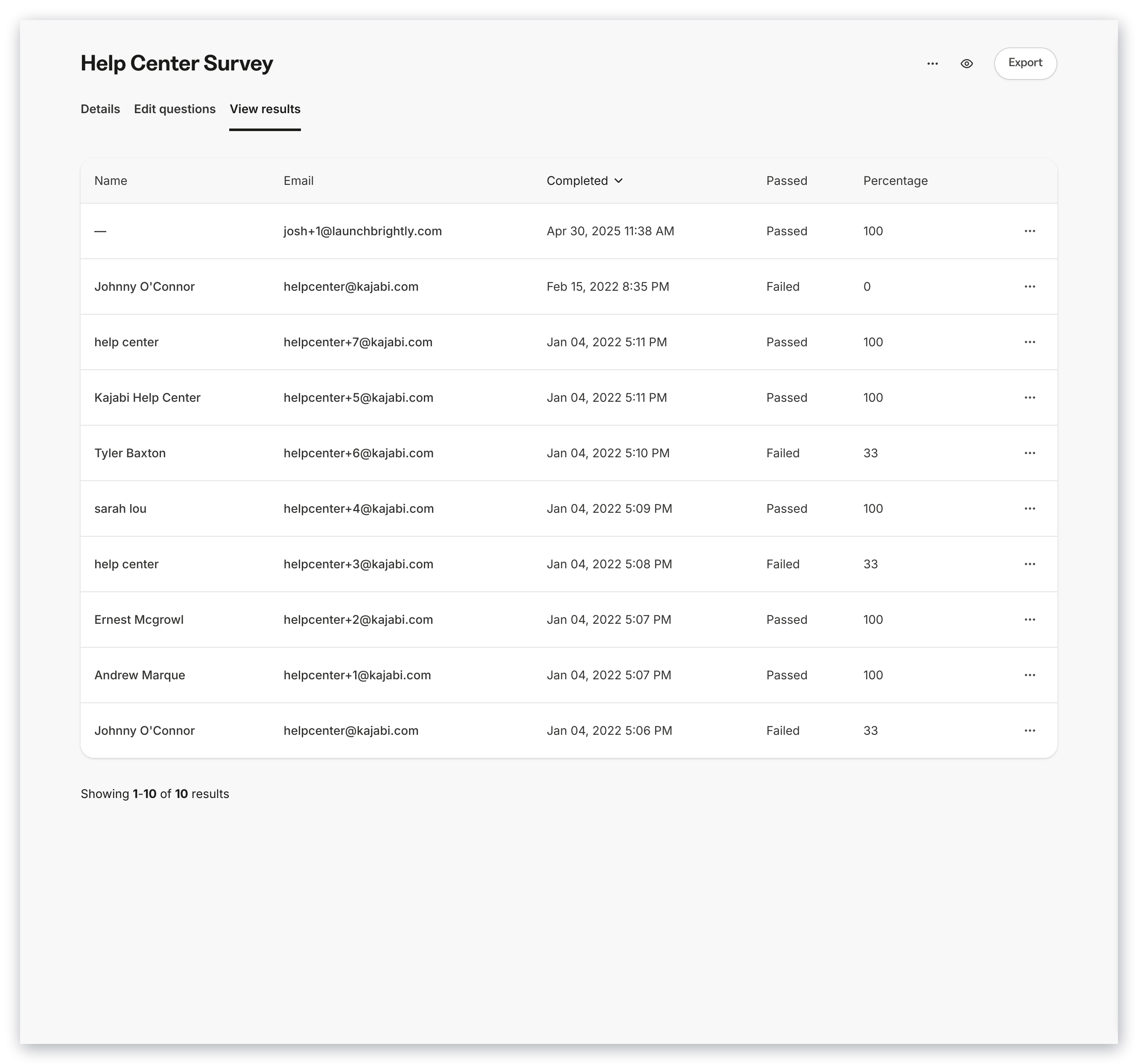
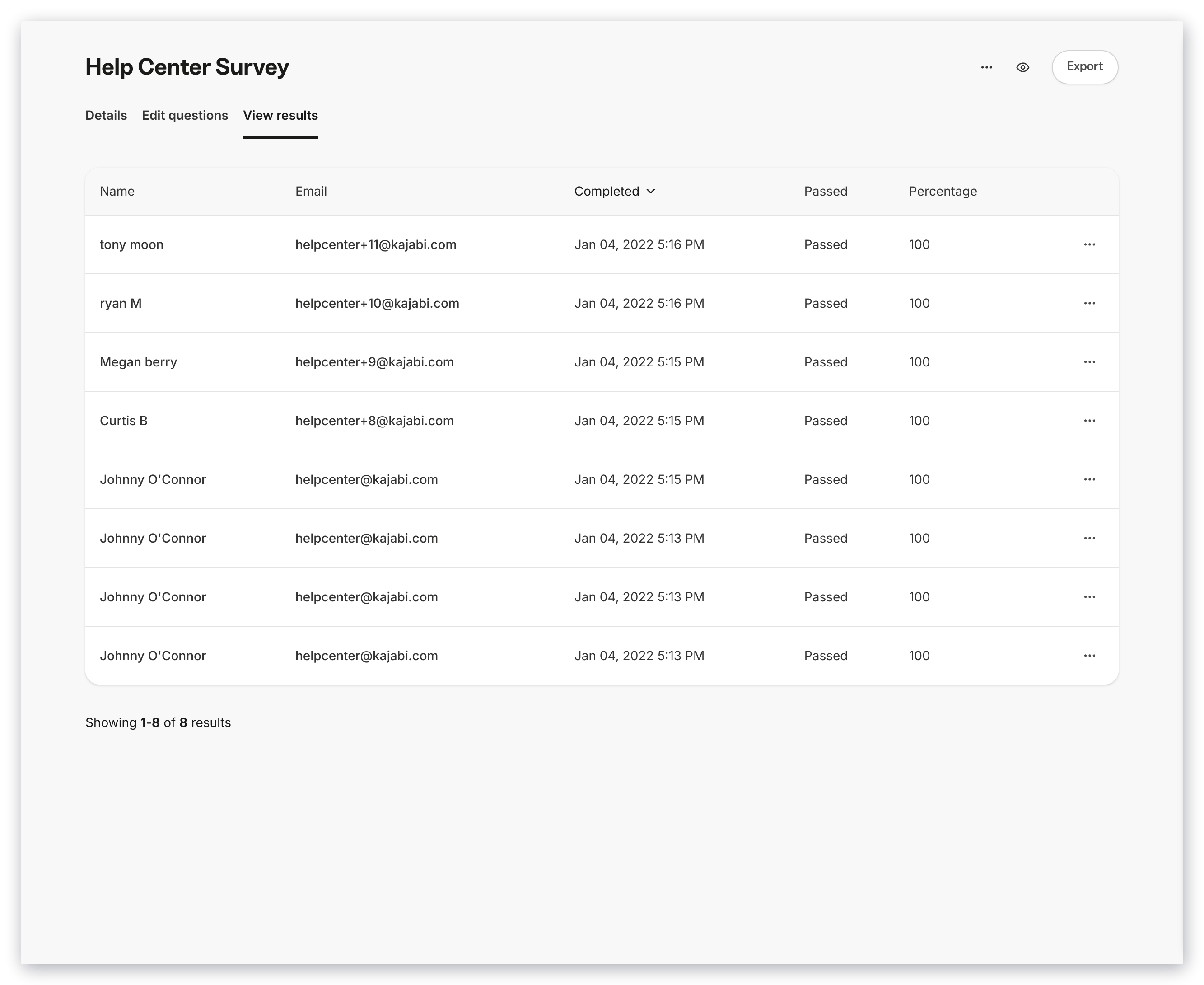
If you choose to create an Assessment that is automatically graded, the results will display a **Passed** status and a **Percentage** value for each Assessment submission. If your Assessment is not set to automatically grade each submission, all results will display as Passed.
**Automatically graded:**
 **Manually graded:**
 ## View Assessment results
To view the results of an Assessment:
1. Open the **Contacts** tab from the Dashboard.
2. Select **Assessments**.
3. Click the **Title** of the [Assessment](../../contacts/create-manage-and-share-assessments/create-and-customize-assessments) you wish to view.
4. Select the **View Results** tab.
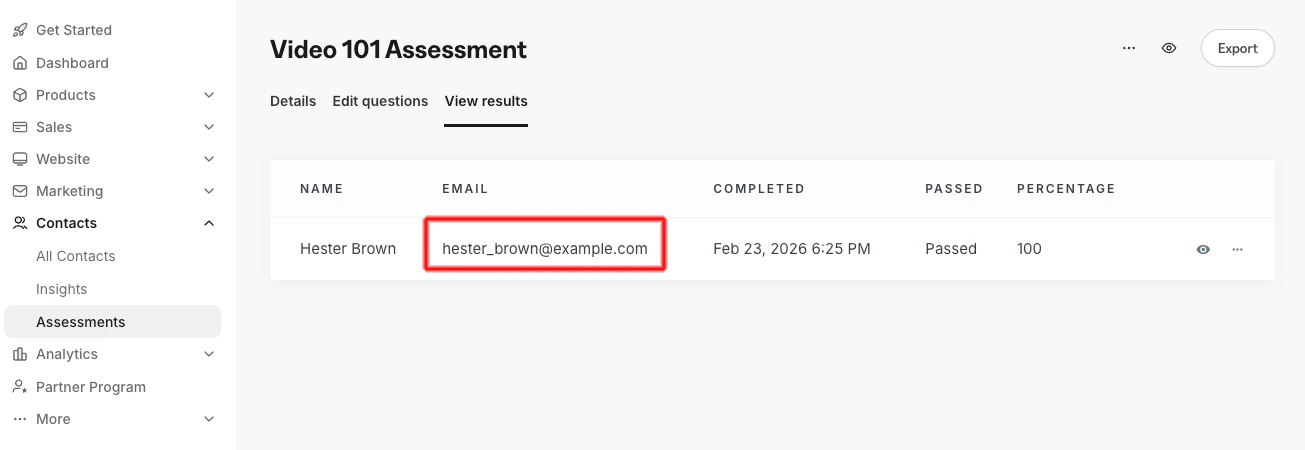
5. View each contact's responses by clicking their email address or by exporting the Assessment results:
## View Assessment results
To view the results of an Assessment:
1. Open the **Contacts** tab from the Dashboard.
2. Select **Assessments**.
3. Click the **Title** of the [Assessment](../../contacts/create-manage-and-share-assessments/create-and-customize-assessments) you wish to view.
4. Select the **View Results** tab.
5. View each contact's responses by clicking their email address or by exporting the Assessment results:
 ## Export Assessment results
To export results in CSV format:
1. Open the **Contacts** tab from the Dashboard.
2. Select **Assessments**.
3. Click the title of the **Assessment** you wish to export.
4. Select the **View Results** tab.
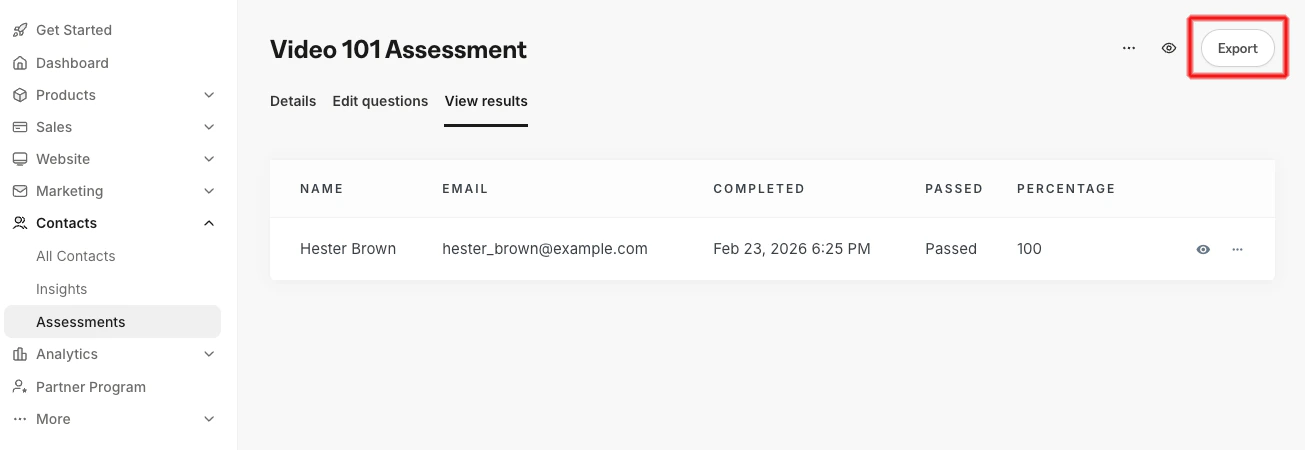
5. Click the **Export** button at the top right of the page:
## Export Assessment results
To export results in CSV format:
1. Open the **Contacts** tab from the Dashboard.
2. Select **Assessments**.
3. Click the title of the **Assessment** you wish to export.
4. Select the **View Results** tab.
5. Click the **Export** button at the top right of the page:
 Your exported Assessment results will be sent to the email associated with your Kajabi account. Check your email inbox for an email from our support team with the **Subject line** "Assessment results export completed!".
From that email, download your exported Assessment results (a CSV file) to see more details for each submission.
**Automatically graded:**
Your exported Assessment results will be sent to the email associated with your Kajabi account. Check your email inbox for an email from our support team with the **Subject line** "Assessment results export completed!".
From that email, download your exported Assessment results (a CSV file) to see more details for each submission.
**Automatically graded:**
 **Manually graded:**
 **Note:**
Assessments inside **Courses** have been sunset. They may still appear in older accounts. [Quizzes](../../products/courses/course-quizzes) are available inside Courses and **Offers**' advanced functionality. Assessments may still be added to **Web Pages**.
**Note:**
Assessments inside **Courses** have been sunset. They may still appear in older accounts. [Quizzes](../../products/courses/course-quizzes) are available inside Courses and **Offers**' advanced functionality. Assessments may still be added to **Web Pages**.