> ## Documentation Index
> Fetch the complete documentation index at: https://help.kajabi.com/llms.txt
> Use this file to discover all available pages before exploring further.
# Apply filters to the Contacts tab
> Create filters to better manage and organize contacts.
## Why use filters
Organize, manage, and search your list with filters.
Additionally, filters can help you build [Segments](/articles/contacts/manage-your-contacts/segment-your-contacts) to design personalized marketing and efficiently manage your list.
## Create filters
Add multiple filters, duplicate filters, and use the same filter more than once.
### Select filter criteria
* **Category**: a specific division available on Kajabi
* **Conditional**: dynamic requirements or conditions specific to the Category selected
* **Value**: the specified parameter for the Category and Conditional
### Filter the contact list to manage and organize contacts
1. Open the **Contacts** tab from your Kajabi Dashboard.
2. Click **Filters**.
3. Select your **Category**, **Conditional**, and **Value**:
After creating a Filter, click **Apply Filters** or add a filter to narrow your list even further.
[Learn more about each filter category](/articles/contacts/manage-your-contacts/defining-contacts-tab-filters).
If you wish to create a Segment with your Filter(s) simply click **Save as segment** after applying your filters. [Learn more about Segments](/articles/contacts/manage-your-contacts/segment-your-contacts).
**Note:** Create up to 10 filters.
## Things to consider when applying filters
There are a few things to consider when applying filters to your Contacts tab, in order to obtain the most accurate filter results.
### Apply duplicate categories
* If multiple instances of a filter with the same category and conditional are applied, the duplicate instance will be omitted, regardless of any differences in values:
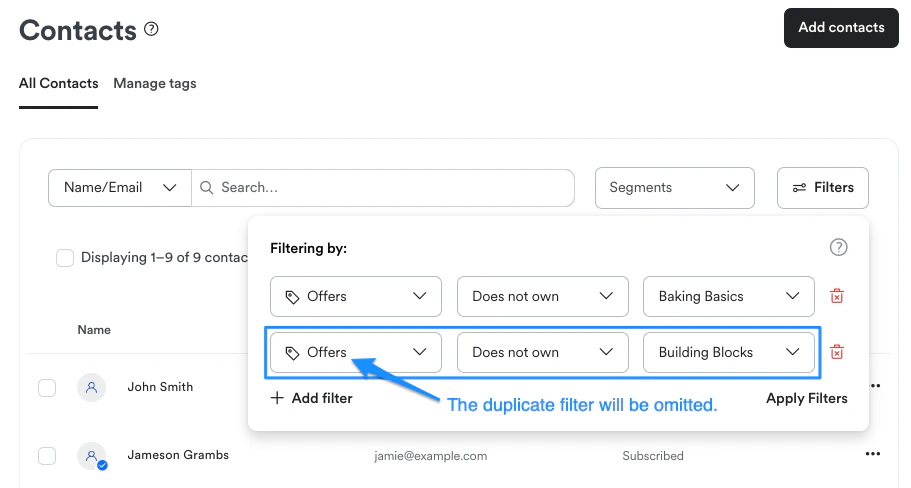 Instead, it is best to [use categories that allow you to select multiple values](#select-multiple-values).
### Select multiple values
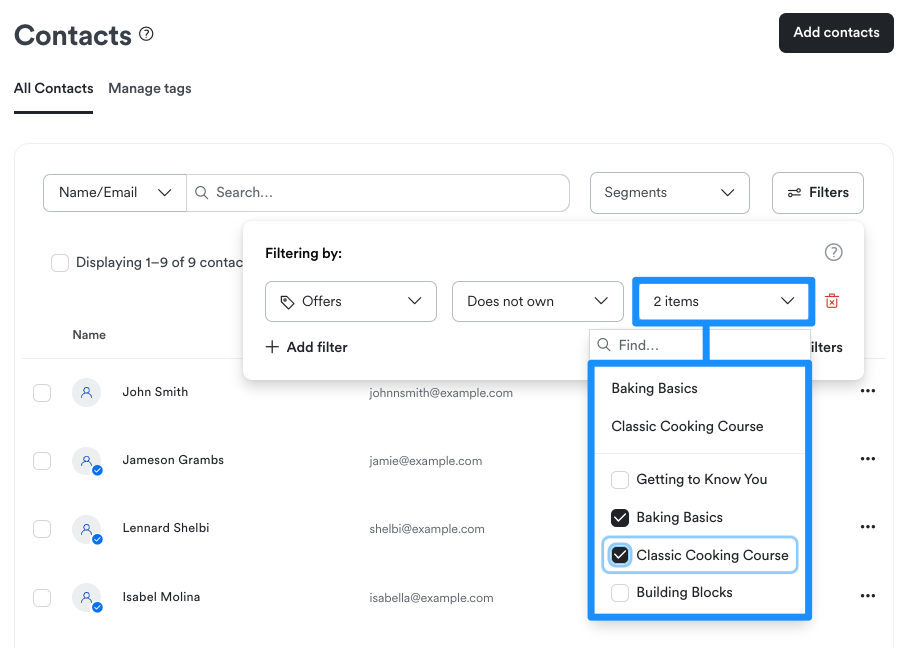
* Depending on the selected Category, you may be able to select multiple values. For example, creating a Filter with the "Offer" or "Tags" Category allows you to select multiple Values to define the Filter:
Instead, it is best to [use categories that allow you to select multiple values](#select-multiple-values).
### Select multiple values
* Depending on the selected Category, you may be able to select multiple values. For example, creating a Filter with the "Offer" or "Tags" Category allows you to select multiple Values to define the Filter:
 ### Conditionals
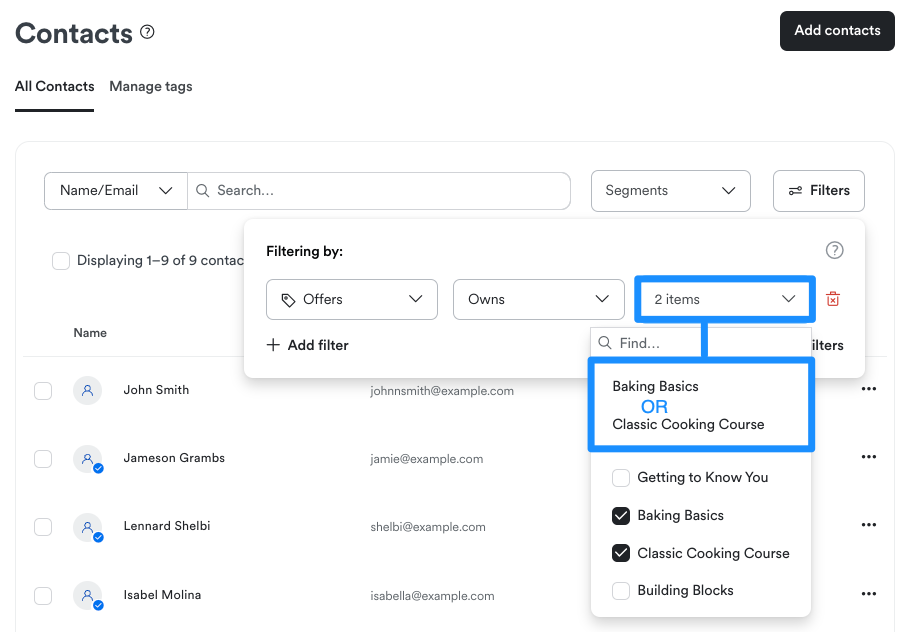
* Applying a Filter for "Offer" with the Conditional, "Owns", functions as an "OR" statement, not as an "AND" statement:
### Conditionals
* Applying a Filter for "Offer" with the Conditional, "Owns", functions as an "OR" statement, not as an "AND" statement:
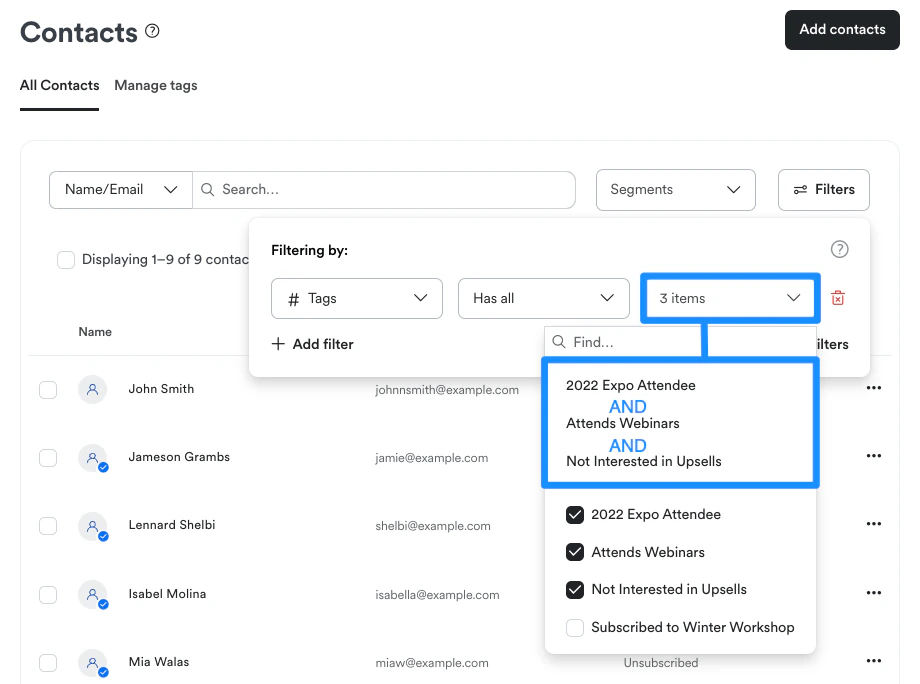
 * Applying "Tags" with the Conditional, "Has any" or "Has all", functions as an AND statement when selecting multiple Tags for the Filter:
 ## Remove filters
To remove filter(s):
1. Click **Filter**.
2. Navigate to the right of your Filter and click the **Trash** icon.
3. Select **Remove**:
## Remove filters
To remove filter(s):
1. Click **Filter**.
2. Navigate to the right of your Filter and click the **Trash** icon.
3. Select **Remove**: