> ## Documentation Index
> Fetch the complete documentation index at: https://help.kajabi.com/llms.txt
> Use this file to discover all available pages before exploring further.
# Use Contact Preview
> Preview contacts and perform quick actions without leaving the filtered contact list.
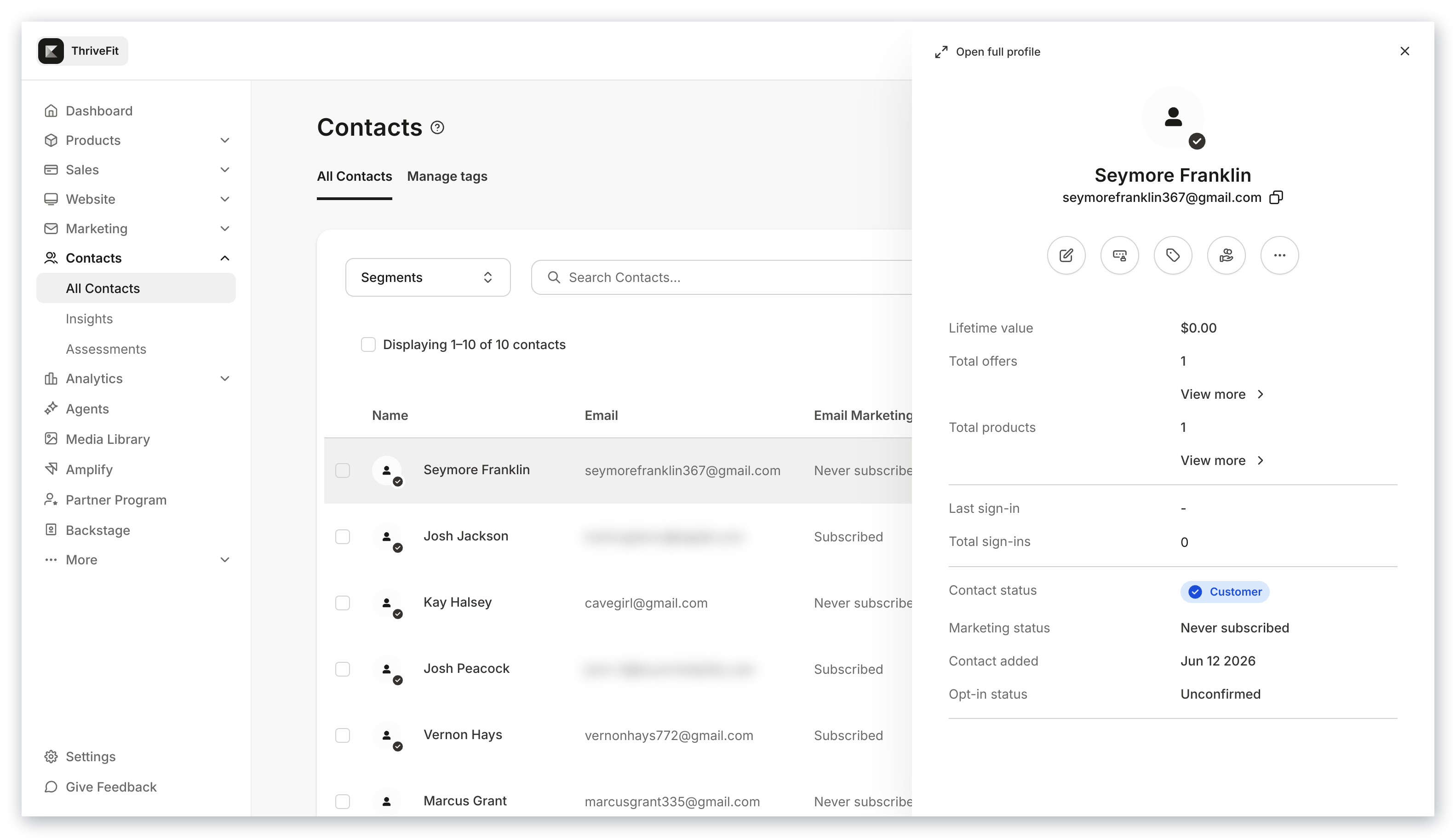
The **Contact Preview** allows you to preview and perform quick actions without having to enter into the full Contact Profile page.
With this feature you can filter your list, view your contacts, and perform your most common actions without resetting your filtered list.
## Access the Contact Preview
### To access the Contact Preview
1. Open the **Contacts** tab from your Dashboard.
2. Select the **name** of your desired contact or customer.
3. Preview and perform [quick actions](#quick-actions) from the Contact Preview:
 ## Customer contact preview vs. non-customer contact preview
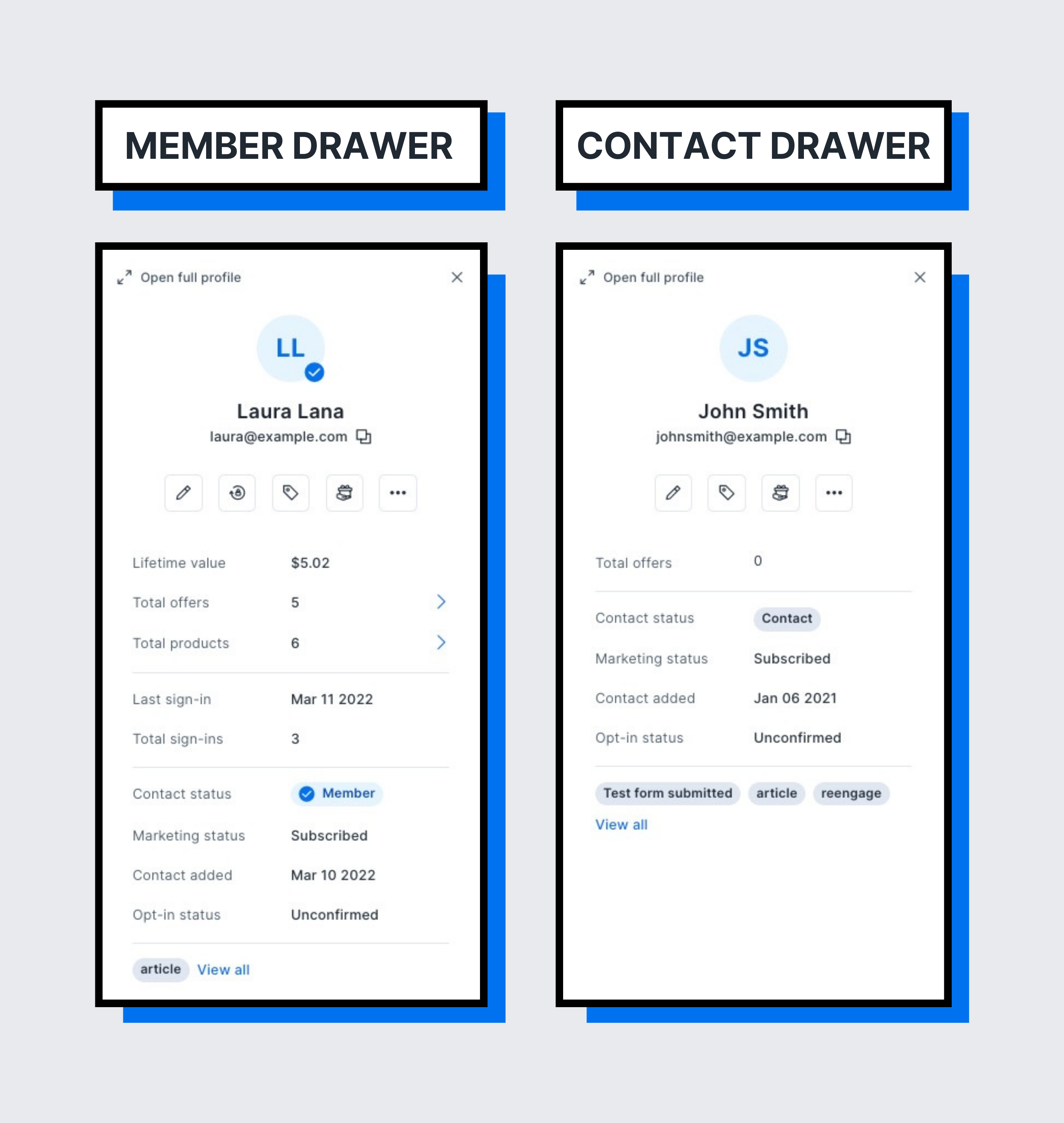
The Contact Preview will provide different options depending on the type of contact you view. If you open the Contact Preview for a Customer you can perform more actions through the Contact Preview than you will find in the Contact Preview of a Non-Customer.
## Customer contact preview vs. non-customer contact preview
The Contact Preview will provide different options depending on the type of contact you view. If you open the Contact Preview for a Customer you can perform more actions through the Contact Preview than you will find in the Contact Preview of a Non-Customer.
 ### Customer contact preview
The Customer contact preview contains more information and quick actions compared to the Non-Customer contact preview as a result of their Customer status.
#### The Customer contact preview allows you to:
* Edit the contact details
* Send a reset password email to your customer
* Add tag(s)
* Grant an Offer
* Manually change your customer's password
* Add a note
* Hide the contact
* Delete the contact
* View the lifetime value of your customer
* Total Offers owned
* Total Products owned
* Last sign in date
* Number of total sign-ins
* Contact status
* [Email Marketing status](/articles/contacts/manage-your-contacts/what-does-the-subscription-status-mean)
* Date the contact was added to your site
* Opt-in status
* Any applicable tags
### Non-customer contact preview
The Non-Customer contact preview allows you to perform the applicable quick actions to your non-customer contact and provides an efficient method of viewing important contact information.
With the Non-Customer contact preview you can:
* Edit the contact details
* Add tag(s)
* Grant an Offer
* Add a note
* Hide the contact
* Delete the contact
* View Total Offers the contact ever owned
* Contact status
* [Email Marketing status](/articles/contacts/manage-your-contacts/what-does-the-subscription-status-mean)
* Date the contact was added to your site
* Opt-in status
* Any applicable tags
## Quick actions
With the Contact Preview you can perform quick actions:
* [Edit contact details](/articles/contacts/manage-your-contacts/how-to-edit-your-contacts-information)
* [Reset password](how-to-reset-your-customers-password#send-a-password-reset-email)
* [Add a tag](/articles/contacts/manage-your-contacts/tags-overview)
* [Grant an offer](../../sales/offers/how-to-grant-an-offer)
* [Change password](how-to-reset-your-customers-password#manually-change-password)
* Add a note
* Hide the contact
* Delete the contact
### Customer contact preview
The Customer contact preview contains more information and quick actions compared to the Non-Customer contact preview as a result of their Customer status.
#### The Customer contact preview allows you to:
* Edit the contact details
* Send a reset password email to your customer
* Add tag(s)
* Grant an Offer
* Manually change your customer's password
* Add a note
* Hide the contact
* Delete the contact
* View the lifetime value of your customer
* Total Offers owned
* Total Products owned
* Last sign in date
* Number of total sign-ins
* Contact status
* [Email Marketing status](/articles/contacts/manage-your-contacts/what-does-the-subscription-status-mean)
* Date the contact was added to your site
* Opt-in status
* Any applicable tags
### Non-customer contact preview
The Non-Customer contact preview allows you to perform the applicable quick actions to your non-customer contact and provides an efficient method of viewing important contact information.
With the Non-Customer contact preview you can:
* Edit the contact details
* Add tag(s)
* Grant an Offer
* Add a note
* Hide the contact
* Delete the contact
* View Total Offers the contact ever owned
* Contact status
* [Email Marketing status](/articles/contacts/manage-your-contacts/what-does-the-subscription-status-mean)
* Date the contact was added to your site
* Opt-in status
* Any applicable tags
## Quick actions
With the Contact Preview you can perform quick actions:
* [Edit contact details](/articles/contacts/manage-your-contacts/how-to-edit-your-contacts-information)
* [Reset password](how-to-reset-your-customers-password#send-a-password-reset-email)
* [Add a tag](/articles/contacts/manage-your-contacts/tags-overview)
* [Grant an offer](../../sales/offers/how-to-grant-an-offer)
* [Change password](how-to-reset-your-customers-password#manually-change-password)
* Add a note
* Hide the contact
* Delete the contact