> ## Documentation Index
> Fetch the complete documentation index at: https://help.kajabi.com/llms.txt
> Use this file to discover all available pages before exploring further.
# Contacts tab filters
> Use filters to narrow contact results and create segments.
The **Contacts** tab is a powerful organizational tool to help you manage the information for your contacts. In other words, the **Contacts** tab is your built-in Customer Relationship Management System (CRM) on Kajabi.
[Learn more about the Contacts tab](/articles/contacts/manage-your-contacts/contacts-tab-overview).
In Kajabi, all of your contacts are added to a single list to easily view, access, and manage their accounts. Within the **Contacts** tab, you can manage existing contacts with Segments and Filters, and add contacts to your site.
Filters help you narrow down your list by various topics or categories. This is a great way to manage contact accounts and create Segments.
[Learn about Segments](/articles/contacts/manage-your-contacts/segment-your-contacts).
## Use filters
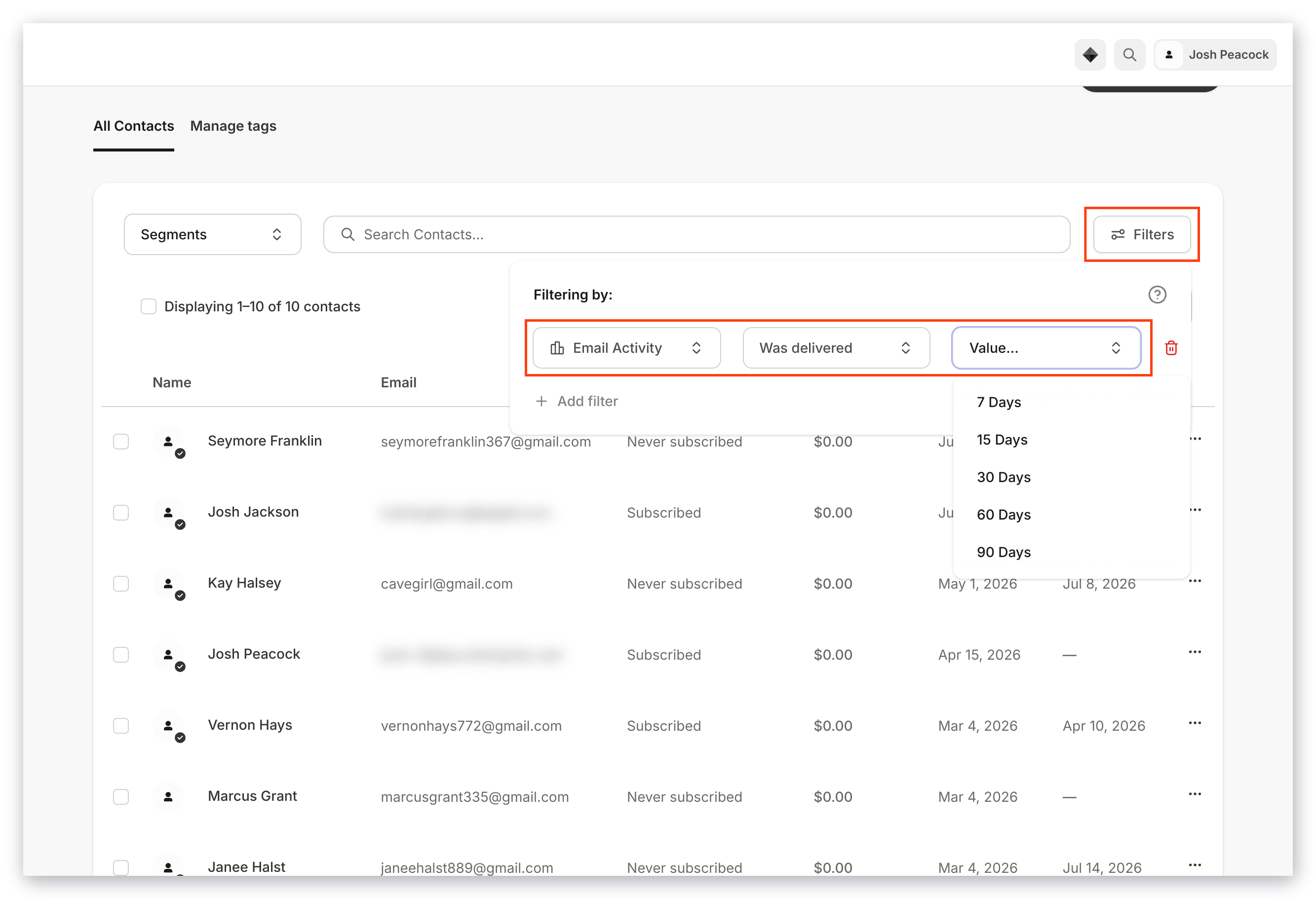
To filter your list:
1. Open the **Contacts** tab from the Dashboard.
2. Click **Filters**.
3. Select your **Category**, **Conditional**, and **Value**.
4. If desired, you can add additional filters to further narrow your results by clicking **+Add filter**.
5. Remove any filter by clicking the **trash can**.
6. Click **Apply Filters** to see your results.
* **Category**: A specific division or category on Kajabi (e.g., Email Activity)
* **Conditional**: Dynamic requirements or conditions specific to the category selected
* **Value**: The specified parameter for the Category and Conditional
 ## Available filter categories
| Assessment | Email Activity | Forms | Tags |
| -------------- | ---------------- | ---------------- | ---- |
| Contacts | Email Broadcast | Marketing Status | |
| Coupon | Email Engagement | Customers | |
| Custom Fields | Email Sequence | Offers | |
| Default Fields | Events | Products | |
## Assessment
[Learn more about Assessments](../../contacts/create-manage-and-share-assessments/create-and-customize-assessments).
**Available Conditional settings:**
* Completed
* Passed
* Failed
[Learn how to enable automatic grading](../../contacts/create-manage-and-share-assessments/create-and-customize-assessments#h_32f6706b-f7a5-48b9-aa9b-bc145daacdcf).
The Value will be any Assessment(s) you have created.
## Contacts
[Learn more about Contacts](/articles/contacts/manage-your-contacts/what-is-the-difference-between-a-customer-contact-and-a-subscriber).
**Available Conditional settings:**
* Contact was added
* Contact was not added
* Contact is [hidden](/articles/contacts/manage-your-contacts/hiding-your-contacts)
Then, specify the date range as the Value:
* 7 Days
* 15 Days
* 30 Days
* 60 Days
* 90 Days
## Coupon
[Learn more about creating Coupons](../../sales/coupons/how-to-create-a-coupon).
**Available Conditional settings:**
* Coupon used
The Value will be any Coupon(s) you have created.
## Custom Fields
[Learn how to create form fields](../../marketing/forms/how-to-add-and-edit-fields-on-a-form).
**Available Conditional settings:**\
Any custom fields created on your site.
Then, specify a Value for the selected custom field.
## Default Fields
See results specific to your default form fields. [Learn more about form fields](../../marketing/forms/how-to-add-and-edit-fields-on-a-form).
**Available Conditional settings:**
* Name contains
* Email contains
* Phone number contains
* Address contains
* Address line 2 contains
* City contains
* State contains
* Country contains
* Zip code contains
Then, specify a Value for the selected default field.
## Email Activity
[Learn more about email deliverability](../../marketing/email-campaigns/demystifying-email-deliverability).
**Available Conditional settings:**
* Was delivered
* Was not sent
* Was opened
* Was not opened
* Was [clicked](../../marketing/email-campaigns/email-metrics-overview#h_01EDPQC3J9TEWVG6AKKY7C6CDY)
* Was not clicked
* Has a hard-bounced delivery
* [Excluded from mailing](/articles/contacts/manage-your-contacts/how-email-address-validation-and-contact-exclusion-helps-you-maintain-a-healthy-mailing-list)
Then, specify a date range as the Value:
* 7 Days
* 15 Days
* 30 Days
* 60 Days
* 90 Days
## Email Broadcast
Learn more about Email Broadcasts.
**Available Conditional settings:**
* Was sent
* Was not sent
* Was [opened](../../marketing/email-campaigns/email-metrics-overview#h_01EDPQC3J9TEWVG6AKKY7C6CDY)
* Was not opened
* Has [clicked](../../marketing/email-campaigns/email-metrics-overview#h_01EDPQC3J9TEWVG6AKKY7C6CDY)
* Has not clicked
* [Has bounced](/articles/contacts/manage-your-contacts/how-auto-unsubscribe-helps-you-maintain-a-healthy-mailing-list)
* Has not [bounced](../../marketing/email-campaigns/email-metrics-overview#h_01EDPQC3J9TEWVG6AKKY7C6CDY)
* Has [dropped](../../marketing/email-campaigns/email-metrics-overview#h_01EDPQCE5WM1WJFFEBRC0AFNXG)
The Value will be any broadcast email(s) you have sent.
## Email Engagement
[Learn best practices for growing and maintaining a healthy contact list](../../marketing/email-campaigns/best-practices-for-growing-and-maintaining-your-contact-lists).
**Available Conditional settings:**
* Healthy Contacts
* Passive Contacts
* Unengaged Contacts
* Inactive Contacts
\
Then, select one of two Values:
* Include email open data
* Exclude email open data
## Email Sequence
[Learn how to subscribe contacts to an email sequence](../../marketing/email-campaigns/how-to-subscribe-contacts-to-an-email-sequence).
**Available Conditional settings:**
* Subscribed to
* Not subscribed to
The Value will be any Email Sequence(s) you have created.
## Events
[Learn more about Events](../../marketing/events/event-overview).
**Available Conditional settings:**
* Registered to
* Not registered to
The Value will be any Event(s) you have created.
## Forms
[Learn more about Forms](../../marketing/forms/create-and-build-your-form).
**Available Conditional settings:**
* Submitted
* Not submitted
The Value will be any Form(s) you have created.
## Marketing Status
[Learn more about marketing emails and transactional emails](../../marketing/email-campaigns/what-are-marketing-and-transactional-emails).
[Learn more about subscription status](/articles/contacts/manage-your-contacts/what-does-the-subscription-status-mean).
**Available Conditional settings:**
* Subscribed
* Hard bounced
* Marked spam
* Manually unsubscribed
* Unsubscribed
* Opted out
* Never subscribed
Then, specify a date range as the Value:
* 7 Days
* 15 Days
* 30 Days
* 60 Days
* 90 Days
* All time
## Customers
[Learn more about customers](what-is-the-difference-between-a-customer-contact-and-a-subscriber#what-is-a-member).
**Available Conditional settings:**
* Customer was [active](what-is-the-difference-between-a-customer-contact-and-a-subscriber#what-is-considered-an-active-member)
* Customer was not active
* Customer joined in last
* Is a customer
Then, specify a date range as the Value:
* 7 Days
* 15 Days
* 30 Days
* 60 Days
* 90 Days
* All time
## Offers
[Learn more about Offers](../../sales/offers/offers-overview).
**Available Conditional settings:**
* Owns
* Does not own
* Previously owned
* Canceling
The Value will be any Offer(s) you have created.
## Products
[Learn how to create digital Products](../../products/courses/courses-overview).
**Available Conditional settings:**
* Has
* Does not have
* Previously owned
The Value will be any Product(s) you have created.
## Tags
[Learn how to use Tags](/articles/contacts/manage-your-contacts/tags-overview).
**Available Conditional settings:**
* Has any
* Has all
* Does not have
The Value will be any Tag(s) you have created.
## Available filter categories
| Assessment | Email Activity | Forms | Tags |
| -------------- | ---------------- | ---------------- | ---- |
| Contacts | Email Broadcast | Marketing Status | |
| Coupon | Email Engagement | Customers | |
| Custom Fields | Email Sequence | Offers | |
| Default Fields | Events | Products | |
## Assessment
[Learn more about Assessments](../../contacts/create-manage-and-share-assessments/create-and-customize-assessments).
**Available Conditional settings:**
* Completed
* Passed
* Failed
[Learn how to enable automatic grading](../../contacts/create-manage-and-share-assessments/create-and-customize-assessments#h_32f6706b-f7a5-48b9-aa9b-bc145daacdcf).
The Value will be any Assessment(s) you have created.
## Contacts
[Learn more about Contacts](/articles/contacts/manage-your-contacts/what-is-the-difference-between-a-customer-contact-and-a-subscriber).
**Available Conditional settings:**
* Contact was added
* Contact was not added
* Contact is [hidden](/articles/contacts/manage-your-contacts/hiding-your-contacts)
Then, specify the date range as the Value:
* 7 Days
* 15 Days
* 30 Days
* 60 Days
* 90 Days
## Coupon
[Learn more about creating Coupons](../../sales/coupons/how-to-create-a-coupon).
**Available Conditional settings:**
* Coupon used
The Value will be any Coupon(s) you have created.
## Custom Fields
[Learn how to create form fields](../../marketing/forms/how-to-add-and-edit-fields-on-a-form).
**Available Conditional settings:**\
Any custom fields created on your site.
Then, specify a Value for the selected custom field.
## Default Fields
See results specific to your default form fields. [Learn more about form fields](../../marketing/forms/how-to-add-and-edit-fields-on-a-form).
**Available Conditional settings:**
* Name contains
* Email contains
* Phone number contains
* Address contains
* Address line 2 contains
* City contains
* State contains
* Country contains
* Zip code contains
Then, specify a Value for the selected default field.
## Email Activity
[Learn more about email deliverability](../../marketing/email-campaigns/demystifying-email-deliverability).
**Available Conditional settings:**
* Was delivered
* Was not sent
* Was opened
* Was not opened
* Was [clicked](../../marketing/email-campaigns/email-metrics-overview#h_01EDPQC3J9TEWVG6AKKY7C6CDY)
* Was not clicked
* Has a hard-bounced delivery
* [Excluded from mailing](/articles/contacts/manage-your-contacts/how-email-address-validation-and-contact-exclusion-helps-you-maintain-a-healthy-mailing-list)
Then, specify a date range as the Value:
* 7 Days
* 15 Days
* 30 Days
* 60 Days
* 90 Days
## Email Broadcast
Learn more about Email Broadcasts.
**Available Conditional settings:**
* Was sent
* Was not sent
* Was [opened](../../marketing/email-campaigns/email-metrics-overview#h_01EDPQC3J9TEWVG6AKKY7C6CDY)
* Was not opened
* Has [clicked](../../marketing/email-campaigns/email-metrics-overview#h_01EDPQC3J9TEWVG6AKKY7C6CDY)
* Has not clicked
* [Has bounced](/articles/contacts/manage-your-contacts/how-auto-unsubscribe-helps-you-maintain-a-healthy-mailing-list)
* Has not [bounced](../../marketing/email-campaigns/email-metrics-overview#h_01EDPQC3J9TEWVG6AKKY7C6CDY)
* Has [dropped](../../marketing/email-campaigns/email-metrics-overview#h_01EDPQCE5WM1WJFFEBRC0AFNXG)
The Value will be any broadcast email(s) you have sent.
## Email Engagement
[Learn best practices for growing and maintaining a healthy contact list](../../marketing/email-campaigns/best-practices-for-growing-and-maintaining-your-contact-lists).
**Available Conditional settings:**
* Healthy Contacts
* Passive Contacts
* Unengaged Contacts
* Inactive Contacts
\
Then, select one of two Values:
* Include email open data
* Exclude email open data
## Email Sequence
[Learn how to subscribe contacts to an email sequence](../../marketing/email-campaigns/how-to-subscribe-contacts-to-an-email-sequence).
**Available Conditional settings:**
* Subscribed to
* Not subscribed to
The Value will be any Email Sequence(s) you have created.
## Events
[Learn more about Events](../../marketing/events/event-overview).
**Available Conditional settings:**
* Registered to
* Not registered to
The Value will be any Event(s) you have created.
## Forms
[Learn more about Forms](../../marketing/forms/create-and-build-your-form).
**Available Conditional settings:**
* Submitted
* Not submitted
The Value will be any Form(s) you have created.
## Marketing Status
[Learn more about marketing emails and transactional emails](../../marketing/email-campaigns/what-are-marketing-and-transactional-emails).
[Learn more about subscription status](/articles/contacts/manage-your-contacts/what-does-the-subscription-status-mean).
**Available Conditional settings:**
* Subscribed
* Hard bounced
* Marked spam
* Manually unsubscribed
* Unsubscribed
* Opted out
* Never subscribed
Then, specify a date range as the Value:
* 7 Days
* 15 Days
* 30 Days
* 60 Days
* 90 Days
* All time
## Customers
[Learn more about customers](what-is-the-difference-between-a-customer-contact-and-a-subscriber#what-is-a-member).
**Available Conditional settings:**
* Customer was [active](what-is-the-difference-between-a-customer-contact-and-a-subscriber#what-is-considered-an-active-member)
* Customer was not active
* Customer joined in last
* Is a customer
Then, specify a date range as the Value:
* 7 Days
* 15 Days
* 30 Days
* 60 Days
* 90 Days
* All time
## Offers
[Learn more about Offers](../../sales/offers/offers-overview).
**Available Conditional settings:**
* Owns
* Does not own
* Previously owned
* Canceling
The Value will be any Offer(s) you have created.
## Products
[Learn how to create digital Products](../../products/courses/courses-overview).
**Available Conditional settings:**
* Has
* Does not have
* Previously owned
The Value will be any Product(s) you have created.
## Tags
[Learn how to use Tags](/articles/contacts/manage-your-contacts/tags-overview).
**Available Conditional settings:**
* Has any
* Has all
* Does not have
The Value will be any Tag(s) you have created.