> ## Documentation Index
> Fetch the complete documentation index at: https://help.kajabi.com/llms.txt
> Use this file to discover all available pages before exploring further.
# Reset a customer's password
> Send a password reset link or create a temporary password for a customer from the Contacts tab.
**Note:**
The password reset link will expire after 6 hours and should be reset in a timely manner. However, if the password reset link has expired by the time your Customer clicks the link, simply repeat the steps to send a password reset link.
## Customer can't log into a site
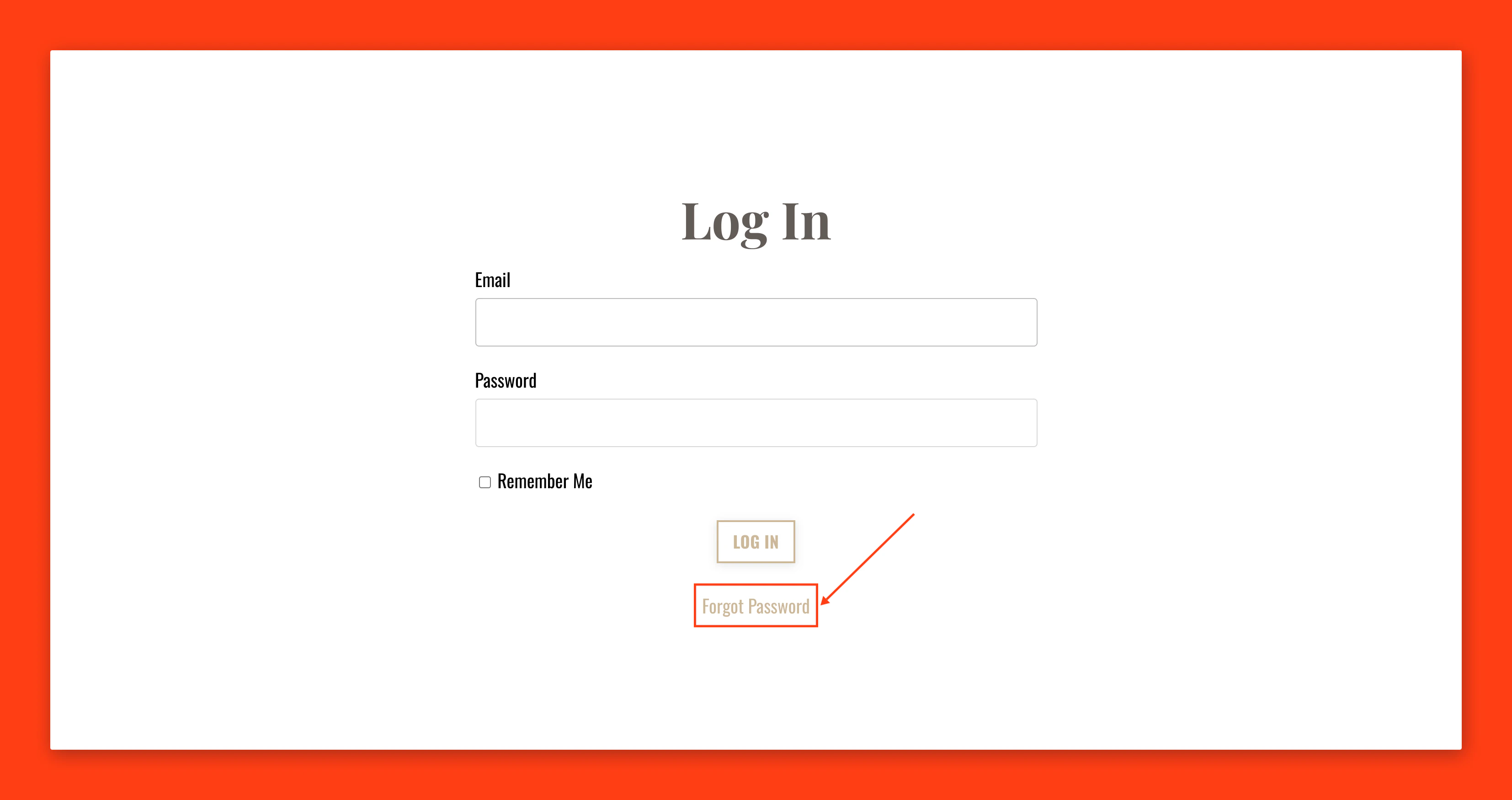
If your Customer forgets their login, they can click **Forgot Password** on the site login page and Kajabi will send a password reset link to their email inbox:
 You can [customize the Login Page](../../website/pages/how-to-build-your-login-page) to match your brand and language.
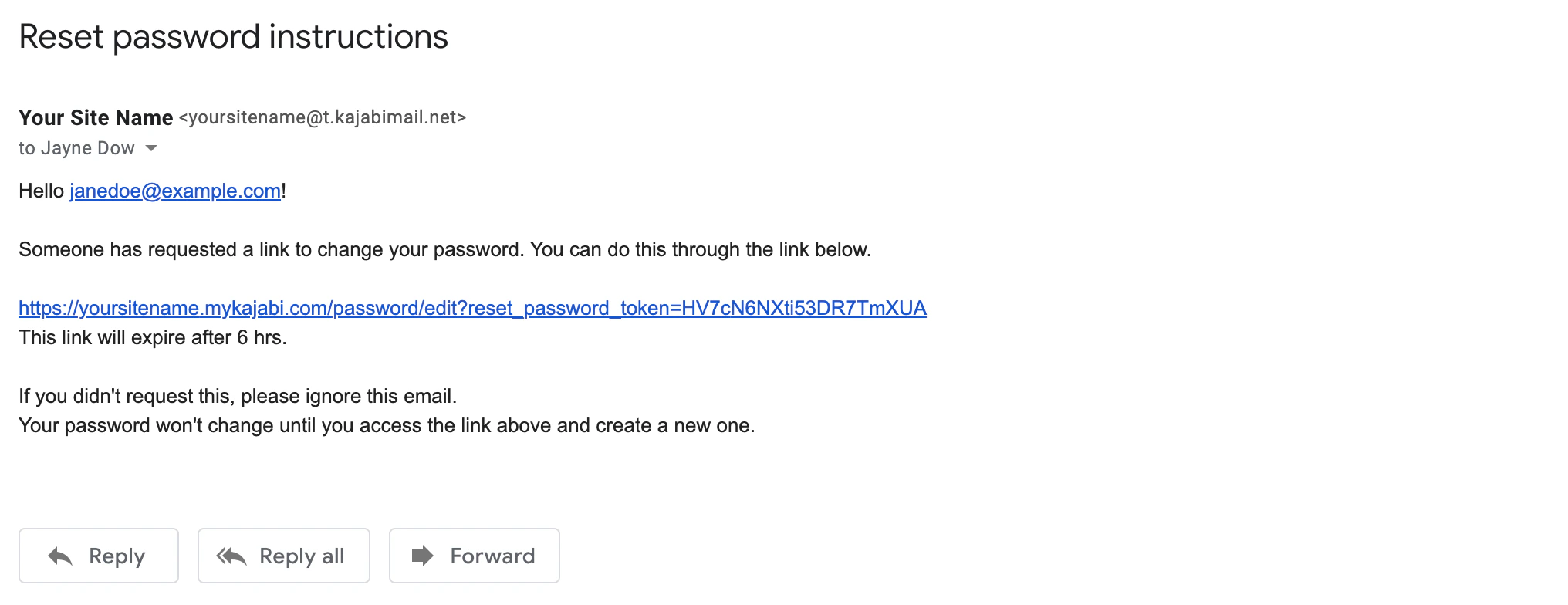
If the user submits an email address matching the email address of a Customer in your Contacts tab, they will receive a reset password instructions email in their email inbox.
Your customer can reset their password by clicking the link in the email:
You can [customize the Login Page](../../website/pages/how-to-build-your-login-page) to match your brand and language.
If the user submits an email address matching the email address of a Customer in your Contacts tab, they will receive a reset password instructions email in their email inbox.
Your customer can reset their password by clicking the link in the email:
 **Tip:**
If your Customer is unable to locate the password reset email, advise them to double-check the spam or junk folder in their email account.
## Send password to customer email
### Manually send a password reset email to a Customer
1. Open the **Contacts** tab from the Dashboard.
2. Select the **Customer's name** to open their Profile.
3. Click **Reset Password**.
4. Confirm by clicking **Send email**:
**Tip:**
If your Customer is unable to locate the password reset email, advise them to double-check the spam or junk folder in their email account.
## Send password to customer email
### Manually send a password reset email to a Customer
1. Open the **Contacts** tab from the Dashboard.
2. Select the **Customer's name** to open their Profile.
3. Click **Reset Password**.
4. Confirm by clicking **Send email**:
**Note:**
Don't see the Send Password option in your Admin account? This indicates that the Contact is not yet a Customer. [Learn about the difference between a Contact and a Customer.](/articles/contacts/manage-your-contacts/what-is-the-difference-between-a-customer-contact-and-a-subscriber)
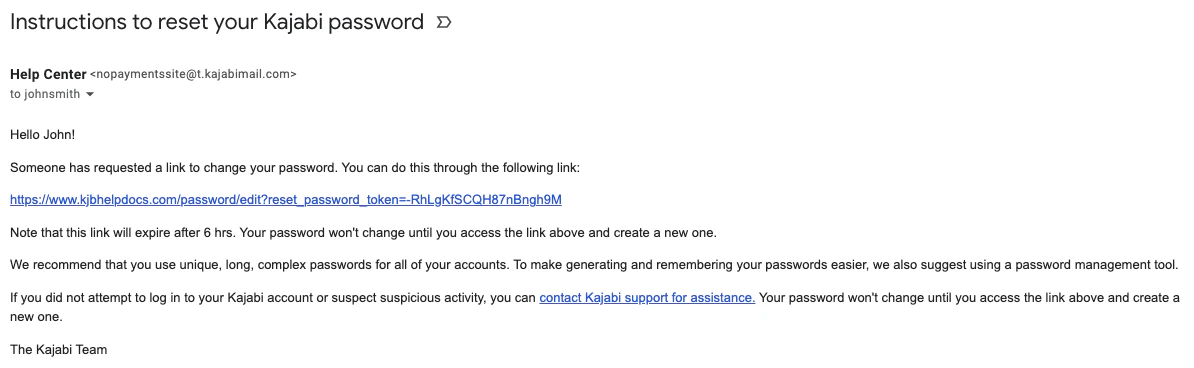
Your Customer will receive an email to reset their password containing the link to reset their password:
 ## Change a customer's password
Provide your Customer with a temporary password to help them log in to your site. Your Customer can then change their password within their Account Settings. Learn how your Customer can [update their account information](/articles/contacts/manage-your-contacts/customer-update-of-customer-settings).
### Manually create a password for a Customer
1. Open the **Contacts** tab from the Dashboard.
2. Select the Customer's name to open their Profile.
3. Click the `…` icon to open **More Actions**.
4. Select **Change Password**.
5. Enter the Customer's temporary password.
6. Click **Save** to apply:
## Change a customer's password
Provide your Customer with a temporary password to help them log in to your site. Your Customer can then change their password within their Account Settings. Learn how your Customer can [update their account information](/articles/contacts/manage-your-contacts/customer-update-of-customer-settings).
### Manually create a password for a Customer
1. Open the **Contacts** tab from the Dashboard.
2. Select the Customer's name to open their Profile.
3. Click the `…` icon to open **More Actions**.
4. Select **Change Password**.
5. Enter the Customer's temporary password.
6. Click **Save** to apply:
**Note:**
Don't see the Change Password option in your Admin account? This indicates that the Contact is not yet a Customer. [Learn about the difference between a Contact and a Customer.](/articles/contacts/manage-your-contacts/what-is-the-difference-between-a-customer-contact-and-a-subscriber)
After creating the Customer's temporary password, send the Customer their temporary login information through your preferred form of communication.