> ## Documentation Index
> Fetch the complete documentation index at: https://help.kajabi.com/llms.txt
> Use this file to discover all available pages before exploring further.
# Manage customer billing and payment methods
> Customers can view, update, and manage the payment methods saved to their account, and understand which subscriptions and payment plans are charged to each card.
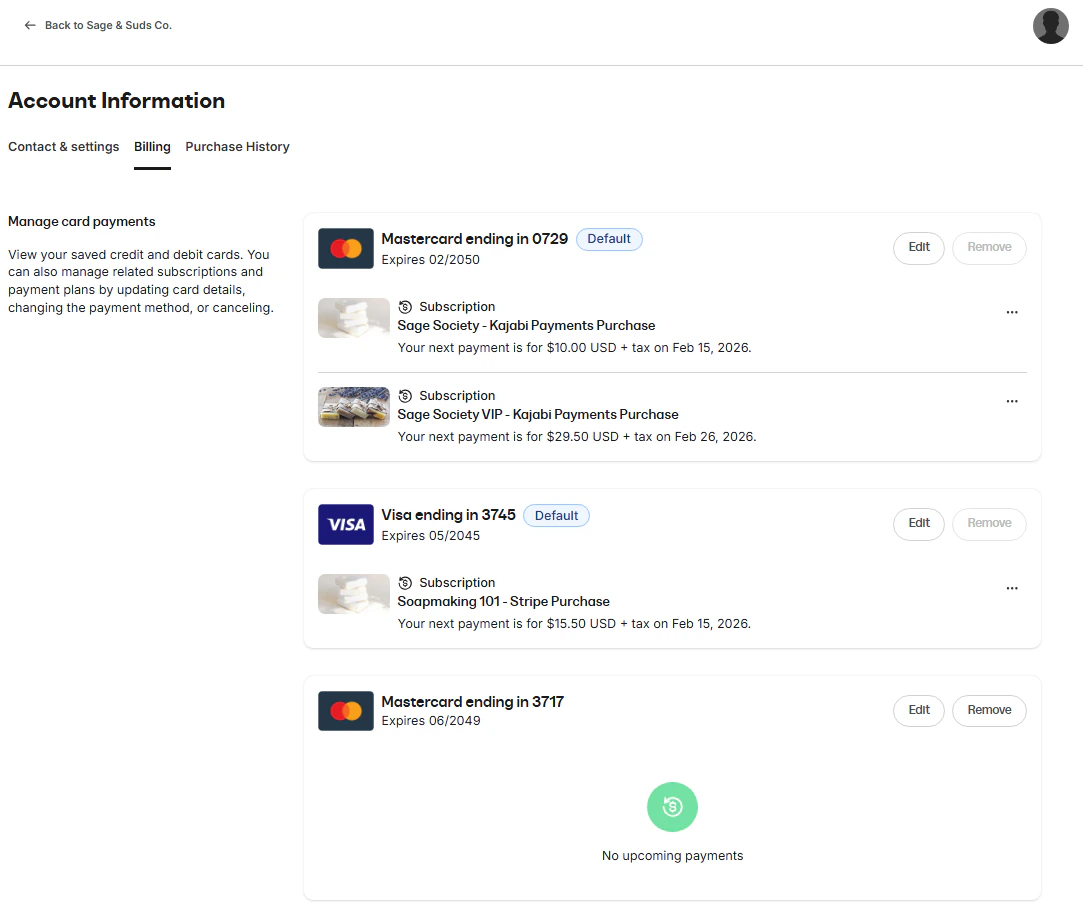
The Billing tab has been redesigned to provide greater clarity for customers with multiple saved cards and subscriptions. These updates are gradually rolling out and you can expect to see them in your account soon if you don't have access already. To view details of the previous Billing experience, [review the previous billing guide](https://help.kajabi.com/en/articles/12695406-how-your-customers-can-update-their-credit-card-information).
## Access billing settings
To manage their payment methods, customers must first log in to their account on your site. Billing settings can be found at: `/settings/cards>`
1. Log in to your site.
2. Click the **User menu** in the top-right corner.
3. Select **Settings**.
4. Click **Billing**.
**Note:** The **Billing** tab may not appear if the customer was granted the Offer, purchased the Offer using PayPal, or if the active subscription was processed through a payment processor that has since been detached (such as a disconnected Stripe or PayPal account).
* Subscriptions purchased through **PayPal** must be managed within the customer's PayPal account.
* If a payment processor is detached, card management must be handled through the payment processor directly.
 ## Update the card on file
Customers can manage how their subscriptions are billed using the options available within **Manage Card Payments**. Depending on their goal, they may update card details, switch which card is used for a subscription or payment plan, or remove a card that is no longer needed.
### Edit card
The **Edit** option replaces the selected card with updated card details. This means the existing card on file is overwritten rather than creating a saved card.
## Update the card on file
Customers can manage how their subscriptions are billed using the options available within **Manage Card Payments**. Depending on their goal, they may update card details, switch which card is used for a subscription or payment plan, or remove a card that is no longer needed.
### Edit card
The **Edit** option replaces the selected card with updated card details. This means the existing card on file is overwritten rather than creating a saved card.
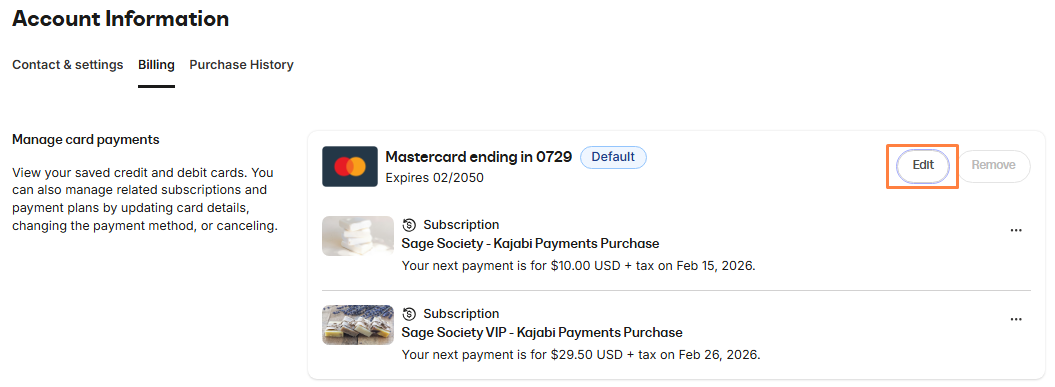 To edit a card:
1. Go to **Billing**.
2. In **Manage Card Payments**, locate the card tied to the subscription(s).
3. Click **Edit**.
4. Enter the updated card information.
5. Click **Update Card** to save the changes.
To edit a card:
1. Go to **Billing**.
2. In **Manage Card Payments**, locate the card tied to the subscription(s).
3. Click **Edit**.
4. Enter the updated card information.
5. Click **Update Card** to save the changes.
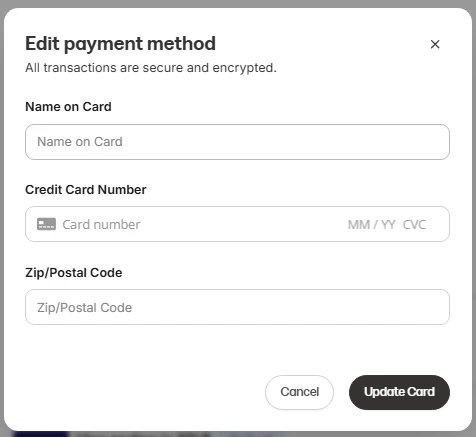 When a card is edited, all subscriptions and payment plans currently using that card will continue to charge the updated card details.
## Change payment method
The **Change payment method** option allows customers to switch which saved card is used for a specific subscription or payment plan.
When a card is edited, all subscriptions and payment plans currently using that card will continue to charge the updated card details.
## Change payment method
The **Change payment method** option allows customers to switch which saved card is used for a specific subscription or payment plan.
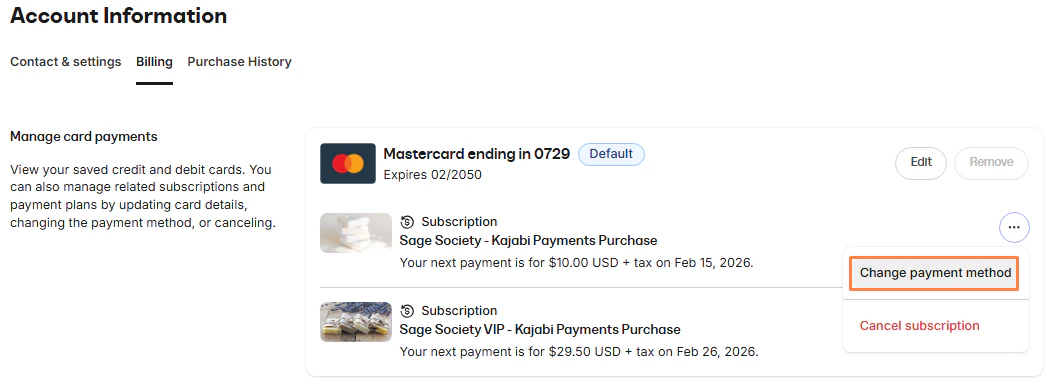 To change the payment method for a subscription:
1. Go to **Billing**.
2. Locate the subscription under its current card.
3. Click the **(⋯)** menu next to the subscription.
4. Select **Change payment method**.
5. Choose another saved card, or add a card.
6. Confirm the change.
All future payments for that subscription will be billed to the newly selected card.
**Note:** Saved cards from **Stripe** and **Kajabi Payments** are not interchangeable. Customers can only select cards that belong to the same payment processor as the subscription.
## Remove card
The **Remove** option allows customers to delete a saved card from their account.
A card can only be removed if **no active recurring payments** are tied to it. If a card is currently being used for an active subscription or payment plan, it cannot be removed. If the **Remove** option is unavailable, it means the card has active recurring payments and must first be replaced with another payment method.
To change the payment method for a subscription:
1. Go to **Billing**.
2. Locate the subscription under its current card.
3. Click the **(⋯)** menu next to the subscription.
4. Select **Change payment method**.
5. Choose another saved card, or add a card.
6. Confirm the change.
All future payments for that subscription will be billed to the newly selected card.
**Note:** Saved cards from **Stripe** and **Kajabi Payments** are not interchangeable. Customers can only select cards that belong to the same payment processor as the subscription.
## Remove card
The **Remove** option allows customers to delete a saved card from their account.
A card can only be removed if **no active recurring payments** are tied to it. If a card is currently being used for an active subscription or payment plan, it cannot be removed. If the **Remove** option is unavailable, it means the card has active recurring payments and must first be replaced with another payment method.
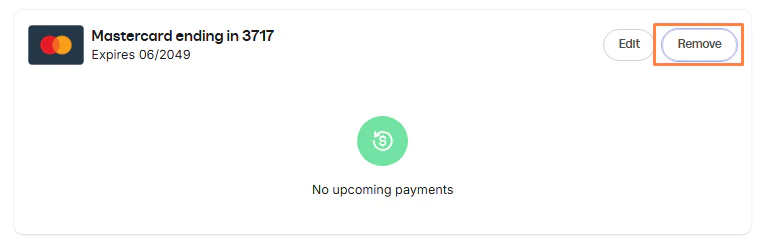 To remove a card:
1. Go to **Billing**.
2. In **Manage Card Payments**, locate the card you want to remove.
3. Click **Remove**.
4. Confirm the removal.
To remove a card:
1. Go to **Billing**.
2. In **Manage Card Payments**, locate the card you want to remove.
3. Click **Remove**.
4. Confirm the removal.