> ## Documentation Index
> Fetch the complete documentation index at: https://help.kajabi.com/llms.txt
> Use this file to discover all available pages before exploring further.
# Offer a discount when a customer tries to cancel
> Give customers who are cancelling a reason to stay.
The cancellation discount is rolling out gradually. If **Offer discount before cancellation** doesn't appear in your Customer Payments settings, the feature hasn't reached your site yet.
When a customer starts to cancel a subscription, you have the option to show them a discount before the cancellation goes through. The customer sees a percentage off for a set number of payments, then chooses whether to keep the subscription at the lower price or carry on cancelling.
This article covers what to set, what your customers see, and the limits that keep the offer from being used more than you intended.
**Note:** The cancellation discount is available for subscriptions paid through Kajabi Payments. Customers who paid through Stripe or PayPal never see the offer. The offer also requires that **Enable customers to self-cancel their subscriptions** is turned on, because the offer appears inside the cancellation flow.
## What the offer looks like
A customer starts cancelling a subscription from their Billing page. Before the cancellation completes, the offer appears with the title and message you wrote, showing the discounted price alongside their current price with a line through it.
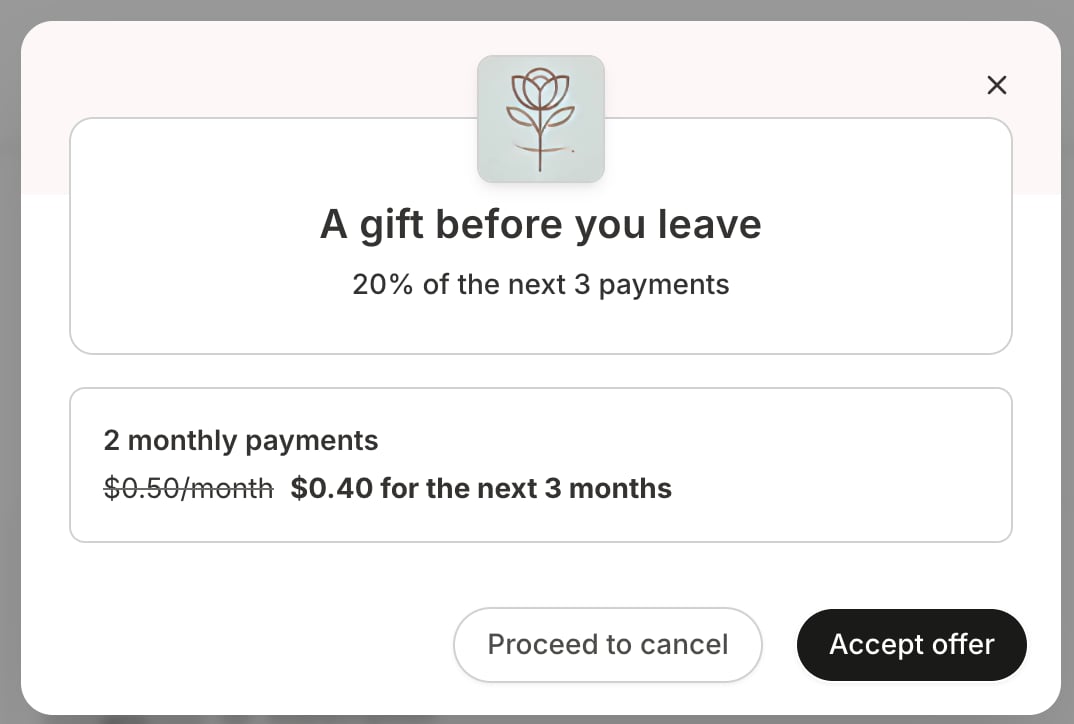 If the customer accepts, the cancellation stops there and the discount applies starting with their next payment. It stays on for the number of payments you set, then the subscription returns to its regular price on its own. If the customer declines, they continue through the cancellation as normal.
## How the cancellation discount works
**The discount is a percentage, and it applies for a set number of payments.** Set a percentage discount for a specified number of payments and your customer who is intending to cancel will see it. After the discount has run its copurse, the price returns to normal.
**The number of payments is counted in billing intervals.** A discount set to 3 payments runs three months for a monthly subscriber and three years for an annual subscriber.
**The offer applies to your entire site.** You cannot enable the discount for some offers and not others, and there's one configuration for your whole site.
**You can control how often a customer can receive this discount.** You can allow for this discount to only be applied once per customer per subscription or leave it unrestricted so a customer can receive this discount more than once.
**Tip:** If you sell annual subscriptions, set the number of payments with those in mind. A discount meant to last a few months will last a few years on an annual subscription.
## Decide what to offer
Three decisions shape the offer.
**How much to discount.** The percentage comes off the subscription's original price.
**How long it lasts.** Set the number of payments the discount applies to, remembering that this counts billing intervals rather than months.
**Whether a customer can accept it more than once.** Checking **Restrict this to apply once per customer for a subscription** means a customer can receive this discount one time for each subscription. Even with this setting enabled, after they claim this discount for one subscription, they can still receive it on a different subscription they hold with you. Leaving it unchecked means a customer can return to the cancellation flow and take the discount repeatedly.
**Tip:** Restricting the offer to once per customer per subscription is the safer default. Without it, a customer who notices the offer can start a cancellation each billing period to keep the discounted price indefinitely.
## Enable the cancellation discount
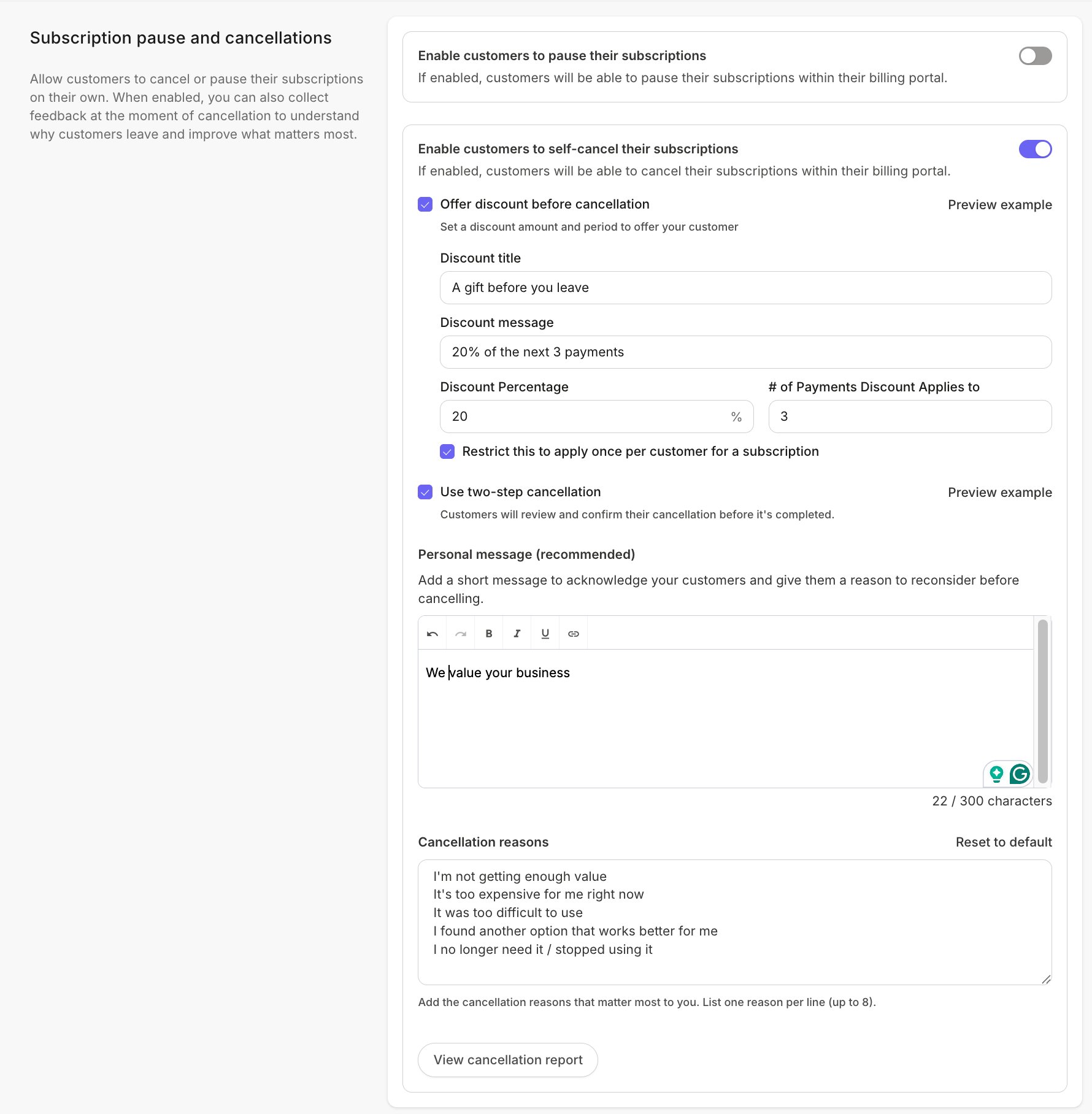
1. Open the **Settings** tab from your Dashboard.
2. Click **Customer Payments** under the Payment Settings header.
3. Confirm **Enable customers to self-cancel their subscriptions** is checked. The discount options appear within that section.
4. Check **Offer discount before cancellation**.
5. Enter a **discount title** and **discount message**. This is the copy customers read on the discount itself.
6. Enter the **discount percentage**.
7. Enter the **number of payments the discount applies to**.
8. Optional step: check **Restrict this to apply once per customer for a subscription**.
9. Use the preview to see the discount as your customers will see it, including the discounted price.
10. Click **Save** to keep and apply your changes:
If the customer accepts, the cancellation stops there and the discount applies starting with their next payment. It stays on for the number of payments you set, then the subscription returns to its regular price on its own. If the customer declines, they continue through the cancellation as normal.
## How the cancellation discount works
**The discount is a percentage, and it applies for a set number of payments.** Set a percentage discount for a specified number of payments and your customer who is intending to cancel will see it. After the discount has run its copurse, the price returns to normal.
**The number of payments is counted in billing intervals.** A discount set to 3 payments runs three months for a monthly subscriber and three years for an annual subscriber.
**The offer applies to your entire site.** You cannot enable the discount for some offers and not others, and there's one configuration for your whole site.
**You can control how often a customer can receive this discount.** You can allow for this discount to only be applied once per customer per subscription or leave it unrestricted so a customer can receive this discount more than once.
**Tip:** If you sell annual subscriptions, set the number of payments with those in mind. A discount meant to last a few months will last a few years on an annual subscription.
## Decide what to offer
Three decisions shape the offer.
**How much to discount.** The percentage comes off the subscription's original price.
**How long it lasts.** Set the number of payments the discount applies to, remembering that this counts billing intervals rather than months.
**Whether a customer can accept it more than once.** Checking **Restrict this to apply once per customer for a subscription** means a customer can receive this discount one time for each subscription. Even with this setting enabled, after they claim this discount for one subscription, they can still receive it on a different subscription they hold with you. Leaving it unchecked means a customer can return to the cancellation flow and take the discount repeatedly.
**Tip:** Restricting the offer to once per customer per subscription is the safer default. Without it, a customer who notices the offer can start a cancellation each billing period to keep the discounted price indefinitely.
## Enable the cancellation discount
1. Open the **Settings** tab from your Dashboard.
2. Click **Customer Payments** under the Payment Settings header.
3. Confirm **Enable customers to self-cancel their subscriptions** is checked. The discount options appear within that section.
4. Check **Offer discount before cancellation**.
5. Enter a **discount title** and **discount message**. This is the copy customers read on the discount itself.
6. Enter the **discount percentage**.
7. Enter the **number of payments the discount applies to**.
8. Optional step: check **Restrict this to apply once per customer for a subscription**.
9. Use the preview to see the discount as your customers will see it, including the discounted price.
10. Click **Save** to keep and apply your changes:
 ## Where customers see the offer
Where the offer appears depends on whether two-step cancellation is on.
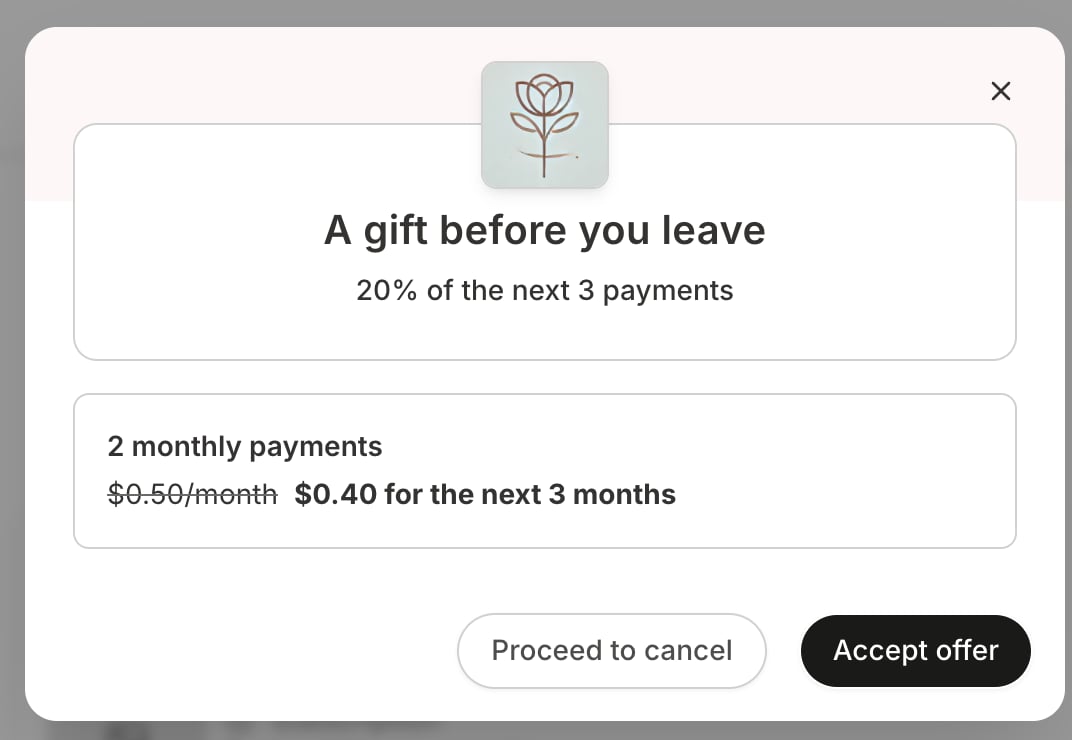
**With two-step cancellation on,** the offer is its own step. After the customer chooses to proceed with cancelling, the offer appears. They can **Accept offer** to keep the subscription, or continue to the cancellation reasons and finish cancelling.
## Where customers see the offer
Where the offer appears depends on whether two-step cancellation is on.
**With two-step cancellation on,** the offer is its own step. After the customer chooses to proceed with cancelling, the offer appears. They can **Accept offer** to keep the subscription, or continue to the cancellation reasons and finish cancelling.
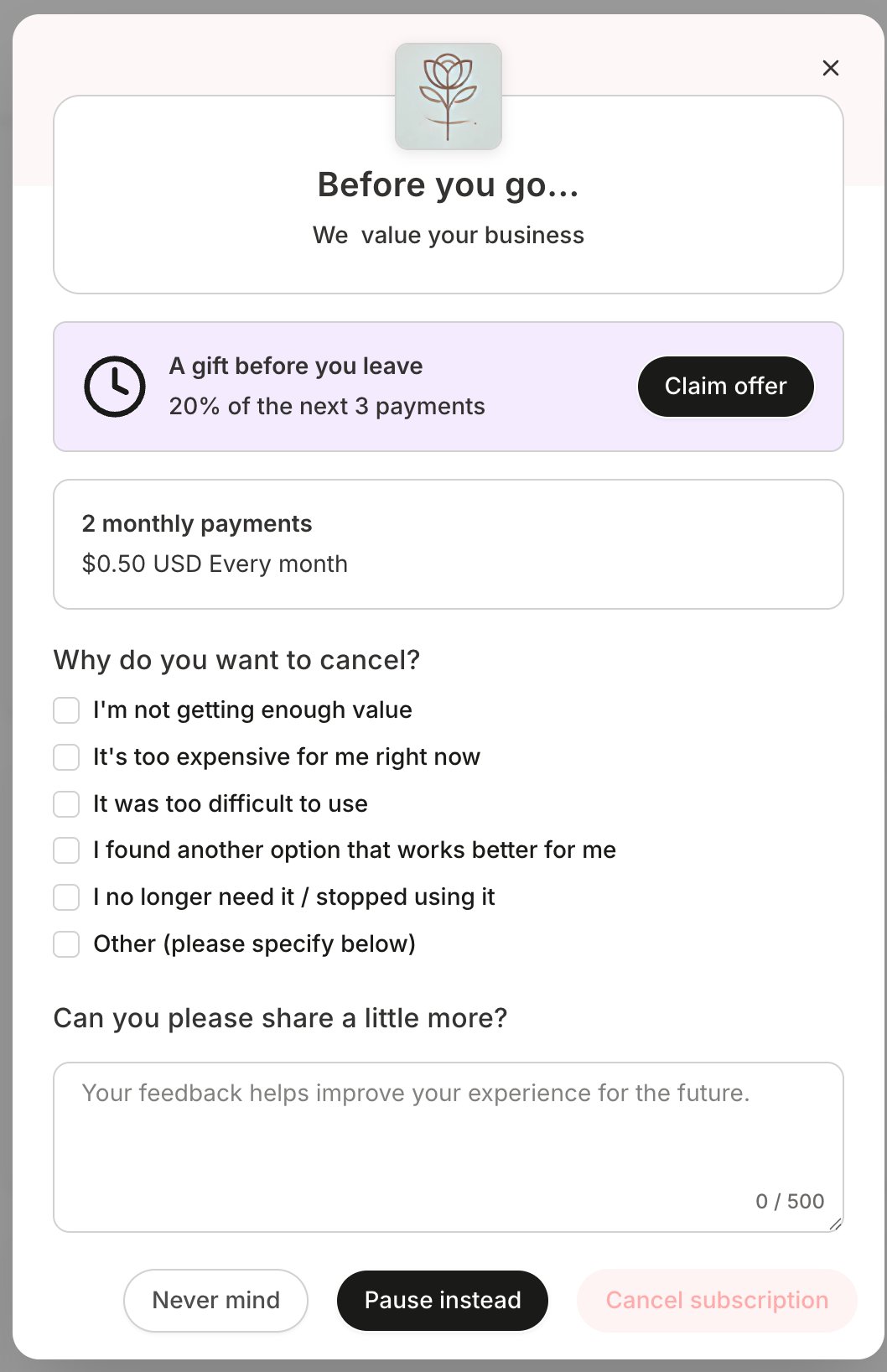
 **With two-step cancellation off,** the offer appears as a section within the single cancellation form, with a **Claim offer** button. Clicking it opens the offer, where the customer can accept or return to the cancellation form.
 ## After a customer accepts
* The customer's Billing page shows the discounted price with their original price struck through.
* Receipts show the discount as its own line in the subtotal, in both the emailed receipt and the PDF.
* The subscription's payment details in your admin show the discount in the payment summary, and the upcoming payment amount updates to the discounted amount.
* After the last discounted payment, the discount comes off and the subscription returns to its regular price without any action from you. Neither you nor the customer sees a running count of how many discounted payments are left.
## How the discount works with coupons
A cancellation discount and a coupon cannot both apply to the same subscription.
**Accepting a cancellation discount replaces an existing coupon completely,** even when that coupon would have lasted longer than the discount. The customer does not get their old coupon back when the discount ends. The subscription returns to its regular, undiscounted price.
The discount is calculated from the subscription's original price rather than stacking on a coupon price. Because of that, customers only see the offer when it would actually lower what they currently pay. A customer whose coupon already beats the discount won't be shown it.
See [Coupons overview](/articles/sales/coupons/coupons-overview) for how coupons behave otherwise.
## Change or turn off your offer
Editing the percentage, the number of payments, or the copy affects only customers who accept the offer after you save. Discounts already running on customers' subscriptions continue on the terms they accepted. Turning the offer off works the same way. No new customers are offered it, and discounts already in progress finish out.
## Frequently asked questions
**Why don't my customers see the offer?**
Check that both **Enable customers to self-cancel their subscriptions** and **Offer discount before cancellation** are on in Settings > Customer Payments. The offer only appears for active subscriptions paid through Kajabi Payments, so customers paying through Stripe or PayPal never see it. Customers won't see it if you've restricted it to once per subscription and they've already been offered it, or if their existing coupon already gives them a lower price than the discount would.
**Can I offer a fixed dollar amount instead of a percentage?**
No. The cancellation discount is percentage-based only.
**Can I set a different discount for different offers?**
No. There's one configuration for your whole site, and it cannot be set per offer.
**Can a customer keep cancelling to get the discount over and over?**
Yes, unless you check **Restrict this to apply once per customer for a subscription**. With that setting on, a customer is offered the discount once per subscription.
**What happens to a customer's existing coupon if they accept the discount?**
The coupon is replaced entirely, even if it would have lasted longer. When the discount period ends, the subscription returns to its regular price rather than to the old coupon price.
**How do I see how much longer a customer's discount lasts?**
That count isn't shown in admin. If you keep the same discount configuration, you can work it out from the date the customer accepted and the number of payments you've set.
## After a customer accepts
* The customer's Billing page shows the discounted price with their original price struck through.
* Receipts show the discount as its own line in the subtotal, in both the emailed receipt and the PDF.
* The subscription's payment details in your admin show the discount in the payment summary, and the upcoming payment amount updates to the discounted amount.
* After the last discounted payment, the discount comes off and the subscription returns to its regular price without any action from you. Neither you nor the customer sees a running count of how many discounted payments are left.
## How the discount works with coupons
A cancellation discount and a coupon cannot both apply to the same subscription.
**Accepting a cancellation discount replaces an existing coupon completely,** even when that coupon would have lasted longer than the discount. The customer does not get their old coupon back when the discount ends. The subscription returns to its regular, undiscounted price.
The discount is calculated from the subscription's original price rather than stacking on a coupon price. Because of that, customers only see the offer when it would actually lower what they currently pay. A customer whose coupon already beats the discount won't be shown it.
See [Coupons overview](/articles/sales/coupons/coupons-overview) for how coupons behave otherwise.
## Change or turn off your offer
Editing the percentage, the number of payments, or the copy affects only customers who accept the offer after you save. Discounts already running on customers' subscriptions continue on the terms they accepted. Turning the offer off works the same way. No new customers are offered it, and discounts already in progress finish out.
## Frequently asked questions
**Why don't my customers see the offer?**
Check that both **Enable customers to self-cancel their subscriptions** and **Offer discount before cancellation** are on in Settings > Customer Payments. The offer only appears for active subscriptions paid through Kajabi Payments, so customers paying through Stripe or PayPal never see it. Customers won't see it if you've restricted it to once per subscription and they've already been offered it, or if their existing coupon already gives them a lower price than the discount would.
**Can I offer a fixed dollar amount instead of a percentage?**
No. The cancellation discount is percentage-based only.
**Can I set a different discount for different offers?**
No. There's one configuration for your whole site, and it cannot be set per offer.
**Can a customer keep cancelling to get the discount over and over?**
Yes, unless you check **Restrict this to apply once per customer for a subscription**. With that setting on, a customer is offered the discount once per subscription.
**What happens to a customer's existing coupon if they accept the discount?**
The coupon is replaced entirely, even if it would have lasted longer. When the discount period ends, the subscription returns to its regular price rather than to the old coupon price.
**How do I see how much longer a customer's discount lasts?**
That count isn't shown in admin. If you keep the same discount configuration, you can work it out from the date the customer accepted and the number of payments you've set.