> ## Documentation Index
> Fetch the complete documentation index at: https://help.kajabi.com/llms.txt
> Use this file to discover all available pages before exploring further.
# Pause a customer's subscription or payment plan
> Temporarily disable billing for a customer's subscription or payment plan when they are unavailable to be billed.
Pausing or suspending your customer's subscription or payment plan temporarily disables your customer's billing. This can be done in the case that your customer is temporarily unavailable to be billed. For example, your customer may wish to temporarily disable their subscription or payment plan while they are on vacation and resume it when they return.
## Pause subscriptions or payment plans
Pause your customer's subscription or payment plan if their payments were processed through Stripe to disable your customer's billing temporarily directly from Kajabi.
**Note:**
The pause subscription feature on Kajabi is only available if the payment was processed through Kajabi Payments or Stripe. If your customer used PayPal to process their payment, you will not have the option to natively pause the subscription. [Manually pause a customer's subscription](#manually-pause-a-customers-subscription) if you do not have this feature.
### Pause a customer's subscription or payment plan
1. Open the **Contacts** tab from your Dashboard.
2. Select the **name** of your customer and **Open full profile**.
3. Open the **Purchases** tab.
4. Select **More Info** for the Offer to refund.
5. Select the **Offer** you wish to pause.
6. Then, open the **More Actions** menu (`…`).
7. And select **Pause Payments**.
8. Confirm your intention to pause the subscription by clicking **Pause Subscription** in the prompt:
After pausing your customer's subscription or payment plan, the site admin will receive a notification in the email address associated with the account notifying you of the change.
**Note:**
If there is a past due invoice, pausing the subscription will not stop that payment from being re-tried. Pausing will only stop future payments after the paused date.
### Resume a customer's subscription
1. Open the **Contacts** tab from your Dashboard.
2. Select the **contact** you wish to pause.
3. Click **Purchases**.
4. Select the **Paused Offer**.
5. Then, open the **More Actions** menu (`…`).
6. Click **Resume Payments**.
7. Confirm your intention to resume the subscription by clicking **Resume Subscription** in the prompt:
After resuming your customer's subscription or payment plan, the site admin will receive a notification in the email address associated with the account notifying you of the change.
## Manually pause a customer's subscription
If you do not want to use the Pause subscription feature, you can also pause subscriptions with the following method.
First, identify the payment method.
1. Open the **Contacts** tab from the Dashboard.
2. Select the **Customer** you wish to pause/suspend their account.
3. Click **View More** for Total offers in the Contact Preview.
4. Then, select **View** next to the Offer you wish to pause.
5. Determine if your customer processed their payment as a **PayPal Customer** or a **Stripe Customer**:
Now, that you have identified your customer's payment method read the guide for:
* [Stripe](#stripe)
* [PayPal](#paypal)
### Stripe
With Stripe, you can manually pause recurring subscriptions for Active Customers and configure the invoice behavior directly from your Stripe account.
[Check out Stripe's Support for more details.](https://support.stripe.com/questions/how-to-pause-or-cancel-subscriptions)
Please note that performing actions directly in Stripe may not reflect in Kajabi.
#### Pause Stripe subscription
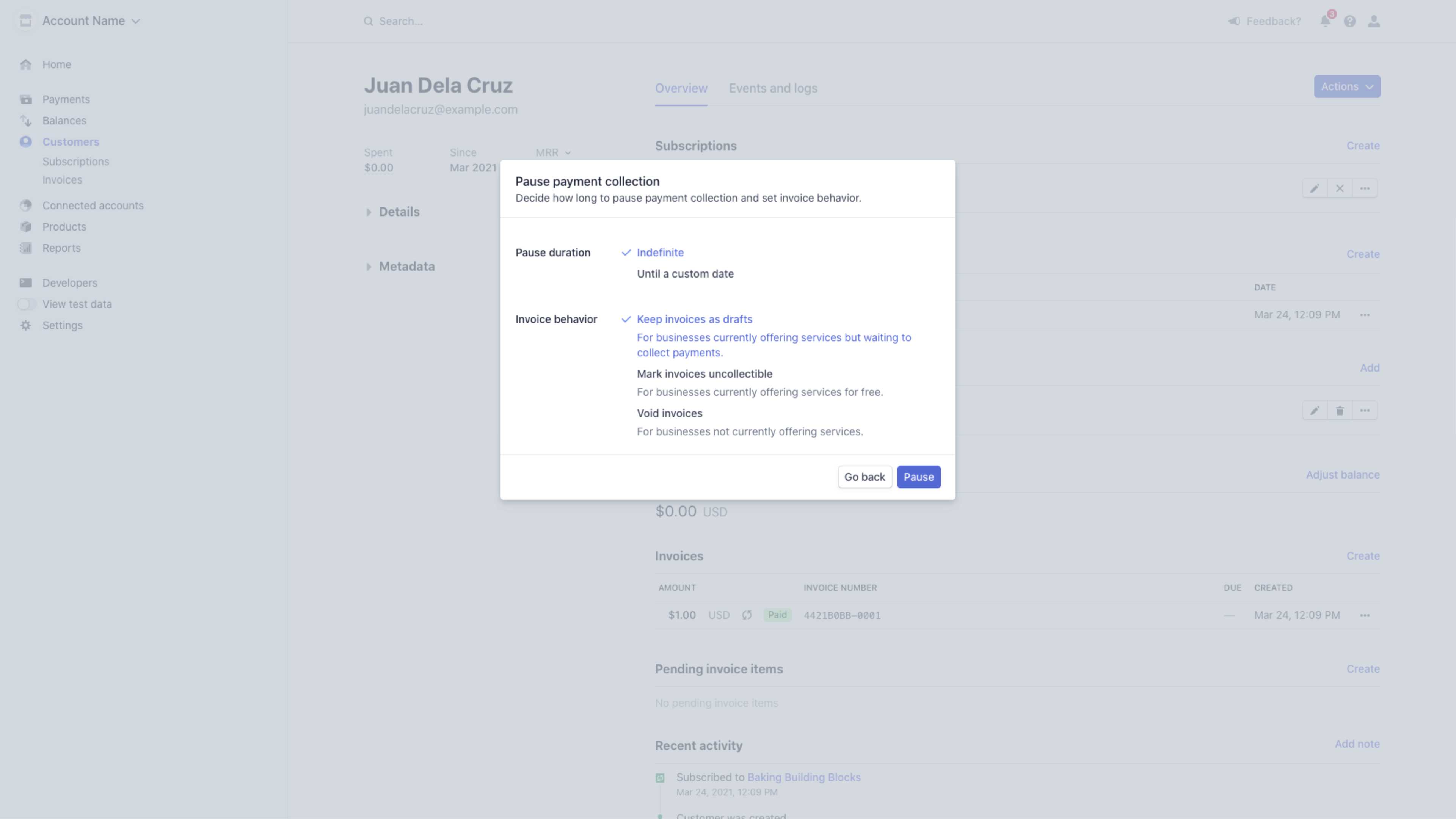
Pause payments processed through Stripe directly from your Stripe account.
[Pause subscriptions in Stripe.](https://support.stripe.com/questions/how-to-pause-or-cancel-subscriptions)
 Then, temporarily revoke product access.
Want to give access to the Product, but pause the subscription?
If you wish to pause your customer's subscription while still giving them access to their Product(s) skip the revoke product access step.
1. Open the **Contacts** tab from the Dashboard.
2. Select the **Customer** you wish to pause/suspend their account.
3. Click **View More** for Total offers in the Contact Preview.
4. Then, select **More Info** next to the Offer you wish to pause.
5. Click **Revoke Product** next to all Product(s) you wish to temporarily revoke.
6. In the popup confirmation, click **Yes, Revoke access**:
Then, temporarily revoke product access.
Want to give access to the Product, but pause the subscription?
If you wish to pause your customer's subscription while still giving them access to their Product(s) skip the revoke product access step.
1. Open the **Contacts** tab from the Dashboard.
2. Select the **Customer** you wish to pause/suspend their account.
3. Click **View More** for Total offers in the Contact Preview.
4. Then, select **More Info** next to the Offer you wish to pause.
5. Click **Revoke Product** next to all Product(s) you wish to temporarily revoke.
6. In the popup confirmation, click **Yes, Revoke access**:
### Reactivate Stripe subscription
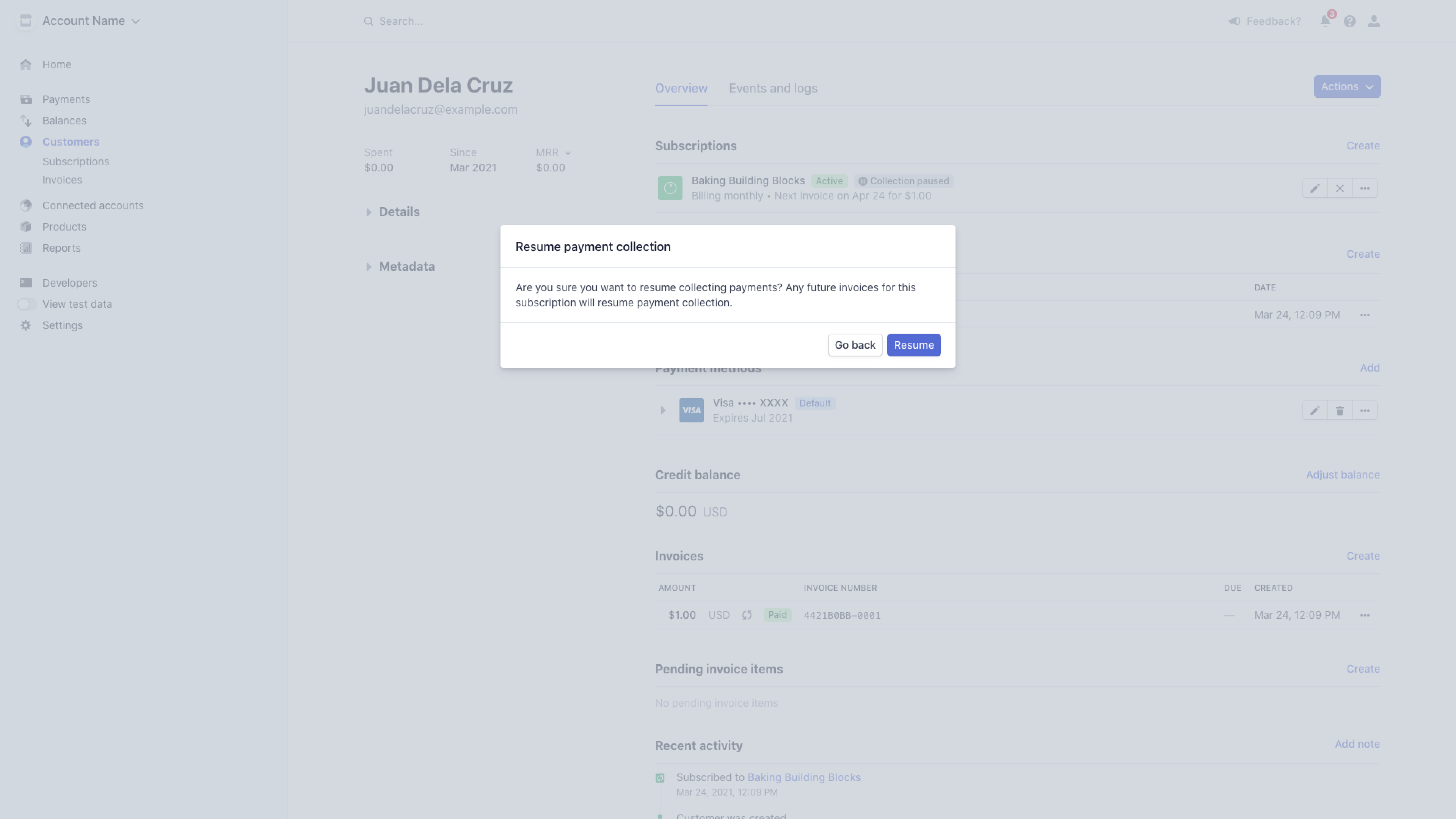
If you chose to pause your customers' subscription indefinitely, you will need to resume the subscription manually in Stripe when you are ready to resume their subscription.
[Pause and resume subscriptions on Stripe.](https://support.stripe.com/questions/how-to-pause-or-cancel-subscriptions)
 When it is time to reactivate your customer's Product Access:
1. Open the **Contacts** tab from the Dashboard.
2. Select the **Customer** you wish to pause/suspend their account.
3. Click **View More** for Total offers in the Contact Preview.
4. Then, select **More Info** next to the revoked Offer.
5. Click **Resume all products** to reactivate product access:
When it is time to reactivate your customer's Product Access:
1. Open the **Contacts** tab from the Dashboard.
2. Select the **Customer** you wish to pause/suspend their account.
3. Click **View More** for Total offers in the Contact Preview.
4. Then, select **More Info** next to the revoked Offer.
5. Click **Resume all products** to reactivate product access:
**Tip:** Easily identify customers you have deactivated and wish to reactivate with Tags. [Use Tags](/articles/contacts/manage-your-contacts/tags-overview) to filter and organize contacts.
### PayPal
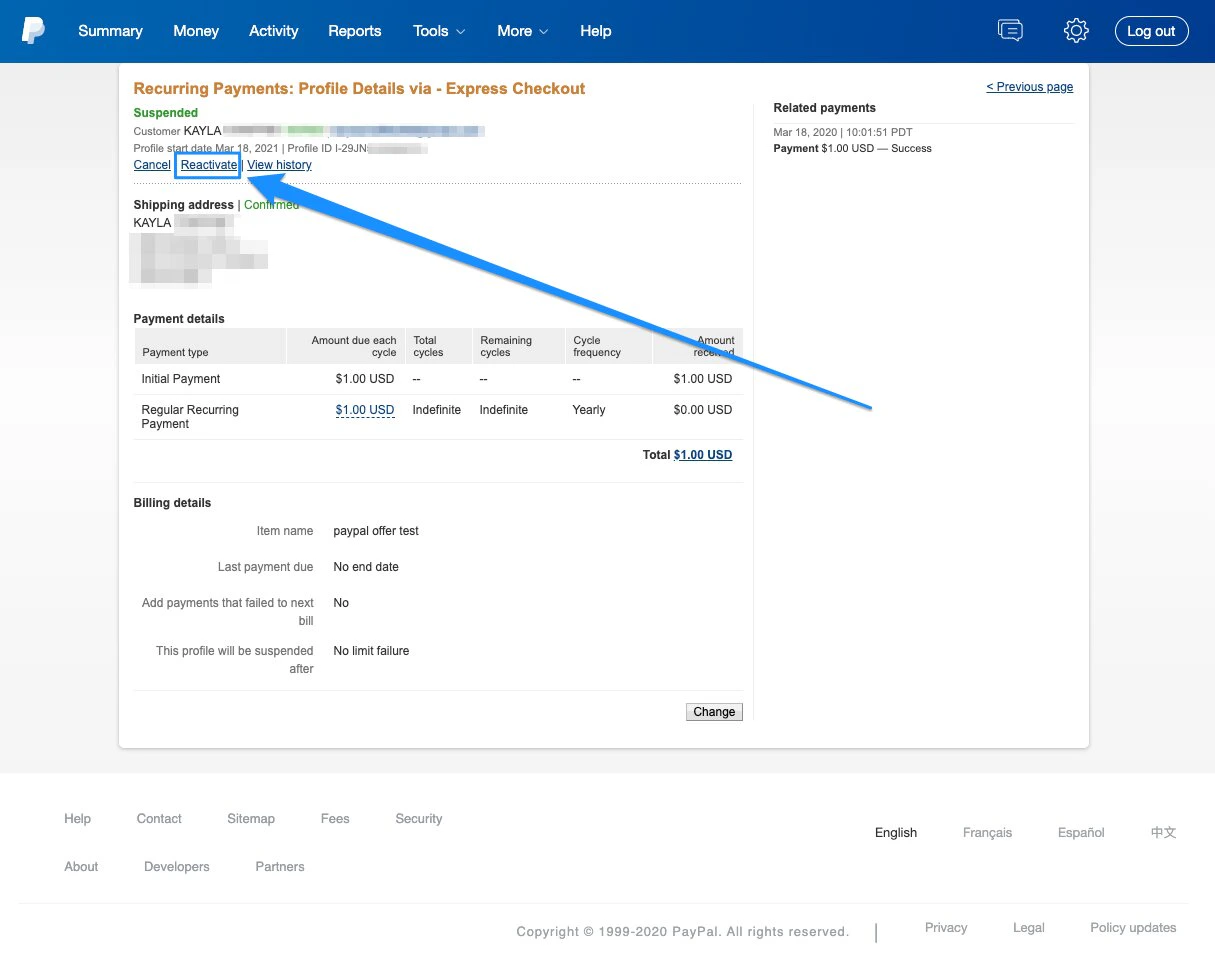
PayPal allows you to suspend and reactivate your Customer's Subscription with your PayPal Business or Premier account. [Suspend and reactivate a Subscription in PayPal](https://developer.paypal.com/docs/paypal-payments-standard/integration-guide/manage-subscriptions/#) for detailed instructions.
### Pause PayPal subscription
**Suspend subscription**
1. Log into your PayPal Business or Premier account.
2. Click **Activity** in the top menu.
3. Open the **All transactions** dropdown menu.
4. Select **Subscription payments.**
5. Locate the subscription you wish to suspend and click the subscription name.
6. Click **Suspend**.
7. Confirm in the popup and click **Suspend Profile:**
**Revoke access**
Want to give access to the Product, but pause the subscription?
If you wish to pause your customer's subscription while still giving them access to their Product(s) skip the revoke product access step.
1. Open the **Contacts** tab from the Dashboard.
2. Select the **Customer** you wish to pause/suspend their account.
3. Click **View More** for Total offers in the Contact Preview.
4. Then, select **View** next to the Offer you wish to pause.
5. Click **Revoke all products** to temporarily revoke all Product(s) included with the Offer.
6. In the popup confirmation, click **Yes, revoke access**:
### Reactivate PayPal subscription
1. Log into your PayPal Business or Premier account.
2. Click **Activity** in the top menu.
3. Open the **All transactions** dropdown menu.
4. Select **Subscription payments.**
5. Locate the subscription you wish to reactivate and click the subscription name.
6. Click **Reactivate**.
7. Confirm in the popup and click **Reactivate Profile:**
 When it is time to reactivate your Customer's Access:
1. Open the **Contacts** tab from the Dashboard.
2. Select the **Customer** you wish to pause/suspend their account.
3. Click **View More** for Total offers in the Contact Preview.
4. Then, select **More Info** next to the revoked Offer.
5. Click **Resume all products** to reactivate product access:
When it is time to reactivate your Customer's Access:
1. Open the **Contacts** tab from the Dashboard.
2. Select the **Customer** you wish to pause/suspend their account.
3. Click **View More** for Total offers in the Contact Preview.
4. Then, select **More Info** next to the revoked Offer.
5. Click **Resume all products** to reactivate product access:
**Tip:**
Easily identify customers you have deactivated and wish to reactivate with Tags. [Use Tags](/articles/contacts/manage-your-contacts/tags-overview) to filter and organize contacts.
### Set up an automation to revoke access
In some cases, you may wish to set an Automation to easily revoke Offer access to your paused customers by simply adding a Tag.
Using Tags can also help identify customers you have paused by filtering your Contacts tab by Tags or by [creating Segments with Tags](/articles/contacts/manage-your-contacts/segment-your-contacts).
This can streamline the process if you are temporarily pausing your customer's subscriptions on a regular basis.
#### Set an Automation with Growth or Pro Plans
1. Open the **Marketing** tab from the Dashboard.
2. Click **Automations**.
3. In the top right corner, click **+ New Automation**.
4. In the When dropdown menu, select **Tag is added**.
5. Enter your Tag name in the **Add Tag** field. We recommend including the name of the Offer that is revoked when this tag is applied to easily assign the correct Tag to your customers. (For example, **Subscription Offer**)
6. In the Then dropdown menu, select **Revoke an offer**.
7. Select the Offer you wish to be revoked when your Tag is added (In this example, the Subscription Offer).
8. Then, click **Save** to keep your changes:
Repeat for each Offer you wish to automatically revoke access to when the specified tag is applied to a customer.
With tags, you can now easily identify customers you have paused by filtering your Contacts tab by your newly created tag.
#### Reactivate a customer's Offer Access
Reactivate your customer's Offer Access while maintaining their Product Start Date and connected payments by removing the Tag from their Profile and manually reactivating your customer's Offer Access from within your Stripe or PayPal account.
**Note:** The action triggered by adding and removing a tag can take a few minutes to process. Once processed, you can see the Offer revoked under the Lifecycle tab.