> ## Documentation Index
> Fetch the complete documentation index at: https://help.kajabi.com/llms.txt
> Use this file to discover all available pages before exploring further.
# Transaction details page overview
> Navigate a customer's Transaction Details page to view purchase details, revoke Product access, perform refunds, and more.
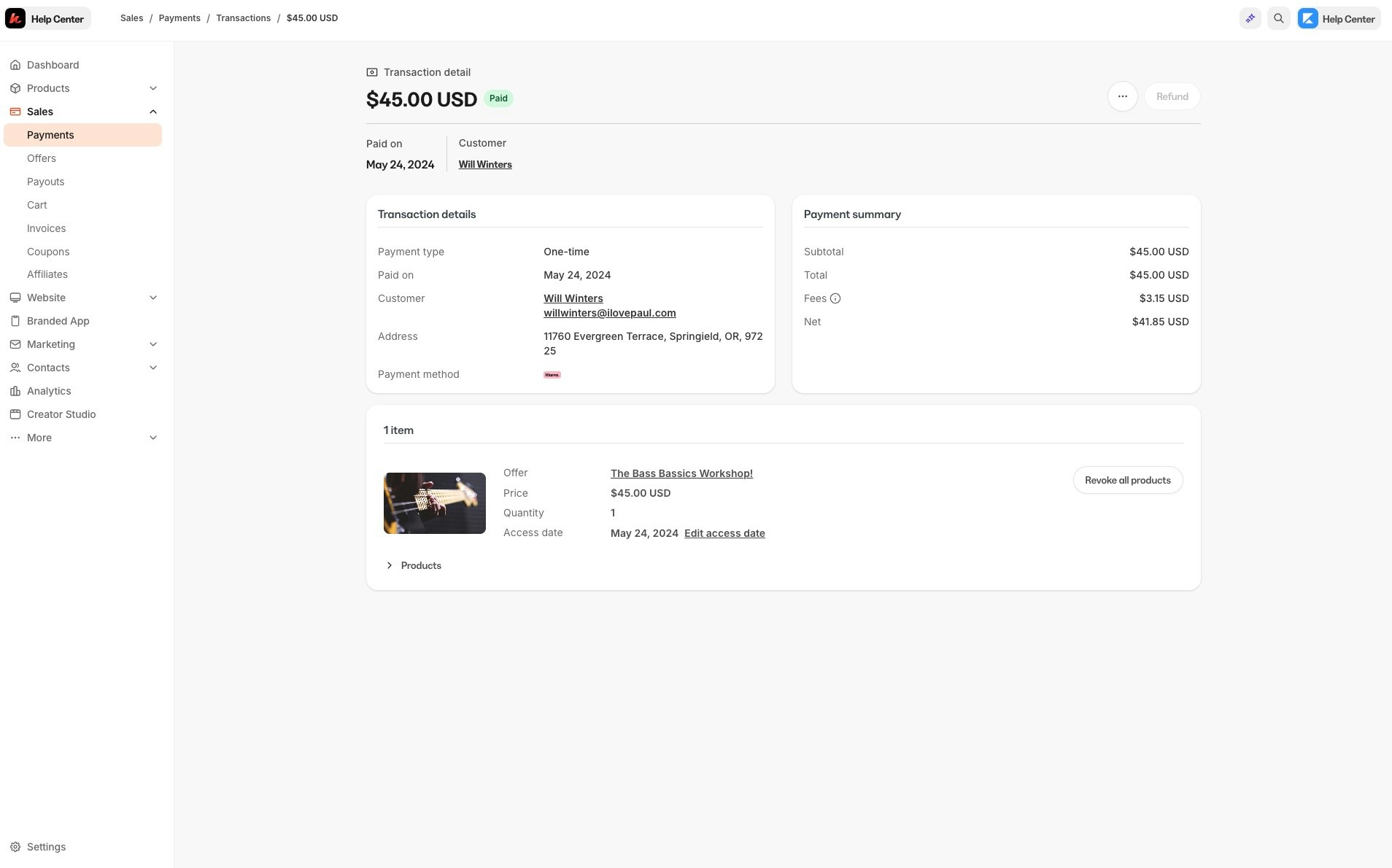
The **Transaction Details** page is a unique page created for every transaction that your customers make, allowing you to view all of the meaningful information about a purchase and take action on the transaction if necessary.
On the transaction details page:
* View the overview information for the Offer purchased or granted
* Review any transaction activity such as refunds, subscription charges, and payments if applicable
* View and or send receipts
* Edit receipt Contact info
* Edit access start date
* Revoke all products or individual products
* Refund transactions
* Manage product access to the list of products that may be included with the offer purchased or granted
* Manually cancel any future payments and [revoke access](/articles/contacts/manage-your-contacts/revoke-product-access-from-a-customer) from your Customer's Transaction Details page
* Respond to disputes if applicable. [Explore the Disputes page](../../sales/kajabi-payments/disputes-page-overview)
 ## Access the Transaction Details page
**To view a Customer's Transaction Details Page:**
1. Open the **Contacts** tab from your Dashboard.
2. Select the Customer you wish to view.
3. Click into **View More** next to "Total Offers" from the Contact Preview.
4. Locate the Offer you wish to view.
5. Click **View Details** to open the Transaction Details Page for the Offer.
6. Click **Transactions** tab (only applicable to Subscriptions and Payment Plans):
## Access the Transaction Details page
**To view a Customer's Transaction Details Page:**
1. Open the **Contacts** tab from your Dashboard.
2. Select the Customer you wish to view.
3. Click into **View More** next to "Total Offers" from the Contact Preview.
4. Locate the Offer you wish to view.
5. Click **View Details** to open the Transaction Details Page for the Offer.
6. Click **Transactions** tab (only applicable to Subscriptions and Payment Plans):
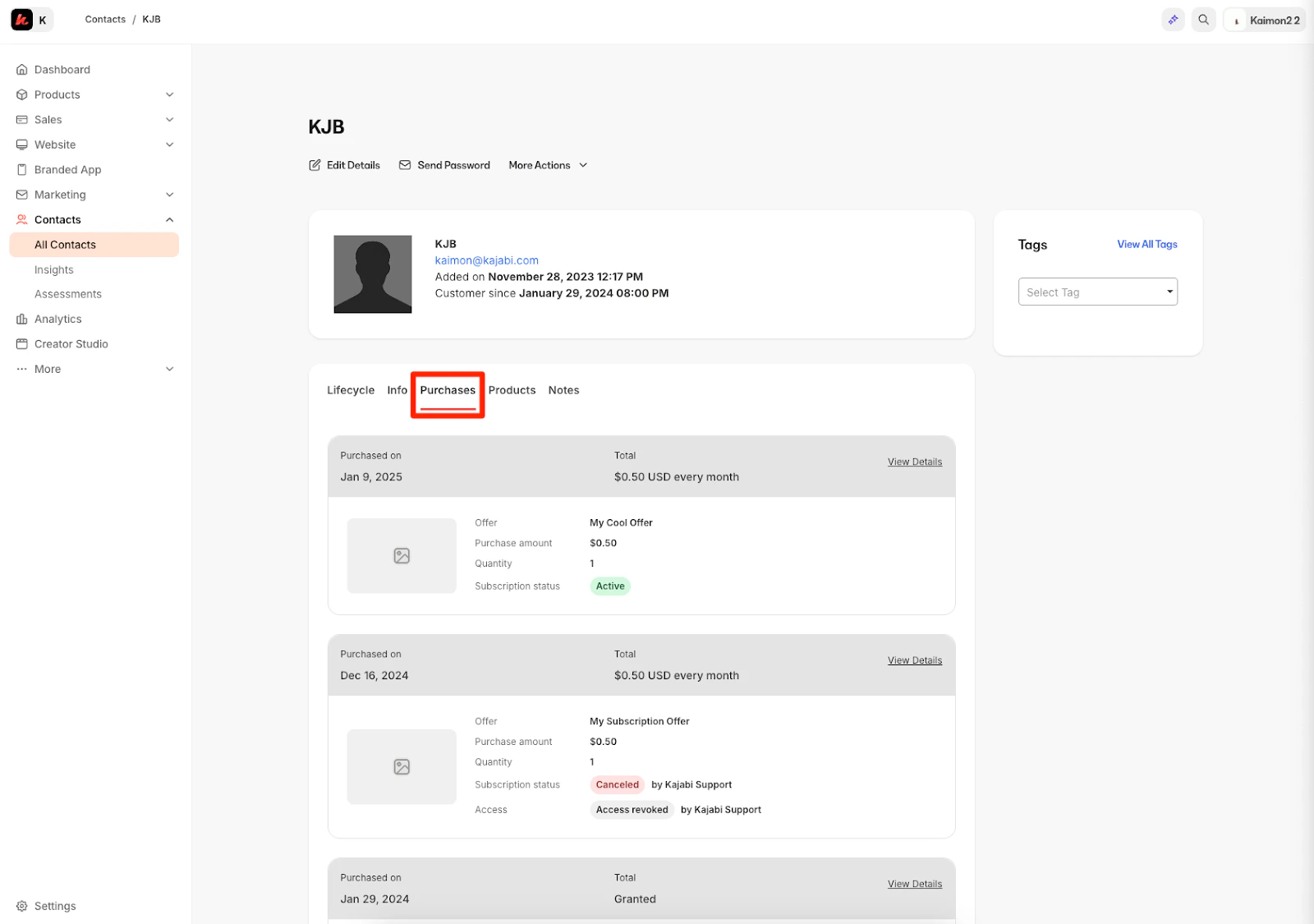
To access the Transaction Details Page, you will first encounter the Purchases tab. This is a great place to view the at-a-glance information about each Offer Purchase before accessing the Transaction Details page for more info.
The Purchases tab will display:
* Offer title
* Purchase date
* Purchase amount
* Subscription status
* Access status (if access has been [revoked](/articles/contacts/manage-your-contacts/what-is-the-difference-between-revoking-an-offer-and-payment-cancelations))
 ## Transaction details
View more information about a purchased or granted Offer on the Transaction Details page. The information displayed on this page may slightly differ based on the offer type, whether it's a one-time purchase, subscription, payment plan, invoice, granted offer, etc.
### Transaction Details page contents
* Customer's Name
* Customer's Email
* Offer Title and Status: Active, Paid, Completed, Cancelled
* Their [Kajabi Payments](../../sales/kajabi-payments/kajabi-payments-overview) email if applicable
* Stripe Customer ID or PayPal Customer ID if applicable
* Purchase Date
* Access Start Date. [Explore access start dates](/articles/contacts/manage-your-contacts/how-to-change-a-customers-start-date)
* **Access end date** (if applicable). To change the access end date, use the **Edit access end date** option in the **More Actions** (...) menu.
* Price of the Offer when purchased
* Payment exchange rate if purchased via [Kajabi Payments](../../sales/kajabi-payments/kajabi-payments-overview)
* Fees if purchased via [Kajabi Payments](../../sales/kajabi-payments/kajabi-payments-overview)
* Net profit if purchased via [Kajabi Payments](../../sales/kajabi-payments/kajabi-payments-overview)
* Dispute information and status if applicable. [Respond to a dispute with Kajabi Payments](../../sales/kajabi-payments/how-to-respond-to-a-dispute-with-kajabi-payments)
## One-time payments
If you are viewing the transaction details page for a [One-Time Payment](../../sales/offers/how-to-create-a-one-time-payment-offer) purchase, the page will show transaction details, customer details, as well as refund info if the payment has been refunded.
## Subscriptions and Payment Plans
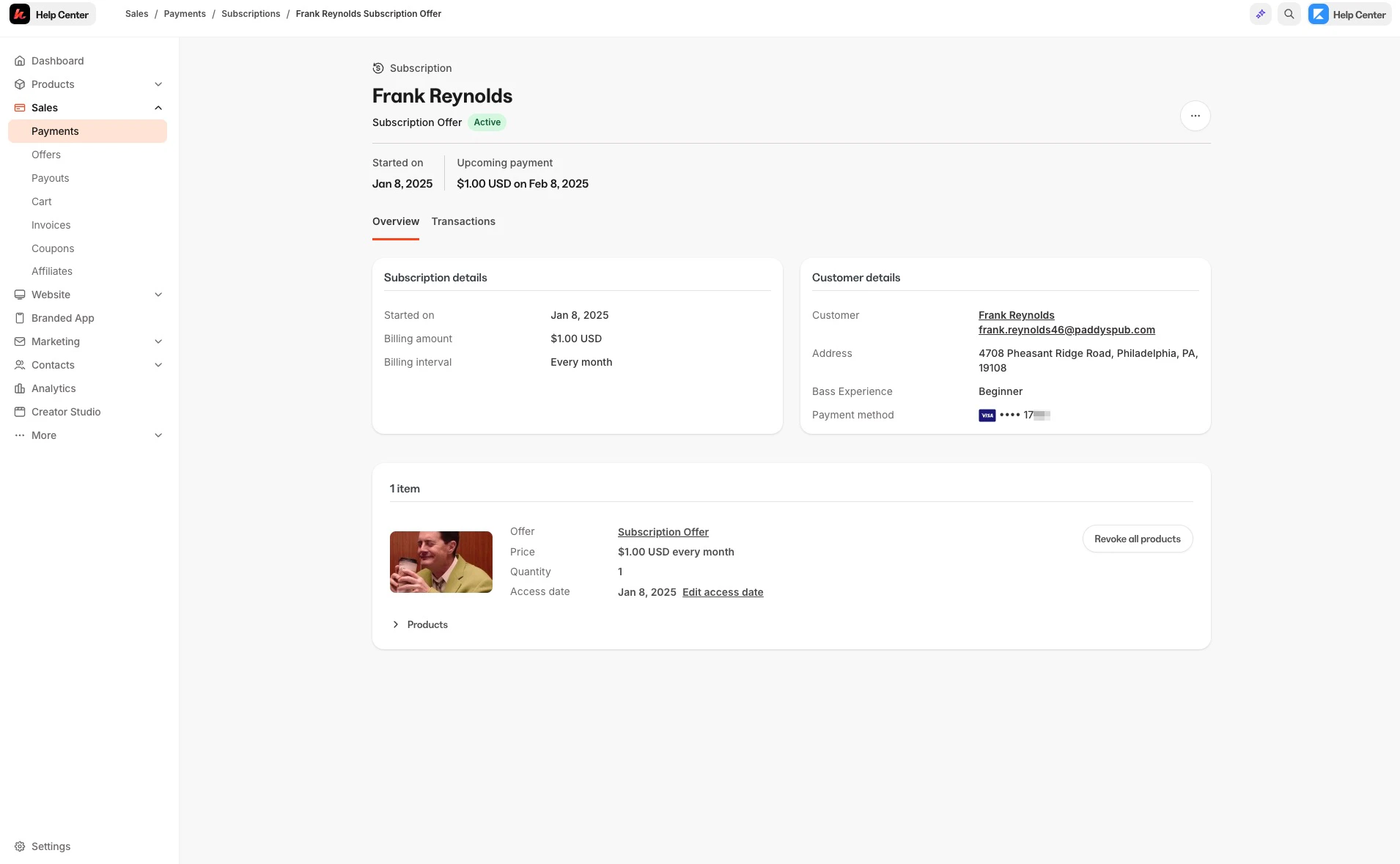
Navigating to the transaction details page for a [Subscription](../../sales/offers/how-to-create-a-subscription-offer) or [Payment Plans](../../sales/offers/create-a-payment-plan-offer) purchase will present you with an Overview and Transactions tab.
The Subscription details page will show subscription details and customer details, as well as refund info if any of the subscription payments have been refunded:
## Transaction details
View more information about a purchased or granted Offer on the Transaction Details page. The information displayed on this page may slightly differ based on the offer type, whether it's a one-time purchase, subscription, payment plan, invoice, granted offer, etc.
### Transaction Details page contents
* Customer's Name
* Customer's Email
* Offer Title and Status: Active, Paid, Completed, Cancelled
* Their [Kajabi Payments](../../sales/kajabi-payments/kajabi-payments-overview) email if applicable
* Stripe Customer ID or PayPal Customer ID if applicable
* Purchase Date
* Access Start Date. [Explore access start dates](/articles/contacts/manage-your-contacts/how-to-change-a-customers-start-date)
* **Access end date** (if applicable). To change the access end date, use the **Edit access end date** option in the **More Actions** (...) menu.
* Price of the Offer when purchased
* Payment exchange rate if purchased via [Kajabi Payments](../../sales/kajabi-payments/kajabi-payments-overview)
* Fees if purchased via [Kajabi Payments](../../sales/kajabi-payments/kajabi-payments-overview)
* Net profit if purchased via [Kajabi Payments](../../sales/kajabi-payments/kajabi-payments-overview)
* Dispute information and status if applicable. [Respond to a dispute with Kajabi Payments](../../sales/kajabi-payments/how-to-respond-to-a-dispute-with-kajabi-payments)
## One-time payments
If you are viewing the transaction details page for a [One-Time Payment](../../sales/offers/how-to-create-a-one-time-payment-offer) purchase, the page will show transaction details, customer details, as well as refund info if the payment has been refunded.
## Subscriptions and Payment Plans
Navigating to the transaction details page for a [Subscription](../../sales/offers/how-to-create-a-subscription-offer) or [Payment Plans](../../sales/offers/create-a-payment-plan-offer) purchase will present you with an Overview and Transactions tab.
The Subscription details page will show subscription details and customer details, as well as refund info if any of the subscription payments have been refunded:
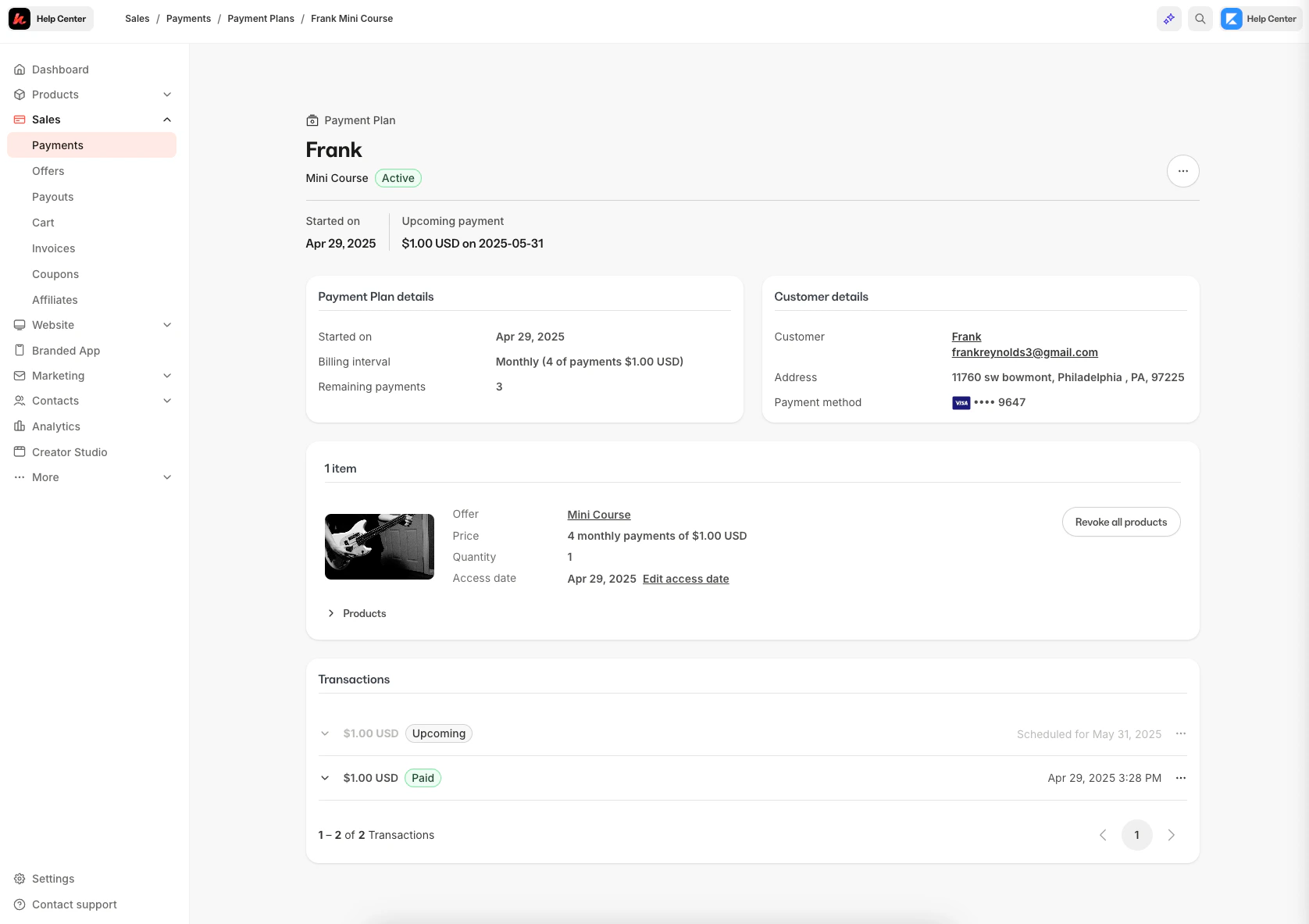
 The Payment Plans page will show payment plan details, customer details, as well as refund info if any of the payment plan installments have been refunded:
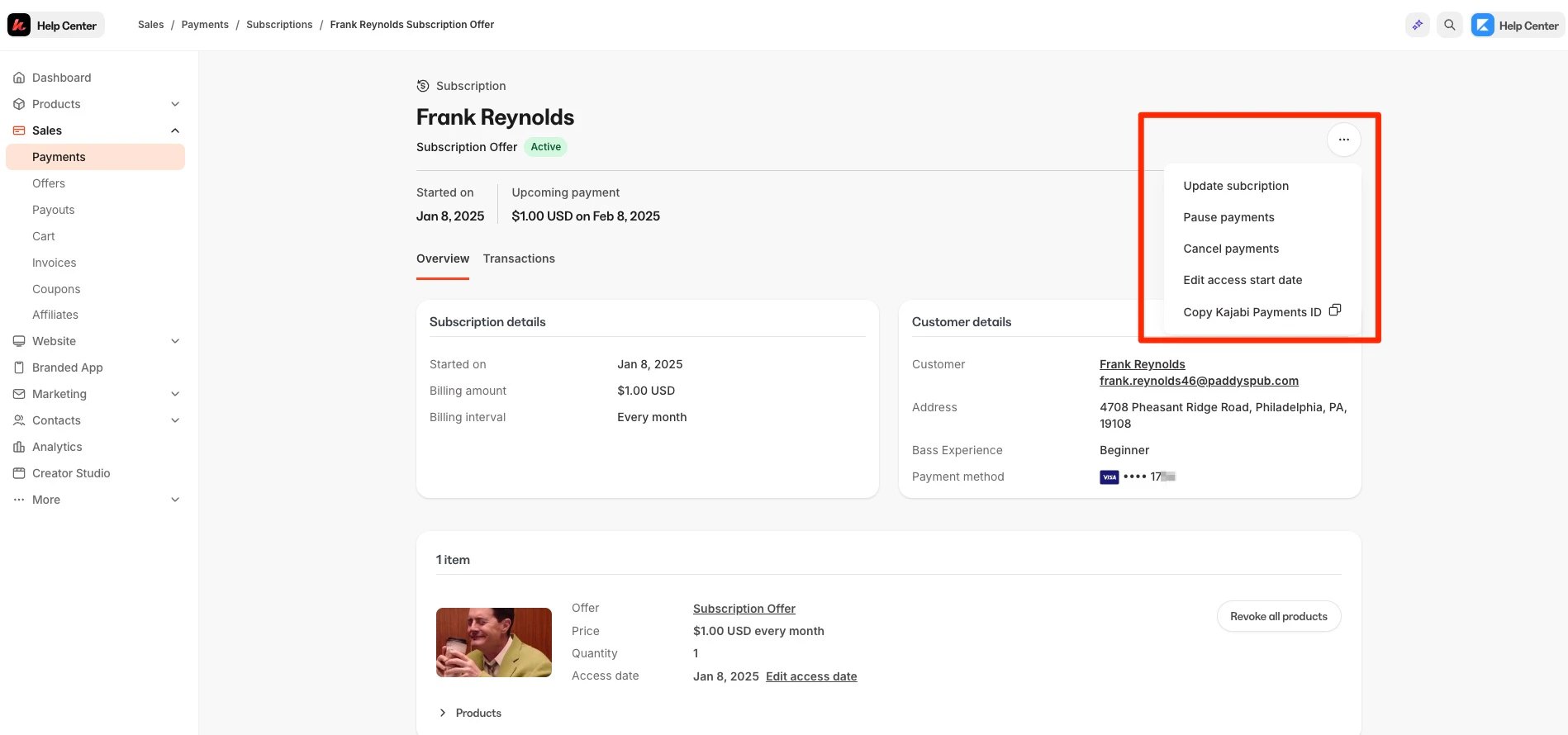
 If the purchase is an active Subscription or Payment Plan Offer you can use the "More Actions" (…) menu to update the subscription, pause, or cancel future payments, edit subscription start date, and copy their Kajabi Payments ID:
You can also use the **More Actions** (...) menu to edit access dates for the customer's transaction:
* **Edit access start date:** Changes when the customer's access begins. Changing the start date does not affect the access end date.
* **Edit access end date:** Changes when the customer's access expires. Use this option to extend or shorten a customer's access without modifying their billing.
If the purchase is an active Subscription or Payment Plan Offer you can use the "More Actions" (…) menu to update the subscription, pause, or cancel future payments, edit subscription start date, and copy their Kajabi Payments ID:
You can also use the **More Actions** (...) menu to edit access dates for the customer's transaction:
* **Edit access start date:** Changes when the customer's access begins. Changing the start date does not affect the access end date.
* **Edit access end date:** Changes when the customer's access expires. Use this option to extend or shorten a customer's access without modifying their billing.
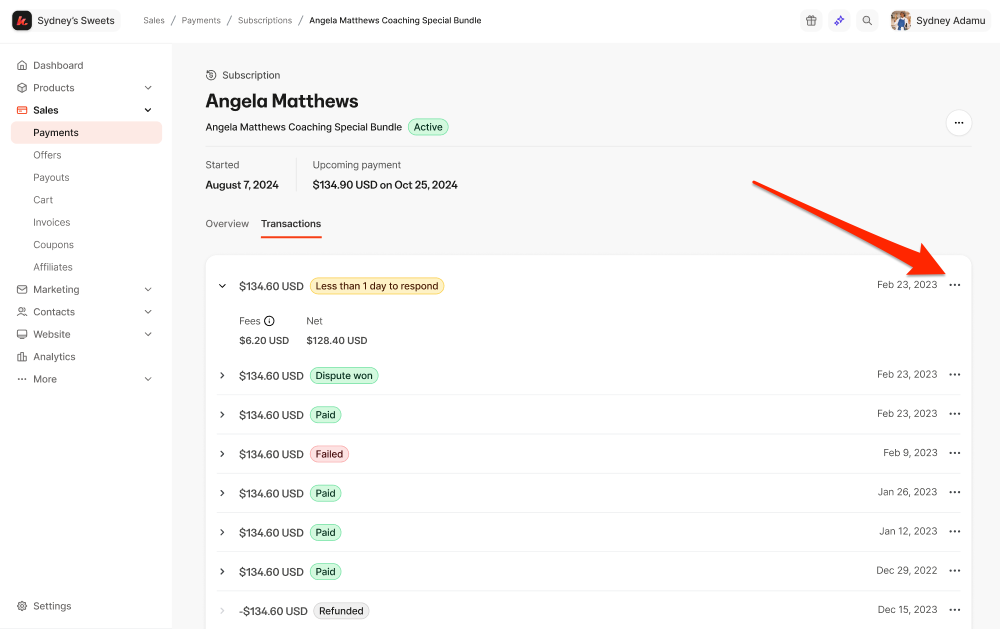
 **To view more in-depth transaction information for a Subscription or Payment Plan purchase:**
1. From the transaction details page, click **Transactions**.
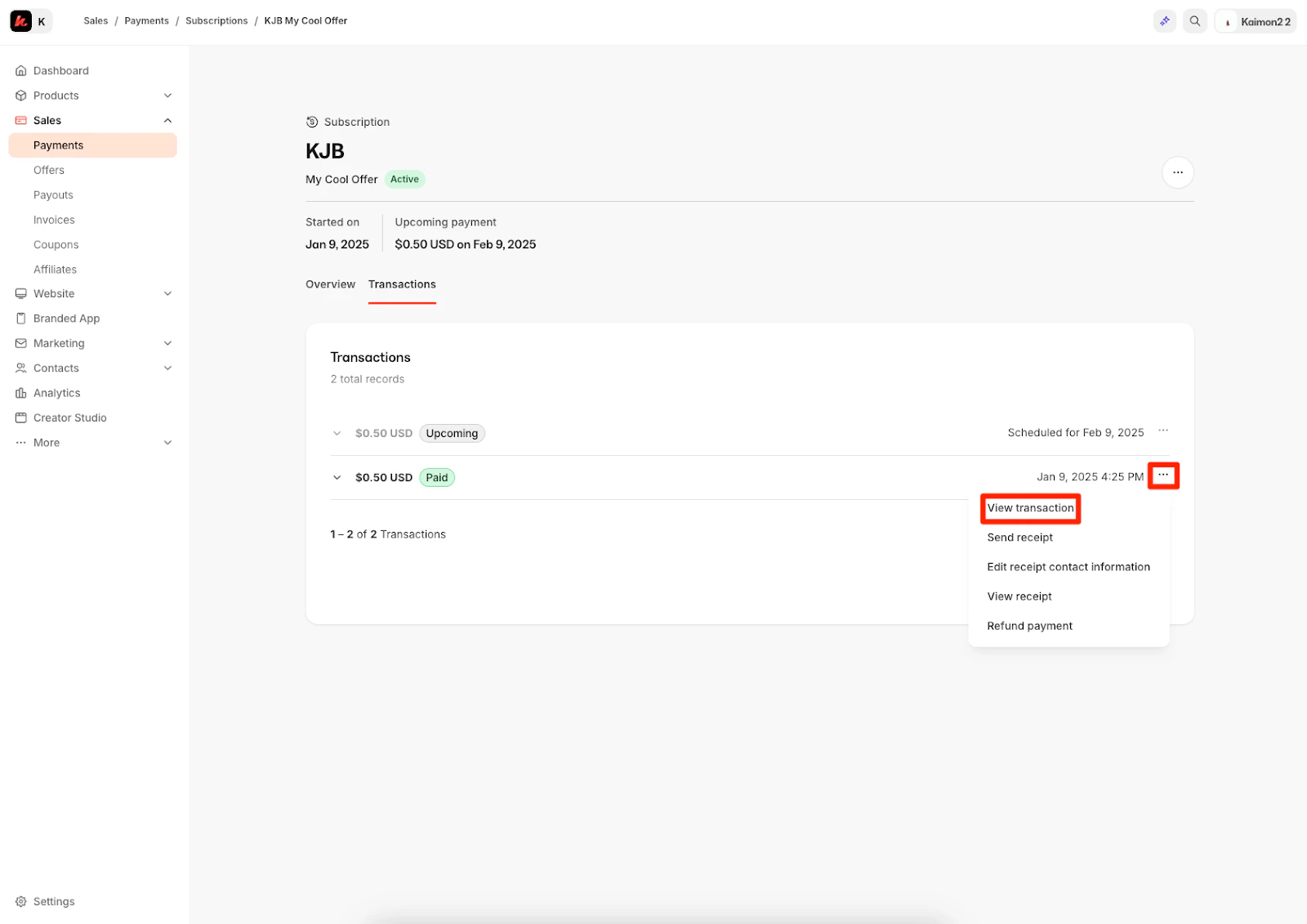
2. Locate the transaction you wish to view, then select the **"More Actions" (…) menu.**
3. Click **view transaction** to view more information about that transaction:
**To view more in-depth transaction information for a Subscription or Payment Plan purchase:**
1. From the transaction details page, click **Transactions**.
2. Locate the transaction you wish to view, then select the **"More Actions" (…) menu.**
3. Click **view transaction** to view more information about that transaction:
 You will then be taken to the individual transaction page where you can view more details.
The Transactions tab will record when a subscription payment is successful, for upcoming payments, if a refund is given, failed payments, and the payment exchange rate if applicable.
If you manage transactions from your Stripe or PayPal account, adjusted activity may not be displayed on the Payment Details Page.
Refer to your Stripe or PayPal account for more detailed information about your customer's transactions.
The Transactions page can also be used to [resend and edit customer receipts](../../sales/offers/how-to-send-receipts-with-kajabi), [refund payments](/articles/contacts/manage-your-contacts/refund-your-customers), as well as [manually retry failed payments](../../sales/kajabi-payments/how-to-manage-failed-payments-with-kajabi-payments) if processed through Kajabi Payments.
## Granted Offers
The Transaction Details page will vary if the Offer was granted instead of purchased.
### Granted Offers will display
* Customer Name
* Offer Title
* Purchase Created Date
* Access Start Date
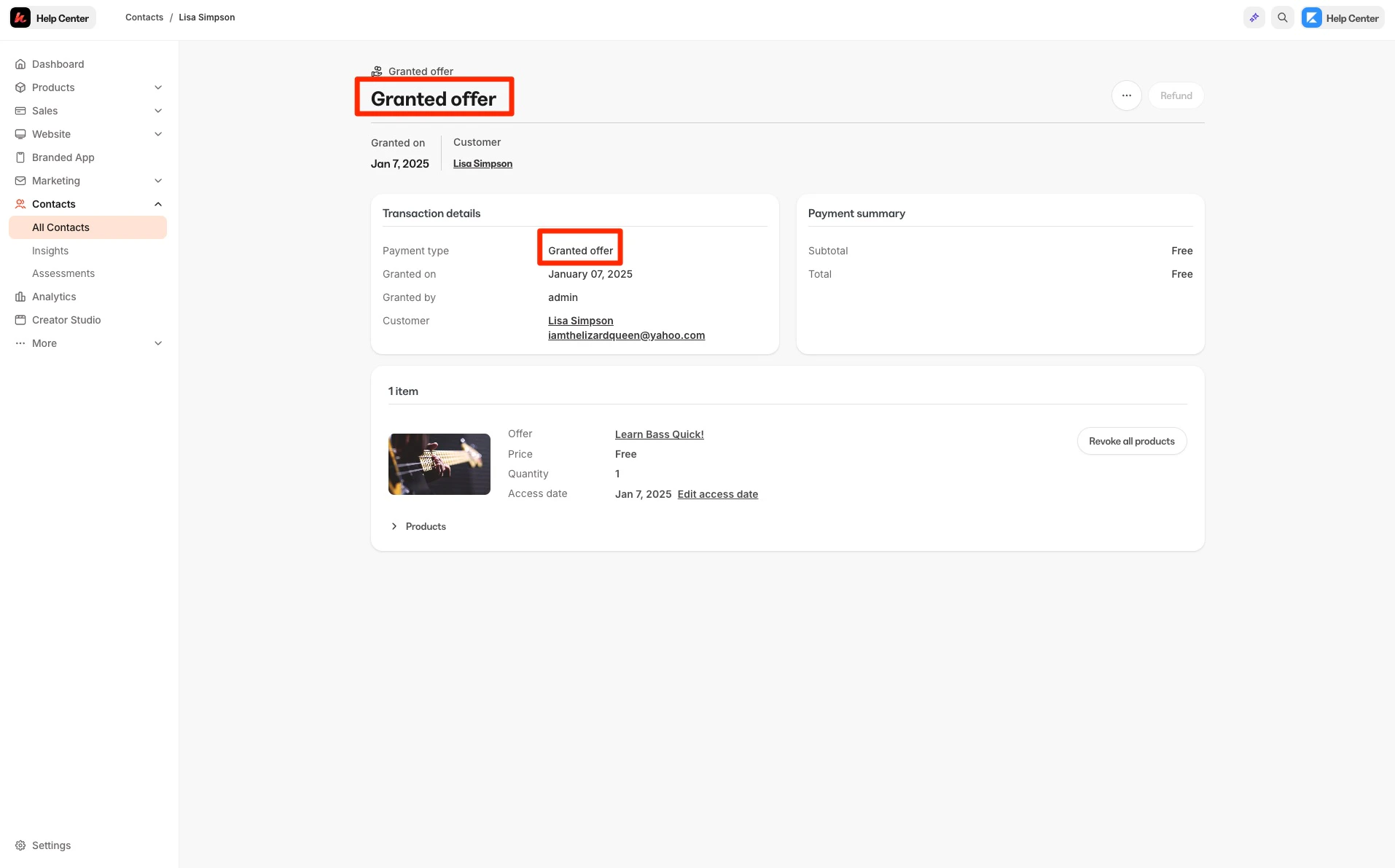
* The Payment summary will list the subtotal and total as "free"
For example, a customer with a Granted Offer will display the following information on their Transaction Details page:
You will then be taken to the individual transaction page where you can view more details.
The Transactions tab will record when a subscription payment is successful, for upcoming payments, if a refund is given, failed payments, and the payment exchange rate if applicable.
If you manage transactions from your Stripe or PayPal account, adjusted activity may not be displayed on the Payment Details Page.
Refer to your Stripe or PayPal account for more detailed information about your customer's transactions.
The Transactions page can also be used to [resend and edit customer receipts](../../sales/offers/how-to-send-receipts-with-kajabi), [refund payments](/articles/contacts/manage-your-contacts/refund-your-customers), as well as [manually retry failed payments](../../sales/kajabi-payments/how-to-manage-failed-payments-with-kajabi-payments) if processed through Kajabi Payments.
## Granted Offers
The Transaction Details page will vary if the Offer was granted instead of purchased.
### Granted Offers will display
* Customer Name
* Offer Title
* Purchase Created Date
* Access Start Date
* The Payment summary will list the subtotal and total as "free"
For example, a customer with a Granted Offer will display the following information on their Transaction Details page:
 ## Disputed Offers
When a customer files a dispute, an alert will appear on the Transaction Details page, displaying the dispute status. This banner will update as the dispute progresses and is where you can manage and respond to disputes. [Respond to a dispute with Kajabi Payments](../../sales/kajabi-payments/how-to-respond-to-a-dispute-with-kajabi-payments).
To view and manage all disputes in one place, visit the [Disputes page](../../sales/kajabi-payments/disputes-page-overview).
### View disputed transactions
#### One-time transaction disputes
Disputes for **one-time transactions** will be displayed on the **Transaction Details page**:
## Disputed Offers
When a customer files a dispute, an alert will appear on the Transaction Details page, displaying the dispute status. This banner will update as the dispute progresses and is where you can manage and respond to disputes. [Respond to a dispute with Kajabi Payments](../../sales/kajabi-payments/how-to-respond-to-a-dispute-with-kajabi-payments).
To view and manage all disputes in one place, visit the [Disputes page](../../sales/kajabi-payments/disputes-page-overview).
### View disputed transactions
#### One-time transaction disputes
Disputes for **one-time transactions** will be displayed on the **Transaction Details page**:
 #### Subscription and Payment Plan transaction disputes
To view disputed **subscription or payment plan transactions**:
1. Go to the **Transaction Details** page.
2. Click **Transactions**.
3. Find the disputed transaction, then select the **More Actions** (…) menu.
4. Click **View transaction** to see more details and respond to the dispute.
#### Subscription and Payment Plan transaction disputes
To view disputed **subscription or payment plan transactions**:
1. Go to the **Transaction Details** page.
2. Click **Transactions**.
3. Find the disputed transaction, then select the **More Actions** (…) menu.
4. Click **View transaction** to see more details and respond to the dispute.
 ## Products included in an Offer
View the Offer title and review the Product(s) included with the Offer purchased or granted.
In the Products Included section of the Transaction Details Page, view a brief overview of the Product Access Start Date and your Customer's Product Progress:
## Products included in an Offer
View the Offer title and review the Product(s) included with the Offer purchased or granted.
In the Products Included section of the Transaction Details Page, view a brief overview of the Product Access Start Date and your Customer's Product Progress:
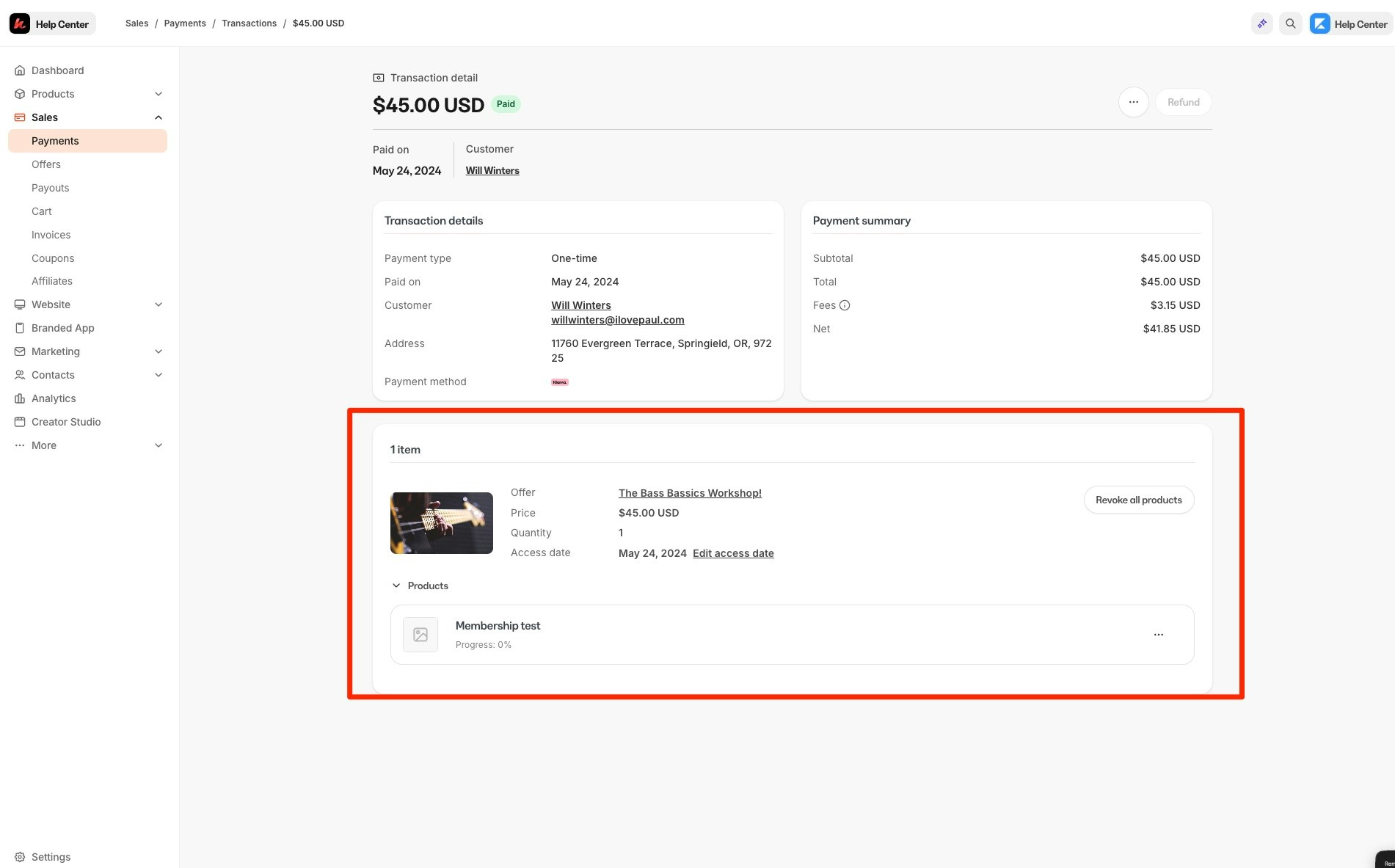 In this menu, you can choose to revoke all products in the offer, or revoke individual products by using the (…) drop-down menu.
## Cancel payments and access
The More Actions menu (…) of the Payment Details Page Overview will vary depending on whether the Offer was purchased or granted.
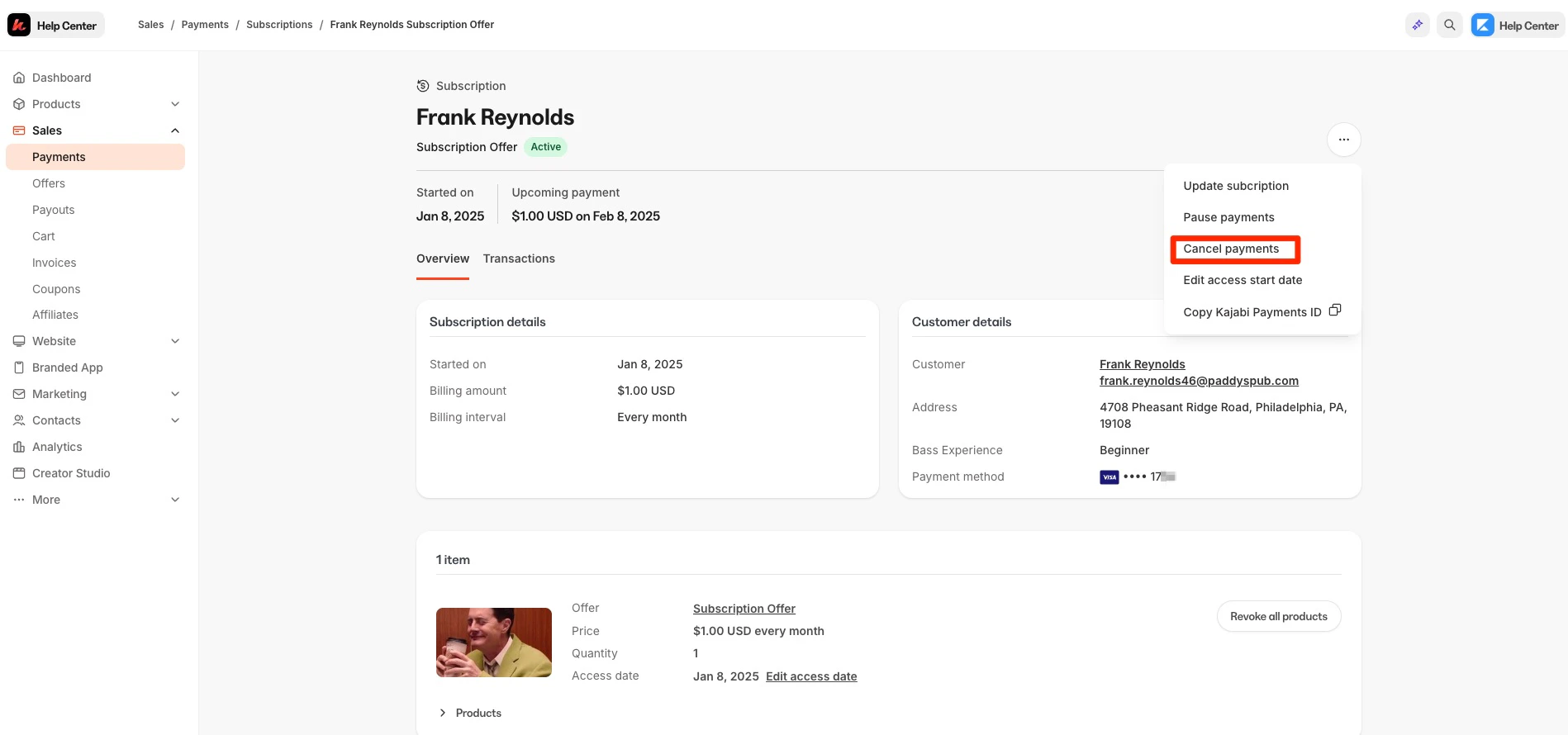
If the Offer was purchased as a recurring subscription or payment plan you will have the ability to Cancel Payments and Revoke Access directly from the Transaction Details page. [Cancel a customer's subscription](/articles/contacts/manage-your-contacts/how-to-cancel-your-customers-subscription)
However, if the Offer was granted or if the Offer does not contain any future payments (i.e., One-Time Payment Offer) you can Revoke Access to the entire Product offering for the Offer purchased or granted. [Revoke Product access from a customer](/articles/contacts/manage-your-contacts/revoke-product-access-from-a-customer)
In this menu, you can choose to revoke all products in the offer, or revoke individual products by using the (…) drop-down menu.
## Cancel payments and access
The More Actions menu (…) of the Payment Details Page Overview will vary depending on whether the Offer was purchased or granted.
If the Offer was purchased as a recurring subscription or payment plan you will have the ability to Cancel Payments and Revoke Access directly from the Transaction Details page. [Cancel a customer's subscription](/articles/contacts/manage-your-contacts/how-to-cancel-your-customers-subscription)
However, if the Offer was granted or if the Offer does not contain any future payments (i.e., One-Time Payment Offer) you can Revoke Access to the entire Product offering for the Offer purchased or granted. [Revoke Product access from a customer](/articles/contacts/manage-your-contacts/revoke-product-access-from-a-customer)