> ## Documentation Index
> Fetch the complete documentation index at: https://help.kajabi.com/llms.txt
> Use this file to discover all available pages before exploring further.
# Step 2: Customize global Branding Settings
> Adjust fonts, colors, and logos to create a cohesive, professional brand experience across your Kajabi site.
**Branding Settings** let you control fonts, colors, logos, and social links from one place so every page on your Kajabi site reflects a consistent identity. Changes apply globally — across Website pages, Landing pages, Courses, Newsletters, Coaching programs, and Email templates — so you only need to set them once.
## Customize Branding Settings
1. Sign in to your Kajabi account and make sure you're on the main dashboard.
2. From the dashboard menu, select **Settings**.
3. Click **Branding** to access all available customization options.
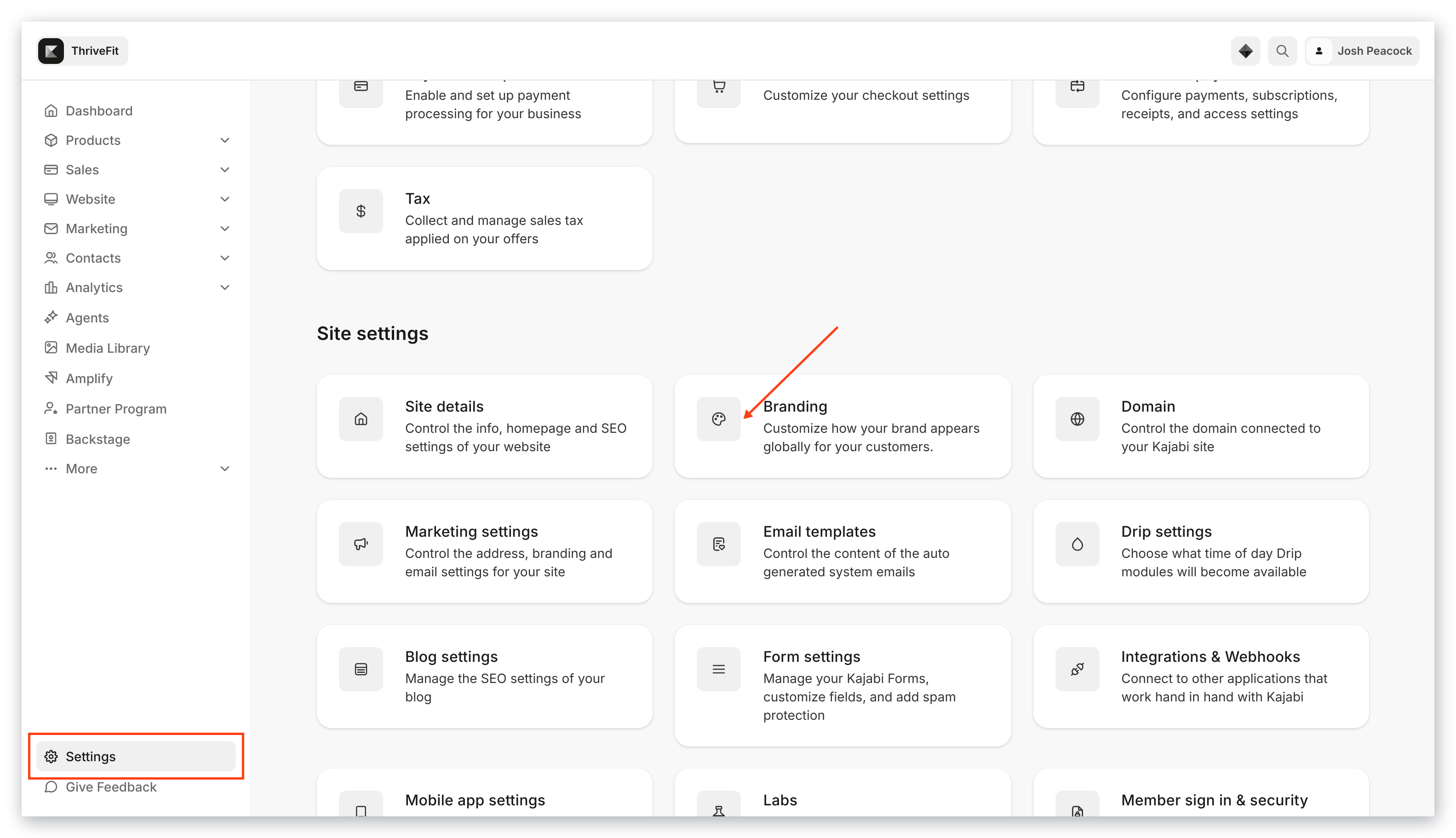 4. Within the **Branding** section, you can update:
* **Favicon** — Upload a file or select a recent file
* **Logo** — Upload a file or select a recent file
* **Typography** — Choose a heading font and a paragraph font
* **Colors** — Brand, Accent, Global Color Palette
* **Social Media Links** — Twitter, Instagram, LinkedIn, etc.
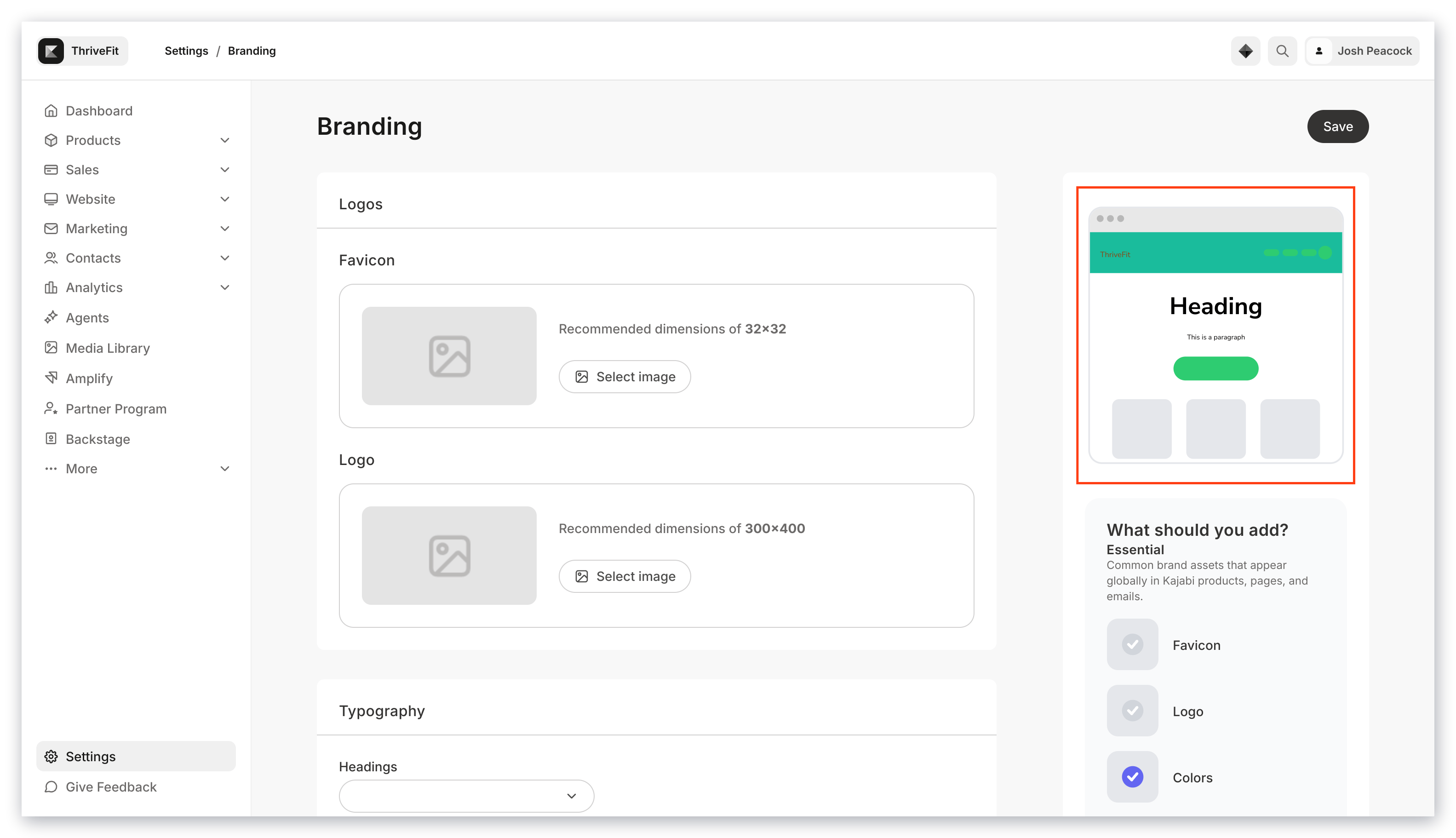
5. Use the real-time preview to see how your updates will look before saving.
6. Click **Save** to apply your selections across your platform.
**Note:**
Brand changes will update items where the default global brand settings are used. Any themes or blocks that you have already customized will not change. Instead, go into those areas and sync the branding with these global settings.
## Preview changes in real time
Kajabi's real-time preview allows you to see how font and color updates will appear before you save them. This makes it easy to experiment and fine-tune your branding without committing to changes right away:
4. Within the **Branding** section, you can update:
* **Favicon** — Upload a file or select a recent file
* **Logo** — Upload a file or select a recent file
* **Typography** — Choose a heading font and a paragraph font
* **Colors** — Brand, Accent, Global Color Palette
* **Social Media Links** — Twitter, Instagram, LinkedIn, etc.
5. Use the real-time preview to see how your updates will look before saving.
6. Click **Save** to apply your selections across your platform.
**Note:**
Brand changes will update items where the default global brand settings are used. Any themes or blocks that you have already customized will not change. Instead, go into those areas and sync the branding with these global settings.
## Preview changes in real time
Kajabi's real-time preview allows you to see how font and color updates will appear before you save them. This makes it easy to experiment and fine-tune your branding without committing to changes right away:
 ## Sync style elements with Branding Settings
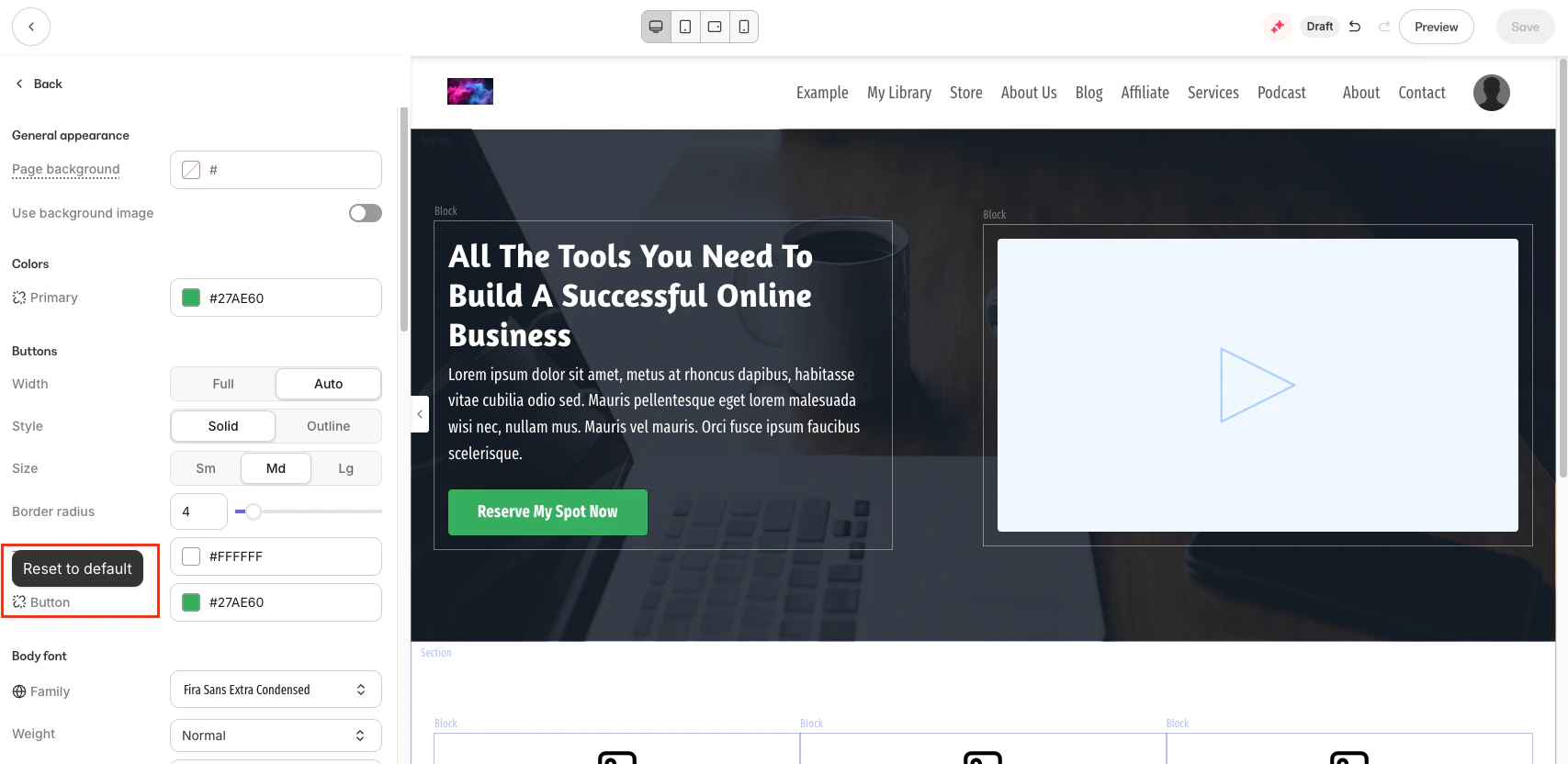
While working within your individual pages, you may notice an unlink icon on certain style elements. If you decide to change an individual element linked to your **Branding Settings**, clicking this icon resets the Style Guide element to the default Branding Settings:
## Sync style elements with Branding Settings
While working within your individual pages, you may notice an unlink icon on certain style elements. If you decide to change an individual element linked to your **Branding Settings**, clicking this icon resets the Style Guide element to the default Branding Settings: