> ## Documentation Index
> Fetch the complete documentation index at: https://help.kajabi.com/llms.txt
> Use this file to discover all available pages before exploring further.
# Step 3: Add instructor details
> Add an instructor name, biography, and photo to personalize Course and Lesson pages.
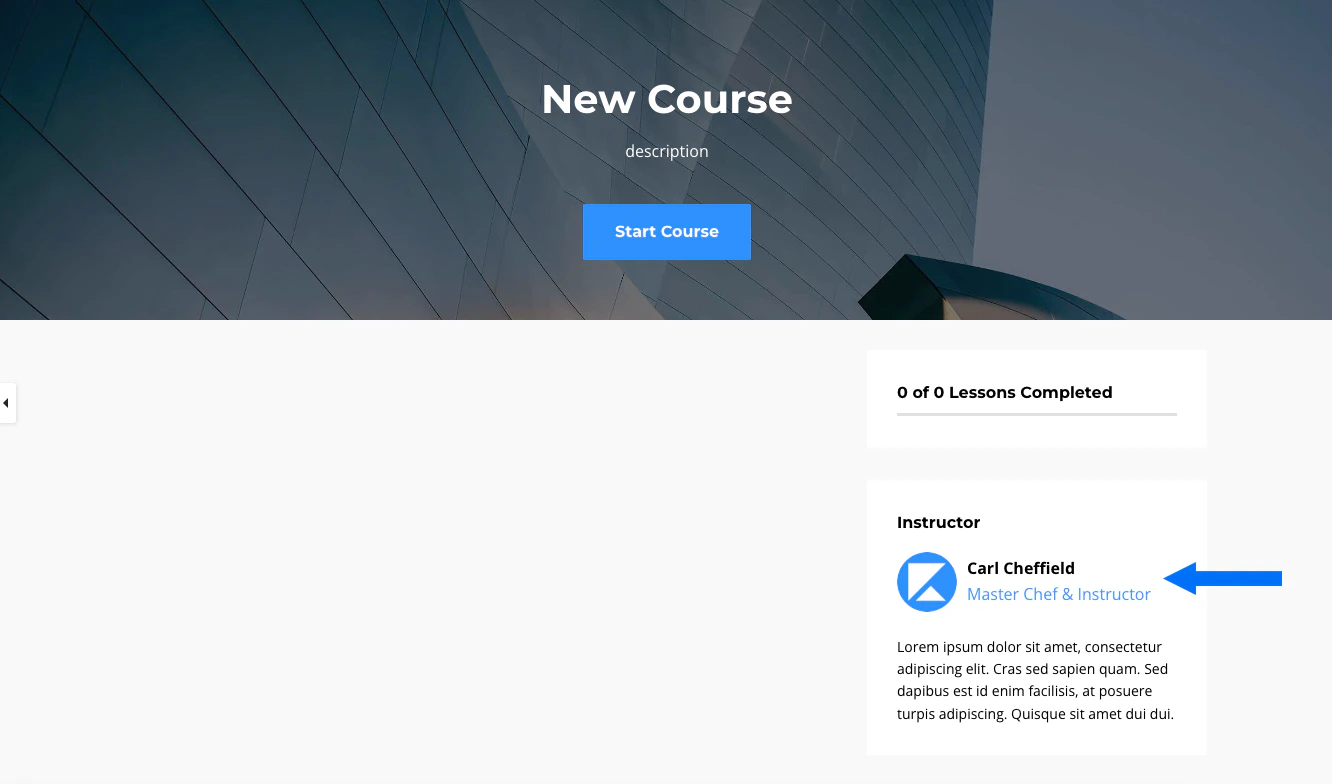
**Instructor details** — your name, photo, and professional background — appear on Course and Lesson pages and help build credibility with your customers. Add this information once in **Site Details** settings, and it links automatically to the Instructor Block on Course and Lesson page templates.
To add instructor information to a Course template or site page without a built-in Instructor Block, use sections and blocks in the Page Builder.
## Update instructor info in Site Details settings
When you create a Course using the Premier, Creative, or Prosper template and add an Instructor Block to your Product Sidebar, your information is pulled in automatically:
 **Note:**
An Instructor image and name are required when linking the Instructor Block to your site settings. If those values are not completed, the Instructor Block will not display in your preview or for your course members.
1. Open the **Settings** tab from your Dashboard.
2. Click **Site Details**.
3. Navigate to the **Instructor** section.
4. Upload an **image** of the instructor.
5. Enter the **instructor's name**.
6. Include the **instructor's title**.
7. Add the **instructor's bio**.
8. Click **Save** to keep and apply your changes.
**Note:**
Adding instructor info in **Site Details** will not retroactively update your info in any pre-existing Courses. If you have already created a Course using a template with a built-in Instructor Block, update your information directly on the Course and Lesson templates.
**Note:**
An Instructor image and name are required when linking the Instructor Block to your site settings. If those values are not completed, the Instructor Block will not display in your preview or for your course members.
1. Open the **Settings** tab from your Dashboard.
2. Click **Site Details**.
3. Navigate to the **Instructor** section.
4. Upload an **image** of the instructor.
5. Enter the **instructor's name**.
6. Include the **instructor's title**.
7. Add the **instructor's bio**.
8. Click **Save** to keep and apply your changes.
**Note:**
Adding instructor info in **Site Details** will not retroactively update your info in any pre-existing Courses. If you have already created a Course using a template with a built-in Instructor Block, update your information directly on the Course and Lesson templates.