> ## Documentation Index
> Fetch the complete documentation index at: https://help.kajabi.com/llms.txt
> Use this file to discover all available pages before exploring further.
# Step 9: Test the journey
> Experience what your customers will see by making a test purchase of an Offer.
With a strong foundation in place, it's time to experience firsthand what your customers will see. Test the **customer journey** by purchasing your Offer yourself.
## Create a test purchase
**Warning:**
Test purchase and accidental customer purchase transaction fees are non-refundable. First, clear your cache and cookies from your browser and log out of your Kajabi account, or open a private/incognito window or use a different browser.
### Test a purchase in incognito mode
1. Open the **Sales** tab from your Dashboard.
2. Click **Pricing** and select the Offer you want to test.
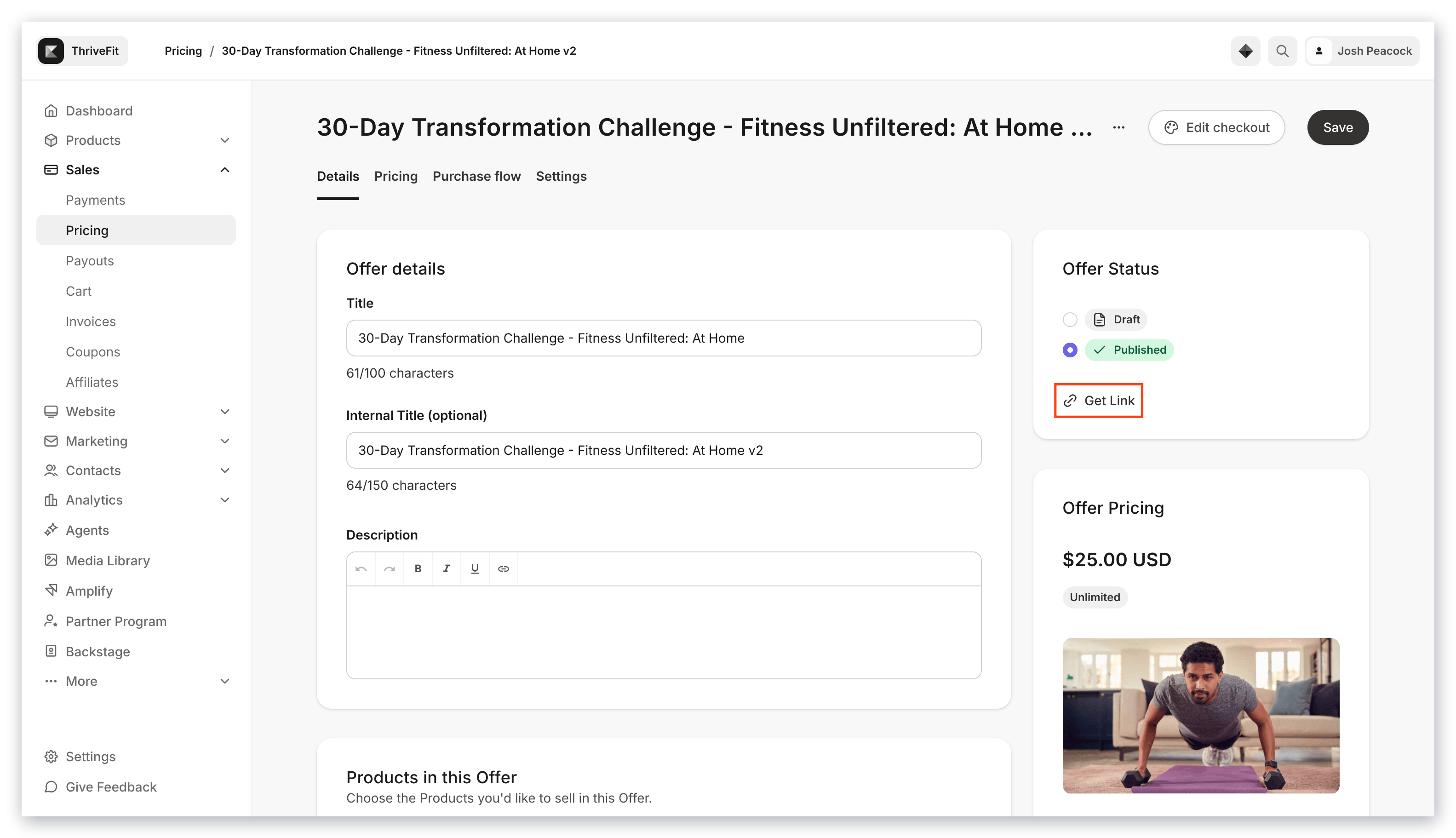
3. In the Offer Status card, click **Get Link**.
4. Open an incognito window and paste your link.
5. On the checkout page, follow the flow of your customers by going through the process of purchasing your Offer.
After you submit your payment (or sign up for free, if testing a free Offer), you receive an email at the email address you entered on the checkout page. The email contains a login link to access the Product(s).
**Tip:**
If you don't want to charge your card you can:
* Edit the Offer price to be free before testing the purchase
* Create a coupon for the Offer that you can use to bring the price of the Offer down to \$0.00 (an error will occur if the end price is between \$0.01 - \$0.49)
## Best practices when testing a purchase
Only use the Offer Link (not the Preview link) when testing:
 ### Always use a different browser or incognito/private window
To successfully test a purchase, do not test on the same browser when logged in as an Admin of your Kajabi account.
### Why can't I click the purchase button?
Make sure to exit out of preview mode when testing your Checkout Page. Testing a purchase in Preview mode will not allow you to make a purchase.
Open a separate window and enter the checkout page URL excluding the `preview=true` piece of the URL.
### Use a different email address
Create a separate email address specifically for testing purposes. This allows you to use different variations of the same email address for tests you wish to perform on your site.
If you are using G-Suite or any Gmail address, insert a "+" character before the "@" symbol and insert any verbiage you wish. This will send any applicable emails connected with your test to your Gmail inbox with a unique identifier.
Example: `kajabihelpcenter+purchasetest1-date@gmail.com`
### Always use a different browser or incognito/private window
To successfully test a purchase, do not test on the same browser when logged in as an Admin of your Kajabi account.
### Why can't I click the purchase button?
Make sure to exit out of preview mode when testing your Checkout Page. Testing a purchase in Preview mode will not allow you to make a purchase.
Open a separate window and enter the checkout page URL excluding the `preview=true` piece of the URL.
### Use a different email address
Create a separate email address specifically for testing purposes. This allows you to use different variations of the same email address for tests you wish to perform on your site.
If you are using G-Suite or any Gmail address, insert a "+" character before the "@" symbol and insert any verbiage you wish. This will send any applicable emails connected with your test to your Gmail inbox with a unique identifier.
Example: `kajabihelpcenter+purchasetest1-date@gmail.com`