> ## Documentation Index
> Fetch the complete documentation index at: https://help.kajabi.com/llms.txt
> Use this file to discover all available pages before exploring further.
# Send a Certificate of Completion with Automations
> Send a Certificate of Completion directly from Kajabi when your customer completes a Course.
**Certificates of Completion** can be created, designed, and sent through a variety of methods. Create a simple Certificate and streamline the process by setting up an Automation directly from your Kajabi account.
## Design a Certificate of Completion
In order to send a Certificate of Completion, first design your certificate to fit your brand and business.
Design your Certificate of Completion using image editing tools like [Canva](https://www.canva.com/templates/search/completion-certificates/) to create branded certificates for your customers.
For a general Certificate that applies to all customers completing your Course, design a general Certificate. If you wish to create and send personalized Certificates, refer to [create a Certificate with Google Slides](../../api-integrations/zapier/how-to-create-a-certificate-with-google-slides) or [send Certificates of Completion with Accredible](../../api-integrations/zapier/how-to-send-certificates-of-completion-with-accredible).
Then, download your designed Certificate of Completion to your local hard drive.
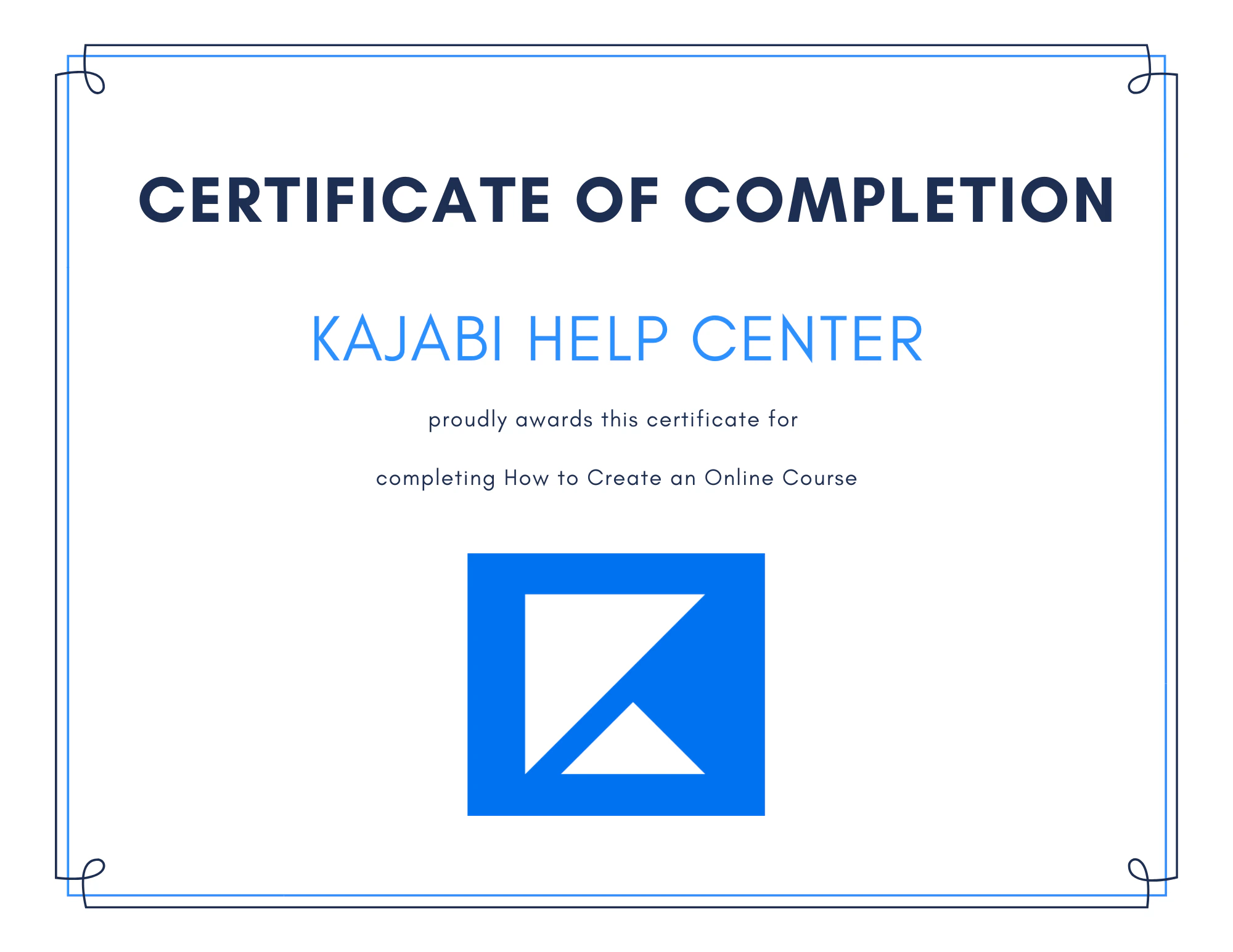
### Example certificate designed with Canva
 ## Create an Automation in the final Course Lesson
After designing your certificate, set up your Automation in Kajabi to send the certificate as an email attachment to customers who complete your Course.
### Create the Automation
1. Open the **Products** tab from the Dashboard.
2. Select the Course you wish to edit, or create a new one.
3. Select your final **Course Lesson**.
4. Navigate to the bottom of the Lesson Editor and click **+ Add Automation**.
5. Open the **Then** action triggered by the completion of the Lesson.
6. Select **Send an email**.
7. Select **To the person**.
8. Customize your email and click the paper clip icon to add an attachment.
9. Use the File Uploader to upload your Certificate of Completion.
10. Click **Ok** and **Save** to keep your changes.
## Create an Automation in the final Course Lesson
After designing your certificate, set up your Automation in Kajabi to send the certificate as an email attachment to customers who complete your Course.
### Create the Automation
1. Open the **Products** tab from the Dashboard.
2. Select the Course you wish to edit, or create a new one.
3. Select your final **Course Lesson**.
4. Navigate to the bottom of the Lesson Editor and click **+ Add Automation**.
5. Open the **Then** action triggered by the completion of the Lesson.
6. Select **Send an email**.
7. Select **To the person**.
8. Customize your email and click the paper clip icon to add an attachment.
9. Use the File Uploader to upload your Certificate of Completion.
10. Click **Ok** and **Save** to keep your changes.
With your Automation set up, customers who complete your last Lesson receive an email containing their Certificate of Completion.
The next step depends on your Kajabi Plan and your vision for your Certificate.
Read [Basic vs. Advanced Automations](/articles/marketing/automations/basic-vs-advanced-automations) to learn more about Automations in Kajabi.
### If you have a Kajabi Basic Plan
Your Automation adds a tag when a customer completes the Lesson. Click **Save** to keep your changes.
### If you have a Growth or Pro Plan
You have additional options:
#### Automatically add a Tag when a customer completes the Lesson
**Note:** The Lesson is considered complete when your customer selects the **Mark as Complete** button located at the bottom of the Lesson.
#### Automatically add a Tag when a customer passes or completes an Assessment
1. Click **Add Condition**.
2. Open the **Select filter** dropdown menu.
3. Select your desired conditional filter: **Completed any of these assessment(s)** or **Passed any of these assessment(s)**.
4. In the next field, select your Assessment.
5. Click **Apply** and **Save** to keep your changes.
Learn to [create an Assessment and add it to your Course Lesson](../../contacts/create-manage-and-share-assessments/how-to-add-an-assessment-to-your-course-product).
**Note:** The Assessment feature inside of Courses has been sunset. This feature may still appear in older accounts. The Quizzes feature is available inside of Courses and offers advanced functionality. Assessments can still be added to Web Pages. [Customize your Quiz Settings](../../products/courses/course-quizzes#h_01G16CT90ZYCJFKEYEC4BTSTD4) to add an Automation when a Quiz is passed or completed.