> ## Documentation Index
> Fetch the complete documentation index at: https://help.kajabi.com/llms.txt
> Use this file to discover all available pages before exploring further.
# Set up Comment-to-DM Automations
> Send an automatic DM when someone comments on an Instagram or Facebook post, and use keyword rules to control who receives it.
**Comment-to-DM** is an Automation that sends a direct message to anyone who comments on an Instagram or Facebook post. Use it to deliver a lead magnet, answer a common question, or start a conversation while interest is high, without watching your comments all day.
Comment-to-DM is built on [Kajabi Automations](../../marketing/automations/automations-overview), and every DM it sends arrives in [Universal Inbox](../../marketing/universal-inbox/universal-inbox) alongside your other social conversations.
## Before you begin
* Your site must be on a Growth or Pro plan. Comment-to-DM is not available on legacy plans, and neither are the Facebook and Instagram integrations. See [kajabi.com/pricing](https://kajabi.com/pricing) for current plan details
* Connect the Instagram or Facebook account you want to automate. See [Manage messages in Universal Inbox](../../marketing/universal-inbox/universal-inbox)
* For Instagram, you need an [Instagram Professional account](https://help.instagram.com/502981923235522?helpref=faq_content)
**Note:** Third-party messaging platforms and integrations can interfere with Comment-to-DM Automations. Use Kajabi on its own for these Automations so each one completes correctly.
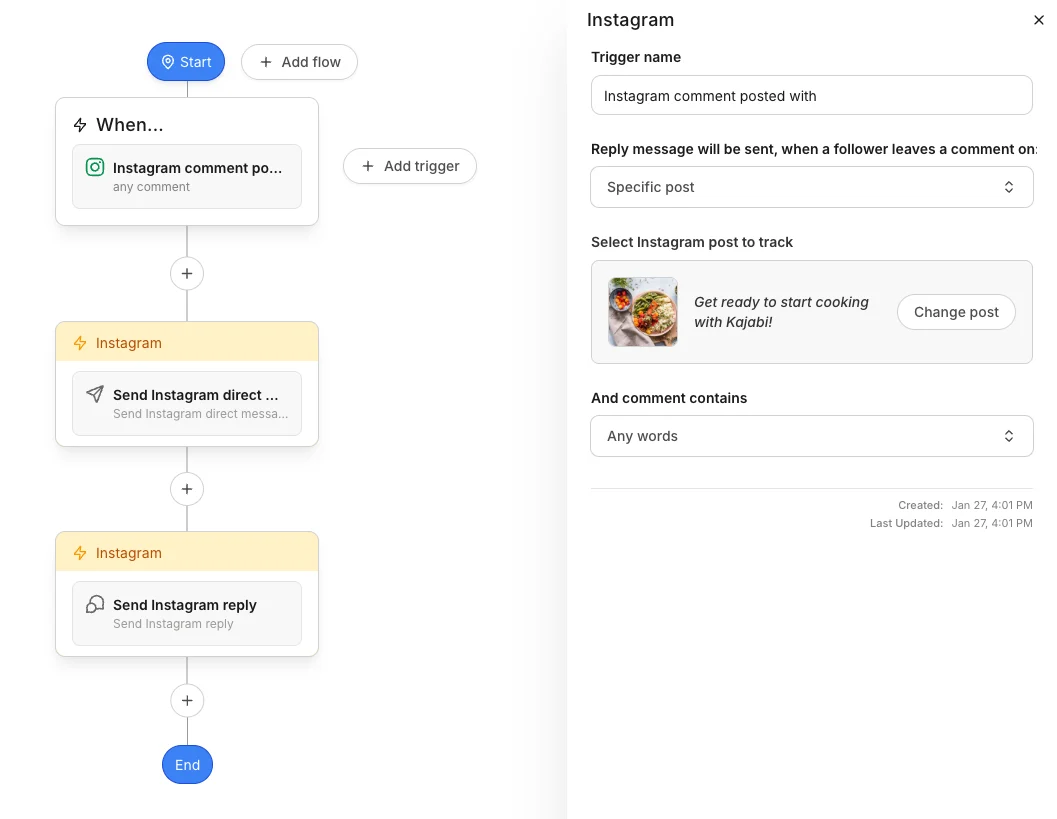
## Set up Comment-to-DM for Instagram
1. From the Kajabi Dashboard, select **Marketing** > **Automations**
2. Click **+New Automation**
3. Choose the **Instagram comment-to-conversation** blueprint
4. For the **When** trigger, select a specific Instagram post, or choose **Any post** to include every future post
5. Click **Save trigger**
6. Customize the direct message that sends when the post receives a comment
7. (Optional) Customize an automatic Instagram reply to the comment itself
8. Click **Save**
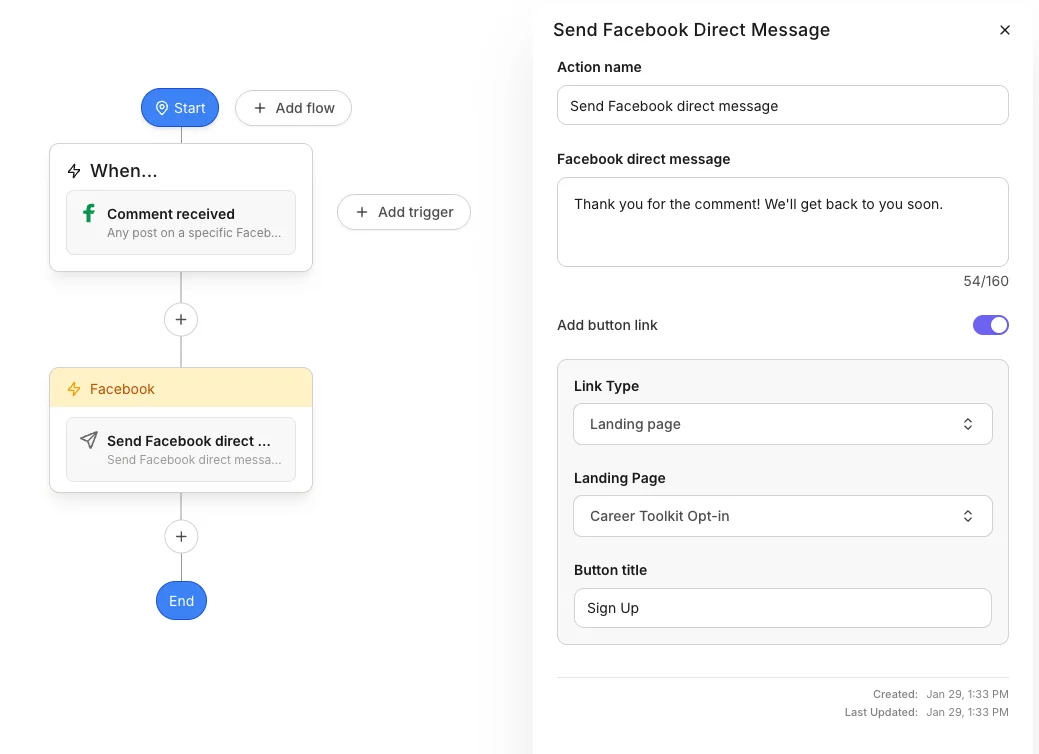
 ## Set up Comment-to-DM for Facebook
1. From the Kajabi Dashboard, select **Marketing** > **Automations**
2. Click **+New Automation**
3. Choose the **Facebook comment-to-conversation** blueprint
4. For the **When** trigger, select a specific Facebook Page, or choose **Any page** to include all of your Pages
5. For a specific Page, select a specific post, or choose **Any post** to include every future post on that Page
6. Click **Save trigger**
7. Customize the direct message that sends when the post receives a comment
8. (Optional) Customize an automatic Facebook reply to the comment itself
9. Click **Save**
## Set up Comment-to-DM for Facebook
1. From the Kajabi Dashboard, select **Marketing** > **Automations**
2. Click **+New Automation**
3. Choose the **Facebook comment-to-conversation** blueprint
4. For the **When** trigger, select a specific Facebook Page, or choose **Any page** to include all of your Pages
5. For a specific Page, select a specific post, or choose **Any post** to include every future post on that Page
6. Click **Save trigger**
7. Customize the direct message that sends when the post receives a comment
8. (Optional) Customize an automatic Facebook reply to the comment itself
9. Click **Save**
 **Note:** Facebook may temporarily block automated and manual comment replies when reply volume across your posts is high (roughly 250 or more per day). If you expect that volume, skip the comment reply action. Automated DMs are unaffected, and Instagram comment replies are not subject to this limit.
## Choose which comments trigger the DM
Every Comment-to-DM trigger uses one of three settings:
| Setting | What it does |
| --------------------- | ----------------------------------------------------------- |
| **Any comments** | Sends the DM for every comment received |
| **No comments** | Pauses the trigger without deleting the Automation |
| **Specific keywords** | Sends the DM only when a comment matches your keyword rules |
### Set keyword rules
With **Specific keywords**, enter your keywords as a comma-separated list, then use either or both rule types:
* **Include keywords**: the comment must contain at least one of these. With `pricing, cost, price`, the comment "What's the pricing?" matches
* **Exclude keywords**: the comment must not contain any of these. With `spam, fake, bot`, the comment "This looks like spam" is blocked
When you use both, a comment must pass the Include rule and clear the Exclude rule. With Include `help, support` and Exclude `never, don't`, the comment "I need help" matches, and "I don't need help" is blocked.
### How keyword matching works
* Case does not matter, so `HELP`, `help`, and `Help` behave identically
* Single-word keywords match whole words only, so `help` does not match "helpful"
* A keyword containing a space matches as a complete phrase, so `how much` matches "how much do you charge" but not a comment that uses "how" and "much" separately
* Numbers and emoji work as keywords, so `112`, `2024`, ❤️, and 🔥 are all valid
## FAQs
### What happens if I already have an Inbox Automation set up through Meta?
Both Automations trigger. Centralize your Automations in Kajabi, or make sure the triggers do not overlap.
### Can I set up a Comment-to-DM Automation on a post that is not live yet?
Yes. Once the post goes live and receives comments, the DMs start sending.
### Are there post types that do not support Automations?
You cannot build an Automation from a Facebook album post, because Meta does not support it.
### Which Kajabi plan includes Comment-to-DM?
Comment-to-DM is available on Growth and Pro plans, and is not available on legacy plans. Universal Inbox itself is available on any plan.
**Note:** Facebook may temporarily block automated and manual comment replies when reply volume across your posts is high (roughly 250 or more per day). If you expect that volume, skip the comment reply action. Automated DMs are unaffected, and Instagram comment replies are not subject to this limit.
## Choose which comments trigger the DM
Every Comment-to-DM trigger uses one of three settings:
| Setting | What it does |
| --------------------- | ----------------------------------------------------------- |
| **Any comments** | Sends the DM for every comment received |
| **No comments** | Pauses the trigger without deleting the Automation |
| **Specific keywords** | Sends the DM only when a comment matches your keyword rules |
### Set keyword rules
With **Specific keywords**, enter your keywords as a comma-separated list, then use either or both rule types:
* **Include keywords**: the comment must contain at least one of these. With `pricing, cost, price`, the comment "What's the pricing?" matches
* **Exclude keywords**: the comment must not contain any of these. With `spam, fake, bot`, the comment "This looks like spam" is blocked
When you use both, a comment must pass the Include rule and clear the Exclude rule. With Include `help, support` and Exclude `never, don't`, the comment "I need help" matches, and "I don't need help" is blocked.
### How keyword matching works
* Case does not matter, so `HELP`, `help`, and `Help` behave identically
* Single-word keywords match whole words only, so `help` does not match "helpful"
* A keyword containing a space matches as a complete phrase, so `how much` matches "how much do you charge" but not a comment that uses "how" and "much" separately
* Numbers and emoji work as keywords, so `112`, `2024`, ❤️, and 🔥 are all valid
## FAQs
### What happens if I already have an Inbox Automation set up through Meta?
Both Automations trigger. Centralize your Automations in Kajabi, or make sure the triggers do not overlap.
### Can I set up a Comment-to-DM Automation on a post that is not live yet?
Yes. Once the post goes live and receives comments, the DMs start sending.
### Are there post types that do not support Automations?
You cannot build an Automation from a Facebook album post, because Meta does not support it.
### Which Kajabi plan includes Comment-to-DM?
Comment-to-DM is available on Growth and Pro plans, and is not available on legacy plans. Universal Inbox itself is available on any plan.