> ## Documentation Index
> Fetch the complete documentation index at: https://help.kajabi.com/llms.txt
> Use this file to discover all available pages before exploring further.
# Creator Studio
> Repurpose videos into social media clips, blog posts, emails, and more in minutes.
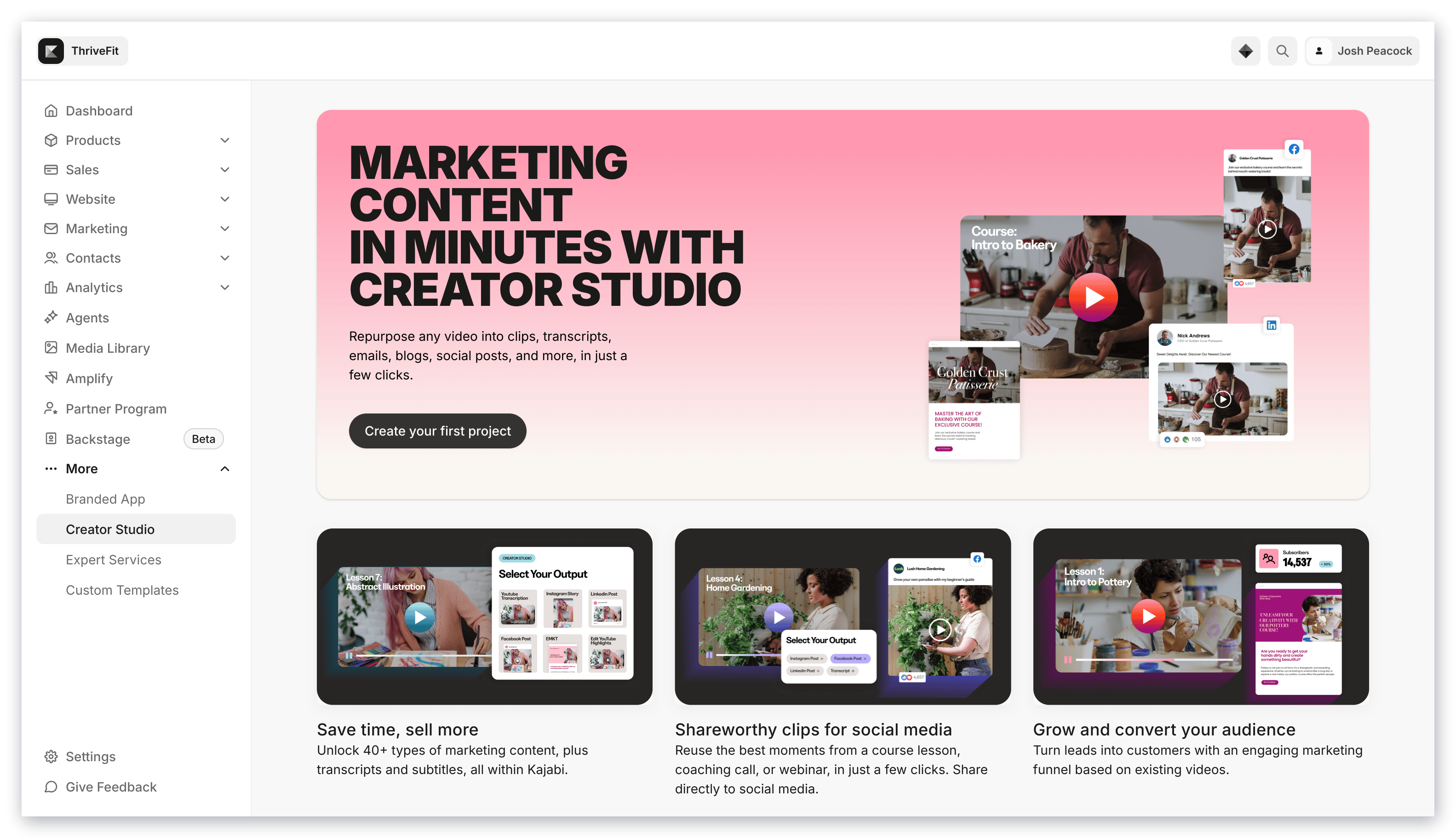
**Creator Studio** helps you repurpose any video into clips, transcripts, emails, blogs, social posts, and more in just a few clicks. Reach more people in less time by creating content for every channel — social media clips, blog posts, emails, landing page copy, and beyond.
With just a few clicks, you can have enough content to market your Course, Podcast, Community, or Coaching services for weeks.
 ### How does it work?
To get started, select a video to repurpose.
You can select an existing Course video from within Kajabi, upload a video directly to Creator Studio, select a Recent File, or paste a YouTube URL. When choosing an existing Course video, you can select from any draft or published content over one minute long.
Then, select what marketing content you want to generate based on this video. There are two types of content that you can generate:
* Written-based content (e.g., blog post, email)
* Video clips
You may select up to fifteen types of content. All content repurposed from the same video will live in the same project.
### How does it work?
To get started, select a video to repurpose.
You can select an existing Course video from within Kajabi, upload a video directly to Creator Studio, select a Recent File, or paste a YouTube URL. When choosing an existing Course video, you can select from any draft or published content over one minute long.
Then, select what marketing content you want to generate based on this video. There are two types of content that you can generate:
* Written-based content (e.g., blog post, email)
* Video clips
You may select up to fifteen types of content. All content repurposed from the same video will live in the same project.
 ### Create written-based content
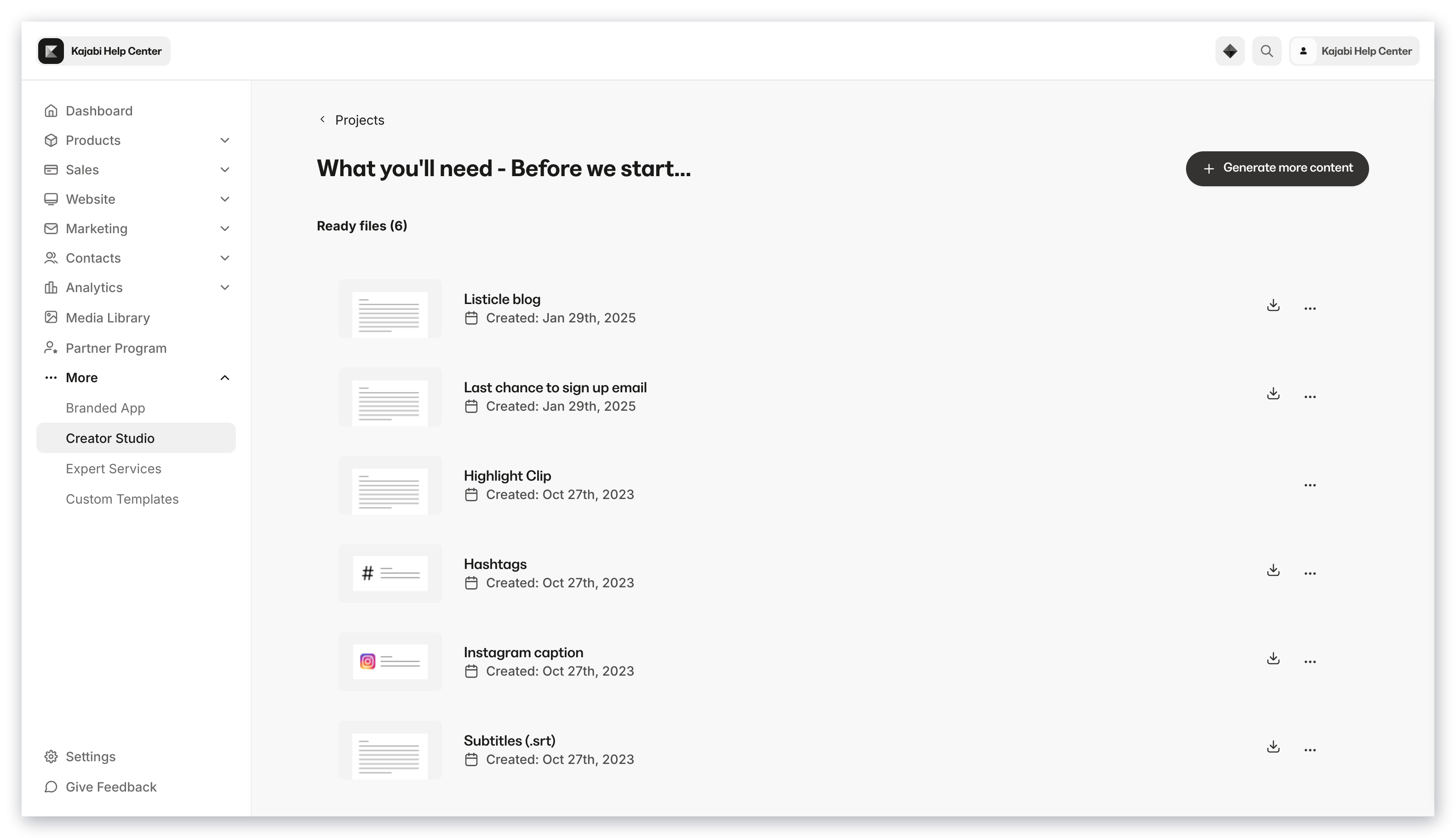
1. Select the written content you want to generate
2. Select **Create**
### Create written-based content
1. Select the written content you want to generate
2. Select **Create**
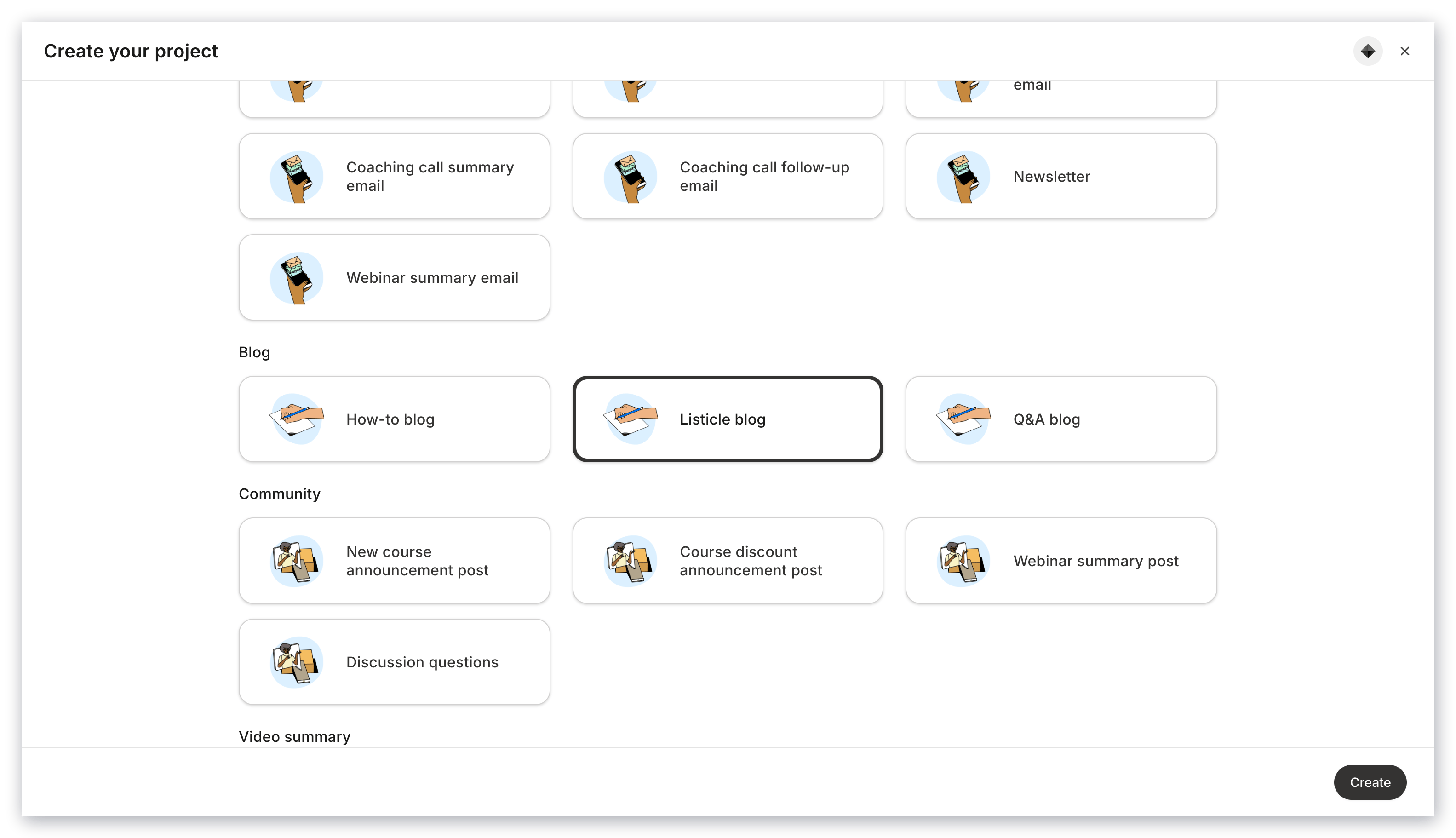 3. Open the project and select the text thumbnail to view the written content
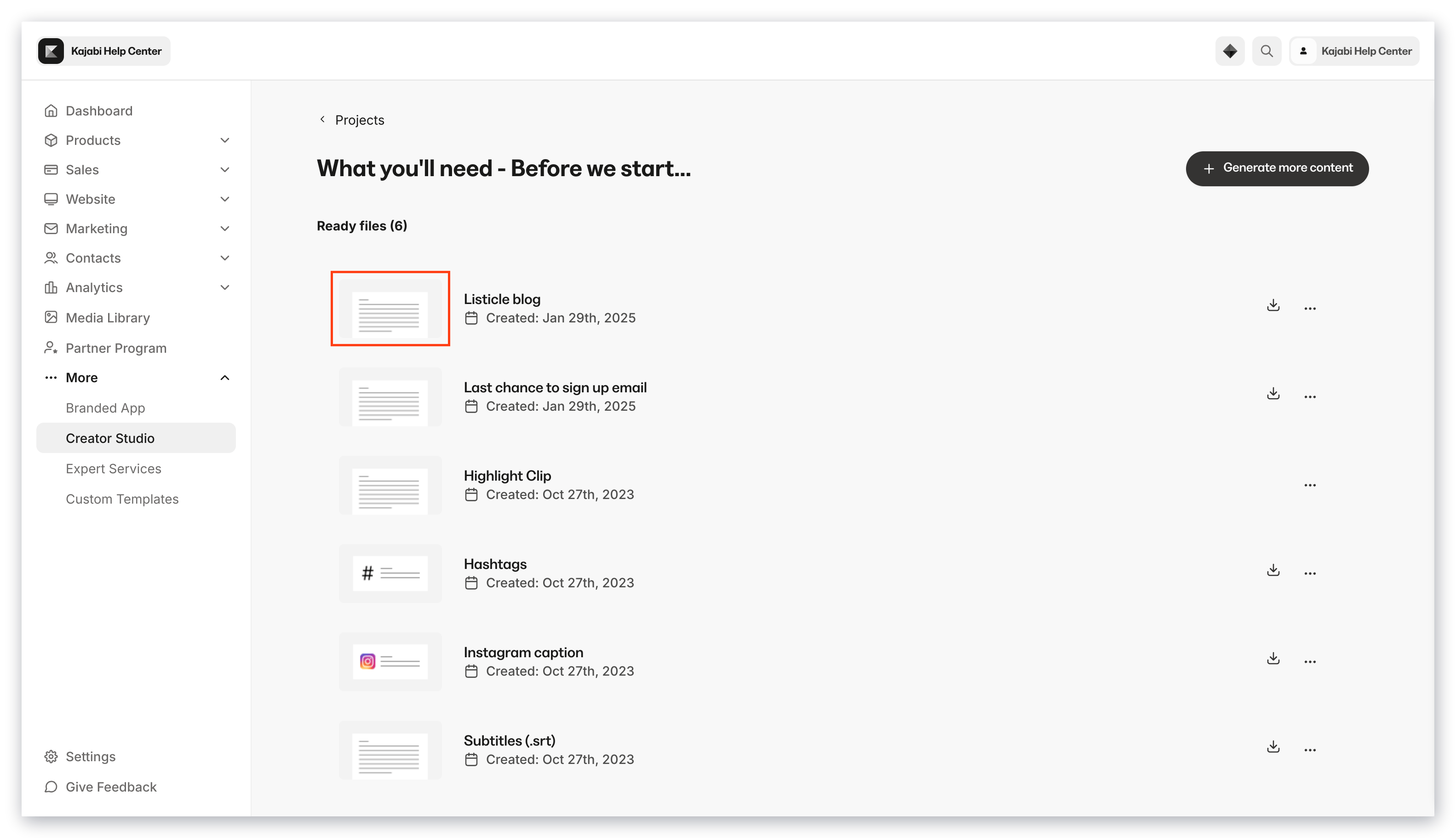 4. Edit the content, save the changes, copy the content, and regenerate the content as needed
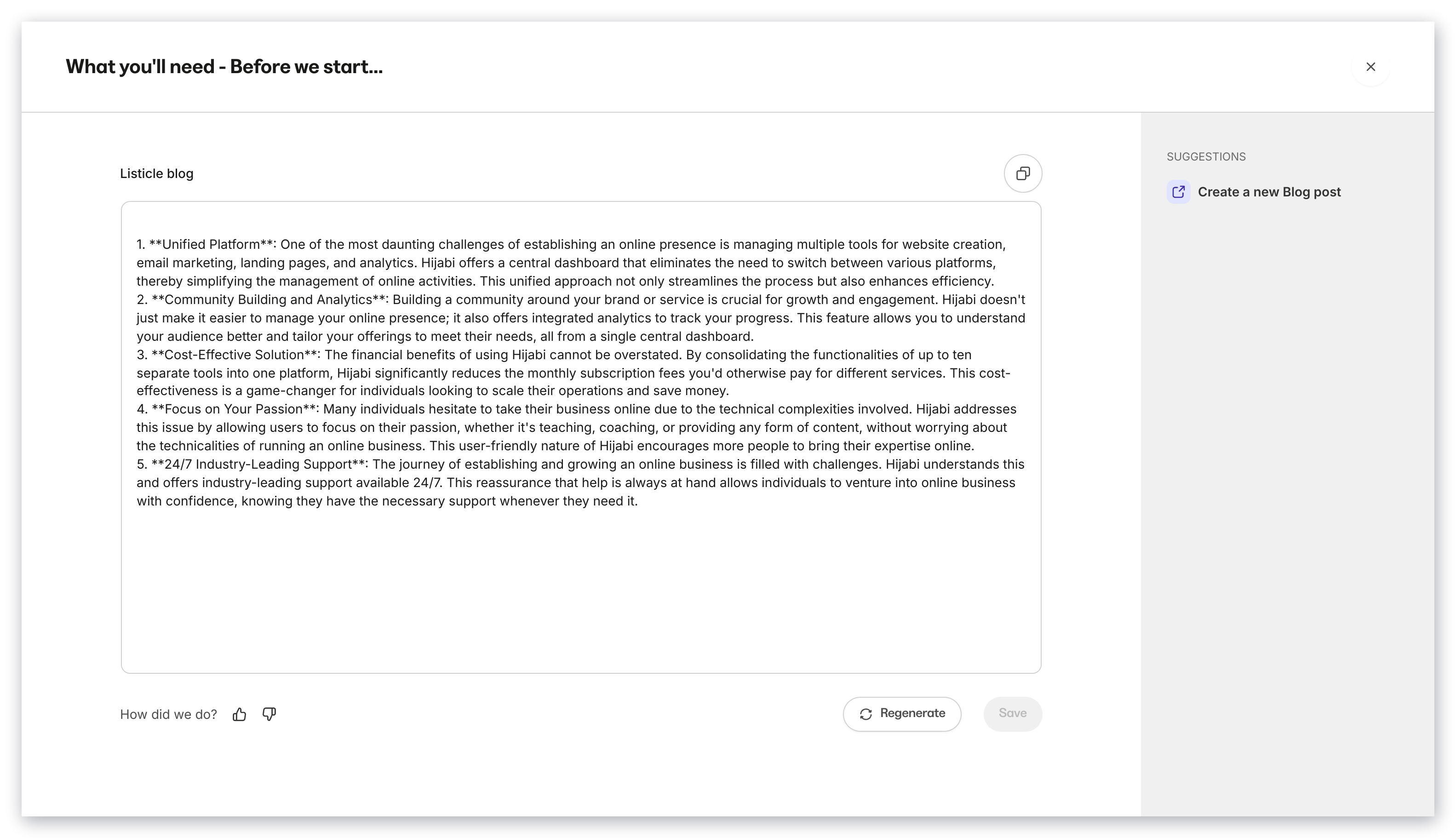 Creator Studio also gives you suggestions for next steps such as creating a blog post with the listicle blog post text. Select the suggestion to open it in a tab.
Then, select the **Copy** icon to copy the text to your clipboard so you can paste it into your email.
### Create a video clip
1. Select **Video clip** when creating a project or when adding media to an existing project
Creator Studio also gives you suggestions for next steps such as creating a blog post with the listicle blog post text. Select the suggestion to open it in a tab.
Then, select the **Copy** icon to copy the text to your clipboard so you can paste it into your email.
### Create a video clip
1. Select **Video clip** when creating a project or when adding media to an existing project
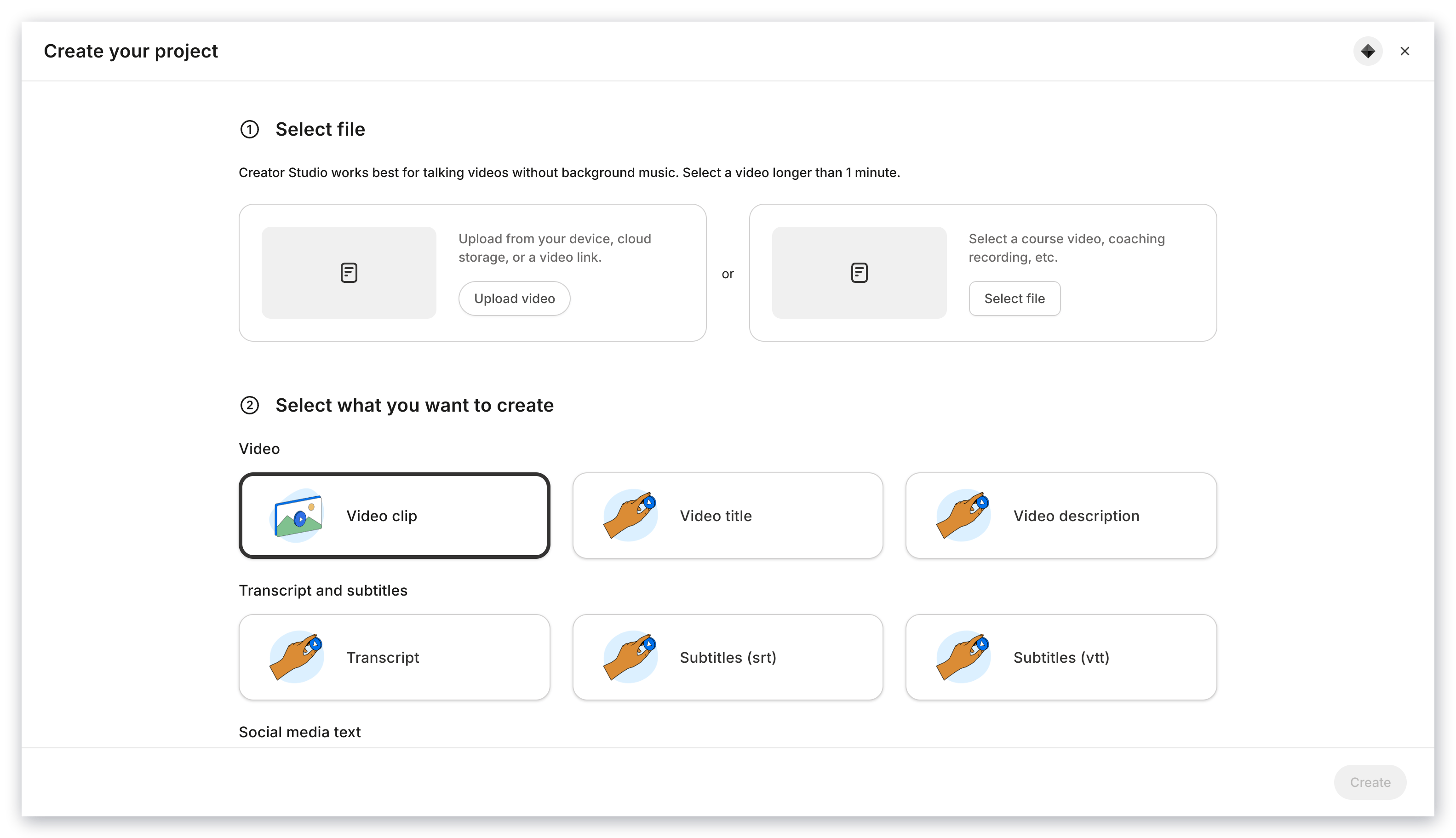 2. Click **Clip video** to open the Creator Studio Script Editor
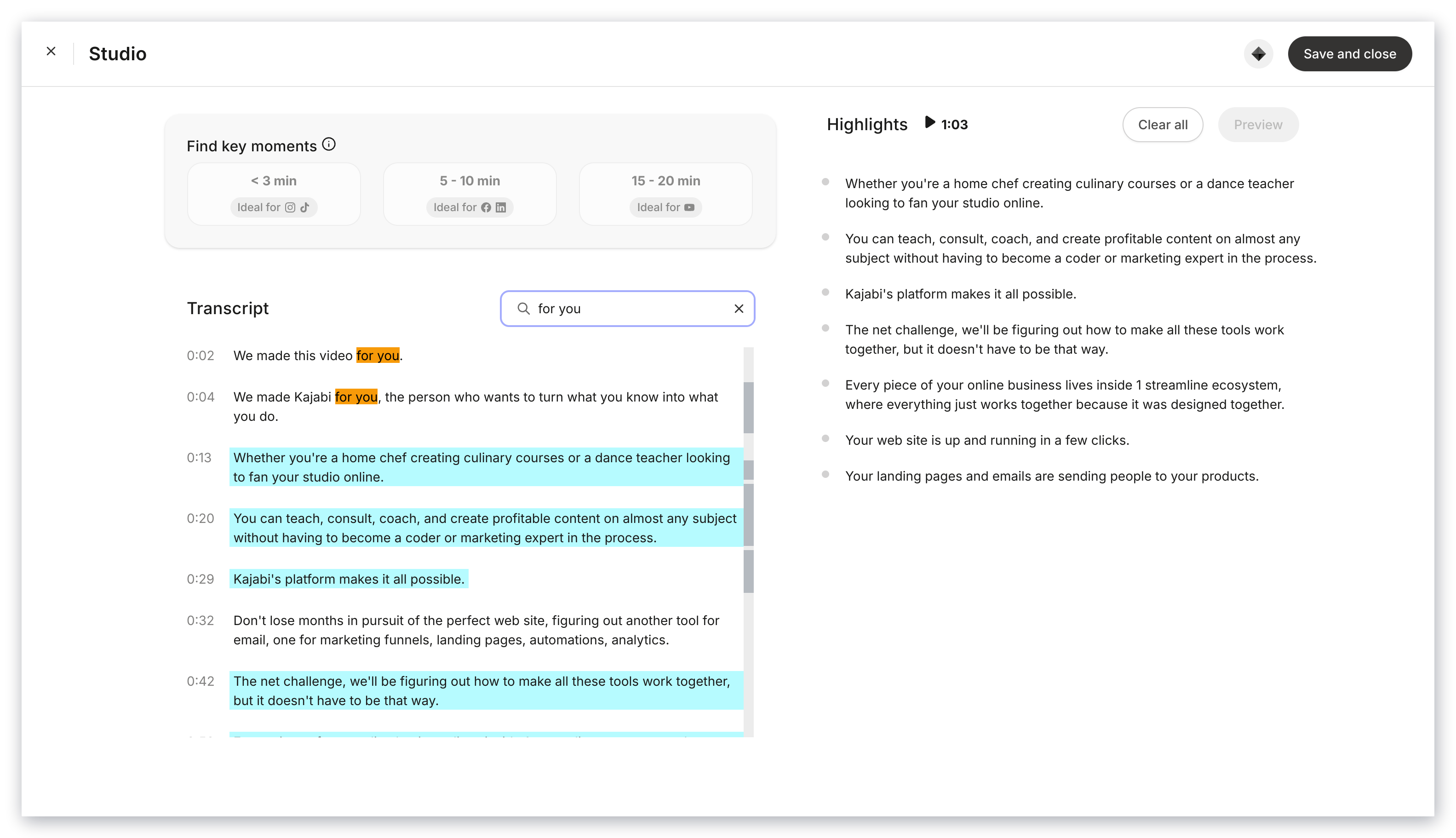
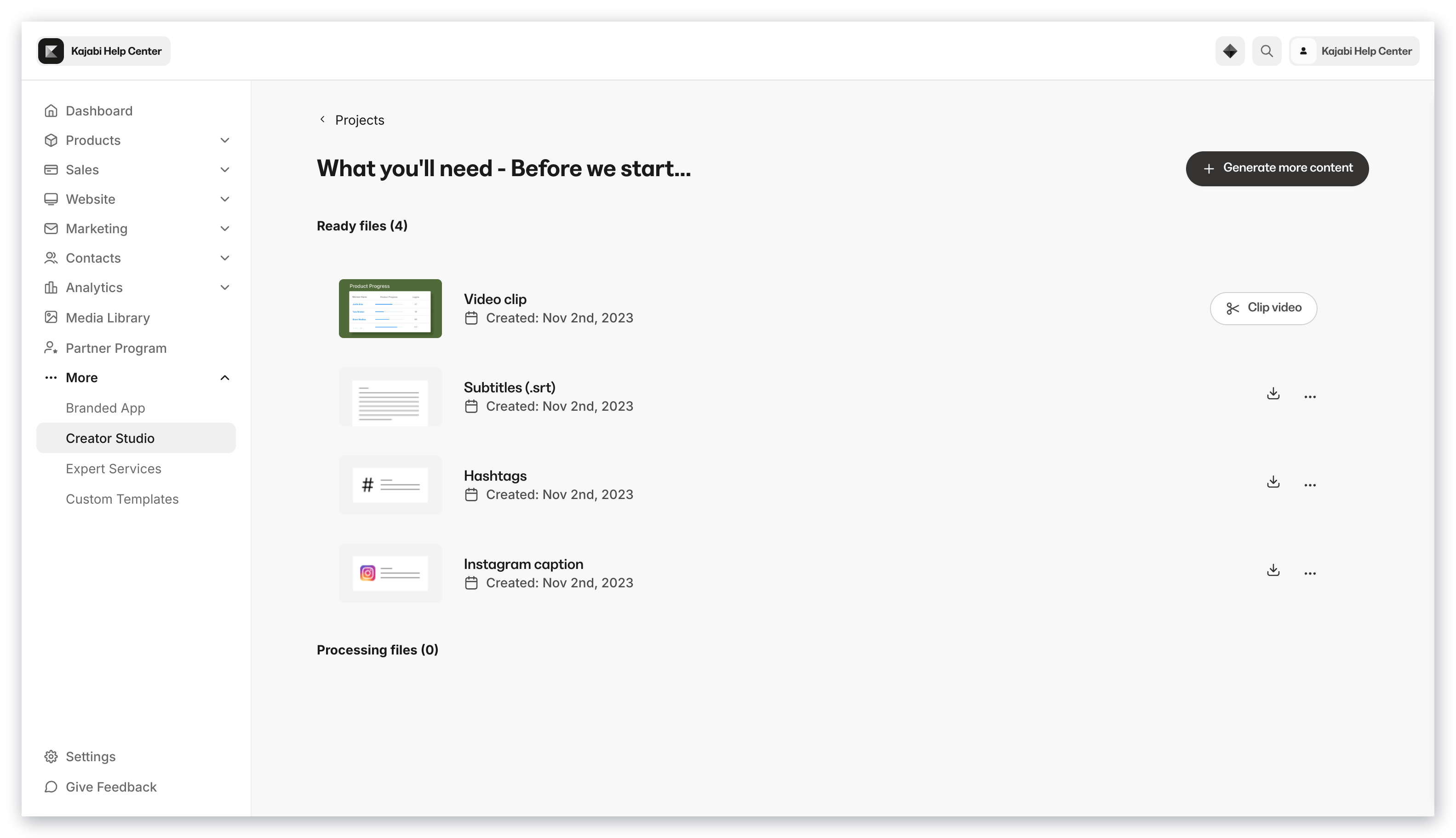 From the Script Editor, you can view the video's entire transcript, download the transcript and subtitles of the full video, and select highlights with just a click to create a video clip:
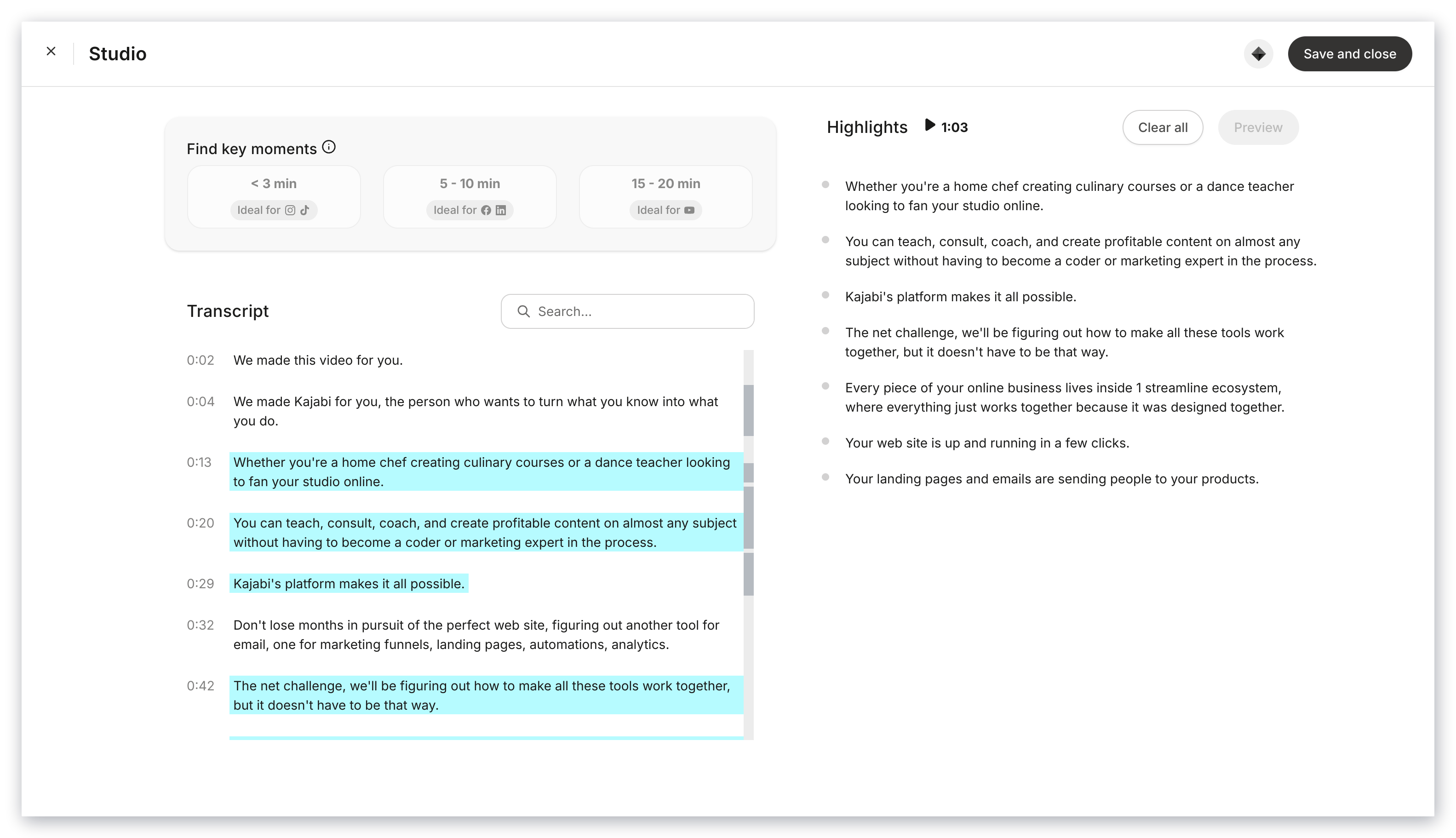 You can also use the integrated AI key moments feature. Creator Studio suggests highlights based on the intended length of your final video clip. For every video, the AI can only make three unique Auto-Highlight selections based on those lengths. For example, asking the AI to Auto-Highlight less than three minutes again will result in the same sentences being highlighted.
### Change or remove auto-selected highlights
You can remove any highlight, whether it's one you've made or one the AI suggested. Use the left highlight pane to navigate to where the highlight appears in the original transcript. Selecting the highlight in the transcript again will remove it from your list.
When you are satisfied with the highlights you want to use, click **Save and close**, and Kajabi will start processing your video clip. Kajabi will do this completely in the background. While the clip is being generated, you can safely create another video clip using different highlights or leave Creator Studio or the Kajabi app.
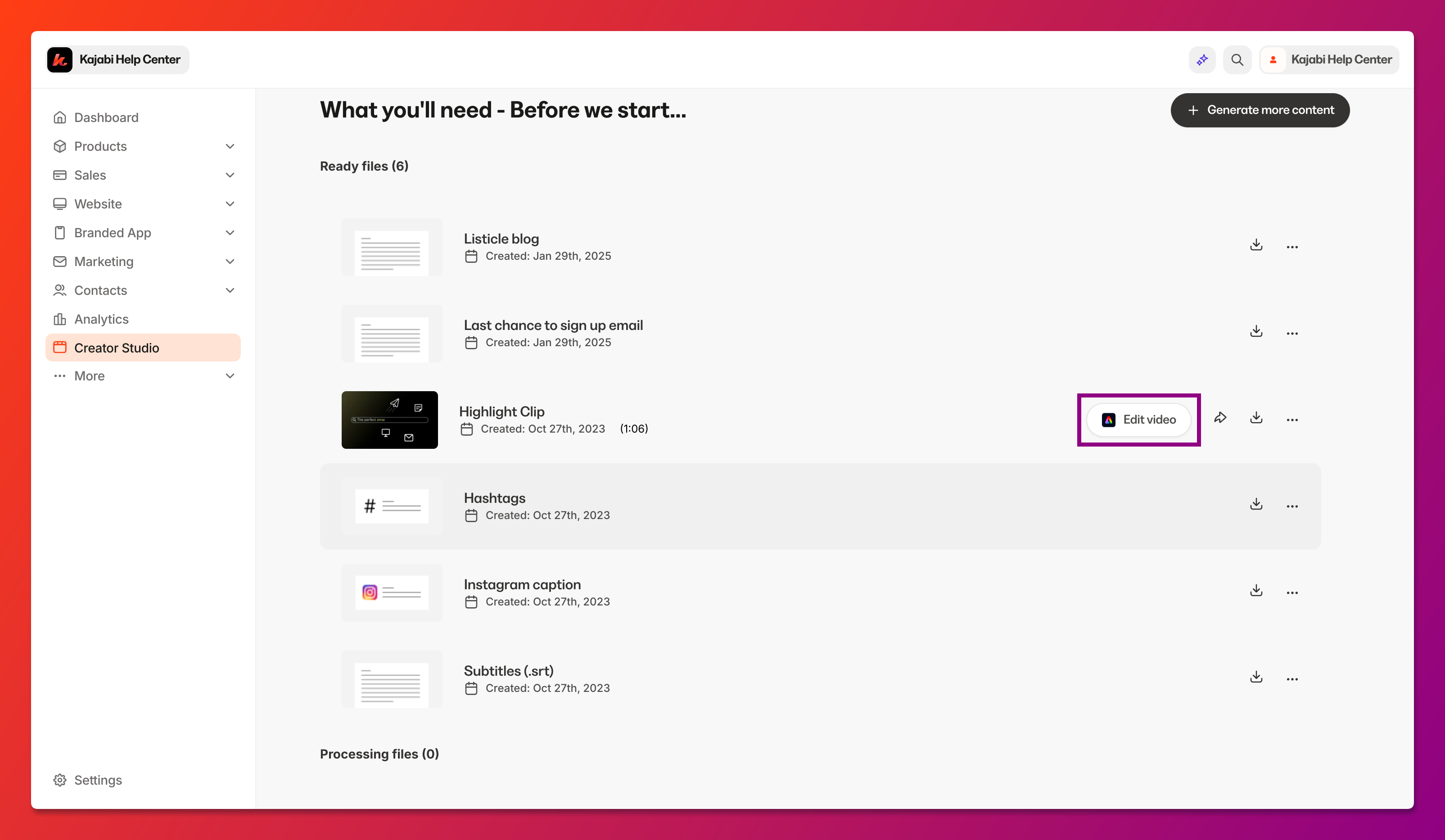
After generating your video clips, you can preview the clip, adjust the layout for different social media platforms, customize the clip using the integrated Adobe Express editor, rename the clip, download the clip, download the clip's transcripts and subtitles, or share the clip to Facebook, Instagram, and LinkedIn.
To adjust the layout for different social media platforms, add text, add animated transitions, and make other customizations, select **Edit video**:
You can also use the integrated AI key moments feature. Creator Studio suggests highlights based on the intended length of your final video clip. For every video, the AI can only make three unique Auto-Highlight selections based on those lengths. For example, asking the AI to Auto-Highlight less than three minutes again will result in the same sentences being highlighted.
### Change or remove auto-selected highlights
You can remove any highlight, whether it's one you've made or one the AI suggested. Use the left highlight pane to navigate to where the highlight appears in the original transcript. Selecting the highlight in the transcript again will remove it from your list.
When you are satisfied with the highlights you want to use, click **Save and close**, and Kajabi will start processing your video clip. Kajabi will do this completely in the background. While the clip is being generated, you can safely create another video clip using different highlights or leave Creator Studio or the Kajabi app.
After generating your video clips, you can preview the clip, adjust the layout for different social media platforms, customize the clip using the integrated Adobe Express editor, rename the clip, download the clip, download the clip's transcripts and subtitles, or share the clip to Facebook, Instagram, and LinkedIn.
To adjust the layout for different social media platforms, add text, add animated transitions, and make other customizations, select **Edit video**:
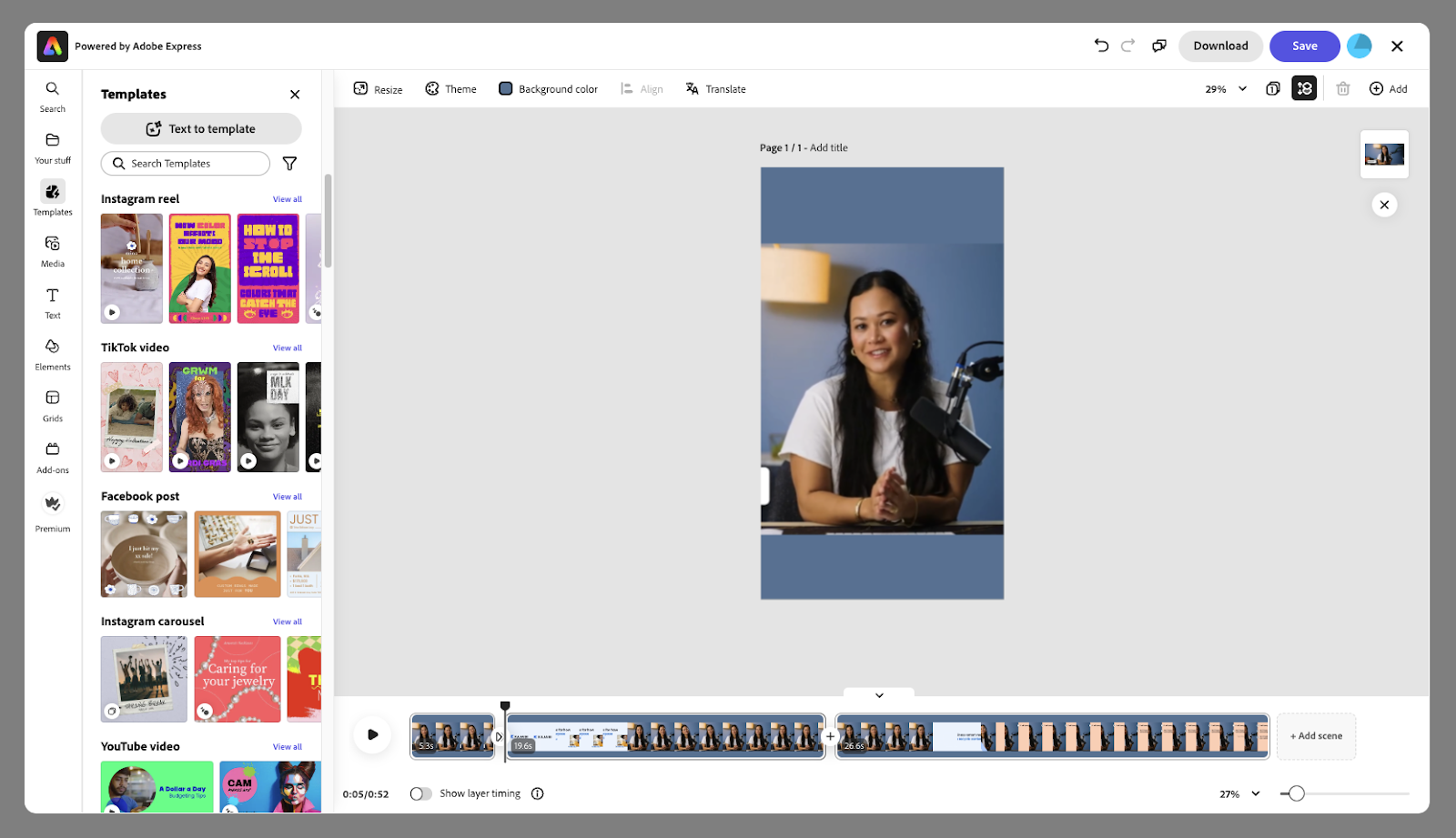
 In this video editor, you can also trim your video, upload a logo, add text, and change the background color:
 ## Repurpose any video
### Get started with Creator Studio
1. Open the **Creator Studio** tab from your Dashboard
2. Select **Create your first project** or **+ New Project**
3. Click **Upload a video** or **Select a recent file**
## Repurpose any video
### Get started with Creator Studio
1. Open the **Creator Studio** tab from your Dashboard
2. Select **Create your first project** or **+ New Project**
3. Click **Upload a video** or **Select a recent file**
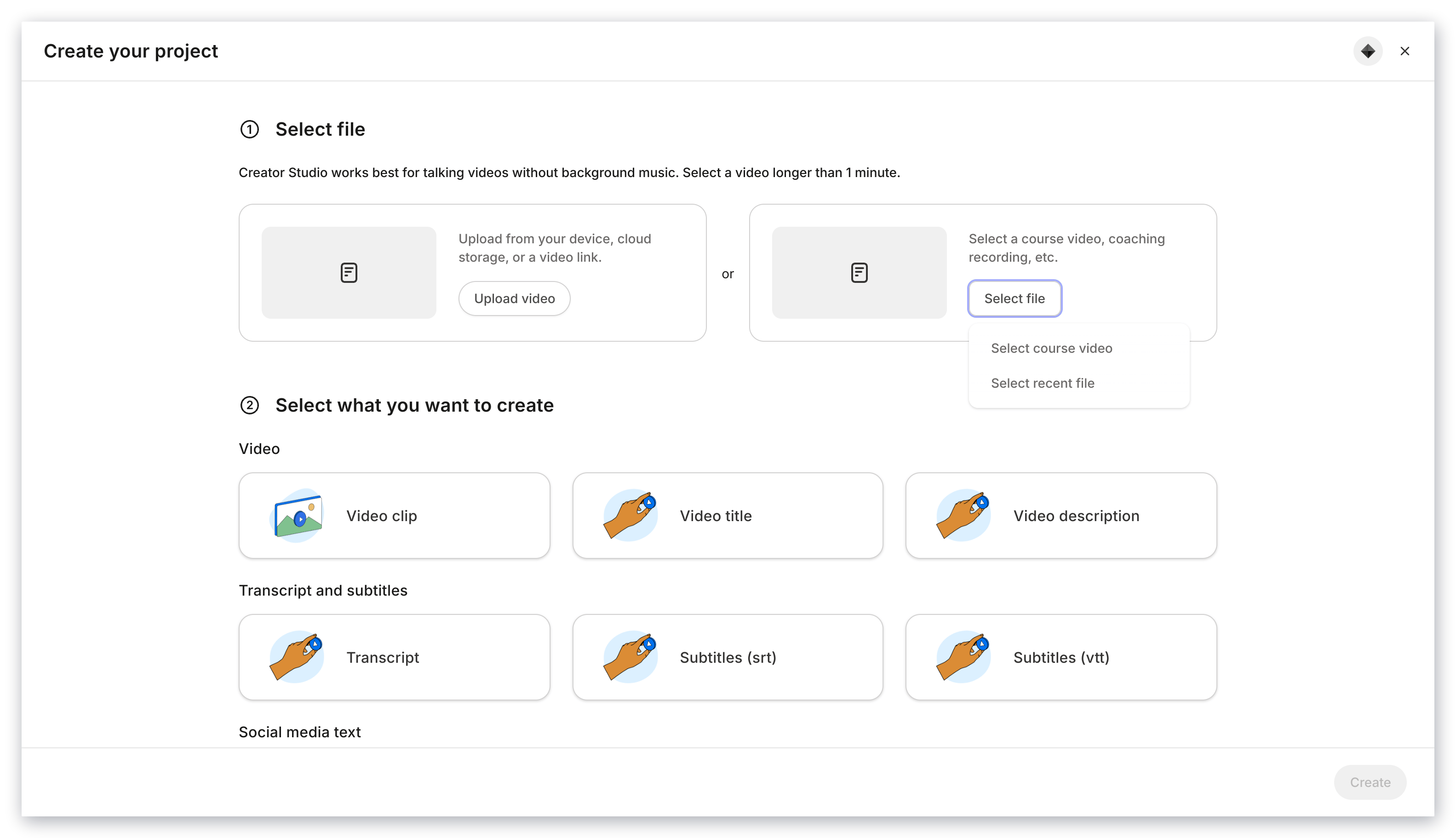 4. After selecting the video, review it
5. Select the content you want to create from this video
6. Click **Create** to generate your content
Not sure where to start? You can upload the following:
* YouTube video
* Coaching recording
* Webinar recording
* Livestream recording
* Community meetup recording — [Learn more about Community meetups](../../products/community/create-a-community-meetup)
There are two ways to repurpose a Kajabi Community meetup recording using Creator Studio:
* Using a video link
* Using the downloaded video file
### Use a video link
1. Log into your Community
2. Go to the **Meetups** tab
3. Hover over the recording you want to use
4. Copy the video link
5. Create a **Creator Studio** project
6. Paste the video link
### Use the downloaded video file
1. Log into your Community
2. Go to the **Meetups** tab
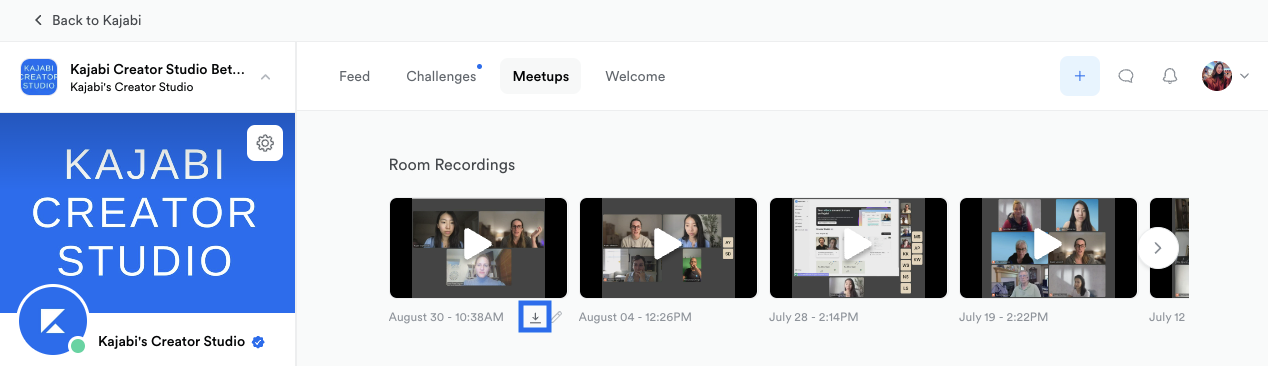
3. Hover over the recording you want to download
4. Select **Download**
4. After selecting the video, review it
5. Select the content you want to create from this video
6. Click **Create** to generate your content
Not sure where to start? You can upload the following:
* YouTube video
* Coaching recording
* Webinar recording
* Livestream recording
* Community meetup recording — [Learn more about Community meetups](../../products/community/create-a-community-meetup)
There are two ways to repurpose a Kajabi Community meetup recording using Creator Studio:
* Using a video link
* Using the downloaded video file
### Use a video link
1. Log into your Community
2. Go to the **Meetups** tab
3. Hover over the recording you want to use
4. Copy the video link
5. Create a **Creator Studio** project
6. Paste the video link
### Use the downloaded video file
1. Log into your Community
2. Go to the **Meetups** tab
3. Hover over the recording you want to download
4. Select **Download**
 5. Create a **Creator Studio** project
6. Select **Upload a video**
7. Select that video file
**Note:**
* Videos shorter than one minute or longer than 4 hours cannot be used to generate video clips with Creator Studio. [Learn more about video formats accepted by Kajabi](../../products/courses/video-formats-supported-by-kajabi)
* Draft lessons with video are available in Creator Studio. If your Course does not contain video lessons it will not be available to use in Creator Studio.
* Only Coaching recordings embedded in the Details tab will be available to select, not recordings uploaded as attachments in resources.
## FAQs
### Can I use videos other than Course videos?
Yes, you can upload any video to Creator Studio, as long as it is longer than 1 minute, shorter than 4 hours, and less than 4 GB. [Learn more about video formats accepted by Kajabi](../../products/courses/video-formats-supported-by-kajabi).
### Can I use audio-only files?
Audio-only files are not supported.
### How does the AI suggest key moments?
Creator Studio will create a speech-to-text script of your video and identify complete sentences. It will then mix and match sentences until it can (1) create a clip under the desired duration, and (2) produce a fair summary of the entire video.
It's possible that if you do a great job summarizing a particular part of the video, the AI will pick that part for the clip. However, the app is not designed to favor one part of the video over another.
### Can I ask Kajabi to redo and make a new set of highlights?
At this time, the AI will always suggest the same set of highlights given the same Course video and desired duration.
### Is there a limit to the number of clips I can make?
No, you can make an unlimited amount of content (including video clips) per project. In other words, you can repurpose a single video into unlimited content.
### How can I quickly highlight sentences for a specific topic?
By using the search bar in the Script Editor, you can enter the name of your topic or a specific keyword. Then, quickly highlight the sentences pertaining to your topic by selecting them.
5. Create a **Creator Studio** project
6. Select **Upload a video**
7. Select that video file
**Note:**
* Videos shorter than one minute or longer than 4 hours cannot be used to generate video clips with Creator Studio. [Learn more about video formats accepted by Kajabi](../../products/courses/video-formats-supported-by-kajabi)
* Draft lessons with video are available in Creator Studio. If your Course does not contain video lessons it will not be available to use in Creator Studio.
* Only Coaching recordings embedded in the Details tab will be available to select, not recordings uploaded as attachments in resources.
## FAQs
### Can I use videos other than Course videos?
Yes, you can upload any video to Creator Studio, as long as it is longer than 1 minute, shorter than 4 hours, and less than 4 GB. [Learn more about video formats accepted by Kajabi](../../products/courses/video-formats-supported-by-kajabi).
### Can I use audio-only files?
Audio-only files are not supported.
### How does the AI suggest key moments?
Creator Studio will create a speech-to-text script of your video and identify complete sentences. It will then mix and match sentences until it can (1) create a clip under the desired duration, and (2) produce a fair summary of the entire video.
It's possible that if you do a great job summarizing a particular part of the video, the AI will pick that part for the clip. However, the app is not designed to favor one part of the video over another.
### Can I ask Kajabi to redo and make a new set of highlights?
At this time, the AI will always suggest the same set of highlights given the same Course video and desired duration.
### Is there a limit to the number of clips I can make?
No, you can make an unlimited amount of content (including video clips) per project. In other words, you can repurpose a single video into unlimited content.
### How can I quickly highlight sentences for a specific topic?
By using the search bar in the Script Editor, you can enter the name of your topic or a specific keyword. Then, quickly highlight the sentences pertaining to your topic by selecting them.
 ### Can I download the script, subtitles, or captions?
Yes, you can download the full transcript and subtitle (.srt) file for any video you upload into Creator Studio. [Learn more](../../marketing/creator-studio/how-to-download-transcript-and-subtitles-with-creator-studio).
You can also download the transcript and subtitle (.srt) file for any Creator Studio clip you create. [Learn more](../../marketing/creator-studio/how-to-download-transcript-and-subtitles-with-creator-studio).
### Does the content I generate expire?
No, your content does not expire. You can download your content as long as you maintain your Kajabi subscription.
### Can I download the script, subtitles, or captions?
Yes, you can download the full transcript and subtitle (.srt) file for any video you upload into Creator Studio. [Learn more](../../marketing/creator-studio/how-to-download-transcript-and-subtitles-with-creator-studio).
You can also download the transcript and subtitle (.srt) file for any Creator Studio clip you create. [Learn more](../../marketing/creator-studio/how-to-download-transcript-and-subtitles-with-creator-studio).
### Does the content I generate expire?
No, your content does not expire. You can download your content as long as you maintain your Kajabi subscription.