> ## Documentation Index
> Fetch the complete documentation index at: https://help.kajabi.com/llms.txt
> Use this file to discover all available pages before exploring further.
# Customize Creator Studio clips
> Edit and enhance Creator Studio clips with the integrated Adobe Express editor.
Creator Studio integrates with **Adobe Express** so you can resize, trim, and enhance your video clips before sharing them. Use the built-in editor to adjust dimensions, add text, apply templates, and more — all without leaving Kajabi.
## Customize clips
1. First, create a highlight clip. [Learn more](../../marketing/creator-studio/how-to-build-your-creator-studio-clips)
2. Select **Edit video**
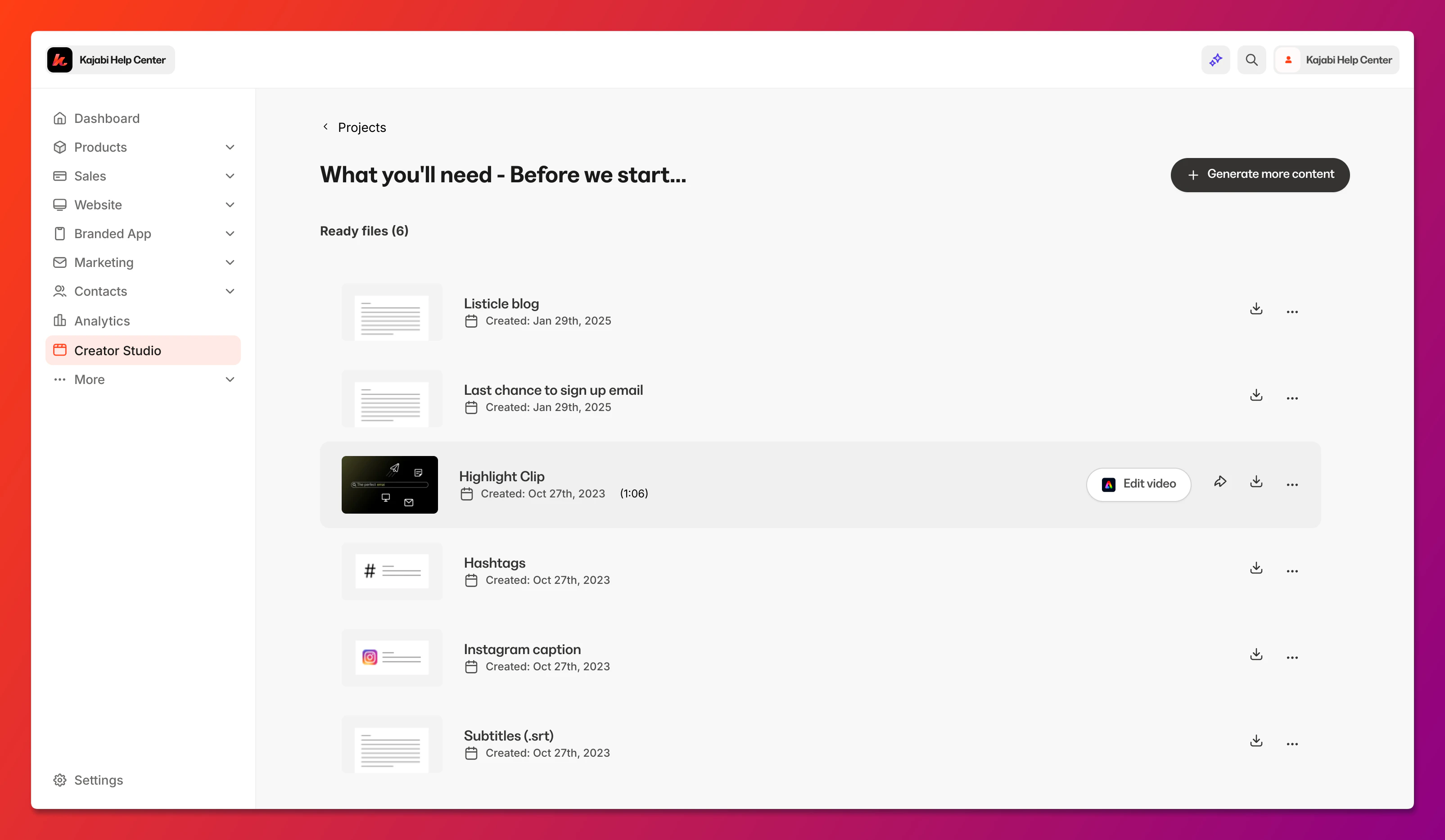 3. An Adobe Express pop-up will appear. Log in to an existing Adobe Express account, or create an account
4. Resize your video to your desired dimension. You may also trim the video and adjust the video scale
3. An Adobe Express pop-up will appear. Log in to an existing Adobe Express account, or create an account
4. Resize your video to your desired dimension. You may also trim the video and adjust the video scale
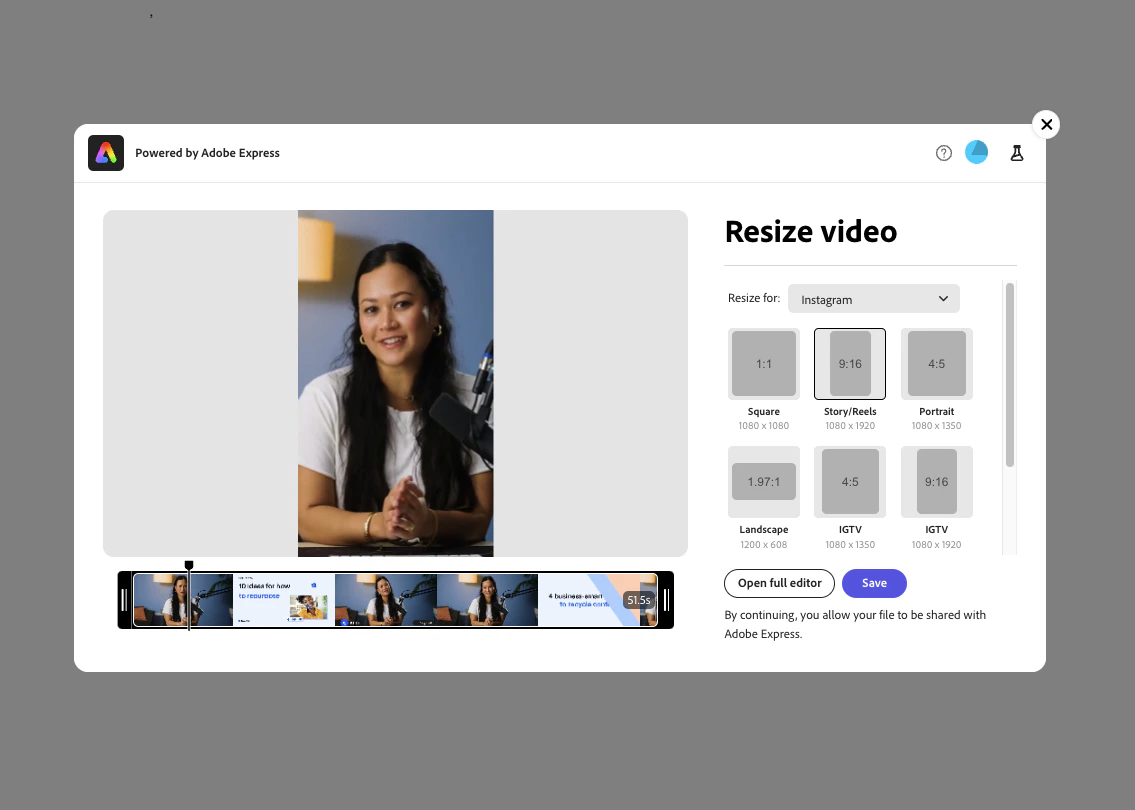 After resizing your video, click **Open in editor** to begin using all the editing features available with Adobe Express.
Features include:
* Templates
* Stock images and videos
* Video editing tools
[Learn more about Adobe Express](https://www.adobe.com/express/#level-up-with-adobe-express).
After resizing your video, click **Open in editor** to begin using all the editing features available with Adobe Express.
Features include:
* Templates
* Stock images and videos
* Video editing tools
[Learn more about Adobe Express](https://www.adobe.com/express/#level-up-with-adobe-express).
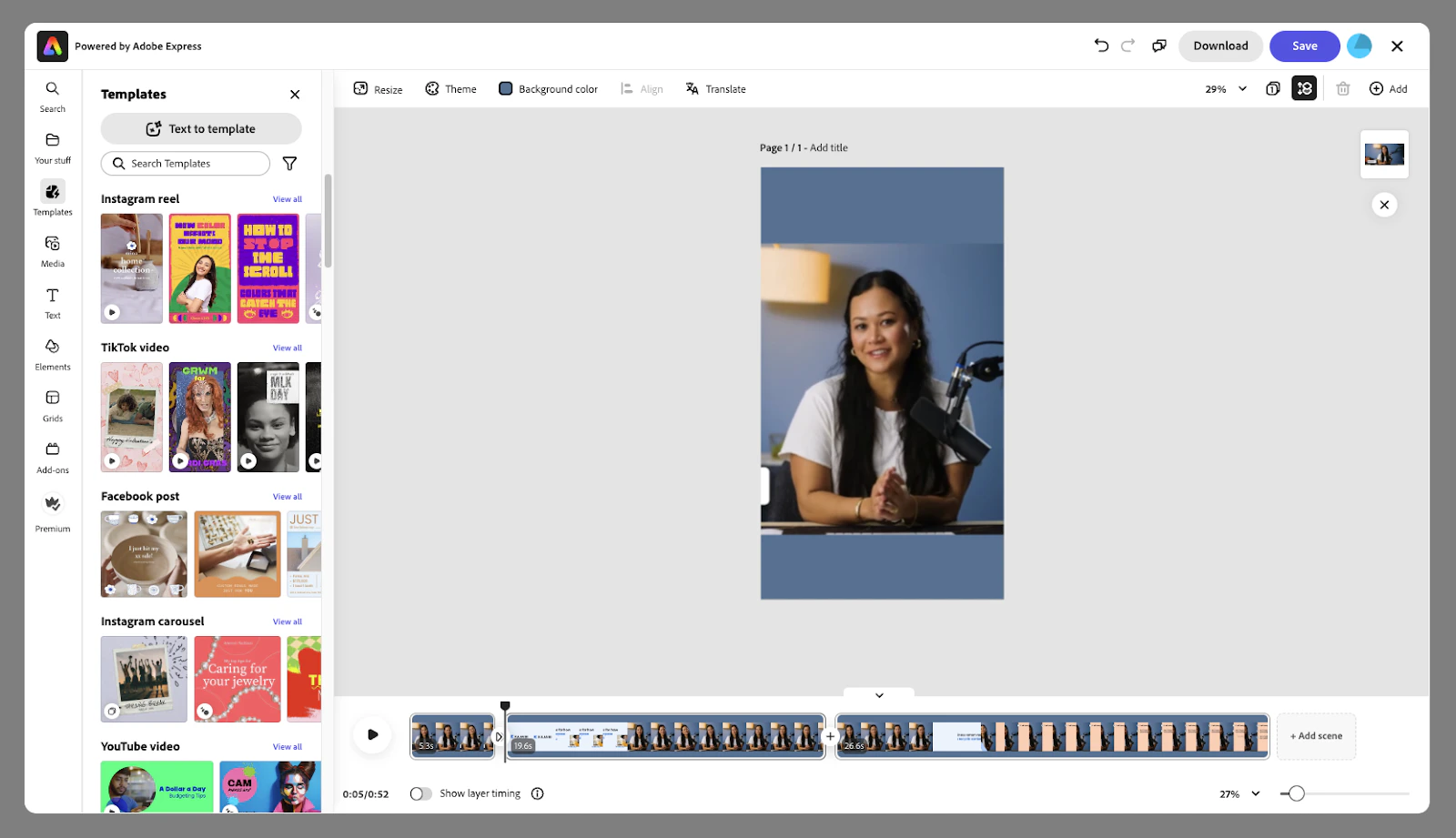 Now that you have edited your video with Adobe Express, click **Save** to save the video back to Kajabi.
The edited video clip will appear along with all of your other clips in your Creator Studio project.
You can rename the file, share it to social media, and easily add it to your landing page, website, and blog via [Recent Files](../../website/pages/how-to-upload-from-a-list-of-recent-videos-or-images).
## Schedule clips for social media
After you edit a video using Adobe Express, you can schedule your video to be posted on social media.
1. Go to [https://new.express.adobe.com/your-stuff/files](https://new.express.adobe.com/your-stuff/files)
2. Log in to your Adobe Express account
3. Open the file you wish to schedule
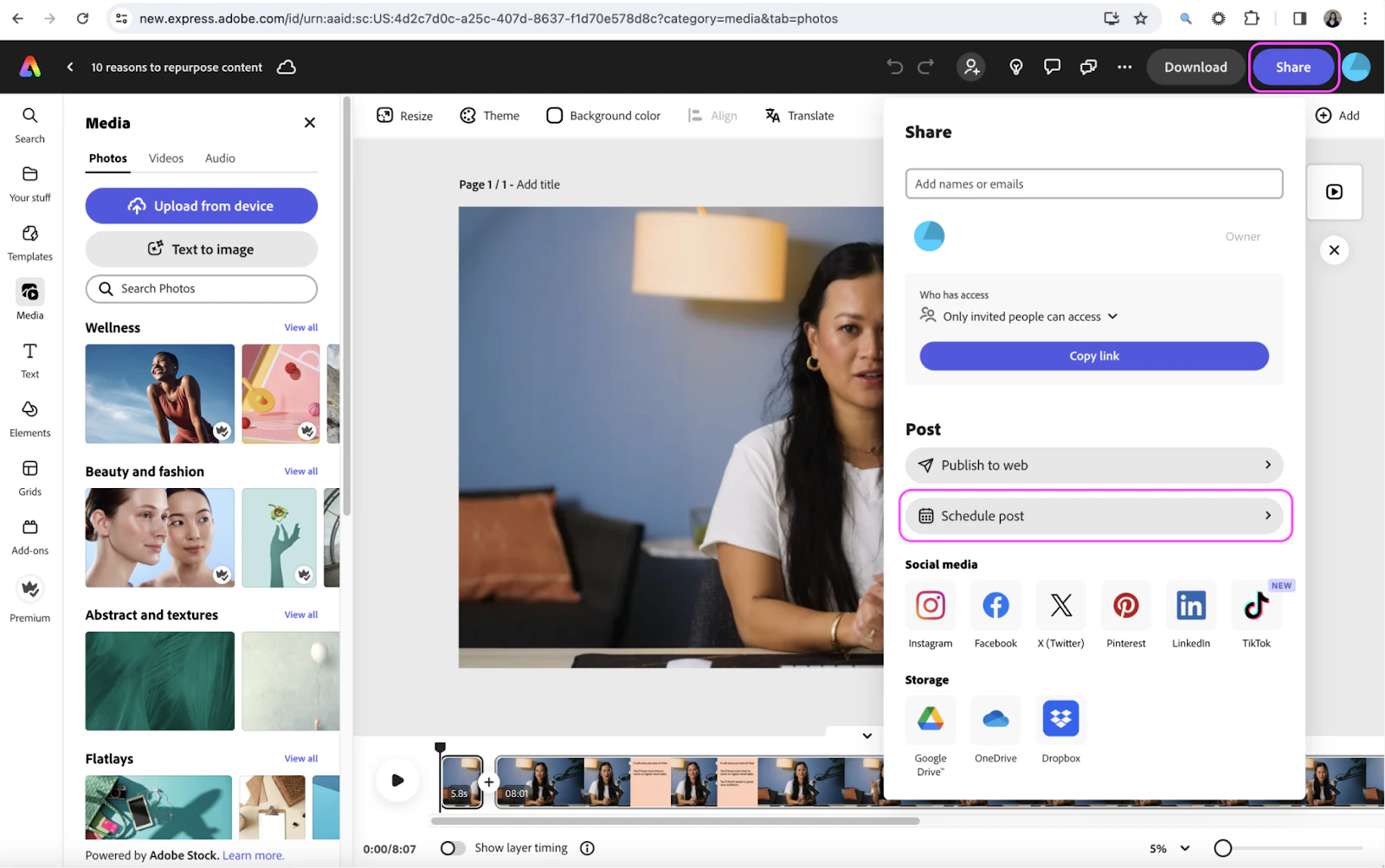
4. Select **Share**
5. Click **Schedule post**
Now that you have edited your video with Adobe Express, click **Save** to save the video back to Kajabi.
The edited video clip will appear along with all of your other clips in your Creator Studio project.
You can rename the file, share it to social media, and easily add it to your landing page, website, and blog via [Recent Files](../../website/pages/how-to-upload-from-a-list-of-recent-videos-or-images).
## Schedule clips for social media
After you edit a video using Adobe Express, you can schedule your video to be posted on social media.
1. Go to [https://new.express.adobe.com/your-stuff/files](https://new.express.adobe.com/your-stuff/files)
2. Log in to your Adobe Express account
3. Open the file you wish to schedule
4. Select **Share**
5. Click **Schedule post**
 ## Troubleshooting
### Edit with Adobe button is not visible
The **Edit with Adobe** button is only visible for highlight clips (i.e., videos that you have clipped).
In order to edit a video with Adobe, you must first select the sentences you want in your highlight video and then save that highlight video.
Then, you can edit that highlight video as many times as you'd like using Adobe Express.
### An error occurred while initializing Adobe Express
If this error occurs, try creating the highlight clip again.
To recreate the same highlight clip:
1. Select **New media**
2. Click **Video clip**
3. Select **Clip video** to select the sentences you want to include in your highlight clip. Creator Studio remembers the most recent set of sentences you selected
4. Click **Save and close** and wait for the highlight clip to finish processing
When the highlight clip is ready, you should see the **Edit with Adobe** button.
### File size is too big
In rare circumstances, video clip files that are too large will be unable to be loaded into the video editor.
Your video clip must be less than 1GB and shorter than 5 minutes. You can pick a different video clip, or make a smaller one with fewer highlights to use the video editor.
## Troubleshooting
### Edit with Adobe button is not visible
The **Edit with Adobe** button is only visible for highlight clips (i.e., videos that you have clipped).
In order to edit a video with Adobe, you must first select the sentences you want in your highlight video and then save that highlight video.
Then, you can edit that highlight video as many times as you'd like using Adobe Express.
### An error occurred while initializing Adobe Express
If this error occurs, try creating the highlight clip again.
To recreate the same highlight clip:
1. Select **New media**
2. Click **Video clip**
3. Select **Clip video** to select the sentences you want to include in your highlight clip. Creator Studio remembers the most recent set of sentences you selected
4. Click **Save and close** and wait for the highlight clip to finish processing
When the highlight clip is ready, you should see the **Edit with Adobe** button.
### File size is too big
In rare circumstances, video clip files that are too large will be unable to be loaded into the video editor.
Your video clip must be less than 1GB and shorter than 5 minutes. You can pick a different video clip, or make a smaller one with fewer highlights to use the video editor.