> ## Documentation Index
> Fetch the complete documentation index at: https://help.kajabi.com/llms.txt
> Use this file to discover all available pages before exploring further.
# Add downloadable files to emails
> Share resources, flyers, and additional information with your email recipients.
## Overview
Include downloadable files in your Email Broadcasts and Email Sequences to share resources, flyers, and additional information with your recipients.
**Note:** The maximum file size for any downloadable attachment in an Email Campaign is 1GB.
## Email Broadcast
Include a downloadable file in your **Email Broadcast** with both the **Classic Email Editor** and **Email Visual Editor**.
### Classic Editor
1. Create your [Email Broadcast](/articles/marketing/email-campaigns/create-an-email-broadcast).
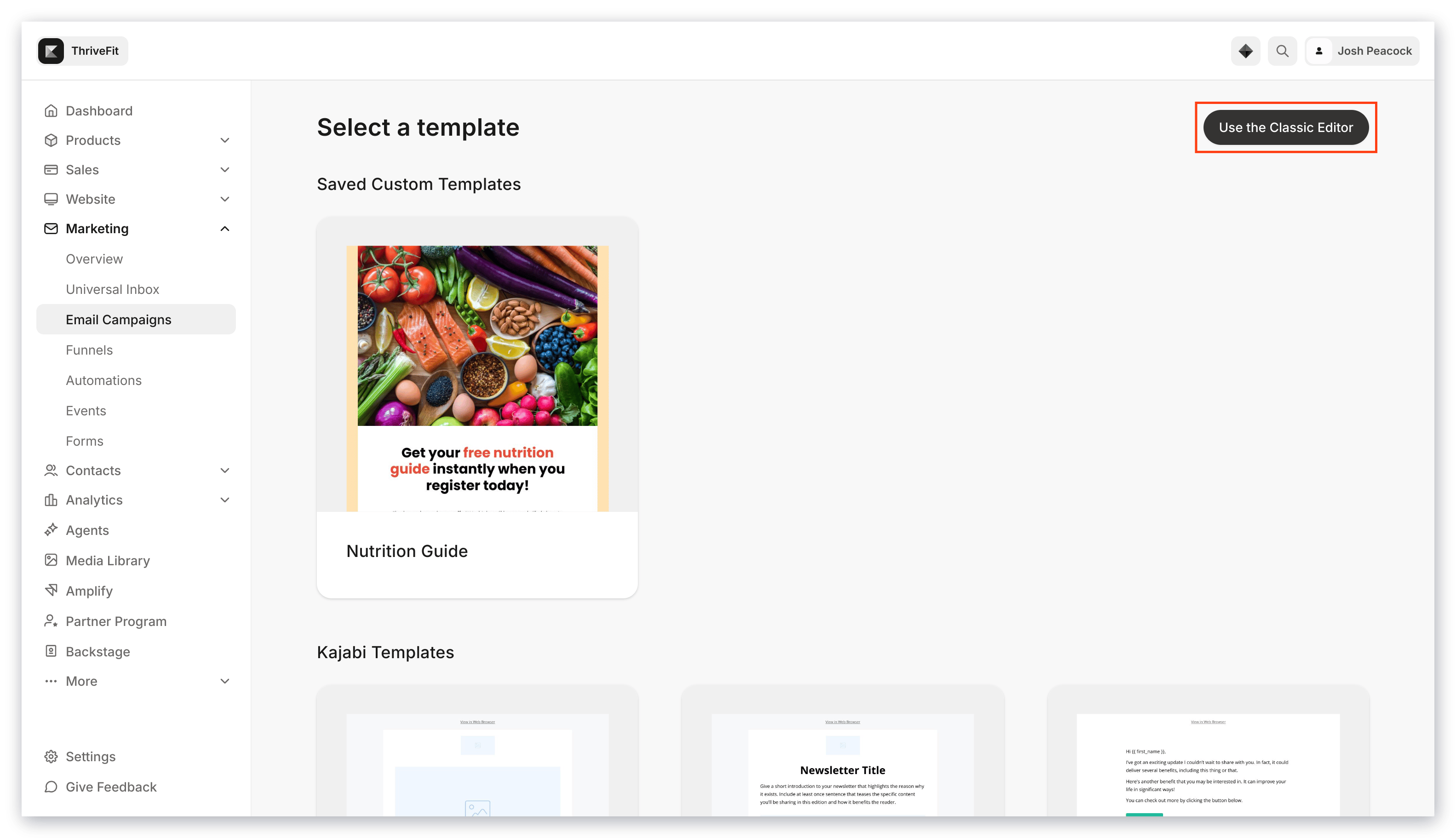
2. Select **Use the Classic Editor**:
 3. Enter an **Internal Title** for your Email Broadcast when prompted.
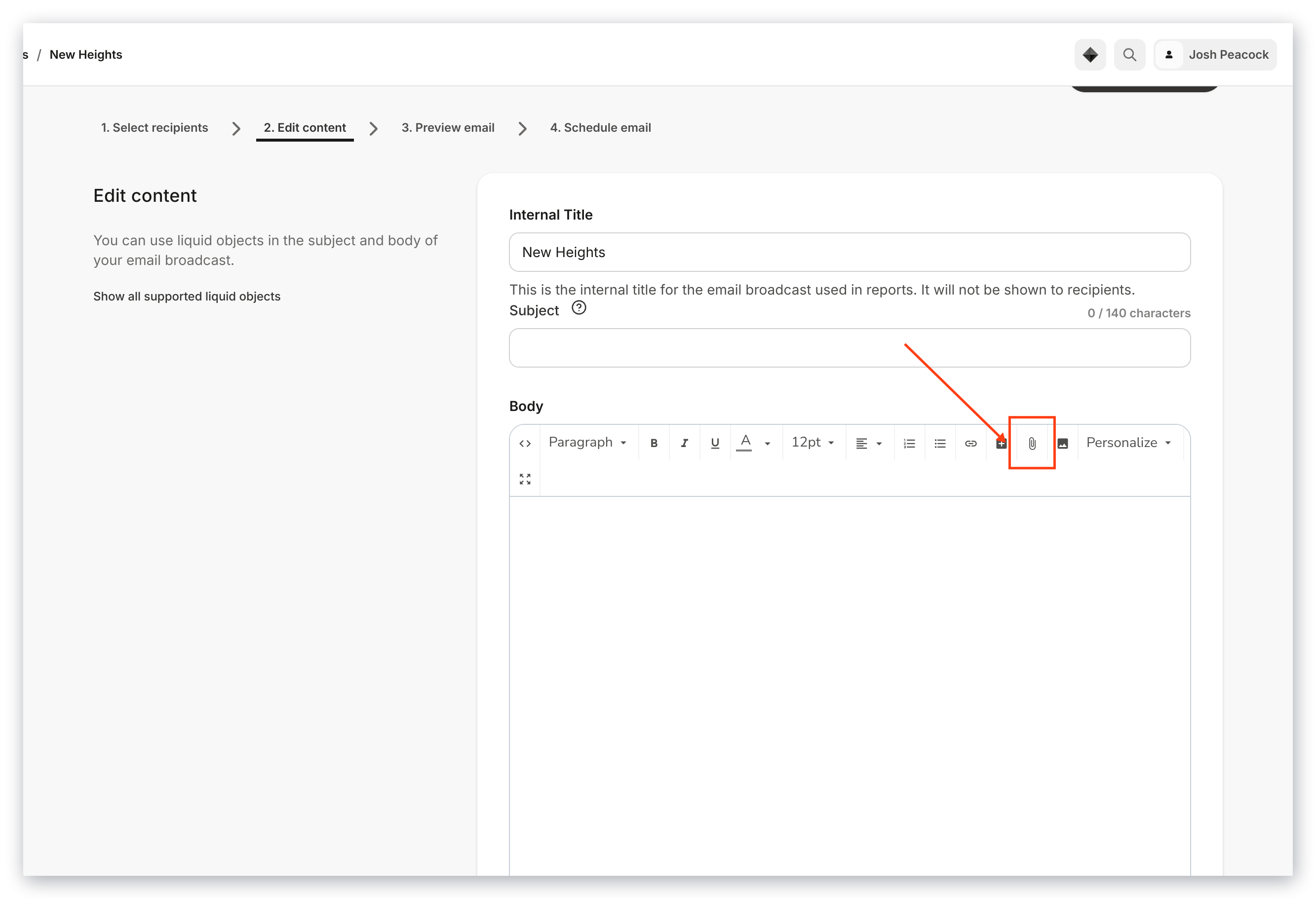
4. In Step 2 of your Email Broadcast, select the **paper clip icon**:
3. Enter an **Internal Title** for your Email Broadcast when prompted.
4. In Step 2 of your Email Broadcast, select the **paper clip icon**:
 5. Choose **File** from your computer or drag and drop.
6. Click **Open** to add your downloadable file to your Email Broadcast.
### Visual Editor
The [Email Visual Editor](/articles/marketing/email-campaigns/email-visual-editor-overview) gives you the flexibility and control to design your Email Broadcasts with your branding and design vision.
Add downloadable files within a variety of sections available with the Email Visual Editor:
* Add a Text Section
* Add a Button
* Add an Announcement
#### Add a Text Section to a broadcast
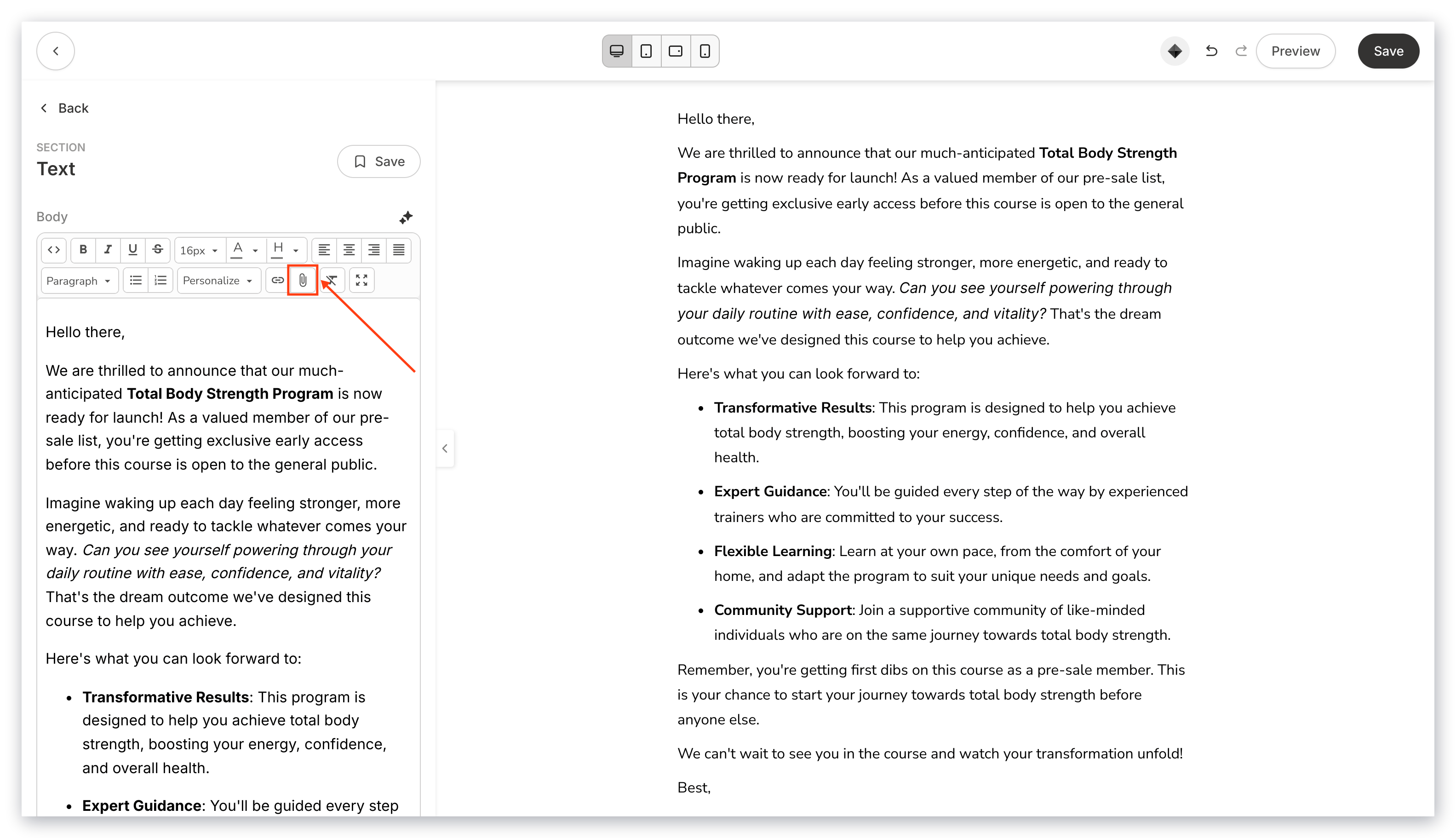
1. Click the **Paper Clip icon** to upload your file. This allows your recipients to select the text containing your file to download:
5. Choose **File** from your computer or drag and drop.
6. Click **Open** to add your downloadable file to your Email Broadcast.
### Visual Editor
The [Email Visual Editor](/articles/marketing/email-campaigns/email-visual-editor-overview) gives you the flexibility and control to design your Email Broadcasts with your branding and design vision.
Add downloadable files within a variety of sections available with the Email Visual Editor:
* Add a Text Section
* Add a Button
* Add an Announcement
#### Add a Text Section to a broadcast
1. Click the **Paper Clip icon** to upload your file. This allows your recipients to select the text containing your file to download:
 #### Add a Button to a broadcast
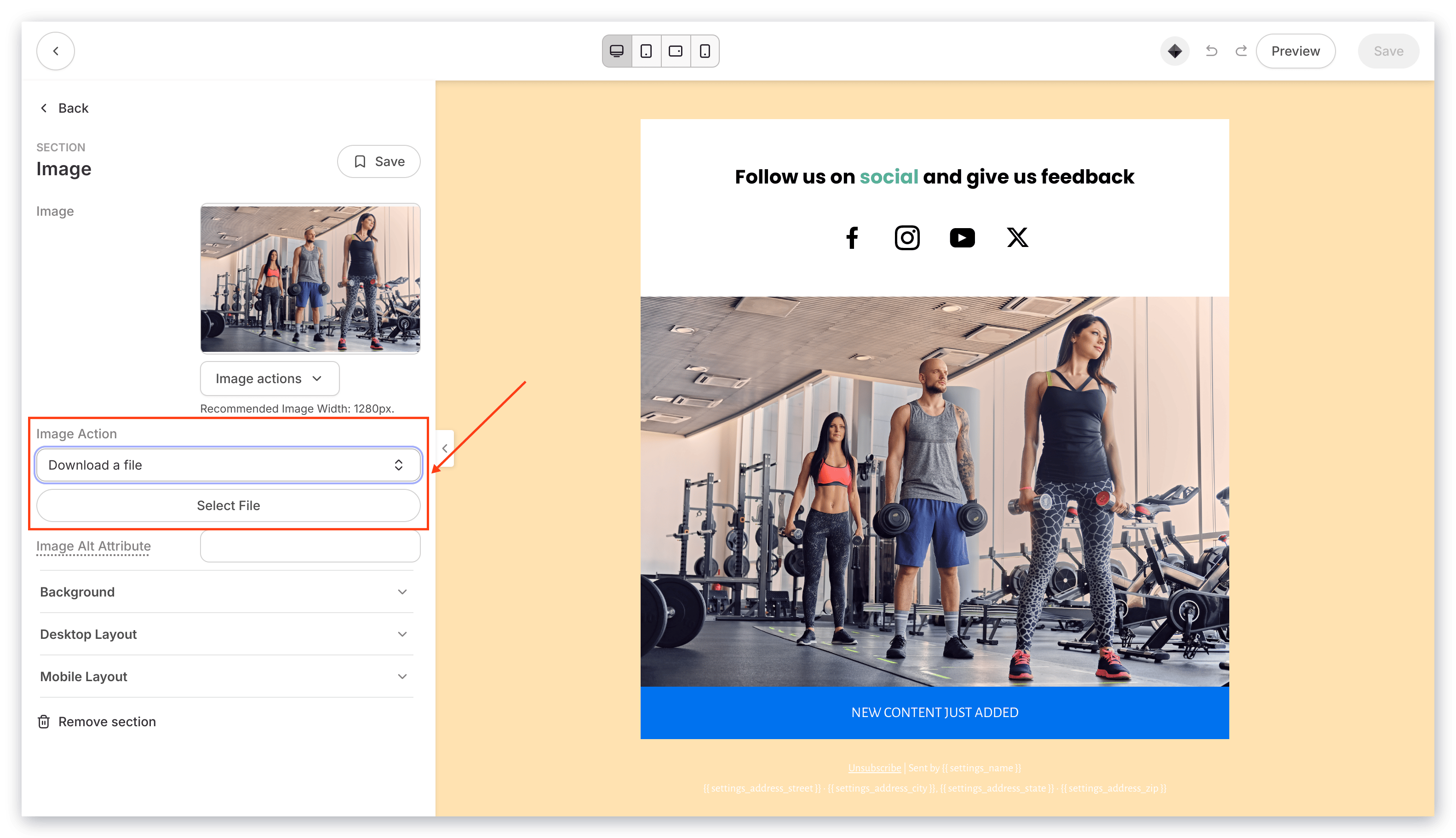
1. Open the **Link Action** dropdown menu and select **Download a file** to upload your file. This lets your recipients click a button to download your file:
#### Add a Button to a broadcast
1. Open the **Link Action** dropdown menu and select **Download a file** to upload your file. This lets your recipients click a button to download your file:
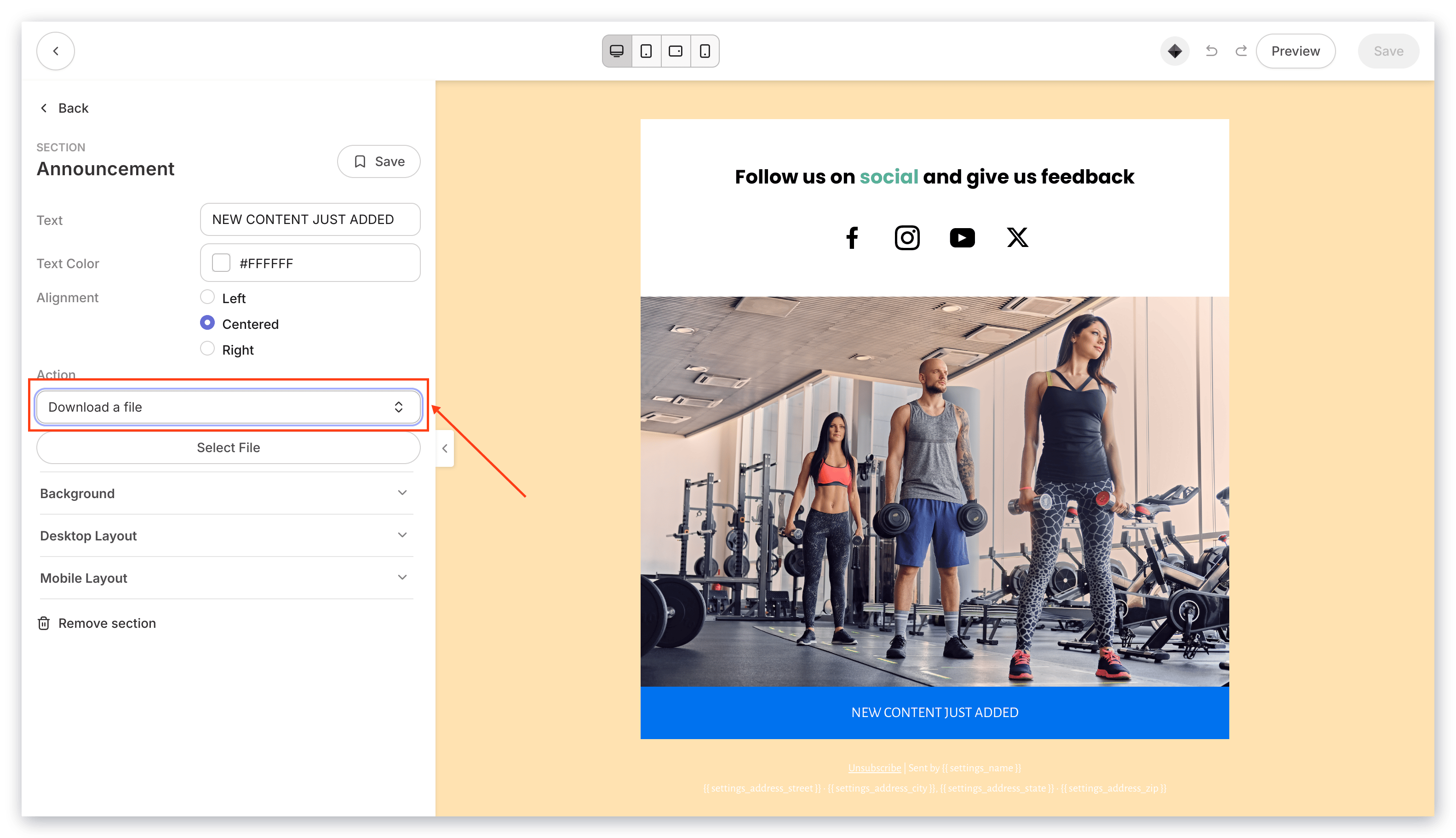
 #### Add an Announcement to a broadcast
1. Open the **Action** dropdown menu and select **Download a file** to upload your file. This lets your recipients click on the Announcement to download your file:
#### Add an Announcement to a broadcast
1. Open the **Action** dropdown menu and select **Download a file** to upload your file. This lets your recipients click on the Announcement to download your file:
 ## Email Sequence
### Add a downloadable file to an email sequence
1. Create your Email Sequence or select an existing one. Read [Create an Email Sequence](/articles/marketing/email-campaigns/create-an-email-sequence) for details.
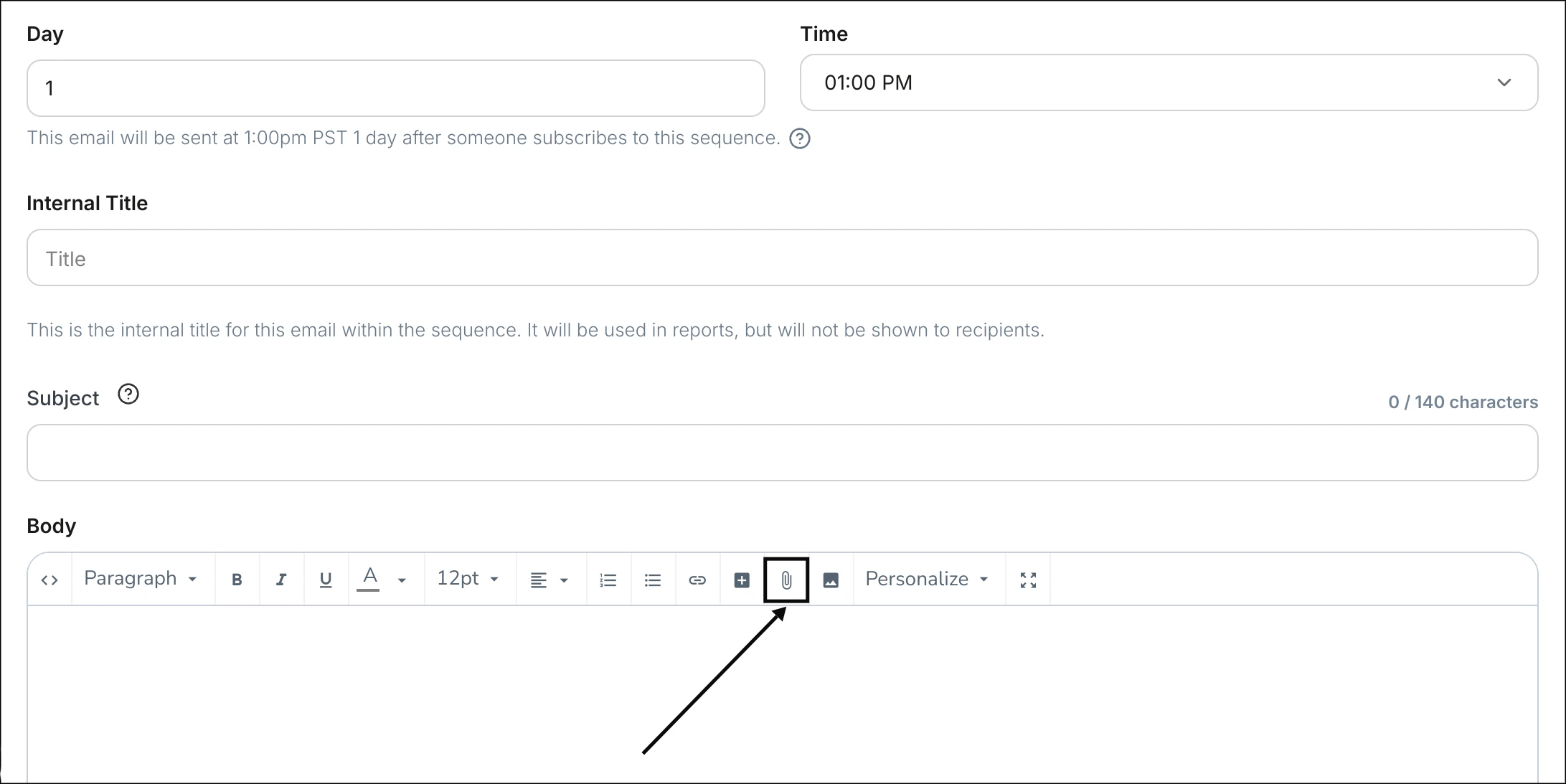
2. In the Email Editor for an individual email, select the paper clip icon:
## Email Sequence
### Add a downloadable file to an email sequence
1. Create your Email Sequence or select an existing one. Read [Create an Email Sequence](/articles/marketing/email-campaigns/create-an-email-sequence) for details.
2. In the Email Editor for an individual email, select the paper clip icon:
 3. Select **Choose File** from your computer or drag and drop your file into the file picker.
4. Click **Open** to add your downloadable file to your Email Sequence.
5. Edit **Text to display** in the **Insert Link** prompt.
6. Click **Ok** to apply your downloadable file to the email.
Your email recipients can now click the text you entered in the **Text to display** field to open your downloadable file.
### Display your download link as a Button
1. After adding your downloadable file, click on the newly created **Download** link.
2. Click the **+ insert/edit button** icon in the toolbar.
3. The download URL will automatically populate with the selected download link.
4. In the Insert Button prompt, customize the **Text to Display**, the **Title**, and the **Button Color**.
3. Select **Choose File** from your computer or drag and drop your file into the file picker.
4. Click **Open** to add your downloadable file to your Email Sequence.
5. Edit **Text to display** in the **Insert Link** prompt.
6. Click **Ok** to apply your downloadable file to the email.
Your email recipients can now click the text you entered in the **Text to display** field to open your downloadable file.
### Display your download link as a Button
1. After adding your downloadable file, click on the newly created **Download** link.
2. Click the **+ insert/edit button** icon in the toolbar.
3. The download URL will automatically populate with the selected download link.
4. In the Insert Button prompt, customize the **Text to Display**, the **Title**, and the **Button Color**.