> ## Documentation Index
> Fetch the complete documentation index at: https://help.kajabi.com/llms.txt
> Use this file to discover all available pages before exploring further.
# Add an avatar or logo to Email Campaigns
> Brand the Reply-To sender image displayed to email recipients using an avatar or logo.
Add an **avatar or logo** to your Email Campaigns to brand your Reply-To sender image and present a professional appearance to recipients.
## Add an avatar or logo to emails
**The process for customizing your avatar/logo displayed in your recipients' email clients will vary.**
With the many different email clients your recipients may use, such as Gmail, Yahoo, Microsoft, Apple Mail, and much more, every email client behaves and functions differently.
**Your recipient's inbox provider or email client ultimately determines the avatar/logo displayed.**
By default, the avatar next to an email sender's information will typically display as a neutral icon:
 With avatar creation tools like Gravatar, you can upload your preferred avatar for your Reply-To email address.
Individual Gravatar results may vary. Using a custom email domain may result in a higher success rate, but is not guaranteed.
## What is Gravatar?
Gravatar is a free avatar creation service recommended to display your sender image.
Gravatar doesn't actually change the avatar of your email, but is used to associate an avatar with your email address. Gravatars are only displayed for recipients with email clients (i.e., Gmail) that support Gravatar.
Gravatar stands for **G**lobally **R**ecognized **Avatar**.
Simply upload your image, create a profile, and with any Gravatar-enabled email client, your Gravatar image will follow.
[Learn more about Gravatar](https://en.gravatar.com/).
Although we recommend using Gravatar to brand your sender image, there may be different tools and services available as well.
**The best recommendation is to research and find the tool that best fits you and your business.**
Do you use a Gmail account for your Reply-To email address? [Learn to change your Gmail profile picture](https://support.google.com/mail/answer/35529?co=GENIE.Platform%3DDesktop\&hl=en)
## Add a logo with Gravatar
### Create a free account with Gravatar
1. If you do not have a Gravatar account, [create a free account at Gravatar](https://en.gravatar.com/):
With avatar creation tools like Gravatar, you can upload your preferred avatar for your Reply-To email address.
Individual Gravatar results may vary. Using a custom email domain may result in a higher success rate, but is not guaranteed.
## What is Gravatar?
Gravatar is a free avatar creation service recommended to display your sender image.
Gravatar doesn't actually change the avatar of your email, but is used to associate an avatar with your email address. Gravatars are only displayed for recipients with email clients (i.e., Gmail) that support Gravatar.
Gravatar stands for **G**lobally **R**ecognized **Avatar**.
Simply upload your image, create a profile, and with any Gravatar-enabled email client, your Gravatar image will follow.
[Learn more about Gravatar](https://en.gravatar.com/).
Although we recommend using Gravatar to brand your sender image, there may be different tools and services available as well.
**The best recommendation is to research and find the tool that best fits you and your business.**
Do you use a Gmail account for your Reply-To email address? [Learn to change your Gmail profile picture](https://support.google.com/mail/answer/35529?co=GENIE.Platform%3DDesktop\&hl=en)
## Add a logo with Gravatar
### Create a free account with Gravatar
1. If you do not have a Gravatar account, [create a free account at Gravatar](https://en.gravatar.com/):
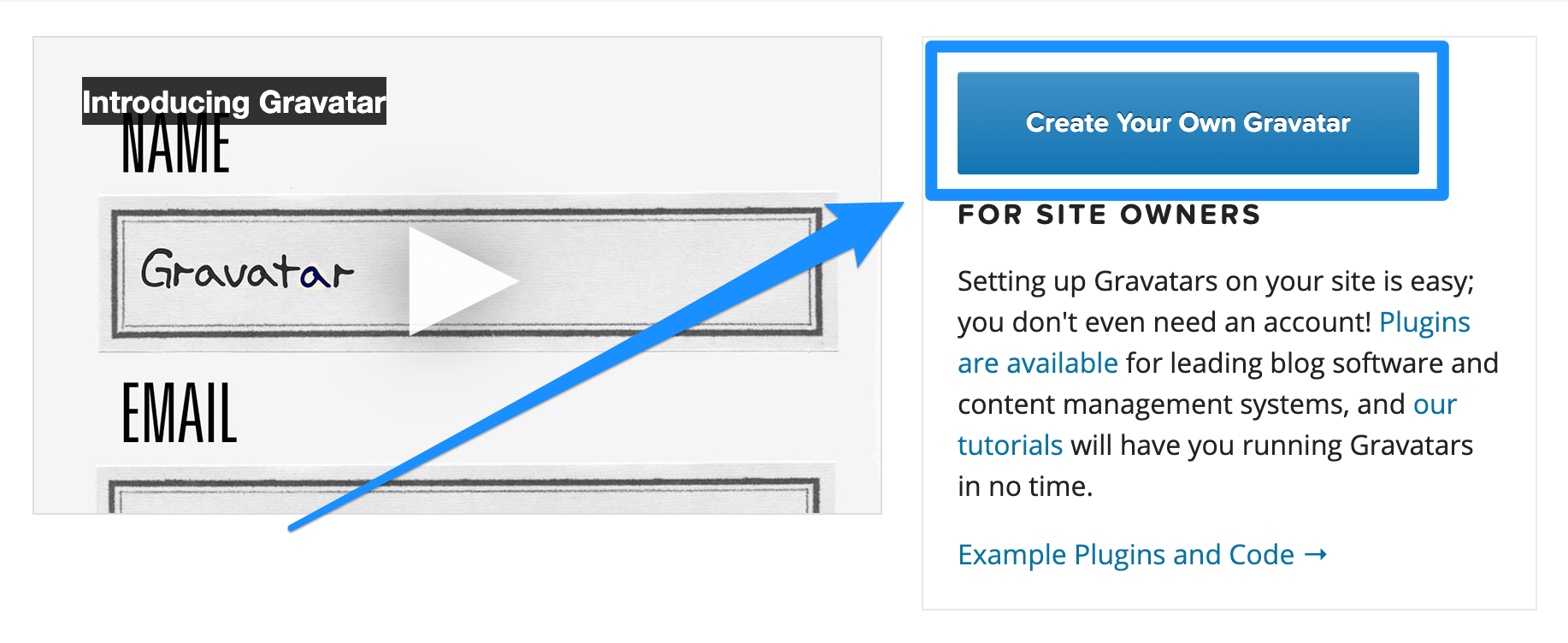 2. After creating your free account and receiving your confirmation email, sign in to Gravatar to manage your Gravatars.
3. Select the email address you wish to modify or add a new email address. This email address should be the email address you wish to use for your [Kajabi Reply-To email address](/articles/marketing/email-campaigns/how-to-customize-your-marketing-settings) to display your Gravatar when receiving and responding to replies from your marketing email recipients.
4. Click **Add one by clicking here!** in Gravatar.
5. Click **Upload new**.
6. Choose your file.
7. Click **Next**.
8. Crop your image or click **Crop Image** to move on:
2. After creating your free account and receiving your confirmation email, sign in to Gravatar to manage your Gravatars.
3. Select the email address you wish to modify or add a new email address. This email address should be the email address you wish to use for your [Kajabi Reply-To email address](/articles/marketing/email-campaigns/how-to-customize-your-marketing-settings) to display your Gravatar when receiving and responding to replies from your marketing email recipients.
4. Click **Add one by clicking here!** in Gravatar.
5. Click **Upload new**.
6. Choose your file.
7. Click **Next**.
8. Crop your image or click **Crop Image** to move on:
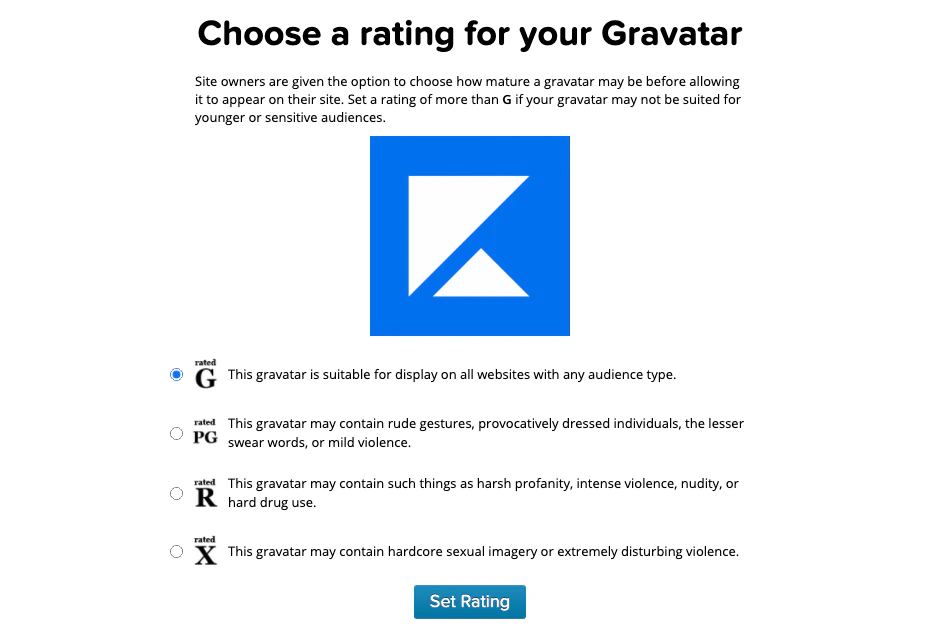
9. Select the maturity rating for your Gravatar before allowing it to appear on any site.
10. After selecting your rating, click **Set Rating**:
 11. After creating your Gravatar, navigate to your Kajabi account to update your Reply-To email address. Connecting your Reply-To email address will include your Gravatar when responding to replies from your contacts. We recommend changing your Reply-To email address instead of your From email address to keep the default Kajabi email address personalized to your account.
12. Open **Settings** from the Dashboard.
13. Click **Marketing Settings**.
14. Scroll to the **Email Settings** section.
15. Enter the email address used for your Gravatar in the **Reply-To email address** field:
11. After creating your Gravatar, navigate to your Kajabi account to update your Reply-To email address. Connecting your Reply-To email address will include your Gravatar when responding to replies from your contacts. We recommend changing your Reply-To email address instead of your From email address to keep the default Kajabi email address personalized to your account.
12. Open **Settings** from the Dashboard.
13. Click **Marketing Settings**.
14. Scroll to the **Email Settings** section.
15. Enter the email address used for your Gravatar in the **Reply-To email address** field:
After editing your Reply-To email address, when a recipient of your **marketing email** replies to your email and you respond back, your email recipient will see your Gravatar image displayed.
**Tip:** To display your Gravatar to recipients who respond back to your **transactional emails**, update your [Support Email Address](../../account-settings/my-kajabi/change-your-account-details#h_6a3809fe-024a-4884-b2f5-922318c7586e) to your email address connected to Gravatar.