> ## Documentation Index
> Fetch the complete documentation index at: https://help.kajabi.com/llms.txt
> Use this file to discover all available pages before exploring further.
# Edit an Email Broadcast's scheduled date and time
> View and reschedule scheduled Email Broadcasts.
View and modify the **scheduled date and time** for your Email Broadcasts.
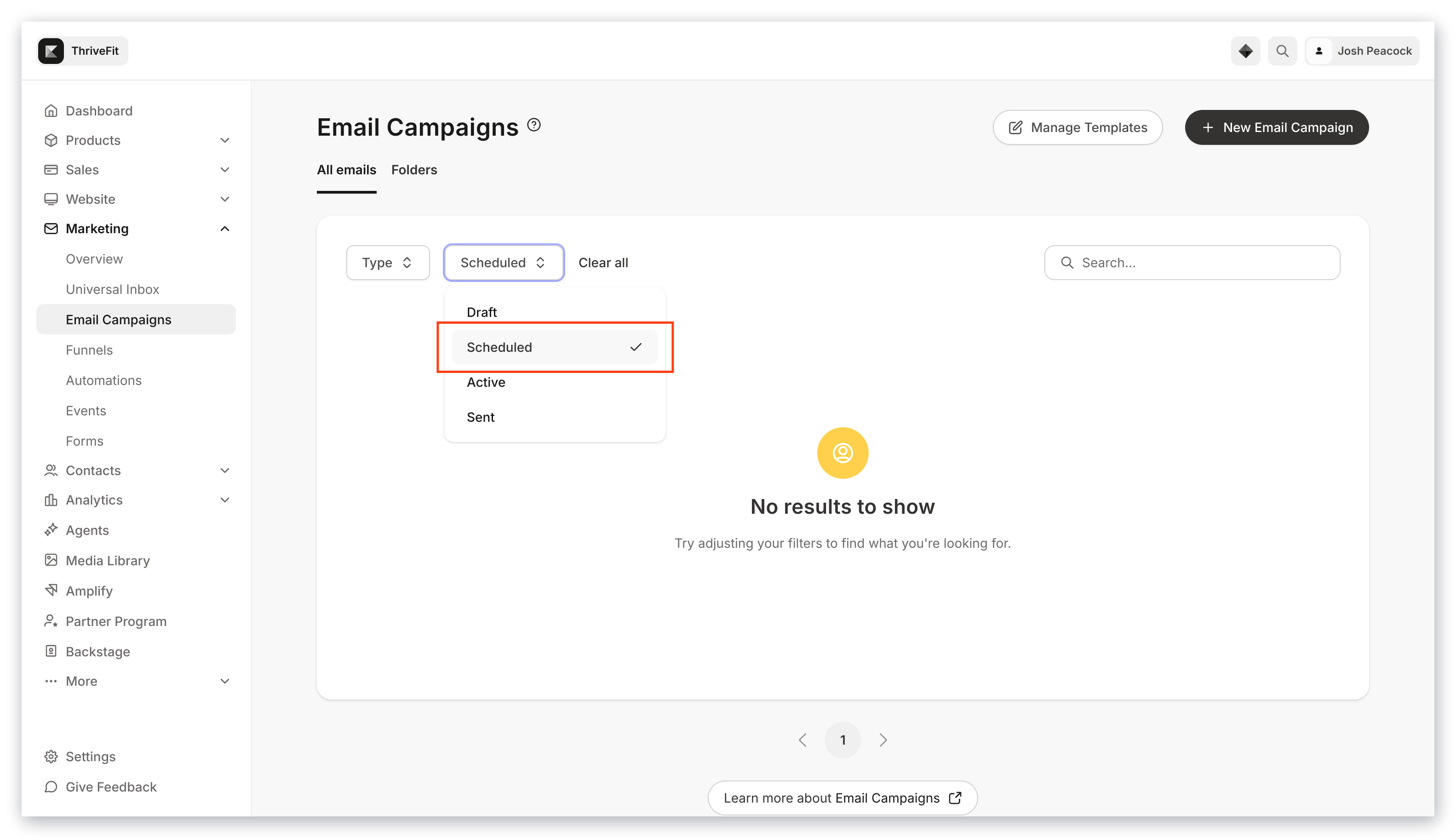
## View scheduled Email Campaigns
1. Open the **Marketing** tab from the Dashboard.
2. Click **Email Campaigns**.
3. Select **Scheduled** from the top menu:
 **Note:** If you are A/B testing your Email Broadcast, your test will begin after all the emails have been sent. [Learn more](/articles/marketing/email-campaigns/email-ab-testing-overview).
## Edit the scheduled time and date
1. Open the **Marketing** tab from your Dashboard.
2. Click **Email Campaigns**.
3. Select **Scheduled** from the top menu.
4. Open the **ellipsis `…` icon** on the right side of the email you wish to reschedule.
5. Click **Unschedule**.
6. Read the prompt and confirm your desire to **Unschedule**.
7. Select your newly unscheduled Email Campaign to edit.
8. Navigate to the top right corner of the Email Editor and click **3. Send Email**.
9. Select **Send at a Specific Time** and choose the date and time you wish the Email Broadcast to be sent. Then, click **Apply**.
10. Click **Confirm**.
**Note:** Schedule your Email Broadcast up to a year in advance. [Learn more](/articles/marketing/email-campaigns/create-an-email-broadcast).
**Note:** If you are A/B testing your Email Broadcast, your test will begin after all the emails have been sent. [Learn more](/articles/marketing/email-campaigns/email-ab-testing-overview).
## Edit the scheduled time and date
1. Open the **Marketing** tab from your Dashboard.
2. Click **Email Campaigns**.
3. Select **Scheduled** from the top menu.
4. Open the **ellipsis `…` icon** on the right side of the email you wish to reschedule.
5. Click **Unschedule**.
6. Read the prompt and confirm your desire to **Unschedule**.
7. Select your newly unscheduled Email Campaign to edit.
8. Navigate to the top right corner of the Email Editor and click **3. Send Email**.
9. Select **Send at a Specific Time** and choose the date and time you wish the Email Broadcast to be sent. Then, click **Apply**.
10. Click **Confirm**.
**Note:** Schedule your Email Broadcast up to a year in advance. [Learn more](/articles/marketing/email-campaigns/create-an-email-broadcast).