> ## Documentation Index
> Fetch the complete documentation index at: https://help.kajabi.com/llms.txt
> Use this file to discover all available pages before exploring further.
# Create an Offer for an Event
> Create an Offer to sell seats to an Event, whether in-person or online.
Selling tickets to an **Event** through an Offer in Kajabi simplifies payments by processing everything through one platform. Connect an Event, a Ghost Offer, and an Automation to sell access to any in-person or virtual event.
## Create an Event
First, create an Event in Kajabi to attach the Offer to. Regardless of the type of Event, whether in-person or virtual, creating an Event sets up the date and time.
Learn to [create an Event in Kajabi](/articles/marketing/events/how-to-create-an-event) for more details.
## Create an Offer
After creating the Event, build a Ghost Offer. A Ghost Offer is an Offer without a Product attached, which allows you to sell access to the Event without needing to create a Product in Kajabi.
Learn more about creating [Ghost Offers](/articles/sales/offers/how-to-create-a-ghost-offer).
### Create a Ghost Offer for the Event
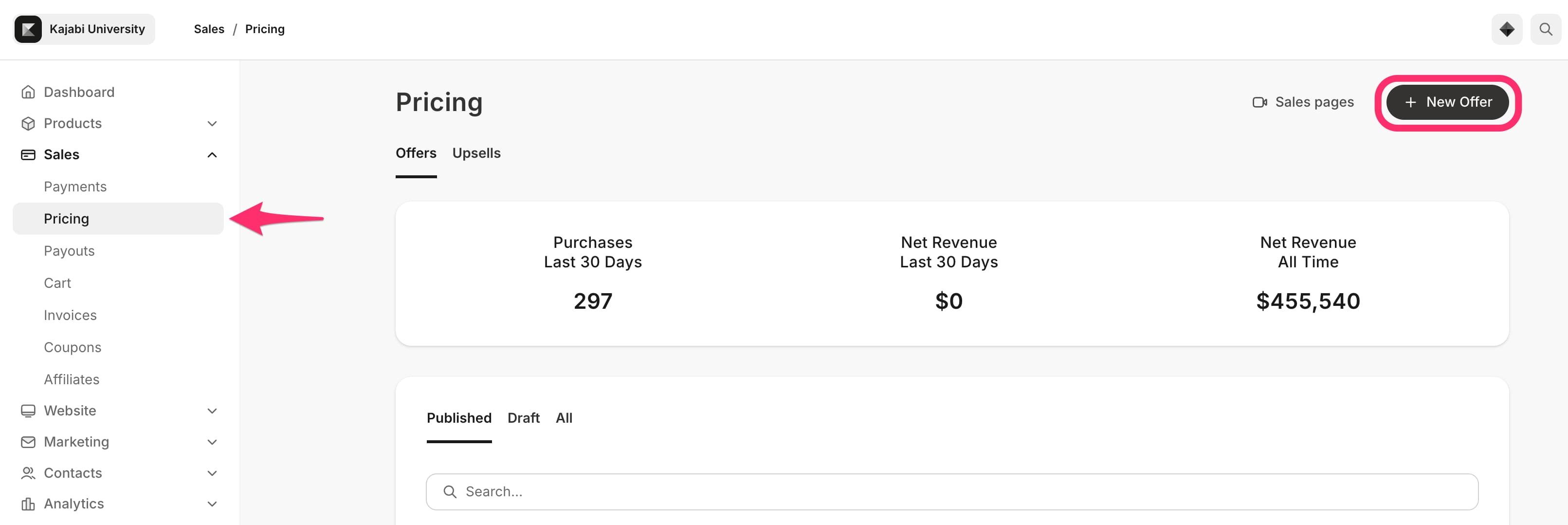
1. From the Dashboard, click **Sales.**
2. Click **Pricing.**
3. Click **+ New Offer.**
4. Enter the Offer **Title** and **Payment** type but leave the product selection blank.
5. Complete any remaining Offer settings such as price, checkout page, and thank you page.
6. Click **Save** to create the Offer.
 ## Create an Automation
Next, leverage the power of [Automations](/articles/marketing/automations/automations-overview). With Automations, registrants can purchase the Ghost Offer and register to the Event (and any emails set up in the Event):
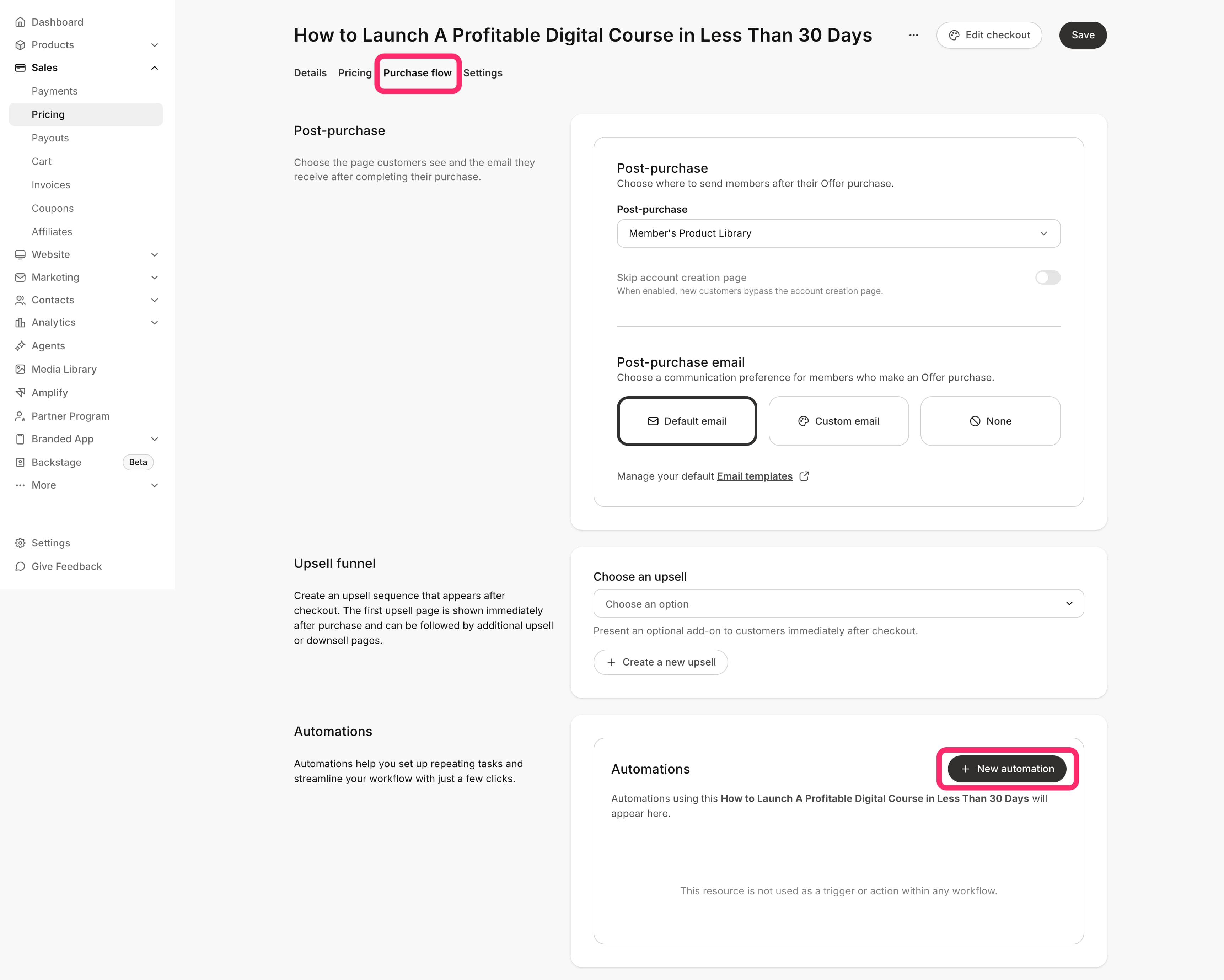
1. From the Dashboard, click **Sales**
2. Click **Pricing** and select the Ghost Offer you just created.
3. Click on the **Purchase flow** tab, scroll down to **Automations.**
4. Click + **New automation.**
## Create an Automation
Next, leverage the power of [Automations](/articles/marketing/automations/automations-overview). With Automations, registrants can purchase the Ghost Offer and register to the Event (and any emails set up in the Event):
1. From the Dashboard, click **Sales**
2. Click **Pricing** and select the Ghost Offer you just created.
3. Click on the **Purchase flow** tab, scroll down to **Automations.**
4. Click + **New automation.**
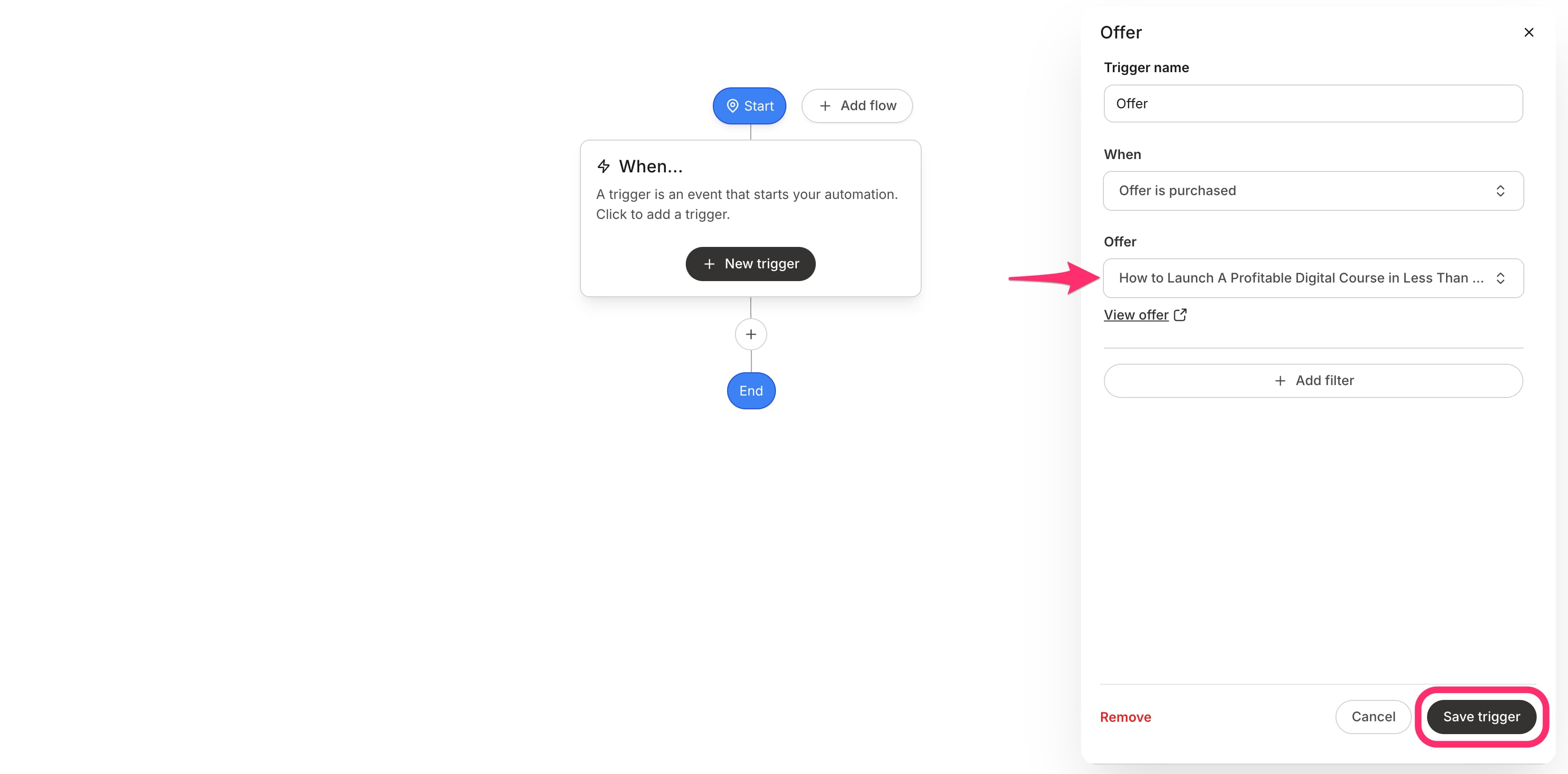
 5. Make sure the **When** trigger is set to "Offer is purchased." Select your offer and **Save trigger.**
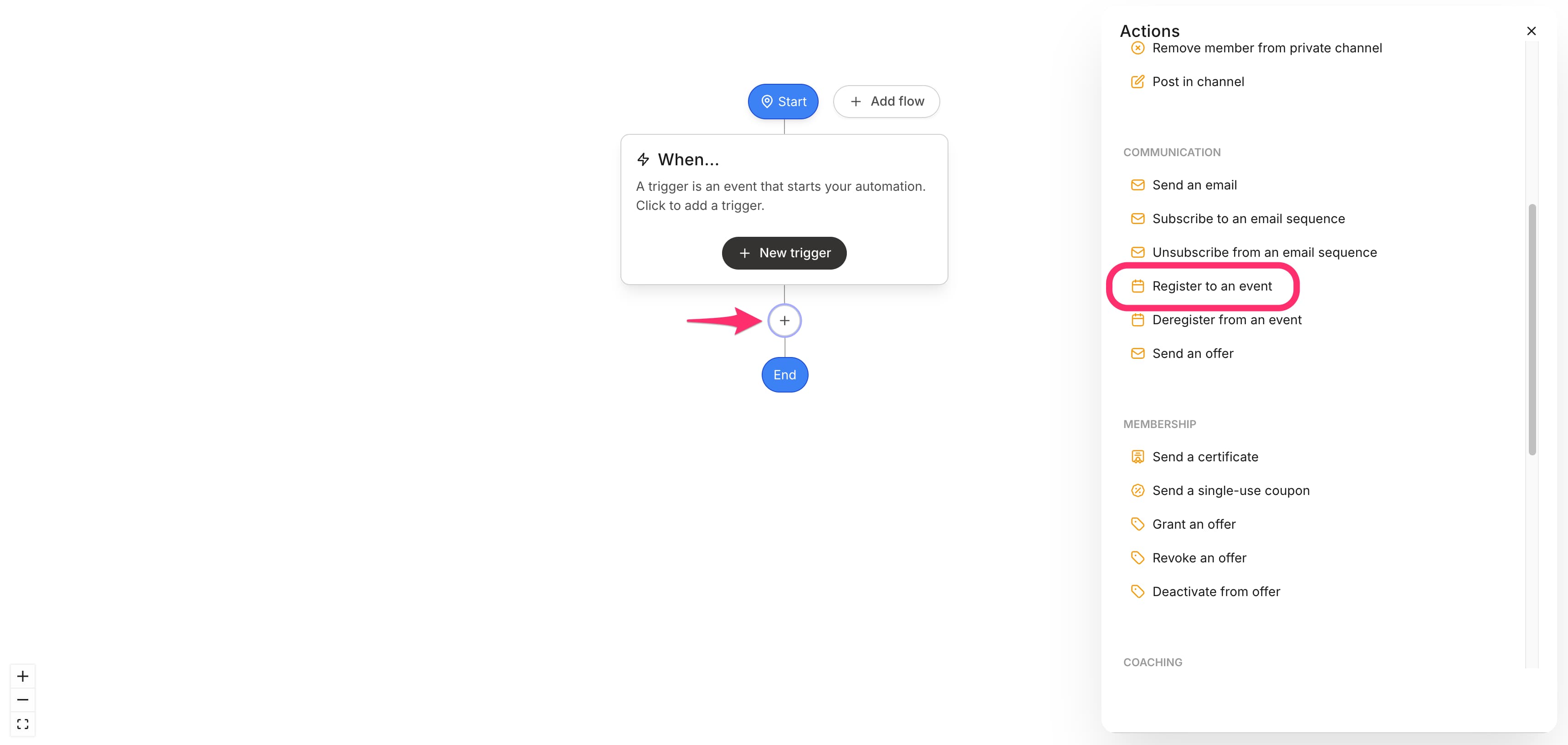
 6. Click on the (+) button to add **Action.**
7. Select **Register to an event** in the **Then** action dropdown.
6. Click on the (+) button to add **Action.**
7. Select **Register to an event** in the **Then** action dropdown.
 8. Select the Event and click **Save Action.**
**Note:** Once set up, customers who purchase the Ghost Offer will be automatically registered to the Event. You can confirm registrations by opening the Event and checking the **Registrations** list.