> ## Documentation Index
> Fetch the complete documentation index at: https://help.kajabi.com/llms.txt
> Use this file to discover all available pages before exploring further.
# Media Library overview
> Manage all your video, audio, image, and document files from a single hub — upload once and use across your entire Kajabi site.
**Media Library** is a centralized hub for managing all of your video, audio, image, and document files in one place. Instead of uploading the same file multiple times across your site, you can upload it once to your Media Library and use that asset anywhere — in Courses, Landing Pages, Web Pages, Coaching sessions, Pages, and more.
**Note:** You must be using Builder 2.0 to access Media Library. [Learn how to upgrade to Builder 2.0](/articles/website/pages/whats-new-with-builder-20#h_01JVQE6J6D0GDZJC2ZZ0A9SXME).
## Move existing media into Media Library
If you added videos or audio to Kajabi before Media Library was available, you can bring that older media into your library so everything lives in one place.
### Copy individual videos from legacy media
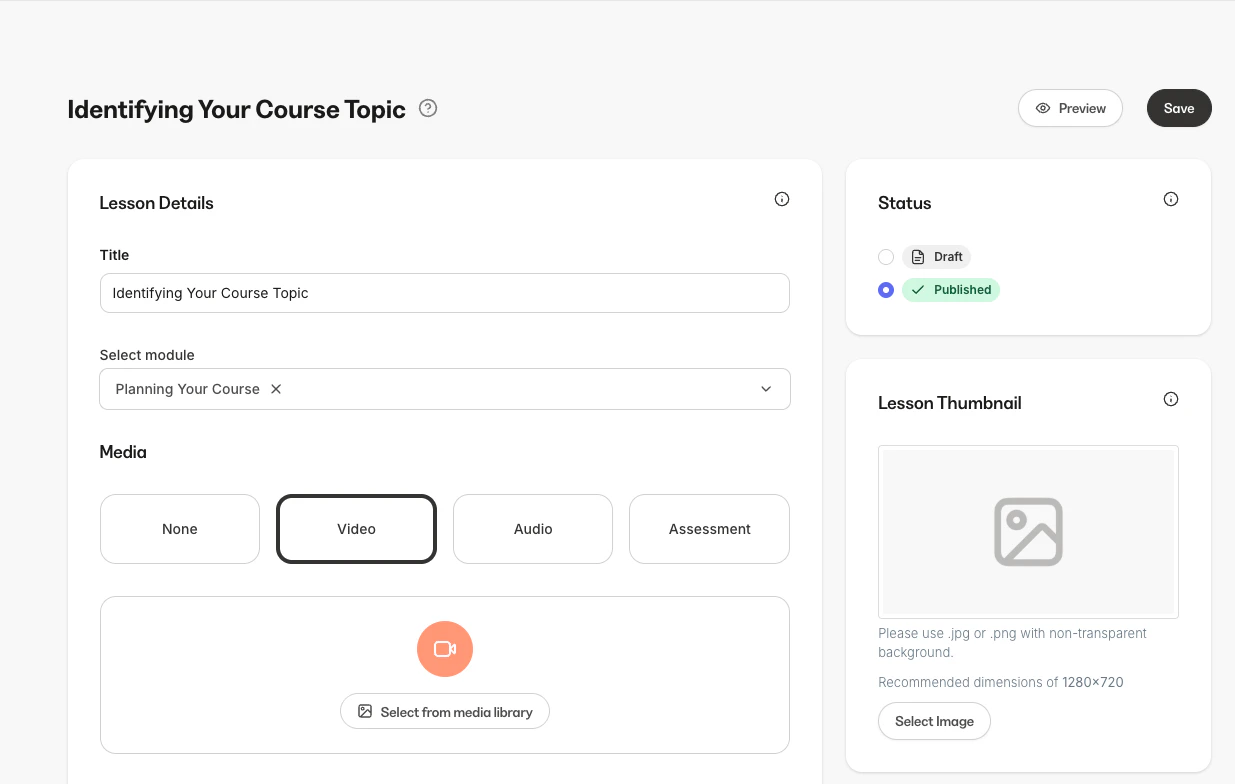
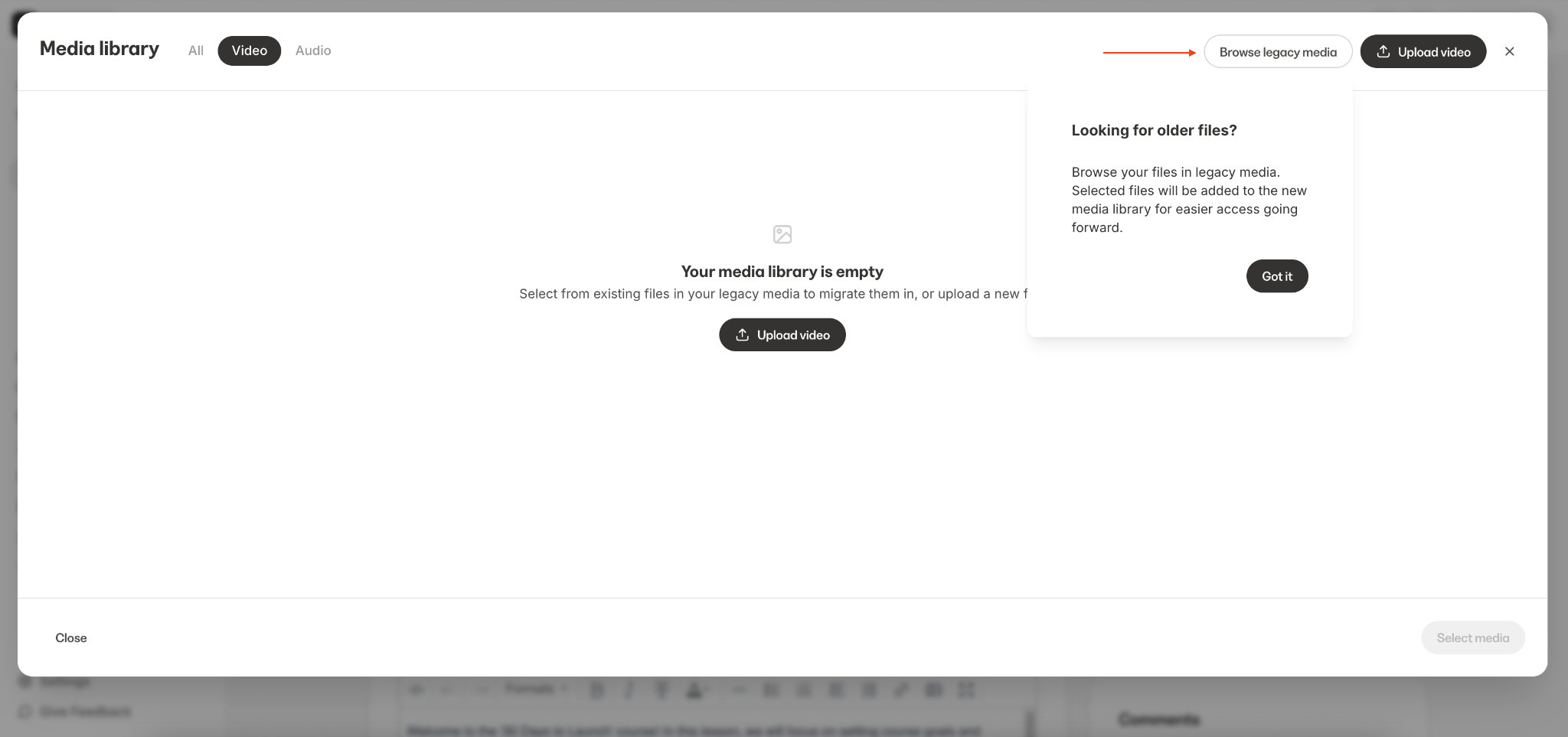
If you uploaded video files to Kajabi before Media Library was available, you can move them to your library using the **Looking for older files?** option. This appears the first time you open the Media Library picker and lets you browse your recent videos and copy them into the library for centralized management going forward.
1. Go to upload a video and click **Select from media library**.
2. Click **Browse legacy media**.
3. Select your video file and click **Copy to media library**.
 ### Import all legacy video and audio at once
If you have a lot of older media, you can bring all of your remaining legacy video and audio into Media Library in one action, instead of copying files one at a time.
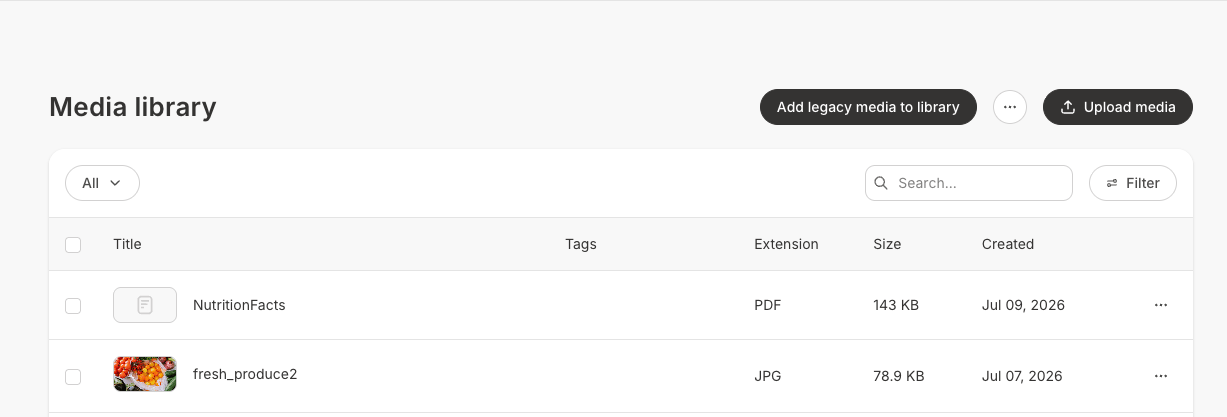
1. Open your **Media Library**.
2. Click **Add legacy media to library**.
3. In the **Add legacy video and audio to Media Library** window, click **Begin import**.
### Import all legacy video and audio at once
If you have a lot of older media, you can bring all of your remaining legacy video and audio into Media Library in one action, instead of copying files one at a time.
1. Open your **Media Library**.
2. Click **Add legacy media to library**.
3. In the **Add legacy video and audio to Media Library** window, click **Begin import**.
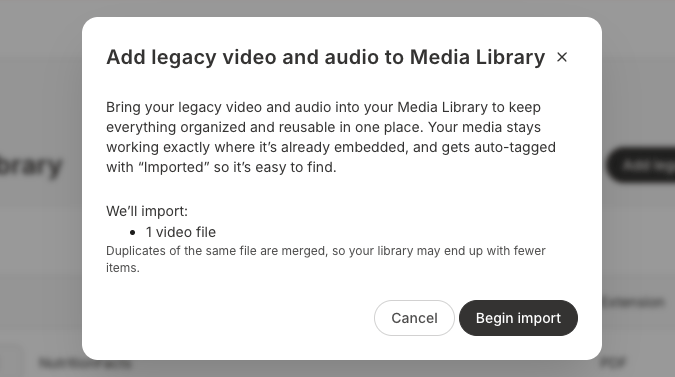 Your video and audio import in the background, with a progress bar showing how it is going. Imported files are tagged **Imported** so you can find them easily. The **Add legacy media to library** button stops appearing once all of your legacy video and audio has been brought into Media Library.
Files can be added to the Media Library manually. Any files you upload automatically appear in your Media Library and are available for use across your site and products.
## Key features of Media Library
### Upload video and audio files
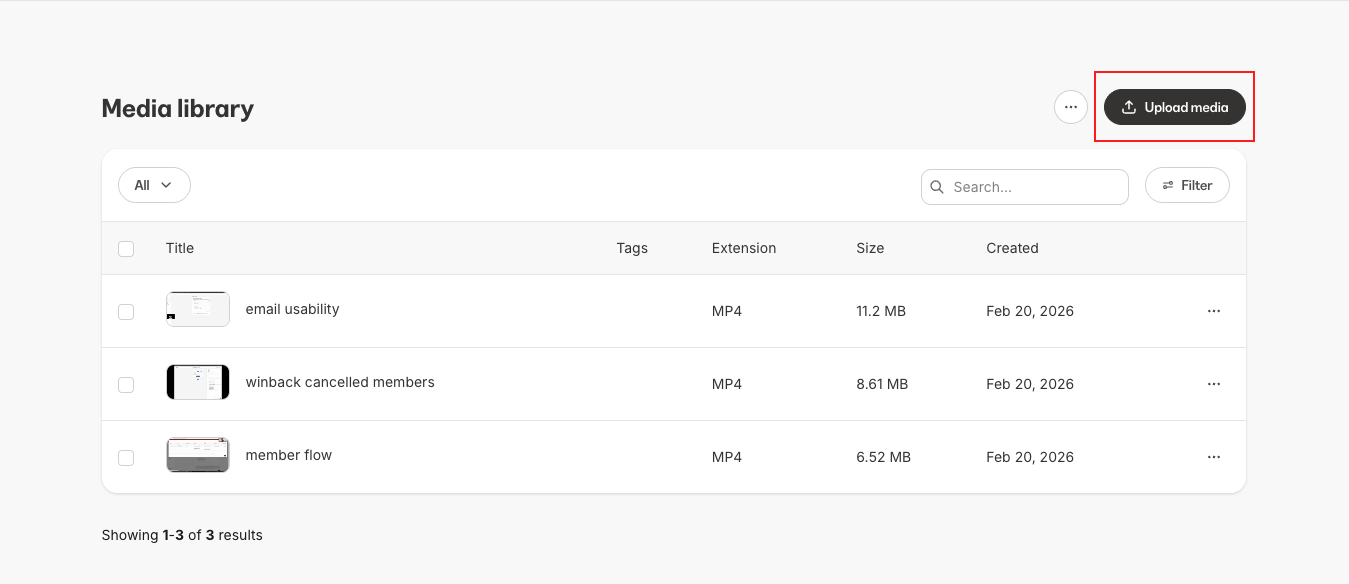
You can upload video and audio files directly to your Media Library. You can upload up to 10 files at a time using the **Upload media** button at the top of the file listing.
Supported file types:
* **Video** — MP4, MOV, AVI, WMV, FLV, MKV, 3GP, 3G2, M4V, MPG, OGV
* **Audio** — MP3
Your video and audio import in the background, with a progress bar showing how it is going. Imported files are tagged **Imported** so you can find them easily. The **Add legacy media to library** button stops appearing once all of your legacy video and audio has been brought into Media Library.
Files can be added to the Media Library manually. Any files you upload automatically appear in your Media Library and are available for use across your site and products.
## Key features of Media Library
### Upload video and audio files
You can upload video and audio files directly to your Media Library. You can upload up to 10 files at a time using the **Upload media** button at the top of the file listing.
Supported file types:
* **Video** — MP4, MOV, AVI, WMV, FLV, MKV, 3GP, 3G2, M4V, MPG, OGV
* **Audio** — MP3
 ### Upload and manage images
Media Library supports image files alongside video and audio. Upload, create, and edit images all from one place.
#### Upload images
Upload image files directly to your Media Library. You can upload up to 10 images at a time, just like video and audio.
Supported image formats: JPEG, PNG, GIF, WebP
#### Create images with Adobe Express
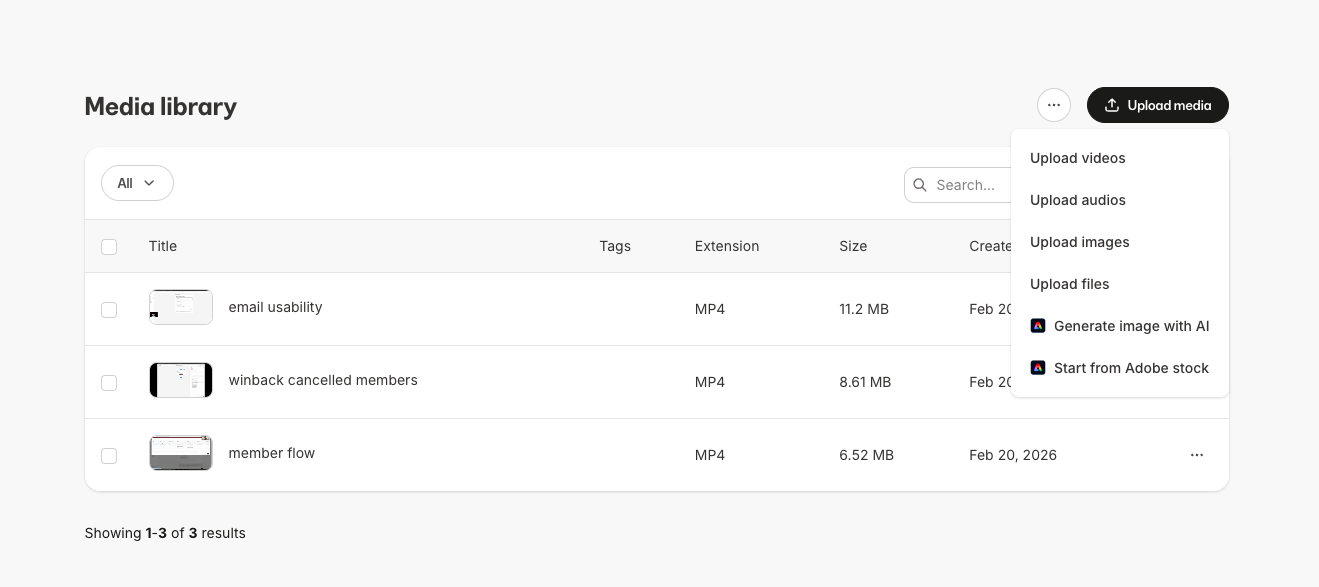
Create images without leaving Kajabi using Adobe Express. Two options are available from the **Upload** tab dropdown when adding media:
* **Generate image with AI** — Describe what you want and Adobe Express creates it
* **Start from Adobe Stock** — Browse and select from Adobe's stock image library
### Upload and manage images
Media Library supports image files alongside video and audio. Upload, create, and edit images all from one place.
#### Upload images
Upload image files directly to your Media Library. You can upload up to 10 images at a time, just like video and audio.
Supported image formats: JPEG, PNG, GIF, WebP
#### Create images with Adobe Express
Create images without leaving Kajabi using Adobe Express. Two options are available from the **Upload** tab dropdown when adding media:
* **Generate image with AI** — Describe what you want and Adobe Express creates it
* **Start from Adobe Stock** — Browse and select from Adobe's stock image library
 #### Edit images with Adobe Express
Edit any image in your Media Library using Adobe Express — crop, resize, add filters, text, and more.
1. Open the image's detail page.
2. Click **Edit image** from the dropdown menu.
3. Make your changes in Adobe Express.
The edited image replaces the original. Tags, locations, and the asset link are all preserved — nothing breaks across your site.
#### Import existing images
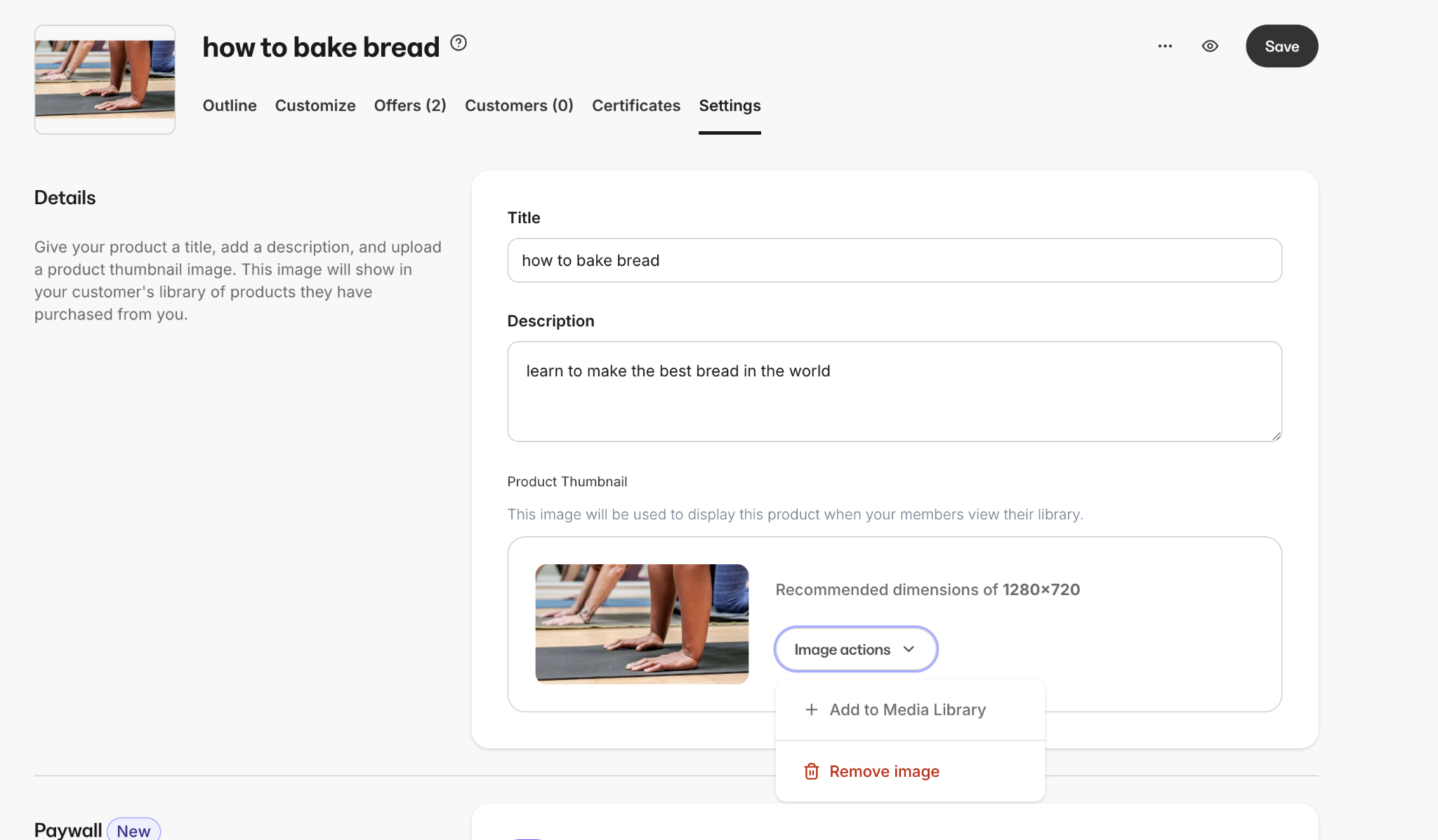
Import individual images that are not yet in Media Library by navigating to the **Image actions** menu and clicking **+ Add to Media Library**.
#### Edit images with Adobe Express
Edit any image in your Media Library using Adobe Express — crop, resize, add filters, text, and more.
1. Open the image's detail page.
2. Click **Edit image** from the dropdown menu.
3. Make your changes in Adobe Express.
The edited image replaces the original. Tags, locations, and the asset link are all preserved — nothing breaks across your site.
#### Import existing images
Import individual images that are not yet in Media Library by navigating to the **Image actions** menu and clicking **+ Add to Media Library**.
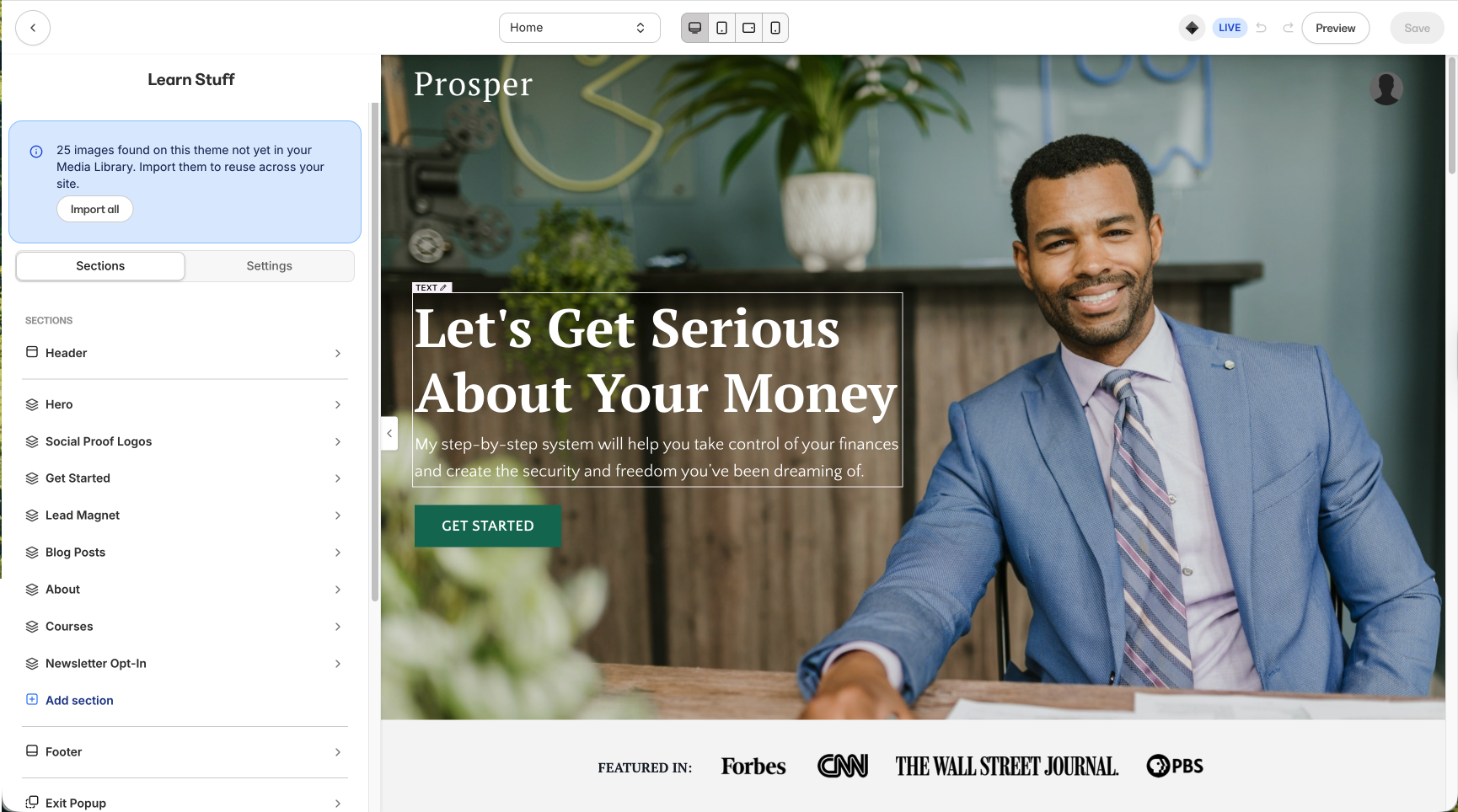
 The **Theme Builder** also displays an import banner for bulk importing theme images into your Media Library.
### Upload files and documents
Media Library supports file and document uploads, so you can manage downloads, resources, and supplementary materials alongside your video, audio, and image assets.
Supported formats:
| Category | Formats |
| --------- | ---------------------------------------------------------------------------------------------------------------- |
| Documents | PDF, Word (.doc, .docx), Excel (.xls, .xlsx), PowerPoint (.ppt, .pptx), Keynote (.key), RTF, OpenDocument (.odt) |
| Ebooks | EPUB, MOBI |
| Other | CSV, TXT, ZIP, SRT (subtitles), TTF (fonts) |
**Note:** Text-based files such as PDFs and TXT files display inline in the browser instead of forcing a download.
### Organize with Tags
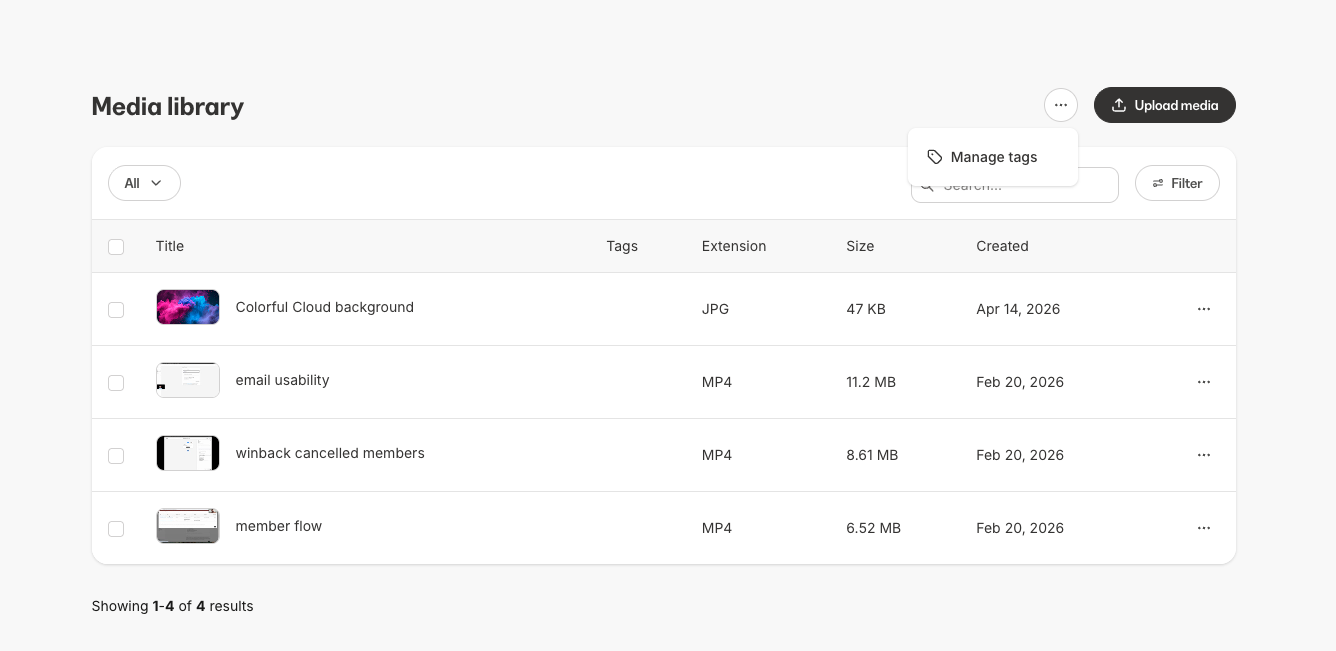
Create Tags to organize your media assets. You can add multiple Tags to any asset, making it easy to group and find related files. Create, rename, and delete Tags from the **Tags** page.
* **Create Tags** like "Module 1," "Interviews," "Bonus Content," etc.
* **Add or remove Tags** from any asset's detail page or directly from the Media Library
* **Filter your library** by one or more Tags to quickly find what you need
* **Bulk add or remove Tags** with multi-select
The **Theme Builder** also displays an import banner for bulk importing theme images into your Media Library.
### Upload files and documents
Media Library supports file and document uploads, so you can manage downloads, resources, and supplementary materials alongside your video, audio, and image assets.
Supported formats:
| Category | Formats |
| --------- | ---------------------------------------------------------------------------------------------------------------- |
| Documents | PDF, Word (.doc, .docx), Excel (.xls, .xlsx), PowerPoint (.ppt, .pptx), Keynote (.key), RTF, OpenDocument (.odt) |
| Ebooks | EPUB, MOBI |
| Other | CSV, TXT, ZIP, SRT (subtitles), TTF (fonts) |
**Note:** Text-based files such as PDFs and TXT files display inline in the browser instead of forcing a download.
### Organize with Tags
Create Tags to organize your media assets. You can add multiple Tags to any asset, making it easy to group and find related files. Create, rename, and delete Tags from the **Tags** page.
* **Create Tags** like "Module 1," "Interviews," "Bonus Content," etc.
* **Add or remove Tags** from any asset's detail page or directly from the Media Library
* **Filter your library** by one or more Tags to quickly find what you need
* **Bulk add or remove Tags** with multi-select
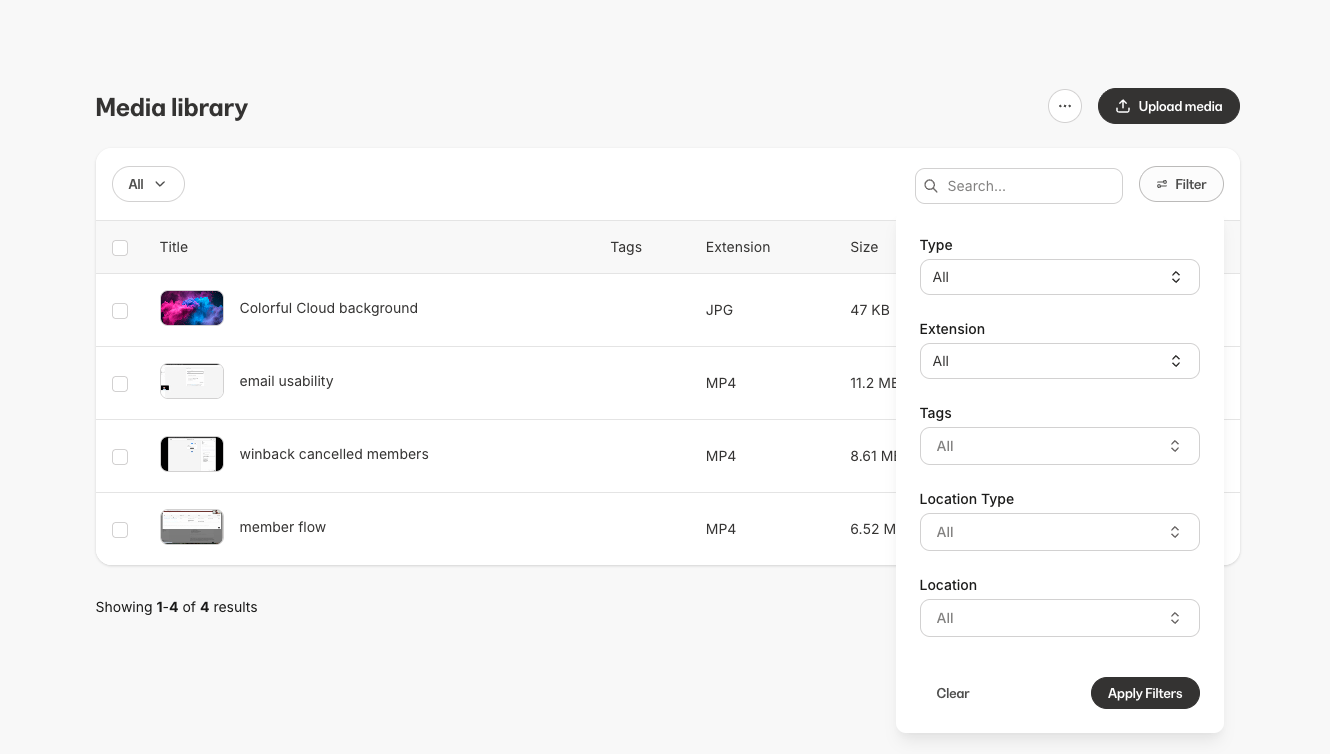
 ### Search and filter
Find exactly what you're looking for with built-in search and filtering:
* **Search by name** — Type in the search bar to find assets by name
* **Filter by type** — Switch between **All**, **Video**, **Audio**, **Image**, and **File** tabs
* **Filter by Tags** — Select one or more Tags to narrow your results
* **Sort** — Sort by name or date added
### Search and filter
Find exactly what you're looking for with built-in search and filtering:
* **Search by name** — Type in the search bar to find assets by name
* **Filter by type** — Switch between **All**, **Video**, **Audio**, **Image**, and **File** tabs
* **Filter by Tags** — Select one or more Tags to narrow your results
* **Sort** — Sort by name or date added
 ### Saved Views
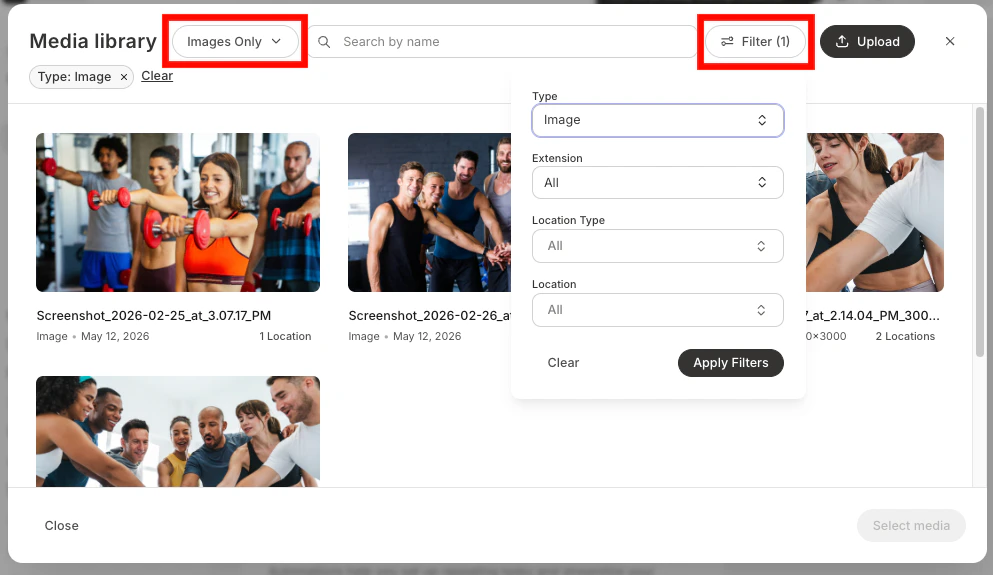
Save your current filter and search settings as a named view, like a smart folder for your media. **Saved Views** let you get back to a specific set of filters instantly, without reconfiguring them each time.
* **Save your current filters** as a named view
* **Load a saved view** to instantly apply those filters
* **Rename or delete** saved views at any time
* A visual indicator shows when your current filters match a saved view
### Saved Views
Save your current filter and search settings as a named view, like a smart folder for your media. **Saved Views** let you get back to a specific set of filters instantly, without reconfiguring them each time.
* **Save your current filters** as a named view
* **Load a saved view** to instantly apply those filters
* **Rename or delete** saved views at any time
* A visual indicator shows when your current filters match a saved view
 ### Asset detail page
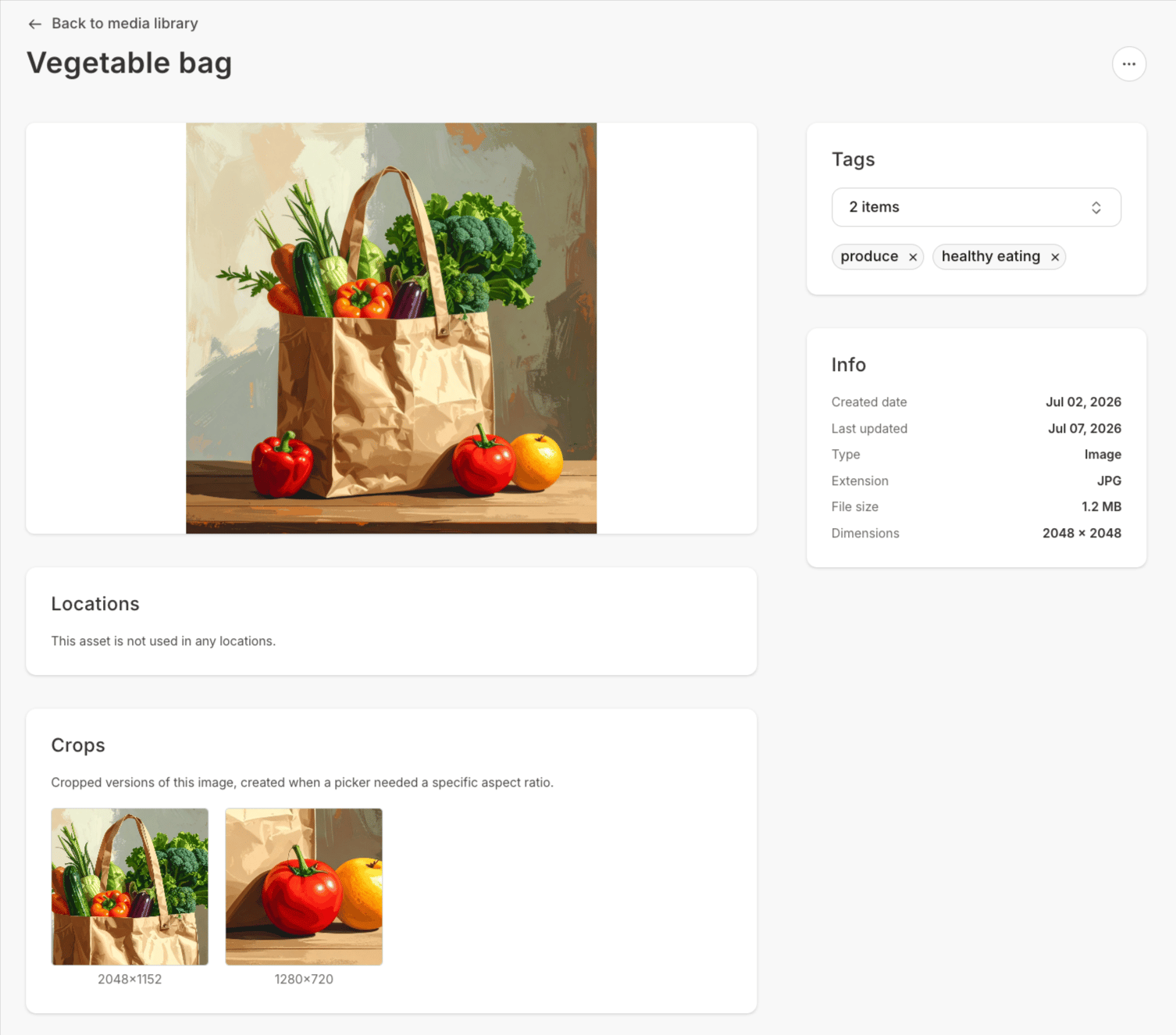
Click on any asset to open its detail page, where you can see everything about that file in one place:
### Asset detail page
Click on any asset to open its detail page, where you can see everything about that file in one place:
 * **Media preview** (Video and audio files only) — Watch videos or listen to audio directly in the browser
* **Info** — View the **File** **Type**, **Extension**, **Duration** or **Dimensions**, **File size**, and **Created** and **Last updated** dates
* **Analytics** (Vide\`o and audio files only) — Track how your audience engages with this video or audio file across your site
* **Locations** — See every place this asset is currently used across your site, with direct links to each location
* **Crops** — See thumbnails for all cropped versions you've created from this asset. Click a thumbnail to view its Asset detail page.
* **Tags** — Add or remove Tags
* **Actions** — Rename, download the original file, or delete the asset\\
### Transcripts, translations, and dubbing
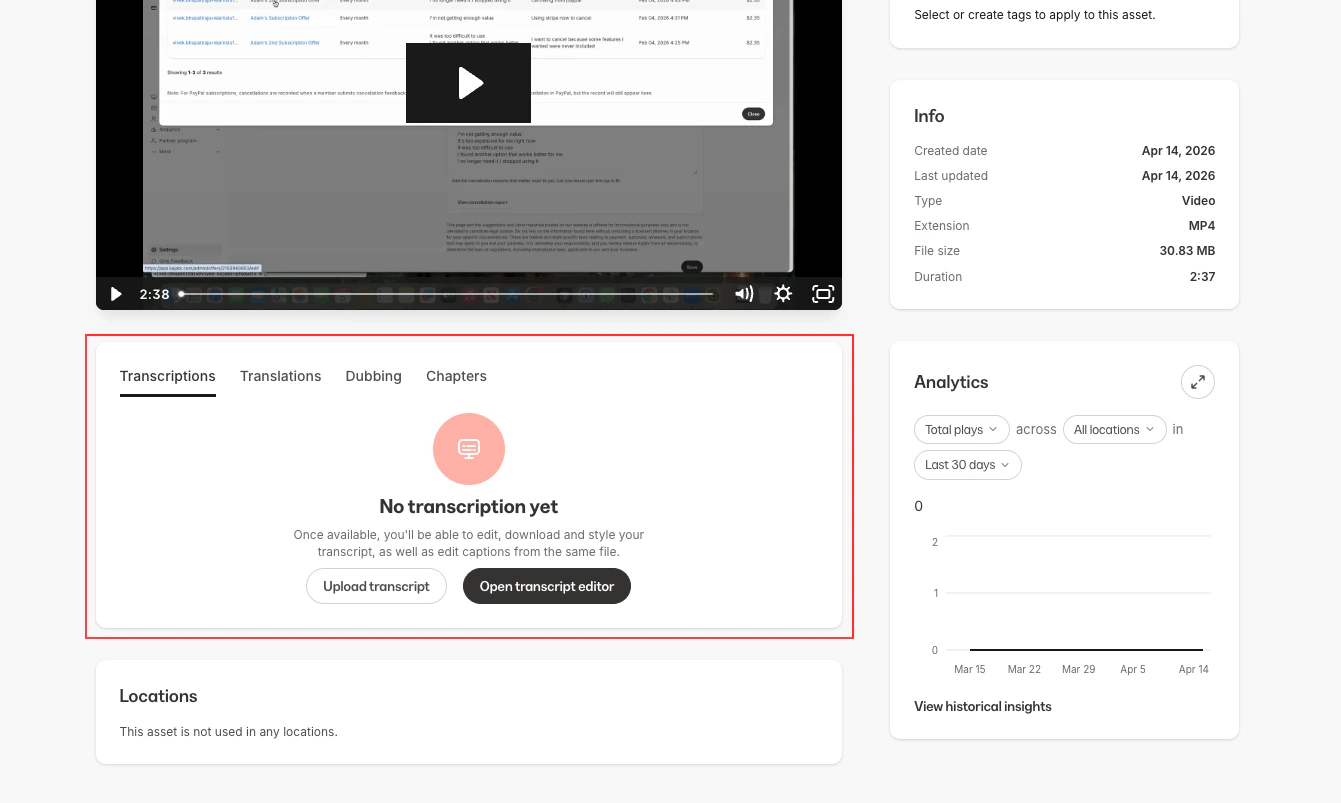
For video assets, the detail page gives you access to powerful content enhancement tools:
* **Transcripts** — View automatically generated transcripts of your video content
* **Translations** — Access translated versions of your transcript for a global audience
* **Dubbing** — Manage dubbed audio tracks for your videos
* **Chapters** — Add chapters to create navigable sections within your videos, making it easy for your audience to jump to the content they need
* **Media preview** (Video and audio files only) — Watch videos or listen to audio directly in the browser
* **Info** — View the **File** **Type**, **Extension**, **Duration** or **Dimensions**, **File size**, and **Created** and **Last updated** dates
* **Analytics** (Vide\`o and audio files only) — Track how your audience engages with this video or audio file across your site
* **Locations** — See every place this asset is currently used across your site, with direct links to each location
* **Crops** — See thumbnails for all cropped versions you've created from this asset. Click a thumbnail to view its Asset detail page.
* **Tags** — Add or remove Tags
* **Actions** — Rename, download the original file, or delete the asset\\
### Transcripts, translations, and dubbing
For video assets, the detail page gives you access to powerful content enhancement tools:
* **Transcripts** — View automatically generated transcripts of your video content
* **Translations** — Access translated versions of your transcript for a global audience
* **Dubbing** — Manage dubbed audio tracks for your videos
* **Chapters** — Add chapters to create navigable sections within your videos, making it easy for your audience to jump to the content they need
 ### Chapters
Add navigable sections, or **Chapters**, to your videos so viewers can jump directly to the content they need. \
\
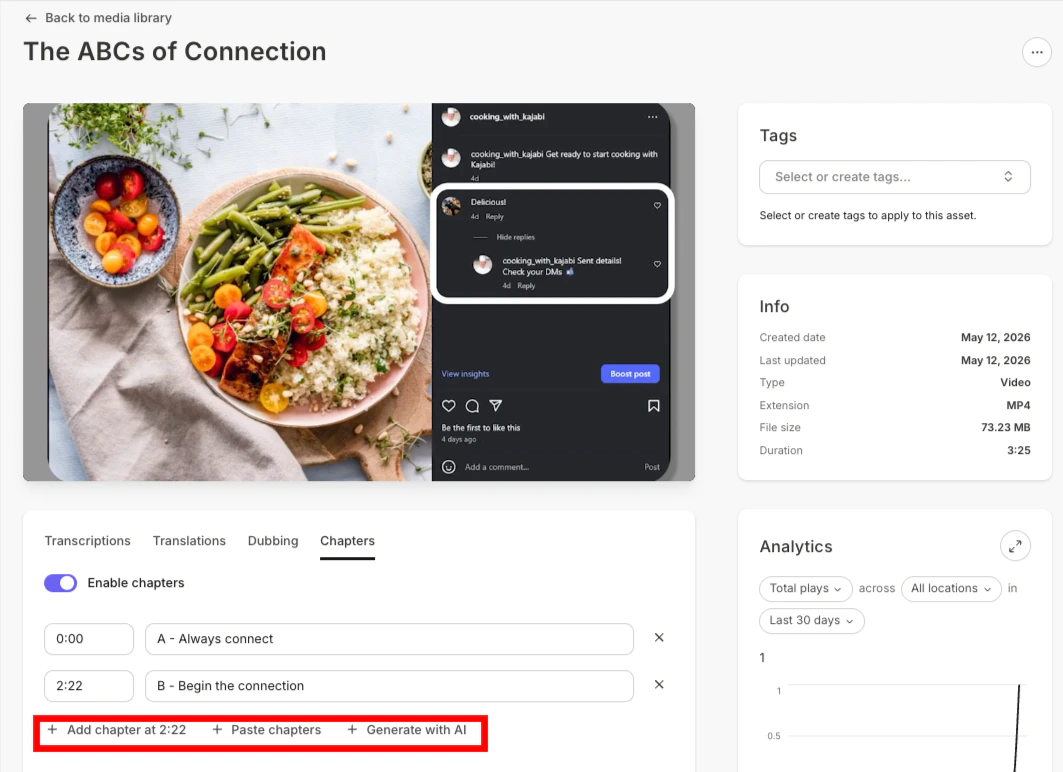
From the **Chapters** tab on any video asset's detail page, you can define titled markers throughout your video — similar to chapters on a YouTube video. When enabled, your members see clickable chapter markers in the video timeline during playback on every location where the video is embedded.
* Add up to 20 chapters per video with a **Title** and **Start time** for each
* Chapters appear as clickable markers in the video player timeline for your members
* Enable or disable chapters at any time without losing your work
* Live video preview lets you verify each chapter's timing as you set it up
* Works on both desktop and mobile
As an alternate to adding video chapters one-by-one, save time by **generating chapters with AI,** or paste chapters from software such as [Descript](https://descript.com).\
\
**To add chapters:**
1. Toggle on **Enable chapters**.
2. Move the playhead to go to the first location in the video you would like to add a chapter. Click **+ Add chapter**. The timecode reflected on the button will change as you move through the video.
3. For each timecode, enter a **Chapter title.**
4. To automatically generate chapter timecodes and titles, click **+ Generate with AI**.
**Note:** There is no charge for generating chapters on video with AI.
5. Use **+ Paste chapters** to add chapters from the clipboard of another source.
### Chapters
Add navigable sections, or **Chapters**, to your videos so viewers can jump directly to the content they need. \
\
From the **Chapters** tab on any video asset's detail page, you can define titled markers throughout your video — similar to chapters on a YouTube video. When enabled, your members see clickable chapter markers in the video timeline during playback on every location where the video is embedded.
* Add up to 20 chapters per video with a **Title** and **Start time** for each
* Chapters appear as clickable markers in the video player timeline for your members
* Enable or disable chapters at any time without losing your work
* Live video preview lets you verify each chapter's timing as you set it up
* Works on both desktop and mobile
As an alternate to adding video chapters one-by-one, save time by **generating chapters with AI,** or paste chapters from software such as [Descript](https://descript.com).\
\
**To add chapters:**
1. Toggle on **Enable chapters**.
2. Move the playhead to go to the first location in the video you would like to add a chapter. Click **+ Add chapter**. The timecode reflected on the button will change as you move through the video.
3. For each timecode, enter a **Chapter title.**
4. To automatically generate chapter timecodes and titles, click **+ Generate with AI**.
**Note:** There is no charge for generating chapters on video with AI.
5. Use **+ Paste chapters** to add chapters from the clipboard of another source.
 **Note:** Chapters can only be added to video assets that are in the Media Library.\
\
In order to add chapters, you must first transcribe your video.
### Video and audio analytics
Track how your audience engages with your video and audio content directly from the asset detail page. Analytics data is sourced from Wistia.
#### Video analytics
An **Analytics** card on the video asset detail page shows performance trends at a glance:
* **Metrics** — Total plays, unique plays, unique viewers, play rate, engagement rate, and hours watched
* **Location filtering** — Narrow results to a specific page or site where the video is embedded
* **Time span** — View the last 7, 30, or 90 days with a trend line chart
Click **View full analytics** to open an expanded modal with a custom date range picker. To access the original stats view (engagement chart and per-event play log), use the **View historical insights** button at the bottom of the **Analytics** card.
#### Audio analytics
Click **View analytics** on any audio asset's detail page to open a stats modal showing:
* Average engagement percentage
* Play rate
* Total play count
* Individual play and engagement events with timestamps
### Use media across your site
The real power of Media Library is using your assets anywhere across your Kajabi site. When you're building content in any of the following areas, you can select media directly from your library instead of uploading a file:
* **Course lessons** — Add video, audio, or images to any lesson
* **Blog posts** — Embed video, audio, or images in your Blog content
* **Coaching sessions** — Attach recordings to group or one-on-one sessions
* **Live sessions** — Add video replays
* **Offers and commerce pages** — Include video or images in your Offer pages
* **Pages and themes** — Add video, audio, or images to any page through the **Page Builder** or **Theme editor**
* **Product thumbnails** — Set thumbnails for Courses and other products
* **Coaching programs** — Add media to Coaching program content
* **Affiliate challenges** — Include media in challenge content
* **Creation wizards** — Select media during product creation flows
* **Branding and newsletter settings** — Use images in your brand and Newsletter configuration
When adding media to any of these areas, you'll see the Media Library picker — a modal that lets you browse, search, filter, and select assets from your library without leaving the page you're working on.
### **Add image crops**
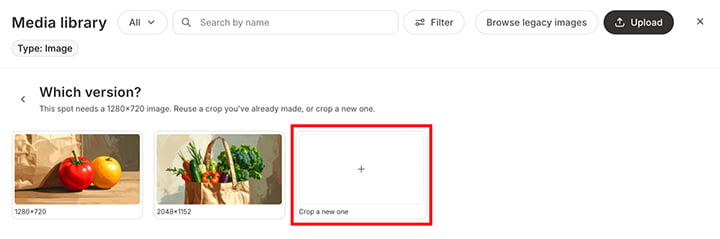
When you add an image to your Kajabi site as part of your content creation process, you are prompted to crop it if it does not meet the file dimension requirements for that particular field. You can create additional, different cropped versions of the same parent image by clicking **Crop a new one**. Each crop appears as attached to the parent image's Media Library **Asset detail page**.
**Note:** Chapters can only be added to video assets that are in the Media Library.\
\
In order to add chapters, you must first transcribe your video.
### Video and audio analytics
Track how your audience engages with your video and audio content directly from the asset detail page. Analytics data is sourced from Wistia.
#### Video analytics
An **Analytics** card on the video asset detail page shows performance trends at a glance:
* **Metrics** — Total plays, unique plays, unique viewers, play rate, engagement rate, and hours watched
* **Location filtering** — Narrow results to a specific page or site where the video is embedded
* **Time span** — View the last 7, 30, or 90 days with a trend line chart
Click **View full analytics** to open an expanded modal with a custom date range picker. To access the original stats view (engagement chart and per-event play log), use the **View historical insights** button at the bottom of the **Analytics** card.
#### Audio analytics
Click **View analytics** on any audio asset's detail page to open a stats modal showing:
* Average engagement percentage
* Play rate
* Total play count
* Individual play and engagement events with timestamps
### Use media across your site
The real power of Media Library is using your assets anywhere across your Kajabi site. When you're building content in any of the following areas, you can select media directly from your library instead of uploading a file:
* **Course lessons** — Add video, audio, or images to any lesson
* **Blog posts** — Embed video, audio, or images in your Blog content
* **Coaching sessions** — Attach recordings to group or one-on-one sessions
* **Live sessions** — Add video replays
* **Offers and commerce pages** — Include video or images in your Offer pages
* **Pages and themes** — Add video, audio, or images to any page through the **Page Builder** or **Theme editor**
* **Product thumbnails** — Set thumbnails for Courses and other products
* **Coaching programs** — Add media to Coaching program content
* **Affiliate challenges** — Include media in challenge content
* **Creation wizards** — Select media during product creation flows
* **Branding and newsletter settings** — Use images in your brand and Newsletter configuration
When adding media to any of these areas, you'll see the Media Library picker — a modal that lets you browse, search, filter, and select assets from your library without leaving the page you're working on.
### **Add image crops**
When you add an image to your Kajabi site as part of your content creation process, you are prompted to crop it if it does not meet the file dimension requirements for that particular field. You can create additional, different cropped versions of the same parent image by clicking **Crop a new one**. Each crop appears as attached to the parent image's Media Library **Asset detail page**.
 ## FAQs
### Who can access the Media Library?
Media Library is available to site Admins, including Owners and Assistants. If you have admin access to your Kajabi site, you can manage media.
### What file types are supported?
Media Library supports the following file types:
* **Video** — MP4, MOV, AVI, WMV, FLV, MKV, 3GP, 3G2, M4V, MPG, OGV
* **Audio** — MP3
* **Images** — JPEG, PNG, GIF, WebP
* **Documents** — PDF, Word (.doc, .docx), Excel (.xls, .xlsx), PowerPoint (.ppt, .pptx), Keynote (.key), RTF, OpenDocument (.odt)
* **Ebooks** — EPUB, MOBI
* **Other** — CSV, TXT, ZIP, SRT (subtitles), TTF (fonts)
### Can I organize my files into folders?
Media Library uses **Tags** and **Saved Views** instead of traditional folders. Tags let you group and categorize files, and Saved Views let you save your current filter and search settings as a named view — so you can get back to a specific set of files instantly.
### What happens if I delete an asset that's being used somewhere on my site?
The asset is removed from all locations where it's currently in use. Check the **Locations** section on any asset's detail page to see everywhere it's being used before deleting.
### Is there a limit to how many files I can upload?
You can upload up to 10 files at a time per batch. There is no overall limit to the number of assets in your library.
### Can I download my original files?
Yes. On any asset's detail page, use the **Actions** menu to download the original file.
### Do I need to re-upload files I've already used in my Courses or pages?
No. You can bring existing videos into Media Library using the **Looking for older files?** option in the Media Library picker, which copies a video into your library without affecting where it's currently used.
If the **Add legacy media to library** button is available on your Media Library page, you can also bring in all of your remaining legacy video and audio at once. Until that option reaches your account, audio files you've already used need to be re-uploaded.
### Can I use the same asset in multiple places?
Yes. That's one of the main benefits of Media Library — upload once, use anywhere. The **Locations** card on the detail page tracks every place an asset is being used.
### Do existing images on my site automatically appear in Media Library?
Yes. Images already on your site — from theme settings, blog posts, product thumbnails, and other locations — are automatically imported into Media Library with their original locations tracked. The Theme Builder also shows an import banner for bulk importing theme images.
## FAQs
### Who can access the Media Library?
Media Library is available to site Admins, including Owners and Assistants. If you have admin access to your Kajabi site, you can manage media.
### What file types are supported?
Media Library supports the following file types:
* **Video** — MP4, MOV, AVI, WMV, FLV, MKV, 3GP, 3G2, M4V, MPG, OGV
* **Audio** — MP3
* **Images** — JPEG, PNG, GIF, WebP
* **Documents** — PDF, Word (.doc, .docx), Excel (.xls, .xlsx), PowerPoint (.ppt, .pptx), Keynote (.key), RTF, OpenDocument (.odt)
* **Ebooks** — EPUB, MOBI
* **Other** — CSV, TXT, ZIP, SRT (subtitles), TTF (fonts)
### Can I organize my files into folders?
Media Library uses **Tags** and **Saved Views** instead of traditional folders. Tags let you group and categorize files, and Saved Views let you save your current filter and search settings as a named view — so you can get back to a specific set of files instantly.
### What happens if I delete an asset that's being used somewhere on my site?
The asset is removed from all locations where it's currently in use. Check the **Locations** section on any asset's detail page to see everywhere it's being used before deleting.
### Is there a limit to how many files I can upload?
You can upload up to 10 files at a time per batch. There is no overall limit to the number of assets in your library.
### Can I download my original files?
Yes. On any asset's detail page, use the **Actions** menu to download the original file.
### Do I need to re-upload files I've already used in my Courses or pages?
No. You can bring existing videos into Media Library using the **Looking for older files?** option in the Media Library picker, which copies a video into your library without affecting where it's currently used.
If the **Add legacy media to library** button is available on your Media Library page, you can also bring in all of your remaining legacy video and audio at once. Until that option reaches your account, audio files you've already used need to be re-uploaded.
### Can I use the same asset in multiple places?
Yes. That's one of the main benefits of Media Library — upload once, use anywhere. The **Locations** card on the detail page tracks every place an asset is being used.
### Do existing images on my site automatically appear in Media Library?
Yes. Images already on your site — from theme settings, blog posts, product thumbnails, and other locations — are automatically imported into Media Library with their original locations tracked. The Theme Builder also shows an import banner for bulk importing theme images.
 ### Can I edit images in Media Library?
Yes. Click **Edit image** from the dropdown menu on any image's detail page to open it in Adobe Express. You can crop, resize, add filters, text, and more. The edited image replaces the original, and all Tags, locations, and asset links are preserved.
### Can I edit images in Media Library?
Yes. Click **Edit image** from the dropdown menu on any image's detail page to open it in Adobe Express. You can crop, resize, add filters, text, and more. The edited image replaces the original, and all Tags, locations, and asset links are preserved.