> ## Documentation Index
> Fetch the complete documentation index at: https://help.kajabi.com/llms.txt
> Use this file to discover all available pages before exploring further.
# Google photo and video permissions declaration instructions
> Complete the Google photo and video permissions declaration in the Play Console.
Google requires you to declare how a Branded App uses **photo and video permissions**. Follow the steps below to complete the declaration in the Google Play Console.
## Complete the declaration
To get started:
1. From the Google Play Console, navigate to **Policy and Programs** and then **App Content**
2. From there, you will see a **declaration requirement**:
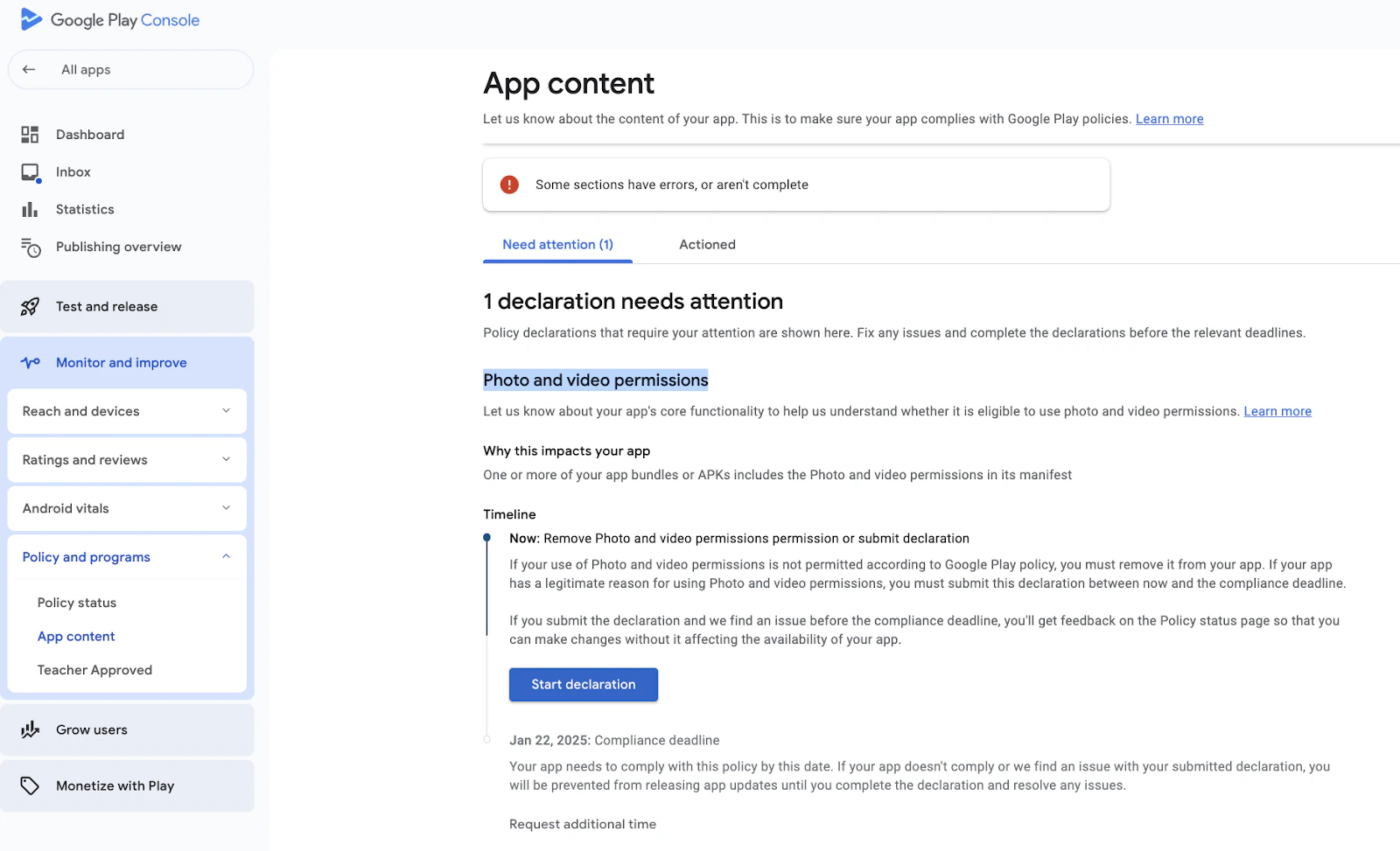 3. Click on **Start Declaration**
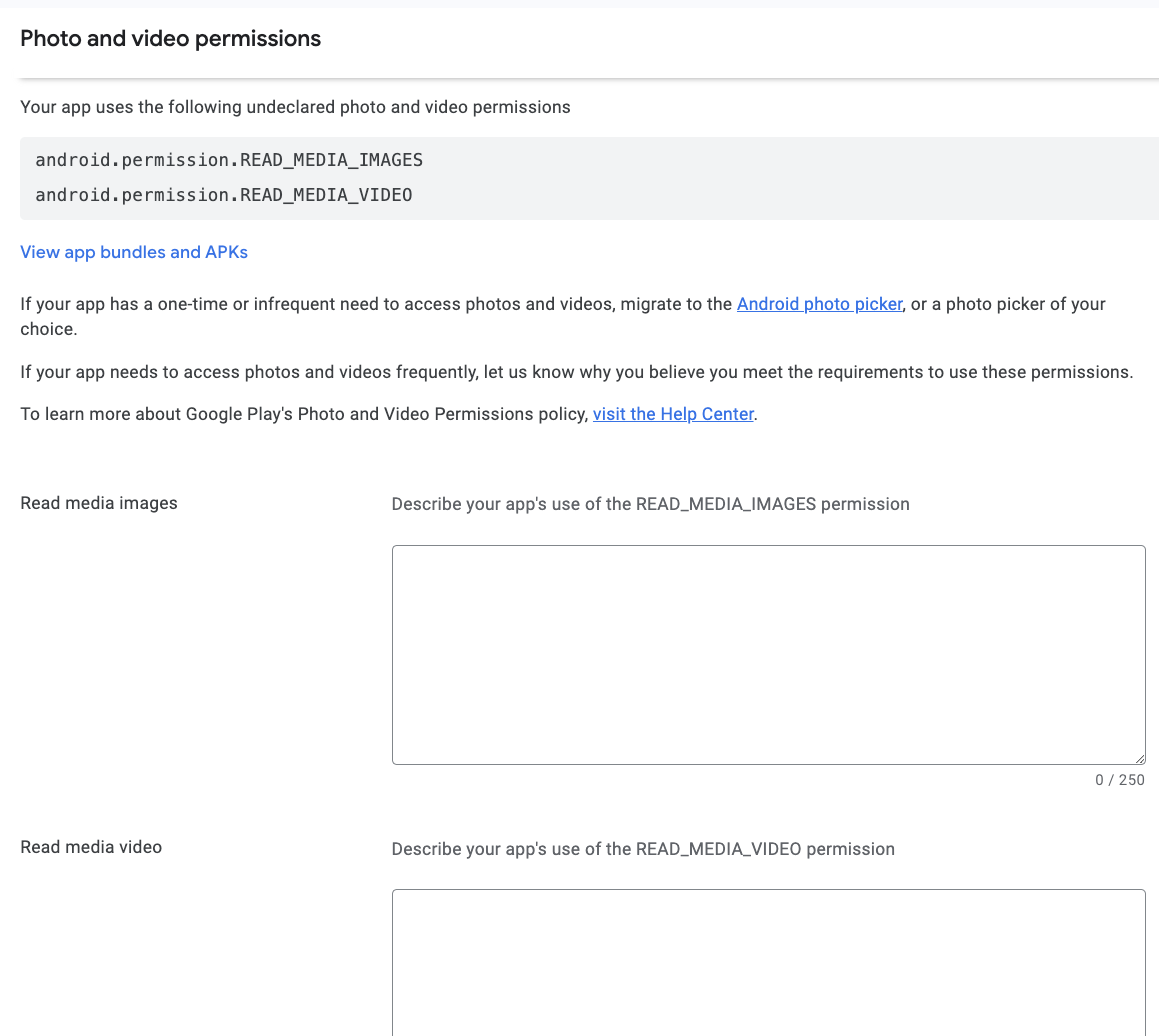
4. Next, you will see 2 fields in which you can enter information
5. In the **Read Media Images** box, please use the following response:
* ***My customers can, if they choose to give permission to access photos, upload photos and media content within the application.***
6. In the **Read Media Video** box, please use the following response:
* ***My customers can, if they choose to give permission to access videos, upload video and media content within the application.***
3. Click on **Start Declaration**
4. Next, you will see 2 fields in which you can enter information
5. In the **Read Media Images** box, please use the following response:
* ***My customers can, if they choose to give permission to access photos, upload photos and media content within the application.***
6. In the **Read Media Video** box, please use the following response:
* ***My customers can, if they choose to give permission to access videos, upload video and media content within the application.***
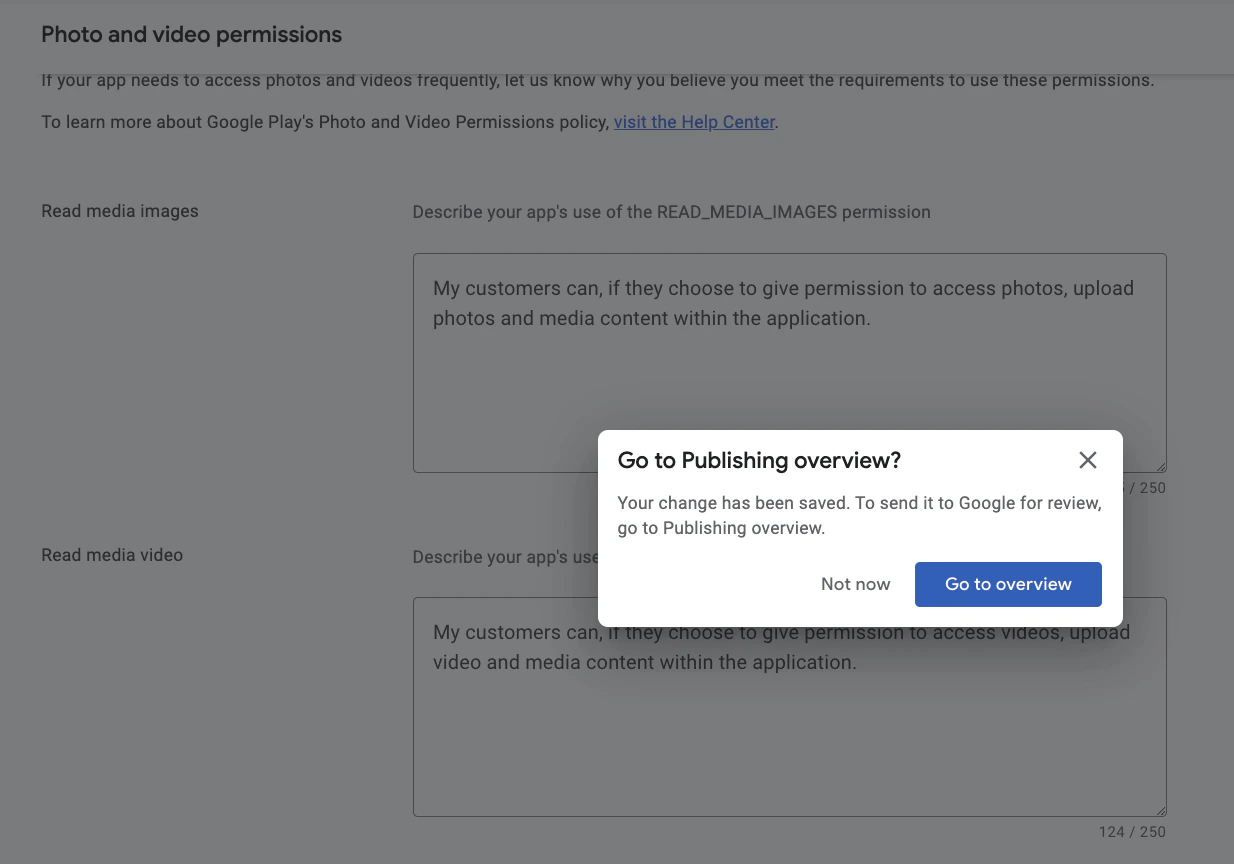
 7. After you click **Save** in the bottom right corner, you will be asked to go to the Publishing Overview
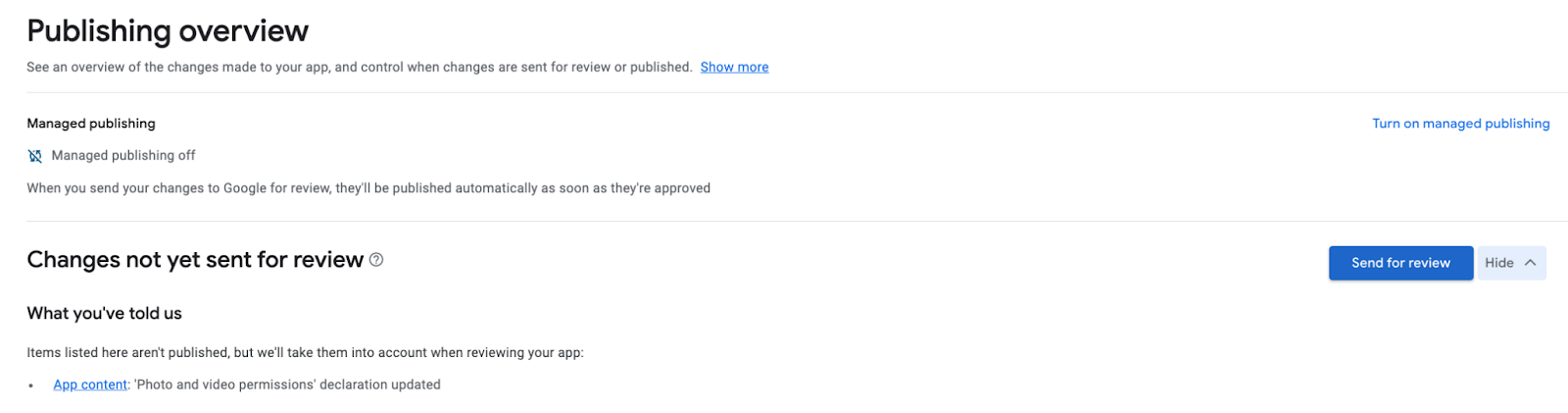
 8. Go to the **overview** page, then click on **Send For Review**: