> ## Documentation Index
> Fetch the complete documentation index at: https://help.kajabi.com/llms.txt
> Use this file to discover all available pages before exploring further.
# Add external purchase links to a Branded App
> Place web-based offer links in buttons, images, galleries, custom links, and push notifications.
**External purchase links** let members buy directly from web-based offer pages without leaving the app. Place these links in buttons, images, galleries, custom links, and push notifications to create a friction-free purchasing experience.
**Note:**
This feature is currently only available to US-based Heroes.
## Getting started
Before linking offers throughout a Branded Mobile App, make sure you have the following completed:
1. Have the **URL** of the offer page you want to promote
2. Select **Branded Mobile App** from your Kajabi dashboard
* If you've fully completed your [app setup](/articles/mobile-apps/branded-app/how-do-i-get-started-creating-my-own-branded-app), you should see your app Design settings
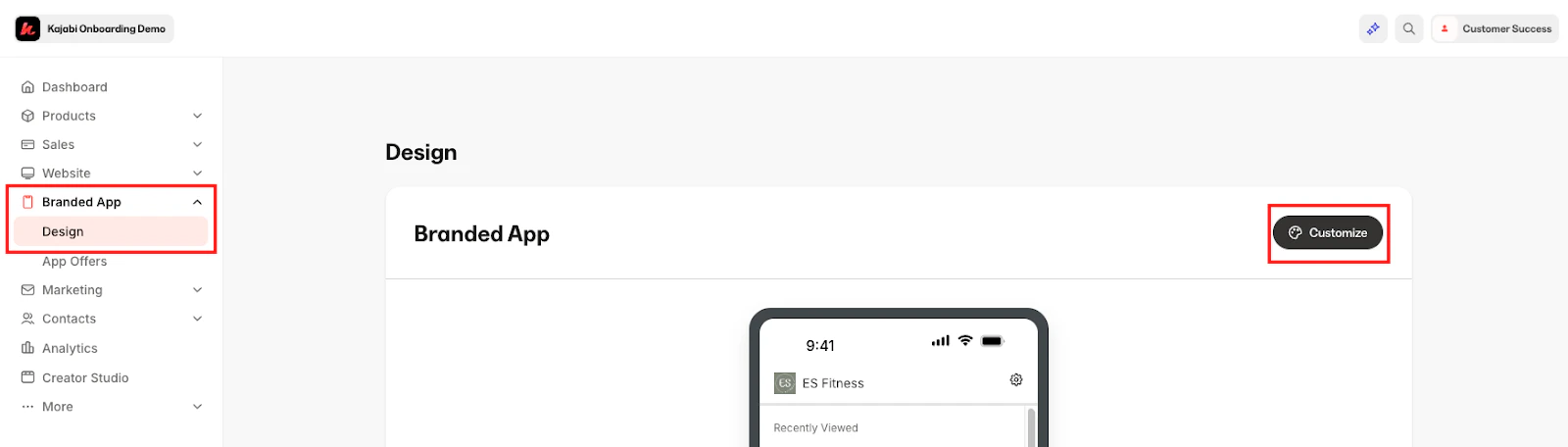
3. Click on the **Design** tab
**Tip:**
Use Kajabi Payments and enable Apple Pay/Google Pay in order to increase checkout conversion.
Now it's time to pick how to incorporate offer links in the Branded Mobile App.
## Link a button widget
From the **Design** tab under **Branded Mobile App**, click **Customize**:
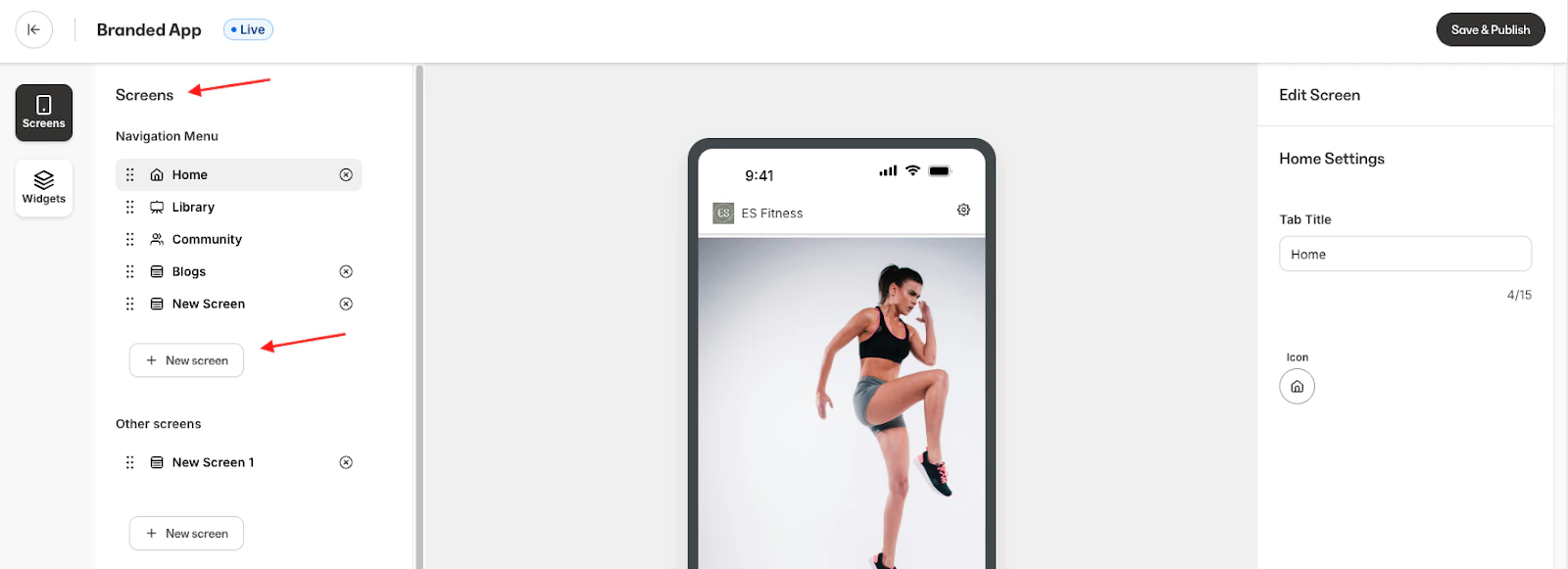
 1. Click **Screens** to select an existing screen or create a new one:
 2. Once you are on the screen you'd like to edit, navigate to the **Widgets** editor and drag a **Button** widget onto the screen:
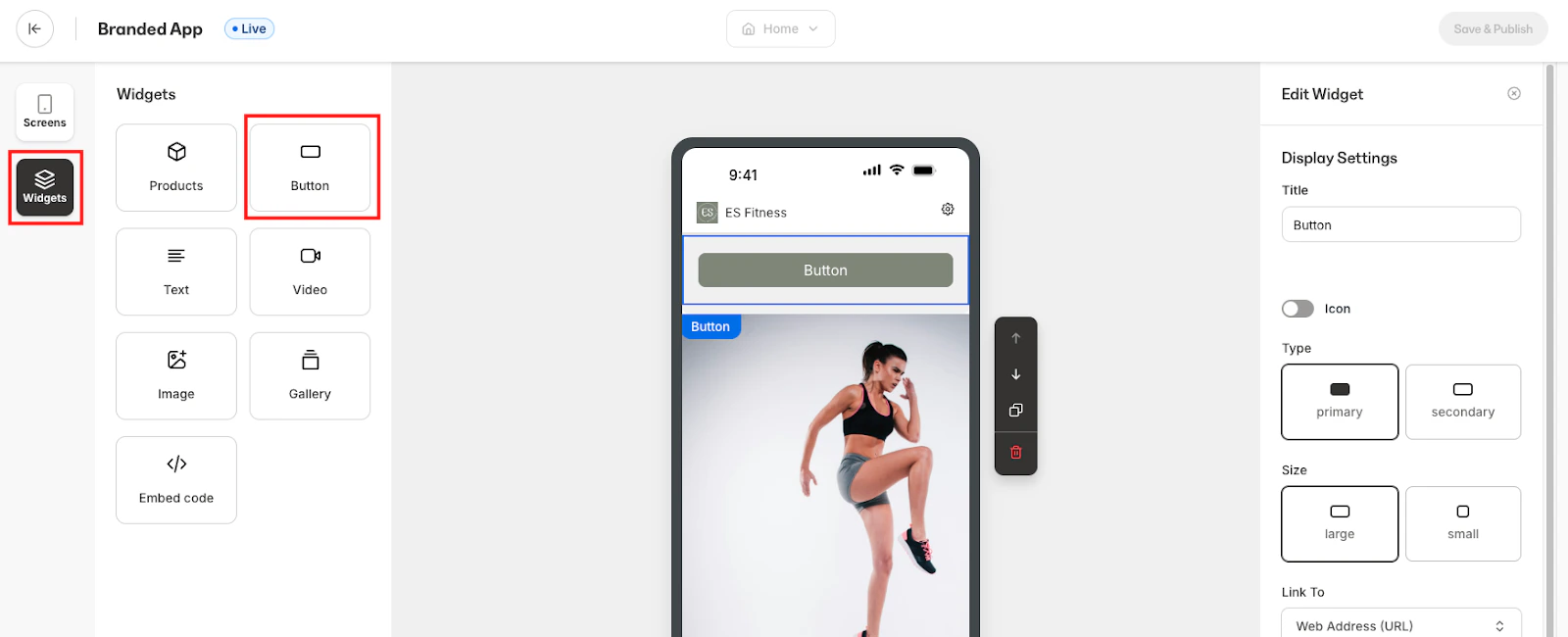 3. In the right-hand settings panel, paste the **offer URL** into the **Link** field
4. Set **Open link** to **In-App Browser** for a seamless experience
5. Click **Save**
Learn to [customize widgets on Branded App Screens](/articles/mobile-apps/branded-app/how-to-customize-widgets-on-your-branded-app-screens) for more details.
## Link an image gallery item
1. In the **Widgets** editor, drag a **Gallery** widget onto the screen:
3. In the right-hand settings panel, paste the **offer URL** into the **Link** field
4. Set **Open link** to **In-App Browser** for a seamless experience
5. Click **Save**
Learn to [customize widgets on Branded App Screens](/articles/mobile-apps/branded-app/how-to-customize-widgets-on-your-branded-app-screens) for more details.
## Link an image gallery item
1. In the **Widgets** editor, drag a **Gallery** widget onto the screen:
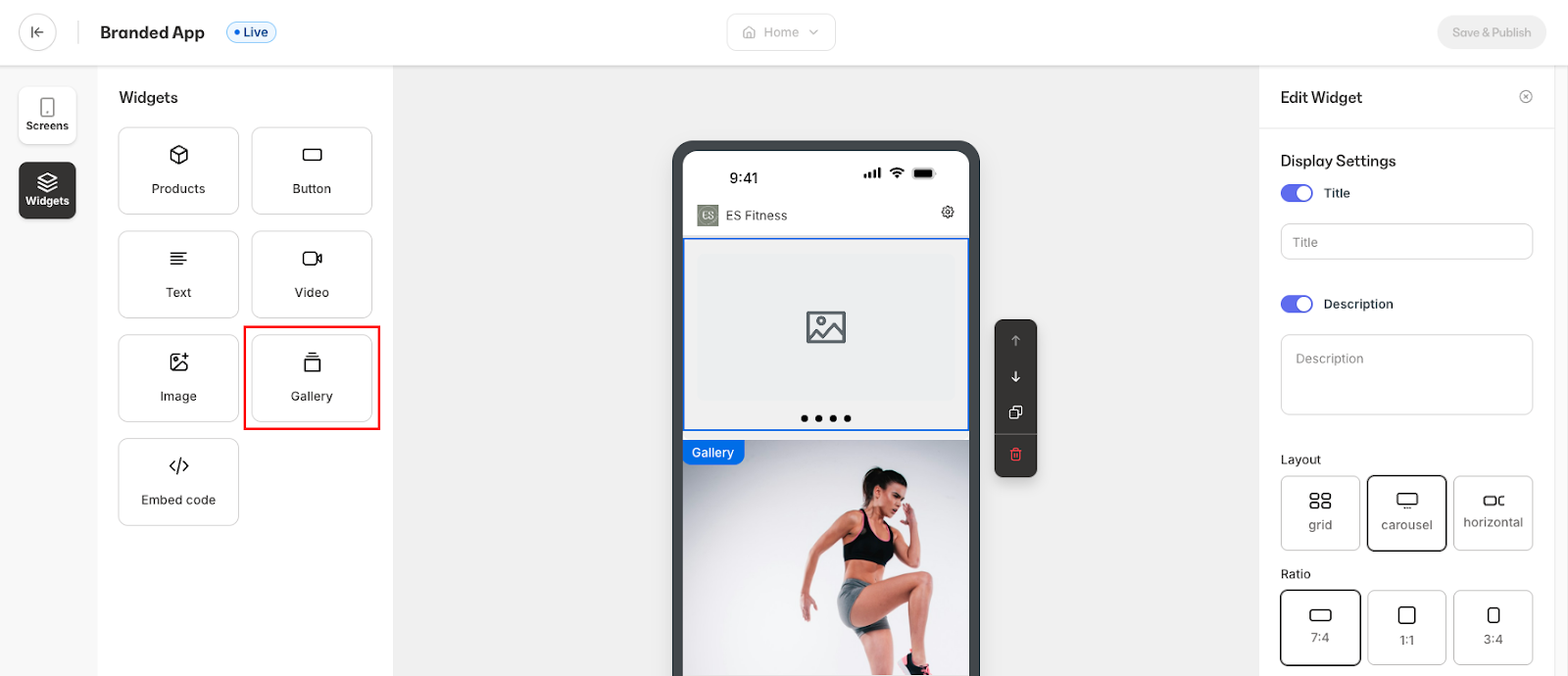 2. Upload your images
3. Select an image, choose **Action → Web address**, and paste the **offer URL**
4. Repeat for any other images that should link out
5. Click **Save** and **Publish** to push the change live
## Link a single image widget
1. In the **Widgets** editor, drag an **Image** widget onto the screen:
2. Upload your images
3. Select an image, choose **Action → Web address**, and paste the **offer URL**
4. Repeat for any other images that should link out
5. Click **Save** and **Publish** to push the change live
## Link a single image widget
1. In the **Widgets** editor, drag an **Image** widget onto the screen:
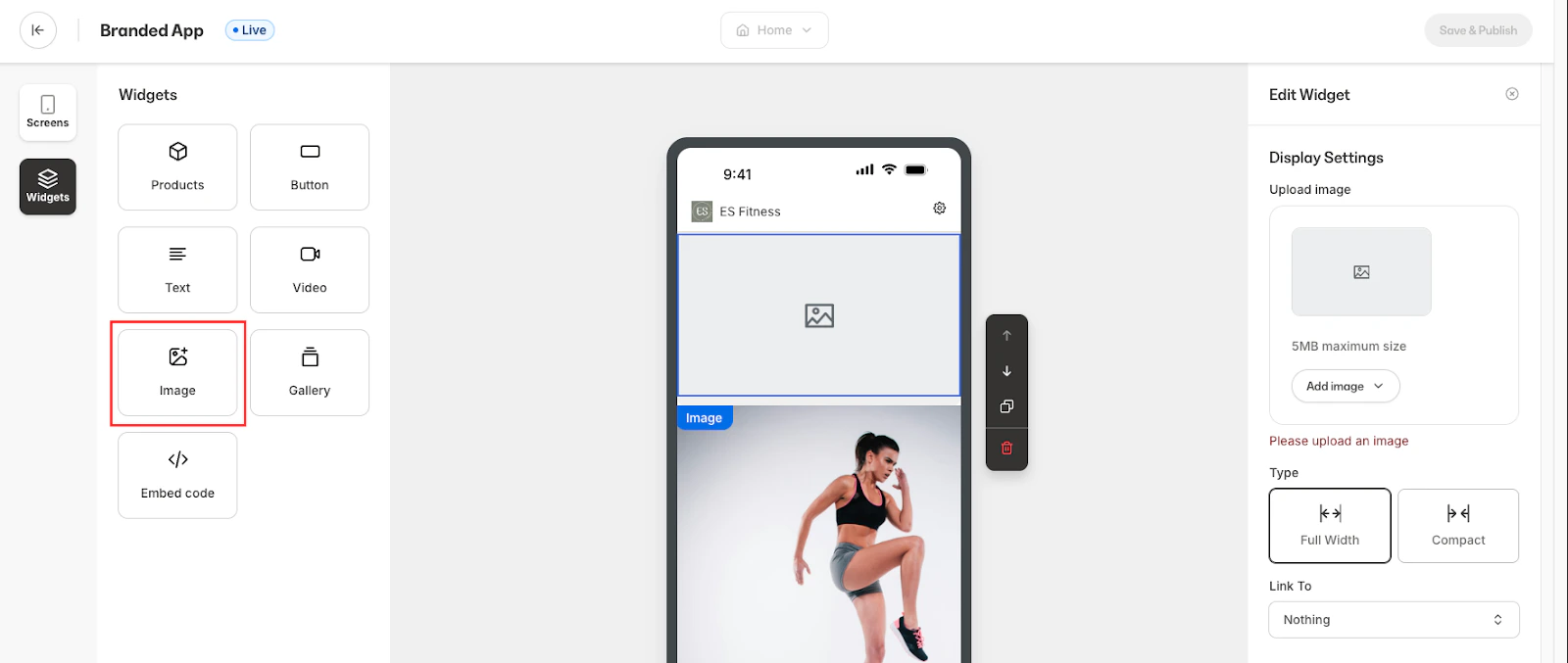 2. Upload a graphic, product shot, or banner for the offer
3. In **Action → Web address**, paste the **offer URL**
4. Click **Save** and **Publish** to push the change live
**Tip:**
A large hero image with a "Tap to buy" caption works well here.
## Add a custom link in the menu
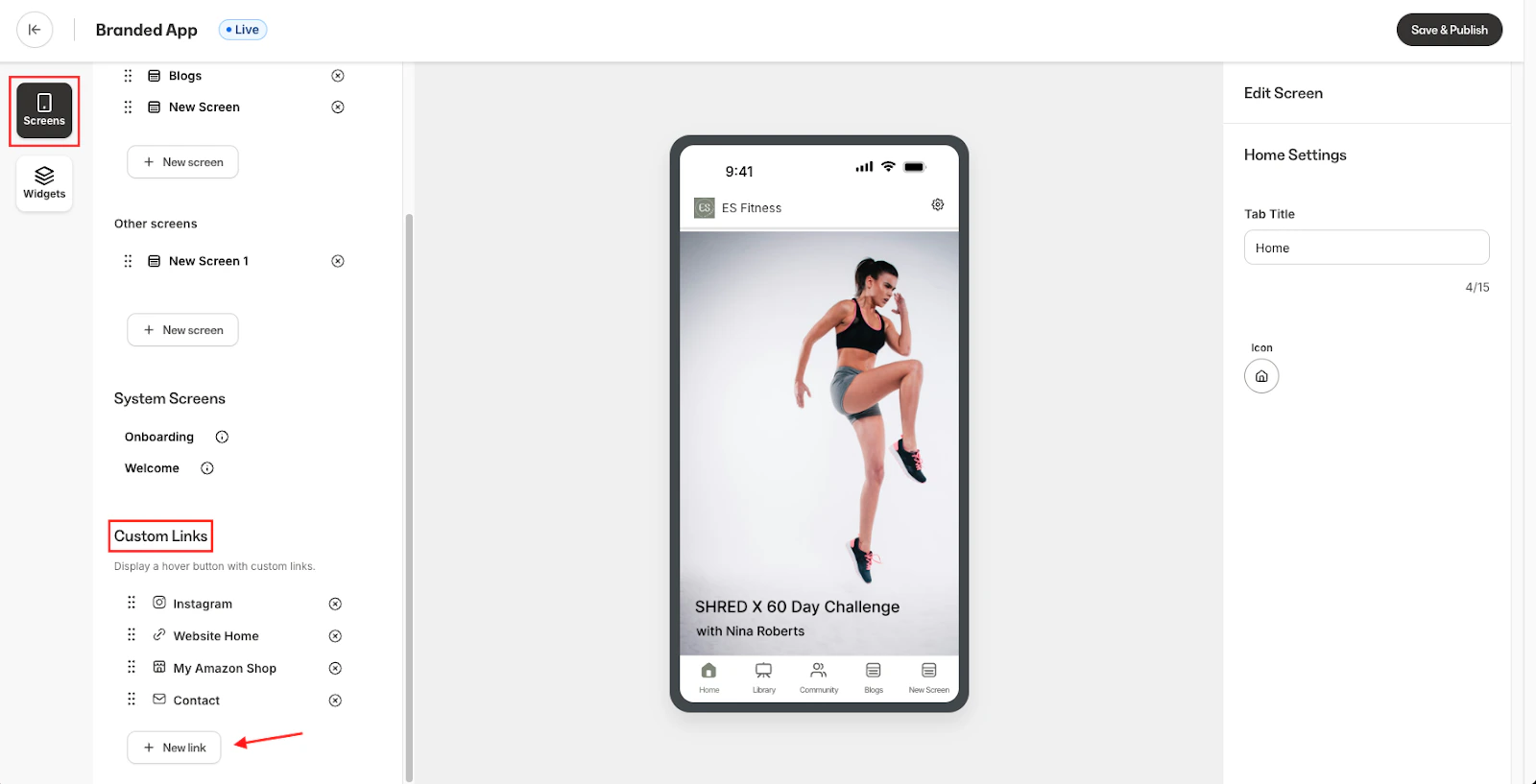
1. In the **Screens** editor, scroll down until you see **Custom Links**
2. Click **+ New link**:
2. Upload a graphic, product shot, or banner for the offer
3. In **Action → Web address**, paste the **offer URL**
4. Click **Save** and **Publish** to push the change live
**Tip:**
A large hero image with a "Tap to buy" caption works well here.
## Add a custom link in the menu
1. In the **Screens** editor, scroll down until you see **Custom Links**
2. Click **+ New link**:
 3. Enter a **Title** members will recognize (e.g., *Course Offer*)
4. Paste the **offer URL**
5. Click **Save** and **Publish** to push the change live
Learn to [add custom links to a Branded App](/articles/mobile-apps/branded-app/how-to-add-custom-links-to-your-branded-app) for more details.
## Promote the link with a push notification
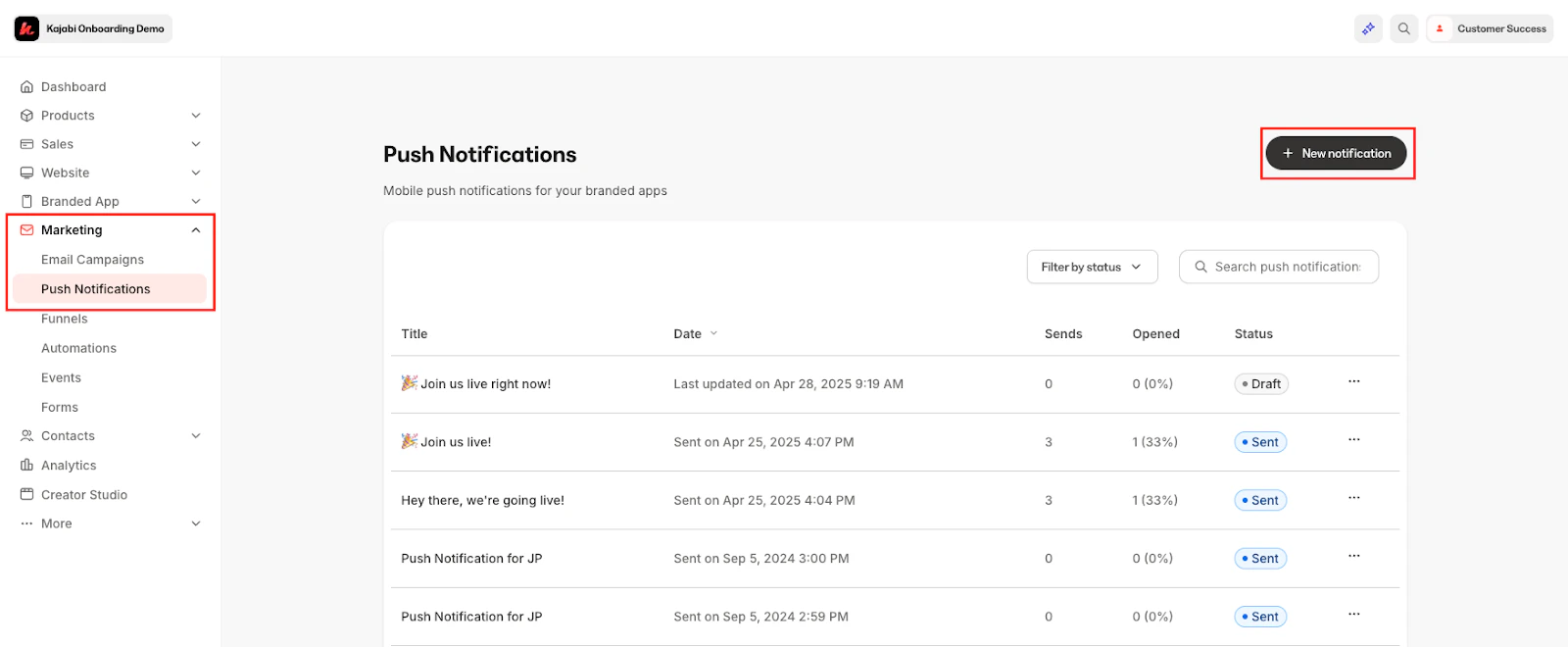
1. From your Kajabi dashboard, select **Marketing**
2. Then, select **Push notifications**
3. Click **+ New notification** at the top right of the page:
3. Enter a **Title** members will recognize (e.g., *Course Offer*)
4. Paste the **offer URL**
5. Click **Save** and **Publish** to push the change live
Learn to [add custom links to a Branded App](/articles/mobile-apps/branded-app/how-to-add-custom-links-to-your-branded-app) for more details.
## Promote the link with a push notification
1. From your Kajabi dashboard, select **Marketing**
2. Then, select **Push notifications**
3. Click **+ New notification** at the top right of the page:
 4. Choose to send the notification to **Everyone who allows notifications** or to a **Custom segment**
5. Enter a **Title** and write a concise **Message** (e.g., *"Limited-time bundle—tap to unlock"*)
6. Choose **Web address** under **Link to** and paste the **offer URL**
7. Schedule or send immediately
Learn to [create Branded App Push Notifications](/articles/mobile-apps/branded-app/how-to-create-branded-app-push-notifications) for more details.
## Best practices
* **Keep buyers inside the app.** Use the in-app browser unless your checkout requires a full browser
* **Use clear calls to action.** "Buy Now," "Unlock Discount," or "Start My Trial" convert better than generic text
* **Track performance.** Add UTM parameters to each URL to see which placement drives the most sales
4. Choose to send the notification to **Everyone who allows notifications** or to a **Custom segment**
5. Enter a **Title** and write a concise **Message** (e.g., *"Limited-time bundle—tap to unlock"*)
6. Choose **Web address** under **Link to** and paste the **offer URL**
7. Schedule or send immediately
Learn to [create Branded App Push Notifications](/articles/mobile-apps/branded-app/how-to-create-branded-app-push-notifications) for more details.
## Best practices
* **Keep buyers inside the app.** Use the in-app browser unless your checkout requires a full browser
* **Use clear calls to action.** "Buy Now," "Unlock Discount," or "Start My Trial" convert better than generic text
* **Track performance.** Add UTM parameters to each URL to see which placement drives the most sales