> ## Documentation Index
> Fetch the complete documentation index at: https://help.kajabi.com/llms.txt
> Use this file to discover all available pages before exploring further.
# Create App Offers for a Branded App
> Enable Branded App members to purchase courses through in-app purchases.
**App Offers** enable Branded App members to make in-app purchases directly from their mobile devices. This page covers creating, editing, and managing App Offers, plus best practices for maximizing in-app sales.
## What is an App Offer?
An App Offer is the mechanism through which Branded App members can make in-app purchases. App Offers are different from Offers created for products on a Kajabi website and must be created separately from [website Offers](../../sales/offers/offers-overview).
### How will members experience App Offers?
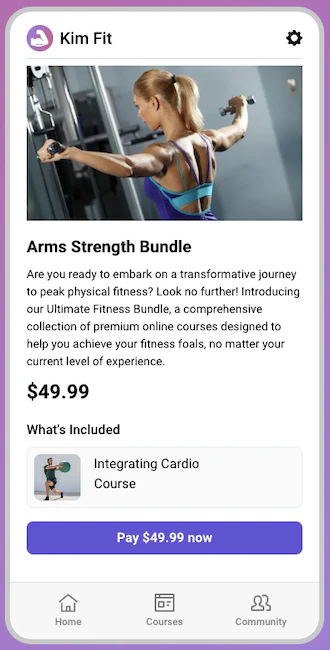
App Offers will be featured on the app [home screen](/articles/mobile-apps/branded-app/how-to-create-custom-screens-for-your-branded-mobile-app). When a member clicks to open an App Offer, they'll see a custom title, description, and price information. They can then click the **Pay** button to purchase the course(s) included in the offer:
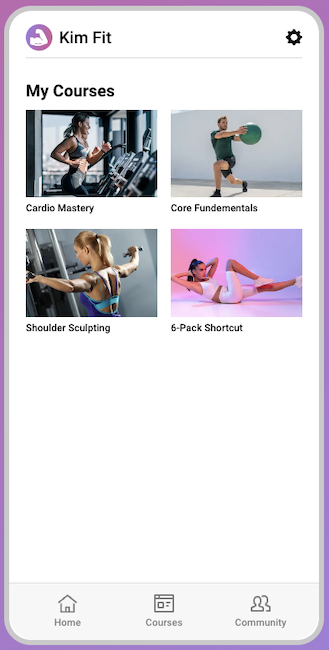
 After clicking their device side button to confirm the purchase, the course(s) will appear in the member's course library:
 ## Create an App Offer
**Note:**
Before offering in-app purchases, you'll need to set up your banking and tax information with [Apple](/articles/mobile-apps/branded-app/how-to-set-up-your-banking-and-tax-info-with-apple) and [Google](/articles/mobile-apps/branded-app/how-to-set-up-a-merchant-account-for-google-in-app-purchases).
**To create an App Offer:**
1. Select **Branded Mobile App** from your Kajabi dashboard.
If you've fully completed your [app setup](/articles/mobile-apps/branded-app/how-do-i-get-started-creating-my-own-branded-app), you should see the App Offers subpage in your app navigation menu.
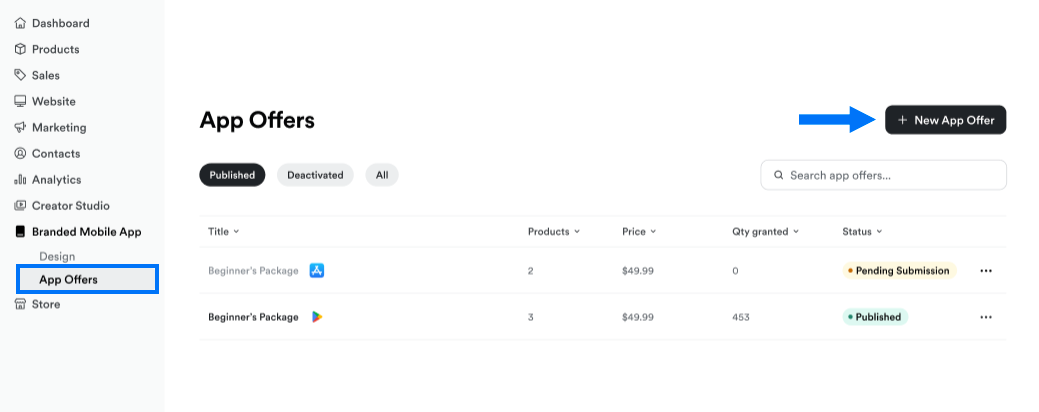
2. Select **App Offers**.
3. If this is your first App Offer, click **Get started**.
If you've created an offer before, click **+ New App Offer** at the top right:
## Create an App Offer
**Note:**
Before offering in-app purchases, you'll need to set up your banking and tax information with [Apple](/articles/mobile-apps/branded-app/how-to-set-up-your-banking-and-tax-info-with-apple) and [Google](/articles/mobile-apps/branded-app/how-to-set-up-a-merchant-account-for-google-in-app-purchases).
**To create an App Offer:**
1. Select **Branded Mobile App** from your Kajabi dashboard.
If you've fully completed your [app setup](/articles/mobile-apps/branded-app/how-do-i-get-started-creating-my-own-branded-app), you should see the App Offers subpage in your app navigation menu.
2. Select **App Offers**.
3. If this is your first App Offer, click **Get started**.
If you've created an offer before, click **+ New App Offer** at the top right:
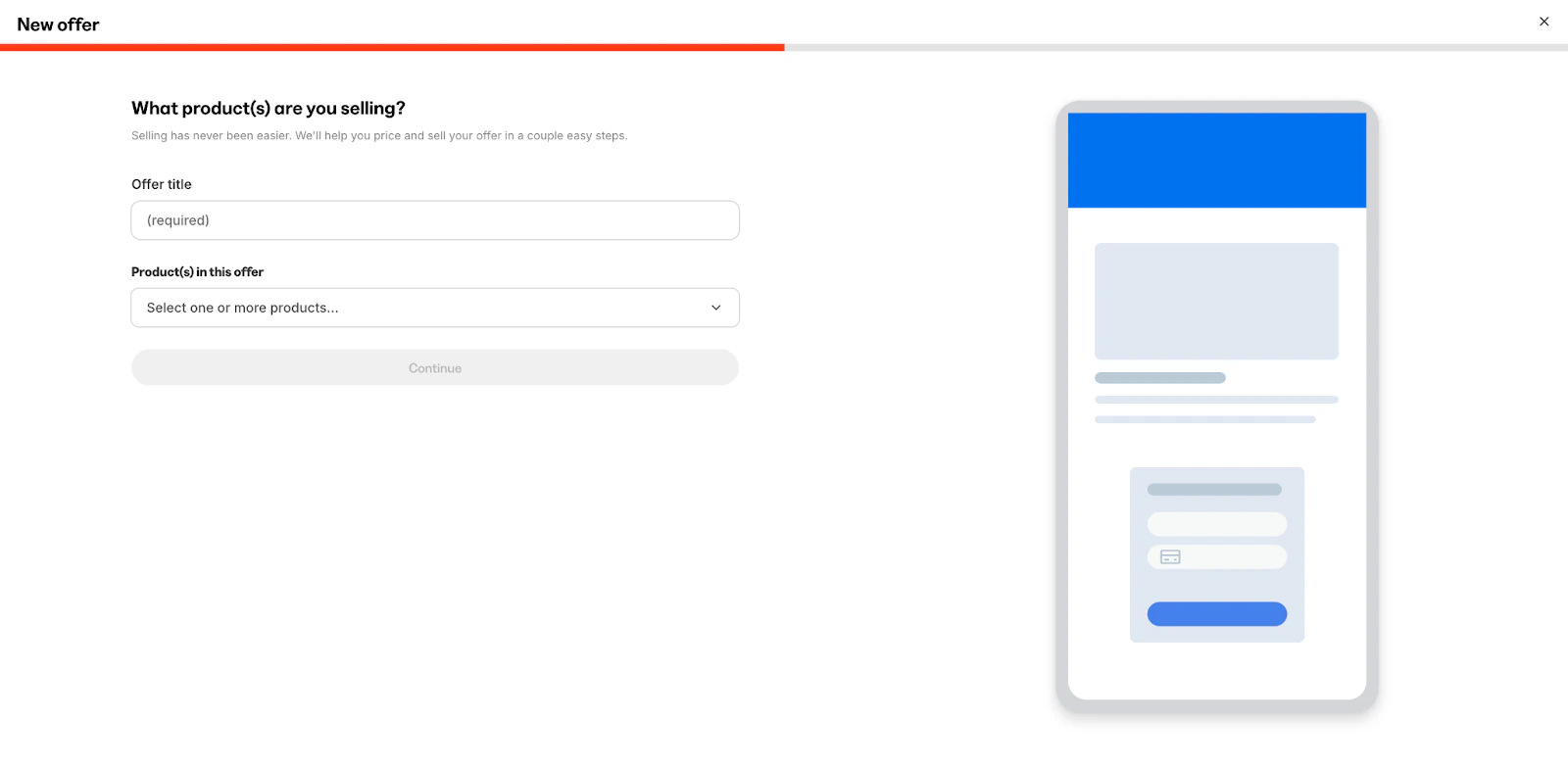
 4. Next, enter an **Offer Title** to display on the offer.
5. Use the **Product(s) in this app offer** dropdown menu to select one or more products to include with the App Offer.
6. Only course and community products are available to select at this time.
7. Click **Save and continue**:
4. Next, enter an **Offer Title** to display on the offer.
5. Use the **Product(s) in this app offer** dropdown menu to select one or more products to include with the App Offer.
6. Only course and community products are available to select at this time.
7. Click **Save and continue**:
 8. Choose to create either a **Free** or **Paid** offer.
9. Use the toggles to choose your app **platform(s)**.
10. If you create a Paid offer, input your **Payment frequency** and **Currency** settings.
You can select **one-time payment** or **subscription** under frequency.
11. Enter the **Price** for the offer.
**Note:**
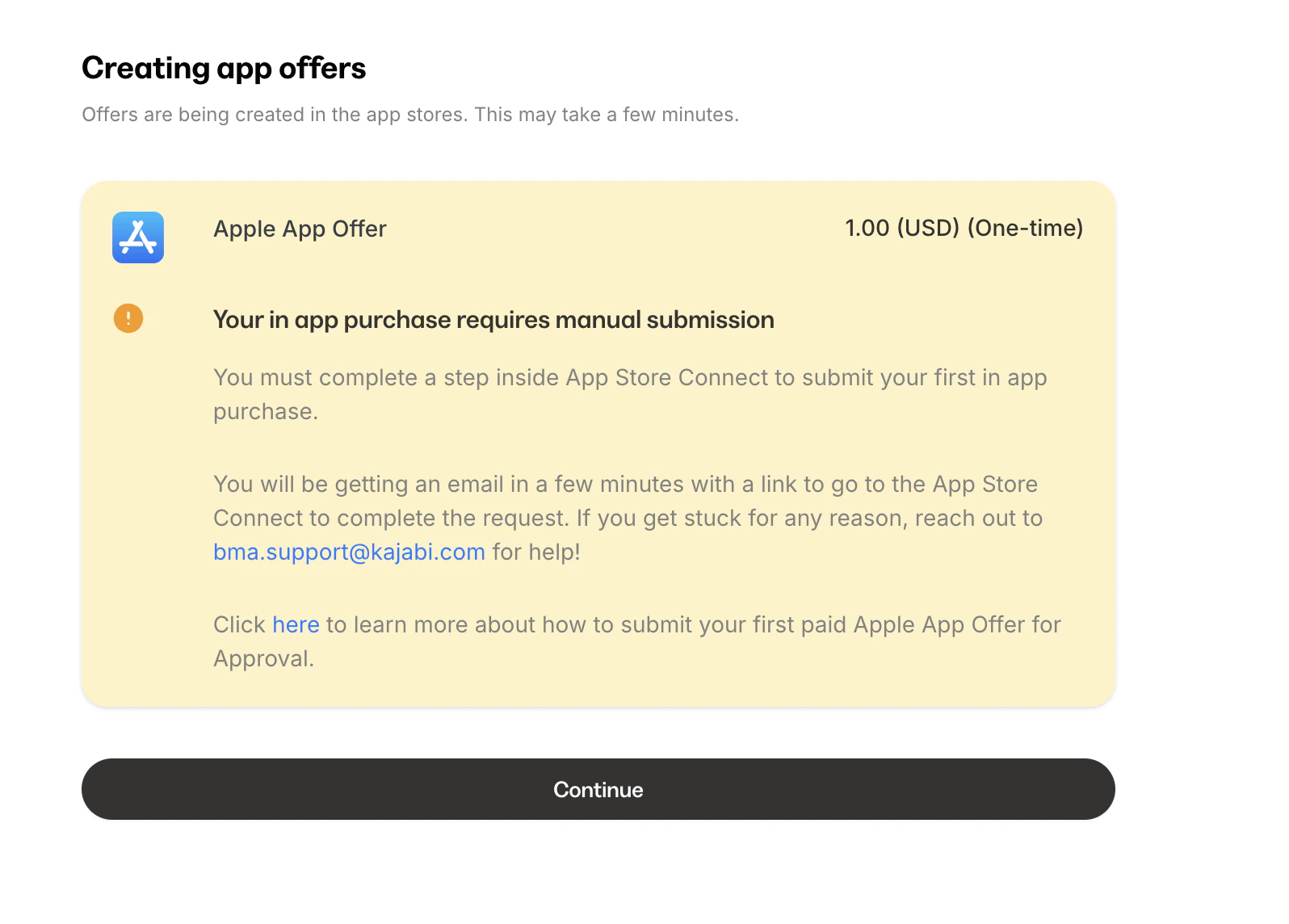
If this is your first subscription iOS App Offer or first iOS App Offer in general, make sure to follow [these steps](/articles/mobile-apps/branded-app/how-to-create-your-first-paid-apple-app-offer-for-approval) to submit to Apple.
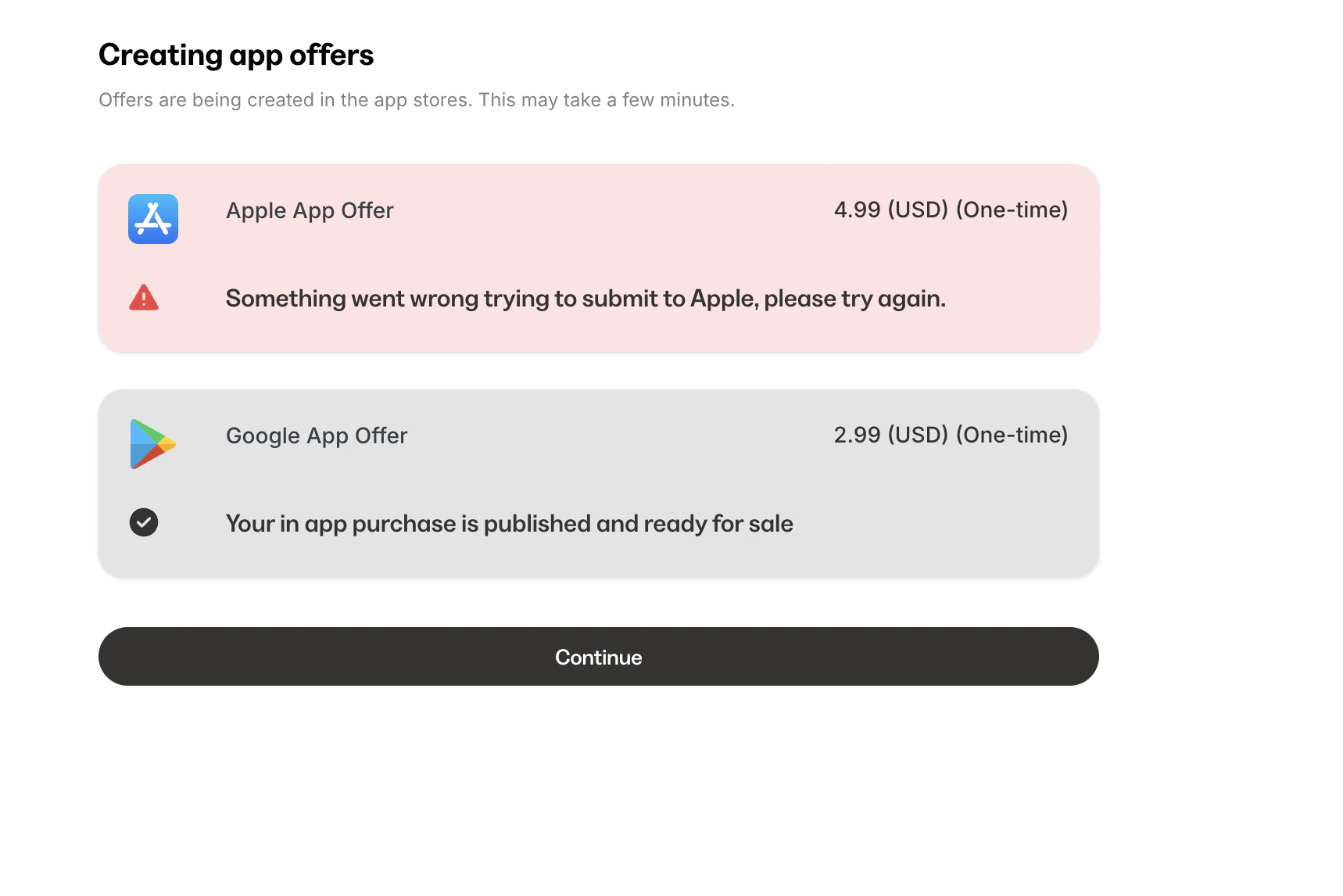
If there are additional steps identified when trying to submit your offers to the respective app stores, you will see a window appear with the necessary information to finish the in-app offer submission. If the system encounters an error, you may be asked to start over and resubmit.
8. Choose to create either a **Free** or **Paid** offer.
9. Use the toggles to choose your app **platform(s)**.
10. If you create a Paid offer, input your **Payment frequency** and **Currency** settings.
You can select **one-time payment** or **subscription** under frequency.
11. Enter the **Price** for the offer.
**Note:**
If this is your first subscription iOS App Offer or first iOS App Offer in general, make sure to follow [these steps](/articles/mobile-apps/branded-app/how-to-create-your-first-paid-apple-app-offer-for-approval) to submit to Apple.
If there are additional steps identified when trying to submit your offers to the respective app stores, you will see a window appear with the necessary information to finish the in-app offer submission. If the system encounters an error, you may be asked to start over and resubmit.
 ### Add courses on the Branded App home screen
[Customize the Branded App home screen](/articles/mobile-apps/branded-app/how-to-create-custom-screens-for-your-branded-mobile-app) to display the courses available with the in-app offer.
Wait 10-15 minutes for Kajabi to automatically finish up the app build.
### What if this is a first paid iOS App Offer?
If this is your first paid App Offer for the iOS platform, you'll need to complete a one-time extra step in App Store Connect to [submit the first paid Apple App Offer for approval](/articles/mobile-apps/branded-app/how-to-create-your-first-paid-apple-app-offer-for-approval).
## Edit or remove an App Offer
Ready to change the details for an existing offer, or remove it entirely? No problem.
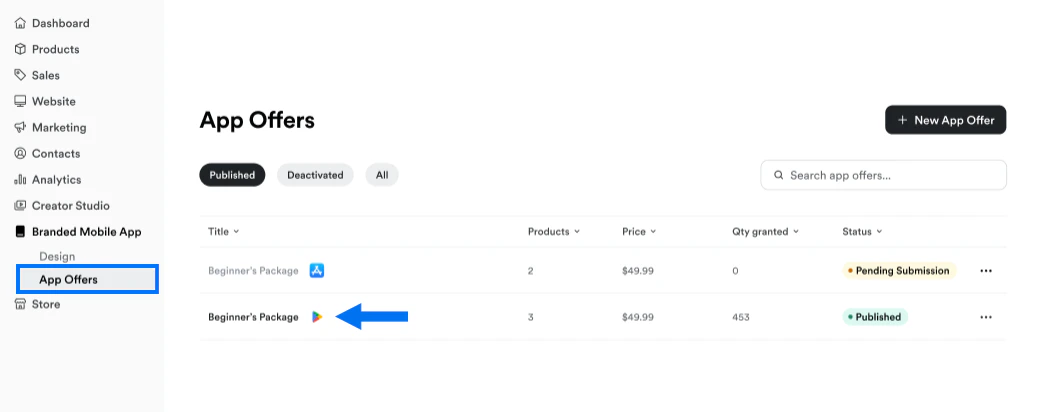
**To open an existing App Offer:**
1. Select **Branded Mobile App** from your Kajabi dashboard.
2. Select **App Offers**.
3. Then, click the **Title** of the offer you want to update:
### Add courses on the Branded App home screen
[Customize the Branded App home screen](/articles/mobile-apps/branded-app/how-to-create-custom-screens-for-your-branded-mobile-app) to display the courses available with the in-app offer.
Wait 10-15 minutes for Kajabi to automatically finish up the app build.
### What if this is a first paid iOS App Offer?
If this is your first paid App Offer for the iOS platform, you'll need to complete a one-time extra step in App Store Connect to [submit the first paid Apple App Offer for approval](/articles/mobile-apps/branded-app/how-to-create-your-first-paid-apple-app-offer-for-approval).
## Edit or remove an App Offer
Ready to change the details for an existing offer, or remove it entirely? No problem.
**To open an existing App Offer:**
1. Select **Branded Mobile App** from your Kajabi dashboard.
2. Select **App Offers**.
3. Then, click the **Title** of the offer you want to update:
 ### Edit App Offer details
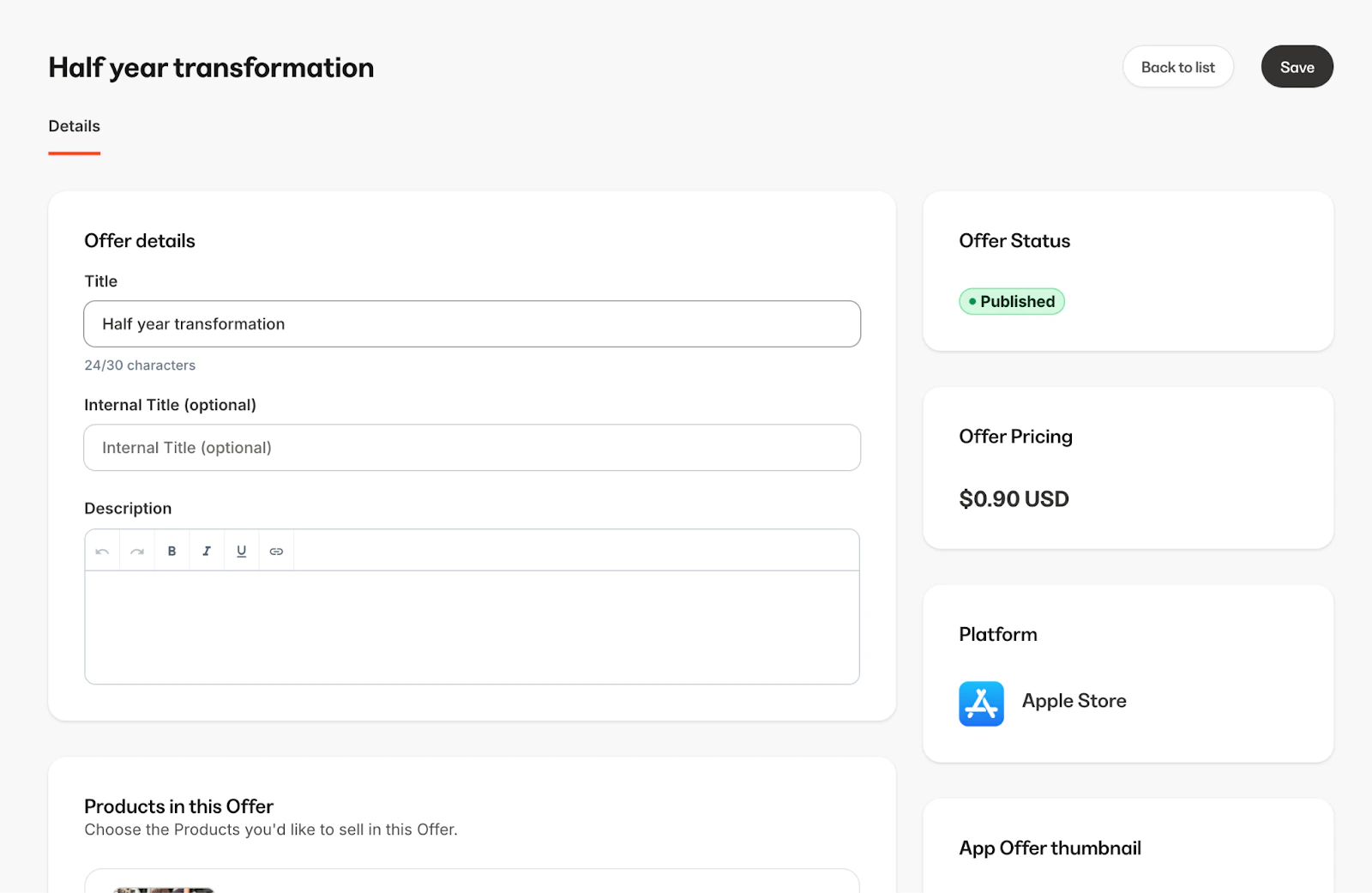
On the **Details** page, update the offer Title, Description, Products, and/or thumbnail image as desired. Click **Save** to apply changes:
### Edit App Offer details
On the **Details** page, update the offer Title, Description, Products, and/or thumbnail image as desired. Click **Save** to apply changes:
 ### Deactivate an App Offer
Deactivating an App Offer will remove it from the in-app purchase offers listed on the Branded App home screen. Members who've already purchased the offer will retain access to the attached course(s), but members who haven't purchased the offer will no longer see it.
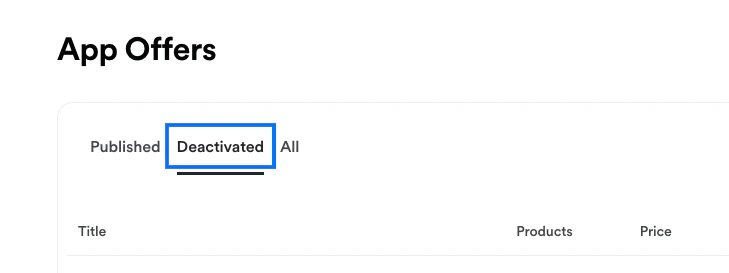
In Kajabi Branded Mobile App settings, deactivated offers will appear under the **Deactivated** tab on the App Offers page:
### Deactivate an App Offer
Deactivating an App Offer will remove it from the in-app purchase offers listed on the Branded App home screen. Members who've already purchased the offer will retain access to the attached course(s), but members who haven't purchased the offer will no longer see it.
In Kajabi Branded Mobile App settings, deactivated offers will appear under the **Deactivated** tab on the App Offers page:
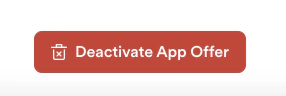
 To deactivate an offer, click to open the offer for editing, scroll to the bottom of the **Details** page and click **Deactivate App Offer**:
 ### Delete an App Offer
To delete an App Offer from Kajabi Branded Mobile App settings entirely:
1. Navigate to **App Offers**.
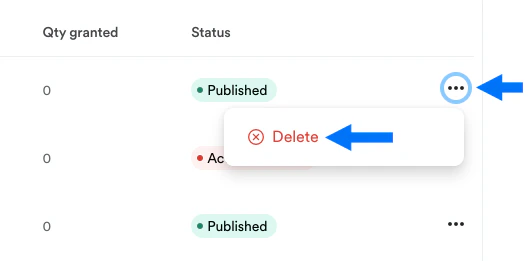
2. Click the three dot menu to the right of the offer you wish to delete.
3. Select **Delete**:
### Delete an App Offer
To delete an App Offer from Kajabi Branded Mobile App settings entirely:
1. Navigate to **App Offers**.
2. Click the three dot menu to the right of the offer you wish to delete.
3. Select **Delete**:
 ## App Offer best practices
Here are a few tips for optimizing App Offers to encourage in-app purchases:
### Leverage the Branded App signup tag
When someone submits the app Sign Up form on the [welcome screen](/articles/mobile-apps/branded-app/how-to-set-up-a-branded-app-welcome-screen-where-new-users-can-create-an-account), the member will automatically be assigned a "Branded App signup" tag on their contact record in Kajabi. Use this tag to easily segment your mobile audience for App Offer promotions.
### Set up push notifications
Create [push notifications](/articles/mobile-apps/branded-app/how-to-create-branded-app-push-notifications) for app members highlighting App Offers. Segment the notifications to send them specifically to members, or strategically schedule them around course launch dates.
### Manage refunds
Refunds for purchases made in-app are different from refunds issued for purchases made through the website's checkout on Kajabi. In order for customers to request a refund for a purchase made in-app, they will need to go through Google or Apple.
[Learn to manage refunds for purchases made in a Branded App](/articles/mobile-apps/branded-app/managing-refunds-for-in-app-purchases).
### Utilize automations
Automations can assist with admin processes, such as automatically subscribing a customer to a welcome email sequence when they purchase an in app offer.
[Learn more about setting up automations in Kajabi.](../../marketing/automations/automations-overview)
**Important:**
In-App Purchase refunds are handled differently from traditional Kajabi offer refunds because of some nuanced rules with Apple and Google. **Specifically, when a refund occurs, the default behavior is that access to the content is immediately revoked.** If you would like to re-grant this offer to your customer, you are absolutely welcome to do so, but keep in mind that refunds can trigger without your knowledge by Google or Apple due to them being the arbiter of any and all refunds or disputes.
**Tip:**
Have questions about selling products on Apple and Google? See the [Selling FAQs](/articles/mobile-apps/branded-app/kajabi-branded-app-faqs).
## App Offer best practices
Here are a few tips for optimizing App Offers to encourage in-app purchases:
### Leverage the Branded App signup tag
When someone submits the app Sign Up form on the [welcome screen](/articles/mobile-apps/branded-app/how-to-set-up-a-branded-app-welcome-screen-where-new-users-can-create-an-account), the member will automatically be assigned a "Branded App signup" tag on their contact record in Kajabi. Use this tag to easily segment your mobile audience for App Offer promotions.
### Set up push notifications
Create [push notifications](/articles/mobile-apps/branded-app/how-to-create-branded-app-push-notifications) for app members highlighting App Offers. Segment the notifications to send them specifically to members, or strategically schedule them around course launch dates.
### Manage refunds
Refunds for purchases made in-app are different from refunds issued for purchases made through the website's checkout on Kajabi. In order for customers to request a refund for a purchase made in-app, they will need to go through Google or Apple.
[Learn to manage refunds for purchases made in a Branded App](/articles/mobile-apps/branded-app/managing-refunds-for-in-app-purchases).
### Utilize automations
Automations can assist with admin processes, such as automatically subscribing a customer to a welcome email sequence when they purchase an in app offer.
[Learn more about setting up automations in Kajabi.](../../marketing/automations/automations-overview)
**Important:**
In-App Purchase refunds are handled differently from traditional Kajabi offer refunds because of some nuanced rules with Apple and Google. **Specifically, when a refund occurs, the default behavior is that access to the content is immediately revoked.** If you would like to re-grant this offer to your customer, you are absolutely welcome to do so, but keep in mind that refunds can trigger without your knowledge by Google or Apple due to them being the arbiter of any and all refunds or disputes.
**Tip:**
Have questions about selling products on Apple and Google? See the [Selling FAQs](/articles/mobile-apps/branded-app/kajabi-branded-app-faqs).