> ## Documentation Index
> Fetch the complete documentation index at: https://help.kajabi.com/llms.txt
> Use this file to discover all available pages before exploring further.
# Customize widgets on Branded App screens
> Add and configure widgets including products, buttons, images, galleries, text, videos, and embed codes on Branded App screens.
**Widgets** let you customize Branded App screens with various content types including products, buttons, images, galleries, text, videos, and embed codes. This page covers adding, editing, and managing widgets on app screens.
## What is a screen?
The screens are like pages in a Branded App that members will see after they log into the app via the [welcome screen](/articles/mobile-apps/branded-app/how-to-set-up-a-branded-app-welcome-screen-where-new-users-can-create-an-account) or login screen (after viewing the [welcome carousel](/articles/mobile-apps/branded-app/how-to-add-an-onboarding-carousel-to-your-branded-app), if that feature has been added). If a member is already logged in, this will be the first thing they see when they reopen the app. You can learn more about custom screens [here](/articles/mobile-apps/branded-app/how-to-create-custom-screens-for-your-branded-mobile-app).
There are a variety of widgets you can use to customize these screens and enhance the experience of your customers.
## Add a widget to a screen section
To add a section to an app screen:
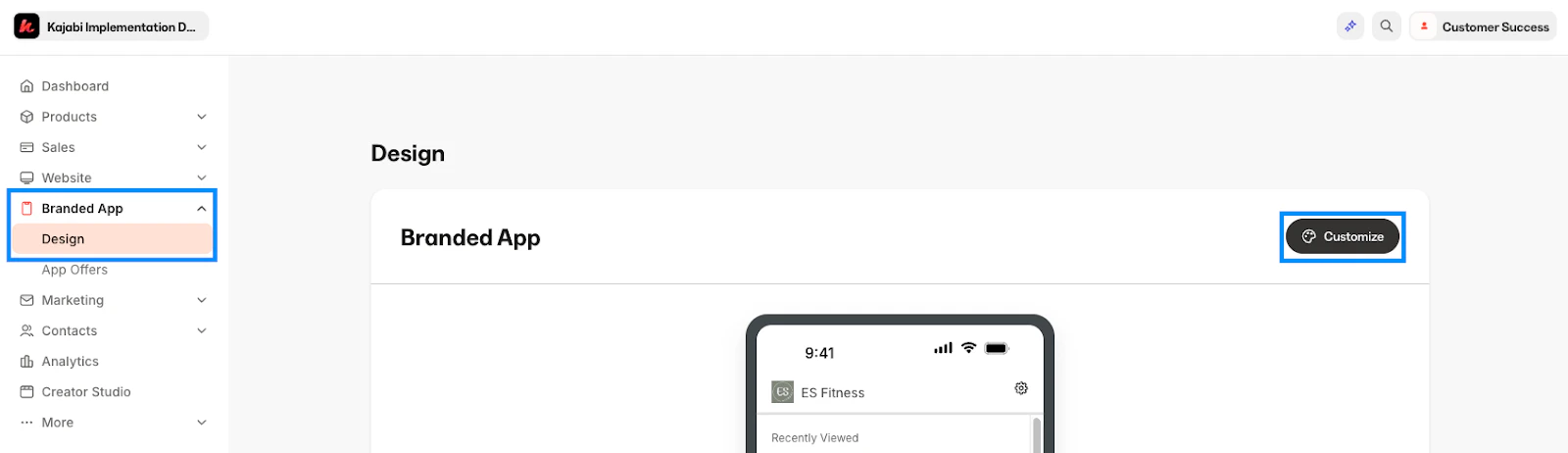
1. Select **Branded Mobile App** from your Kajabi dashboard.
If you've fully completed your [app setup](/articles/mobile-apps/branded-app/how-do-i-get-started-creating-my-own-branded-app), you should see your app Design settings.
2. Select the **Design** tab.
3. Click **Customize**:
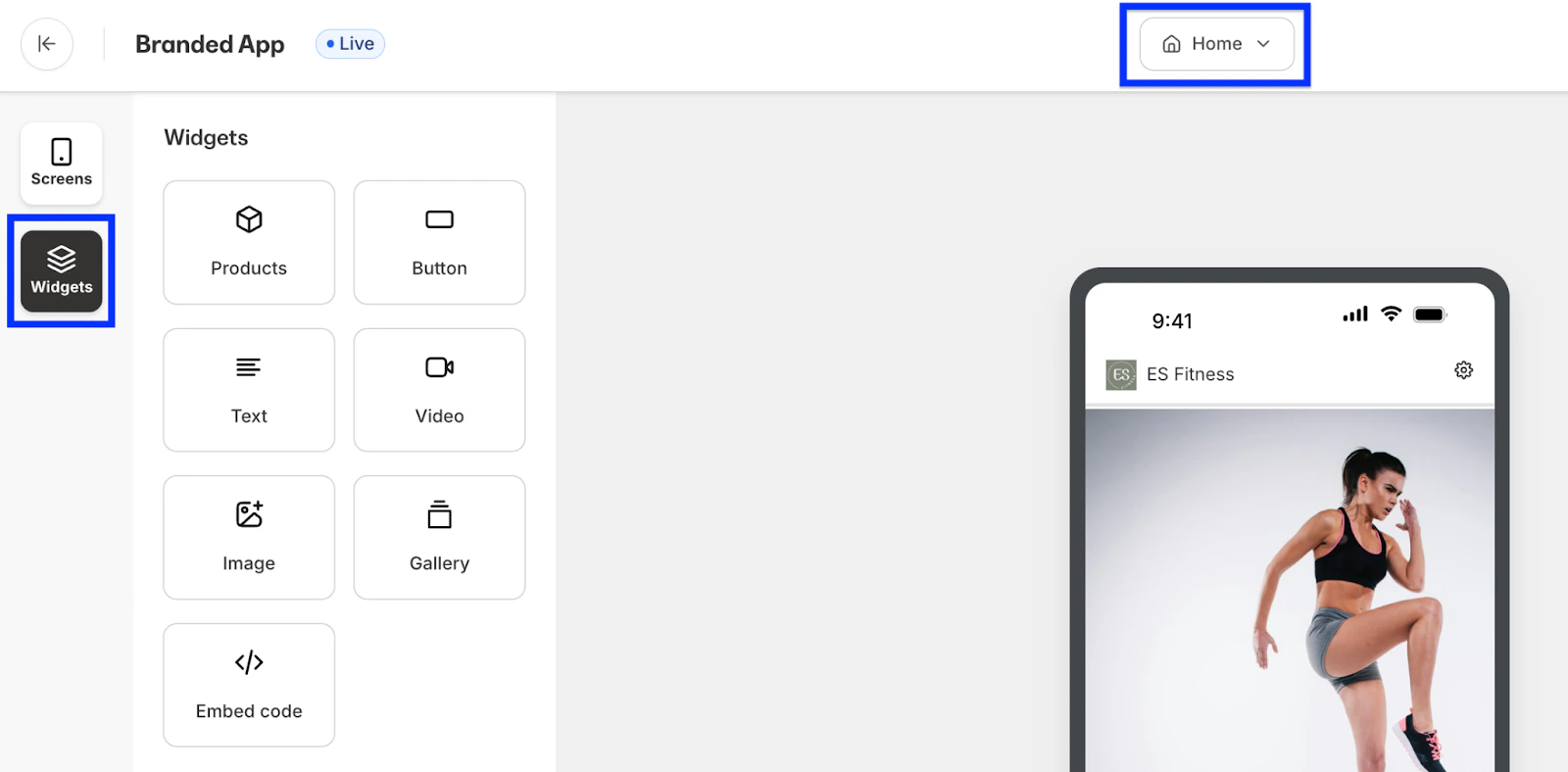
 4. Make sure that you are open to the **Widgets** editor and select the appropriate screen from the drop down:
 ### Available widgets
* **Product** widgets allow you to feature courses, coaching, product and community products members own, even if they are not included in an [app offer](/articles/mobile-apps/branded-app/how-to-create-app-offers-for-your-branded-app)
* **Button** can be used to link to pages, blog posts, or URLs
* **Image** can add further customization while also acting as a button that links to pages, blogs or URLs
* **Gallery** enables you to upload and display multiple images as a gallery
* It is recommended that the uploaded image dimension matches the selected ratio. For example -1260x720 for 7:4, 1080x1080 for 1:1, and 720x960 for 3:4
* **Text** sections can be added throughout the home screen
* **Video** widgets allow you to add videos directly to the home screen with customizable cover images
* **Embed Code** widgets give you the opportunity to paste in any HTML code to display additional content
### Drag and drop widgets
### Available widgets
* **Product** widgets allow you to feature courses, coaching, product and community products members own, even if they are not included in an [app offer](/articles/mobile-apps/branded-app/how-to-create-app-offers-for-your-branded-app)
* **Button** can be used to link to pages, blog posts, or URLs
* **Image** can add further customization while also acting as a button that links to pages, blogs or URLs
* **Gallery** enables you to upload and display multiple images as a gallery
* It is recommended that the uploaded image dimension matches the selected ratio. For example -1260x720 for 7:4, 1080x1080 for 1:1, and 720x960 for 3:4
* **Text** sections can be added throughout the home screen
* **Video** widgets allow you to add videos directly to the home screen with customizable cover images
* **Embed Code** widgets give you the opportunity to paste in any HTML code to display additional content
### Drag and drop widgets
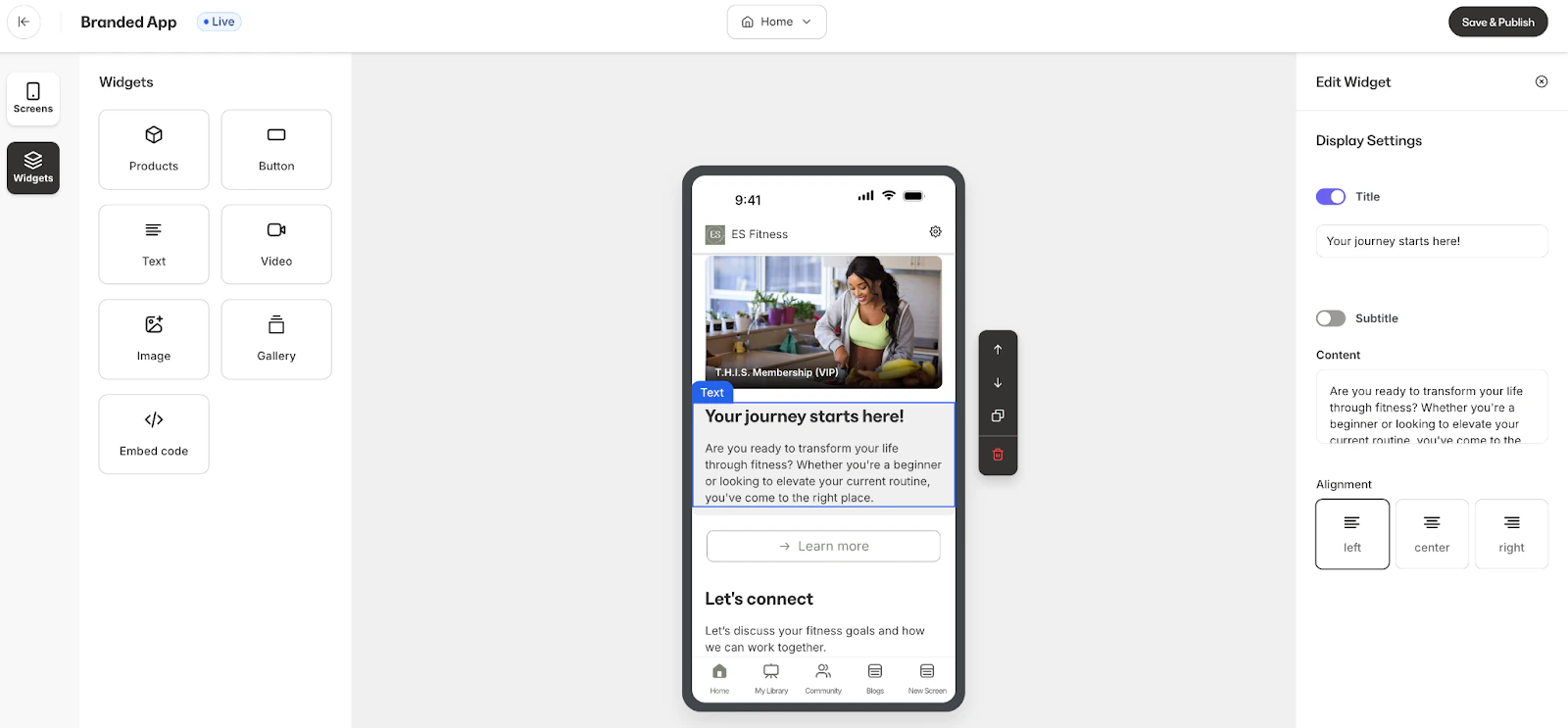
The widget editor will open on the page's right side, allowing you to further customize the widget's title, text, images, etc.
A carousel section will automatically rotate each image or course into view, while a horizontal scrolling section will allow app members to scroll through images or courses at their own pace.
For most of the widgets, you can toggle on or off the Section's title and select the desired alignment.
**Note:**
The Product Widget can be used to display courses, coaching, podcast and community products. If a displayed product is not part of an app offer or is not owned by the member, then it will not appear on their screen.
## Edit a screen section
Customize section titles and content for each widget added to a screen.
**To edit a widget on a screen:**
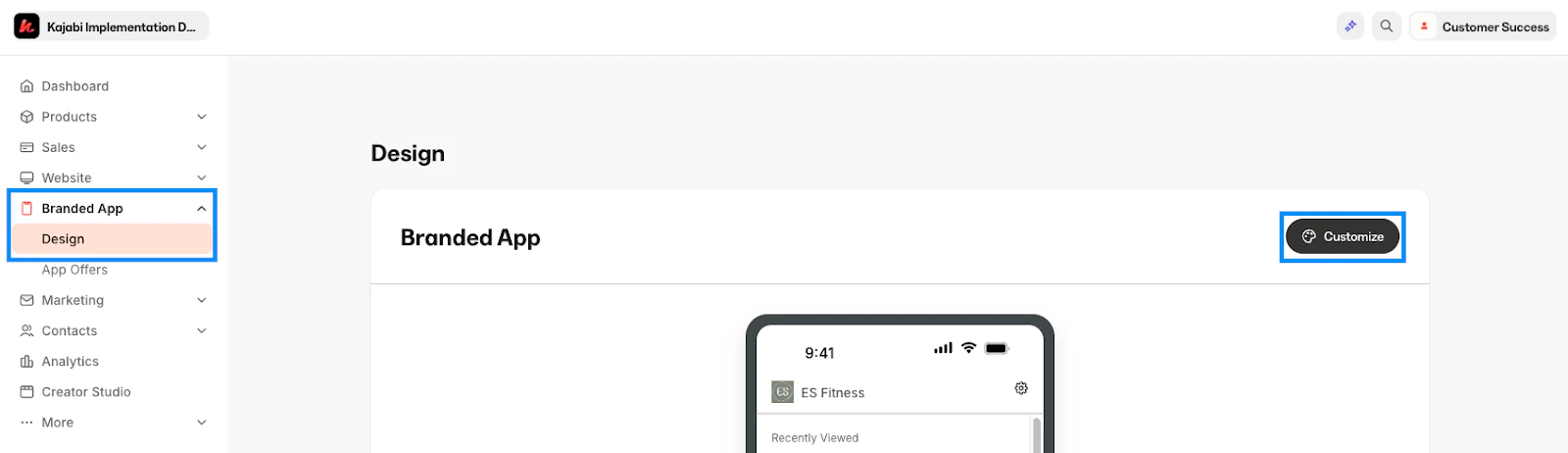
1. Select **Branded Mobile App** from your Kajabi dashboard.
If you've fully completed your [app setup](/articles/mobile-apps/branded-app/how-do-i-get-started-creating-my-own-branded-app), you should see your app Design settings.
2. Select the **Design** tab.
3. Click **Customize**:
 4. Make sure that you are open to the **Widgets** editor and select the appropriate screen from the drop down:
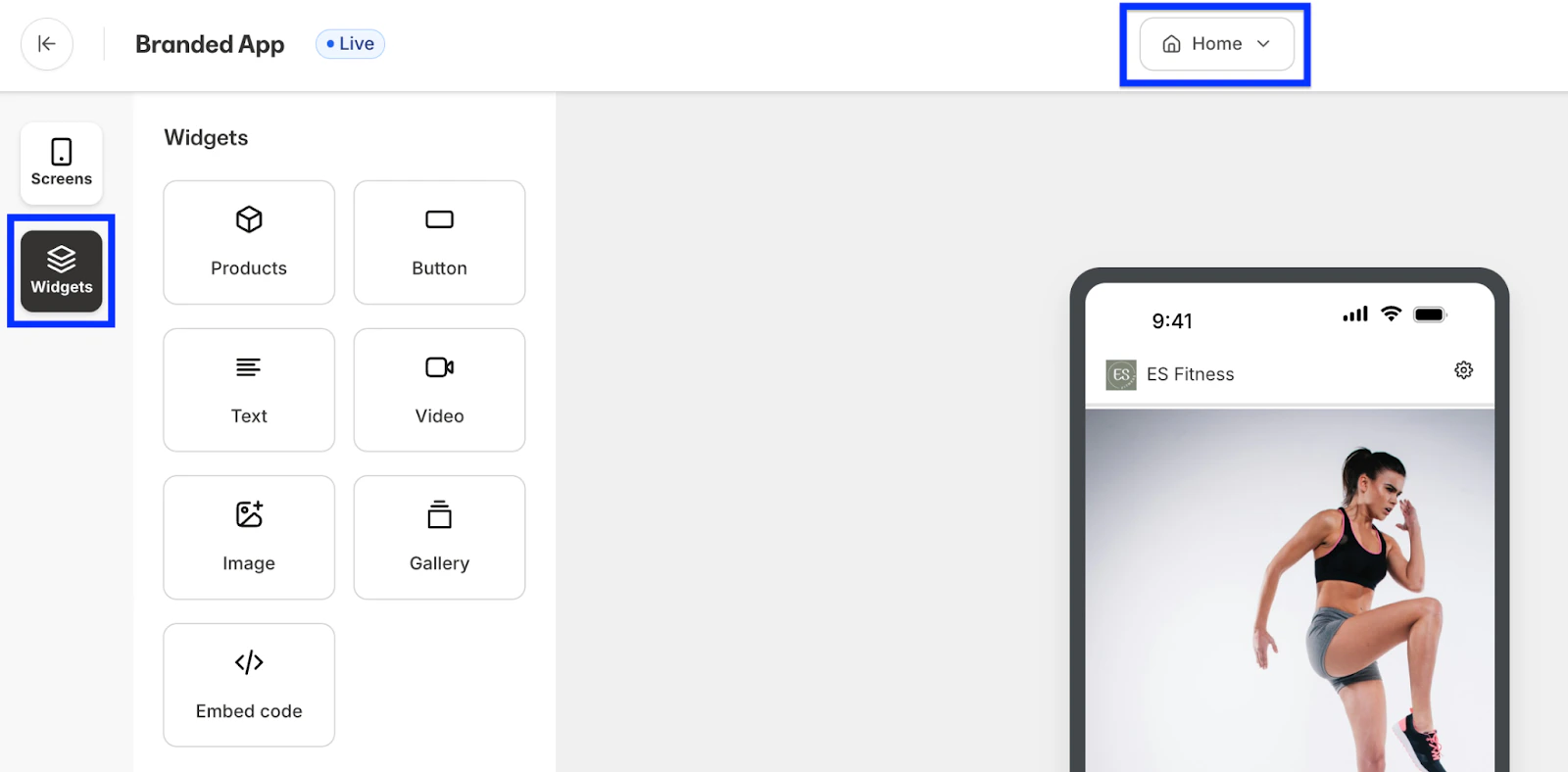 5. Select the widget section that you wish to edit on the home screen:
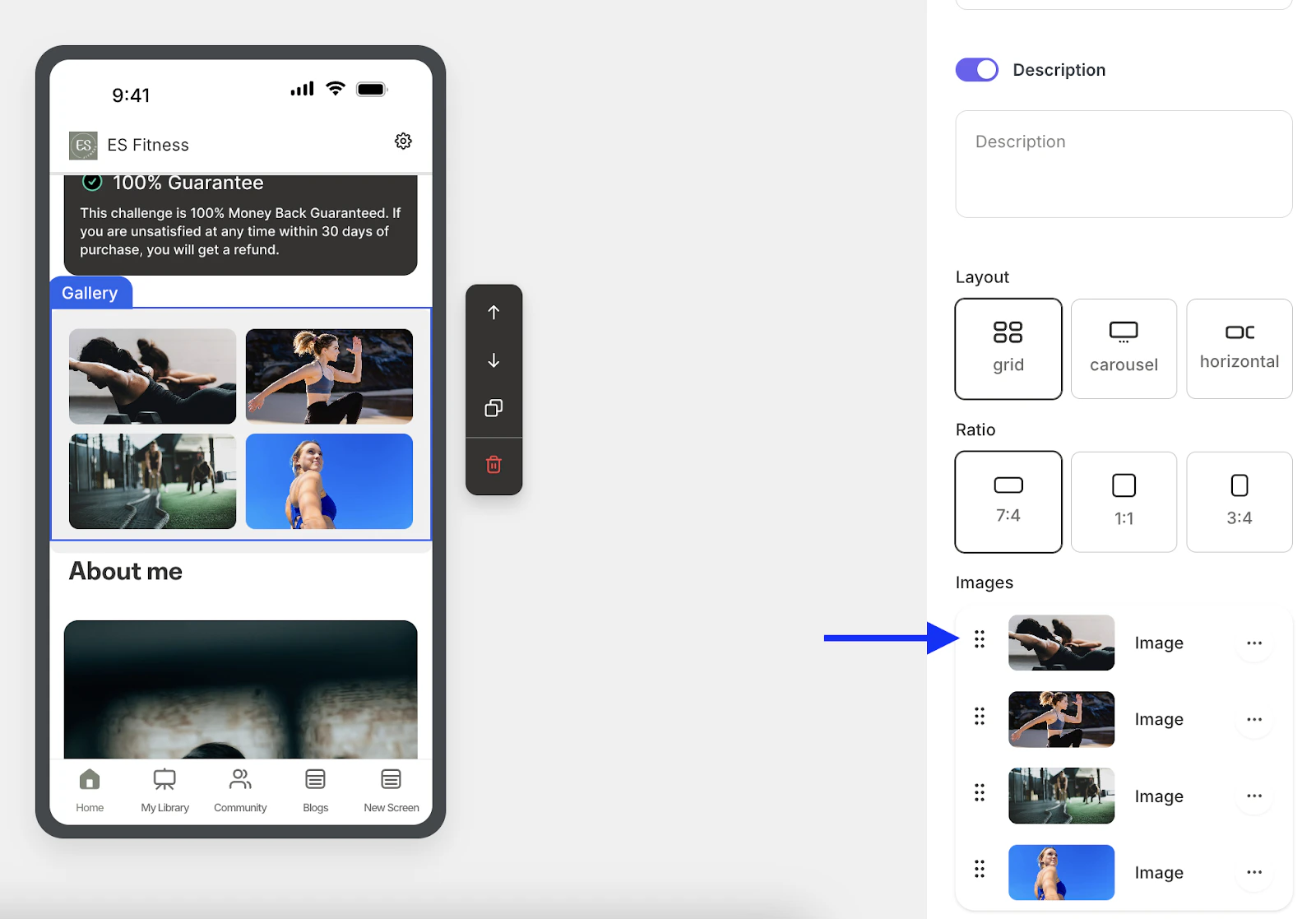
 Reorder images and products you've added to a widget by pressing and holding the **six dots to the left** of each in the widget editor, then dragging and dropping as desired:
 If you change your mind about including a widget, click the **x** icon to the right to remove it.
When you're done, click **Save & Publish** at the top right to publish screen updates to the live app.
### Reorder screen sections
Change the order of screen sections on a Branded App page.
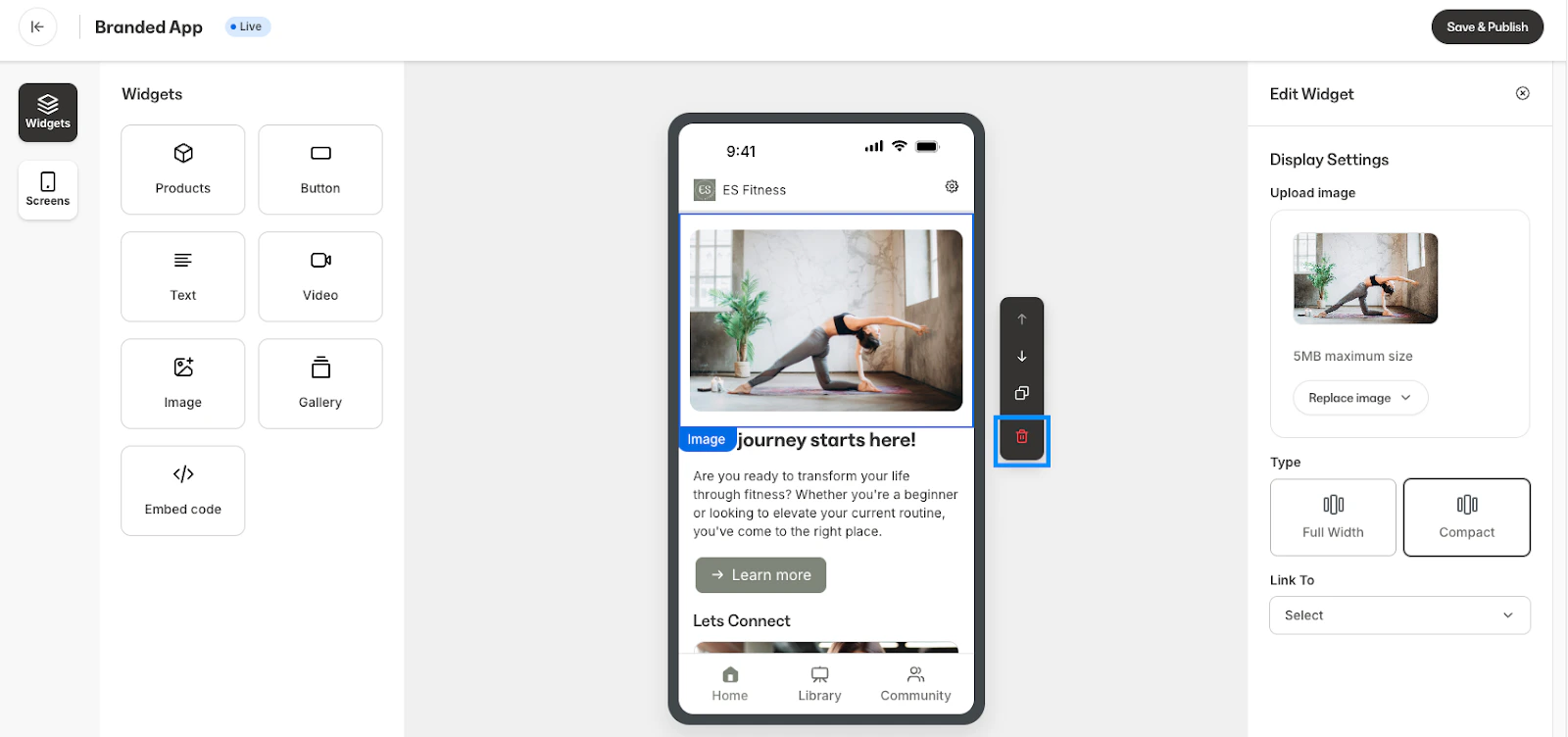
To reorder screen sections, select the widget section that you wish to rearrange and click the up or down arrow to move to the desired location:
If you change your mind about including a widget, click the **x** icon to the right to remove it.
When you're done, click **Save & Publish** at the top right to publish screen updates to the live app.
### Reorder screen sections
Change the order of screen sections on a Branded App page.
To reorder screen sections, select the widget section that you wish to rearrange and click the up or down arrow to move to the desired location:
### Delete a screen section
To delete a screen section, select the widget section that you wish to delete and click the trash icon: