> ## Documentation Index
> Fetch the complete documentation index at: https://help.kajabi.com/llms.txt
> Use this file to discover all available pages before exploring further.
# Publish a Branded App to the Apple App Store
> Submit the iOS version of a Kajabi Branded App to the Apple App Store for review and publication.
Once the **Branded App** is built, you'll receive an email notification from Kajabi letting you know it's time to submit the app for review and publication. The steps below cover adding Kajabi as an admin, verifying reviewer notes, attaching the build file, and submitting the app.
## Add Kajabi as an account admin
First, grant the Kajabi team admin access to the App Store Connect account so we can help ensure that the app submission goes as smoothly as possible.
**To give the Kajabi team access to the account:**
1. Click this link to open the **Users and Access** page in App Store Connect: [https://appstoreconnect.apple.com/access/users](https://appstoreconnect.apple.com/access/users)
(If you're not logged into the account, you'll be prompted to log in).
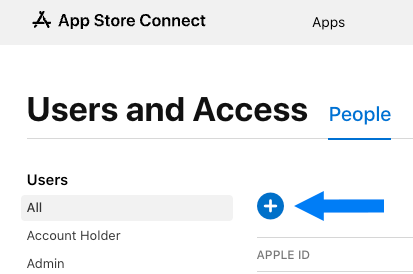
2. Click the blue **+** sign to add a user:
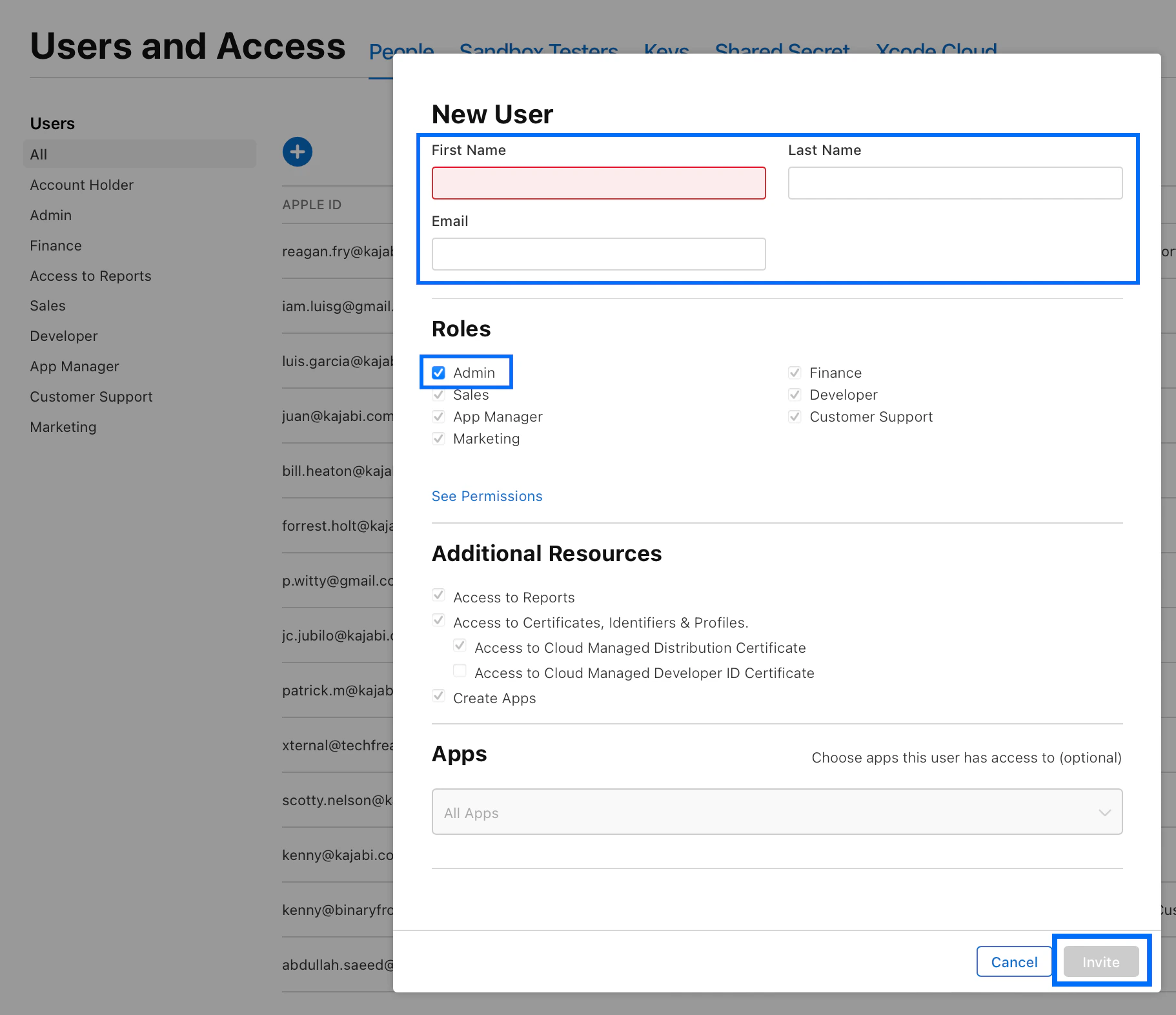
 A popup modal will appear with a New User input form.
1. In the **First Name** field, input: **Patrick**
2. In the **Last Name** field, input: **MacDowell**
3. In the **Email** field, input: **[Agile.Server@oc-corpeng.com](mailto:Agile.Server@oc-corpeng.com)**
4. Under **Roles**, select the checkbox next to **Admin**
5. Click the **Invite** button:
A popup modal will appear with a New User input form.
1. In the **First Name** field, input: **Patrick**
2. In the **Last Name** field, input: **MacDowell**
3. In the **Email** field, input: **[Agile.Server@oc-corpeng.com](mailto:Agile.Server@oc-corpeng.com)**
4. Under **Roles**, select the checkbox next to **Admin**
5. Click the **Invite** button:
 ## Verify reviewer notes
Next, check and confirm that you've already added notes for the app reviewers to help the app pass the review process. If you've not yet completed this step, follow the guide on [How to Add App Reviewer Notes for Apple](https://help.kajabi.com/hc/en-us/articles/18200683097755) and return here when you've finished adding the notes.
**To verify reviewer notes:**
1. Go to the main dashboard of the [App Store Connect](https://appstoreconnect.apple.com/) account.
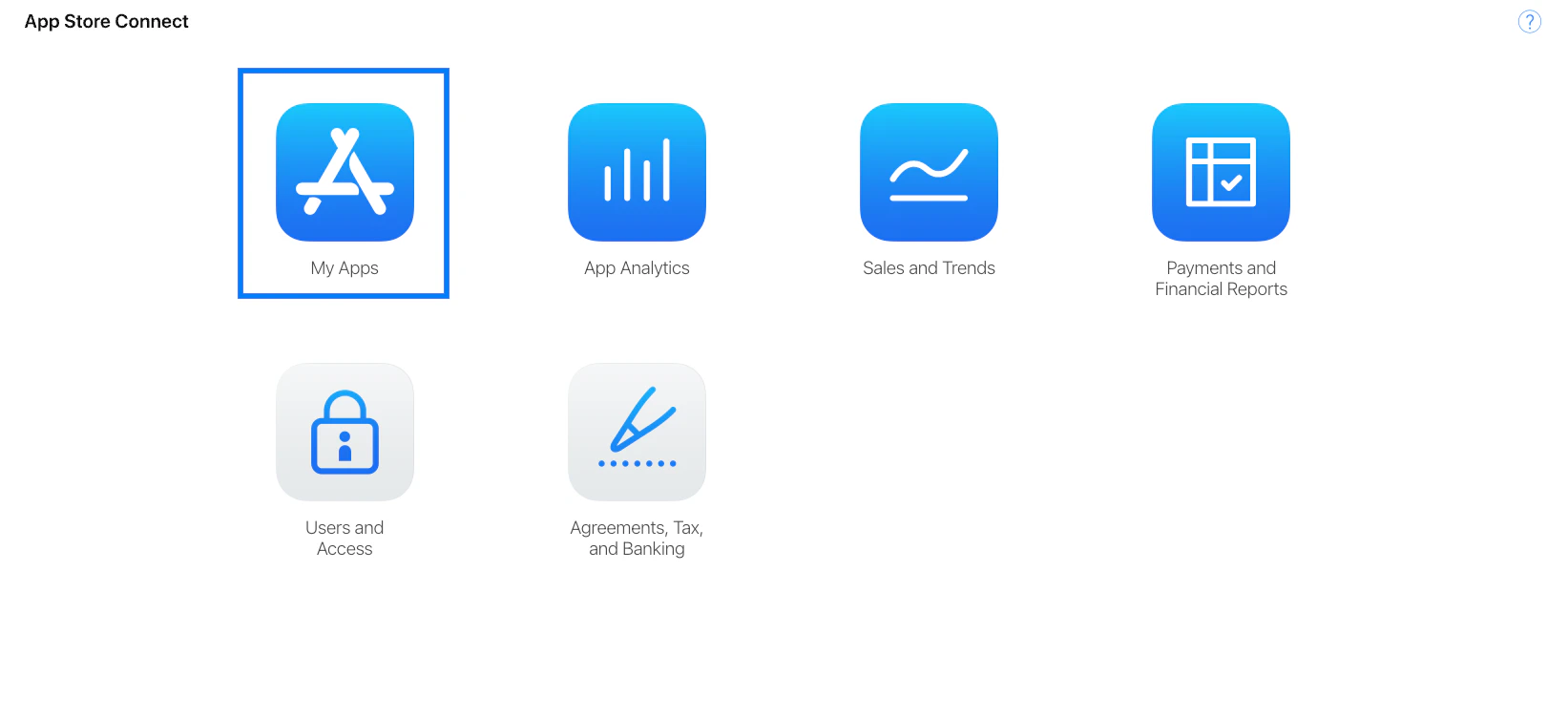
2. Click the **My Apps** icon:
## Verify reviewer notes
Next, check and confirm that you've already added notes for the app reviewers to help the app pass the review process. If you've not yet completed this step, follow the guide on [How to Add App Reviewer Notes for Apple](https://help.kajabi.com/hc/en-us/articles/18200683097755) and return here when you've finished adding the notes.
**To verify reviewer notes:**
1. Go to the main dashboard of the [App Store Connect](https://appstoreconnect.apple.com/) account.
2. Click the **My Apps** icon:
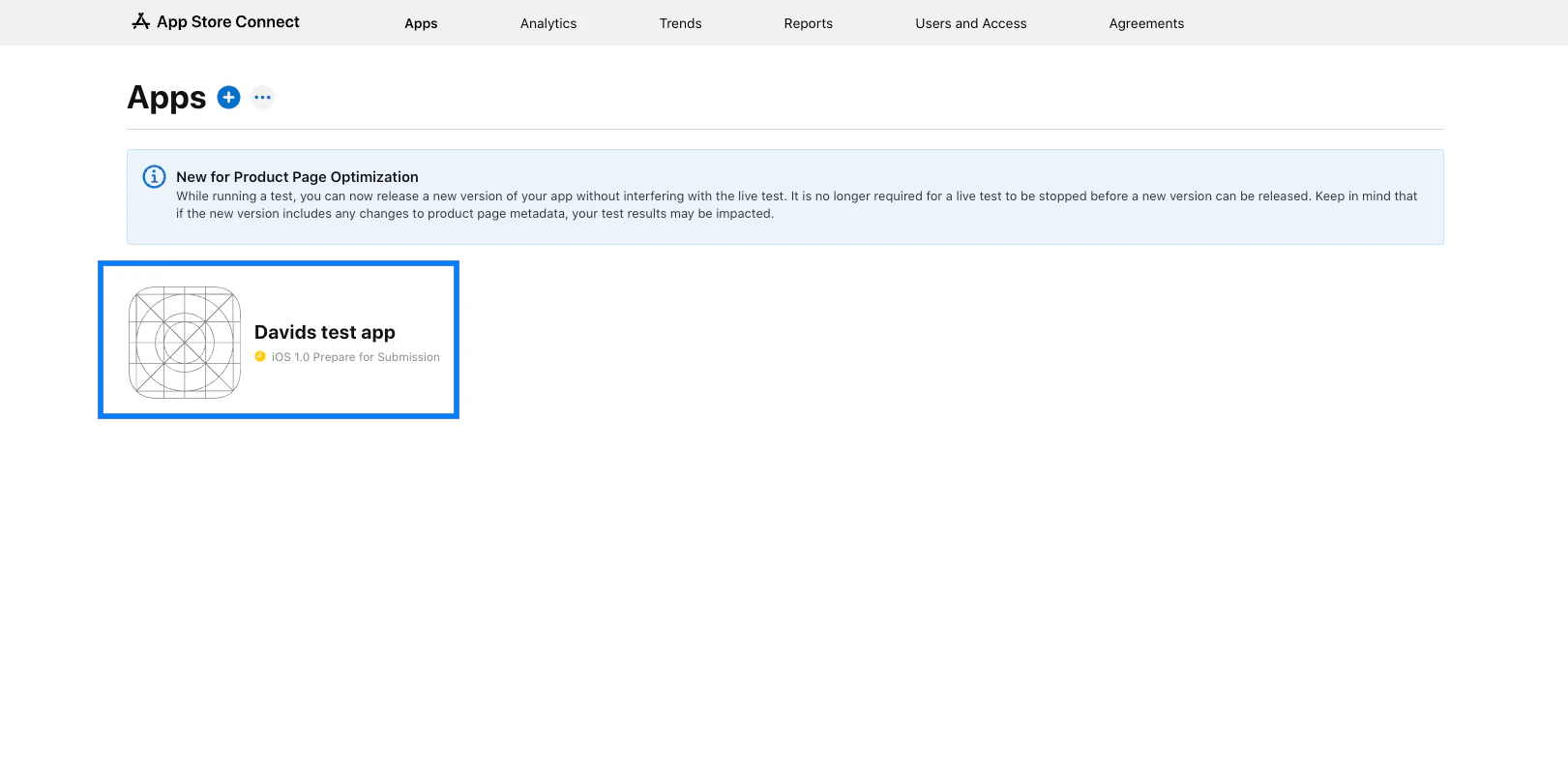
 3. Click the Branded App icon to open the app details:
 4. Scroll down to the **App Review Information** section.
5. Confirm that you've added the notes you were given by Kajabi during the intake process to the **Notes** input field:
4. Scroll down to the **App Review Information** section.
5. Confirm that you've added the notes you were given by Kajabi during the intake process to the **Notes** input field:
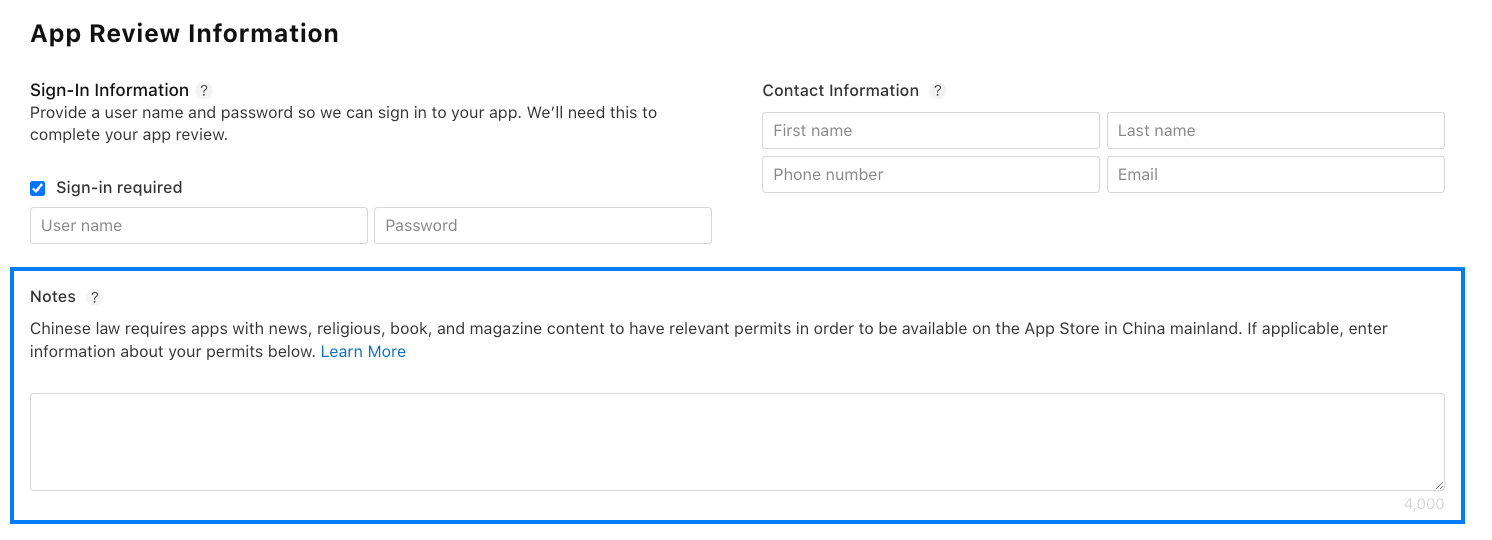 If you've already added the notes, continue on to the next section. If the Notes box is empty, follow the guide on [How to Add App Reviewer Notes for Apple](https://help.kajabi.com/hc/en-us/articles/18200683097755) and return here when you've finished adding the notes.
## Attach the app build file
After adding reviewer notes, attach the app build file to the app submission.
**To attach the build file:**
1. Scroll up to the **Build** section.
2. If you don't immediately see an **Add Build** button, click to expand the section.
3. Click **Add Build**:
If you've already added the notes, continue on to the next section. If the Notes box is empty, follow the guide on [How to Add App Reviewer Notes for Apple](https://help.kajabi.com/hc/en-us/articles/18200683097755) and return here when you've finished adding the notes.
## Attach the app build file
After adding reviewer notes, attach the app build file to the app submission.
**To attach the build file:**
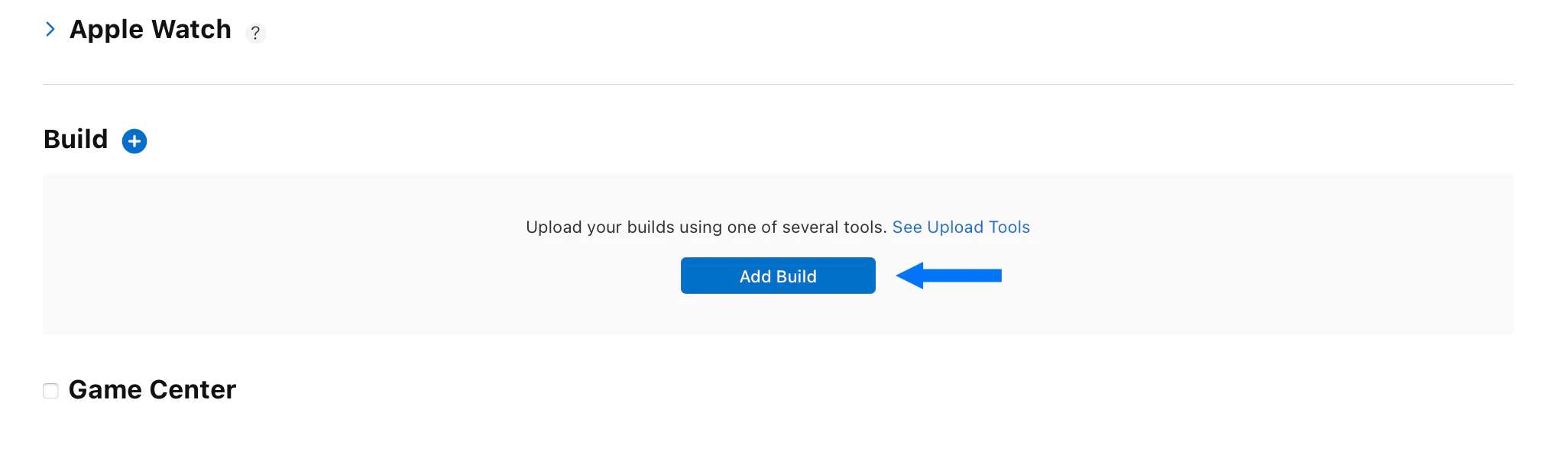
1. Scroll up to the **Build** section.
2. If you don't immediately see an **Add Build** button, click to expand the section.
3. Click **Add Build**:
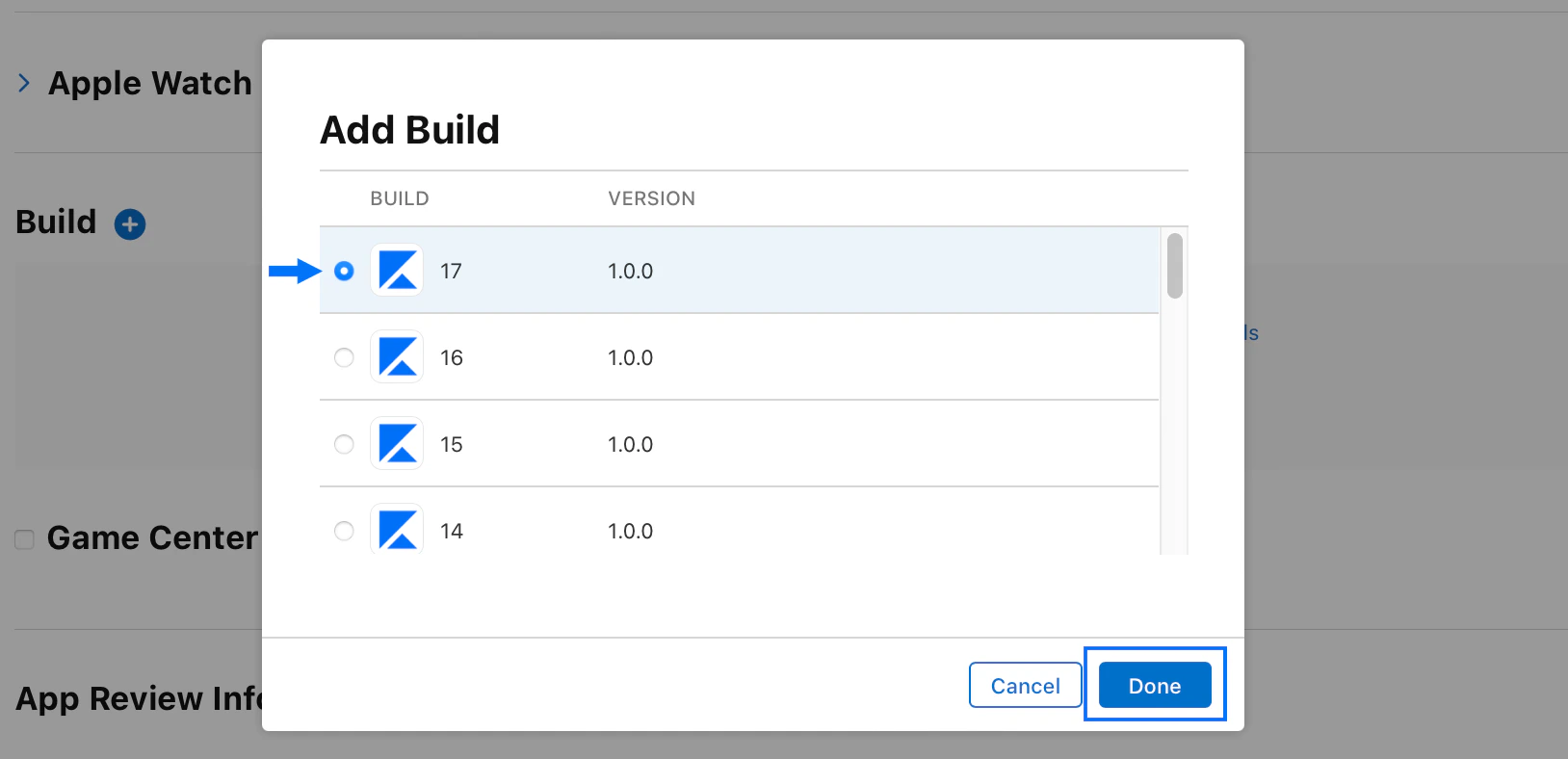
 A popup modal will appear displaying a list of app build files.
4. Select the build file with the largest build number and click **Done**.
(The largest build number should be the first one in the list. It may be a different number than 17.):
A popup modal will appear displaying a list of app build files.
4. Select the build file with the largest build number and click **Done**.
(The largest build number should be the first one in the list. It may be a different number than 17.):
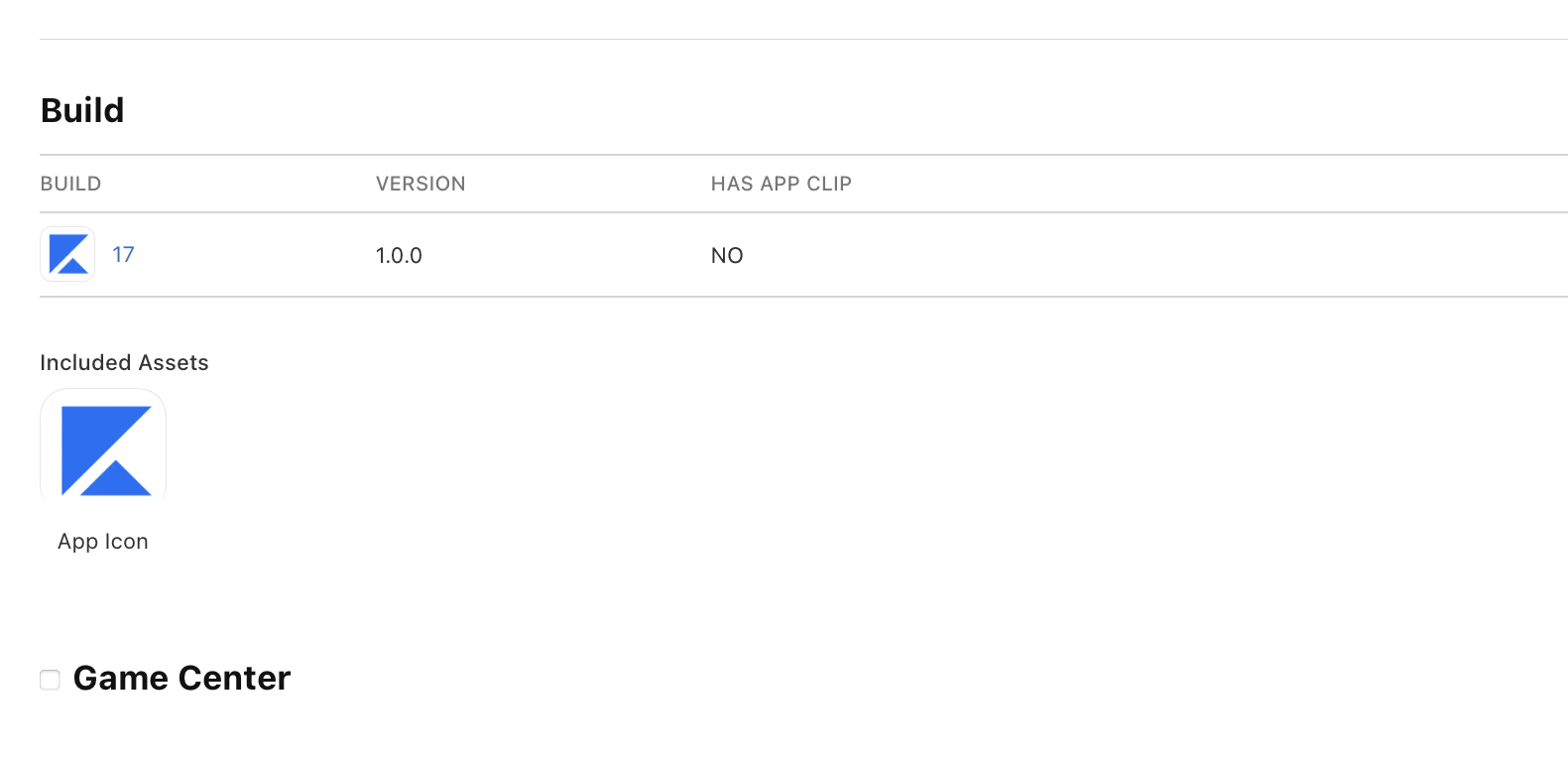
 The app build file will now appear in the **Build** section of the dashboard:
 ## Submit the app
Once the build file is attached, you can submit the app to the App Store for review.
**To submit the app to the App Store:**
1. Scroll up to the top of the page.
2. Click **Save** at the top right.
3. Click **Add for Review**:
## Submit the app
Once the build file is attached, you can submit the app to the App Store for review.
**To submit the app to the App Store:**
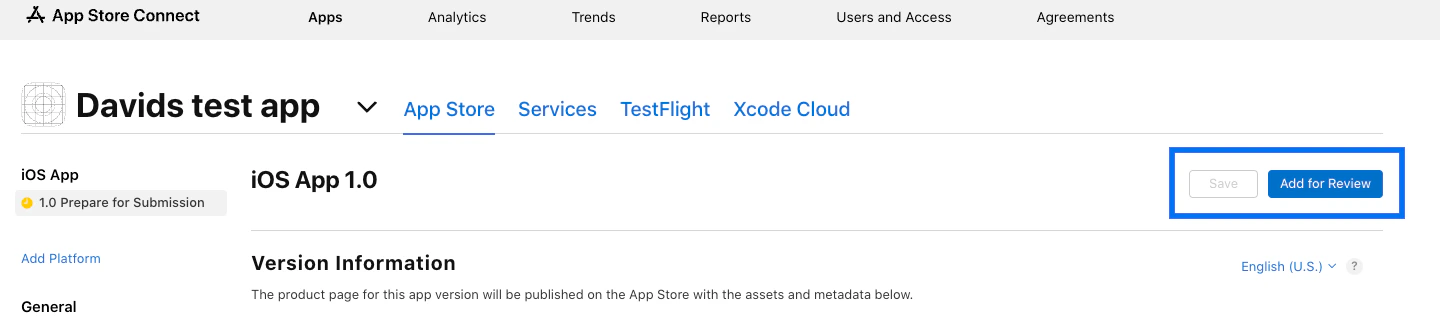
1. Scroll up to the top of the page.
2. Click **Save** at the top right.
3. Click **Add for Review**:
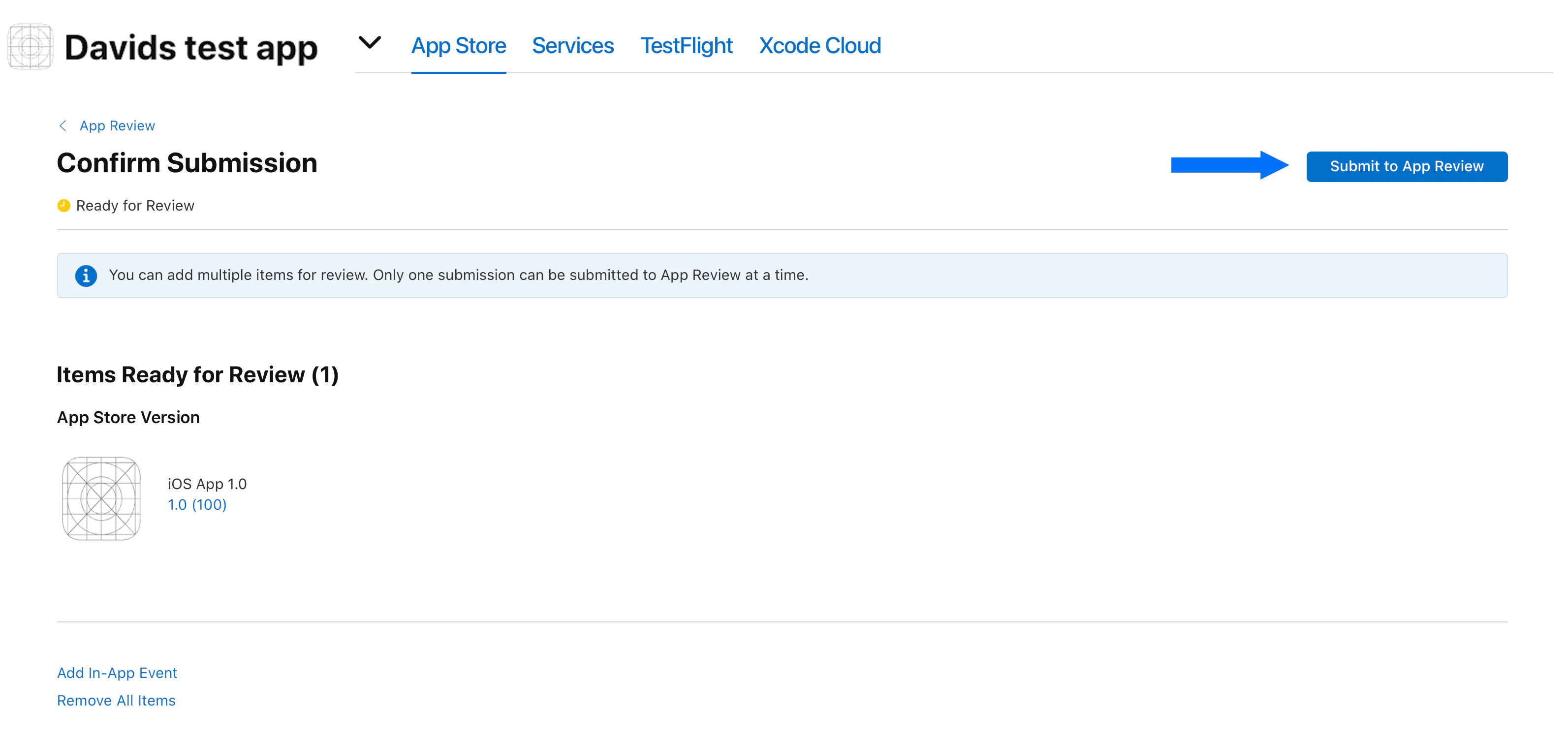
 4. Click **Submit to App Review** at the top right:
 When Apple approves the app, you'll receive an email confirming that the app has been approved and published to the App Store.
### What if the app isn't approved?
If you receive a rejection notice instead of an approval, the Kajabi team will review the issue. The expert team at Kajabi will determine what action is needed to correct the problem. [Click here to submit our help request form](https://help.kajabi.com/hc/en-us/requests/new?ticket_form_id=17085198502555) and we'll be in touch.
When Apple approves the app, you'll receive an email confirming that the app has been approved and published to the App Store.
### What if the app isn't approved?
If you receive a rejection notice instead of an approval, the Kajabi team will review the issue. The expert team at Kajabi will determine what action is needed to correct the problem. [Click here to submit our help request form](https://help.kajabi.com/hc/en-us/requests/new?ticket_form_id=17085198502555) and we'll be in touch.