> ## Documentation Index
> Fetch the complete documentation index at: https://help.kajabi.com/llms.txt
> Use this file to discover all available pages before exploring further.
# Set up a Branded App welcome screen
> Customize a welcome screen where app users can create a member account or log in.
The **welcome screen** is the first thing users see when they open the app. Customize it with your branding and enable account creation to grow your audience directly from the Branded App.
## What is the welcome screen?
The app welcome screen is the first screen an app user will see after they download and open the app. It provides users with the option to either sign up for a member account or log into an existing account.
Enhance the Branded App user experience and grow your audience by customizing the welcome screen with your own branding and enabling users to create a member account directly from the welcome screen.
**Note:**
The welcome screen feature is disabled by default. If you choose not to set up a welcome screen for the Branded App, then only existing members will be able to log into the app (they'll see the default login screen instead).
## Set up the welcome screen
**Note:**
The **Sign Up** button on the welcome screen will only be enabled if you've added at least one widget to the custom home screen. This prevents people who sign up for the app from seeing an empty state in the app. To remove the **Sign Up** button, you must remove all widgets from the home screen. [Learn how to customize the Branded App home screen](/articles/mobile-apps/branded-app/how-to-create-custom-screens-for-your-branded-mobile-app).
To enable and customize the app welcome screen:
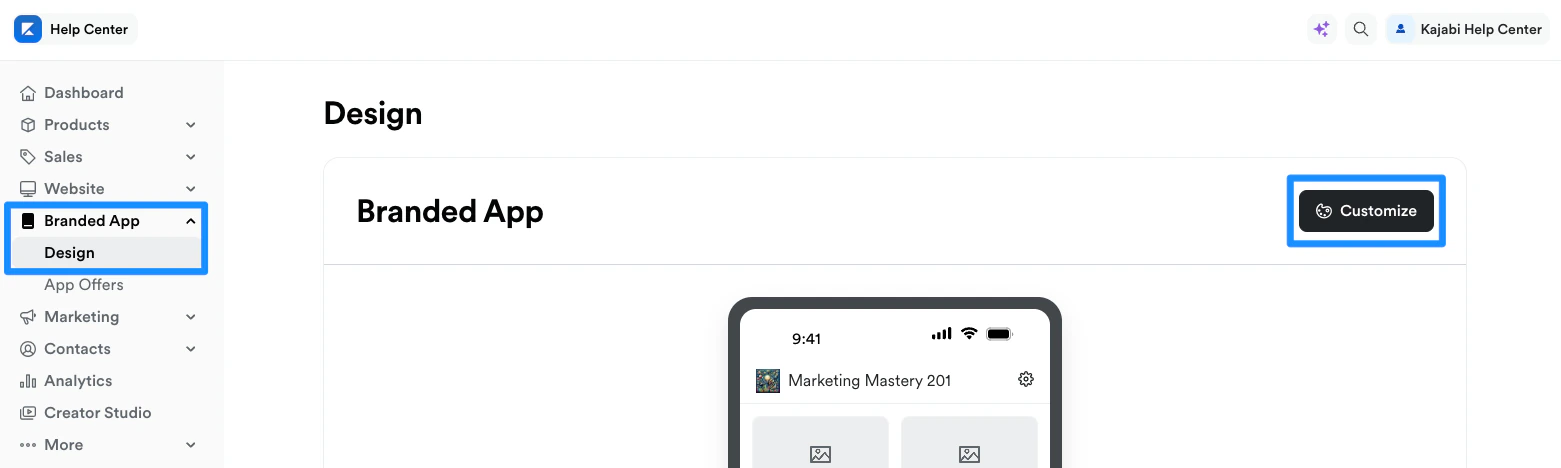
1. Select **Branded Mobile App** from the Kajabi dashboard.
If you've fully completed the [app setup](/articles/mobile-apps/branded-app/how-do-i-get-started-creating-my-own-branded-app), you should see the app Design settings.
2. Select the **Design** tab.
3. Click **Customize**:
 4. Open the **phone icon**:
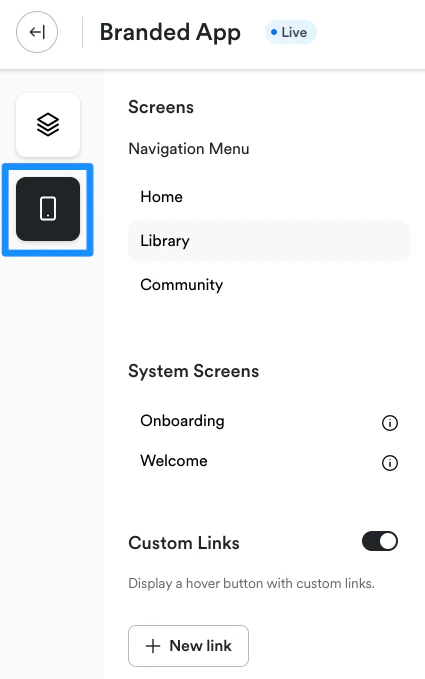 5. Navigate to **System Screens**.
6. Select **Welcome**:
5. Navigate to **System Screens**.
6. Select **Welcome**:
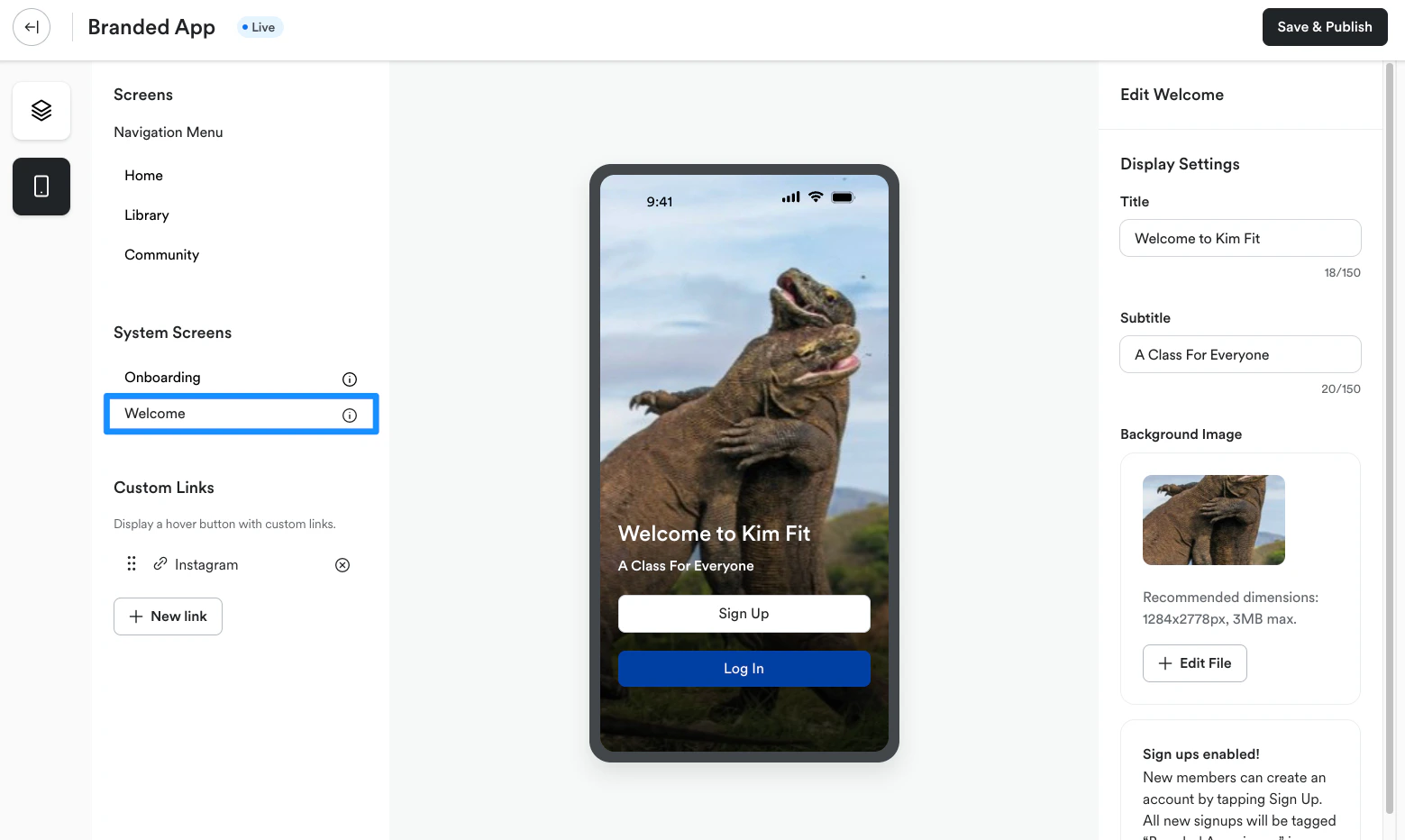 The Welcome screen editor will open on the right side of the page:
7. Enter a **Title** and **Subtitle** to display on the welcome screen.
8. Under **Background Image**, click **Select file**.
9. Follow the prompts to upload the desired Background image.
We recommend using an image file size of 1284 x 2778 px (3 MB max file size).
10. Review the changes on the preview.
## FAQs
### What happens when a user taps the "Sign Up" button?
After tapping the Sign Up button, the user will be presented with a form to enter their name, email and password in order to create a member account. Upon form submission, the member will automatically be assigned a "Branded App signup" tag in the Kajabi account.
### What will users see if the welcome screen is not enabled?
If you choose not to enable the welcome screen feature for the app, users who download and open the app will see the default login screen for existing members. Users without an existing account won't be able to log in or create an account.
### How can a member delete their account?
An app member can delete their account by opening their account settings and selecting **Delete Account**.
The Welcome screen editor will open on the right side of the page:
7. Enter a **Title** and **Subtitle** to display on the welcome screen.
8. Under **Background Image**, click **Select file**.
9. Follow the prompts to upload the desired Background image.
We recommend using an image file size of 1284 x 2778 px (3 MB max file size).
10. Review the changes on the preview.
## FAQs
### What happens when a user taps the "Sign Up" button?
After tapping the Sign Up button, the user will be presented with a form to enter their name, email and password in order to create a member account. Upon form submission, the member will automatically be assigned a "Branded App signup" tag in the Kajabi account.
### What will users see if the welcome screen is not enabled?
If you choose not to enable the welcome screen feature for the app, users who download and open the app will see the default login screen for existing members. Users without an existing account won't be able to log in or create an account.
### How can a member delete their account?
An app member can delete their account by opening their account settings and selecting **Delete Account**.