> ## Documentation Index
> Fetch the complete documentation index at: https://help.kajabi.com/llms.txt
> Use this file to discover all available pages before exploring further.
# Set up a merchant account for Google in-app purchases
> Create a payments profile in Google Play Console to enable in-app purchases for the Android Branded App.
To enable in-app purchases in the Android Branded App, you need to create a **payments profile** in Google Play Console. The steps below walk you through creating the profile and completing the required fields.
**To set up a merchant account:**
1. Log into the [Google Play Store publisher console](https://play.google.com/console/).
2. Click on **Settings** near the bottom left:
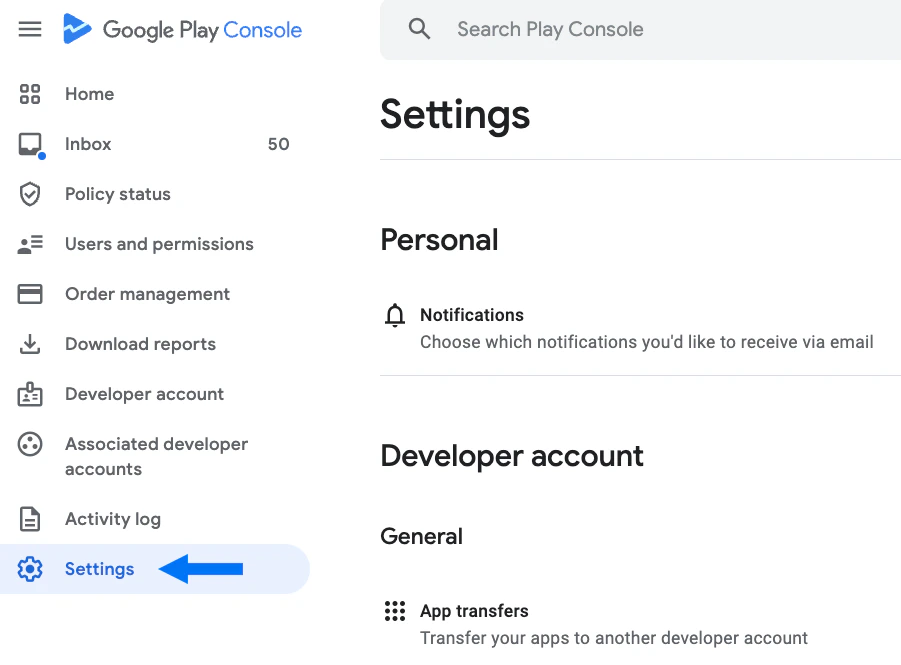 3. Scroll down to the bottom of the page and select **Payments profile**:
 4. Click **Create payments profile**:
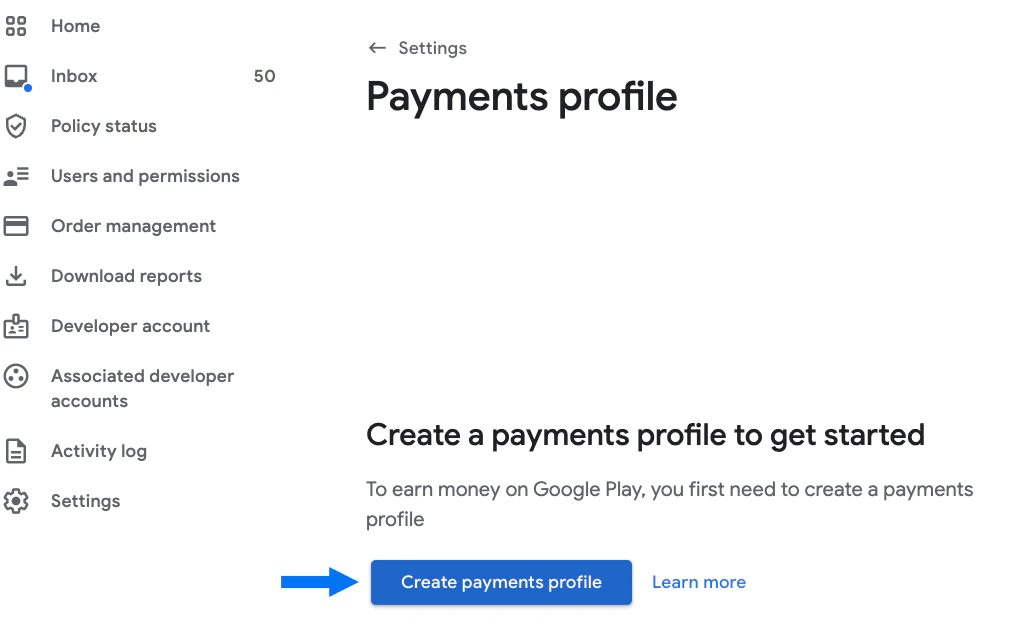 5. If you see a profile you've already created, you can select the existing profile.
Otherwise, create a payments profile.
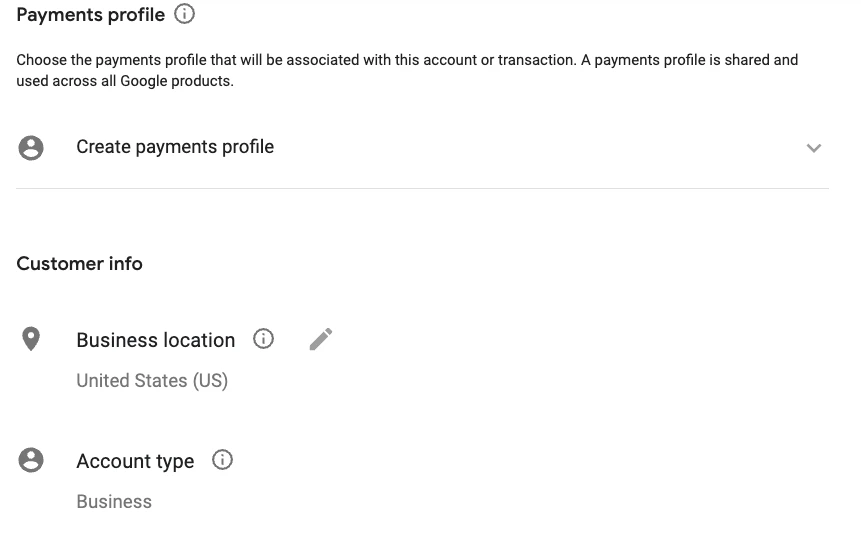
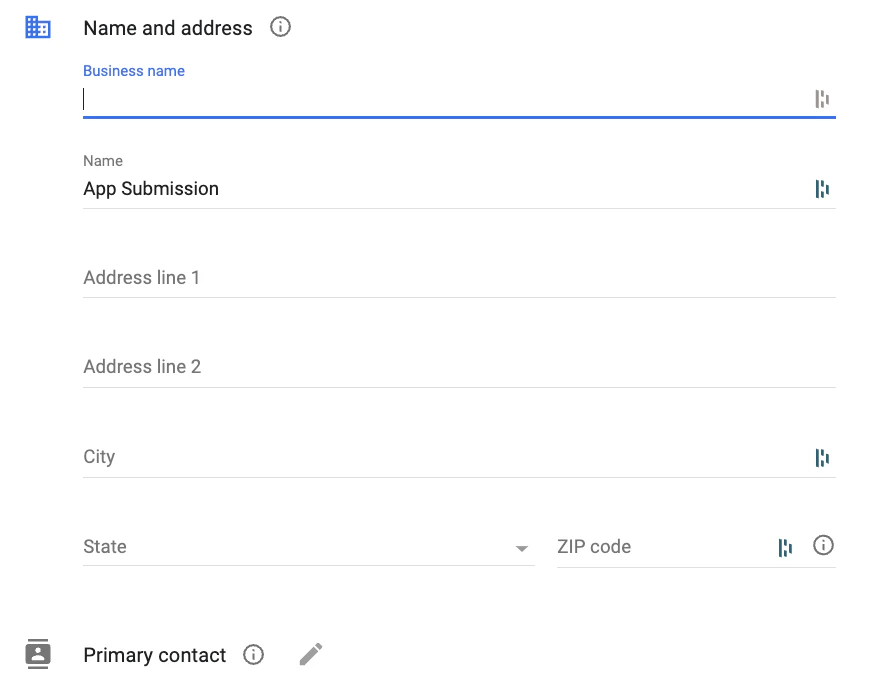
6. Complete all required fields on the profile form (Business location, Account type, Name and address, Primary contact info, Public business info, etc.):
5. If you see a profile you've already created, you can select the existing profile.
Otherwise, create a payments profile.
6. Complete all required fields on the profile form (Business location, Account type, Name and address, Primary contact info, Public business info, etc.):
 7. When you've completed the form, click **Submit**:
**Tip:**
Click the link on the final Payments profile page to enroll in [Google's program for a reduced 15% service fee](https://support.google.com/googleplay/android-developer/answer/10632485?sjid=6616978774795914322-NC).
7. When you've completed the form, click **Submit**:
**Tip:**
Click the link on the final Payments profile page to enroll in [Google's program for a reduced 15% service fee](https://support.google.com/googleplay/android-developer/answer/10632485?sjid=6616978774795914322-NC).