> ## Documentation Index
> Fetch the complete documentation index at: https://help.kajabi.com/llms.txt
> Use this file to discover all available pages before exploring further.
# Update a Branded App in the Apple App Store and Google Play Store
> Trigger a build in Kajabi and submit updates to the Apple App Store and Google Play Store.
Keep the **Branded App** current by publishing updates to both the Apple App Store and Google Play Store. The steps below cover triggering a build in Kajabi and submitting updates to both platforms.
## Triggering an app build in Kajabi
To update the app, first trigger an app build for each app store in the Kajabi Branded Mobile App Settings.
**To trigger an app build:**
1. Click **Settings** at the lower left of the Kajabi dashboard.
2. Select **Branded Mobile App Settings**.
3. Click both the **Build iOS App** and **Build Android App** buttons.
This will trigger an app build that includes all the latest features:
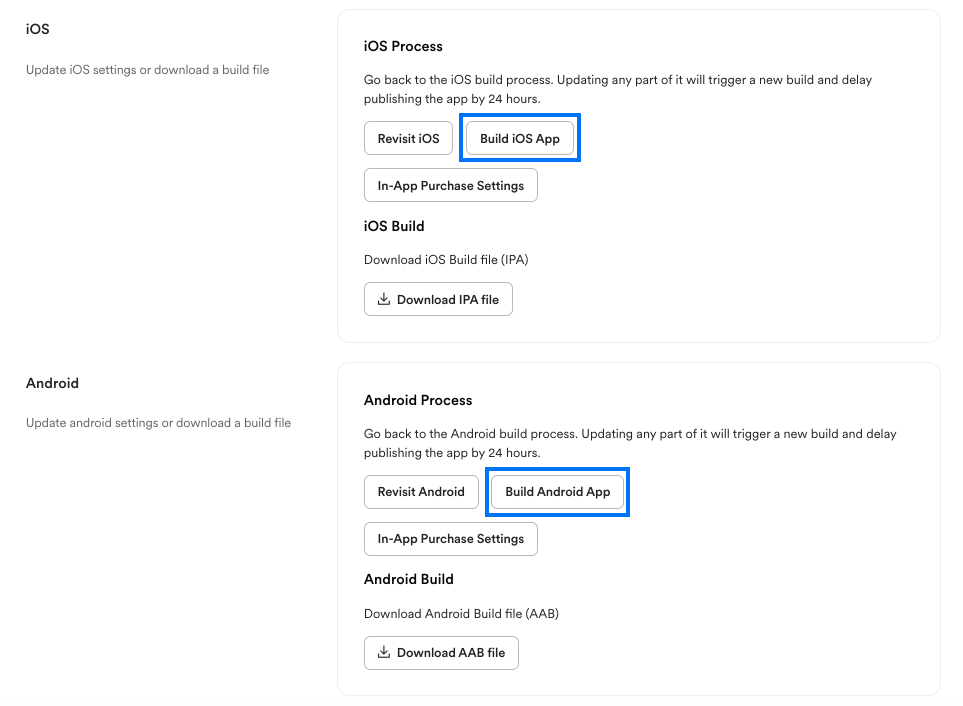 It will typically take between 30 minutes to 8 hours for the build process to complete and show up in Apple/Google.
Follow the steps below to submit an app update to Apple and Google.
## Update the iOS app
After triggering an app build and waiting for the build to show up, you can update the iOS app.
It will typically take between 30 minutes to 8 hours for the build process to complete and show up in Apple/Google.
Follow the steps below to submit an app update to Apple and Google.
## Update the iOS app
After triggering an app build and waiting for the build to show up, you can update the iOS app.
**To update the app in the Apple App Store:**
1. Log into [App Store Connect](https://appstoreconnect.apple.com/).
2. Click on **My Apps**:
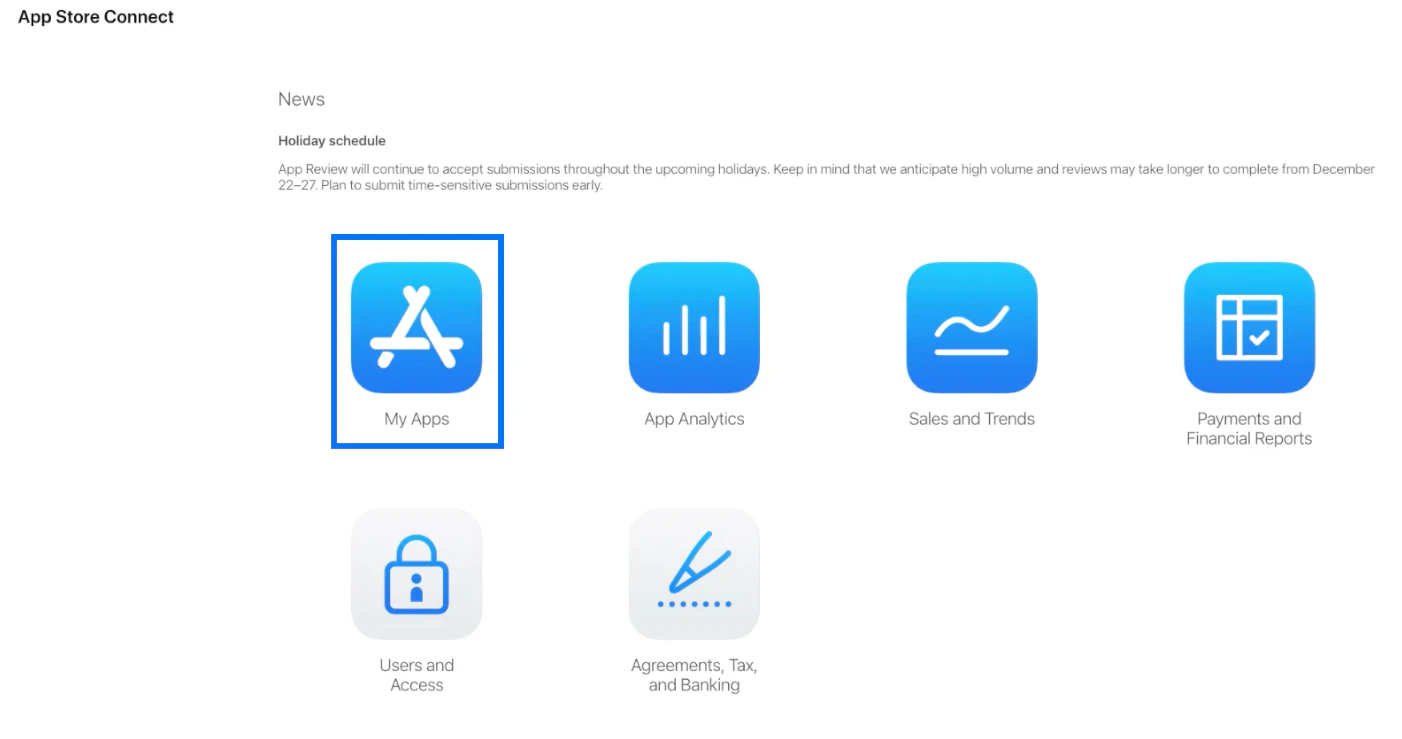 You should see the Branded App on the following screen.
3. Click on the title of the **Branded App** to open it for editing.
4. Inside the app, navigate to the top of the left sidebar menu.
5. Click the **blue + icon** next to "iOS App":
You should see the Branded App on the following screen.
3. Click on the title of the **Branded App** to open it for editing.
4. Inside the app, navigate to the top of the left sidebar menu.
5. Click the **blue + icon** next to "iOS App":
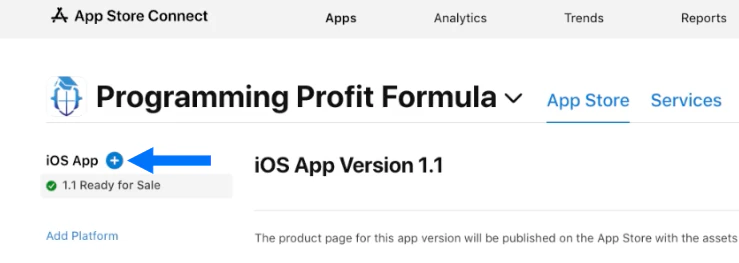 A "New Version" modal popup window will appear.
6. Enter a **Store Version Number**.
This can be any number, but it should be larger than the previous version number (for example, if the prior app version was 1.1, you could input 1.2).
7. Click **Create**:
If you see an error message about an incomplete form field, search the page for that field name, complete the necessary field, then click **Save** and **Add for Review** again.
8. On the next page, confirm that you see the text "Ready for Review" at the top left just below "Confirm Submission".
9. Click **Submit to App Review** at the top right of the page:
A "New Version" modal popup window will appear.
6. Enter a **Store Version Number**.
This can be any number, but it should be larger than the previous version number (for example, if the prior app version was 1.1, you could input 1.2).
7. Click **Create**:
If you see an error message about an incomplete form field, search the page for that field name, complete the necessary field, then click **Save** and **Add for Review** again.
8. On the next page, confirm that you see the text "Ready for Review" at the top left just below "Confirm Submission".
9. Click **Submit to App Review** at the top right of the page:
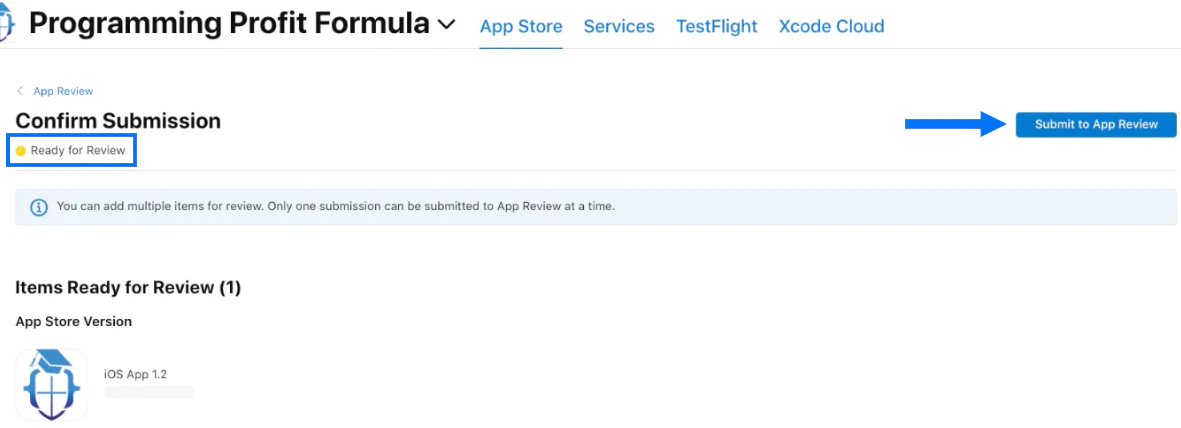 You should see a confirmation message that "Your submission has been submitted to App Review":
 You'll also receive an email notifying you that the submission is under review, then another email after the review process is complete notifying you that the app is ready for sale.
## Update the Android app
After triggering an app build and waiting for the build to show up, you can update the Android app.
You'll also receive an email notifying you that the submission is under review, then another email after the review process is complete notifying you that the app is ready for sale.
## Update the Android app
After triggering an app build and waiting for the build to show up, you can update the Android app.
**To update the app in the Google Play Store:**
1. Log into [Google Play Console](https://play.google.com/console).
(We recommend logging in via an incognito browser window. If you're logged into more than one Gmail account in the same browser window, you'll encounter trouble completing the update procedure).
2. Click the title of the **Branded App** to open it for editing:
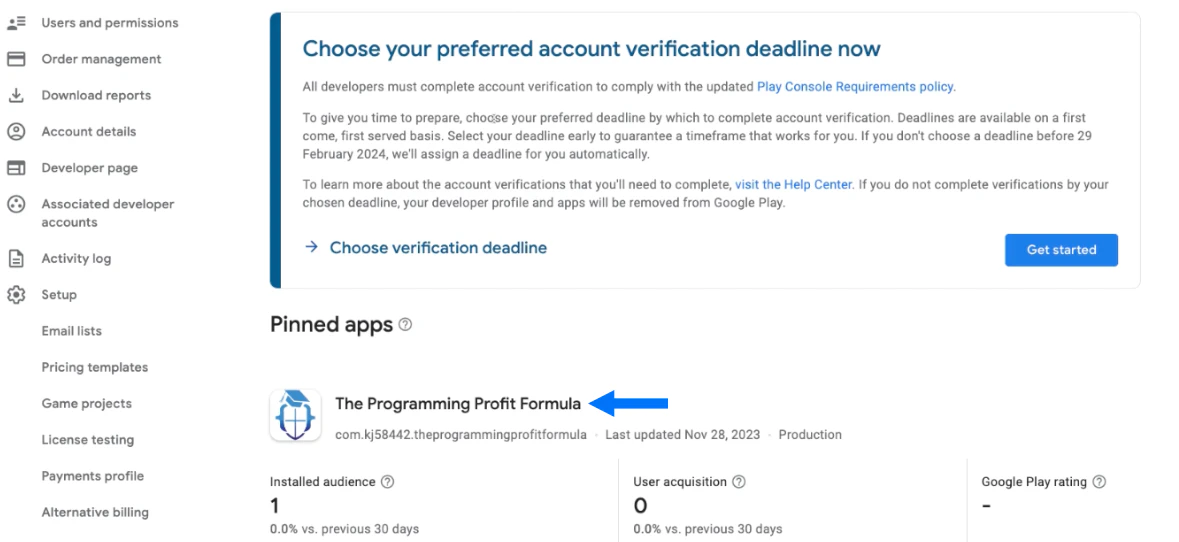 3. Inside the app, navigate to the **Release** section of the left navigation menu.
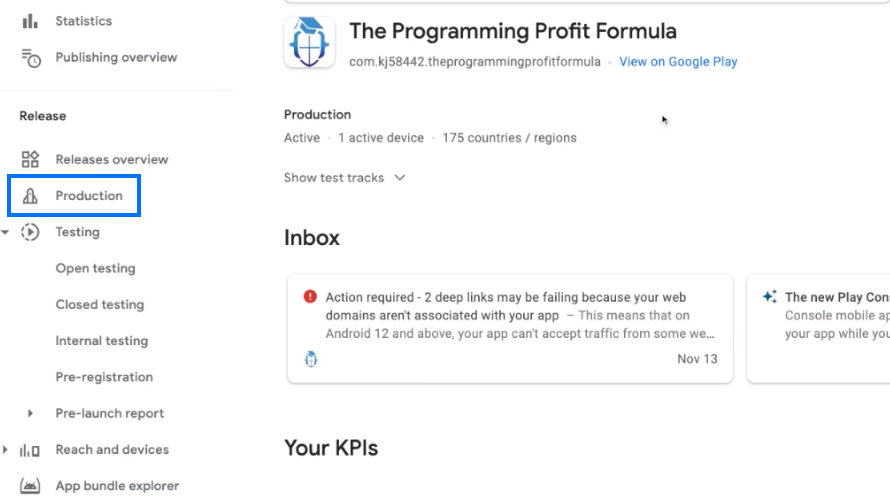
4. Click **Production**:
3. Inside the app, navigate to the **Release** section of the left navigation menu.
4. Click **Production**:
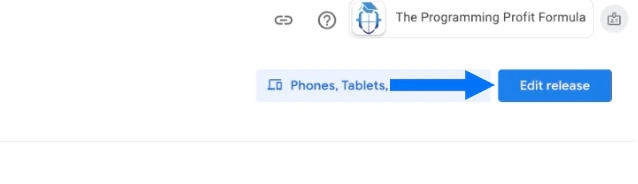
 5. Click **Edit release** at the top right of the page (or, click **Create release** if you see that text on the blue button instead):
 **Note:**
If you don't see an app bundle listed, download the AAB file from the Branded App Settings of the Kajabi account, then click the **Upload** link under **App bundles** and upload the AAB file. [Learn more about how to download the AAB file from Kajabi](/articles/mobile-apps/branded-app/how-to-publish-your-branded-app-to-the-google-play-store).
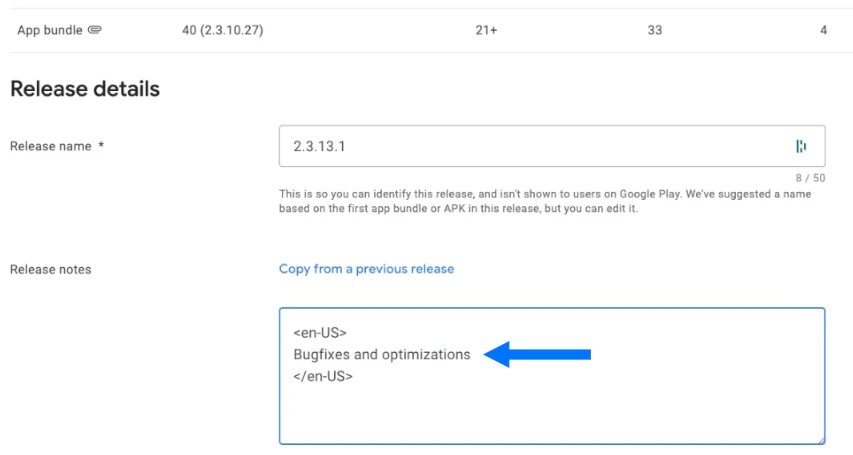
6. Scroll down to the **Release details**.
7. A release name will be generated automatically. We recommend that you keep the suggested release name.
8. Enter a note in between the language tags in the **Release notes** field:
Avoid mentioning any specific features here to avoid a potential rejection of the app. We strongly recommend only adding a simple comment like "Bug fixes and optimizations".
**Note:**
If you don't see an app bundle listed, download the AAB file from the Branded App Settings of the Kajabi account, then click the **Upload** link under **App bundles** and upload the AAB file. [Learn more about how to download the AAB file from Kajabi](/articles/mobile-apps/branded-app/how-to-publish-your-branded-app-to-the-google-play-store).
6. Scroll down to the **Release details**.
7. A release name will be generated automatically. We recommend that you keep the suggested release name.
8. Enter a note in between the language tags in the **Release notes** field:
Avoid mentioning any specific features here to avoid a potential rejection of the app. We strongly recommend only adding a simple comment like "Bug fixes and optimizations".
 9. Click **Next** at the lower right corner of the page.
On the following page, you'll see information about supported devices and release delivery details. If you see a warning message at the top of the page, it can be ignored (any error messages will need to be addressed).
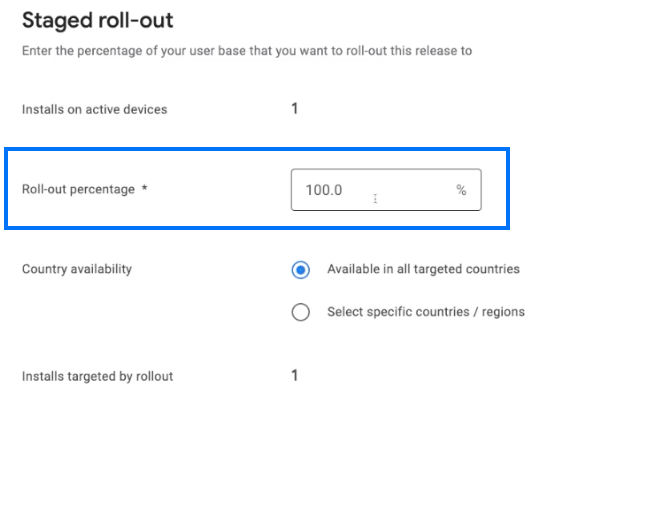
10. Scroll down to the **Staged roll-out** section at the bottom of the page and confirm that the **Roll-out percentage** is set to 100%:
9. Click **Next** at the lower right corner of the page.
On the following page, you'll see information about supported devices and release delivery details. If you see a warning message at the top of the page, it can be ignored (any error messages will need to be addressed).
10. Scroll down to the **Staged roll-out** section at the bottom of the page and confirm that the **Roll-out percentage** is set to 100%:
 11. Click **Save** at the lower right corner of the page.
If you don't see the popup, or you accidentally close out of it, you can also navigate to the Publishing overview page by clicking **Publishing overview** in the left navigation menu.
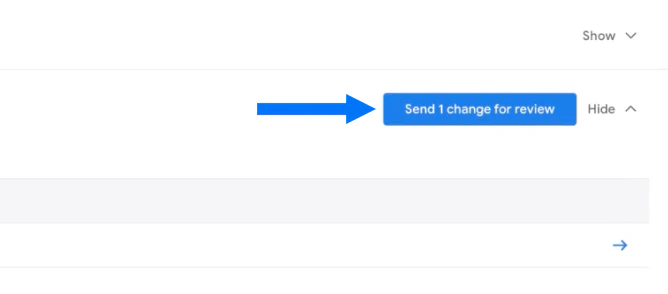
12. Click **Send 1 change for review** at the right side of the Publishing overview page:
11. Click **Save** at the lower right corner of the page.
If you don't see the popup, or you accidentally close out of it, you can also navigate to the Publishing overview page by clicking **Publishing overview** in the left navigation menu.
12. Click **Send 1 change for review** at the right side of the Publishing overview page:
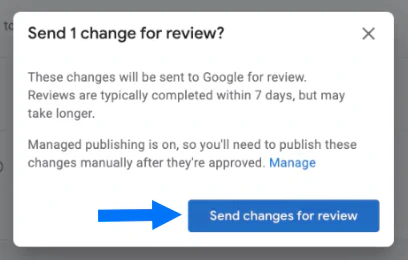
 13. When prompted, click **Send changes for review** to confirm the submission:
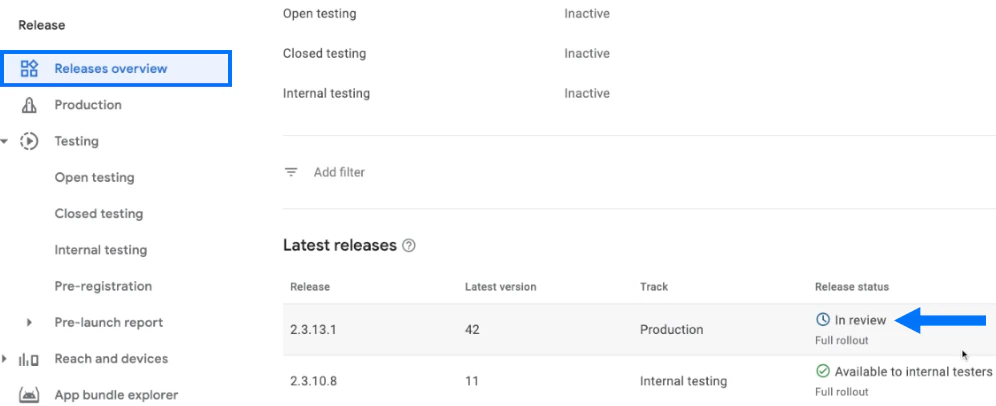
 14. To verify that the app is in review, click **Releases overview** in the left navigation menu.
15. Confirm that the latest release has a release status of **In review**:
14. To verify that the app is in review, click **Releases overview** in the left navigation menu.
15. Confirm that the latest release has a release status of **In review**: