> ## Documentation Index
> Fetch the complete documentation index at: https://help.kajabi.com/llms.txt
> Use this file to discover all available pages before exploring further.
# Update Branded App screenshots
> Enhance Branded App screenshot designs and update them for the Apple App Store and Google Play Store.
**Branded App screenshots** are one of the first things potential users see in the app stores. Enhance screenshots with professional design elements to make a strong first impression and encourage downloads.
## Enhance screenshot designs
During the Branded App intake process, Kajabi provides you with a set of screenshots from the app. You'll receive screenshots of the login page, library page, a course page, and a lesson page, in various sizes to meet the app store requirements.
### iOS specifications
Screenshots for the 6.5" and 5.5" iPhone models have the following dimensions:
* 1284 x 2778 px
* 1242 x 2208 px
iPad specifications for the 13" and 12.9" models have the following dimensions:
* 2048 x 2732 px
### Android specifications
Screenshots for Android phones meet the following criteria:
* 320 px minimum & 3840 px maximum
* 16:9 ratio
### Design options
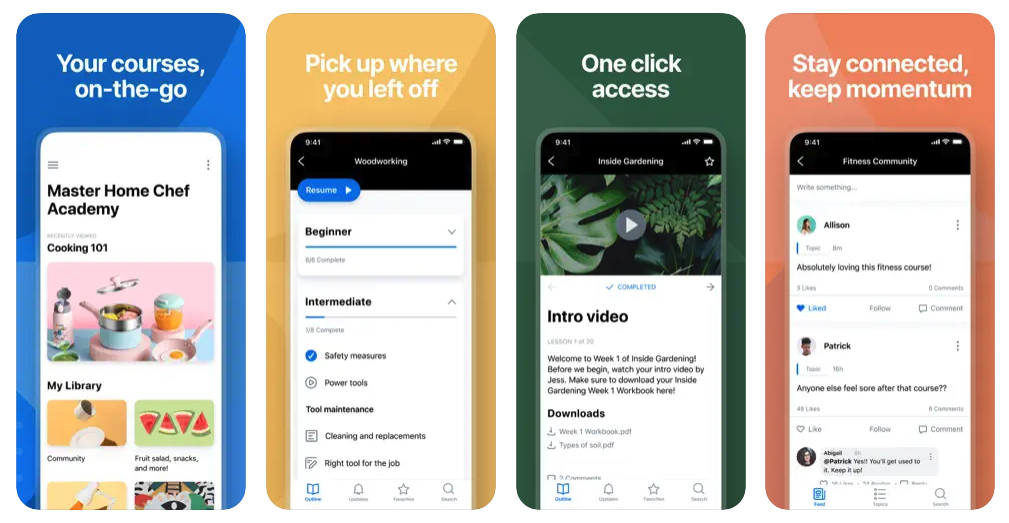
While the basic screenshots provided by Kajabi are sufficient to meet app store requirements, you can choose to enhance them by adding additional eye-catching design elements such as a colored background, digital phone skin, and/or marketing copy.
**Note:**
Apple takes a firm stance on the fact that screenshots need to match what is in the app; screenshots need to better reflect that if you plan to use custom images. We recommend updating custom screenshots to include more in-app screenshots so as to increase the chances for approval. You should avoid using screenshots of the community as that tends to lead to a rejection.
For example, here are some enhanced screenshots of the Kajabi app:
 ### Design resources
Many software tools can help you enhance screenshot designs. For example, a graphic design software like [Canva](https://www.canva.com/) can be used to add design elements to screenshots.
There are also design tools specifically made for enhancing app screenshots. Here are a few examples:
* [AppLaunchpad](https://theapplaunchpad.com/)
* [AppMockUp](https://app-mockup.com/)
* [Appure](https://appure.io/)
* [AppScreens](https://appscreens.com)
* [Screenshot Creator](https://screenshotcreator.com/)
* [StoreShots](https://www.storeshots.net/)
## Update iOS screenshots
### Create a version of the app
1. Go into the [App Store Connect](https://appstoreconnect.apple.com/) account.
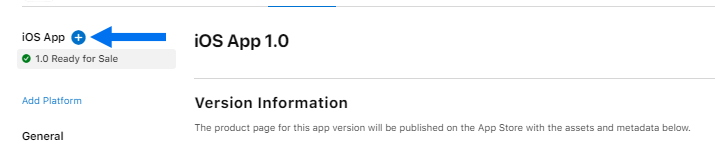
2. Click the **blue + button** to create a version of the app:
### Design resources
Many software tools can help you enhance screenshot designs. For example, a graphic design software like [Canva](https://www.canva.com/) can be used to add design elements to screenshots.
There are also design tools specifically made for enhancing app screenshots. Here are a few examples:
* [AppLaunchpad](https://theapplaunchpad.com/)
* [AppMockUp](https://app-mockup.com/)
* [Appure](https://appure.io/)
* [AppScreens](https://appscreens.com)
* [Screenshot Creator](https://screenshotcreator.com/)
* [StoreShots](https://www.storeshots.net/)
## Update iOS screenshots
### Create a version of the app
1. Go into the [App Store Connect](https://appstoreconnect.apple.com/) account.
2. Click the **blue + button** to create a version of the app:
 A pop-up modal will appear.
3. Enter a version number for the app in the **Store Version Number** textbox.
If the prior version number was 1.0, choose 1.1 as the version number (if you're already past version 1.1, continue on in sequence: 1.2, 1.3, 1.4, etc.):
### Update the app in the app store(s)
Follow the steps [in this article](/articles/mobile-apps/branded-app/how-to-update-your-branded-app-in-the-apple-app-store-and-google-play-store) to submit an app update to Apple and/or Google.
## Update Android screenshots
1. Go into the [Google Play Console](https://play.google.com/console).
2. Choose the app you want to edit.
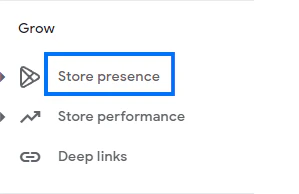
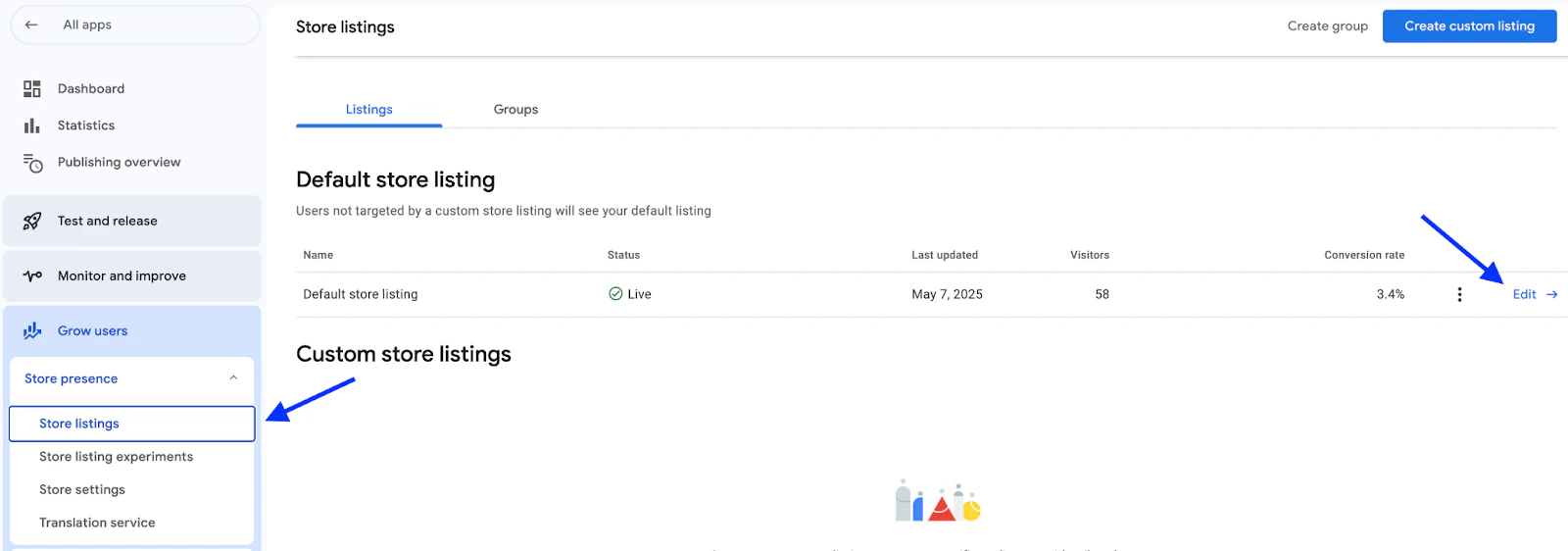
3. On the side panel menu, navigate to the **Grow Users** section.
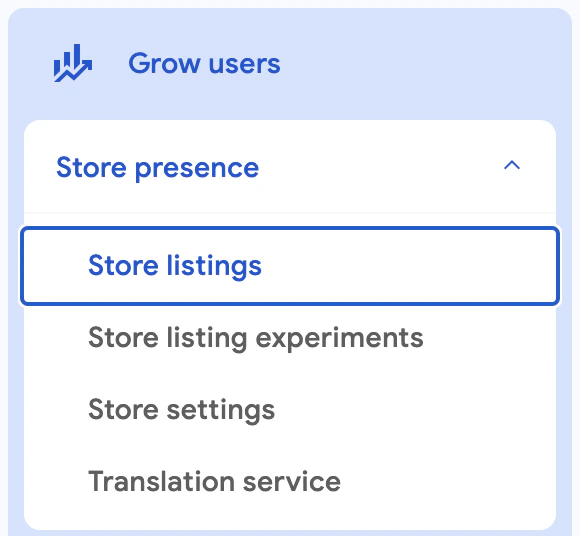
4. Click **Store presence > Store Listings**:
A pop-up modal will appear.
3. Enter a version number for the app in the **Store Version Number** textbox.
If the prior version number was 1.0, choose 1.1 as the version number (if you're already past version 1.1, continue on in sequence: 1.2, 1.3, 1.4, etc.):
### Update the app in the app store(s)
Follow the steps [in this article](/articles/mobile-apps/branded-app/how-to-update-your-branded-app-in-the-apple-app-store-and-google-play-store) to submit an app update to Apple and/or Google.
## Update Android screenshots
1. Go into the [Google Play Console](https://play.google.com/console).
2. Choose the app you want to edit.
3. On the side panel menu, navigate to the **Grow Users** section.
4. Click **Store presence > Store Listings**:
 5. Edit **Default Store Listing**:
 6. Scroll down to the **Phone** section.
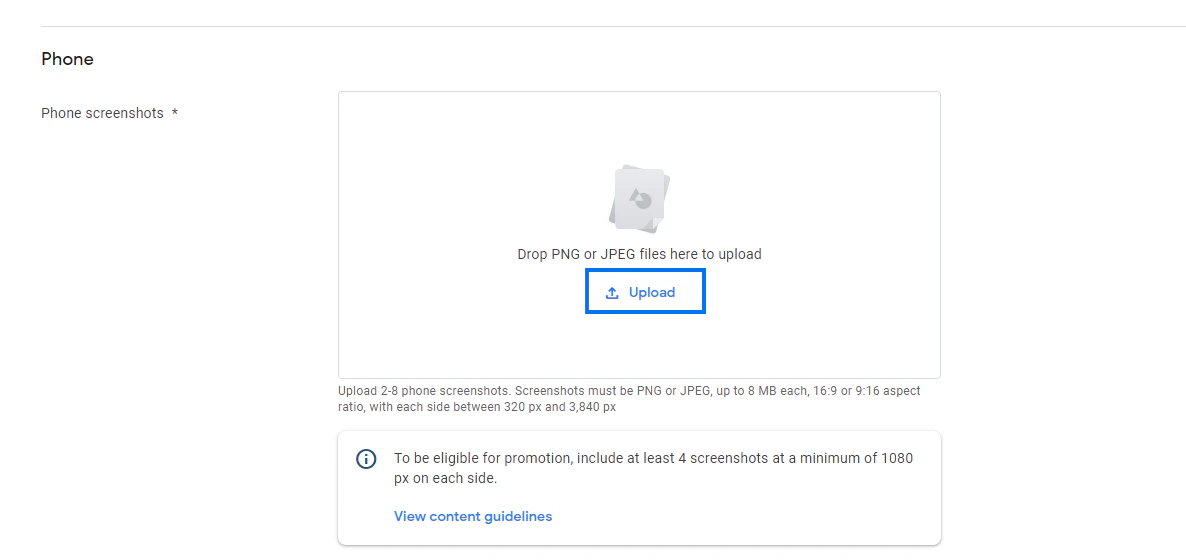
7. In the box next to **Phone screenshots**, click **Upload**:
6. Scroll down to the **Phone** section.
7. In the box next to **Phone screenshots**, click **Upload**:
 8. Select and upload the screenshot.
9. Once the screenshot is updated, click **Save**.
10. You'll see a pop-up modal asking you if you want to publish the changes. Confirm the changes.
8. Select and upload the screenshot.
9. Once the screenshot is updated, click **Save**.
10. You'll see a pop-up modal asking you if you want to publish the changes. Confirm the changes.