> ## Documentation Index
> Fetch the complete documentation index at: https://help.kajabi.com/llms.txt
> Use this file to discover all available pages before exploring further.
# Select Branded App data privacy options for Apple App Store
> Submit data collection and privacy information for an iOS Branded App in App Store Connect.
Customers need to know how you'll handle their personal **data privacy** information prior to downloading the app. All app providers are required to provide this information when submitting their app for publication. The following sections walk through how to share the types of data an iOS app will collect.
## Why am I being asked to provide data safety information?
Customers need to know how you'll handle their personal data prior to downloading the app. All app providers are required to provide this information when submitting their app for publication.
## Complete the form to submit the data
Enter the selections into the **App Privacy** information form in the App Store dashboard as directed in this guide. Any options not listed here can be left unchecked.
**To complete the App Privacy form:**
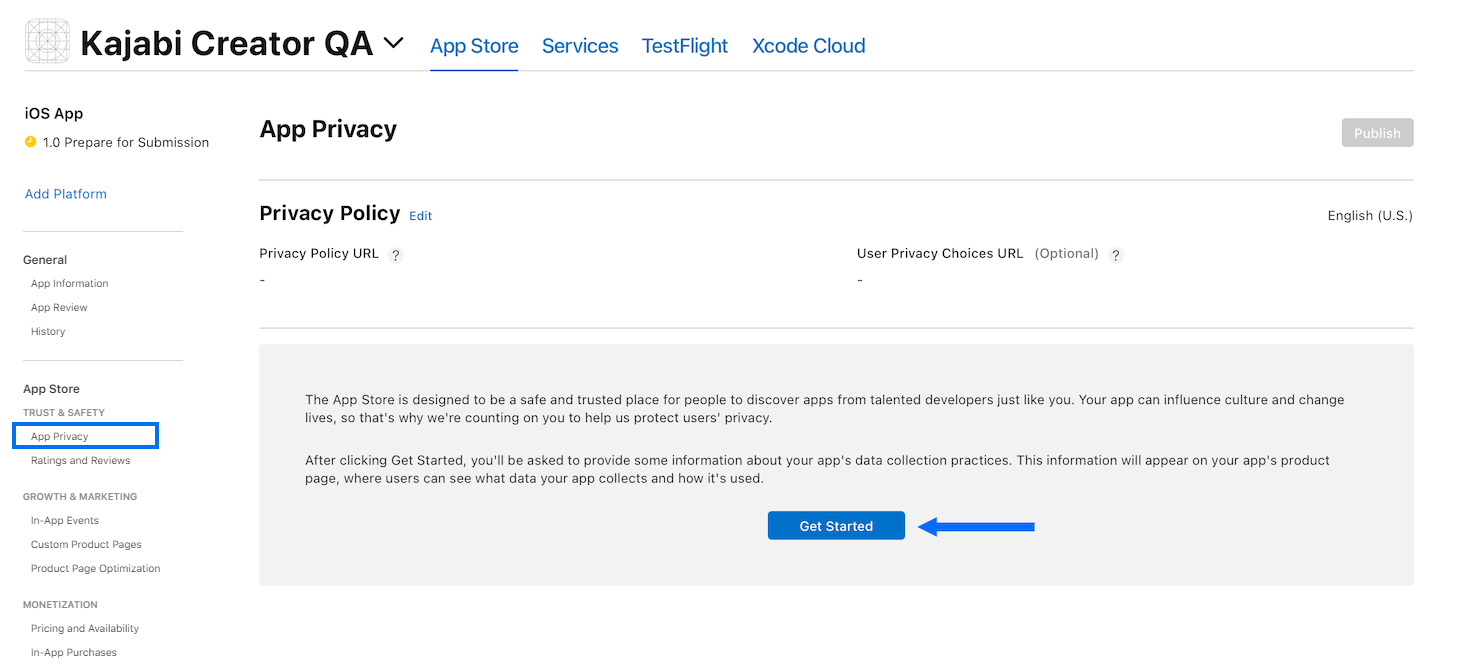
1. Under **Trust & Safety** in the left menu, click **App Privacy**.
**Note:**
If you're not already logged into [App Store Connect](https://appstoreconnect.apple.com/), first login and select the Branded App icon to get to the App Privacy menu.
2. Then, click **Get Started**:
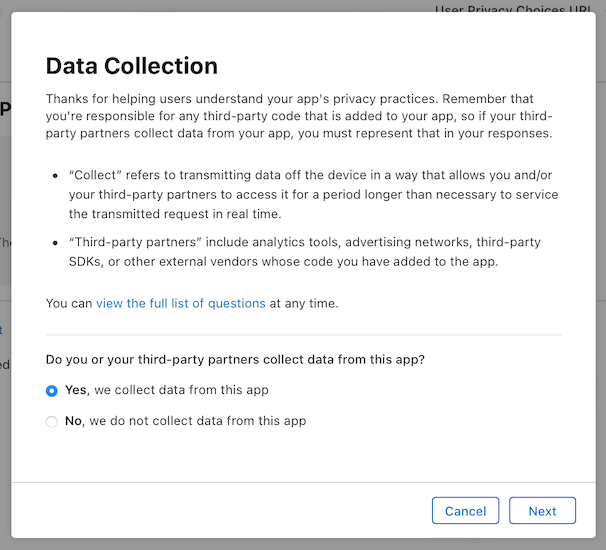
 On the Data Collection popup modal that appears:
3. Select **Yes, we collect data from this app**
4. Click **Next**:
On the Data Collection popup modal that appears:
3. Select **Yes, we collect data from this app**
4. Click **Next**:
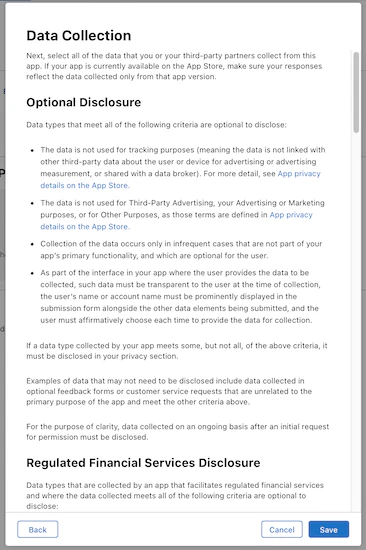
 You'll be presented with a page of additional Data Collection information:
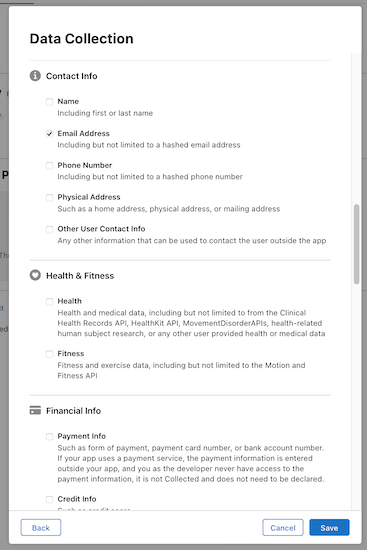
 Scroll down to the **Contact Info** section.
### Contact Info
Check the checkbox next to:
* **Email Address:**
Scroll down to the **Contact Info** section.
### Contact Info
Check the checkbox next to:
* **Email Address:**
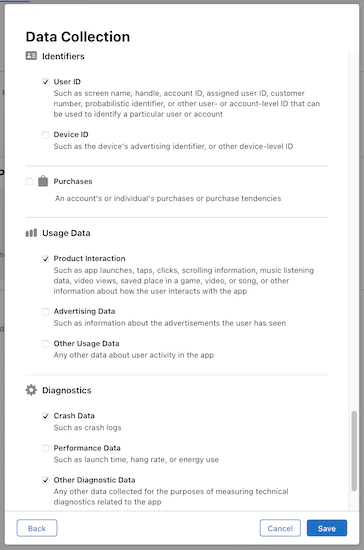
 Skip past the next few sections and continue to scroll down the list to the **Identifiers** section.
### Identifiers
Check the checkbox next to:
* **User ID**
Skip down to the **Usage Data** section next.
### Usage Data
Check the checkbox next to:
* **Product Interaction**
### Diagnostics
Check the checkboxes next to:
* **Crash Data**
* **Other Diagnostic Data**
The remaining checkboxes can be left unselected.
5. Click **Save**:
Skip past the next few sections and continue to scroll down the list to the **Identifiers** section.
### Identifiers
Check the checkbox next to:
* **User ID**
Skip down to the **Usage Data** section next.
### Usage Data
Check the checkbox next to:
* **Product Interaction**
### Diagnostics
Check the checkboxes next to:
* **Crash Data**
* **Other Diagnostic Data**
The remaining checkboxes can be left unselected.
5. Click **Save**:
 An "Additional Setup Required" notification will pop up to inform you that you'll finish setting up the data types on the following page.
6. Click **OK** to close the notification popup. You're already on the correct page.
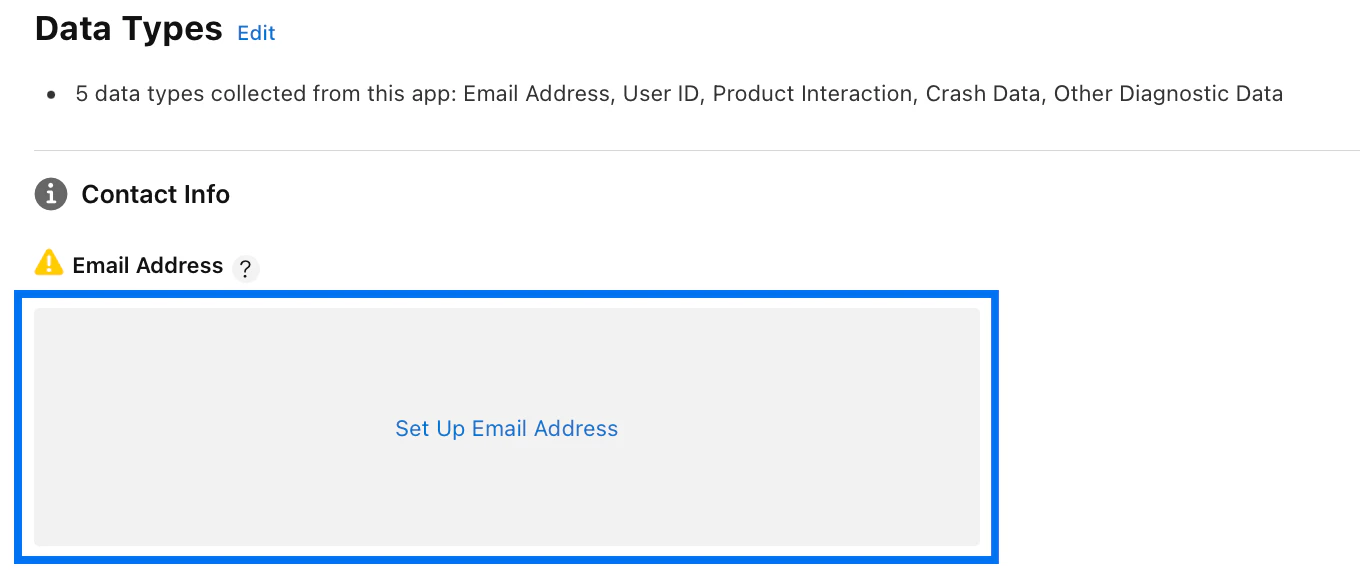
The additional questions you'll need to answer can be accessed by clicking into a set of gray boxes under **Data Types**. First, locate the gray box beneath Data Types > Contact Info > Email Address:
An "Additional Setup Required" notification will pop up to inform you that you'll finish setting up the data types on the following page.
6. Click **OK** to close the notification popup. You're already on the correct page.
The additional questions you'll need to answer can be accessed by clicking into a set of gray boxes under **Data Types**. First, locate the gray box beneath Data Types > Contact Info > Email Address:
 ### Contact Info
#### Email Address
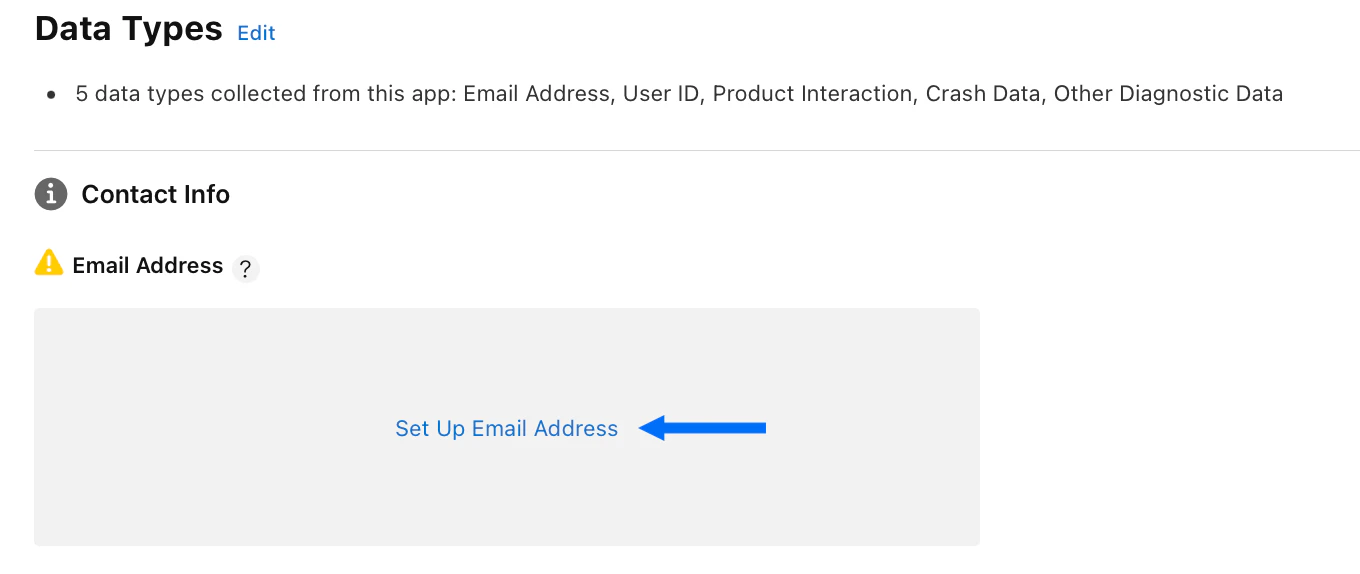
1. Click **Set Up Email Address**:
### Contact Info
#### Email Address
1. Click **Set Up Email Address**:
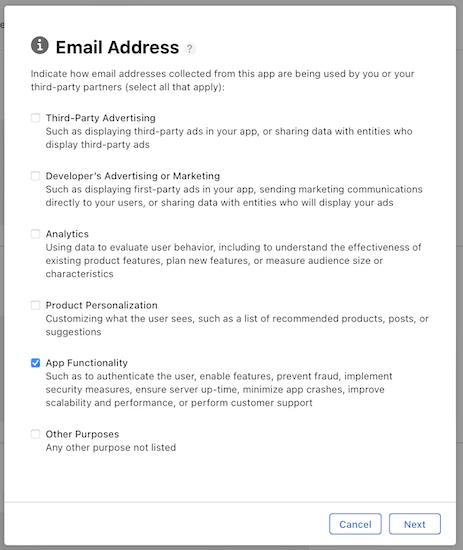
 2. Check the checkbox next to **App Functionality**
3. Click **Next**:
2. Check the checkbox next to **App Functionality**
3. Click **Next**:
 4. Select **Yes, email addresses collected from this app are linked to the user's identity**
5. Click **Next**:
4. Select **Yes, email addresses collected from this app are linked to the user's identity**
5. Click **Next**:
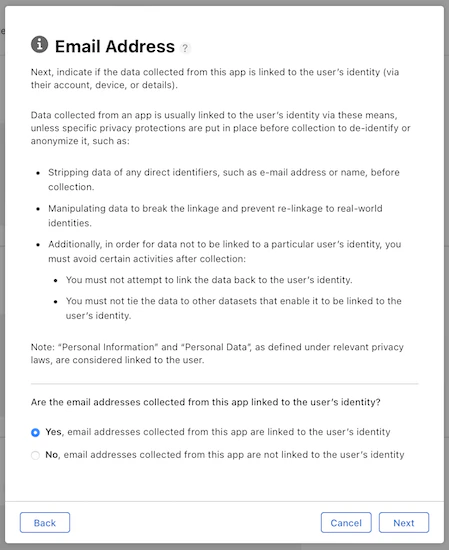 6. Review the information about Tracking and Third-Party Data and click **Next**
7. Review the tracking examples and click **Next**
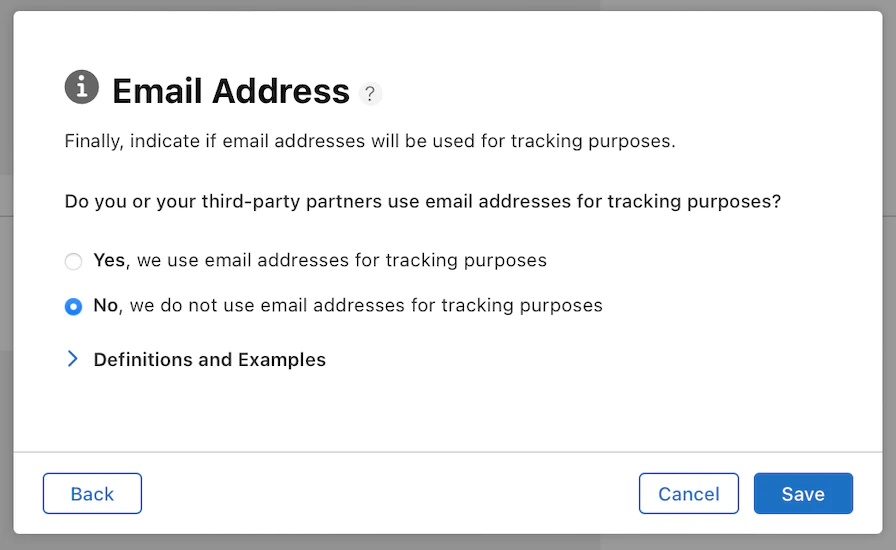
8. Select **No, we do not use email addresses for tracking purposes**
9. Click **Save**:
6. Review the information about Tracking and Third-Party Data and click **Next**
7. Review the tracking examples and click **Next**
8. Select **No, we do not use email addresses for tracking purposes**
9. Click **Save**:
 Scroll down to the **Identifiers** section.
### Identifiers
#### User ID
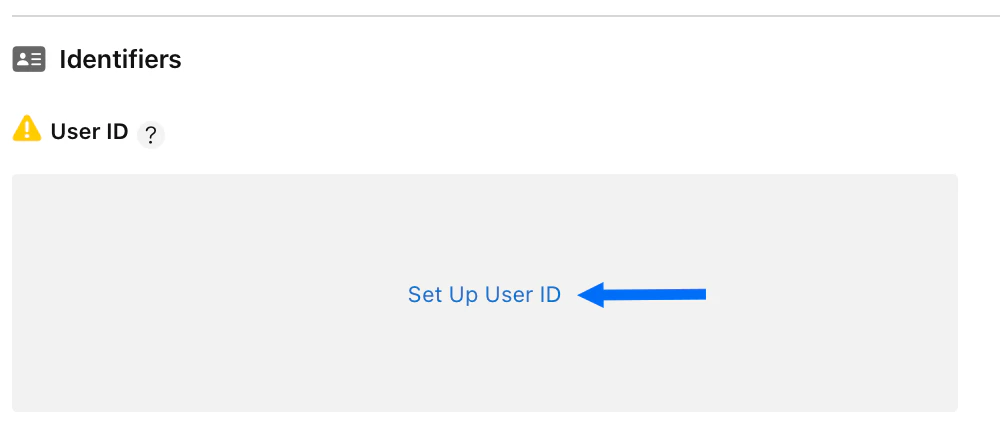
1. Click **Set Up User ID**:
Scroll down to the **Identifiers** section.
### Identifiers
#### User ID
1. Click **Set Up User ID**:
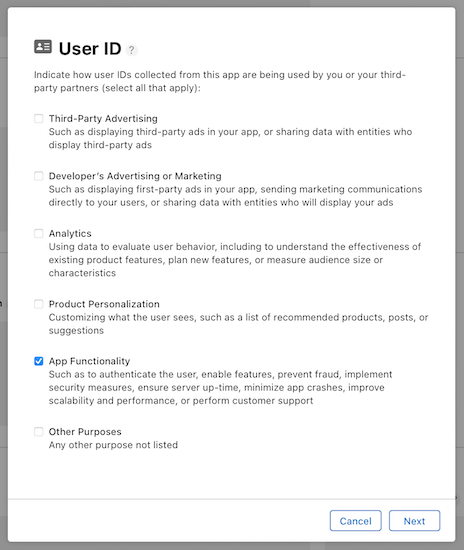
 2. Check the checkbox next to **App Functionality**
3. Click **Next**:
2. Check the checkbox next to **App Functionality**
3. Click **Next**:
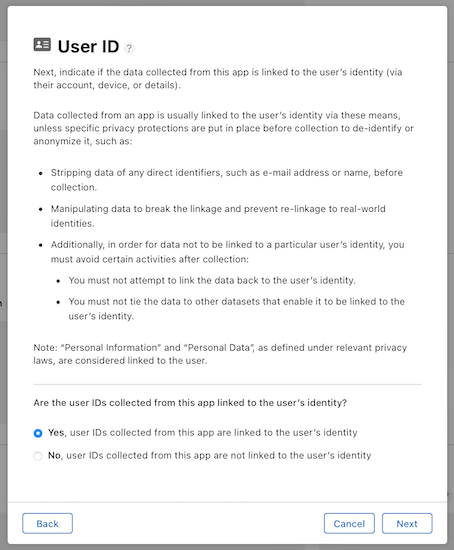
 4. Select **Yes, user IDs collected from this app are linked to the user's identity**
5. Click **Next**:
4. Select **Yes, user IDs collected from this app are linked to the user's identity**
5. Click **Next**:
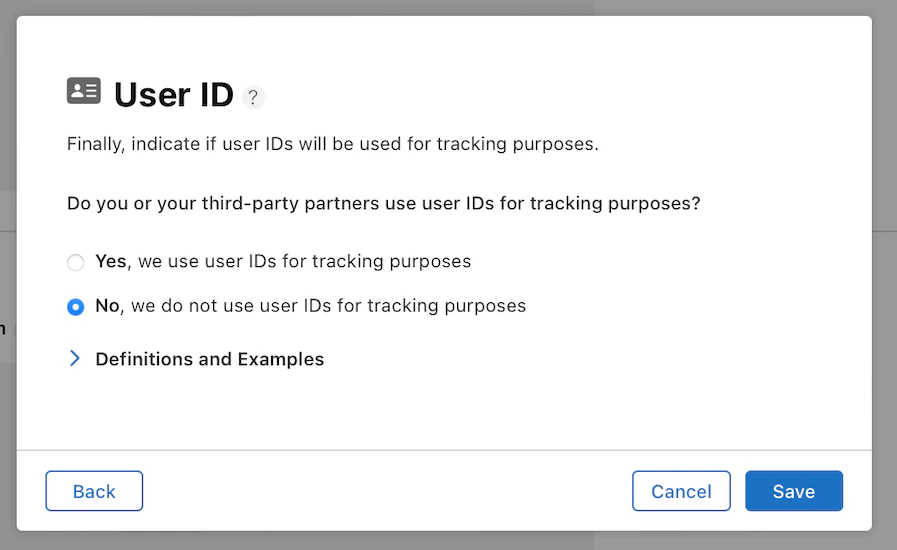
 6. Select **No, we do not use user IDs for tracking purposes**
7. Click **Save**:
6. Select **No, we do not use user IDs for tracking purposes**
7. Click **Save**:
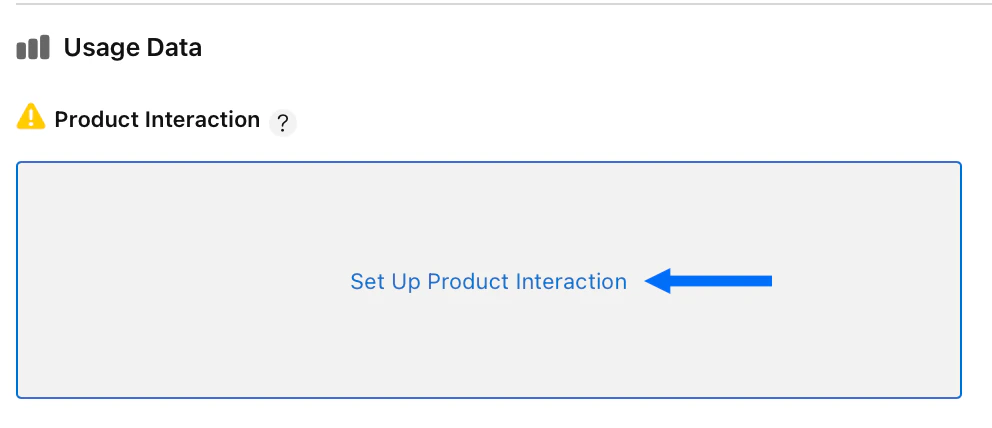
 Scroll down to the **Usage Data** section.
### Usage Data
#### Product Interaction
1. Click **Set Up Product Interaction**:
Scroll down to the **Usage Data** section.
### Usage Data
#### Product Interaction
1. Click **Set Up Product Interaction**:
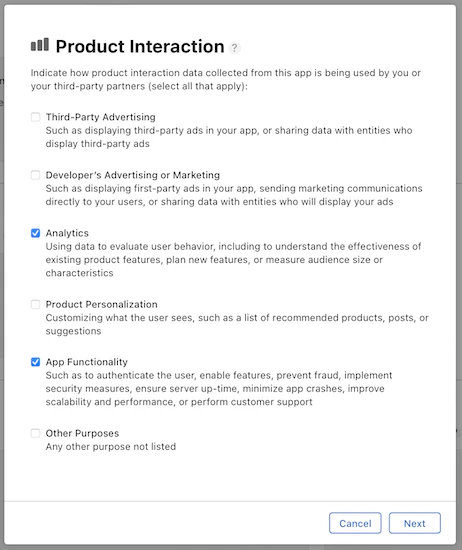
 2. Check the checkbox next to **Analytics**
3. Check the checkbox next to **App Functionality**
4. Click **Next**:
2. Check the checkbox next to **Analytics**
3. Check the checkbox next to **App Functionality**
4. Click **Next**:
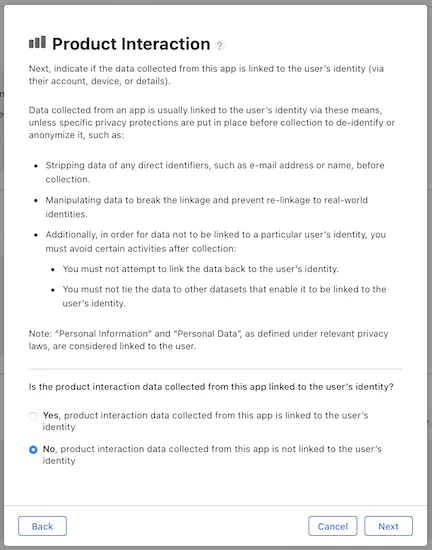
 5. Select **No, product interaction data collected from this app is not linked to the user's identity**
6. Click **Next**:
5. Select **No, product interaction data collected from this app is not linked to the user's identity**
6. Click **Next**:
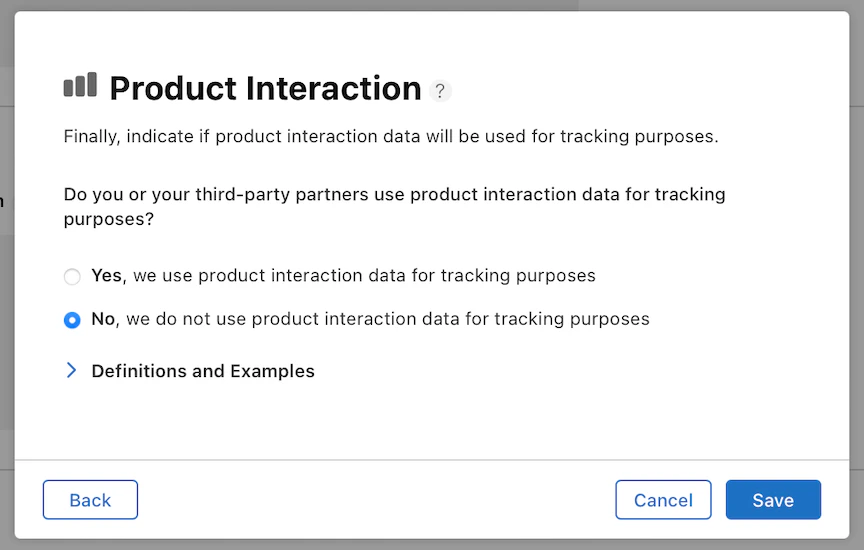
 7. Select **No, we do not use product interaction data for tracking purposes**
8. Click **Save**:
7. Select **No, we do not use product interaction data for tracking purposes**
8. Click **Save**:
 Scroll down to the **Diagnostics** section.
### Diagnostics
#### Crash Data
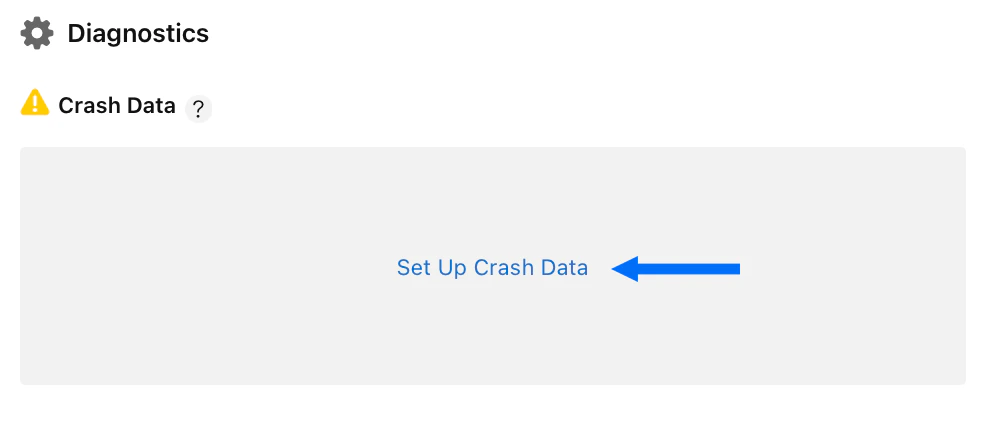
1. Click **Set Up Crash Data**:
Scroll down to the **Diagnostics** section.
### Diagnostics
#### Crash Data
1. Click **Set Up Crash Data**:
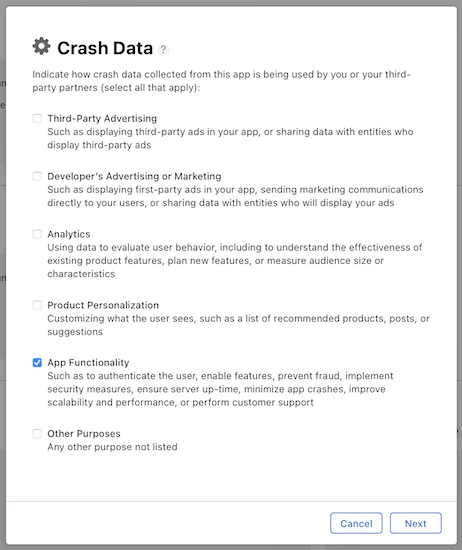
 2. Check the checkbox next to **App Functionality**
3. Click **Next**:
2. Check the checkbox next to **App Functionality**
3. Click **Next**:
 4. Select **No, crash data collected from this app is not linked to the user's identity**
5. Click **Next**:
4. Select **No, crash data collected from this app is not linked to the user's identity**
5. Click **Next**:
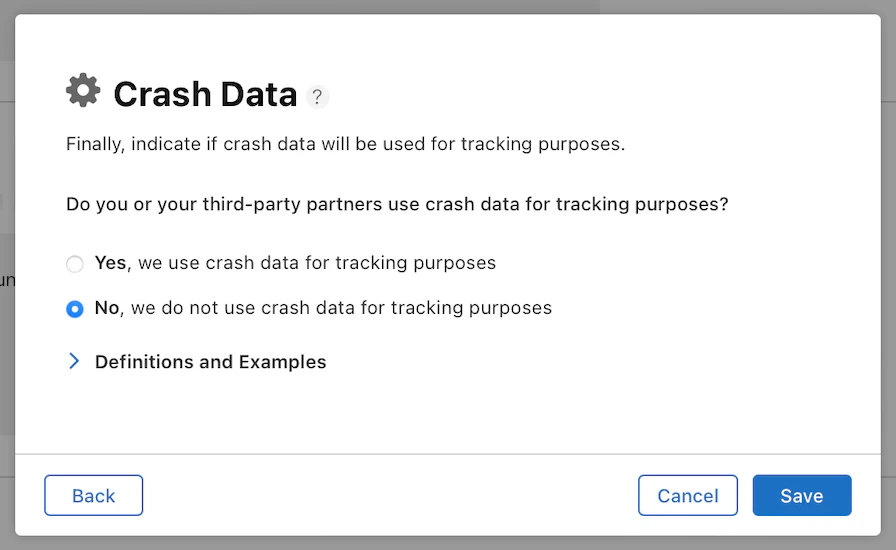
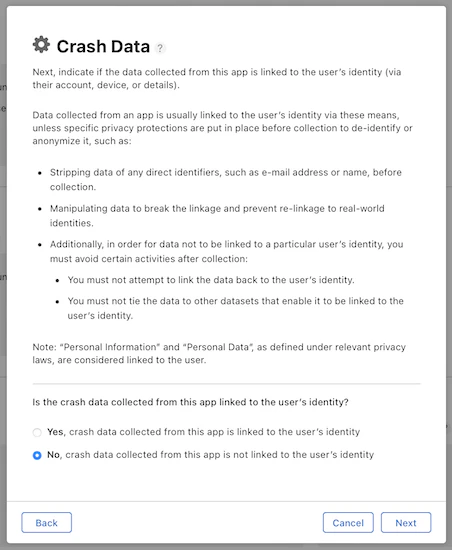 6. Select **No, we do not use crash data for tracking purposes**
7. Click **Save**:
6. Select **No, we do not use crash data for tracking purposes**
7. Click **Save**:
 #### Other Diagnostic Data
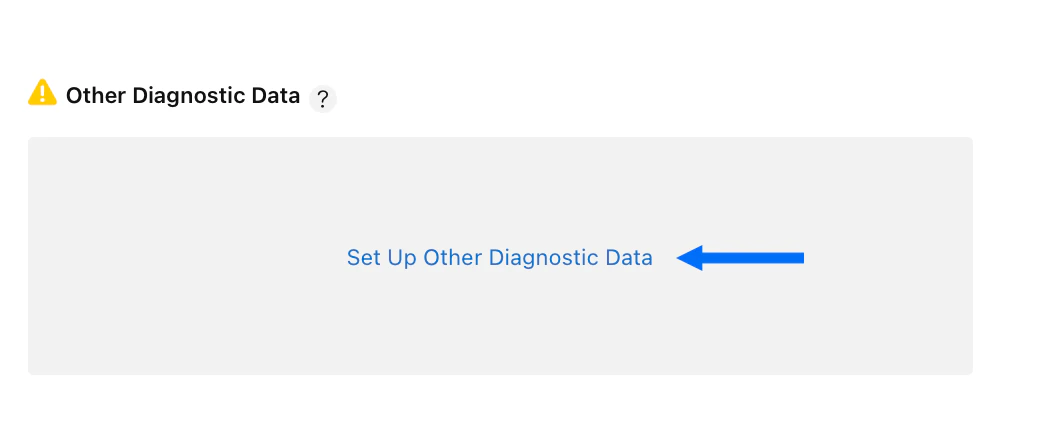
1. Click **Set Up Other Diagnostic Data**:
#### Other Diagnostic Data
1. Click **Set Up Other Diagnostic Data**:
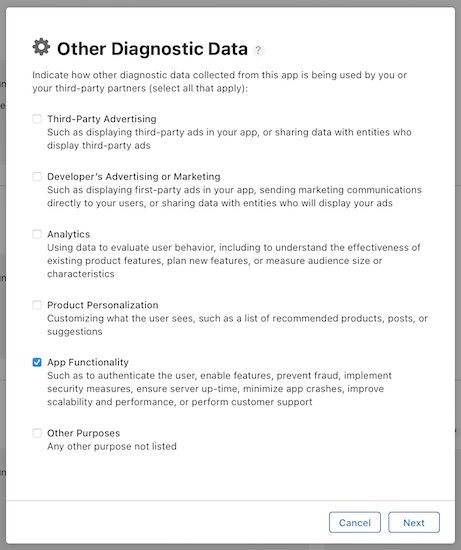
 2. Check the checkbox next to **App Functionality**
3. Click **Next**:
2. Check the checkbox next to **App Functionality**
3. Click **Next**:
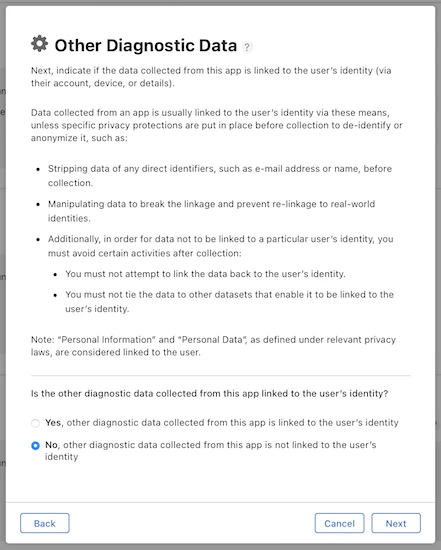
 4. Select **No, other diagnostic data collected from this app is not linked to the user's identity**
5. Click **Next**:
4. Select **No, other diagnostic data collected from this app is not linked to the user's identity**
5. Click **Next**:
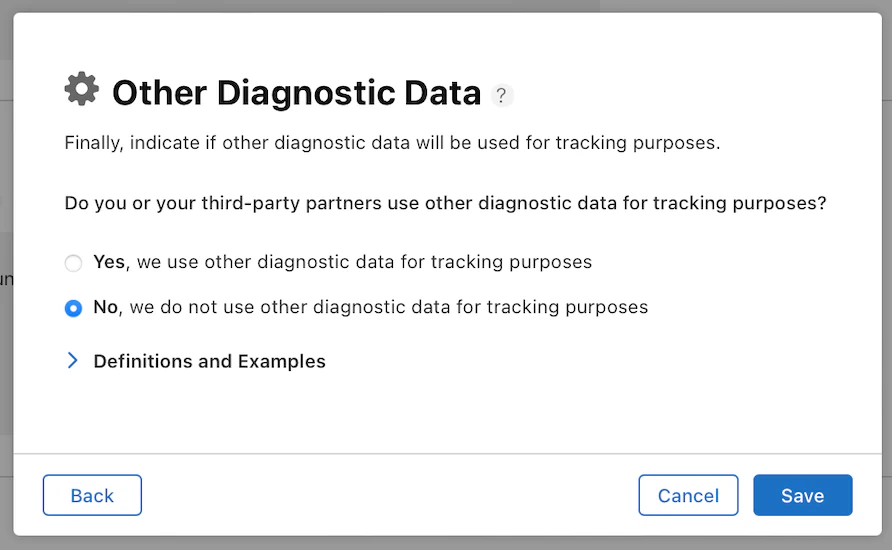
 6. Select **No, we do not use other diagnostic data for tracking purposes**
7. Click **Save**:
6. Select **No, we do not use other diagnostic data for tracking purposes**
7. Click **Save**:
 8. Scroll up to the top right corner of the page and click **Publish** to save the data privacy information
9. Click **Publish** again in the popup modal to confirm
You can now return to the Kajabi app and click **Complete** to finish the iOS app intake process.
8. Scroll up to the top right corner of the page and click **Publish** to save the data privacy information
9. Click **Publish** again in the popup modal to confirm
You can now return to the Kajabi app and click **Complete** to finish the iOS app intake process.