> ## Documentation Index
> Fetch the complete documentation index at: https://help.kajabi.com/llms.txt
> Use this file to discover all available pages before exploring further.
# Create a Coaching Product
> Build, manage, and schedule Coaching sessions with customers.
A **Coaching Product** allows you to deliver structured, interactive coaching experiences directly inside Kajabi. Use it to schedule sessions, share resources, and guide customers through a personalized program.
[Learn more about Coaching Product overview](../../products/coaching/coaching-product-overview).
## How the Coaching Product works
Coaching uses Kajabi’s built-in tools to manage scheduling and sessions in one place. You can schedule sessions with the [Kajabi Scheduler](/articles/products/coaching/connect-the-kajabi-scheduler-to-your-coaching-product) and meet with clients using [built-in live video](/articles/products/coaching/kajabis-built-in-live-video-faqs), or connect third-party tools like Calendly, Zoom, or Google Meet.
When a customer purchases an Offer connected to your Coaching Product, they are redirected to their Library to access the program. From there, they can schedule sessions, view agendas, and access shared resources.
## Create a Coaching program
Create a Coaching program and schedule sessions with your clients from your Kajabi account.
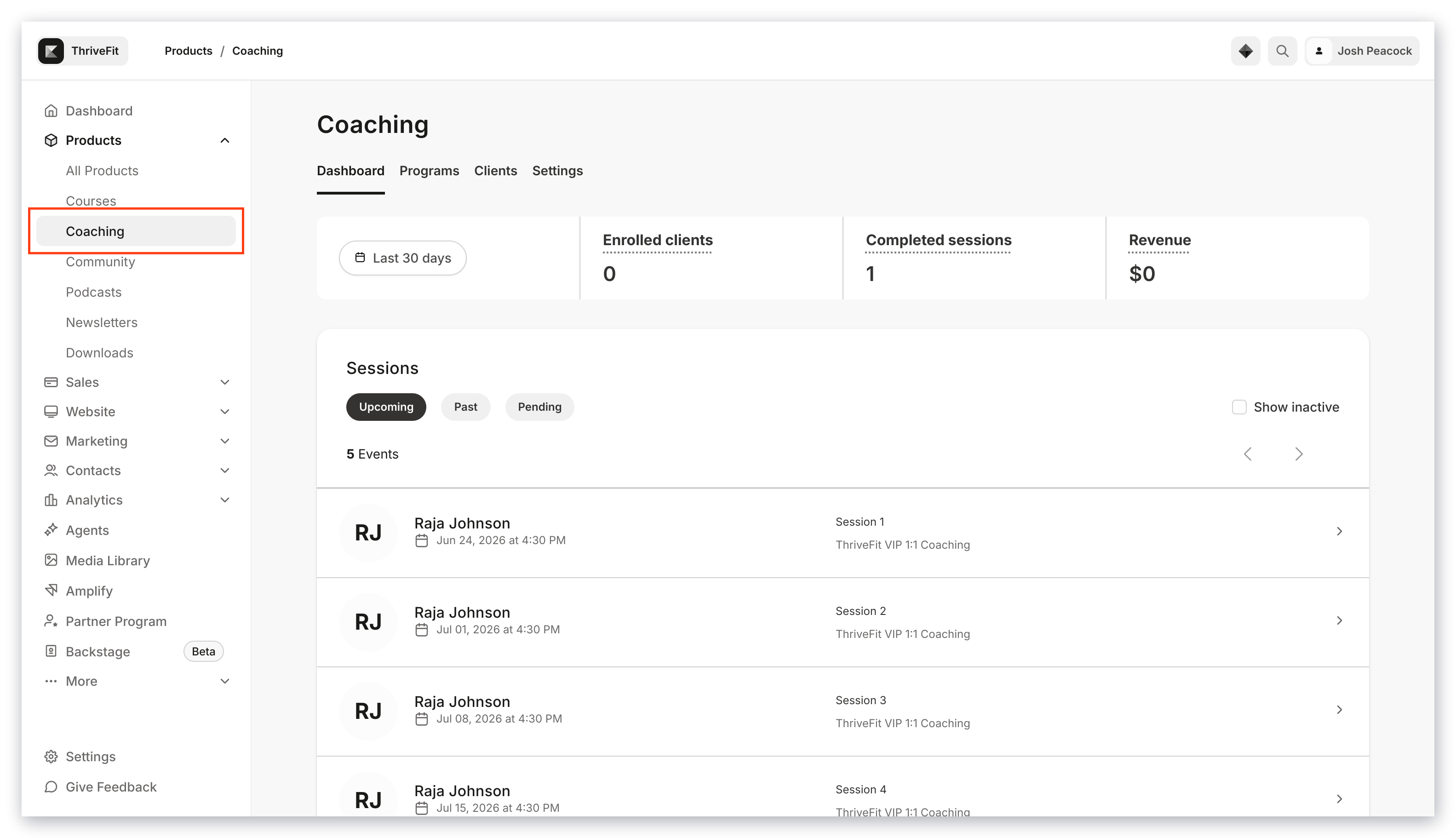 1. From the Dashboard, open the **Products** tab.
2. Select **Coaching.**
3. Select the Program tab, then click **+ New coaching program.** Add the following:
* **Title**
* **Coach name** (optional)
* **Description** (optional)
* **Thumbnail image** (optional)
4. Click **Continue.**
5. Select **1:1 Coaching** or **Group Coaching**
* [**1:1 Coaching**](../../products/coaching/differences-between-a-11-coaching-program-and-group-coaching): Exclusive, individual access in a one-to-one coaching experience
* [**Group Coaching**](../../products/coaching/group-coaching): Coaching program for multiple clients in each session
6. Enter the number of sessions to create, and a **Group Name** if applicable. Click **Continue**.
7. Select scheduling preferences. Choose the Kajabi Scheduler to book sessions by connecting your Google, Outlook, or Office 365 calendars for real-time availability. Other choices include:
* [Calendly](../../products/coaching/connect-calendly-to-your-coaching-product)
* **Custom link** - Enter a custom URL, e.g., [Acuity](../../products/coaching/how-to-connect-acuity-to-your-coaching-product), [Google Meet](https://meet.google.com/)
* **Manual booking** - e.g., Physical address, Zoom meeting link
8. Select the Location, whether it is using [built-in live video](../../products/coaching/how-to-create-a-live-video-session) or a custom link or physical location.
9. Select a **Session Duration** for every session in the program, and click **Continue.**
10. Customize the program's appearance by choosing a color palette, and click **Continue**.
11. Price your Coaching program by choosing **Free** or **Paid.**
12. If paid, choose a **Pricing plan**. Enter a **Price** and select a **Currency**.
13. Then, choose whether customers can pay what they want.
14. Finally, select one or more **payment providers**.
## Customize a Coaching program
Customize Session details
After creating the program, customize Sessions for your clients to join.
### Customize a Session
1. From the Dashboard, open **Coaching**.
2. Select the **Title** of your newly created Coaching program.
3. Click the **Package outline** tab.
4. Click a Session **Title** to begin editing a Session, or click the **ellipsis menu** `...` and select **Edit details**.
Within each session you can:
* Update the Session **Title**.
* Add a **Session description**
* Add agenda items
* Add any resources you wish to share during the Session
1. From the Dashboard, open the **Products** tab.
2. Select **Coaching.**
3. Select the Program tab, then click **+ New coaching program.** Add the following:
* **Title**
* **Coach name** (optional)
* **Description** (optional)
* **Thumbnail image** (optional)
4. Click **Continue.**
5. Select **1:1 Coaching** or **Group Coaching**
* [**1:1 Coaching**](../../products/coaching/differences-between-a-11-coaching-program-and-group-coaching): Exclusive, individual access in a one-to-one coaching experience
* [**Group Coaching**](../../products/coaching/group-coaching): Coaching program for multiple clients in each session
6. Enter the number of sessions to create, and a **Group Name** if applicable. Click **Continue**.
7. Select scheduling preferences. Choose the Kajabi Scheduler to book sessions by connecting your Google, Outlook, or Office 365 calendars for real-time availability. Other choices include:
* [Calendly](../../products/coaching/connect-calendly-to-your-coaching-product)
* **Custom link** - Enter a custom URL, e.g., [Acuity](../../products/coaching/how-to-connect-acuity-to-your-coaching-product), [Google Meet](https://meet.google.com/)
* **Manual booking** - e.g., Physical address, Zoom meeting link
8. Select the Location, whether it is using [built-in live video](../../products/coaching/how-to-create-a-live-video-session) or a custom link or physical location.
9. Select a **Session Duration** for every session in the program, and click **Continue.**
10. Customize the program's appearance by choosing a color palette, and click **Continue**.
11. Price your Coaching program by choosing **Free** or **Paid.**
12. If paid, choose a **Pricing plan**. Enter a **Price** and select a **Currency**.
13. Then, choose whether customers can pay what they want.
14. Finally, select one or more **payment providers**.
## Customize a Coaching program
Customize Session details
After creating the program, customize Sessions for your clients to join.
### Customize a Session
1. From the Dashboard, open **Coaching**.
2. Select the **Title** of your newly created Coaching program.
3. Click the **Package outline** tab.
4. Click a Session **Title** to begin editing a Session, or click the **ellipsis menu** `...` and select **Edit details**.
Within each session you can:
* Update the Session **Title**.
* Add a **Session description**
* Add agenda items
* Add any resources you wish to share during the Session
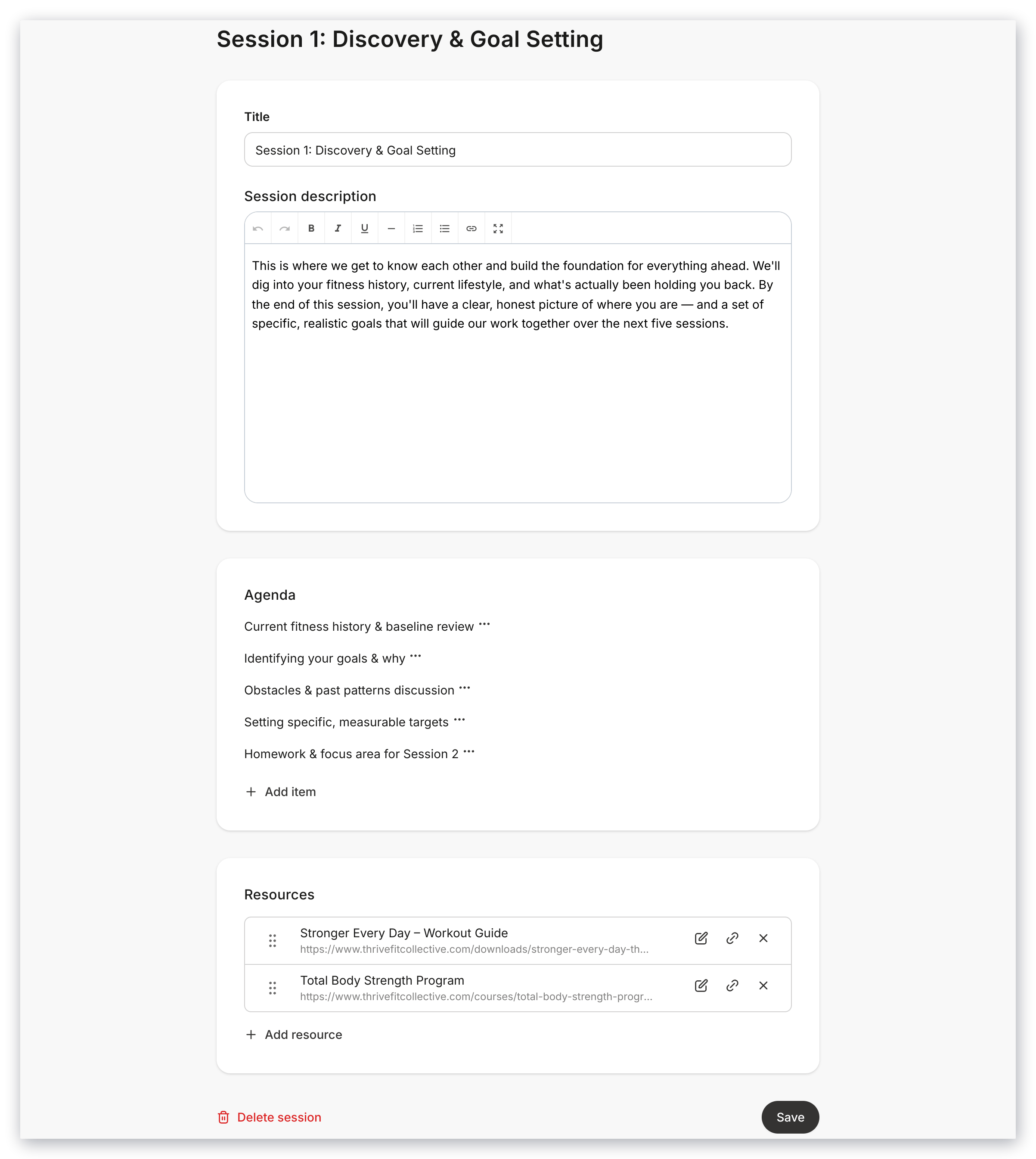 5. Click **Save** to keep your changes.
### Duplicate a Coaching Session
1. From the Dashboard, open **Coaching**.
2. Select the **Title** of your Coaching program.
3. Click the **Package outline** tab.
4. Next to the Session, click the **more options icon** (...).
5. Select **Duplicate**.
6. Confirm by clicking **Duplicate** in the new modal.
7. The duplicate coaching session will appear at the bottom of the Sessions list. Click the **more options icon** (...), and select **Edit details** to modify the new session.
### Offers
Click the **Offers** tab on your Coaching program to view the list of Offers that include that program, or [add a new one](../../sales/offers/create-an-offer) to begin selling the program to customers.
An **Offer** is created by default when you create a Coaching program.\
\
Click the **Offer Title** or the **ellipsis menu** `...`, then **Edit** to update or review Offer details.
## Duplicate a Coaching program
1. From the Dashboard, open the **Products** tab.
2. Click **Coaching,** then **Programs.**
3. Next to the Program, click the **more options icon** (...).
4. Select **Duplicate program**.
5. Confirm by clicking **Duplicate.**
6. The duplicate coaching program will appear at the top of the Programs list. Click the **more options icon** (...), and select **Edit details** to modify the new program.
## Manage a Coaching program
From a Coaching program page, you can schedule sessions with clients, update program details, access connected Offers, review client status, create sessions, and update existing ones.
### Edit Program details
Click the **Settings** tab to update details:
* **Program details** - Edit Coach information or upload the thumbnail image that displays in your customer's library of products
5. Click **Save** to keep your changes.
### Duplicate a Coaching Session
1. From the Dashboard, open **Coaching**.
2. Select the **Title** of your Coaching program.
3. Click the **Package outline** tab.
4. Next to the Session, click the **more options icon** (...).
5. Select **Duplicate**.
6. Confirm by clicking **Duplicate** in the new modal.
7. The duplicate coaching session will appear at the bottom of the Sessions list. Click the **more options icon** (...), and select **Edit details** to modify the new session.
### Offers
Click the **Offers** tab on your Coaching program to view the list of Offers that include that program, or [add a new one](../../sales/offers/create-an-offer) to begin selling the program to customers.
An **Offer** is created by default when you create a Coaching program.\
\
Click the **Offer Title** or the **ellipsis menu** `...`, then **Edit** to update or review Offer details.
## Duplicate a Coaching program
1. From the Dashboard, open the **Products** tab.
2. Click **Coaching,** then **Programs.**
3. Next to the Program, click the **more options icon** (...).
4. Select **Duplicate program**.
5. Confirm by clicking **Duplicate.**
6. The duplicate coaching program will appear at the top of the Programs list. Click the **more options icon** (...), and select **Edit details** to modify the new program.
## Manage a Coaching program
From a Coaching program page, you can schedule sessions with clients, update program details, access connected Offers, review client status, create sessions, and update existing ones.
### Edit Program details
Click the **Settings** tab to update details:
* **Program details** - Edit Coach information or upload the thumbnail image that displays in your customer's library of products
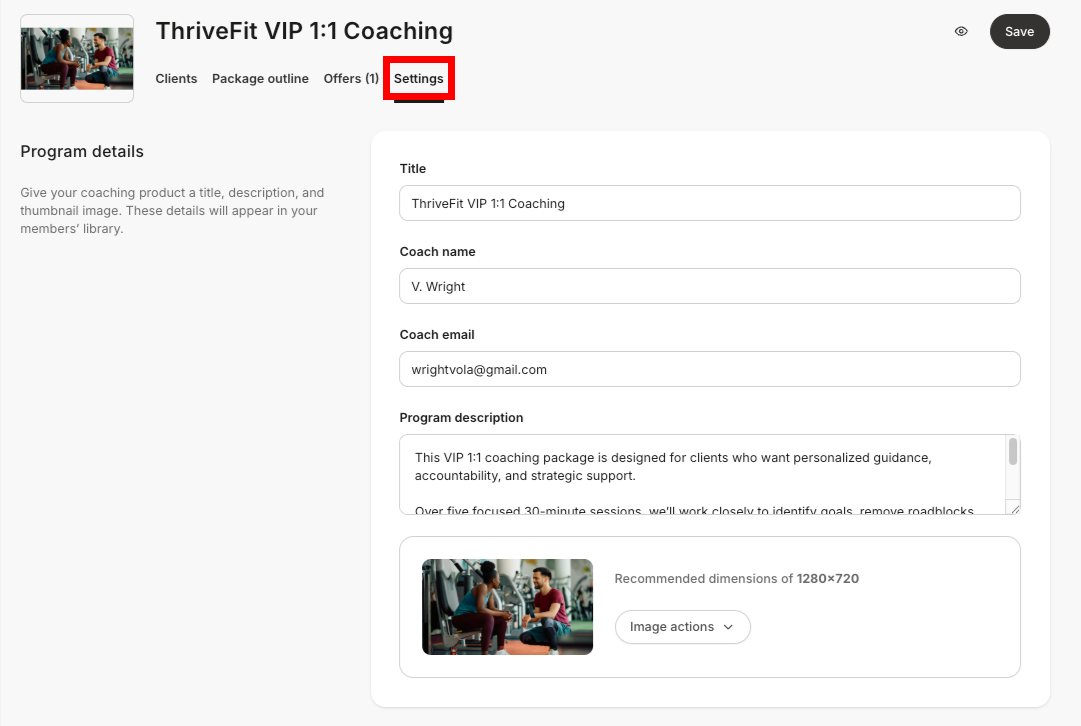 * **Coaching template** - Personalize your active template or install a new one
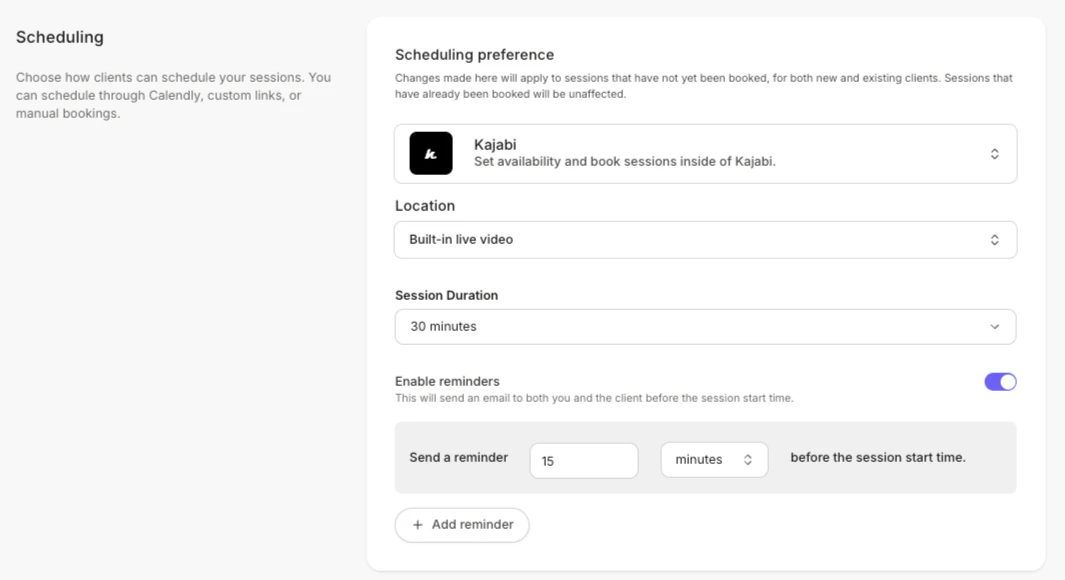
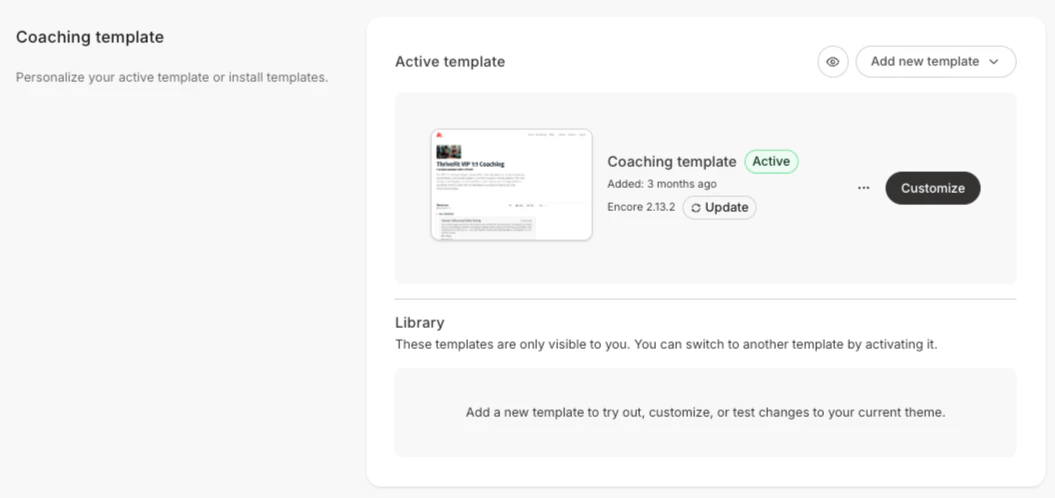 * **Scheduling details** - Customize how your clients can schedule sessions. Connect the Kajabi Scheduler, your Calendly account, add custom links, or set up manual bookings
 **Note:** The Upsell buy button displays inside each session page after the session has been completed and in the main package outline after every session in the package has been fully completed. [Learn to add a Coaching Product upsell](../../products/coaching/how-to-add-a-coaching-product-upsell).
* **Page customization** - Brand your page by selecting the primary and accent colors to complete the look and feel of your Product page
* **Page Upsell** - Control whether or not a Coaching Product upsell button appears after your client completes the session
### Availability
Click the **Manage default availability** button in **Settings** to open your overall **Coaching Product Settings** to select the days and times you are available to book sessions.
**Note:** The Upsell buy button displays inside each session page after the session has been completed and in the main package outline after every session in the package has been fully completed. [Learn to add a Coaching Product upsell](../../products/coaching/how-to-add-a-coaching-product-upsell).
* **Page customization** - Brand your page by selecting the primary and accent colors to complete the look and feel of your Product page
* **Page Upsell** - Control whether or not a Coaching Product upsell button appears after your client completes the session
### Availability
Click the **Manage default availability** button in **Settings** to open your overall **Coaching Product Settings** to select the days and times you are available to book sessions.
 Add available **Day and Time slots**, Start time increments (the frequency of available time slots for clients), and your **Open date range** (This is the window of time that shows how far out a member can book a session. Your clients can book up to 6 months ahead).
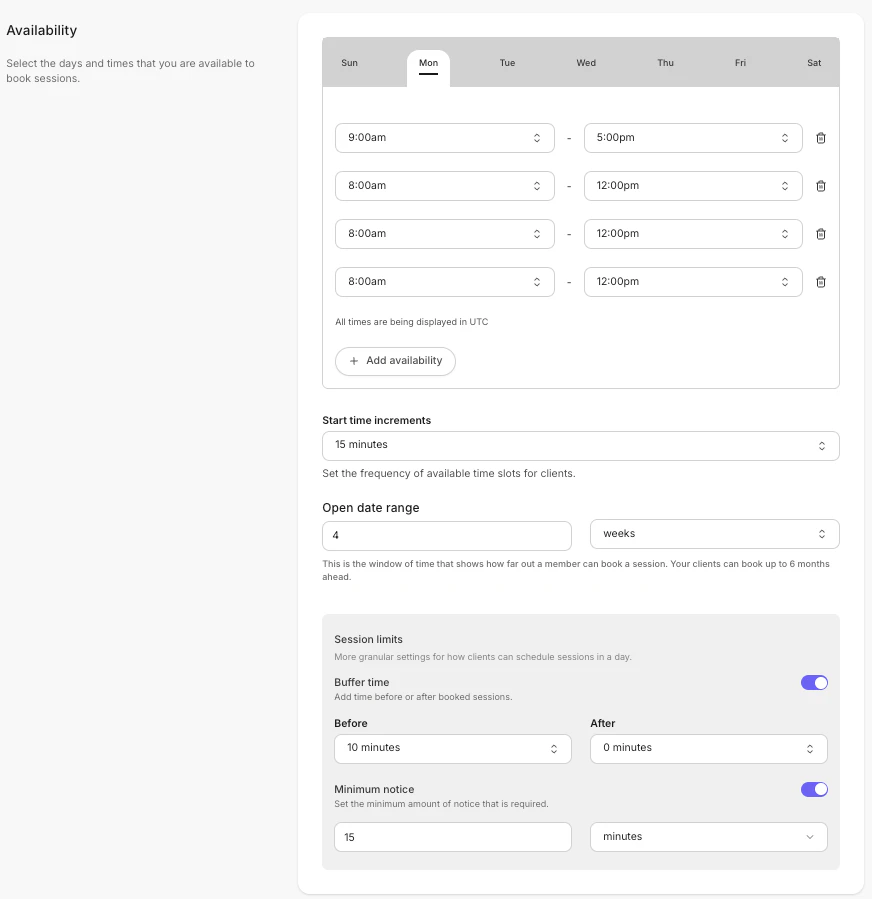 If desired, set a **Buffer time** for before or after booked sessions, and a **Minimum notice** amount of time that is required.
Below that, connect your **Calendar** or scheduling tool to check for conflicts and automatically add scheduled sessions to your personal calendar.
### Kajabi Live Recording, Additional purchases, and Notifications
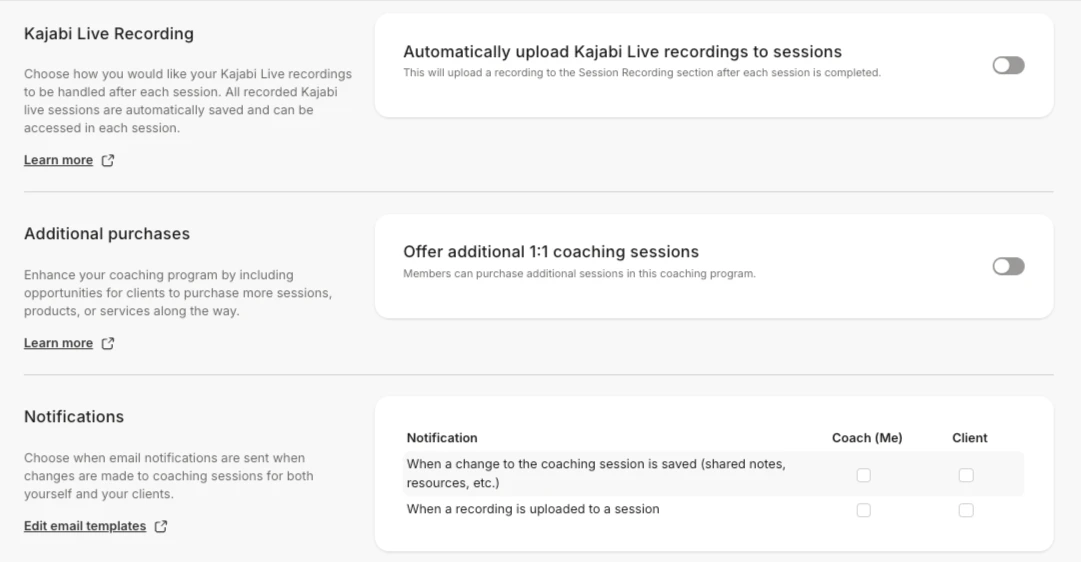
Choose whether to upload your **Kajabi Live Video** recordings to be handled after each session, add additional 1:1 coaching sessions for your members, and decide when email notifications are sent when changes are made to sessions (for both yourself and your clients).
If desired, set a **Buffer time** for before or after booked sessions, and a **Minimum notice** amount of time that is required.
Below that, connect your **Calendar** or scheduling tool to check for conflicts and automatically add scheduled sessions to your personal calendar.
### Kajabi Live Recording, Additional purchases, and Notifications
Choose whether to upload your **Kajabi Live Video** recordings to be handled after each session, add additional 1:1 coaching sessions for your members, and decide when email notifications are sent when changes are made to sessions (for both yourself and your clients).
 ### Clients
The Clients tab is where you can view your list of clients for your Coaching program and schedule their sessions, review their progress, their notes, and contact details:
### Clients
The Clients tab is where you can view your list of clients for your Coaching program and schedule their sessions, review their progress, their notes, and contact details:
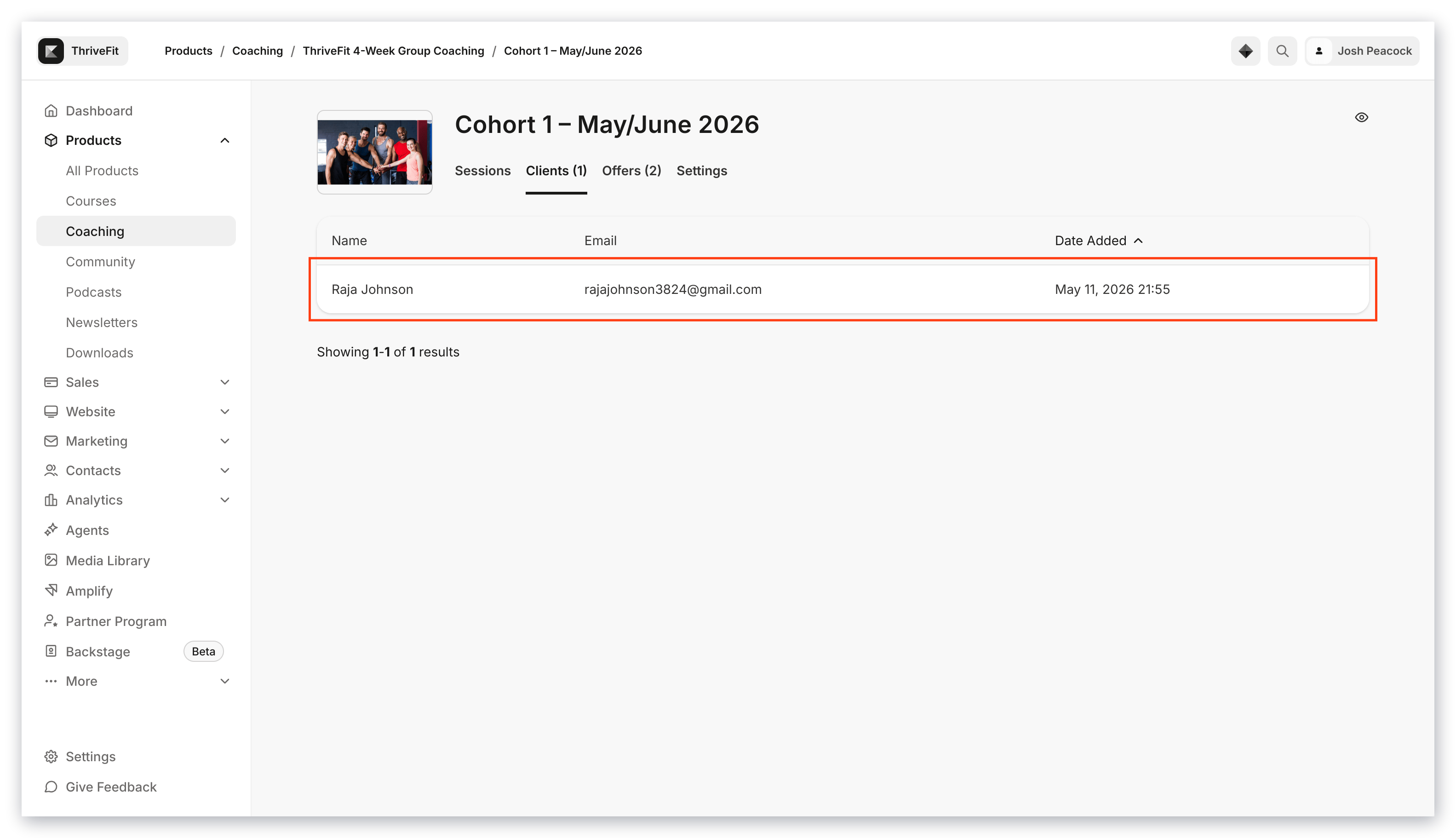 Click the **Name** of each client to schedule their sessions, add notes, upload session recordings, add specific agenda items, and mark a coaching session as complete.
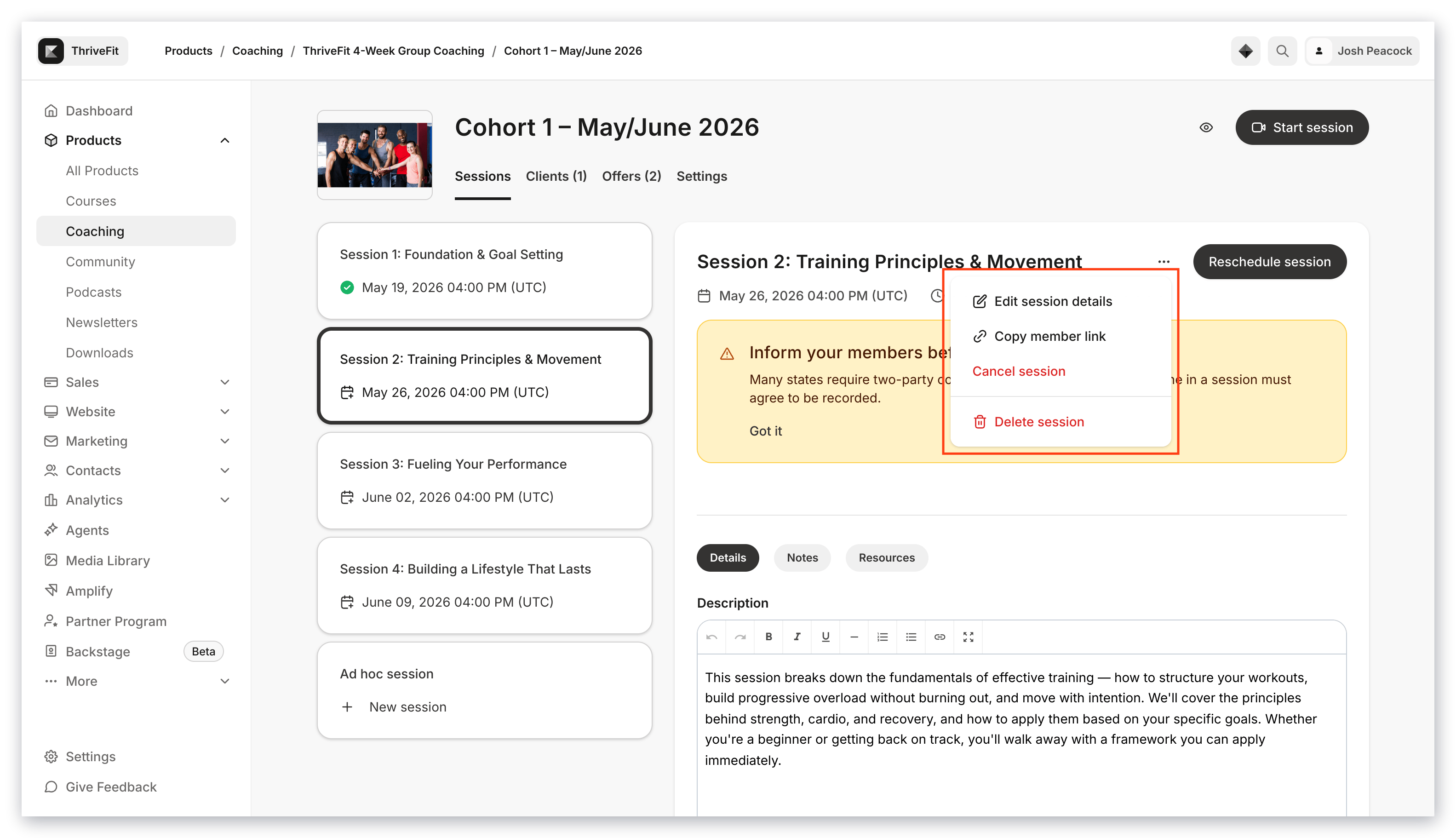
Within the Client view, you can use the **ellipsis menu** `…` to edit session details, such as session **Title, Schedule, Location,** and **Duration,** or copy the link that your member will use to access the coaching session so that you can send this link directly to them if needed:
Click the **Name** of each client to schedule their sessions, add notes, upload session recordings, add specific agenda items, and mark a coaching session as complete.
Within the Client view, you can use the **ellipsis menu** `…` to edit session details, such as session **Title, Schedule, Location,** and **Duration,** or copy the link that your member will use to access the coaching session so that you can send this link directly to them if needed:
 ## **Add Coaching sessions to a calendar**
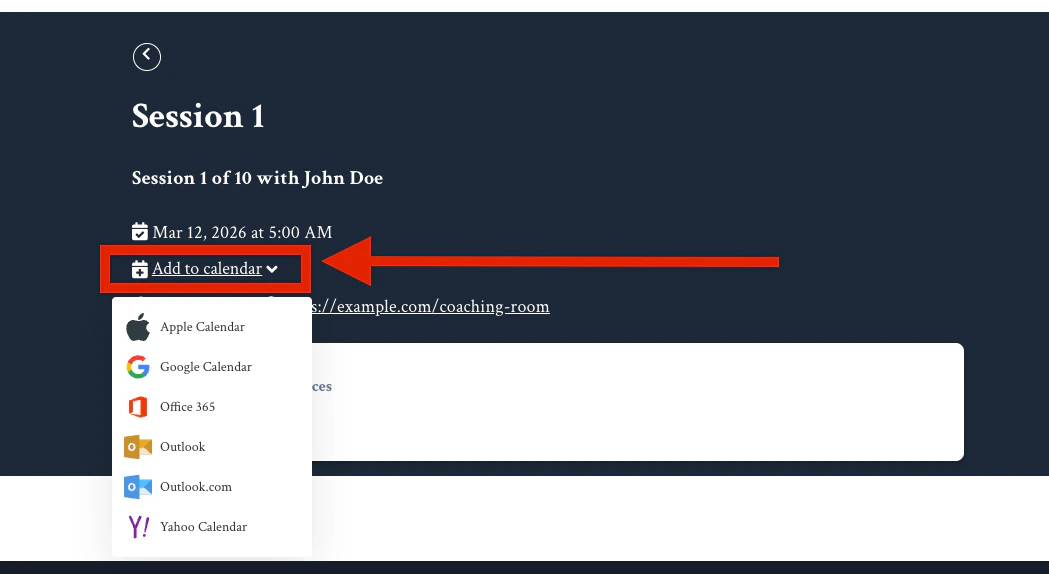
**Add to calendar** lets members save upcoming sessions to their personal calendar. Calendar links are automatically included in confirmation emails and displayed on member-facing pages.
## **Add Coaching sessions to a calendar**
**Add to calendar** lets members save upcoming sessions to their personal calendar. Calendar links are automatically included in confirmation emails and displayed on member-facing pages.
 ### **Where members see calendar links**
* **Coaching session emails** — Links appear alongside the existing ICS attachment
* **Member-facing Coaching pages** — Links are displayed on the session detail view
### **How calendar links work**
Each calendar link contains a secure, time-limited token tied to the Coaching session.
**Important:**
* Calendar links expire after **1 year** from generation
* **Add to calendar** is separate from Cronofy calendar sync, which handles coach availability and session booking. **Add to calendar** is for members saving confirmed sessions to their personal calendar
## Third-party scheduling and meeting resources
You can use the [Kajabi Scheduler](../../products/coaching/connect-the-kajabi-scheduler-to-your-coaching-product) to book your Coaching Sessions as well as [Kajabi's built-in live video](../../products/coaching/how-to-create-a-live-video-session) to meet with clients.
You can also use a third-party application for scheduling and meeting with clients, such as Calendly or Zoom.
**Note:** Set your Coaching program to Manual Booking or the Kajabi Scheduler to use Kajabi's **Built-in Live Video** to meet with your clients. [Learn more about live video sessions](../../products/coaching/how-to-create-a-live-video-session).
### Scheduling
* [Kajabi Scheduler](../../products/coaching/connect-the-kajabi-scheduler-to-your-coaching-product)
* [Calendly](../../products/coaching/connect-calendly-to-your-coaching-product)
* [Acuity](../../products/coaching/how-to-connect-acuity-to-your-coaching-product)
* [Google Calendar](https://support.google.com/calendar/answer/190998?co=GENIE.Platform%3DDesktop\&hl=en)
### Meeting (Video Conference, Chat, Webinar, etc.)
* [Kajabi's Built-in Live Video](../../products/coaching/how-to-create-a-live-video-session)
* [Zoom](https://zoom.us/)
* [Google Meet](https://apps.google.com/intl/en/meet/)
### **Where members see calendar links**
* **Coaching session emails** — Links appear alongside the existing ICS attachment
* **Member-facing Coaching pages** — Links are displayed on the session detail view
### **How calendar links work**
Each calendar link contains a secure, time-limited token tied to the Coaching session.
**Important:**
* Calendar links expire after **1 year** from generation
* **Add to calendar** is separate from Cronofy calendar sync, which handles coach availability and session booking. **Add to calendar** is for members saving confirmed sessions to their personal calendar
## Third-party scheduling and meeting resources
You can use the [Kajabi Scheduler](../../products/coaching/connect-the-kajabi-scheduler-to-your-coaching-product) to book your Coaching Sessions as well as [Kajabi's built-in live video](../../products/coaching/how-to-create-a-live-video-session) to meet with clients.
You can also use a third-party application for scheduling and meeting with clients, such as Calendly or Zoom.
**Note:** Set your Coaching program to Manual Booking or the Kajabi Scheduler to use Kajabi's **Built-in Live Video** to meet with your clients. [Learn more about live video sessions](../../products/coaching/how-to-create-a-live-video-session).
### Scheduling
* [Kajabi Scheduler](../../products/coaching/connect-the-kajabi-scheduler-to-your-coaching-product)
* [Calendly](../../products/coaching/connect-calendly-to-your-coaching-product)
* [Acuity](../../products/coaching/how-to-connect-acuity-to-your-coaching-product)
* [Google Calendar](https://support.google.com/calendar/answer/190998?co=GENIE.Platform%3DDesktop\&hl=en)
### Meeting (Video Conference, Chat, Webinar, etc.)
* [Kajabi's Built-in Live Video](../../products/coaching/how-to-create-a-live-video-session)
* [Zoom](https://zoom.us/)
* [Google Meet](https://apps.google.com/intl/en/meet/)