> ## Documentation Index
> Fetch the complete documentation index at: https://help.kajabi.com/llms.txt
> Use this file to discover all available pages before exploring further.

<AgentInstructions>

## Submitting Feedback

If you encounter incorrect, outdated, or confusing documentation on this page, submit feedback:

POST https://help.kajabi.com/feedback

```json
{
  "path": "/articles/products/coaching/how-to-create-breakout-sessions-with-kajabi-live-12695237",
  "feedback": "Description of the issue"
}
```

Only submit feedback when you have something specific and actionable to report.

</AgentInstructions>

# Create breakout sessions with Kajabi Live

> Encourage active learning and individual engagement with Breakout Rooms.

<Note>
  **Note:**
  This feature is available with Premium Video enabled and Group Coaching. If you do not see this setting, enable [Premium Video](../../products/courses/how-to-enable-premium-video) or create a [Group Coaching](../../products/coaching/group-coaching) Product.
</Note>

**Breakout Rooms** provide your customers with the opportunity to participate in small group discussions during your Kajabi Live sessions. By creating a space to engage with their peers in a more intimate environment, you can encourage deeper learning and participation among your clients.

## Create a breakout room

1. Open a Kajabi Live session (available in Group Coaching and Course Products). [Learn more about live video sessions](../../products/coaching/how-to-create-a-live-video-session)
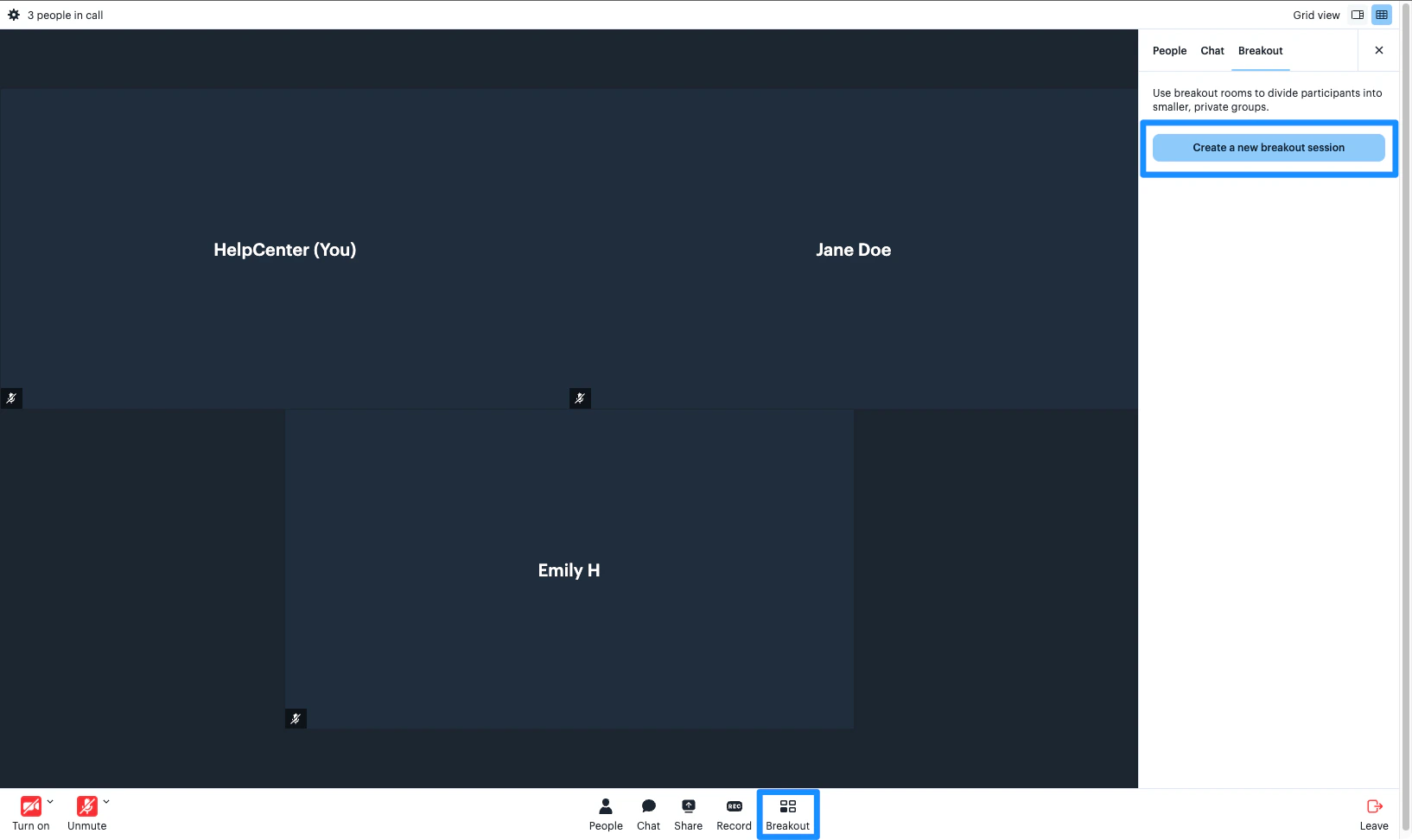
2. Click **Breakout** from your Kajabi Live control bar
3. Click **Create a new breakout session**

<img src="https://mintcdn.com/kajabi-support/c9qoPwTHAQHxkdRa/articles/images/582e29b1_19923369164187.png?fit=max&auto=format&n=c9qoPwTHAQHxkdRa&q=85&s=94c135f1b69b1fbf803971937296186d" alt="Create Breakout Session" width="1634" height="972" data-path="articles/images/582e29b1_19923369164187.png" />

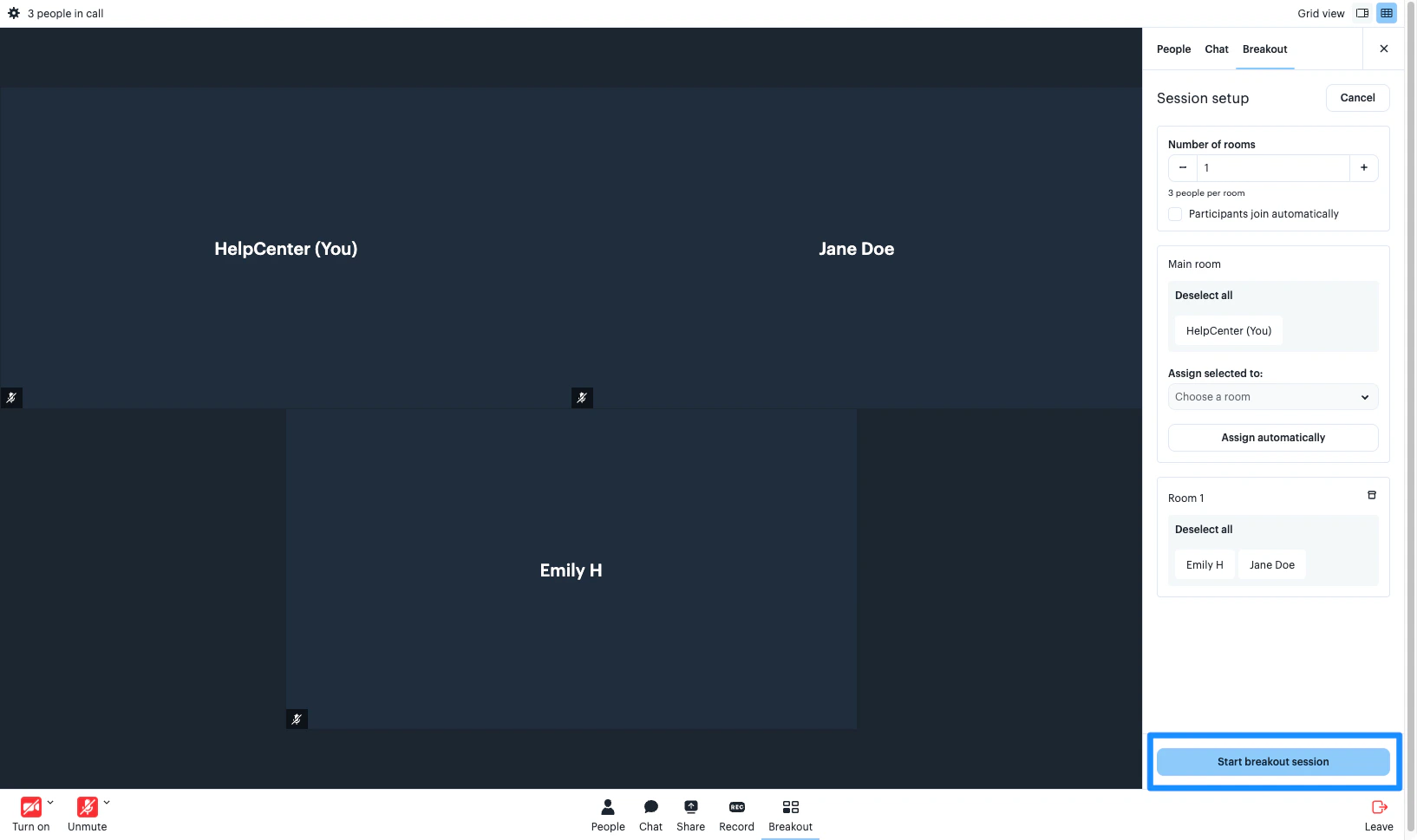
4. Customize your Breakout Room Settings:
   * Edit the number of rooms
   * Select **Participants join automatically** to have your attendees join the breakout rooms as soon as you click **Start breakout session**
   * Assign your attendees to the breakout rooms. [Learn more about assigning attendees](#assign-attendees-to-breakout-rooms)
5. When you are ready to begin your breakout rooms, click **Start breakout session**
<Note>
  **Note:**
  Breakout rooms cannot be recorded. Starting your breakout session will end your recording. If you want to continue recording after the breakout session, you will need to click **Record** to begin a new recording.
</Note>

<img src="https://mintcdn.com/kajabi-support/c9qoPwTHAQHxkdRa/articles/images/52de0600_42460026037787.png?fit=max&auto=format&n=c9qoPwTHAQHxkdRa&q=85&s=2ff5bb2ea4197367d032de1f1b2ebb20" alt="Breakout Room Settings" width="1634" height="969" data-path="articles/images/52de0600_42460026037787.png" />

## End a breakout session

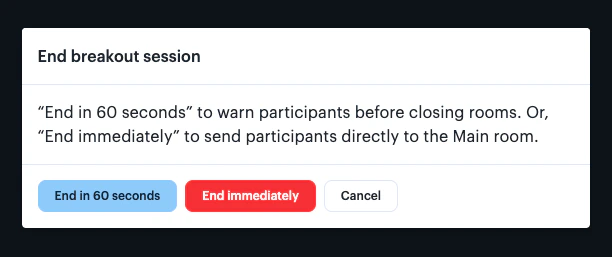
When you are ready to end the breakout session, you can warn your clients that the session is coming to an end or end it immediately:
<img src="https://mintcdn.com/kajabi-support/dcD7YxiS5O6RZ8v2/articles/images/3fa1e3e9_42465844571803.png?fit=max&auto=format&n=dcD7YxiS5O6RZ8v2&q=85&s=19e14041d20b90f3b86d795cb440b57d" alt="End Breakout Session" width="612" height="257" data-path="articles/images/3fa1e3e9_42465844571803.png" />

<Note>
  **Note:**
  Breakout sessions cannot be recorded. Starting a breakout session will end your recording. If you want to continue recording after the breakout session, you will need to click **Record** to begin a new recording. Your recordings will be uploaded and shared as separate files. If you have set up your Course Product to create a lesson for your recording, the recordings will create separate lessons for each file.
</Note>

## Assign attendees to breakout rooms

Breakout rooms in Kajabi Live allow you to manually assign or automatically assign attendees to a designated breakout room.

### Manually assign

1. Open the **Breakout** settings from your Kajabi Live control bar
2. Customize the number of breakout rooms
3. Locate an attendee you wish to assign
4. Click and hold the attendee's name, then drag it to your desired breakout room
5. Repeat for all of your attendees

<div className="w-full aspect-video">
  <iframe src="https://fast.wistia.net/embed/iframe/2htaq7aiie" allow="autoplay; fullscreen" allowFullScreen className="w-full h-full" />
</div>

6. Click **Start breakout session** when you are ready to separate your attendees into small group discussions

### Automatically assign

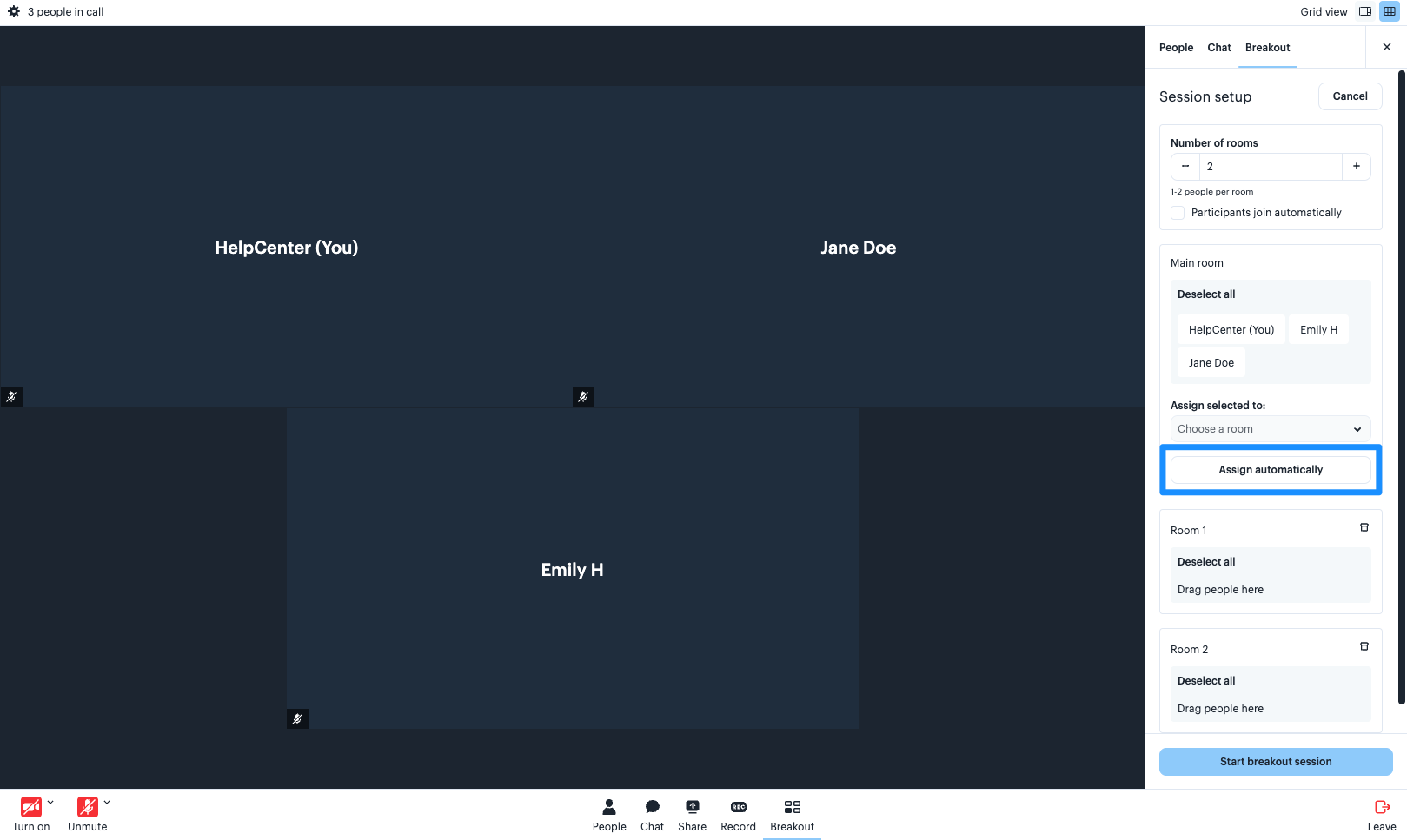
1. Open the **Breakout** settings from your Kajabi Live control bar
2. Customize the number of breakout rooms
3. Click **Assign automatically**

<img src="https://mintcdn.com/kajabi-support/CM-okGX-0K4XYDbT/articles/images/587d1b0b_42465744020379.png?fit=max&auto=format&n=CM-okGX-0K4XYDbT&q=85&s=65adb423ce071ed963fe0bbb8ed85ae0" alt="Assign Automatically" width="1619" height="967" data-path="articles/images/587d1b0b_42465744020379.png" />

4. Click **Start breakout session** when you are ready to separate your attendees into small group discussions
