> ## Documentation Index
> Fetch the complete documentation index at: https://help.kajabi.com/llms.txt
> Use this file to discover all available pages before exploring further.
# Community moderation tools
> Review, approve, hide, and lock posts to keep your Community safe and organized.
**Moderation Tools** give you full control over what appears in your Community. You can review posts before they're published, hide inappropriate content, lock conversations, and track every moderation action in a complete audit log.
This helps you maintain a safe, high-quality experience for your members.
## Key benefits
* **Review posts before publishing** to prevent inappropriate content from appearing
* **Hide or lock posts instantly** to manage conversations in real time
* **Require post approval for specific members** who need closer moderation
* **Track all moderation actions** in a full audit log
* **Assign channel-based moderators** for flexible Community management
## Use moderation tools in Community
### Who can moderate
The level of moderation access depends on the teammate's role:
* **Leader (Community owner)**: Full access to all moderation features
* **Admin**: Full access to all moderation features
* **Assistant**: Full access to all moderation features
* **Moderator**: Can only moderate content in Channels they are a member of
Regular members do not see any moderation controls.
**Important:** Moderators are Channel-scoped. They can only see and act on content in channels they belong to. Leaders, Admins, and Assistants can see all Channels.
## Review Feed
The **Review Feed** is the central dashboard for moderation activity.
To access it:
1. Go to your Community.
2. Click **Review Feed** in the left sidebar.
The Review Feed includes four tabs:
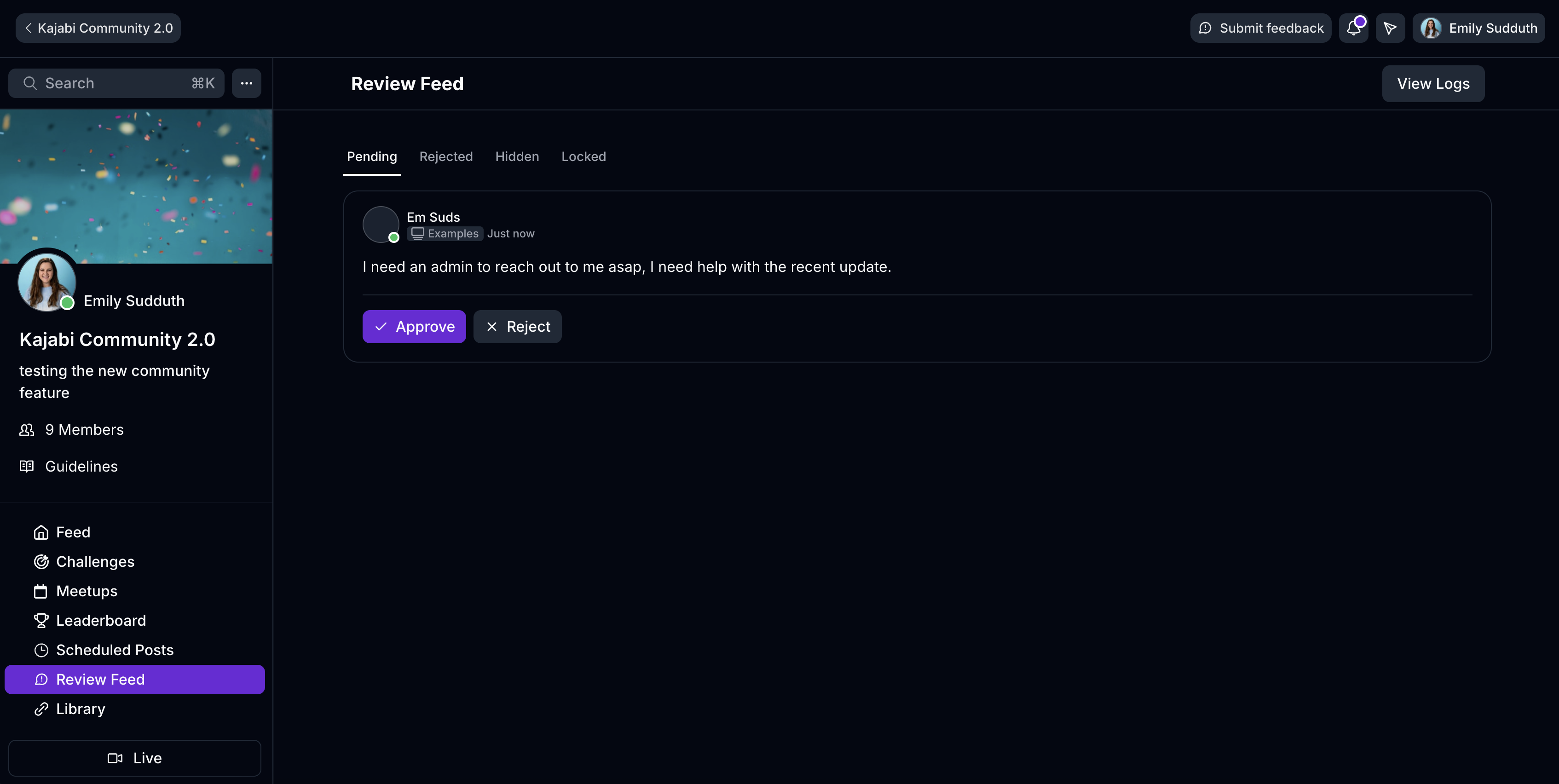 ### Pending
Posts waiting for review.
* Click **Approve** to publish the post to the Feed.
* Click **Reject** to keep the post out of the Feed.
### Rejected
Previously rejected posts.
* You can still approve a rejected post if you change your decision.
### Hidden
Posts manually hidden by a Moderator.
* Hidden posts can be restored later.
### Locked
Posts that are locked from receiving comments.
### Post-level moderation actions
When Moderation Tools are enabled, Moderators see additional options in the three-dot menu on posts.
### Pending
Posts waiting for review.
* Click **Approve** to publish the post to the Feed.
* Click **Reject** to keep the post out of the Feed.
### Rejected
Previously rejected posts.
* You can still approve a rejected post if you change your decision.
### Hidden
Posts manually hidden by a Moderator.
* Hidden posts can be restored later.
### Locked
Posts that are locked from receiving comments.
### Post-level moderation actions
When Moderation Tools are enabled, Moderators see additional options in the three-dot menu on posts.
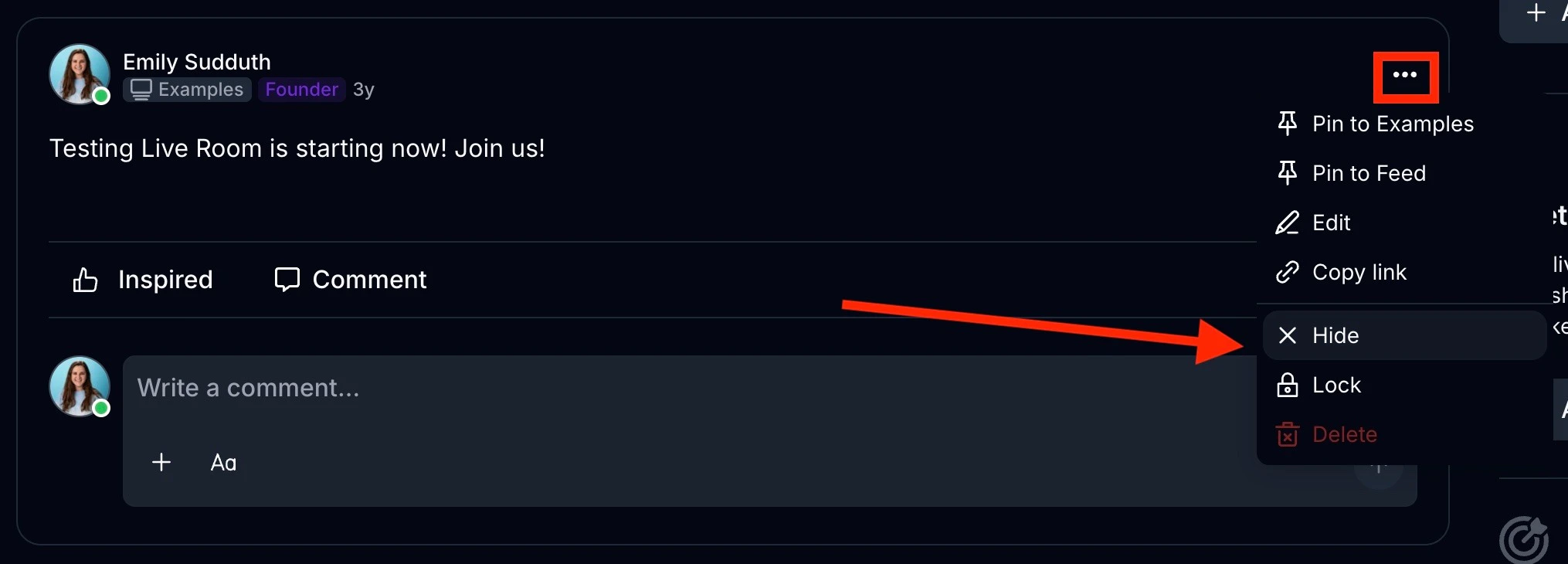 ### Hide a post
1. Click the **three-dot menu** on a post.
2. Select **Hide**.
3. Confirm in the dialog box.
The post:
* Is removed from the Channel feed
* Moves to the **Hidden** tab in the Review Feed
* Can be restored later
**Note:** Hiding is reversible. Hidden posts remain accessible in the Hidden tab.
### Lock a post
1. Click the **three-dot menu** on a post.
2. Select **Lock**.
The post:
* Remains visible in the Feed
* Prevents new comments or replies
* Keeps existing comments visible
### Unlock a post
1. Click the **three-dot menu** on a locked post.
2. Select **Unlock**.
Comments and replies are re-enabled.
### Require post approval for a member
You can require approval for all posts from a specific member. When enabled, their posts must be approved before appearing in the Feed.
This is useful if a Member has previously posted inappropriate content.
### Hide a post
1. Click the **three-dot menu** on a post.
2. Select **Hide**.
3. Confirm in the dialog box.
The post:
* Is removed from the Channel feed
* Moves to the **Hidden** tab in the Review Feed
* Can be restored later
**Note:** Hiding is reversible. Hidden posts remain accessible in the Hidden tab.
### Lock a post
1. Click the **three-dot menu** on a post.
2. Select **Lock**.
The post:
* Remains visible in the Feed
* Prevents new comments or replies
* Keeps existing comments visible
### Unlock a post
1. Click the **three-dot menu** on a locked post.
2. Select **Unlock**.
Comments and replies are re-enabled.
### Require post approval for a member
You can require approval for all posts from a specific member. When enabled, their posts must be approved before appearing in the Feed.
This is useful if a Member has previously posted inappropriate content.
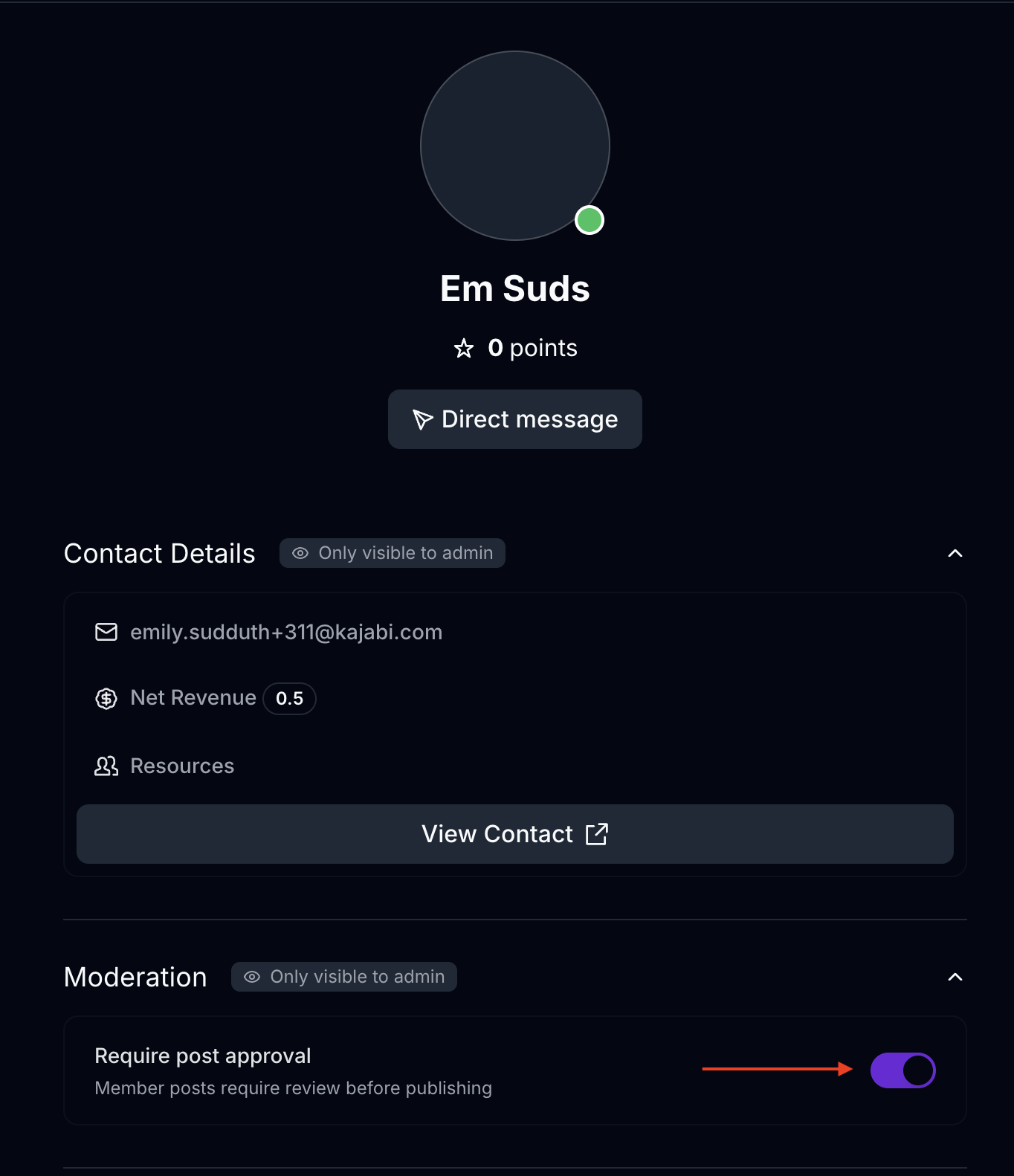 To enable **Require post approval**:
1. Go to the Member's profile.
2. Open the **Moderation** section.
3. Toggle **Require post approval** on.
When enabled:
* All posts from that Member go to the **Pending** tab in the Review Feed
* Posts are not visible in the Channel until approved
**Important:** Require post approval is set per User, per Community. You must enable it individually on each Member's profile.
### View moderation logs
Moderation Logs provide a complete audit trail of all moderation activity.
To access logs:
1. Go to the **Review Feed**.
2. Click **View Logs** in the header.
The logs display:
* **Actions tracked:** hide, unhide, lock, unlock, approve, reject
* **Filters available:** action type, date range
* **Details shown:** moderator name, action taken, timestamp, affected content
**Tip:** Use Moderation Logs to answer "Who hid this post?" or "Who locked this thread?". The full history is recorded.
### What members experience
When moderation tools are used, Members see the following:
* **Pending posts:** Submitted but not visible until approved. Members do not receive a notification that their post is pending.
* **Hidden posts:** Disappear from the Channel feed.
* **Locked posts:** Remain visible, but the reply/comment input is disabled.
* **Rejected posts:** Do not appear in the Channel feed.
### Platform availability
**Important:** The moderation dashboard is available on web only. Mobile members can report users, but the **Review Feed** and moderation actions (hide, lock, approve, reject) are only available on web.
## FAQs
### Can I use these moderation tools in the Kajabi Mobile or Branded App?
Yes. The moderation tools are available when you sign in to the app with your admin email. Make sure your app is on the latest version to see these options (4.7.0 or higher for Android and iOS)
### Can moderators see all channels?
No. Moderators can only see and moderate content in Channels they belong to. Leaders, Admins, and Assistants can access all Channels.
### Can a hidden post be restored?
Yes. Hidden posts appear in the **Hidden** tab in the Review Feed and can be restored at any time.
### What happens when a post is locked?
The post remains visible. Existing comments stay visible, but comments and replies are disabled until the post is unlocked.
### Does a member know if their post is pending approval?
No. Members do not receive a notification when their post is pending approval.
### Is Require post approval automatic for all members?
No. It must be enabled individually on each Member's profile and applies per Community.
### Where can I see who performed a moderation action?
Open the **Review Feed** and click **View Logs** to see the complete audit trail, including Moderator name, action taken, and timestamp.
To enable **Require post approval**:
1. Go to the Member's profile.
2. Open the **Moderation** section.
3. Toggle **Require post approval** on.
When enabled:
* All posts from that Member go to the **Pending** tab in the Review Feed
* Posts are not visible in the Channel until approved
**Important:** Require post approval is set per User, per Community. You must enable it individually on each Member's profile.
### View moderation logs
Moderation Logs provide a complete audit trail of all moderation activity.
To access logs:
1. Go to the **Review Feed**.
2. Click **View Logs** in the header.
The logs display:
* **Actions tracked:** hide, unhide, lock, unlock, approve, reject
* **Filters available:** action type, date range
* **Details shown:** moderator name, action taken, timestamp, affected content
**Tip:** Use Moderation Logs to answer "Who hid this post?" or "Who locked this thread?". The full history is recorded.
### What members experience
When moderation tools are used, Members see the following:
* **Pending posts:** Submitted but not visible until approved. Members do not receive a notification that their post is pending.
* **Hidden posts:** Disappear from the Channel feed.
* **Locked posts:** Remain visible, but the reply/comment input is disabled.
* **Rejected posts:** Do not appear in the Channel feed.
### Platform availability
**Important:** The moderation dashboard is available on web only. Mobile members can report users, but the **Review Feed** and moderation actions (hide, lock, approve, reject) are only available on web.
## FAQs
### Can I use these moderation tools in the Kajabi Mobile or Branded App?
Yes. The moderation tools are available when you sign in to the app with your admin email. Make sure your app is on the latest version to see these options (4.7.0 or higher for Android and iOS)
### Can moderators see all channels?
No. Moderators can only see and moderate content in Channels they belong to. Leaders, Admins, and Assistants can access all Channels.
### Can a hidden post be restored?
Yes. Hidden posts appear in the **Hidden** tab in the Review Feed and can be restored at any time.
### What happens when a post is locked?
The post remains visible. Existing comments stay visible, but comments and replies are disabled until the post is unlocked.
### Does a member know if their post is pending approval?
No. Members do not receive a notification when their post is pending approval.
### Is Require post approval automatic for all members?
No. It must be enabled individually on each Member's profile and applies per Community.
### Where can I see who performed a moderation action?
Open the **Review Feed** and click **View Logs** to see the complete audit trail, including Moderator name, action taken, and timestamp.